Dell Venue 8 Pro Review: the latest Active Stylus helps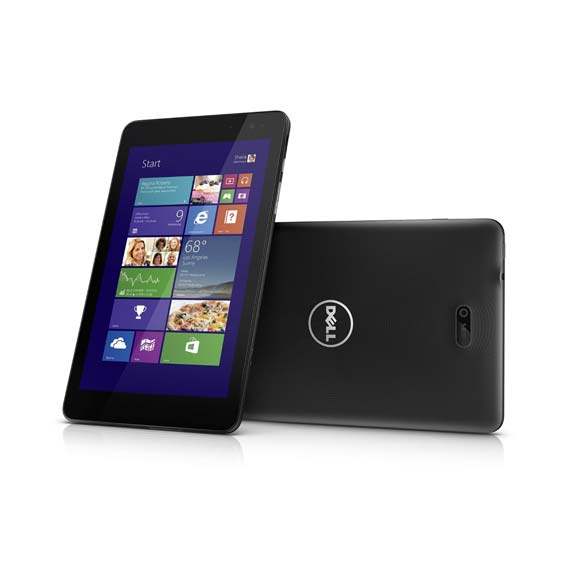
by Tablets for Artists
UPDATE: Dell has refreshed this line with a new Dell Venue 8 Pro and Dell Venue 10 Pro that both have Wacom ES. Please see this post about the New Venue Pros and pens.
Type of Tablet
The Venue 8 Pro is a Windows 8.1 tablet. It offers both touch and pen input.
Just to be clear, what we are reviewing is the 5830, part of the 5000 line. The “newer” Venue 8 Pro, the 3000, doesn’t offer a digitizer (so has no pressure sensitivity). Nor does the plain old non-Pro Venue 8, which is an Android tablet. Some sites are selling the 3000 line but not making it clear that that one lacks the digitizer. Some also sell the 5830 without making it clear that it HAS the digitizer. If it says the 5000 line, it’s OK even if it doesn’t specify it’s a 5830. If you’re unsure which Venue tablet you’re seeing, check with the seller.
There is a 32GB and 64GB model, the 64GB will do you more good; Windows alone takes up substantial RAM.
For Lefties
It’s fine for left-handers, though the Windows button is on the top right edge.
Features
Intel Bay trail Atom Z3740D processor (quad core)
2GB memory
64 GB hard drive (there’s also a 32GB model)
32-bit
8″ HD display 8.0 (WXGA 1280 x 800)
Used with Dell Active Stylus (optional; not included)
Multitouch touchscreen with 10-pt capacitive touch,
Two cameras (5 MP rear-facing, 1.2 MP front)
Can take MicroSD, SDHC and SDXC memory cards of up to 128GB
includes MS Office Home and Student edition
Micro USB port (just one)
8.50 x 5.12 x 0.35 inches
weight 13.9 oz. (395 g), thickness about 3/8″ (9mm)
Windows 8.1 (32 bit, as is normal for this size tablet)
Bluetooth 4.0
Palm rejection
Color: Black
Supports Miracast wireless tech, which lets you stream to TV even if you don’t have local wifi. does not have HDMI, you’d have to buy an HDMI adapter (or see the cool Plugable dock below, under Optional Accessories) if you want to beam images from tablet to TV.
Does not come with GPS. You would have to use a GPS app; there are free ones.
Since the stylus is optional and not included, there’s no silo for it in the tablet.
The Windows button is on the top right edge instead of on the front, so that’s something unusual that takes some getting used to; it’s not a bad thing, because the button isn’t in the way of anything you’re doing.. The back has a ridged texture, and feels rubberized and not that rigid, making the tablet easy to grip. The texture also keeps fingerprints away. The bezel doesn’t cover much of the screen. The tablet has a pleasing design and for the price, the materials and build are of high quality.
Intel Bay Trail Atom processors are much faster than the older Atoms, and for ordinary use, the 8 Pro runs without hiccups. You can use programs like Photoshop and Manga Studio 5, but some CPU-havey effects and filters may lag. We recommend the 64GB model over the 32GB; Windows alone takes up substantial RAM.
Here’s info from Wikipedia on Atom processors.
Portability
At 13.9 oz and slightly under 3/8″ thick, it’s compact, thin, and easy to tote.
What’s Included
The tablet, micro USB cord, wall charger, quickstart guide, registration/warranty info. Stylus not included.
Screen
The 1280×800 resolution with a pixel density of 200ppi is decent for a screen this size, though it’s not the highest. (Compare it to the iPad retina at 264ppi, though 240 could also qualify as Retina; the original iPad and iPad2 had a ppi of only 132). The Venue 8 Pro’s IPS screen offers good viewing angles. The colors are bright in the Dell, and at this screen size, the display is fine for reading, drawing, and video.
The previous issue of the light sensor defaulting to too dim a setting has been fixed via a firmware update. allows you to tap, slide, swipe, pinch
The palm rejection works well; the screen senses when you are holding the pen.
The on-screen keyboard has frustrated some users, as it will sometimes be oversensitive and do things like type extra characters.
Dell Active Stylus

Dell Active Stylus A03: ta-daa!
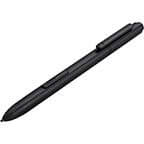
At 0.4 in. thick x 5.7 in, this is thicker than the average wood pencil, so is really is more of a pen than a stylus, but Dell calls it a stylus. I’ll call it a stylus pen. It has a fine, 1mm tip and two buttons that you can use to erase, click, and highlight.
The digitizer uses Synaptics technology, which is closer to N-trig than to Wacom, and like N-trig, there are 256 levels of pressure sensitivity. Dell active stylii are metal and take a single AAAA battery, which should last about a year with regular usage.
The stylus pen is not included with the tablet, and there is no set place on or in the tablet to store it. You could try getting creative with Velcro.
The Dell Active Stylus has quite a saga. The first two versions had issues with ghosting and leaving trails and were met with many complaints. Though firmware updates fixed some problems in the second pen, problems remained. The latest pen is a huge improvement. This new pen, the AO3, is silver and gray; the previous two were all-black. Odd as it may sound, the new stylus uses Wacom technology, and works with the Venue Pro 8, the Venue Pro 10, and the Venue Pro 11.
The Dell part no. for the A03 is 750-AAGN.
You will not be able to use other Wacom pens, or the N-trig pen, with the Venue Pro line; only the Dell Active Stylus. You can, however, use a capacitive stylus (like an iPad stylus) or even finger paint on the Venues.
The Dell Active Stylus pen works with the Venue 8 Pro (5830, the one we’re reviewing here), the Venue 11 Pro (5130, 7130, 7139, 7140), and Latitude 2-in-1 7000 Series (7350). It will not work with other tablets regardless of model or brand.
Battery life
Excellent; up to 10 hours.
Controls
Buttons and volume rocker are on the side. Accelerometer lets you switch from portrait to landscape.
Software
You can put any Windows 8.1-compatible software on. It comes with 2013 MS Home and Student Office.
Customer Reviews and Ratings
The Venue 8 Pro has been generally favorably received. But, some have had negative experiences, such as having the tablet fail, or problems with the charger not fitting well into the micro USB. The old stylus was a major source of problems, too. One positive Dell Venue 8 Pro review praised it as a tool for both content creation and consumption. Many praised both its design and performance.
Pros
Excellent battery life
bright screen with good viewing angles
Good handwriting recognition; will convert handwriting to text
Bluetooth
Multitasking
Fast
Nice materials and build for the price
Cons
On-screen keyboard buggy for some people
Iffy USB port and charger, with some people saying the shipped chargers did not fit into the USB socket the right way, resulting in broken pins. Some are saying it’s a Micro A charger with a Micro B cable and others are saying it’s a Micro AB charger that takes an A or B cable. I will provide an update if I can get a definite answer. Do not try to force the charger. If you have problems, contact Dell.
Customer Service
I did several chats to confirm information, and it was a combination of pleasant (they’re very polite) and frustrating (they’re not that well informed, but no worse than at other computer companies). Customers with complex issues have reported some pretty serious problems, including language barriers, and being transferred from rep to rep for hours. Others had positive interactions. So, service is inconsistent. There is both Dell Home and Dell Small Business, and you should remember which one you purchased from, as the two arms don’t always communicate with each other. There is a lack of detailed information on the site in general. The Dell Community forum can be helpful, and Dell does answer questions there.
Newer in town: The Dell Venue Pro 10 and
Dell Venue Pro 11
Dell Venue 8 Pro vs. Dell Venue Pro 11
The Dell Venue 11 Pro 7000 is a high-end Windows tablet with a larger, 10.8″ Windows tablet with a more powerful processor, one you would find in a laptop, up to Intel Core 5. It boasts a full HD screen at 1920 x 1080p. It has an HDMI port. Dell calls it “three devices in one,” meaning a tablet, an Ultrabook, and desktop (when used with the keyboard). It’s certainly not the only device you could call a 3-in-1.
(Note: An Ultrabook is a high-end Intel-powered subnotebook. A subnotebook is a notebook that’s thinner and lighter than a laptop.)
The Dell Venue 10 Pro is aimed at the academic market and has a detachable keyboard, a multitouch, high-res screen, and an Atom processor.
All these use the Dell Active Stylus and have pressure sensitivity.
The Verdict
It’s got a lot of great qualities at an affordable price, and artists can use it as a digital sketchbook; it doesn’t take the place of a Cintiq or full-fledged tablet PC. But it’s more versatile than an Android tablet, and it’s fast. It doesn’t have an extremely high-res screen, but for this size tablet it’s not a big issue–I would not use this size for my main drawing tablet. On the downside, there are some potential bugs, as noted, with the on-screen keyboard and the USB port; not everyone will have these problems. Like the Surface Pro 3, the Venue 8 Pro has 256 levels of pressure sensitivity, not as many as Wacom tablets, but it doesn’t make an enormous difference. The build quality, speed, price, and improved stylus make this a nice little portable art tool, as long as you don’t run into the aforementioned problems.
It’s comparable in price and overall functionality to the Asus VivoTab 8 and the Toshiba Encore 2 Write. (Click the links to read our reviews.)
Optional Accessories
(Again), the newest Active Stylus.
Startech Micro USB to USB Adapter
IVSO Bluetooth Keyboard Portfolio Case, made especially for the Dell Venue 8 Pro.
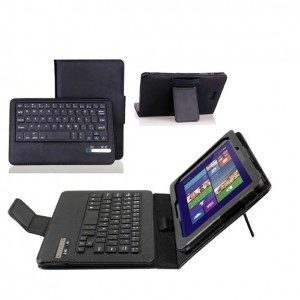
Also, the Fintie Stand Cover with Detachable Keyboard.
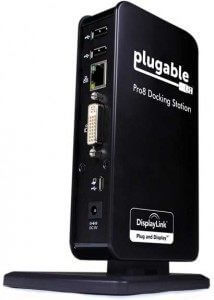
This Plugable docking station, which came to life via Kickstarter, allows you to charge your tablet and attach various USB and other devices, including HDMI. It’s about 6″ tall. Reviews are positive.
Here’s a video by Plugable:
https://youtu.be/V232eL-YV38
End of Dell Venue 8 Pro review