Author Archives: Vicky

About Vicky

I'm an author and illustrator who has used drawing tablets since the early days. I love how flexible and forgiving they make everything. I'm also fascinated by the technology. I started this site to bring knowledge to everyone. I want this to be the only place you need to go to learn about drawing tablets.

Finding the Best iPad Case Part 2: What to Look for in a Rugged Case

Finding the Best iPad Case, Part 2: What to Look for in a Rugged Case

by Tablets for Artists

best ipad case

“Let’s switch to FaceTime!”

IPads are used in the military for everything from logistics to chatting with family back home. IPads get knocked about in deserts, jungles, and Jeeps, in extreme dust, in freezing and hot temperatures, and they see action like few back home ever see. Many iPad cases for sale are made to military-grade standards.

But civilians have bumpy lives too. They travel. Their kids treat iPads like bouncing balls. And face it, everyone is a klutz at least some of the time. A military-grade case can be the best iPad casefor active people.

Companies have responded to the challenges the active lives of iPad owners by making tank-like containers that seal in the device so it’s snug as a bug. Some of these are waterproof or water-resistant, dust-proof and drop-proof to a certain height, and some have hand or shoulder straps. Not all rugged cases have everything. Try to think of features you can and can’t live without.

Before purchasing a rugged iPad case, consider:

Weight. How much weight does it add?

Screen clarity. Does it come with a screen protector that lets you use the screen? Does the screen protector protect from spills? Is it removable? Is it sensitive to your touch, or do you have to press hard to get it to work? Try pressing the buttons. Try it with a stylus.

Is it waterproof? Water-resistant?

Does it have a wake/sleep mechanism? Most covers have magnets that do this.

Holding it. Does it have handy features such as a belt that you could attach to a hand, arm, or leg? Not everyone would use this, but if you’re out in the field, or a teacher giving a talk who uses the iPad to refer to notes, this feature can be useful. Or maybe it has a shoulder strap?

Grip. Does the grip slip?

Stand. Does it have a stand? Does it work in several positions and the two modes, portrait and landccape? Many stands are landscape-only.

If it has a built-in screen protector, can you still use your own, at the same time? Or as a replacement?

Protection. How is the padding, screen protection, corner protection?

Cutouts. all ports, plugs, and cameras accessible? Does the case protect the ports?

Mic. Is the mic blocked?

Appropriateness for your iPad. Is the ambient light sensor and retina functions working with the case, if they are supposed to?

Materials.  Most cases are made from materials such as silicone, hard polycarbonate,  or TPU (a soft plastic), rubber, or siliconized rubber. Some say silicone, though more flexible, can attract dust because it picks up electrical charges. TPU is harder but easier to clean. Pure rubber is natural. None of these are better in quality than the others, it’s just personal preference. Many durable, rugged cases combine hard and soft materials.

Fit. Is it easy to install and remove the iPad?

Features. Is there something you really need–a keyboard? Would it need to be built-in, or could you use a separate one? If you’re an artist, maybe the best iPad case for you has a notepad and pen loop.

Safety and wear and tear. Does it have little pieces that could break off? This is particularly important if you have children, as it could be a safety issue.

Price. Some are fairly expensive, but there are some affordable ones that work almost as well. The best iPad case for your lifestyle isn’t always the most costly one. A lot goes into these cases and getting the details right. Sometimes some batches will not fit iPads as well as others. In that case, using a company with good customer service will matter, in the event of a problem.

Customer Service: Is the manufacturer reputable and responsive?

Remember:

Check to make sure which iPad model you have and that your case is right for this model. There can be subtle differences in iPads even if they almost the same.

CLEAN your iPad screen before putting it into a screen protector.

By considering all these points, whether you decide you need a rugged case or not, you can find the perfect iPad case for your life.

Read our reviews of five of the best rugged cases.

Browse rugged iPad cases on Amazon.

end of Finding the Best iPad Case, Part 2: What to Look for in a Rugged Case


Monoprice Tablet review, 10 x 6.25″ : A budget tablet pick


Monoprice Tablet Review: 10 x 6.25″ Graphic Drawing Tablet

by Tablets for Artists

monoprice tablet review


TYPE OF TABLET

The Monoprice Tablet is a graphics tablet. It attaches to a computer via USB 2.0. You draw on the tablet and see your art on the computer screen. This review is of the 10 x 6.25″ model.


OVERVIEW

The Monoprice tablet offers many features a Wacom does but is much more affordable, making it good for beginners and students ,and artists on a budget. Its stylus requires a single AAA battery (included).

Monoprice graphics tablets do not have a touch function, nor do they have the capacity to sense tilt and rotation like the high-end Wacom tablets do. While these features can be useful, not every artist uses them, and only some Wacom pens and tablets have these features.

The Monoprice tablet has the same high, 2,048 levels of pressure sensitivity as the newer Wacoms and other premium tablets.

The Monoprice isn’t shoddy, but, unsurprisingly, it’s not as solidly built as the most high-end graphics tablets. Still, with normal use, it won’t fall apart on you.

WHAT’S IN THE BOX

Tablet

Wireless pen, AAA battery for pen, pen holder, 4 replacement nibs, pen clip tip-removal tool

Mini USB cable (4.9ft/1.5m)

Drivers and software CD

User’s manual

FOR LEFTIES

There are 6 buttons go along the left. The latest set of Windows drivers (v 9.0 driver) allows you to flip the tablet to move them to the right.

Note: The newest set of drivers for Windows (v. 9.0, linked below) features the ability to flip the tablet so that the Express Keys are on the right side.


DRIVERS DOWNLOAD PAGE

You may download the drivers as well as user Manuals from this page on the Monopricesite.

The drivers are for Windows XP and later, and Mac 10.4 and later.

The tablet is Linux-capable but doesn’t offer Linux drivers.

FEATURES

2,048 levels of pressure sensitivity
drawing area of 10 x 6.25 with a widescreen aspect ration of 16:10
6 programmable express keys on the left
16 preset hotkeys along the top
4000 LPI resolution
200 RPS report rate (determines how often information is sent to the tablet)

Note: the Amazon listing for this mistakenly calls it the 8 x 5″ model, but the specs other than the size are accurate for the 10 x 6.25.”

PORTABILITY

It weighs 2.5 lbs, fairly portable.

STYLUS

The stylus is a little flimsy and it’s worth it to buy the better one. Users trying to insert a new battery often had trouble getting the battery lead to make contact with the battery. The AAA battery that comes with the pen is not always fresh, so you may need to replace it right away.

TIPS: When inserting a new the battery, be careful that the battery and contact area in the pen barrel are matching correctly, and do not bend the metal strip inside the pen. To open the pen that comes with the tablet, pull the pen apart.

As a replacement pen, many users recommended buying this Monoprice pen, which is very affordable.


monoprice stylusIt’s lighter weight and thinner than the one that comes with the tablet. This pen unscrews. The build is sturdier and the battery replacement is less hairy, though the innards are still not as sturdy as they should be. A fairly comment complaint problems when screwing or unscrewing the two pieces to put in or take out a battery. Also, the buttons are a bit hard to find.

Both pens have programmable buttons. Neither has an eraser tip. To erase, use your art program’s eraser tool.

The nibs for these pens may wear down quickly, depending how hard you press. The plastic sheet over the tablet protects the nibs some, but you may prefer lifting the sheet when drawing, exposing the tablet’s textured surface, which wears down the nibs faster. You can purchase inexpensive Monoprice replacement nibs that will fit both. They come 10 to a pack.


TABLET

The surface has a slightly bumpy texture which gives you a nice bite while drawing, but as mentioned above, it can wear down nibs. It also comes with an attached plastic sheet over it to make tracing art easier. Tracing drawings is one way to get your drawings into your computer. Other ways are using a scanner or digital camera, or, of course, drawing freehand right onto the tablet.

When using the Monoprice tablet, you have to tap the pen on the tablet to wake it. If the pen is set to a brush tool, you will have to hit “undo” or use the eraser in your art program to get rid of the mark the pen has made on the tablet when waking it up.

The tablet attaches to the computer via USB 2.0. When attached, it’s on; there is no on/off switch for the tablet.

SOFTWARE

You can use just about any art software that’s on your computer with this. You won’t necessarily be able to use it on every other program as a mouse.

The Monoprice uses some UC-Logic components. The drivers can be found on the UC Logic site. They are also included on a CD in the package. Installing them from the UC Logic Web site instead of the CD will ensure that you have the latest drivers.

TIPS: If your your tablet’s light turns on, but doesn’t recognize your pen, check the pen battery placement. If the battery is OK but the tablet still doesn’t recognize your pen, try a replacement nib.


CUSTOMER SERVICE

There is both a live chat option and a place to post messages on Monoprice.com site. Customer support is responsive and offers replacements when people cannot get the tablet or pen to work. I did a chat with them to ask some questions, and found them to be helpful and polite.

USER REVIEWS AND RATINGS

Many digital artists, from hobbyists to professionals, loved this tablet. More than one Monoprice tablet review stated that the Monoprice was as good as any of the more expensive graphics tablets, including the Wacom Intuos. Some found the accuracy to exceed the Cintiq. This Monoprice has 2,048 levels of pressure sensitivity, which is the maximum currently available, though authorities over at Microsoft say that the number of levels past 256 is not perceptible.

The Monoprice tablet received many 5-star reviews. But there was a fair amount of problems mentioned by Amazon reviewers, resulting in over 10% of the reviewers rating it one star, mostly out of frustration with the drivers. This could be from conflicts with previously installed drivers or services that are running. Also, the instructions are not written in clear English.

Some wrote in their Monoprice tablet review that even after working with customer support, they were still unable to get the device to work. This was not the norm, and if you get it on Amazon you can take advantage of their good return policy. (Not that you want to go through a frustrating experience, but you have probably an 80% of higher chance of having a good or great experience with this tablet).

Some like the larger size, but others find it makes scrolling difficult, as you have to move your arm while drawing.

PROS

very affordable
accurate with fine lines
performance compares with and sometimes exceeds more expensive tablets

CONS

Stylus sometimes has problems with battery compartment
Drivers can be difficult to install
The button icons won’t necessarily correspond to how you program them, which can cause confusion.
The decals that act as labels next to the buttons are not removable.

THE VERDICT

The highlight of the Monoprice tablet is the most important thing: its performance. Some digital artists feel it’s better than any other tablet. The tablet is sensitive and responsive, and you can get very fine line control even when zoomed out. Adjusting settings in each art program, when possible, can make a difference. Each artist is different and will have different preferences. Some professional artists would want the tilt and rotation features offered by the higher-end Wacom models, but those features aren’t important to everyone. And, you might just want an extra tablet that’s less expensive to travel with, so if it gets lost with your luggage it’s not such a big hit to your wallet.

Considering the price, the Monoprice really can’t be beat. If you’re just getting into digital art, this is a great starter tablet. It’s also a great backup or extra tablet.

Monoprice also makes a tablet monitor, where you draw on the screen, that has been well-received.

ACCESSORIES

Monoprice pen

Huion pen (will work with Monoprice 8×6, 4×3, 10×6.25)
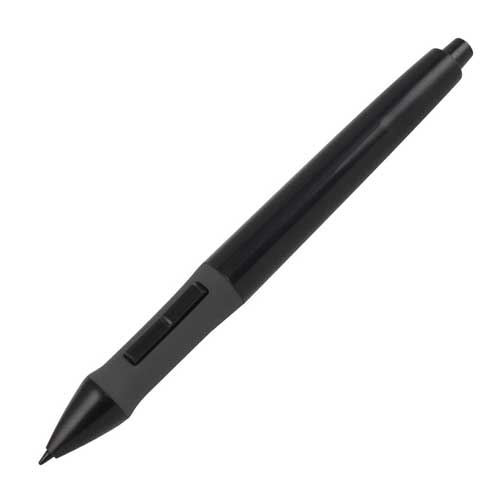
huion-pen

10-pack of replacement nibs

OTHER SIZES

Monoprice makes their tablets in quite a few sizes. If you want a larger tablet, try the 12×9.

Monoprice offers good tablets for the money. They don’t have all the bells and whistles, but they are valuable digital art tools.

monoprice-drawing-tablet

The Monoprice 12×9″ tablet gives you lots of space.


end of Monoprice Tablet review

For more on budget tablets, read our Huion tablet review.

See our article about choosing the best Wacom Intuos tablet.

Lenovo ThinkPad Yoga 2 in 1 Review: Business in the front, arty when bent back

lenovo thinkpad yoga 2 in 1 review
Lenovo ThinkPad Yoga 2 in 1: a business laptop with an arty bent

by Tablets for Artists

(Note: also called 2nd-gen. Lenovo Yoga ThinkPad 12)

Type of tablet

Convertible (or hybrid) laptop/tablet PC Ultrabook that comes with Windows 8.1 Pro, 64 bit.

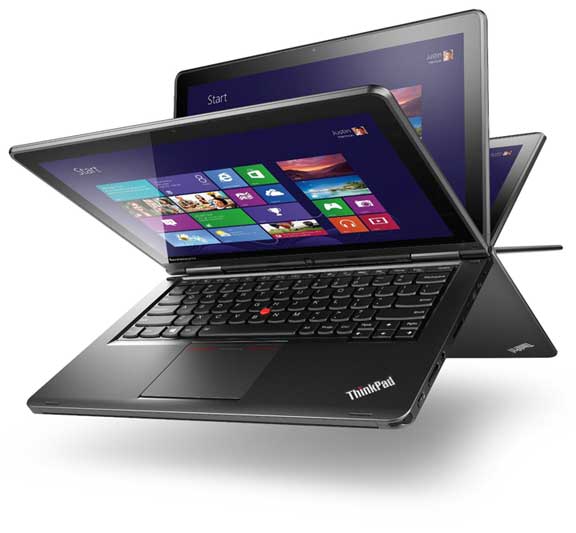
The Lenovo ThinkPad Yoga 2 in 1 is business in the front, arty when bent back. By appearances, it’s a business machine. “Suits” shuffling spreadsheets would be happy working in Office Suite on this unremarkable-looking black rectangle.

But use it as a tablet, and artists can get real mileage out of it. It’s a definite rival to the Surface Pro 3 (read our Surface Pro 3 review) for creatives who want a real laptop while still getting art features. The ThinkPad Yoga offers a Wacom digitizer with 1,024 levels of pressure sensitivity, and Windows 8.1 allows you to run full programs such as Photoshop as well Metro apps. The screen flips 360 degrees into four positions: laptop, tablet, tablet with stand, and tent.

Specs

12.5-inch Full HD touchscreen
Intel Core i7-4500U (there is i5 model too)
8GB memory/256GB SSD
12.5 in Full HD IPS (1920 x 1080)
10-finger multi-touch support
4-in-1 card reader (SD/SDHC/SDXC/MMC)
2 USB 3.0 (1 charge)
Mini HDMI
Lenovo OneLink dock port (dock not included)
Dimensions: 12.46 x 8.70 x 0.76 in (316.48 x 220.98 x 19.30 mm)
Weight: 3.49 lbs (1.58 kg)

For lefties:

It’s a laptop, so “handedness” is the same as on any laptop.


Pen


lenovo thinkpad yoga stylus

The pen that comes with the ThinkPad Yoga 2 in 1


The pen, which fits into the side chassis, is pretty flimsy and you would probably want some others. Several artists and note-takers recommend the Fujitsu T5000 pen for use because its hard tip meets well with the screen, it has two buttons and an eraser, and is solidly built.

Most tablet PC pens will work with the ThinkPad Yoga. The N-trig pen for Surface Pro 3 will not.


Features

The screen connects to the keyboard via a stiff hinge that feels more durable than a lot of convertibles that swivel instead of bend into the four “poses.” (With other tablet PC laptops, the keyboard gets sandwiched into the middle in tablet mode.) In tablet mode, the keyboard ends up on the back. Its innovative “lift and lock” mechanism makes the keyboard retract and lock, so pressing it by accident while you’re holding the tablet won’t do anything. The trackpad doesn’t lock, so you might click on it if you’re holding the computer in your hand. At 3.5 lbs., you probably won’t hold it in one hand all that much.

While it’s a boon that the screen is slightly bigger than the Surface Pro 3, the widescreen of the Yoga with its 16:9 aspect ratio (1920 x 1080p) isn’t always welcomed. The SP 3 has a 2:3 “golden mean” ratio, more like a piece of paper or an iPad. (The Surface Pro s 1 and 2 are also widescreen).

I’m nearly always zoomed in when drawing, or else I’m drawing something smaller than the screen, so I tend to forget the screen size while I’m drawing, but aesthetically I prefer the 2:3 aspect ratio. The widescreen can feel awkward when drawing in portrait mode. The 16:9 size has some benefits–it’s the perfect proportions to watch a movie.

Portability

At 3.5 lbs., this is portable, but for those of us who feel weighed down by that much, it may be something that you don’t want to carry over your shoulder for long periods. Still, as far as travel, its dimensions are pretty compact, and you can watch it on a plane (even in economy class).

Screen

The Corning Gorilla Glass is comes installed with a matte screen protector that is supposed to stay on. While I’m uncertain if removing it would void the warranty, it might, and you should consult the warranty co. if you want to remove it. But I and other artists think it provides a nice “bite” or resistance which benefits drawing.

The screen is not as bright as the Surface Pro 3. The matte surface, being less reflective than glossy gives better visibility when outdoors or near a window. While looking at art on a bright screen is great, while working, keeping the brightness lower not only saves battery, but saves your eyes. But if you like a really bright display, this might not be for you.

lenovo thinkpad yoga 2 in 1 review

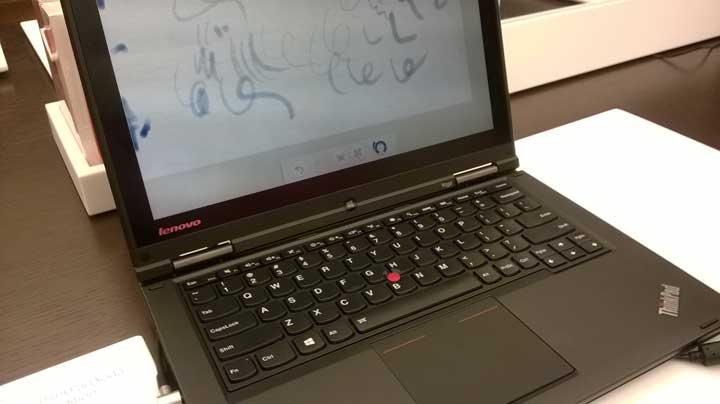
The keyboard is nice and is backlit.

One drawback of the Yoga is that in tablet mode with the keyboard on the back in a locked position, if you’re using Photoshop or some other program with keyboard shortcuts, you’re going to have to open the keyboard to unlock it, or use a Bluetooth keyboard or the onscreen keyboard (these can be a pain when there are key combinations you have to press). It’s an issue with any convertible tablet PC, but with this one it’s a bit more of an issue.

There is some edge jitter, and some parallax (space between the cursor and pen) as with any Wacom digitizer. One Lenovo ThinkPad Yoga 2 in 1 review said that the calibration of multitouch and pen was off. I don’t use multitouch much and prefer to shut it off while using the stylus, but this has 10 points of multitouch and you can do gestures.

Drawing on the Yoga is a much better experience than on my Lenovo ThinkPad X201 tablet, where any stylus I use leaves sort of a thin trail coming off every line (though the computer itself is a workhorse that has been going for four years). So it seems Lenovo has worked out this digitizer issue.

No more ghosts. They also say they have solved previously reported screen ghosting issues as of July 2014, so you can check your manufacture date on the box or bottom of the computer to see if you got an updated one.

The Lenovo ThinkPad Yoga 2 in 1 has a rugged exterior. It weighs about a pound more than the Surface Pro 3 (.36″ thick) and is thicker (.75″ thick), but still under an inch thick.

The Yoga is probably a better choice than a detachable-keyboard tablet like a Surface Pro if you do a lot of typing. Using a Bluetooth keyboard that connects via a hinge, like on the Surface Pro, can lead to issues such as the cursor skipping around, so heavy typing can be a headache. A full laptop is more versatile all around-work machine, though heavier to carry around.

Battery Life

Though Lenovo says up to 8, it’s more like 5. 30-day standby.

Pros

Wacom digitizer and pen, 1,024 levels of pressure sensitivity.
Solid state drive gives fast bootup.
Durable magnesium alloy frame.
Nice, backlit keyboard.
Linux-friendly, according to a review.
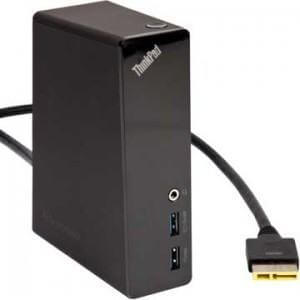
Comes with port to OneLink Dock.

Cons

Rear-facing heat vents blow heat into your lap if you hold it in your lap. One Lenovo Yoga 2 in 1 review called it a “heat sink.” But putting any laptop on a soft surface isn’t a good idea.
Can’t use keyboard in tablet mode.
A bit heavy to carry at 3.5 lbs.
Battery life not that great, about 5 hours,  longer if just light use.
Trackpad a bit noisy/flimsy.

User reviews

Most reviews are really positive. One Lenovo ThinkPad Yoga 2 in 1 review said it was the best laptop the writer had ever used (and they had used a lot), others said though imperfect, said it’s the best of the convertibles, while another complained of the heat blowing into his or her lap. Many praised its solid build. Some prefer the matte screen while others don’t. See more reviews on Amazon.

The Verdict

This is a good, durable overall computer that can last for years and act as a main typing computer as well as nearly a Cintiq. (The difference between 1,024 levels of pressure sensitivity and 2,048 are not perceptible). We think it’s a good choice for those who want to both draw and type, who like a matte screen and don’t mind that the laptop weighs 3.5 lbs. and isn’t exactly a looker. The pressure sensitivity works well.

The Thinkpad Yoga 2 in 1 doesn’t heavily improve on other tablet PC laptops with Wacom digitizers, but it’s one that’s out now, has no major known problems, will receive updates, has plenty of storage, and the 4 positions it yoga-bends into are pretty useful at times. The upside of this is that when you carry a laptop, it’s much more protected than a plain tablet is, you don’t need to buy a fancy case or keyboard, and you can run full programs such as Photoshop.

Read more about the ThinkPad Yoga 2 in 1 on Amazon

See Surface Pro 3 on Amazon

See our review of the ThinkPad Yoga 14.


end of Lenovo ThinkPad Yoga 2 in 1 review

ThinkPad Yoga 2 Accessories:

fujitsu t5000 stylus


Fujitsu T5000 Stylus


Cable Matters mini HDMI to VGA

Amazon Basics Laptop Sleeve

onelinkprodock

Lenovo ThinkPad OneLink Pro Dock


ThinkPad OneLink Pro Dock

Kids Kindle Fire HD w

The Kids Kindle Fire HD offers granular controls, profiles, a year of Free Time content, and best of all, a two-year no questions asked guarantee, so your little rough-houser can go to town!

The Kids Kindle Fire HD comes in a foam case. Content includes apps, movies, books, and games. There’s plenty of educational content and parental control. Requires Wi-fi to get content.

If you want to see more, read our reviews of economical tablets for kids.


kindlefirehdkidstabletreview


An iPad case with notepad is a draw for artists

Artists take note: an iPad case with notepad and pen holder is a big draw

by Tablets for Artists

Nothing’s worse than forgetting a great idea, and sometimes the iPad isn’t charged. Worse yet, you’re digging in your bag for your stylus. Now there’s reason for hope. There are high-quality and affordable iPad cases with notepads, pen holders, or both.

First of all, make sure the case will fit your iPad.

Here’s how to check your iPad model number: Look at the very small type on the back of your iPad  for these numbers.

iPad 1: A1219 or A1337; iPad 2: A1395, A1396, or A1397; iPad 3: A1416, A1430, or A1403; iPad 4: A1458, A1459, or A1460; iPad Mini: A1432, A1454, or A1455; iPad Mini with Retina: A1490; iPad Air: A1474 or A1475

While most pen loops will fit most styluses, some of the thicker styluses may be too large.


iPad cases with notepad and pen holder:


Grifiti Dootle iPad Air Folio Case for Ipad Air

grifitiall


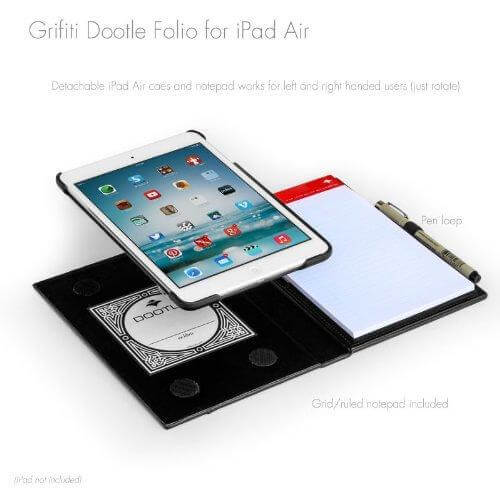
This is an attractive and versatile iPad case with notepad and pen holder being the main draws, so to speak. We also like that the iPad bezel is exposed; it just looks nicer. The corners and sides are protected by an imitation-leather cover. The case is reversible and ambidextrous; you can set it up for right-handed or left-handed use by switching the positions of the iPad and Dootle Pad (as the notepad is called). It’s compatible with the Apple Smart Cover.


grifitioutsideIt comes with a 6 x 9″ combo ruled and grid Dootle Pad notepad that’s basically graph paper. Your stylus or pen (would be nice to have two loops, huh) will perched in a pen loop on the outside of the case. The sturdy back cover is form-fitting and cutouts allow access to all ports as well as the camera. The case also has a cover pocket for business cards, cash, or notes. The iPad secures to the case via good old Velcro. You can put your Apple Smart Cover inside this case if you wish.

It has a large outer slip pocket on the back into which you can put the doodles you’ve drawn on the Dootle pad, or anything else you want to put there. Since it’s on the outside, it’s not meant for things like cash or credit cards, though.

Cons–a little heavy and bulky, which makes sense as it has a notepad.

Here’s the version for the iPad mini 1, 2, and 3. Like the larger version, it’s also Apple Smart Cover Compatible.

See it on Amazon.


Booqpad for iPad Mini

booqpad for ipad mini


The Booqpad for iPad mini is similar to the iPad Air, but comes with both a stylus holder and notepad, making this a great choice for those who scrawl in multimedia (digital and paper).  The cover also has clever pockets for business cards, tickets, cash, what have you–you can hide them away. Like its larger cousin, it’s ambidextrous. The notepad is made with 30% soy ink. The paper notepad is  4-1/8th x 7-1/4th inches. You can find paper refills here on the Booqpad site–the notepad that says mini.

Cons: no wake/sleep; cover does not fold into a stand; no camera hole; pen loop caused problems for some, loosening the back flap when it had the pen in it and some didn’t like the way the pens fit. Seems this case is nice-looking, and most users loved it but some had some issues with it.

See it on Amazon.


Solo Vintage Collection Colombian Leather Padfolio for iPad 1, 2, 3, 4


solopadfoliooutside


solo padfolio ipad case with notepad

This Colombian leather, high-end folio case fits iPads 1-4. It has an unusual ziparound (zipper) closure. It’s sleek and luxurious, but ready for business. Inside it (there’s only a small photo) are a 5 x 8″ paper notepad, and pockets for business cards and other items–a mini-organizer.  The gold stitching forms a nice contrast with the case’s warm espresso color. There’s also a pen holder on the inside. This case isn’t form- fitting, so can hold iPads 1-4.

Cons: Lacks a back camera hole.

A little bulky to put in a handbag, but great to carry the iPad around by itself.

See it on Amazon.


iPad case with Bluetooth keyboard and space for notepad and pen


Kensington KeyFolio Executive Zipper Folio Case with Bluetooth Keyboard for iPad 4 Retina, iPad 3,  iPad 2

kensington notepad pen keyboard ipad case


You might not think of yourself as an executive, but artists are the CEO of their own businesses and lives. This case has it all–space for a notepad and stylus (you’ll have to supply your own) as well as a Bluetooth keyboard, all neatly zipped up. Accepts notepads up to 7.5″ x 9″. Cover folds into a stand with viewing angles from 20 to 70 degrees. You can access all ports and cameras with this cool case. I could see Don Draper with one of these, if he’s still in the biz.

See it on Amazon.

Browse Kensington iPad cases.


iPad case with notepad, no pen holder:


Booqpad for iPad Air

booqpad for ipad air2


The stylish, versatile Booqpad iPad case with notepad combines an inner, hard, magnetically attached polycarbonate shell with an outer, suedelike folio. It works for both left- and right-handed users (you’re going to have to turn the magnetic case upside-down to switch the notepad to the right side). Ports and cameras remain accessible at all times. The 50-page notebook is included, as are a screen film and cleaning cloth. Unlike the mini version, this has no pen loop. When closed, the notepad gives the iPad added protection. The cover folds to offer two viewing angles and a typing angle. The case can take standard 6 x 9″ refill pads, though the notepad it comes with is slightly smaller. You can find notepad refills here on the Booqpad site.

See this case on Amazon.


iPad cases with a pen holder but no notepad:


Don’t need a notepad with your iPad case, but want to carry your stylus with you? Here are some top choices:

iPad Air 2 Case Cover by FYY

fyy


Constructed with PU synthetic leather and featuring a handy exterior pen loop to hold a stylus, this handsome case folds into a stand with slots that give three viewing angles, all landscape orientation. Most of the iPad’s bezel is covered. Anti-skid interior doesn’t slip. It sports pockets for credit or business cards, a smaller pocket for a storage card, a longer pocket for cash or travelers cheques, and a handy hand strap to hold it sturdy. Features a sleep/wake function. All ports and cameras are accessible via carefully aligned cutouts. Shuts with Velcro. Comes in 8 bright colors.

Cons: a little bulky, weighs more than some cases; PU leather doesn’t always stand up to a lot of wear and tear over long periods.

See it on Amazon.


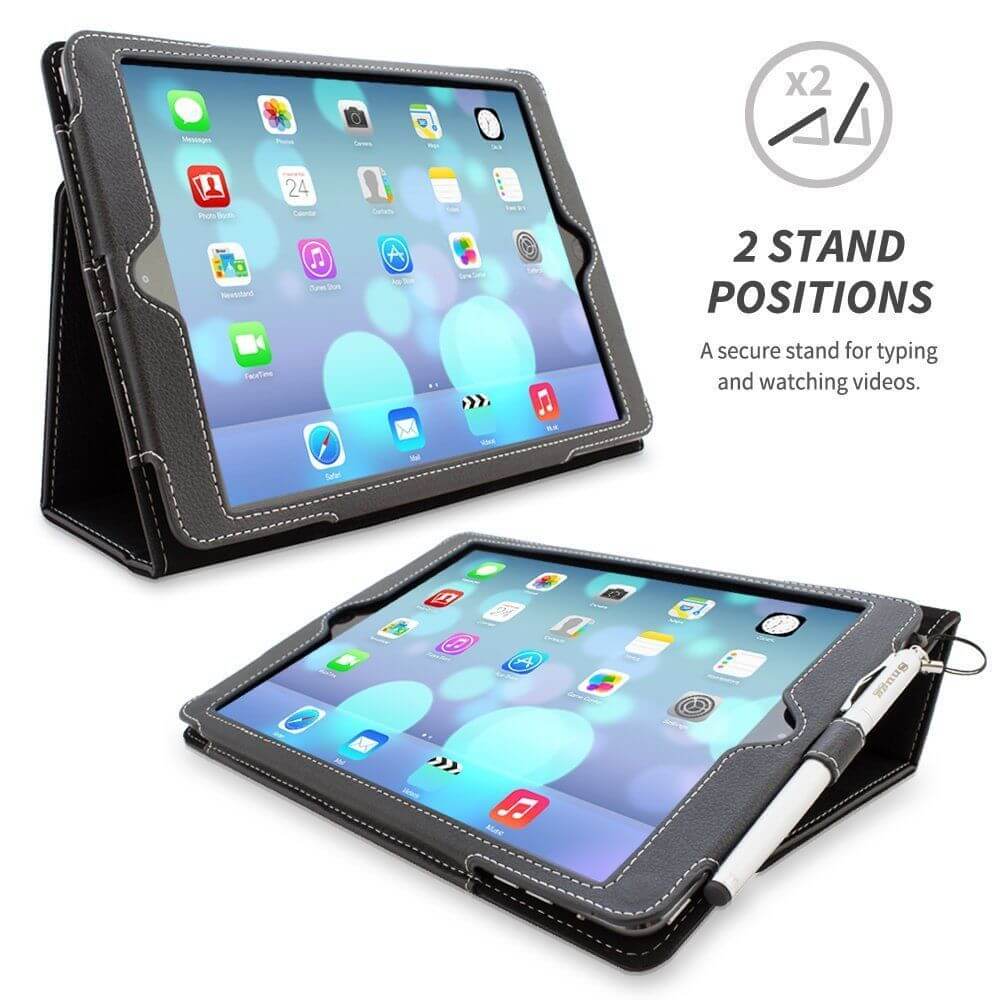
Snugg Leather iPad Air Case

snuggipadaircasepenholder


Lifetime guarantee! This folio-style smart cover from Snugg comes in many colors and two patterns, Blue Denim and Digital Camo. It covers the iPad’s bezel but allows access to all ports and cameras. It’s made of Nubuck, which is real leather that has been buffed to resemble suede, but it’s more costly than suede. The workmanship and materials on this are high end. The cover opens into a kickstand that gives you a couple of viewing angles, both landscape.

The hand strap is ideal for using your iPad while standing, whether reading, writing/drawing, or giving a presentation.

The pen loop will keep that stylus from getting lost. Sleep/wake function keeps your iPad well rested.

Cons: Taking photos requires holding the cover flap up because there’s no cutout for the camera on the back.

See it on Amazon.


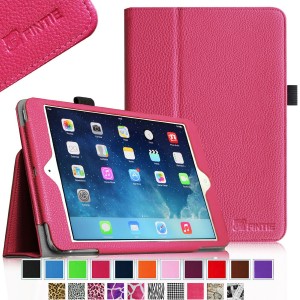
Fintie iPad mini 1/2/3 Case

fintie ipad mini case with pen loop


This cute folio-style iPad mini case comes in 20 groovy, bright colors and patterns with appeal for teens, tweens, and anyone who  would love an iPad case with animal print. It has a neat pen loop for a stylus. The case is vegan (all the non-leather ones are) with a sleep-wake function. The cover folds back into a stand in landscape orientation. The inside has soft microfiber lining that won’t scratch your iPad. The sides get protected and the bezel mostly covered. It’s easy to put the iPad into this Fintie case; simply insert it and close the Velcro flap. Though the back is not a polycarbonate shell, it’s quite sturdy and protective.

Cons: a few people had problems with the sleep/wake, but the vast majority did not.

See it on Amazon.


KAVAJ iPad Air 2 “London” cognac brown leather case cover

kavaj ipad air case with pen loop


This luxurious case of of London Cognac brown leather lined with soft flannel has a sleep/wake feature and a fancy pen holder. The cover folds out into a stand that offers two landscape viewing positions, one of them quite upright. Best of all, it comes with a Kavaj ink pen that doubles as a stylus. There is a hidden Velcro strap that secures the iPad. A wide interior pocket allows you to stash things made of paper. The case allows some of the iPad bezel to be exposed, which is a nice design feature.

See it on Amazon.


end of Artists take note: an iPad case with notepad and pen holder is a big draw

Check out our iPad case buying guide.

Read our post on best iPad styluses for art.

Looking for a handmade iPad case? Check out this interview with the artist who makes them, including a link to where you can get one.