Author Archives: Vicky

About Vicky

I'm an author and illustrator who has used drawing tablets since the early days. I love how flexible and forgiving they make everything. I'm also fascinated by the technology. I started this site to bring knowledge to everyone. I want this to be the only place you need to go to learn about drawing tablets.

Find the best iPad case, part 1: a buying guide

Looking for the best iPad case?


Find the best iPad case: A buying guide

by Tablets for Artists

There are many iPad cases, most made by companies other than Apple. Ipad cases can be broken down into different types with different features for the varying lives led by iPad users. The types of cases are available for all
models of iPad, including the iPad Air and iPad mini.

If you specifically want one with a notepad and/or pen holder, see our post here.

climber with tablet cartoon illustration

This extreme multitasker would need a drop-proof case.

Things to Consider

When deciding on the best iPad case for your needs, consider how you use the iPad.
Do you use it a lot? If you do, consider higher quality materials that will last.
Do you need a keyboard?
Do you tend to drop things? In that case you would want good impact resistance, especially if you have uncarpeted floors.
Do you use your iPad near food or drink?
Do you want to stand the iPad up? Would you like the angles of the stand to be flexible? Would you want the stand to be only horizontal, or allow rotation to portrait mode as well?
Do you want a carrying strap or handle? Some carrying straps can securely attach to your hand, arm, or even leg.
Do you want to carry your stylus?
Do you want a place to carry the charging cord and other accessories?
Do you have  or work with young children who drop-kick your iPad?
Or do your children have iPads that they use regularly?
Do you use it over carpeting?
Do you use it out in the field?
Would you want to use it underwater, for instance, to take photographs?
How much of an issue is the weight of your Ipad case?
What type of bag do you carry it in?

Do you travel a lot? Would you pack your Ipad into luggage or perhaps into a bag or briefcase that contains other
things as well?


If you vary in your activities, you might find that one type of case is not enough. The good news is, there are
now a lot of good, relatively cheap iPad cases. The more you know what features you want, the easier it is to
narrow down the best iPad case for you.

Which model iPad do you have?

First of all, determine which iPad you have. While it might seem that most people would know, perhaps you got it as a gift, or have forgotten. Figure out which Ipad you have by squinting very hard at the tiny print on the lower back of your iPad. This chart will take us on a trip down Memory Lane through iPad history. Notice most iPads have a few different model numbers; this is because models with wifi and 3G, or GSM/CDMA/LTE models get different numbers.

When choosing an iPad case, be sure it’s right for your model number. Cases have customized cutouts to fit particular models, so be very sure–check your iPad model number, or ask the store where you purchase it for help.
Though iPads can appear similar in size and design, subtle differences can make cases incompatible. For instance, models after the iPad 3rd generation have lightning connectors, not 30-pin ones. And, the micro-SIM tray is on the right side in the GSM model of the iPad2.

LINK: http://support.apple.com/en-us/HT201471
iPad Air 2. Year: Late 2014. Model nos. A1566, A1567

iPad Air. Year: Late 2013. Model nos. A1474, A1475, A1476

iPad mini 3. Year: late 2014. A1599, A1600

iPad mini 2. Year: late 2013. Model nos. A1489, A1490, A1491

iPad mini. Year: late 2012. Model nos. A1432, A1454, A1455

iPad (4th generation). Year: Late 2012. Model nos. A1458, A1459, A1460

iPad (3rd generation). Year: early 2012. Model nos. A1416, A1430, A1403
iPad 2. Year: 2011. A1395, A1396, A1397
iPad. Year: 2010. Model numbers A1219, A1337


Choosing and using an iPad case

Some cases say they are “one size fits all” for similar sizes of iPads and other brands of tablet. Unless these are pouches or bags, a one-size-fits-all solution is not the best case for your iPad. You want a snug, protective haven, and you want to be able to access the controls, speaker, dock connector, and cameras, which means having cutouts that fit perfectly and a form-fitting surrounding. If your case has cutouts, make sure the cutouts are cut so that those show through. Some cutout cases have flaps that can cover the cutouts for further protection. Many cases are lined with soft microfiber to keep the screen and body cozy and unscratched.

Also, when using a case, be sure your iPad is facing the right way and the cutouts are lining up. You’d be
surprised at how easy it is to get it wrong with some cases.

Most of all, choose one that fits your lifestyle. A business user might want a sleek folio, and a hiker who likes to dive into a pond with an iPad to snap pictures don’t have the same needs. Often we wear many hats, and there are some combination cases that could both look stylish and give heavy protection. Tradeoffs might include weight or difficulty taking the iPad out of the case or putting it in (with these you can usually just leave the iPad in).

 

kid in glasses looking at mini tablet pc screen sitting at table

working on ipad that’s in a case that folds back to create a stand.

Types of iPad cases

There are many types of coverings: cover, folio, skin or shell, rugged and waterproof, sleeve, bag, carrier, and body and screen film. Choosing the best iPad case depends on your usage (see Things to Consider, above). You can have keyboard covers and combination covers. These types of cases exist for all models of iPad as well as Android tablets.

If you use the iPad out in the field, or you tend to drop things or have small children who like to use your
fragile, expensive device as a football, you probably want a rugged iPad case. These are the most durable,
protective cases, some of them waterproof or water-resistant.

A cover, such as the Apple iPad Smart Cover, attaches via magnet and covers only the screen. They are usually made of metal or polycarbonate, which is a hard, impact-resistant plastic. Some of these include keyboards.

Folio cases cover the whole iPad and open like books to show the screen. Often the covers fold to create a stand. Folios are often very stylish. They are often made of synthetic leather, real leather, or fabric. Sometimes they are hard polycarbonate. Some lack a cutout for the rear camera. Browse folio cases

Skins and shells usually cover just the back and sides while leaving the screen open. Usually shells are made of polycarbonate or thick plastic, and skins of silicone. Sometimes a shell also refers to a tanklike case that covers the whole iPad.

Combination covers can be both a shell and a folio, and a keyboard as well. Combo covers often combine metal and plastics so that the case is impact resistant where it needs to be but doesn’t scratch the iPad.

Keyboard covers can be folio or clamshell covers. They basically turn your iPad into a small laptop or netbook.

Rugged iPad covers are tanklike creations that cover the entire iPad, keeping it safe from drops, spills, dust, kids, and weather. These are good if you are out in the field. Often the cutouts have flaps that go over them. Some are waterproof or water-resistant. The Otterbox defender is considered one of the best iPad cases in the rugged category, though there’s plenty of competition. Some rugged cases are water-resistant or waterproof. Browse rugged cases

Waterproof cases sometimes are skins or shells that cover the back and leave the front open with a screen protector.

Sleeves are soft pouches that you simply put the iPad into. They envelope and protect the iPad, and you take the iPad out to use it. They are sometimes only large enough for the iPad, or sometimes are carrying packs that let you tote gear such as Bluetooth keyboard. Often you can use the sleeve for other tablets as well. Sleeves can be made of fabric, foam, leather, faux leather, or other materials. If you like to use the iPad without any added weight while you are using it, or you want a versatile case, a sleeve may be your best choice of iPad case. Browse sleeve cases

Bag cases are bags where you can carry the Ipad and other gear. They have pockets for the iPad and accessories, and are cushioned. You can often use these for other types of tablets too, or for general gear when not carrying the iPad.

Screen films are thin plastic screen protectors. They can be difficult to put on without leaving air bubbles. Some cases come with them as part of their structure. browse screen film

Body films are very thin, clear coatings cover the back and sides of your iPad. They sometimes come with screen films.

Kids’ iPad cases tend to be of bulky plastic and have bright colors and kiddie style. browse kids’ cases

If you just want to browse all iPad cases on Amazon, click here.

Below are our picks, just a sampling of the smorgasbord of quality, eye-pleasing, functional iPad cases.


Figure out which features combine into the best iPad case for you

As you can see, when it comes to iPad cases, just about everything under the sun exists. Many of these also exist in combination. When choosing the best iPad case, most shoot for a middle ground with a protective case that’s not necessarily military-grade protective, because that adds weight. Though some do need those extremely rugged cases. If looks are important, folio cases can provide protection and come in various materials.

Our reviews of the best iPad cases will always tell you their weight. Some iPad cases weigh more than the iPad itself. The iPad air, being thinnner lighter, has also allowed case designs to slim down.

Try to come up with a list of features you want. As an artist, you might want a hard shell to protect the iPad. You might want a removable screen protector as you might sometimes want to use the iPad without it to get full sensitivity (some screen films do affect visuals or sensitivity in small ways). You probably also want an inner or outer loop for your stylus or styluses.

If you narrow it down, it shouldn’t be overwhelming to find the best iPad case you could possibly want. Remember, if you’re like most people, you’re not going to “trade up” to a new iPad every year, so pick something that will last and that fits.
end of The Best iPad Case, Part 1
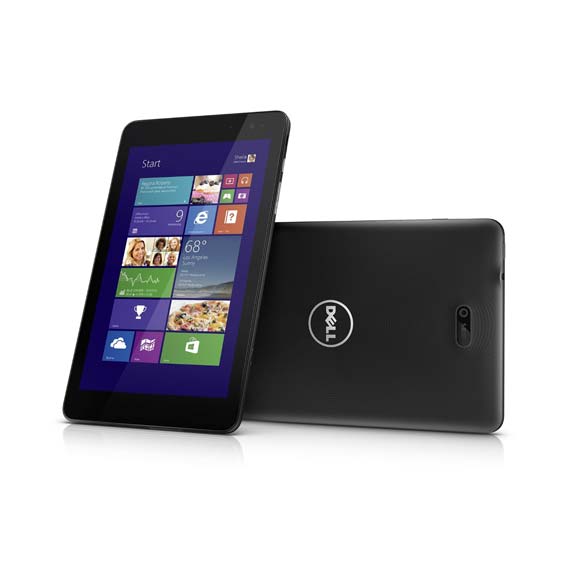
Dell Venue 8 Pro review: the latest Active Stylus helps UPDATED

Dell Venue 8 Pro Review: the latest Active Stylus helpsdell venue 8 pro review

Dell Venue 8 Pro (5830)

by Tablets for Artists

UPDATE: Dell has refreshed this line with a new Dell Venue 8 Pro and Dell Venue 10 Pro that both have Wacom ES. Please see this post about the New Venue Pros and pens.


Type of Tablet

The Venue 8 Pro is a Windows 8.1 tablet.  It offers both touch and pen input.
Just to be clear, what we are reviewing is the 5830, part of the 5000 line. The “newer” Venue 8 Pro, the 3000, doesn’t offer a digitizer (so has no pressure sensitivity). Nor does the plain old non-Pro Venue 8, which is an Android tablet. Some sites are selling the 3000 line but not making it clear that that one lacks the digitizer. Some also sell the 5830 without making it clear that it HAS the digitizer. If it says the 5000 line, it’s OK even if it doesn’t specify it’s a 5830. If you’re unsure which Venue tablet you’re seeing, check with the seller.

There is a 32GB and 64GB model, the 64GB will do you more good; Windows alone takes up substantial RAM.


For Lefties

It’s fine for left-handers, though the Windows button is on the top right edge.

Features

Intel Bay trail Atom Z3740D processor (quad core)
2GB memory
64 GB hard drive (there’s also a 32GB model)
32-bit
8″ HD display 8.0 (WXGA 1280 x 800)
Used with Dell Active Stylus (optional; not included)
Multitouch touchscreen with 10-pt capacitive touch,
Two cameras (5 MP rear-facing, 1.2 MP front)
Can take MicroSD, SDHC and SDXC memory cards of up to 128GB
includes MS Office Home and Student edition
Micro USB port (just one)
8.50 x 5.12 x 0.35 inches
weight 13.9 oz. (395 g), thickness about 3/8″ (9mm)
Windows 8.1 (32 bit, as is normal for this size tablet)
Bluetooth 4.0
Palm rejection
Color: Black

Supports Miracast wireless tech, which lets you stream to TV even if you don’t have local wifi. does not have HDMI, you’d have to buy an HDMI adapter (or see the cool Plugable dock below, under Optional Accessories) if you want to beam images from tablet to TV.

Does not come with GPS. You would have to use a GPS app; there are free ones.

Since the stylus is optional and not included, there’s no silo for it in the tablet.

The Windows button is on the top right edge instead of on the front, so that’s something unusual that takes some getting used to; it’s not a bad thing, because the button isn’t in the way of anything you’re doing.. The back has a ridged texture, and feels rubberized and not that rigid, making the tablet easy to grip. The texture also keeps fingerprints away. The bezel doesn’t cover much of the screen. The tablet has a pleasing design and for the price, the materials and build are of high quality.

Intel Bay Trail Atom processors are much faster than the older Atoms, and for ordinary use, the 8 Pro runs without hiccups. You can use programs like  Photoshop and Manga Studio 5, but some CPU-havey effects and filters may lag. We recommend the 64GB model over the 32GB; Windows alone takes up substantial RAM.

Here’s info from Wikipedia on Atom processors.

Portability

At 13.9 oz and slightly under 3/8″ thick, it’s compact, thin, and easy to tote.

What’s Included

The tablet, micro USB cord, wall charger, quickstart guide, registration/warranty info. Stylus not included.


Screen

The 1280×800 resolution with a pixel density of 200ppi is decent for a screen this size, though it’s not the highest. (Compare it to the iPad retina at 264ppi, though 240 could also qualify as Retina; the original iPad and  iPad2 had a ppi of only 132). The Venue 8 Pro’s IPS screen offers good viewing angles. The colors are bright in the Dell, and at this screen size, the display is fine for reading, drawing, and video.

The previous issue of the light sensor defaulting to too dim a setting has been fixed via a firmware update. allows you to tap, slide, swipe, pinch

The palm rejection works well; the screen senses when you are holding the pen.

The on-screen keyboard has frustrated some users, as it will sometimes be oversensitive and do things like type extra characters.


Dell Active Stylus

 dell active stylus a03

Dell Active Stylus A03: ta-daa!

At 0.4 in. thick x 5.7 in, this is thicker than the average wood pencil, so is really is more of a pen than a stylus, but Dell calls it a stylus. I’ll call it a stylus pen. It has a fine, 1mm tip and two buttons that you can use to erase, click, and highlight.

The digitizer uses Synaptics technology, which is closer to N-trig than to Wacom, and like N-trig, there are 256 levels of pressure sensitivity.  Dell active stylii are metal and take a single AAAA battery, which should last about a year with regular usage.

The stylus pen is not included with the tablet, and there is no set place on or in the tablet to store it. You could try getting creative with Velcro.

The Dell Active Stylus has quite a saga. The first two versions had issues with ghosting and leaving trails and were met with many complaints. Though firmware updates fixed some problems in the second pen, problems remained. The latest pen is a huge improvement. This new pen, the AO3, is silver and gray; the previous two were all-black. Odd as it may sound, the new stylus uses Wacom technology, and works with the Venue Pro 8, the Venue Pro 10, and the Venue Pro 11.

The Dell part no. for the A03  is 750-AAGN.

You will not be able to use other Wacom pens, or the N-trig pen, with the Venue Pro line; only the Dell Active Stylus. You can, however, use a capacitive stylus (like an iPad stylus) or even finger paint on the Venues.

The Dell Active Stylus pen works with the Venue 8 Pro (5830, the one we’re reviewing here), the Venue 11 Pro (5130, 7130, 7139, 7140),  and Latitude 2-in-1 7000 Series (7350). It will not work with other tablets regardless of model or brand.

With the benefit of the improved Active Stylus, this Dell Venue 8 Pro review has become more
positive than it would have been otherwise. It did take Dell a while, but it’s commendable that they listened to customer feedback about both the stylus and the auto-brightness and did something about it. The stylus pen is now responsive and accurate, and makes the Venue 8 into a good drawing tool. The tablet isn’t as powerful as a Surface Pro or using a Cintiq with a computer, but it’s peppy and portable.

Battery life

Excellent; up to 10 hours.

Controls

Buttons and volume rocker are on the side. Accelerometer lets you switch from portrait to landscape.


Software

You can put any Windows 8.1-compatible software on. It comes with 2013 MS Home and Student Office.


Customer Reviews and Ratings

The Venue 8 Pro has been generally favorably received. But, some have had negative experiences, such as having the tablet fail, or problems with the charger not fitting well into the micro USB. The old stylus was a major source of problems, too. One positive Dell Venue 8 Pro review praised it as a tool for both content creation and consumption. Many praised both its design and performance.

Pros

Excellent battery life

bright screen with good viewing angles

Good handwriting recognition; will convert handwriting to text

Bluetooth

Multitasking

Fast

Nice materials and build for the price


Cons

On-screen keyboard buggy for some people

Iffy USB port and charger, with some people saying the shipped chargers did not fit into the USB socket the right way, resulting in broken pins.  Some are saying it’s a Micro A charger with a Micro B cable and others are saying it’s a Micro AB charger that takes an A or B cable. I will provide an update if I can get a definite answer. Do not try to force the charger. If you have problems, contact Dell.

Customer Service

I did several chats to confirm information, and it was a combination of pleasant (they’re very polite) and frustrating (they’re not that well informed, but no worse than at other computer companies). Customers with complex issues have reported some pretty serious problems, including language barriers, and being transferred from rep to rep for hours. Others had positive interactions. So, service is inconsistent. There is both Dell Home and Dell Small Business, and you should remember which one you purchased from, as the two arms don’t always communicate with each other. There is a lack of detailed information on the site in general. The Dell Community forum can be helpful, and Dell does answer questions there.


Newer in town: The Dell Venue Pro 10 and
Dell Venue Pro 11

Dell Venue 8 Pro vs. Dell Venue Pro 11

The Dell Venue 11 Pro 7000 is a high-end Windows tablet with a larger, 10.8″ Windows tablet with a more powerful processor, one you would find in a laptop, up to Intel Core 5. It boasts a full HD screen at 1920 x 1080p. It has an HDMI port. Dell calls it “three devices in one,” meaning a tablet, an Ultrabook, and desktop (when used with the keyboard). It’s certainly not the only device you could call a 3-in-1.

(Note: An Ultrabook is a high-end Intel-powered subnotebook. A subnotebook is a notebook that’s thinner and lighter than a laptop.)


The Dell Venue 10 Pro is aimed at the academic market and has a detachable keyboard, a multitouch, high-res screen, and an Atom processor.

All these use the Dell Active Stylus and have pressure sensitivity.

The Verdict

It’s got a lot of great qualities at an affordable price, and artists can use it as a digital sketchbook; it doesn’t take the place of a Cintiq or full-fledged tablet PC. But it’s more versatile than an Android tablet, and it’s fast. It doesn’t have an extremely high-res screen, but for this size tablet it’s not a big issue–I would not use this size for my main drawing tablet. On the downside, there are some potential bugs, as noted, with the on-screen keyboard and the USB port; not everyone will have these problems. Like the Surface Pro 3, the Venue 8 Pro has 256 levels of pressure sensitivity, not as many as Wacom tablets, but it doesn’t make an enormous difference. The build quality, speed, price, and improved stylus make this a nice little portable art tool, as long as you don’t run into the aforementioned problems.

It’s comparable in price and overall functionality to the Asus VivoTab 8 and the Toshiba Encore 2 Write. (Click the links to read our reviews.)

Optional Accessories

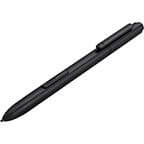
(Again), the newest Active Stylus.

Startech Micro USB to USB Adapter

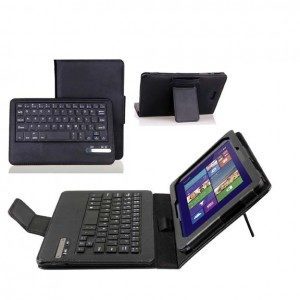
IVSO Bluetooth Keyboard Portfolio Case, made especially for the Dell Venue 8 Pro.

dell venue 8 pro review ivso keyboard cover

Also, the Fintie Stand Cover with Detachable Keyboard.

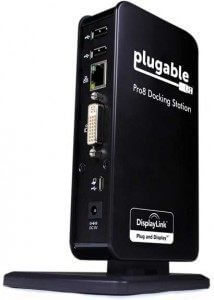
This Plugable docking station, which came to life via Kickstarter, allows you to charge your tablet and attach various USB and other devices, including HDMI. It’s about 6″ tall. Reviews are positive.

Plugablepro8

Here’s a video by Plugable:

https://youtu.be/V232eL-YV38


End of Dell Venue 8 Pro review

samsunggalaxynotereview

2014 Samsung Galaxy Note 10.1 Review: S Pen in Command

2014 Samsung Galaxy Note 10.1 Review: draw and multitask

by Tablets for Artists
There’s a parsec of products in the Samsung Galaxy line. This review will focus on the 2014 Galaxy Note 10, which comes with a built-in S pen stylus. The 2014 Galaxy Note 10.1 features a 10.1″ screen.

samsunggalaxynote10.1review

2014 Samsung Galaxy Note 10.1. See it on Amazon.

Note: The Galaxy Note is different than the Galaxy Tab. The regular Galaxy Tab does not have pressure sensitivity and does not come with a pen. If you want to use a stylus to use with a Galaxy Tab, you have to buy one separately, and it will be more like a iPad stylus.

The Galaxy Tab A with S Pen does have pressure sensitivity and a pen, as does the Galaxy TabPro S, which runs Windows.

As of 2013, Samsung has bought 5% of Wacom, so expect a continuing partnership. (Wacom tech is also found in other companies’ tablets.)

Type of Tablet

The Galaxy Note 10.1 is an Android tablet running Android 4.3, Jelly Bean.

For Lefties

It’s fine for left-handers. (The Galaxy Note Edge is another story, as it has a curved screen on one side).

Features

S Pen with eraser and Wacom integration
Wacom digitizer gives you 1,024 levels of pressure sensitivity
WQXGA (2560 x 1600)
1.26 pounds
10.1-Inch high-res TFT display
9.57 x 6.75 x 0.31 inches
3 GB RAM
8MP rear camera, 2MP front
(1080p video recording), LED flash
MicroSD card slot can hold card of up to 64GB
USB 2.0
Octacore Exynos processor (eight processors, but they are not all used at once; it’s two four-core processors)
Samsung’s AllShare, which can put what’s on your tablet on a Samsung TV
Dolby Surround Sound speakers

This 2014 Samsung Galaxy Note 10.1 review is of the Wi-fi model only, but you can get the Galaxy Note 10.1 with 4G from a variety of carriers.

The multi-window function is a great boon to multitaskers. It lets you have two windows open into which you can drag and drop certain apps.  You can also take a screenshot and write or draw on it.

Using a 10″ tablet gives you twice as much screen as a 7″ tablet, so there’s enough space to multitask. The tablet comes with quite a bit of free content. We like the two free years of 50GB Dropbox.


Portability

At one and a quarter pounds, that’s not much weight considering how much productivity you can get with it.


What’s Included

The tablet, S Pen, USB charging cable, travel adapter, quickstart guide.


Screen

The Galaxy Note 10.1 screen is high-resolution, with over 4 million pixels, which is double that of HDTV, according to Samsung. The 299ppi is dense, denser than the iPad Air Retina, which boasts 264ppi. The Note’s resolution is really as high as the eye can perceive high resolution. The screen is so bright that it gets good visibility outdoors. So, the display is awesome.

S Pen

galaxy note 10.1 review s pen

The S pen conveniently fits into the side top.

Wacom’s FEEL technology has been integrated into many aspects of the Note. When you use Air Command with the S Pen, a small round window pops up, giving you five functions. With Air Command you can convert handwriting to text you can then format, also make a call, add contacts (such as jotting down a phone number with the pen and converting it), use maps, search, or add to your to-do list.

A nifty feature called Pen Window lets you draw a square which becomes a small multitasking window where you can then open YouTube, the browser or other apps while remaining in your screen. Multitasking is the name of the game; you can drag and drop content and have multiple windows open. This is a major benefit over the one-thing-at-a-time iPad.

There’s also a side window that slides out from the left that serves up maps, YouTube, Evernote, and other apps. Handwriting works smoothly on the Note, even if you’ve got little tiny handwriting.

As art apps get more sophisticated, artists can do a lot without using full Photoshop, including using layers, creating high-resolution files, and exporting files as JPGs. There are many Android drawing and painting apps.

The Galaxy Note could be a go-to tablet for sketching, general productivity, and for some artists it’s enough for finished art for print. Drawing on it is a pleasure. Though some users reported lag, we did not experience any.


Alternatives to the S Pen

Nice as the S-pen is, face it, it’s thin. Though fine for note-taking, doodling, and sketching, it can cramp your hand when drawing for hours on end. And you might prefer the stroke quality of other pens; if you can, try a few and draw holding the pen at different angles.

If you prefer a writing implement that’s a little more solid, there are some alternatives. One is the Wacom Bamboo Stylus Feel for Samsung Galaxy Note. It lacks an eraser, so you’d have to use the eraser in your art app.

Or there’s the the Galaxy Note Genuine Wacom Touch Pen 8pi Stylus. This sports an eraser on the non-writing end.

Since it’s a regular Wacom digitizer, you could use any pen for Wacom-penabled PCs, such as this one, a full-size pen that’s comfortable to write with. This one will not fit into the S Pen slot.

samsung-pen

Samsung pen

One article suggested calibration may be off with non-S pens. I did not find this to be true in testing it.


Controls

Since the nifty multi-window lets you do two completely different things at once, you could draw and do image research at the same time.

Besides being your portable art studio, you can use the tablet as an e-reader as well as a universal remote control and TV guide.

The buttons are on the side, so they don’t change depending how you’re holding the tablet, portrait or landscape. You have to be a little careful to not push them by accident.


Software

Android apps are available on the Google Play store. Most cost a few dollars, with many free ones. Apps such as Sketchbook Pro and Layer Paint HD will let you open large files, even 10,000 x 10,000 pixels. The number of layers you can create varies with canvas size. Try GIMP for Android; this free, open source alternative to Photoshop is now in Google Play.


Battery Life

Long; up to 9 hours, even 10 if you’re not doing power-intensive stuff like gaming. With gaming, the tablet works fine and can go about 4 hours.


Customer Ratings and Reviews

Almost every 2014 Samsung Galaxy Note 10.1 review is positive. The Note is a popular item among both artists and nonartists. The handwriting capabilities receive praise. Most lag issues have been fixed by updates, according to reviewers–some of the first ones out were sluggish. One  2014 Samsung Galaxy Note 10.1 review calls it “smoking fast,” another “a beast.” At this fairly high price, consumers should demand excellent performance.

TIP:

In Developer Settings, turning the animation scales off or to the lowest setting should speed up performance even more.


Pros

Excellent battery life

High-resolution, bright screen

Good handwriting recognition; will convert handwriting to text

Can be used with a Bluetooth keyboard or even an external monitor

Multitasking

Fast


Cons

Some experience lag with TouchWiz, or don’t like TouchWiz. There’s no easy way to disable it.

Not cheap

All plastic with the back being faux leather with “stitching.” Depending how you look at it, that’s refreshingly creative or slightly tacky. I kind of like it, myself.

As with any device, some people’s failed, but there is not a high rate of complaints.


Should you get this or an iPad Pro?

Update:  (When this article was first written, it was before the iPad Pro). The Galaxy Note is a better choice for artists than a regular iPad, it’s more of a competitor to an iPad Pro. The main advantages of the Galaxy Note over iPad Pro are that the S Pen is included, and the memory is expandable. There is no pen battery to worry about with the Note. It also would not be too expensive to get a new pen if yours gets lost.

However, at this point, I’d recommend the iPad Pro because it’s newer and more up to date. If you’re more of an Android fan, the Note is still viable, but it’s aging. A new Note may be in the pipeline.

With a regular iPad you can now get pressure sensitivity via Bluetooth in certain apps, but you are limited to a fairly small lineup of apps; some iPad styluses for art are more accurate than others.

The Verdict

This is a premium tablet that makes a powerful little sketchbook or portable art studio. It does not replace a Wacom Cintiq or full tablet PC. The pens do not have the tilt sensitivity like the more costly professional art tablets such as the Cintiq or Intuos.


Optional Accessories


galaxynote10.1review

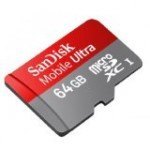
Professional Ultra SanDisk 64GB MicroSDXC Card


See the Galaxy Note 10.1 on Amazon.


Now that you’ve read this Galaxy Note 10.1 review, it’s time to check out some artmaking!


http://www.youtube.com/watch?v=SwKOBOeuMjU


End of 2014 Samsung Galaxy Note 10.1 review

Cheap tablets for kids: yes, there are good children’s tablets under $100

The best cheap tablets for kids: yes, there are quality children’s tablets under $100

(Also see: Best tablets for kids: 2015 roundup)

Cheap in price doesn’t have to mean low in quality. With the economy the way it is, there’s no reason to break the bank when it comes to getting a fun, educational device for your child. A children’s tablet doesn’t need to be as powerful as an iPad. There are plenty of quality children’s tablets for under $100. We’ve gone through customer reviews, company Web sites and reviews and discussions on other sites to zoom in on tablets your child will love. To find current prices, please see the product pages.

What to look for in affordable tablets for kids

The most important qualities in a cheap tablet for kids are the same as in any children’s tablet: hardware, quality of content, durability, ease of use, and parental controls, as well as battery life, as well as customer service.

Hardware: what operating system does it use? Is the processor fast enough to watch video? What about HD video? Is the screen resolution high enough?  Is the screen large enough?

Content: It’s important that the tablet has enough variety of content so that your child can grow with it. The cost of adding apps and other material should be considered too. What’s preloaded onto the tablet? How much does it cost to add content? Is there free quality content available?  Is the content personalized to your child, can you track it? Some tablets have only proprietary content that must be purchased or downloaded from the manufacturer’s Web site. Other cheap tablets for kids are just regular Android tablets where you can get any Android apps from the Google Play store.

Durability: Is the tablet rugged, will it survive drops, spills, and rough handling? Does it come with a protective casing, or do you need to buy one?

Ease of use: This is about design of both hardware and software. Is it simple to use? Are the parts easy for little hands to manipulate? Are there complicated series of operations to get to the content? Is it lightweight enough for young children to hold and carry it easily?

Parental controls: Some cheap tablets for kids have robust parental control, and others are simply lower-end adult tablets with no parental controls. Is there enough memory to accommodate different media, including video?

Battery life and power: What about the battery life and charging options?

Customer Service: It’s good to know that if you have a problem, you will be listened too, since inexpensive electronics are somewhat more likely to break or malfunction because of lower-quality parts.

Here are our top picks for cheap tablets for kids.


Amazon Fire


cheaptabletsforkidsamazonfire

The price is super low and the functionality competes with considerably more expensive devices. With the option to buy a sixpack of Fire tablets at a discount, the Amazon Fire (see it on Amazon) is a great choice for kids.

Features

Runs Fire OS 5 “Bellini”
7″ IPS display
Plastic build
Weight: 11 oz.
8 GB storage (OS takes up about 2.5 GB)
1.3 GH processor
screen resolution 1024 x 600, 171 ppi (low resolution, but higher than the original iPad and iPad2, which were 132ppi))
Parental controls
Battery life up to 7 hours
Micro SD slot takes up to 128GB SD card
preinstalled Amazon apps include Instant Video, games, Kindle
Child subscription to paid content for $2.99 a month (as of this writing, Nov. 2015)
Ad-free option for additional cost
front and rear cameras
over 250,000 apps, lots of free content
“sixpack” of Fires currently available (check site for coupon code)

The Amazon Fire is a low-cost tablet that’s perfect for kids and budget-minded adults alike. The tablet, while not the fastest, works smoothly for apps, including videos and gaming, at a very low price. Parental controls allow you to create profiles for children. The Amazon store has a great deal of kid-friendly content (you won’t be able to get apps from the Google Play store, only Amazon). And kids (and you) can draw using art apps.  If you have a Prime membership, that considerably increases the content. You can sign up for a free month trial of Prime here.

The screen is low-res, but it’s fine for casually viewing Netflix and other streaming, and for reading the gazillion books available via Amazon’s Kindle store. The camera is not the best, and the sound isn’t exactly hi-fi, and the large-bezeled design is strictly utilitarian, but the many ways it gives you of enjoying content makes it a great value.


LeapFrog LeapPad2 Power Learning Tablet

leapfrogleappad2 power learning tablet review

Ages 3 to 9

Features

The LeapPad2 features cameras both in front and back, a video camera, and an MP3 player. Games are enhanced  by its motion sensor. It features personalized learning, and comes in at a low low price. There is no wifi.

Screen size: 5 inches

Screen resolution: 480 x 272

Processor: 550 MHZ

Comes with an attached stylus.

Content

Apps including Art Studio  and Pet Pad. Other apps must be purchased either as apps or cartridges. Some kids may not want a whole lot of games and apps, but if they do, these cartridges and apps cost from a few bucks on up, with cartridges being more expensive.

Personalized learning that  parents can keep track of and that grows with the child. The LeapFrog library has over 800 games, ebooks, and videos.


Durability

Hard plastic, but the screen can crack if dropped.

The battery lasts a generous 9 hours. It’s a good idea to buy the rechargeable battery set.

Some parents not happy with customer service. Complaints about the expense of the content and that it does not come with much content. There are no free apps in the store. App cards often go on sale though. All the same, LeapFrog content is high quality and you don’t need to worry about kids getting online.

Our rating: 4.5/5

Please see our longer review of this tablet here.


VTech InnoTab 3 The Learning App Tablet

innotabtabletforkidsreview

Age group:

2 to 9 (Amazon says 3-9, but content from Vtech for this tablet starts at age 2)

Screen size: 4.3 inches. Memory: 2GB storage, can be expanded to 4.

The Innotab comes in pink and blue. It’s popular among customers. VTech has been around since 1976 and creates innovative educational products. The Innotab is multilingual; you can set it to English or Spanish during setup. There are two styluses included; the stylus attaches to the tablet.

Children can’t use their fingers on the screen, only the stylus.

A rechargeable battery is available separately, and strongly recommended.

Content

Content in the areas of reading, language, handwriting, geography, problem solving, science, social studies, and math is available for 4 age groups: 2-5, 3-6. 4-7, and 6-9. The tablet comes with apps and an ebook. More can be purchased on the Vtech site. It has a cool rotating camera and kids can add 55 special effects to their photos. It has a directional pad and tilt sensor to make games exciting, and interactivity includes being able to shake the tablet to cause things to happen. Kids can also make videos and import and play MP3s. We think this tablet is a great buy. This tablet does not have wifi.

Each cartridge has a game, app, and story mode, so your money will go farther with the cartridges. The tablet comespreloaded with 16 apps, including Art Studio and the Magic Bean Game.

It comes with 4 AA batteries, but we suggest buying the rechargeable battery pack. It can be charged via the included USB to a wall charger, or you can buy a separate AC adapter.

Amazon Prime is available with this purchase.

In the box: InnoTab 3 Learning Tablet, two styluses, “Read, Play and Create” cartridge, 4 AA batteries, USB Cable, and a Learning Lodge installation CD.

Our rating:4/5 stars.

VTech AC Adaptor

VTech Rechargeable Power Pack

NOTE: There has been a hack with this company in 11/15 (after this review was posted) that has been in the news and apparently privacy has been compromised. Hopefully the company will learn from this and improve its system, but be warned.

Our rating: 4/5


PPTab® 7 Inch Android 4.2 PC Tablet

best cheap tablet for kids

Age group

None designated

Parental controls

None

Durability

There’s no gel bumper or other protection, so we don’t suggest this for small children.

Hardware

The capacitive-touch PPTab is an Android tablet with wifi with a decent amount of internal memory and storage.  Itsports a front and rear camera. Some adults even buy it for themselves. You can play videos, full-length movies, and music on it.

Screen resolution : 800 x 400.
Screen size: 7 inches
Memory: 8 GB of internal storage, 512MB DDR RAM.

Content

It comes with Google Play and many common apps pre-installed. You can play games, watch YouTube, and keep social media updated. YouTube and Facebook preinstalled. In short, this is a real tablet. Some customers complained of poor battery life and some glitches, but overall, the reviews are very positive. This is not a tablet that’s very different than adult tablets, but you have the whole Android store and all media available for kids, so adding content to this will be inexpensive. There is nothing specifically child-centered about this tablet, it’s just a lower end Android tablet, but it’s suitable for kids.

Loading children’s apps onto this tablet will make it a straightforward and positive experience for youngsters.

Our rating: 4/5


XO 7-inch Kids Tablet XO-780

xokidstabletreview

Age Group

2-12. Content can be customized for all ages.


Parental Controls

Parents can create profiles for up to three users, and monitor their activities in the Dashboard. They can see every Web page visited and app used via theJournal feature. Parents can limit Internet usage, chat and talk, and app store purchases.


Durability

The bright-green bumper case does a good job of protecting this from drops.

Vivitar makes excellent cameras, so it’s no surprise that the front and rear cameras on this XO 7-inch Kids Tablet are of good quality. HD video plays fine on the high-resolution screen. The software is called Dream Explorer, and allows children to press buttons to explore different careers. For instance, pressing XO Engineer will lead them to various learning modules about what engineers do. Hundreds of apps and carefully chosen books, including classics, are preinstalled, so you don’t have to spend a lot of money adding them.  Dream Explorer was developed by MIT Labs as part of the One Laptop Per Child Program. The content has been chosen by companies such as Oxford University and Discovery Communications.

The XO Learning Tablet can be used in English and Spanish. You can toggle back and forth between the Dreams interface and a regular Android tablet. It gets wifi, but has parental controls.

Customer service receives praise, and people were able to get new tablets when there were problems.

Battery life and power: The main complaint about the XO is problems with the charger. Children and adults should be careful when using the rather flimsy charging port. And sometimes even new devices won’t charge. But customer service did replace problem tablets.


Orbo Jr. 4GB Android 4.1 Five Point Multi Touch Tablet PC

orbojrchildrenstabletreview

Orbo Jr. 4 GB
Age group: 2 and up

Features

Android 4.1 (Jellybean)
4GB expandable memory
One front-facing camera, good for video chat.
Included soft, slip-on gel cover comes in blue, pink, or red
Screen size: 7″
Screen resolution: 1024×600

Content

Google Play; download educational apps from the app store, movies, music, books, videos; use Facebook, YouTube etc.

No child-specific content comes preloaded. Has wifi and is just a regular Android tablet. Some adults use this tablet too.

Parental controls: none

Ease of use

One Orbo user said her child has to press a bit harder on the screen than on a more expensive tablet. Overall, easy to use.

Durability

A surrounding case made of silicon gel protects the tablet well. The case is about 1/4: thick and has rounded, reinforced corners that jut out, giving it added shielding. If you happened to drop it on something sticking up and it hit the screen, the case would not protect the screen.

Users report good customer service.

However, some complain of defective battery charging, or getting refurbished items. If not for the problems being fairly common, we’d give it 4 stars.

Our rating: 3.5/5

Also see Best tablets for kids: 2015 roundup

Leapfrog LeapPad 2 Power Learning Tablet Review

LeapFrog LeapPad 2 Power Learning Tablet Review

by Tablets for Artists

The LeapFrog LeapPad 2 Power Learning Tablet (see it on Amazon) is a popular tablet among children and adults. LeapFrog tablets are award-winning, educational  devices that fascinate most kids. This model has many features of a grownup tablet, such as rear- and front-facing cameras and a video camera. Kids can edit their photos in the Photo Studio app. They can draw on photos or in the art apps using their fingers or a stylus. So instead of spending the money on an iPad, this tablet is for toddlers through age 9. It says 3-9, but if your kids are familiar with Nintendo and other tablets, it skews younger, such as 2 to 6.

Several apps are included, but for content, cartridge games and apps must be purchased. You go to Leapfrog.com/connect for more apps. There are often download cards on sale at Amazon and other stores. Kids can be encouraged to create their own art on these creative devices. They can create paintings, draw, write, and make movies and edit them. This particular tablet doesn’t have wifi, so pictures can be transferred to computers via the included USB. One parent wrote in her LeapFrog LeapPad2 Power review that she prefers her young children to not be able to get Internet. The newer LeapPad3 does have wifi, with browsing limited to LeapFrog content.


The company listened to parents who said the biggest problem with the LeapPad1 was the battery life. This LeapPad2 Power Tablet has a rechargeable battery pack, a huge plus, and is faster than the 1. It’s same as the regular LeapPad 2 except for the battery pack and the inclusion of the Utility Suite, which are 4 apps not found with the 2: a Calculator, Calendar, Note Pad, and Clock and Stopwatch. While these apps do not earn it a better  LeapFrog LeapPad2 Power review compared to the 1, the rechargeable battery and faster speed certainly rank it higher. The battery pack would cost $40 if sold separately, so the price of this tablet is very reasonable.

FEATURES

Comes in pink, green, and Disney Doc McStuffins design5-inch backlit resistive touchscreen with 480 x 272 resolution

550 MHZ processor

Front and back facing 2 MP cameras
240p video recorderMP3 player

Motion sensor so kids can play games and apps that respond to shaking and moving
4 GB memory
apps including Photo Lab, Cartoon Studio, Pet Pad, and more
personalized learning
No wifi. If you want wifi, get the LeapPad3, which features limited, kid-friendly browsing

Price: under $100; price has dropped to $70.00 as of this writing

WHAT’S IN THE BOX

Rechargeable battery
AC adapter
USB cord
Quickstart and Parent Guides
Stylus that fits into side compartment, attached by a cord

Battery life

9 hours


leapfrog leappad2 power tablet review

2 free app codes (from a customer):
The Book of Super Awesome Stuff (e-book): 5813 1140 1518 1413
Alphabet Stew (game): 5813 0790 4610 4973

USING THE LEAPPAD

This tablet has fast, crisp graphics and good sound. The buttons are large and easy for small hands to navigate. It’s a favorite of both parents and kids. Leapfrog’s learning library is educator-approved, and there are over 2,600 skills that go beyond core subjects. Some of the apps will automatically adjust to a child’s learning level as has been charted by Leapfrog.

The cartridge games are more expensive than the downloads. The games go for around $25 and the apps start at $3 with many in the $5 to $10 range.

With this kids’ tablet, children can learn math, writing, the alphabet, art, and photo editing.

It’s a good idea to spend time with your child at first, and of course along the way. But they can learn and play independently with this device.

This is a great kids’ tablet for a long car trip. Kids can watch videos, take pictures, play games, or learn.  You will have to convince them to keep the sound down while you’re driving.

Connect to your computer to the LeapFrog site to chart your child’s LeapFrog learning path. You can your child’s work and play progressing and improve any areas that need it. Each child will learn about themselves. You can be fascinated by the different charts for each son and daughter.

Kids are limited to seeing what’s in the LeapFrog library, which is all educator-approved and ties in with school curricula.

Customer Reviews

There are over 800 LeapFrog LeapPad2 Power reviews on Amazon, attesting to its popularity. Positive ones far outweigh the negatives.

PROS

Durable, fun, educational, great battery life, rechargeable batteries. Long battery life. The fact that the stylus is attached by a cord is a plus.

CONS

Screen is a bit small for kids who have been exposed to larger screens, but for small kids it’s fine, and it’s lightweight and portable. Content needs to be purchased, and it’s not cheap. The cartridge games run around $25 and the downloads $3 to $10. Some software bundles range from $80-$100 for 4-6 more apps.

Both cartridges and the stylus compartment can be a little tricky for kids to use.

While it’s reasonably rugged and has been drop tested, and is made of drop-resistant plastic, stepping on it will break the screen, and some parents reported that even normal drops broke the screen. However, this is more rugged than many kids’ tablets out there.


http://www.youtube.com/watch?v=FZ03YZJpJJA


end of LeapPad LeapFrog 2 Power Learning Tablet review

Here is the LeapPad3, which features Wi-fi. With this, kids can only access Leapfrog materials, rather than the whole Web.


See reviews of more tablets for children here.