Author Archives: Vicky

About Vicky

I'm an author and illustrator who has used drawing tablets since the early days. I love how flexible and forgiving they make everything. I'm also fascinated by the technology. I started this site to bring knowledge to everyone. I want this to be the only place you need to go to learn about drawing tablets.

Acer Aspire R13 Review: bending up

acer-aspire-r13-review

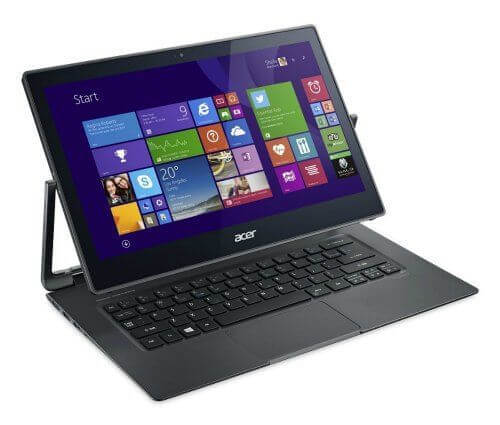
Acer Aspire R13 Review: one convertible tablet, six modes

by Tablets for Artists

Type of Tablet

Tablet PC Convertible

10 different configurations of this were released, but the two most commonly sold are ones with a Core i5 processor and 8 GB of RAM, and 128 GB SSD, and a Core i7 with Core i7 and 512 GB SSD.

Acer Aspire R7. The newer, 15.6 ” Acer Aspire R7 is similar but uses N-trig. It can also be used with the Acer Active Pen. It’s bigger and heavier. Review to come.

The screen can’t be separated from the keyboard, so this is a true laptop convertible. The “2 in 1” name refers to it being both a regular display and touchscreen. It’s a Swiss Army knife of a tablet, with a U-frame design capable of six different “poses” compared to the Lenovo Yoga’s four.

Features

Windows 8.1
13.3″ 10-pt. multitouch screen
Dimensions: 13.4 x 9 x 0.71 in. (344 x 230 x 18 mm)
Ports: two USB 3.0; one USB 2.0; HDMI; SD card slot
Weight: 3.3 lbs. (1.5 kg)
Intel Core i5-5200U Dual-core 2.20 GHz
Full HD 1920 x 1080, 220ppi, 13.3″
Compatible with Acer Active pen sold separately ($49)
Synaptics digitizer with 256 levels of pressure sensitivity
(2560 x 1440 WQHD display 13.3″ on highest-end mode)
16:9 aspect ratio
Intel HD 5500 with Shared Memory
8 GB
256 GB SSD
Ezel Aero Hinge provides 6 modes
can be used with Acer Active Pen
Skype-certified for quality voice and video chat

stand mode good for on-screen typing on lap or table

acer-aspire-r13-review

Notebook, Ezel, Stand, Tablet, Tent, Display: the six modes

Battery Life

6.5 to 7.5 hours, depending on tasks

What’s in the Box

Computer

What’s NOT in the Box

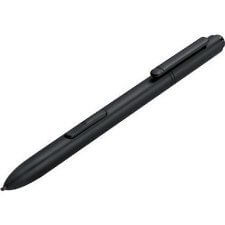
acer-aspire-active-stylus


The Active Stylus is sold separately.

The stylus is compatible with the Aspire R13 (R7-371T), Aspire Switch 11 & 12 (SW5-111, SW5-171, SW5-271). You can also use the HP active stylus with this computer.

Overview

The Aspire stands on two columns, sort of like a freestanding chalkboard. The dual hinges are sturdy, and the screen stands firm, not getting shaky when using the pen. The laptop auto-rotates the content on the screen to match the mode you’re in.

The R13 is a sleek, modern-looking computer with an almost architectural presence. Some might feel like it’s trying too hard to look modern, with its Gorilla Glass-encased lid and jutting metal hinge. When the lid is shut, the hinge surrounds it on the sides and protrudes out a little, making it take up more space on the desk than its screen size would suggest.

The touchscreen is fast and responsive to touch and pen input when doing clicking, swiping, and gestures. The computer, with its dual SSDs, is also fast.

The six poses/modes are: Ezel, Notebook, Stand, Tablet (r Pad), Tent, and Display. These are more versatile than the four positions of the Lenovo Yogas. Ezel mode is useful because you can pull the screen closer to you and still access the keyboard. This solves one of the more annoying problems for artists using a 2-in-1 with a swiveling screen, or a Lenovo Yoga where the keyboard locks when folded back. In both these cases, the keyboard is difficult to access, making it more efficient to use an external keyboard. If Acer continues with this line and irons out the bumps, this design would be ideal for artists. Stand mode is good for typing, drawing, or editing art; the screen holds steady. You can adjust it to positions in-between these too.

acer-active-pen-review

Drawing in Stand mode


Portability

At 3.3 lbs. (about 1.5 kg), it’s pretty portable and light for a convertible but still heavy to carry around for long periods. It’s also thin and compact.

Lid

The lid is sandwiched between layers of anti-reflective Gorilla Glass, which gives it a nice sheen, but attracts fingerprints. Luckily, it’s easy to clean. The lid is designed to be opened with one finger, but it helps to have small fingers or it might be a bit of a struggle.

Screen

The screen shows up fairly well outdoors if the sun is not too bright, and offers good viewing angles. It uses two layers of Corning Gorilla Glass 3, one at the surface and one behind. The two layers of Gorilla Glass cut reflections, protect from scratches, and make the screen easy to clean. The images look crisp. Turning off adaptive brightness may help you get brighter colors. You will have to calibrate the colors to get better color accuracy than it comes with. With the more high-resolution model, Photoshop icons will look smal. You can scale the sizes of icons and fonts using Acer’s calibration tool.

One slight downside of the innovative design is that it takes up as much space on a desktop as a 14″ laptop, since the base is larger than the screen. A 13″ laptop sleeve will be too small to put this laptop in.


Acer Active Pen

The Acer Active Pen works well at the edges and, similar to N-trig, handles parallax well, meaning there is only a small space between the tip and the line on the screen. The Active Pen takes an AAAA battery.  Using Acer’s Hover software, you can open a menu that allows you to access apps by hovering the pen. Some have complained about the Active Pen going through batteries quickly, as well as connectivity issues.

You can convert handwriting to text.

Keyboard

Usually we don’t talk about keyboards much, but it seems needed because this is a problem area with the R13. Though I don’t know the reason the computer was discontinued, there were many complaints about the keyboard typing double characters and other problems. One Acer Aspire R13 reviewer reported that when hitting the edges of a key, the key would depress but not register the character typed. Some people got tricky touchpads, as well. Though hard to find in brick-and-mortar stores now, The R13 is still for sale online.

The bluish backlighting of the keyboard prevents glare. The backlighting turns itself on, which is a nice touch.

Stand Mode is the one Acer says is best for drawing. I’m not sure I agree, because in Stand it’s harder to access the keyboard than it is in Ezel. But it is a good mode if you don’t really need the keyboard or can use the on-screen one. I like that in Ezel, In the screen is closer to the eyes. The computer easy to hold in the lap, too. If you’re one of those work-on-the-bed artists, the Tablet pose may be the most efficient.

Drawing on the Acer R13

The line sometimes skips if you draw quickly. Some people had problems with wobbly lines as well as with palm rejection. Even though the Synaptics drivers have improved a lot, and the parallax is good, the R13 still lacks the accuracy of Wacom or N-trig. In short, this is not the worst tablet to draw on, but it’s not the best, either. The R13 is better if art is not the primary use for it, but is fine for sketching, annotating, or taking notes. With handwriting, it also skips a line now and then. The 256 levels of pressure sensitivity vs. Wacom’s far greater amounts is not an issue unless you are using a brush larger than 256 pixels. It is relatively slim and light, and powerful, but if you’re a professional artist, all that doesn’t compensate for the drawbacks. If you are mainly a hobby artist this laptop is OK.

The driver runs on Windows Ink rather than Wintab, so older versions of programs such as Photoshop that use Wintab drivers won’t give pressure sensitivity.

User reviews

A lot of people do not like the small Caps Lock key and small delete key. Many really like the computer itself with its speed. Reviews of the pen functionality are mixed, with some finding it adequate. One Acer Aspire R13 review written by an artist said that

Pros

Six modes
Sharp design
Good build quality despite being plastic
Fast
Screen size
Small power brick

Cons

Potential keyboard and touchpad issues
Sometimes skips lines when drawing fast
Potential battery issues with pen

The Verdict

If you get one without a wonky keyboard or trackpad, this is a very nice computer. Not as good artwise as Wacom, Wacom ES, or N-trig, though. We hope that Acer will continue developing this design and pen with artists in mind.

Read more info and reviews about the Acer Aspire R13.

Read more info and reviews about the Acer Aspire R7.

Also check out these other convertible laptops:

Lenovo ThinkPad Yoga 12.5

Lenovo ThinkPad Yoga 14

end of Acer Aspire R13 review

Apple releases iPad Pro with Apple Pencil Stylus

Well, the big day is here. Apple is releasing the iPad Pro, with a larger screen and features like multitasking is here! It will have more speed as well as features like multitasking and a split screen, similar to Android tablets such as the Galaxy Note. The iPad Pro will have a 12.9-inch diagonal screen with 5.6 million pixels. Now that’s resolution! It will start at $799.

Here’s a look at the new, $99 Apple Pencil Stylus.

samsung galaxy tab a s pen review

Galaxy Tab A with S Pen review: Samsung tablet a fine sketchbook

Galaxy Tab A  10.1 (2016)with S Pen review: portable Samsung great for sketching

Galaxy Tab A with S Pen Review

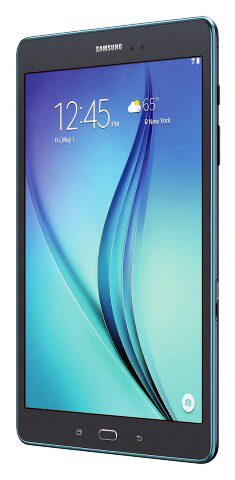
In Oct. 2016, Samsung released this updated version of the 9.7″ one that’s got an HD screen, more memory, and is larger at 10.1.” This Samsung tablet with pen is one of my favorite portables for art, especially sketching.

2014 Galaxy Tab A with S Pen 9.7"2016 Galaxy Tab A with S Pen 10.1"
Screen size: 9.7"
Resolution: 1024 x 768
Processor: 1.2 GHz, quadcore
OS: Android 5.0.2 Lollipop
RAM: 1.5 GB
Storage: 16 GB, expandable to 128 GB with MicroSD card
Weight: 1.07 lbs.
Micro USB 2.0 port
Battery life: up to 15 hrs. Web browsing


Screen size: 10.1"
Resolution: 1920 x 1080
Processor: 1.6 GHz, octacore
OS: Android 6.0 Marshmallow
RAM: 3 GB
Storage: 16 GB, expandable to 256 GB with MicroSD card
Weight: 1 lb.
Micro USB 2.0 port
Battery life: about 14 hrs. Web browsing


The Galaxy Tab A with S Pen is an affordable drawing tablet you can tote anywhere. Its 4:3 aspect ratio is a benefit for artists. Its size is large enough to draw comfortably on, and you have your pick of Galaxy Apps and apps from the Google Play store.

The S pen is Wacom, and you’ll get pressure sensitivity and palm rejection, which are important for creating art. It has the Enhanced S Pen, which detects angles as well.

galaxytabawithspenreview

Galaxy Tab A with S Pen (2016 version)

Type of Tablet

Android tablet

Features

Runs Android 6.0 Marshmallow
screen resolution: 1920×1080
10.1 inches diagonal
Dimensions: 10.5 x 6.4 x 1.9 in.
4:3 aspect ratio
RAM: 3GB
1.55 lbs.
Smooth plastic casing
16 GB storage
MicroSD slot expandable up to 200GB
8 MP rear camera
Octa-core 1ghz
QuickConnect lets you share back and forth with your 2015 or later Samsung Smart TV

What’s in the box

Tablet, S pen, charger head (power plug), micro-USB cable, Quickstart Guide, warranty info

Reminder: only the Tab A that has “with S Pen” in the name uses an S Pen, and it comes with it. The regular Galaxy Tab A does not have the S Pen and will not work with it, nor get pressure sensitivity.

The S Pen that comes with it is thin, but it’s not a simple stylus. It’s a full Wacom EMR pen, and if you wish, you can use a batteryless Wacom EMR pen meant for penabled tablet PCs.

Using the tablet

Samsung’s tablets have a lot of nifty abilities, such as being able to multitask, with up to 5 windows open at once, use split-screen with apps (you can have two apps open at once and even drag things from one to another), handwriting recognition, a mic, and more.

There are two power-saving modes, one called Ultra Power Saver, which simplifies the interface to save battery life.

When you remove the S Pen from its sheath, Air Command, a steering-wheel-like dashboard, pops up and lets you use the pen to perform operations such as take a screenshot or open an app. You can handwrite something to put into an app, such as email or notes.

The S pen is not simply an addition that happens to make marks; its functionality is an integral part of S pen-enabled tablets. You can draw, write, crop, and capture. The S Pen writing app has digital fountain and calligraphy pens.

Having a wide range of digital pen nibs is a familiar experience to art-app users, but may be new for people who have been stuck with one basic pen in the main tablet interface until now. The Calligraphy and Fountain pens allow you to go formal or lay down a digital signature with gravitas.

The on-screen keyboard has a row of numbers over the letters, which is convenient for typing in passwords, so you don’t have to switch to a numerical keyboard. There is also a handwriting keyboard that converts handwriting to typed text and even a voice keyboard that turns utterings into text.

Screen

The 4:3 aspect ratio is new for Samsung tablets and makes the Tab A resemble an iPad. This aspect ratio is more similar to proportions of paper and canvas that most artists draw on, so it’s preferable for drawing than the more common 16:9 or 16:10 of most Android (and some Windows) tablets. 4:3 also good for reading, as you don’t have to scroll the page sideways when using it in landscape orientation.

The PLS (plane line switching) TFT Gorilla Glass screen is nice and bright, with good color accuracy. It’s not quite as high-end as the AMOLED screen of the pricier Note.

The Adaptive Display feature is a light sensor that adjusts the tablet’s brightness, color, and sharpness to your environment.

The glass surface is slick and toothless and the S Pen’s hard plastic tip glides over it. If you prefer to have a bit of tooth to draw with, try a matte screen protector. It really makes a difference.

Pen

galaxytabawithspenreview2

You must use the pen that comes with it with the Tab A. The Note S pen will not work with the Galaxy Tab A, (hough a regular Wacom pen will work on the Wacom Note devices as well as on the Galaxy Tab A with S pen).

An ordinary Wacom pen made for a penabled Wacom tablet works with it may be a more comfortable choice to draw with. Testing the S pen showed that it has rotation sensitivity. Palm rejection works well.

The pen has a hard plastic tip, making it glide over the Gorilla Glass screen.

Converting handwriting is encouraged with this tablet. With a bit of practice on both your parts, the tablet will recognize your handwriting, and you will learn to tailor your penmanship to what the tablet can read.

Setup is easy, and you can import your data from other Android tablets via your Google account.

Portability

At about a pound and a half, this is quite portable. Of course, you need to carry it in some kind of protective case or sleeve, and that will add weight too.

For Lefties

The tablet controls and setup should be fine for the left-handed. Most controls are on the right, with the S Pen slot at the upper right corner. The rest are on the bottom, leaving the top and left edges with no controls.

Controls

The important Back and Recent Apps buttons on either side of the Home button are hard to see. They are harder to see in the Smokey Titanium color than the white. I would think people would soon remember where these buttons are.

If you’ve never had an Android tablet, these are frequently used buttons. They allow you to back out of an app when you have lost your way. On the right side of the tablet is the volume button.

The tablet recognizes gesture, allowing you to take a photo without actually touching the screen.

Software

Quite a bit oof space is taken up by the OS. Fortunately, the storage is expandable via MicroSD card of up to 128 GB. You can keep apps and media on that.

Many Android art apps allow multiple layers, creating and editing of high-res files, and offer options to adjust sizes and export and import certain file types, just as full desktop apps do. 3-D modeling apps are also available.

No mobile art app offers the power of a desktop program like Photoshop–but not everyone needs all that power all the time. An artist with the Galaxy Tab A with S Pen can do more with than than they can with an iPad because of the Tab A’s native pressure sensitivity.

The Galaxy Tab A with S Pen does have some non-removable bloatware, but not as much as some previous Samsung tablets.

If you’re selling your wares at, say, an art fair, you can use the Square App to accept credit-card payments. (The old-fashioned, pre-app way was to do it in the browser using PayPal).

The Side Sync apps mirrors your Samsung phone, so that if you get a text on your phone, you can answer it on your tablet.

And if you need a break to play Angry Birds, you can do light gaming such as that on this tablet, but nothing too processor-heavy. Sorry, gamers, there is no haptic feedback.

Because of the 4:3 aspect ratio, movies will have a black bar on the top and bottom because movies have a 16:9 aspect ratio. Just pretend you’re at a drive-in.

Battery Life

Excellent. 13  hours of Internet use

User Ratings and Reviews

Customer feedback has been very positive, I got the idea a lot of people who bought this tablet were using a tablet with a stylus for the first time and loved it. Remember that this is a budget tablet. Without the S pen, it’s not the biggest bargain, but when you add the S Pen in, it becomes attractive to artists who want a digital sketchbook, and to those those just dipping their brushes into the digital-art jar.

This is being marketed as a general use, versatile tablet for everyone. Paired with a keyboard, this can be a productive all-in-one tablet.

Gadgets should reflect the organic qualities of humans, and this one really does with the natural feeling of the pen. I do recommend getting a larger Wacom EMR pen, though.

Pressure sensitivity will vary from app to app.

Pros

S pen with ability to edit, hover, use Air Command, copy text or other content between apps
Multitasking–can use multiple apps at once
Affordable
Comfortable drawing size
Wacom-powered; usable with other Wacom pens
4:3 aspect ratio
Fast
expandable storage
QuickConnect

Cons Android navigation buttons are not backlit
No haptic (vibrational) feedback

The Verdict

This Samsung Galaxy Tab A with S Pen 10.1 (2016) with S Pen review is a thumbs up: it’s a great little digital sketchbook. This is a fine entry-level art tablet that offers useful apps such as ArtRage and Sketchbook Pro as well as many others. The size and aspect ratio make it good to draw, read, and write on. Colors are bright.

In addition to reading this Galaxy Tab A with S Pen review, you might want to check out the Galaxy Note 10.1 with S Pen review if you want a more high-end version with better screen resolution.

Also check out the higher-end Samsung Galaxy Tab S3 with S Pen as a drawing tablet.

ALSO SEE: Galaxy Tab S3
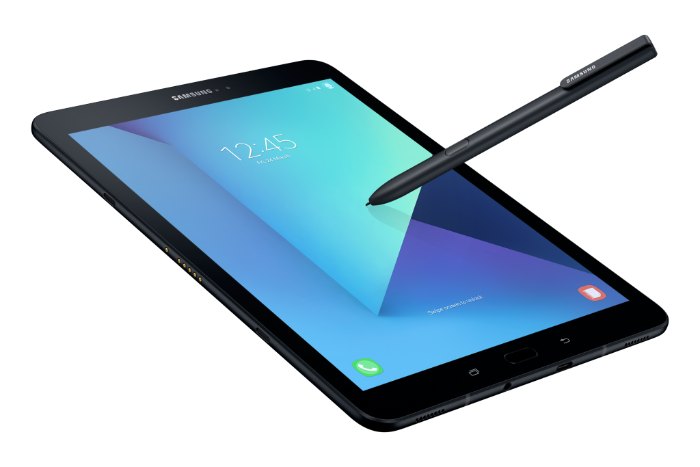
Samsung Galaxy Tab-S3-with-S-Pen

Samsung Galaxy Tab S3 with S Pen

-a high-end Android tablet with an upgraded S Pen. See it on Amazon

Optional Accessories: Pens

Staedtler Noris Digital Samsung Pencil (Wacom EMR)

wacom pen

Wacom pen (Note: there is not a way to store this pen on the tablet, and it’s not an “official” accessory, but it works.)

For other options for a good digital sketchbook, see them in the comparison chart.

If you’re trying to figure out which tablet to get, see this informational article, The Best Drawing Tablet for You.

End of Galaxy Tab A with S Pen review: an affordable drawing tablet

yoga 14 screen

Lenovo ThinkPad Yoga 14 review: a twist of Wacom ES

Lenovo ThinkPad Yoga 14 Review

by Tablets for Artists

Update, Spring 2016: There is a newer version, the 20FY0002US.  I have written a separate review of it you can read here. Click to see it at Amazon. This newer one doesn’t have the battery issues some of the units from the earlier model did, and this one comes with the Wacom ES pen in a silo in the body. Recommended.
icon

Type of Tablet

Convertible Tablet PC (Laptop that turns into a tablet via a hinge. Keyboard is not detachable).

The rumored 15″ version that works with the pen never happened.

UPDATE: This computer in Windows 10 is now available at Best Buy.

NOTE: There are several versions of the Yoga ThinkPad 14 and some do not have the Wacom digitizer. The ones that do are: the 20DM008UUS, which has Windows 8.1, and the 20DM009GUS with Windows 10. It is confusing, the salespeople aren’t informed, and the info doesn’t appear in the product info. 

lenovo thinkpad yoga 14 review

Lenovo ThinkPad Yoga 14


Overview

The computer, made of magnesium alloy with a plastic keyboard, is solid and good-looking, as well as slim. The display is bright and clear with deep colors. The hinge works well in all the positions. The trackpad is large and responds well. The extra screen space is a great addition for drawing. The ThinkPad Yoga 12 weighed 3.5 lbs., and the 14 weighs in at 4.2 lbs. The 12 actually had a brighter screen at 324 nits, but to me it did not look as bright, maybe because the 14 has a smudge-and-fingerprint-resistant coating that adds to the glossy sheen, whereas the 12 was matte. Glossy as it is, the surface is not too slippery for drawing, though I prefer drawing on the matte. So there is a tradeoff here between brightness and texture.

It boots up and shuts down quickly. Programs open quickly, too. There is just a single slot of RAM, and the 8GB is not expandable. But 8GB is plenty to run Adobe CC and other graphics programs. Bootup and shutdown are quick.

thinkpad yoga 14 opens flat

The Yoga 14 can open to a flat position, so you could draw on it like this and keep access to the keyboard.

lenovoyoga14tabletmode

Or you can push the screen down so it’s flat, with the keyboard on the bottom. Keys will be locked, so it’s helpful to use an external keyboard to access keyboard shortcuts.


Features

IPS display with 10-point multitouch, screen size 14″
Screen resolution 1920 x 1080 (Full HD)
brightness: 267 nits
1 TB hybrid hard drive with 16GB solid state drive
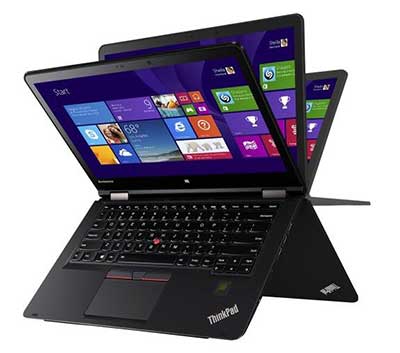
360-degree design to fold into 5 settings: laptop, tablet, tent, table, stand
Intel 4th Generation Core i5-4210U processor
8 GB RAM, non-expandable, soldered in (possibly could be expanded with some difficulty)
NVIDIA GeForce GTX 840M graphics that will switch on automatically when you open a program that uses it (or you can change options in the NVIDIA settings)
720p Webcam
keys that retract when in tablet mode
backlit keyboard (user turns on backlighting when wanted)
Dolby Home Theater audio

Height: 0.8″
Width: 13.3″
Depth: 9.4
Weight: 4.2 lbs.

3 USB ports: two 3.0 and one 2.0
No Ethernet port
1 full HDMI output

What’s in the Box

Thinkpad Yoga 14 2-in-1 14″ Touch-Screen Laptop
4-cell lithium-polymer battery
Power cord, AC adapter
Owner’s manual

Durability

The Lenovo Thinkpad Yoga 14 has military-grade protection for shock, vibration, sand and dust. The computer is solid and should be a brawny travel companion.

Portability

The PC’s weight, while light for its size, it’s a lot to tote around for long periods of time.

Wacom ES Digitizer

The 14 uses Wacom ES, which is sort of like a marriage between Wacom EMR and N-trig. The pen takes batteries. The ThinkPad Yoga 12 uses traditional Wacom EMR technology, so you could use a regular Wacom pen such as the type you use for the original Surface Pro and Surface Pro 2, and attain 1,024 levels of pressure sensitivity. You cannot use that kind of pen with the 14.

Wacom ES feels somewhere in between N-trig and traditional Wacom EMR. It has the 2,048 levels of pressure sensitivity of Wacom, with the better edge accuracy of N-trig. It’s the same tech used in the Toshiba Encore 2 Write. (That does not mean that all the pens will work on all of them.) The drawing/painting experience won’t be quite as fluid as Wacom EMR, but it requires less initial activation force (amount you have to press down to get a mark) than the Surface Pro 3, which is N-Trig, so you won’t have to worry about having to press hard. ES (also called AES) tends to have a lower hover distance.

If you go to see this computer and want to see that it actually has Wacom, simply type the word Wacom into the Windows search box and the Wacom settings will pop up in the search results.

Pen

To get pressure sensitivity, you must use the ThinkPad Active Capacitive Pen, also called the Lenovo ThinkPad Pen Pro. (Since this is multitouch, you can use any old capacitive stylus–such as for the iPad–on this, but with no pressure sensitivity).

thinkpad active capacitive-pen

Here’s the pen on Amazon.

The pen takes an AAAA battery. It has two programmable buttons. It also has a holder that attaches to the laptop via a USB port.

On Amazon and other sites, there is something called the Lenovo ThinkPad Active Digitizer Pen. Do not buy that. That is a traditional Wacom pen and will work on the ThinkPad Yoga 12 2-in 1, but not on the 14. The name is very confusing. To make things even more confusing, there is an earlier version of the 14 that has no active digitizer. So be sure you are getting this 2nd-generation model. There is also a Yoga 15 without the digitizer. Best Buy and Lenovo are not much help with providing info on what pen goes with what. The Lenovo Web site contains very little info. Lenovo’s Helix pens will also not work on the ThinkPad Yoga 14.

Drawing on the ThinkPad Yoga 14

Wacom ES is not too big of a compromise from traditional Wacom. If you’d rather have an all-in-one than a Cintiq13, and a Cintiq Companion isn’t affordable or what you want, and you want something larger than most options, this is a reasonable choice as far as drawing.  The 8GB of RAM lets you easily multitask and use Adobe Photoshop and all the CC programs. In Photoshop CC, you can select to run the NVIDIA dedicated graphics GPU (watch the video below)–actually, it will go on by itself but some people choose to control the settings more.

The Lenovo’s screen is bright, and images look crisp. Using keyboard shortcuts on the Yoga 14 is tricky because the keys retract once out of laptop mode so you’d have to unfold the tablet or use the on-screen keyboard, or, better, use a Bluetooth keyboard. In Photoshop CC, you can create Photoshop Actions to avoid keyboard commands.


https://www.youtube.com/watch?v=_8eUW6N2wK8

Watch this video to see a drawing demonstration, and see how to run the dedicated NVidia graphics GPU in Photoshop CC for better performance.

As far as typing, the keyboard is comfortable and well-made, and the ThinkPad little red button nested in the keys can be used as a pointer. The trackpad is large and has buttons on it than can be used as selection and right-click tools.

Screen

The 1080 IPS High Definition screen is bright and cheery with excellent viewing angles, good contrast and a smudge-and-fingerprint antiglare coating. It’s glossy, but not too slippery to draw on. The colors are rich and contrast is deep.

The Dolby sound can get very loud, but it has a bit of tinniness.

As you can see, the screen is pretty glossy and bright. Photodon.com has screen protectors especially made for this computer. You can try one that’s not too matte, such as the 25% anti-glare one, to preserve image sharpness.

Here you can verify that it has a Wacom driver–when in doubt, just type Wacom into the search box.

yoga 14 screen

Battery life

around 6.5 hours

The battery life is a good 90 mins. less than the ThinkPad Yoga 12s.

Battery issues

There are serious concerns with the battery beyond that it doesn’t last a full workday. Many users had battery problems, causing inconsistent brightness, power drain, and random shutdowns. The Lenovo forums contain a long thread by stressed-out users. One person figured out the issue and the fix, but it’s not something everyone can do themselves, plus the method may void the warranty. These complaints are not showing up a lot in the Lenovo Yoga ThinkPad 14 reviews so far, so I don’t think this is incredibly widespread, but it’s hard to say because the release of this model is relatively recent as of this writing. Lenovo is aware of it and perhaps they will do something about it. We will follow the issue and add updates. A couple of commenters here and elsewhere have said that they got ones with no problems and really like them. Still, pay close attention to any return policies.

Tip: disable adaptive brightness and power management to get more consistent brightness.


Pros

fast processor
dedicated graphics
2,048 levels of pressure sensitivity with pen
great display
nice keyboard
large screen

Cons

glossiness of screen not ideal for drawing
have to buy pen separately, lack of information from dealers
not as fluid as traditional Wacom
battery life of 6.5 hours relatively short
weight of 4.2 lbs. hefty to carry
risk of getting one with bad battery


User reviews

Many people are really happy with the Yoga 14 because it’s fast, the pressure sensitivity works well, and it can run Photoshop and other programs breezily. One Lenovo ThinkPad Yoga 14 review described it as “amazing.”

This is it in tent “pose”:

<lenovoyoga14review2


The Verdict

This laptop is a very good choice for an artist, if you get one without the battery issues. So it’s hard to give a clear recommendation in this Lenovo ThinkPad Yoga 14 review, because as an art tablet it’s pretty great, so it gets a qualified “Namaste” (recommendation). If you feel life’s about taking risks, it may be worth it. The ThinkPad Yoga 12 (also called the ThinkPad Yoga 2 in 1) has a smaller, 12.5″ screen, but these battery issues haven’t been reported and it has traditional Wacom. As far as the 14, the price is great for the features it offers.

NEWER VERSION WITH WINDOWS 10
BUY ON AMAZON — The one for sale on Amazon is model 20DM000VUS, which is the Windows 8.1 version. You can easily upgrade for free to Windows 10. As with all the models of this computer, it does not come with the pen, you have to order the pen from the link right below.
See more info/buy the Lenovo Active Capacitive Pen here (Lenovo).
Read our review of the ThinkPad Yoga 2-in-1 (ThinkPad Yoga 12)
See the ThinkPad Yoga 12 on Amazon (same as ThinkPad Yoga 2 in 1. The 12 is an informal name to distinguish it from the 14).
 The Yoga 14 works with Lenovo’s OneLink and OneLink Pro docks.
lenovothinkpaddock


Lenovo ThinkPad One Link Pro Dock (pictured) (Amazon)

Lenovo ThinkPad Pro Dock


end of Lenovo ThinkPad Yoga 14 review

Read review of the newer version of the TP Yoga 14.