Category Archives: Wacom alternative

Wacom alternatives are lower-cost tablets similar to the Wacom Cintiq or Intuos and Bamboo graphics tablets. While they don’t have the more advanced features of the Cintiq, they can be effective digital art tools. They have EMR digitizers and usually get 2,048 levels of pressure sensitivity. Companies include XP Pen, Ugee, Parblo, Yiynova, Bosto, Monoprice, Turcom, and more.

This category does not include tablets such as the Dell Canvas that are similar to a Cintiq, nor does it include things like the Surface Pro. It only includes products by smaller companies whose tablets are affordable alternatives to Wacom. In cases where there is a low-priced all-in-one (tablet that is also a computer) I have included it, such as the Mytrix.

XP-Pen Artist 22 review: a good CintiqHD alternative

e

XP-Pen Artist 22 review: affordable Cintiq 22HD alternative

Update: XP-pen has released a sequel to this Cintiq alternative, the Artist 22E. You can read our review here: XP-Pen Artist 22E review, art testing. XP Pen tablets are lower priced than Wacom’s, and have much of the same functionality.

The main difference between the XP-Pen Artist 22 and 22E is that the 22E has Express Keys, two sets of them: one on each side, for left- and right-handed use. The XP-Pen 22 does not have any Express Keys.

XP-Pen started in Japan in 2005, has offices in Taiwan and China, and in 2015 they opened offices in the U.S. The company that product development is in the U.S. and meets U.S. standards.

Type of tablet

Pen-display monitor or tablet monitor (Draw on the screen, must be connected to a computer to work.). Also called Cintiq alternative.

See the XP-Pen 22 on Amazon

The XP Pen comes in both 22″ and 10.1″ models. This XP-Pen Artist 22 review will focus on the 22″.

Digitizer: XP-Pen, 2,048 levels of pressure.


What’s in the Box?

Two pens
One pen charging cable with pin-type USB charger
pen holder
8 nibs
nib remover
CD (drivers also available on the XP-Pen site)
smudge-protection glove
screen protector
power adapter, power cord
VGA cable, USB cable, HDMI cable, HDMI to Mac adapter cable
user manual
cleaning brush
microfiber cleaning cloth
Adjustable stand (attached to monitor) made of plastic with rubber on feet
monitor has rubber on base and bracket


Features

Weight: about 15.4 lbs (7 kg)
2,048 levels of pressure sensitivity
IPS LED screen with good viewing angles (178 degrees, or +/-89 degrees)
Dual-monitor, Mirror/Extended mode
Diagonal 21.5″
57 x 321 x 30 mm
active area 18.76″ x 10.5″ (476.64 x 268.11 mm)
16:10 aspect ratio
worth with Windows (XP through Windows 10) or Mac. No Linux.
1920×1080 dpi up to 16M colors
VESA-mount compatible
Report rate 220rps
Accuracy (parallax, gap between pen’s drawn line and screen) plus or minus .01 in
Resolution 5080 lpi
UC-Logic digitizer

The tablet is not multitouch, meaning you can’t use your fingers to paint or do anything on it.

For Lefties

It’s fine for lefties. Controls are on the right side, but they don’t need to be used frequently. There are no Express Keys.

Screen

The display, color quality, and resolution are equal to the Wacom Cintiq 22HD non-touch model. There’s no real difference there. On the XP-Pen’s glossy screen, colors look brighter; the Cintiq tablet color gamut covers over 90% of Adobe RGB and the XP-Pen over 70%.

The matte screen of a Cintiq tablet tends to mute the color, though many find it preferable to draw on as it offers a paper-like “bite.”

You can choose a 4- or 9-point display calibration. Pen accuracy is very good, and most people say they do not need to calibrate it as it’s calibrated correctly out of the box.

The 178-degree viewing angle means the picture will be clear even if you are standing somewhat to the side of it, up to 89 degrees on each side.

Unlike Wacom, the XP-Pen doesn’t offer a  multitouch model. Multitouch isn’t necessary to draw with and some artists don’t even use it if they have it. Reasons to use multitouch are to take advantage of the increasing Adobe software touch features, and it can be seen as future-proofing the device for a while. Others just like to finger paint or manipulate tools by hand, or use gestures to pinch, zoom, and navigate.

The included glove, which is pretty large, keeps your screen clean and smudge-free.  It covers your pinkie and ring finger only, so your hand slides smoothly across the screen. Without it, you may find that your hand may stick to the screen while drawing broad strokes.

A screen protector is included, but you might choose not to use it. It cuts down on the glossy glare.

Pen

The pen weighs 17 grams and is comfortable to hold. It doesn’t have indentations or a grip, but it has a good balance in the hand. It slides quickly over the glass, since the screen is slick, though not super-slippery.

Using the screen protector slows it down somewhat. Some people like to draw on a glossy surface; others prefer a textured screen such as that on the Cintiq, or a more matte screen protector.

The pen has good tracking, with a bit of parallax due to the thickness of the screen, as does a Cintiq tablet.  I did not notice any jitter.

The pen features an auto-sleep function to save battery life. It takes 1 to 2 hours to charge, which will last a couple of weeks, up to 130 hours depending on use. Because two pens are included, you can keep one charged and switch to it when needed. The pen weighs 17 grams.

There’s a blue light indicator to signal when the battery is low. The pen is rechargeable, but the battery that comes in it is not replaceable.

While charging, the pen light will be red until fully charged.

The two buttons on the pen are programmable in the driver. You can toggle it with just one click and one hand, since the button is within reach of your drawing hand’s fingers, so you could program one button to switch to the eraser, which could save you time.

Unlike the Wacom Pro pen, this pen does not have an eraser on the back end. The buttons can only be customized for mouse functions, such as right-click, as well as eraser.

XP-22 vs. Cintiq tablet

The pen’s build quality isn’t as premium as Wacom’s  pens, which do not take batteries so they do not need to be charged. It’s just a different technology.

The XP-pen does not have tilt sensitivity. Lack of tilt sensitivity means that the line will not change depending what angle you hold it at, as it would if you were holding a real pencil. Cintiqs have tilt sensitivity.

Tilt sensitivity is not a dealbreaker for most people. Nor is rotation sensitivity (barrel roll, when you can twist the pen to make patterns), which this also doesn’t have–only the Wacom Intuos Pro and Cintiq tablets support rotation sensitivity, and only with certain pens.

The pen can be squeaky while vigorously drawing or erasing, but as the nib wears down it should stop squeaking.

There is only one kind of pen, whereas with Cintiqs, there are several options for pens and nibs.

Build and Design

The buttons are on the bottom. They are not too hard to reach because the stand lifts the tablet above the table; still, it would be nice if they were in a more convenient place.

The monitor build quality as a whole isn’t as premium as Wacom’s, but it’s solid and stable. Though there are volume controls, there are no speakers; they are for speaker support.

The device is made of rugged textured plastic with rubber on the base and bracket.

Adjustable Stand

The stand can be adjusted up and down to any angle but does not rotate (the Cintiq 22’s metal stand both rotates and goes up and down) It’s a good idea to replace the stand with a mounting arm such as this Amazon Basics one.

The monitor sits on the stand above the table, making the buttons, which are on the right and along the bottom, easy to access. The ports for the cables are on the back, and a little hard to get to because of the stand. The cables can also get mixed up in the stand.

The stand is removeable and VESA-compatible; you can replace it with a mounting arm.

Art Software

Programs for Mac and Windows,including open-source software, work fine, including Photoshop, Paint Tool SAI, Illustrator, Open Canvas, Comic Studio, and Zbrush.

Here’s the company’s video, so you can see the XP-Pen in action:


https://youtu.be/01m7WZPLWQQ

Drivers

Some users report no problems at all and others had some glitches. The XP-Pen site has a page of troubleshooting tips. Drivers from other tablet systems, such as Wacom, should be uninstalled. So if you want to switch off with a Wacom Intuos or Cintiq, you would have to reinstall those (it’s probably a good idea to uninstall the XP drivers before reloading the Cintiq ones). There don’t seem to be major driver issues overall.

TIP: There is a conflict in Windows 7 and 8 laptops where the XP “Star” driver may stop the computer from being able to type. This is fixable and the fix is covered in Troubleshooting on the XP-Pen site.

Pros

Value
Screen and display of high quality
Good accuracy
Comes with generous amount of extras (extra pen; several types of cable; cleaning brush and cloth, screen protector, adapter for Mac)
programmable pen buttons

Cons

No programmable express keys
No tilt or rotation sensitivity; pen tilt is manually adjustable, though.
No multitouch option
Pen needs to be charged, though the extra pen helps
Only one type of pen and one type of nib, as opposed to the variety available for Cintiq
xp pen 22e cintiq alternative

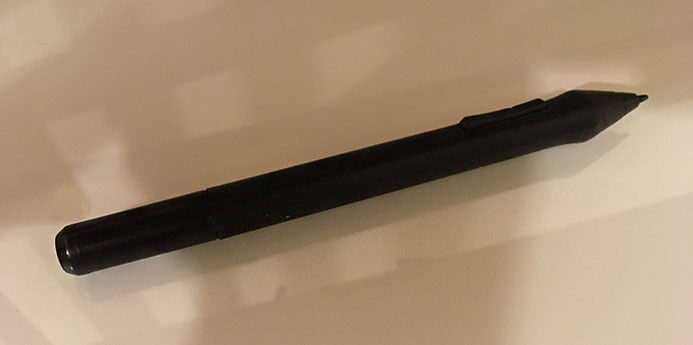
Look, Ma, no eraser end.

User reviews and experiences

Users have been positive about this tablet. They report no dead pixels (a problem sometimes with Cintiqs, though it could be that many more Cintiqs are sold, since Wacom takes most of the market).

Artists have had few issues with it, and many did not have to do any calibration at all. They do well using a mounting arm. Some felt the stand wasn’t very useful. Several feel the XP’s colors are slightly better than on a Cintiq.

This tablet monitor is the same as the Ugee 2150. Ugee, another economical art tablet company, partnered on the XP-drivers. UC-Logic once worked with XP-Pen but no longer does.

Some have commented that this is one of the best Cintiq alternatives in its class. Update: the 22E is a stronger Cintiq alternative because of its Express Keys.

Customer service

The customer service has received praise, and people are available via Skype from the U.S., China, and Taiwan. Email addresses and phone numbers are also on the XP-Pen site. XP-Pen emphasizes its commitment to listening to customer requests and taking them into consideration in product development.

They state their commitment to the environment as well, with all products conforming to the European ROHS  standards, which restrict hazardous substances in electronics.

The Verdict

The XP-Pen is an excellent and economical choice as a Cintiq alternative. It offers almost all the Cintiq 22HD’s features, with only some bells and whistles missing–chief among them are tilt/rotation sensitivity, the XP-Pen tablet’s lack of programmable express keys, the coating over the screen, and a touch option (the Cintiq 22HD comes in two models, the 22HD and the 22HD Touch). While many had no problem with drivers, some did.

So, some willingness to troubleshoot potential driver issues is in order; the company is helpful but you may need a bit of confidence with such matters. This XP-Pen 22 review gives a thumb’s up as an impressive art tool and Cintiq  alternative.

See the XP-Pen 22″ display on Amazon.

See the XP-Pen Artist 22E, which is an updated 22, this time with Express Keys (and on each side) on Amazon.

Accessories

A mounting arm such as Amaon Basics or Ergotron lets you mount, rotate, and tilt the screen as you wish.


More Cintiq Alternatives

Artisul, Turcom, Parblo, Bosto, Huion, Monoprice, and others also make devices similar to the Cintiq and Intuos. The drivers resemble each other though are not all the sam. Some are cross-compatible. Read more reviews of the best Cintiq alternatives.

Linux users

Good news for users of Linux, an open-source operating system: XP-Pen says it is working on its own Linux drivers and they will first work on its graphics tablets, then on its tablet monitors. They get a lot of requests.

Related:

Read our XP-Pen Artist 22E review.

Read our review of Yiynova tablet monitor.

Read our review of the Cintiq 13HD tablet monitor.

New to digital art? Check out the homepage article, Best drawing tablet for you: An introduction

end of XP Pen 22 review: HD display a good CIntiq alternative


cubei7review

Mytrix Complex 11t / Cube i7 Stylus review: budget 2-in-1

Mytrix Complex 11t (Cube i7 Stylus) review: affordable EMR all-in-1

The Mytrix Complex 11t is a version of the Cube i7 Stylus, a Chinese tablet made by a company called 51 Cube (it was also rebranded for a while as the rhyming Cytrix Complex 11t.)

The Mytrix has been changed a bit from the original to get FCC approval, which is required for electronics in the U.S. market. If you get the Cube i7 Stylus alone, but it won’t come with the keyboard and stylus, and the whole package is economical (you can compare prices).

cubei7stylusreview

Mytrix Complex 11t, also known as the Cube i7 Stylus. See it on Amazon

If you want to see the plain Cube i7 and read Cube i7 Stylus reviews, here they are on Amazon.

To clarify a few naming things: The name i7 is confusing; this does not have an i7 processor, it has Core M. Also, this is not a review of a stylus, the name of the computer is Cube i7 Stylus in it, so it’s a Cube i7 Stylus review.

Type of tablet: WIndows tablet PC 2-in-1

Digitizer: Wacom EMR with 1,024 levels of pressure sensitivity

Comes with pen? Yes. Keyboard too

This 2-in-1 Windows tablet has recently come to the U.S. It has been available on Chinese sites such as Gear Best for a while, but that means waiting for shipping, and inconvenience if problems arise. Now, the computer has been rebranded as the Mytrix Complex 11t and for sale in the U.S. market, having been changed a bit to fit FCC standards, according to the seller.

It’s got 4GB RAM, which is soldered in, so not upgradable. It’s got an SD card slot for up to 32GB of extra storage. Its processor is speedy and good for light gaming. It has a Core M processor and 4GB RAM. You can run large programs on it, but it has some limitations.

Like the Surface 3, it’s best used with programs less intensive than Photoshop, such as Photoshop Elements, ArtRage, or Sketchbook Pro, Krita, and Manga 5. It has only 64GB of storage, so best to keep your files on an SD card or elsewhere. You can, with some elbow grease, add a larger SSD.

The Cube i7 has Core M, not the most powerful processor, but a big step up from Atom tablets.  It’s fanless, so it’s quiet. As far as speed, it’s competitive with an i5.  Its LPDDR RAM is fast. The HDMI connector allows you to connect it to TVs, monitors, and projectors to enjoy content on a big screen.

This is quite a good deal if you want a Wacom-penabled PC. It’s reminiscent of the Samsung Ativ line in its size, but that had Atom, so this one is more powerful. What it does do, it does well. And, you can swap the SSD to give you considerably more power.

What’s in the Box

Tablet
screen protector already installed
Wacom pen
keyboard that attaches via magnets
OTG cable (USB On-the-Go)
manual (very basic); paperwork

FEATURES

Screen size: 10.6 inch diagonal
16:9 aspect ratio (the norm for Windows), multitouch
Resolution:1920 x 1080 full HD IPS display
Windows 10
Intel Core M 5Y10 5th generation Broadwell
4GB RAM
64GB storage, SSD
802.11 b/g/n Wi-fi
Micro USB 3.0
micro SD slot for up to 32GB
12-volt DC charging port
mini HDMI connector
Weight: 1.2 K (lib/??)
Bluetooth
audio jack
metal chassis
screen protector, if you see scratches, try removing it as the scratches may be on the screen protector.
Portability
It’s a bit heavy for a tablet of its size, but it’s portable.

Screen

The IPS screen has good viewing angles and is bright with 350 nits. It’s the same screen used that was used in the higher-end Microsoft Surface Pro 2. It has good contrast and 75% of the Adobe SRBG, which is good for something in this class, though less than a higher-end computer would have. It has an accelerometer which you can lock or let go, flipping your image to portrait or keyboard mode depending on the angle of the tablet.

The screen protector can get scratched, so if you get one where the screen appears to be scratched, try peeling off the protector. You might want get a matte screen protector for some tooth while drawing.

Battery Life
6 hours mixed use, 4 hours of video

Pen
The pen has good accuracy. It’s a standard Wacom EMR pen, so if you have one already you could use that one as well.

cube i7 stylus review

User reviews and ratings

This tablet has been well-received with positive ratings from Tech Mobile review and various sites where Cube i7 reviews appear. Artists writing a Cube i7 review have praised its pen accuracy and speed. Wacom penabled tablets can actually vary in accuracy.

Pros
good for light gaming
very affordable for a Wacom penabled tablet

Cons
Trackpad can be sticky
can get hot
speaker quality tinny

The Verdict

It doesn’t have a lot of bells and whistles, very good value for students or hobbyists or people who want to draw, do art, take notes who like the natural feel of Wacom EMR.

Here’s a drawing demo by Samson Lee:

Here’s a Photoshop CS5 demo on it. As you can see though it works, there’s some lag on this 16MP image. That’s not because anything is wrong with the tablet, but because it’s Core M. However, there are a lot of less intensive art programs you can use.


See the Mytrix on Amazon

If you’re searching for more info, looking up articles about and reviews of the Cube i7, or Cube i7 Stylus, might turn up more than searching for Mytrix.

end of Mytrix Complex 11/Cube i7 Stylus review

Read our reviews of these comparable models:
Microsoft Surface 3
Toshiba dynaPad
Asus Vivotab Note 8
Surface Pro 2


Monoprice Tablet review, 10 x 6.25″ : A budget tablet pick


Monoprice Tablet Review: 10 x 6.25″ Graphic Drawing Tablet

by Tablets for Artists

monoprice tablet review


TYPE OF TABLET

The Monoprice Tablet is a graphics tablet. It attaches to a computer via USB 2.0. You draw on the tablet and see your art on the computer screen. This review is of the 10 x 6.25″ model.


OVERVIEW

The Monoprice tablet offers many features a Wacom does but is much more affordable, making it good for beginners and students ,and artists on a budget. Its stylus requires a single AAA battery (included).

Monoprice graphics tablets do not have a touch function, nor do they have the capacity to sense tilt and rotation like the high-end Wacom tablets do. While these features can be useful, not every artist uses them, and only some Wacom pens and tablets have these features.

The Monoprice tablet has the same high, 2,048 levels of pressure sensitivity as the newer Wacoms and other premium tablets.

The Monoprice isn’t shoddy, but, unsurprisingly, it’s not as solidly built as the most high-end graphics tablets. Still, with normal use, it won’t fall apart on you.

WHAT’S IN THE BOX

Tablet

Wireless pen, AAA battery for pen, pen holder, 4 replacement nibs, pen clip tip-removal tool

Mini USB cable (4.9ft/1.5m)

Drivers and software CD

User’s manual

FOR LEFTIES

There are 6 buttons go along the left. The latest set of Windows drivers (v 9.0 driver) allows you to flip the tablet to move them to the right.

Note: The newest set of drivers for Windows (v. 9.0, linked below) features the ability to flip the tablet so that the Express Keys are on the right side.


DRIVERS DOWNLOAD PAGE

You may download the drivers as well as user Manuals from this page on the Monopricesite.

The drivers are for Windows XP and later, and Mac 10.4 and later.

The tablet is Linux-capable but doesn’t offer Linux drivers.

FEATURES

2,048 levels of pressure sensitivity
drawing area of 10 x 6.25 with a widescreen aspect ration of 16:10
6 programmable express keys on the left
16 preset hotkeys along the top
4000 LPI resolution
200 RPS report rate (determines how often information is sent to the tablet)

Note: the Amazon listing for this mistakenly calls it the 8 x 5″ model, but the specs other than the size are accurate for the 10 x 6.25.”

PORTABILITY

It weighs 2.5 lbs, fairly portable.

STYLUS

The stylus is a little flimsy and it’s worth it to buy the better one. Users trying to insert a new battery often had trouble getting the battery lead to make contact with the battery. The AAA battery that comes with the pen is not always fresh, so you may need to replace it right away.

TIPS: When inserting a new the battery, be careful that the battery and contact area in the pen barrel are matching correctly, and do not bend the metal strip inside the pen. To open the pen that comes with the tablet, pull the pen apart.

As a replacement pen, many users recommended buying this Monoprice pen, which is very affordable.


monoprice stylusIt’s lighter weight and thinner than the one that comes with the tablet. This pen unscrews. The build is sturdier and the battery replacement is less hairy, though the innards are still not as sturdy as they should be. A fairly comment complaint problems when screwing or unscrewing the two pieces to put in or take out a battery. Also, the buttons are a bit hard to find.

Both pens have programmable buttons. Neither has an eraser tip. To erase, use your art program’s eraser tool.

The nibs for these pens may wear down quickly, depending how hard you press. The plastic sheet over the tablet protects the nibs some, but you may prefer lifting the sheet when drawing, exposing the tablet’s textured surface, which wears down the nibs faster. You can purchase inexpensive Monoprice replacement nibs that will fit both. They come 10 to a pack.


TABLET

The surface has a slightly bumpy texture which gives you a nice bite while drawing, but as mentioned above, it can wear down nibs. It also comes with an attached plastic sheet over it to make tracing art easier. Tracing drawings is one way to get your drawings into your computer. Other ways are using a scanner or digital camera, or, of course, drawing freehand right onto the tablet.

When using the Monoprice tablet, you have to tap the pen on the tablet to wake it. If the pen is set to a brush tool, you will have to hit “undo” or use the eraser in your art program to get rid of the mark the pen has made on the tablet when waking it up.

The tablet attaches to the computer via USB 2.0. When attached, it’s on; there is no on/off switch for the tablet.

SOFTWARE

You can use just about any art software that’s on your computer with this. You won’t necessarily be able to use it on every other program as a mouse.

The Monoprice uses some UC-Logic components. The drivers can be found on the UC Logic site. They are also included on a CD in the package. Installing them from the UC Logic Web site instead of the CD will ensure that you have the latest drivers.

TIPS: If your your tablet’s light turns on, but doesn’t recognize your pen, check the pen battery placement. If the battery is OK but the tablet still doesn’t recognize your pen, try a replacement nib.


CUSTOMER SERVICE

There is both a live chat option and a place to post messages on Monoprice.com site. Customer support is responsive and offers replacements when people cannot get the tablet or pen to work. I did a chat with them to ask some questions, and found them to be helpful and polite.

USER REVIEWS AND RATINGS

Many digital artists, from hobbyists to professionals, loved this tablet. More than one Monoprice tablet review stated that the Monoprice was as good as any of the more expensive graphics tablets, including the Wacom Intuos. Some found the accuracy to exceed the Cintiq. This Monoprice has 2,048 levels of pressure sensitivity, which is the maximum currently available, though authorities over at Microsoft say that the number of levels past 256 is not perceptible.

The Monoprice tablet received many 5-star reviews. But there was a fair amount of problems mentioned by Amazon reviewers, resulting in over 10% of the reviewers rating it one star, mostly out of frustration with the drivers. This could be from conflicts with previously installed drivers or services that are running. Also, the instructions are not written in clear English.

Some wrote in their Monoprice tablet review that even after working with customer support, they were still unable to get the device to work. This was not the norm, and if you get it on Amazon you can take advantage of their good return policy. (Not that you want to go through a frustrating experience, but you have probably an 80% of higher chance of having a good or great experience with this tablet).

Some like the larger size, but others find it makes scrolling difficult, as you have to move your arm while drawing.

PROS

very affordable
accurate with fine lines
performance compares with and sometimes exceeds more expensive tablets

CONS

Stylus sometimes has problems with battery compartment
Drivers can be difficult to install
The button icons won’t necessarily correspond to how you program them, which can cause confusion.
The decals that act as labels next to the buttons are not removable.

THE VERDICT

The highlight of the Monoprice tablet is the most important thing: its performance. Some digital artists feel it’s better than any other tablet. The tablet is sensitive and responsive, and you can get very fine line control even when zoomed out. Adjusting settings in each art program, when possible, can make a difference. Each artist is different and will have different preferences. Some professional artists would want the tilt and rotation features offered by the higher-end Wacom models, but those features aren’t important to everyone. And, you might just want an extra tablet that’s less expensive to travel with, so if it gets lost with your luggage it’s not such a big hit to your wallet.

Considering the price, the Monoprice really can’t be beat. If you’re just getting into digital art, this is a great starter tablet. It’s also a great backup or extra tablet.

Monoprice also makes a tablet monitor, where you draw on the screen, that has been well-received.

ACCESSORIES

Monoprice pen

Huion pen (will work with Monoprice 8×6, 4×3, 10×6.25)

huion-pen

10-pack of replacement nibs

OTHER SIZES

Monoprice makes their tablets in quite a few sizes. If you want a larger tablet, try the 12×9.

Monoprice offers good tablets for the money. They don’t have all the bells and whistles, but they are valuable digital art tools.

monoprice-drawing-tablet

The Monoprice 12×9″ tablet gives you lots of space.


end of Monoprice Tablet review

For more on budget tablets, read our Huion tablet review.

See our article about choosing the best Wacom Intuos tablet.

drawing-tablet-for-pc-huion

Huion H610 Pro Review – 6 x 10″ workspace

Huion H610 Pro Review: lightweight, heavy on features

by Tablets for Artists


huion610prohandsonreview


Huion H610 Pro Graphics Drawing Pen Tablet


The Huion H610 Pro Review: the H610 Pro is a graphics tablet made by a Chinese animation company. It has a generous 6 x 10″ active drawing area and features that rival the Intuos Pro while being cheaper than even the lower-cost Wacom Intuos series. But what about the quality?

NOTE: Here’s a detailed H610Pro v2 review. This newer version is much improved with tilt sensitivity and a pen that doesn’t need charging. See the H610 Pro v2 on Amazon

(note: if you’re looking for the OSU model, the H420, scroll to the bottom of this article).


TYPE OF TABLET

It’s a graphics tablet that connects to a computer via USB. It is not a screen that you draw on–if you want that, please consider a tablet PC or tablet monitor such as Cintiq or Yiynova. For more on tablet types, please see this post.


FEATURES

The H610 has 8 Express Keys down the its side, and 16 hot cells on the tablet screen. Its workspace is 10 x  6.25 inches. It’s only about a quarter-inch thick. It works with Mac, PC, and Linux/Ubuntu. You can use wireless mice and keyboards with this tablet. The resolution is 5080 lines per inch. The battery-free, rechargeable pen has 2,048 levels of pressure sensitivity.


PORTABILITY

It’s lightweight and easy enough to carry.


WHAT’S INCLUDED

It comes with 4 replacement nibs and one inside the pen, for a total of 5. The nibs are all the same. Also included are two USB cables, one for the tablet and one for the pen, as well as a pen, pen charger, pen rest, and paper user manual. Their site, huion-tablet.com, has all the up-to-date driver.

FOR LEFTIES

This tablet now has a left-handed driver, so you can choose to draw in left-handed mode.


TABLET

The surface is mappable; you can decide how much of the tablet you want the pen to work on. The surface has a grip to it that eases drawing. It is hard plastic, not rubbery like the Wacom Bamboo. It feels not quite as slippery as glass, more like thick, smooth paper.

The surface of  this tablet is hard plastic, less prone to scratching than Wacom Intuos, partly because the pen nibs are rounded. If you are getting scratches it may depend how you are holding the pen, some people “sharpen” nibs as they draw. It also of course depends how much pressure you apply.


STYLUS

huionh610propen

The stylus is lighter and thus easier to handle than previous version. The company says the rechargeable pen lasts 800 hours after every 2-hour charge, though some say it lasts for far less time. The pen rest is not a pen holder per se, just something to balance the pen on.

The pen’s buttons let you right click, left click, or double right or left click, as with a mouse. They don’t let you add further commands.

When drawing with the Huion pen, the pressure curve is slightly harder than it is in Wacom. It does not create a “blob” as easily (unless your Huion driver is acting buggy). You can adjust pen sensitivity until you find a comfortable place; the default around the middle is good. Setting it high makes it too stiff. The 610Pro does not feature pen tilt or rotation recognition.

drawing-tablet-for-pc-with-pen

CONTROLS

The 16 programmable hotcells on the tablet allow you do macros, things like Photoshop operations like “tone/color adjust.” They are easy to program, though they only work with one software application. You would have to reprogram them if, say, you switch over from Photoshop to Illustrator.

The hotcells are right on the tablet surface along the top, and have the same texture, so if you are using the entire tablet rather than mapping part of it, remember the keys are there or you may end up drawing on them. The express keys on the left of the work area can zoom, scroll, erase, undo or whatever you want, but they don’t allow as many operations as the Intuos does.

The surface is mappable, so you can just pick part of the tablet to draw on. An LED indicator light lights up in the pen when you are drawing, though this is annoying to some and may only happen with some computer systems. If you find it annoying you might want to put opaque tape over the light!


SOFTWARE

You can use this tablet with any software your PC uses, such as Photoshop, Word, Toon Boom etc. At this date, the driver does not provide pressure sensitivity in Adobe Illustrator or Inkscape, though you can use the tablet with those without pressure. Huron says they are working on this.

The resolution, 5080, is the same as the Wacom Intuos Pro. The driver lacks some features of Wacom’s, such as screen mapping, radial menu, and the ability to customize by program that’s available in the Cintiq and Intuos Pro.

HUION H610 Pro driver TIP:

Before installing the drivers, you should disable any other Wacom drivers and mouse drivers, then the Huion, then restart. Turn off Internet and don’t turn it on again until after the tablet is connected and working, or else the computer’s plug and play driver may automatically be installed. Plug the tablet into the USB port of your computer only after you boot up the computer.

huionpenpressure

You can the pressure sensitivity using the driver.

You should install as Administrator. Shut off any antivirus programs. If you’re reinstalling, delete the old drivers. More discussion of the drivers at this post about the Turcom TS-6610 tablet, which can use this same driver.


PROS

Can recognize multiple monitors and you can choose which ones to use.

Value

Thin (just about 1/4″ thick)

Sleek design

Large work area (make sure you have enough desk space)

Lightweight pen


CONS

Edges get jitter, just as Wacom digitizers do.

Delicate USB ports (also a common complaint regarding Wacom products)

Makes a bit of noise when drawing on the tablet due to the hard plastic surface

Buggy drivers

Have to press hard at times

No wireless option in this model


CONSUMER REVIEWS AND RATINGS

Most customers were pleasantly surprised by the quality and the many features this tablet offers. Many  really liked the way the pen felt, though a few did not. The worst thing about the Huion is that the drivers are a bit fussy and sometimes buggy.

More than one Huion H610 Pro review complained about these oversensitivity and the pen making marks even when not touching the surface, such as when hovering half an inch over it. I have not experienced these problems myself. You should keep other electronic devices, even if they are not turned on, at least a few feet away, as they can cause interference.

It’s advisable to get the Amazon service plan. You should deinstall all other tablet drivers before installing this one. If you can get pressure sensitivity in one program but not in another, such as Photoshop CC, check to see if you have the Wintab (Wacom Feel) driver installed. If you do, delete it. You can use this graphics tablet with a tablet PC.


CUSTOMER SERVICE

Helpful and responsive, and they stick with you til the problem is resolved. They sometimes ask for videos of problems you report.


THE VERDICT

If you are patient and have some computer savvy, this could be a great art tool. But with quite a few reports of buggy drivers, many users end up being frustrated and spending time talking to customer support. So, when coming to a conclusion while writing this Huion H610 Pro review, we cannot give a 100% recommendation–the tablet is for those who have some patience and ability to troubleshoot. Remembering to remove other drivers on the system beforehand would save trouble.

Other than that, the quality of the product is solid. A couple of reviewers state it is superior to Monoprice. A tablet is something you may use for years, so, if you want top of the line, then going with Wacom is recommended. But,as long as you have a bit of tech know-how, this is  a strong choice that has the features of the Wacom Intuos Pro line, except for tilt and rotation sensitivity.

If you’re looking for a professional-quality drawing tablet  that’s a great value, the Huion 610 Pro is worthy of consideration.

Looking for a tablet for OSU?

If you’re into playing the rhythm game OSU, Huion makes a tablet for it. See the Huion H420 on Amazon.

OPTIONAL ACCESSORIES:

Huion’s soft carrying case will protect your tablet.

Manga Studio 5 is truly versatile, affordable drawing software.

See our review of the Monoprice graphics tablet.

See our article about choosing a Wacom graphics tablet.

Read about the Turcom tablet, similar to the Huion H610 non-Pro.

Read more about top-rated graphics tablets.


end of Huion H610 Pro Review


Yiynova MVP22U.V3 review

Yiynova MSP19U+ Review (model with Vesa stand)

Yiynova MSP19U+ review: large pen display won’t break the bank

by Tablets for Artists

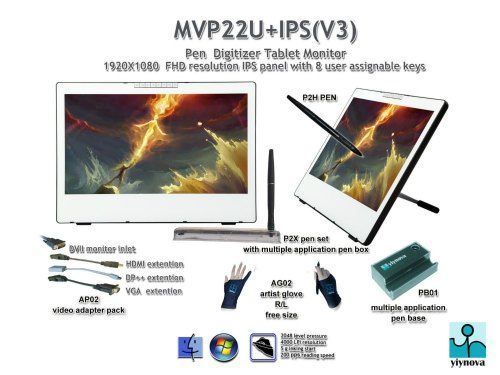
Update: This newer Yiynova MVP22U.V3 has fixed some of the issues of the 19U. We recommend this one over the MSP 19U, and will be adding more information on it.  See more reviews and info on Amazon.

Update: Yiynova MVP22U.V3 worth a look

Yiynova MVP22U.V3 review

Yiynova MVP22U V3

Yiynova MSP19U+Yiynova-msp19u-review

For a small fraction of the cost of a Cintiq, you can have a Yiynova tablet monitor by the Chinese company Yiynova. While the first iteration of the this monitor, the MSP19, had some issues, this second one, the MSPI9U+, has remedied most of them, and the slightly higher price tag is worth it . The Yiynova at 19″ delivers almost as much screen real estate as the Wacom 22″, but it is far lighter. At about 9 lbs., I wouldn’t call the MSP19U+ highly portable, but it’s not as desk-bound as the 22″ Cintiq. The Yiynova works with Mac and Windows.


WHAT’S INCLUDED

The monitor, pen with 2 spare nibs, clip to attach it to the monitor, nib removal tool, attached mini USB, power supply, quickstart guide for Mac and PC, CD with drivers, and documents. The warranty (good for U.S. only) is one year, serviceable by The Panda City in Taiwan.


FEATURES

The Vesa-compatible kickstand, which is non-detachable, lets you prop up the Yiynova and has an adjustable angle of 5 to 45 to 90 degrees. Or you can use on Ergotron arm. Drawing area is 19″ diagonal with a 16:10 wide screen. There are 2,048 levels of pressure sensitivity, as many as the Cintiq. There are 16.7 million colors. It has a VGA input, a VGA output, a USB cord that is hardwired to the tablet, and a pen with kit. The pen needs an AAA battery. You can use it with multiple monitors.

System Requirements (for the -19U and -22U):

PC with USB3 port, video card with either VGA port, DVI port, or HDMI port (or mini-display port)

If your computer has a DVI or DisplayPort input, you will need a VGA to DVI cable.

Windows 7 or up, Mac 10.8 or up

What’s a VESA stand?

VESA stands for Video Electronics Standards Association, and being VESA-compatible means the mount, the square that attaches to the stand and the monitor, is of a standard size that can fit most TVs and modern flat-panel monitors.


Yiynova-msp19u-features-1


SCREEN

The screen is glassy, and smooth, reflective, not the matte of the Cintiq. While the Cintiq feels more like drawing on paper, the Yiynova gives you more of a glide. The colors start out a bit cool but can be calibrated.

The Yiynova lacks the expansive viewing angles of the Cintiq’s 175 degrees. The Yiynova’s are 85 degrees horizontally and 80 degress vertically, so you need to be more or less right in front of the Yiynova to see what’s on the monitor. Personally that’s how I work anyway, but to some it might be annoying.

The screen has a far lower resolution than the Wacom. It’s 1440 x 900. While users of the previous model complained of jagged lines in raster programs and font-rendering problems, this model has a different digitizer, so this problem has been solved for most. However, there are still some complaints.

The color gamut is a standard 16.7 million. Color calibration can be more difficult on the Yiynova than on the Cintiq. The display is bright and cheery with its LED backlight (which the Cintiq does not have). All the same, the colors themselves won’t necessarily be as bright as on your main monitor; this is also true of the CIntiq.

A smudgeguard glove will be useful, as fingerprints show on the glassy surface.

YIYNOVA PEN

The plastic pen has a rubber grip and two clicker buttons on the side. It needs an AA battery. The pen feels cheap compared to Wacom pens. It also lacks an eraser; you have to use the eraser tool in your art program, but that’s not a big drawback.

The pen requires a single AAA battery that should last for months with frequent use. It has a low-battery indicator light. The pen gets 2,048 levels of pressure sensitivity, just like the Wacom. It just has the one size nib, unlike the varied nibs of Wacom. The Yiynova comes with a “kit” including a spare nib and nib remover.

There is far more parallax in the Yiynova than the Cintiq, you see a good quarter-inch between the stylus tip and the line. While this takes a bit of getting used to, it actually makes it so you can see what you are drawing better, since the pen isn’t in the way. But it takes the experience a further step away from pencil and paper. When looking straight at it, it’s not noticeable.

CONTROLS

This model has power and adjustment buttons on the lower right side of the device. There are no controls on the front–that means no programmable ExpressKeys.

SOFTWARE

The drivers are more difficult than the Cintiq, though I can’t say that using Cintiq drivers is always a breeze. You need to uninstall all other tablet drivers before installing the Yiynova ones. You need to use two drivers. It’s better to use the ones from their Web site rather than the included ones on the CD, because the site will have all updates.

Unlike the Wacom, you can’t do things like mapping the drawing area, it’s just a 1:1 shot of your screen. I only use this anyway even with the Cintiq, but some artists might miss the extra features. The driver’s limitations compared to the Cintiq are one of the biggest differences between the two. The Yiynova works with any art or other software your computer works with (Photoshop, Illustrator, Toon Boom etc.)


PORTABILITY

At 11 pounds, it is not very portable, but if you really had to take it somewhere you could do this far easier than you could with the much heftier Wacom 22 and 24s.


USER REVIEWS AND RATINGS

Most of those who have written a Yiynova MSP19U+ review or participated in discussions have been positive.

Customers really like the feeling of the pressure sensitivity, and they love the price. The things that I thought might annoy them seem to be OK, such as the parallax, and some do not notice it at all, or only notice it on 25% of the screen. It would depend on the angle you are viewing from. One said he prefers the parallax because he can see his whole drawing now.

Some said the included cables are not long enough to use with a desktop computer, so they used their own cables. One Yiynova MSP19U review said the Yiynova colors because it doesn’t have the anti-glare screen of the Cintiq and therefore the colors are truer and the line more accurate; others miss the traction of the Cintiq screen and feel the Yiynova colors are less vibrant. Biggest complaints are the limited viewing angles and that the pen is not as good as Cintiq pens. Parallax does not seem to be much of an issue.

Some versions of Sketchbook Pro do not work in dual monitor mode (see below). Sai Paint Tool has also had problems in dual monitor mode.

Sketchbook Pro 6.0 and 7.1.1 work on dual monitor mode. Sketchbook Pro
6.02, and 7.0/7.1 won’t work in it.

TIP: For Sai Paint Tool, Yiynova suggests this solution:

Go to the SAI data folder and find the misc.ini file
Use the text editor to change the line
TabletMouseSimulation = 0
to
TabletMouseSimulation = 1

then restart Sai. This might fix the cursor issue.


PROS

Price a fraction of the Cintiq

functions

display brightness

ease of use

customer service

VESA-compatible stand is solidly built.


CONS

Pen not as good as Wacom’s

drivers can be difficult

viewing angles are limited

screen resolution not high, leading to some having issues with jagged lines and font rendering.

no programmable keys


CUSTOMER SERVICE

Customer service, provided by Panda City, is fast and excellent. They give detailed help in response to problems customers mention, and show that they are listening and concerned. They are closed on weekends, as is Wacom. The manuals and specs are all on the company Web site. Though the English is imperfect, it’s understandable.

This pen display tablet offers a lot of value to both hobbyists and pros, and can be compared to the Cintiq. Some artists like its underdog appeal. Others might miss the controls of the Cintiq, such as the ExpressKeys and rocker ring, which can streamline workflow.

INCLUDED ACCESSORIES:

It comes with a handy carrier with plastic handles, stylus, power supply, mini USB, and male VGA cable. As with the Cintiq, you will need to get an adapter if you have a Mac.

THE VERDICT

The more expensive Wacom Cintiq is better in many small ways, but with the closest-sized Cintiq, which is the 22 inch, costing almost 4 times as much, this Yiynova is a good, reliable solution for a student, and entry level designer, or any artist on a budget.


OPTIONAL ACCESSORIES

You might want an HP single monitor arm to make work more comfortable, and a longer cable if you need.
hp single monitor arm


HP Single Monitor Arm

Apple Mini DisplayPort to VGA Adapter

See our review of the XP-Pen 22 tablet monitor.

See our review of the Wacom Cintiq 13HD.

end of Yiynova MSP19U review