Last updated Tuesday, July 2, 2019
Galaxy Tab A 10.1 (2016)with S Pen review: portable Samsung great for sketching
Galaxy Tab A with S Pen Review
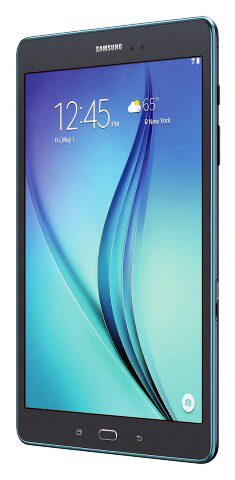
In Oct. 2016, Samsung released this updated version of the 9.7″ one that’s got an HD screen, more memory, and is larger at 10.1.” This Samsung tablet with pen is one of my favorite portables for art, especially sketching.
| 2014 Galaxy Tab A with S Pen 9.7" | 2016 Galaxy Tab A with S Pen 10.1" |
Screen size: 9.7"
Resolution: 1024 x 768
Processor: 1.2 GHz, quadcore
OS: Android 5.0.2 Lollipop
RAM: 1.5 GB
Storage: 16 GB, expandable to 128 GB with MicroSD card
Weight: 1.07 lbs.
Micro USB 2.0 port
Battery life: up to 15 hrs. Web browsing
| Screen size: 10.1"
Resolution: 1920 x 1080
Processor: 1.6 GHz, octacore
OS: Android 6.0 Marshmallow
RAM: 3 GB
Storage: 16 GB, expandable to 256 GB with MicroSD card
Weight: 1 lb.
Micro USB 2.0 port
Battery life: about 14 hrs. Web browsing
|
The Galaxy Tab A with S Pen is an affordable drawing tablet you can tote anywhere. Its 4:3 aspect ratio is a benefit for artists. Its size is large enough to draw comfortably on, and you have your pick of Galaxy Apps and apps from the Google Play store.
The S pen is Wacom, and you’ll get pressure sensitivity and palm rejection, which are important for creating art. It has the Enhanced S Pen, which detects angles as well.

Galaxy Tab A with S Pen (2016 version)
Type of Tablet
Android tablet
Features
Runs Android 6.0 Marshmallow
screen resolution: 1920×1080
10.1 inches diagonal
Dimensions: 10.5 x 6.4 x 1.9 in.
4:3 aspect ratio
RAM: 3GB
1.55 lbs.
Smooth plastic casing
16 GB storage
MicroSD slot expandable up to 200GB
8 MP rear camera
Octa-core 1ghz
QuickConnect lets you share back and forth with your 2015 or later Samsung Smart TV
What’s in the box
Tablet, S pen, charger head (power plug), micro-USB cable, Quickstart Guide, warranty info
Reminder: only the Tab A that has “with S Pen” in the name uses an S Pen, and it comes with it. The regular Galaxy Tab A does not have the S Pen and will not work with it, nor get pressure sensitivity.
The S Pen that comes with it is thin, but it’s not a simple stylus. It’s a full Wacom EMR pen, and if you wish, you can use a batteryless Wacom EMR pen meant for penabled tablet PCs.
Using the tablet
Samsung’s tablets have a lot of nifty abilities, such as being able to multitask, with up to 5 windows open at once, use split-screen with apps (you can have two apps open at once and even drag things from one to another), handwriting recognition, a mic, and more.
There are two power-saving modes, one called Ultra Power Saver, which simplifies the interface to save battery life.
When you remove the S Pen from its sheath, Air Command, a steering-wheel-like dashboard, pops up and lets you use the pen to perform operations such as take a screenshot or open an app. You can handwrite something to put into an app, such as email or notes.
The S pen is not simply an addition that happens to make marks; its functionality is an integral part of S pen-enabled tablets. You can draw, write, crop, and capture. The S Pen writing app has digital fountain and calligraphy pens.
Having a wide range of digital pen nibs is a familiar experience to art-app users, but may be new for people who have been stuck with one basic pen in the main tablet interface until now. The Calligraphy and Fountain pens allow you to go formal or lay down a digital signature with gravitas.
The on-screen keyboard has a row of numbers over the letters, which is convenient for typing in passwords, so you don’t have to switch to a numerical keyboard. There is also a handwriting keyboard that converts handwriting to typed text and even a voice keyboard that turns utterings into text.
Screen
The 4:3 aspect ratio is new for Samsung tablets and makes the Tab A resemble an iPad. This aspect ratio is more similar to proportions of paper and canvas that most artists draw on, so it’s preferable for drawing than the more common 16:9 or 16:10 of most Android (and some Windows) tablets. 4:3 also good for reading, as you don’t have to scroll the page sideways when using it in landscape orientation.
The PLS (plane line switching) TFT Gorilla Glass screen is nice and bright, with good color accuracy. It’s not quite as high-end as the AMOLED screen of the pricier Note.
The Adaptive Display feature is a light sensor that adjusts the tablet’s brightness, color, and sharpness to your environment.
The glass surface is slick and toothless and the S Pen’s hard plastic tip glides over it. If you prefer to have a bit of tooth to draw with, try a matte screen protector. It really makes a difference.
Pen

You must use the pen that comes with it with the Tab A. The Note S pen will not work with the Galaxy Tab A, (hough a regular Wacom pen will work on the Wacom Note devices as well as on the Galaxy Tab A with S pen).
An ordinary Wacom pen made for a penabled Wacom tablet works with it may be a more comfortable choice to draw with. Testing the S pen showed that it has rotation sensitivity. Palm rejection works well.
The pen has a hard plastic tip, making it glide over the Gorilla Glass screen.
Converting handwriting is encouraged with this tablet. With a bit of practice on both your parts, the tablet will recognize your handwriting, and you will learn to tailor your penmanship to what the tablet can read.
Setup is easy, and you can import your data from other Android tablets via your Google account.
Portability
At about a pound and a half, this is quite portable. Of course, you need to carry it in some kind of protective case or sleeve, and that will add weight too.
For Lefties
The tablet controls and setup should be fine for the left-handed. Most controls are on the right, with the S Pen slot at the upper right corner. The rest are on the bottom, leaving the top and left edges with no controls.
Controls
The important Back and Recent Apps buttons on either side of the Home button are hard to see. They are harder to see in the Smokey Titanium color than the white. I would think people would soon remember where these buttons are.
If you’ve never had an Android tablet, these are frequently used buttons. They allow you to back out of an app when you have lost your way. On the right side of the tablet is the volume button.
The tablet recognizes gesture, allowing you to take a photo without actually touching the screen.
Software
Quite a bit oof space is taken up by the OS. Fortunately, the storage is expandable via MicroSD card of up to 128 GB. You can keep apps and media on that.
Many Android art apps allow multiple layers, creating and editing of high-res files, and offer options to adjust sizes and export and import certain file types, just as full desktop apps do. 3-D modeling apps are also available.
No mobile art app offers the power of a desktop program like Photoshop–but not everyone needs all that power all the time. An artist with the Galaxy Tab A with S Pen can do more with than than they can with an iPad because of the Tab A’s native pressure sensitivity.
The Galaxy Tab A with S Pen does have some non-removable bloatware, but not as much as some previous Samsung tablets.
If you’re selling your wares at, say, an art fair, you can use the Square App to accept credit-card payments. (The old-fashioned, pre-app way was to do it in the browser using PayPal).
The Side Sync apps mirrors your Samsung phone, so that if you get a text on your phone, you can answer it on your tablet.
And if you need a break to play Angry Birds, you can do light gaming such as that on this tablet, but nothing too processor-heavy. Sorry, gamers, there is no haptic feedback.
Because of the 4:3 aspect ratio, movies will have a black bar on the top and bottom because movies have a 16:9 aspect ratio. Just pretend you’re at a drive-in.
Battery Life
Excellent. 13 hours of Internet use
User Ratings and Reviews
Customer feedback has been very positive, I got the idea a lot of people who bought this tablet were using a tablet with a stylus for the first time and loved it. Remember that this is a budget tablet. Without the S pen, it’s not the biggest bargain, but when you add the S Pen in, it becomes attractive to artists who want a digital sketchbook, and to those those just dipping their brushes into the digital-art jar.
This is being marketed as a general use, versatile tablet for everyone. Paired with a keyboard, this can be a productive all-in-one tablet.
Gadgets should reflect the organic qualities of humans, and this one really does with the natural feeling of the pen. I do recommend getting a larger Wacom EMR pen, though.
Pressure sensitivity will vary from app to app.
Pros
S pen with ability to edit, hover, use Air Command, copy text or other content between apps
Multitasking–can use multiple apps at once
Affordable
Comfortable drawing size
Wacom-powered; usable with other Wacom pens
4:3 aspect ratio
Fast
expandable storage
QuickConnect
Cons Android navigation buttons are not backlit
No haptic (vibrational) feedback
The Verdict
This Samsung Galaxy Tab A with S Pen 10.1 (2016) with S Pen review is a thumbs up: it’s a great little digital sketchbook. This is a fine entry-level art tablet that offers useful apps such as ArtRage and Sketchbook Pro as well as many others. The size and aspect ratio make it good to draw, read, and write on. Colors are bright.
In addition to reading this Galaxy Tab A with S Pen review, you might want to check out the Galaxy Note 10.1 with S Pen review if you want a more high-end version with better screen resolution.
Also check out the higher-end Samsung Galaxy Tab S3 with S Pen as a drawing tablet.
ALSO SEE: Galaxy Tab S3
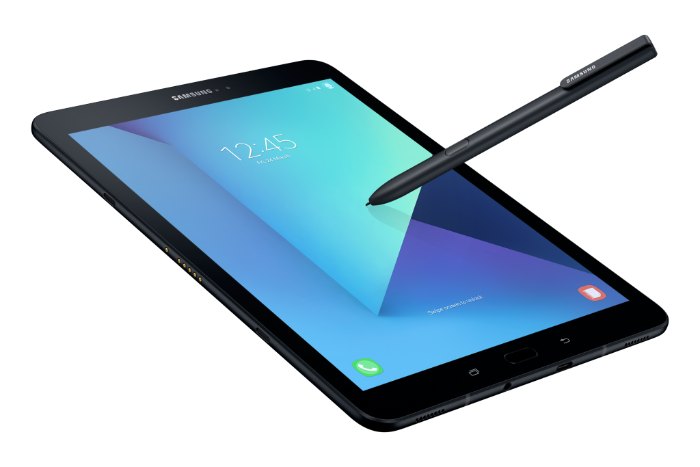
Samsung Galaxy Tab S3 with S Pen
-a high-end Android tablet with an upgraded S Pen. See it on Amazon
Optional Accessories: Pens
Staedtler Noris Digital Samsung Pencil (Wacom EMR)


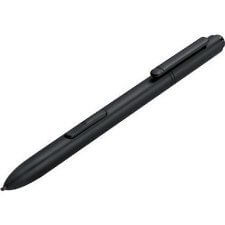
Wacom pen (Note: there is not a way to store this pen on the tablet, and it’s not an “official” accessory, but it works.)
For other options for a good digital sketchbook, see them in the comparison chart.
If you’re trying to figure out which tablet to get, see this informational article, The Best Drawing Tablet for You.
End of Galaxy Tab A with S Pen review: an affordable drawing tablet

 The new Microsoft Surface Pro 4 is set to be released this October 26. It comes with an upgraded Surface Pen. The specs have been released, and the new pen, which is still N-trig, now delivers 1,024 levels of pressure sensitivity. It uses Bluetooth, as did the previous pen, and takes an AAAA battery. The back end functions as an eraser. Most interesting is that it has a tip kit with four tips corresponding to artists’ pencils: HB, B, H, and 2H. Looks like Microsoft is really going after the Wacom artist’s market. The tip kit is sold separately, but comes with any additional pens you buy. The pen no longer needs a loop to attach to the tablet as in the Surface Pro 3; it attaches to the Pro 4 via a magnet. The latency is reduced, making it less laggy. The pen’s accelerometer knows when you’re not touching the tablet and saves the battery; Microsoft claims the battery can last up to 18 months.