yoga 14 screen

Lenovo ThinkPad Yoga 14 review: a twist of Wacom ES

Lenovo ThinkPad Yoga 14 Review

by Tablets for Artists

Update, Spring 2016: There is a newer version, the 20FY0002US.  I have written a separate review of it you can read here. Click to see it at Amazon. This newer one doesn’t have the battery issues some of the units from the earlier model did, and this one comes with the Wacom ES pen in a silo in the body. Recommended.
icon

Type of Tablet

Convertible Tablet PC (Laptop that turns into a tablet via a hinge. Keyboard is not detachable).

The rumored 15″ version that works with the pen never happened.

UPDATE: This computer in Windows 10 is now available at Best Buy.

NOTE: There are several versions of the Yoga ThinkPad 14 and some do not have the Wacom digitizer. The ones that do are: the 20DM008UUS, which has Windows 8.1, and the 20DM009GUS with Windows 10. It is confusing, the salespeople aren’t informed, and the info doesn’t appear in the product info. 
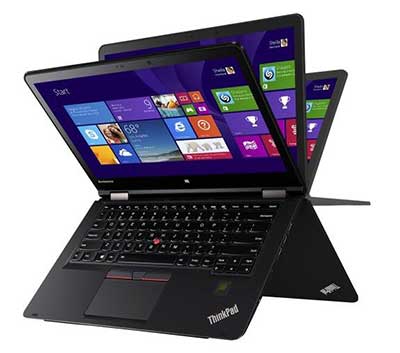
lenovo thinkpad yoga 14 review

Lenovo ThinkPad Yoga 14


Overview

The computer, made of magnesium alloy with a plastic keyboard, is solid and good-looking, as well as slim. The display is bright and clear with deep colors. The hinge works well in all the positions. The trackpad is large and responds well. The extra screen space is a great addition for drawing. The ThinkPad Yoga 12 weighed 3.5 lbs., and the 14 weighs in at 4.2 lbs. The 12 actually had a brighter screen at 324 nits, but to me it did not look as bright, maybe because the 14 has a smudge-and-fingerprint-resistant coating that adds to the glossy sheen, whereas the 12 was matte. Glossy as it is, the surface is not too slippery for drawing, though I prefer drawing on the matte. So there is a tradeoff here between brightness and texture.

It boots up and shuts down quickly. Programs open quickly, too. There is just a single slot of RAM, and the 8GB is not expandable. But 8GB is plenty to run Adobe CC and other graphics programs. Bootup and shutdown are quick.

thinkpad yoga 14 opens flat

The Yoga 14 can open to a flat position, so you could draw on it like this and keep access to the keyboard.
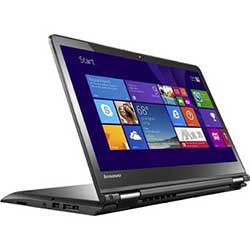
lenovoyoga14tabletmode

Or you can push the screen down so it’s flat, with the keyboard on the bottom. Keys will be locked, so it’s helpful to use an external keyboard to access keyboard shortcuts.


Features

IPS display with 10-point multitouch, screen size 14″
Screen resolution 1920 x 1080 (Full HD)
brightness: 267 nits
1 TB hybrid hard drive with 16GB solid state drive
360-degree design to fold into 5 settings: laptop, tablet, tent, table, stand
Intel 4th Generation Core i5-4210U processor
8 GB RAM, non-expandable, soldered in (possibly could be expanded with some difficulty)
NVIDIA GeForce GTX 840M graphics that will switch on automatically when you open a program that uses it (or you can change options in the NVIDIA settings)
720p Webcam
keys that retract when in tablet mode
backlit keyboard (user turns on backlighting when wanted)
Dolby Home Theater audio

Height: 0.8″
Width: 13.3″
Depth: 9.4
Weight: 4.2 lbs.

3 USB ports: two 3.0 and one 2.0
No Ethernet port
1 full HDMI output

What’s in the Box

Thinkpad Yoga 14 2-in-1 14″ Touch-Screen Laptop
4-cell lithium-polymer battery
Power cord, AC adapter
Owner’s manual

Durability

The Lenovo Thinkpad Yoga 14 has military-grade protection for shock, vibration, sand and dust. The computer is solid and should be a brawny travel companion.

Portability

The PC’s weight, while light for its size, it’s a lot to tote around for long periods of time.

Wacom ES Digitizer

The 14 uses Wacom ES, which is sort of like a marriage between Wacom EMR and N-trig. The pen takes batteries. The ThinkPad Yoga 12 uses traditional Wacom EMR technology, so you could use a regular Wacom pen such as the type you use for the original Surface Pro and Surface Pro 2, and attain 1,024 levels of pressure sensitivity. You cannot use that kind of pen with the 14.

Wacom ES feels somewhere in between N-trig and traditional Wacom EMR. It has the 2,048 levels of pressure sensitivity of Wacom, with the better edge accuracy of N-trig. It’s the same tech used in the Toshiba Encore 2 Write. (That does not mean that all the pens will work on all of them.) The drawing/painting experience won’t be quite as fluid as Wacom EMR, but it requires less initial activation force (amount you have to press down to get a mark) than the Surface Pro 3, which is N-Trig, so you won’t have to worry about having to press hard. ES (also called AES) tends to have a lower hover distance.

If you go to see this computer and want to see that it actually has Wacom, simply type the word Wacom into the Windows search box and the Wacom settings will pop up in the search results.

Pen

To get pressure sensitivity, you must use the ThinkPad Active Capacitive Pen, also called the Lenovo ThinkPad Pen Pro. (Since this is multitouch, you can use any old capacitive stylus–such as for the iPad–on this, but with no pressure sensitivity).

thinkpad active capacitive-pen

Here’s the pen on Amazon.

The pen takes an AAAA battery. It has two programmable buttons. It also has a holder that attaches to the laptop via a USB port.

On Amazon and other sites, there is something called the Lenovo ThinkPad Active Digitizer Pen. Do not buy that. That is a traditional Wacom pen and will work on the ThinkPad Yoga 12 2-in 1, but not on the 14. The name is very confusing. To make things even more confusing, there is an earlier version of the 14 that has no active digitizer. So be sure you are getting this 2nd-generation model. There is also a Yoga 15 without the digitizer. Best Buy and Lenovo are not much help with providing info on what pen goes with what. The Lenovo Web site contains very little info. Lenovo’s Helix pens will also not work on the ThinkPad Yoga 14.

Drawing on the ThinkPad Yoga 14

Wacom ES is not too big of a compromise from traditional Wacom. If you’d rather have an all-in-one than a Cintiq13, and a Cintiq Companion isn’t affordable or what you want, and you want something larger than most options, this is a reasonable choice as far as drawing.  The 8GB of RAM lets you easily multitask and use Adobe Photoshop and all the CC programs. In Photoshop CC, you can select to run the NVIDIA dedicated graphics GPU (watch the video below)–actually, it will go on by itself but some people choose to control the settings more.

The Lenovo’s screen is bright, and images look crisp. Using keyboard shortcuts on the Yoga 14 is tricky because the keys retract once out of laptop mode so you’d have to unfold the tablet or use the on-screen keyboard, or, better, use a Bluetooth keyboard. In Photoshop CC, you can create Photoshop Actions to avoid keyboard commands.


https://www.youtube.com/watch?v=_8eUW6N2wK8

Watch this video to see a drawing demonstration, and see how to run the dedicated NVidia graphics GPU in Photoshop CC for better performance.

As far as typing, the keyboard is comfortable and well-made, and the ThinkPad little red button nested in the keys can be used as a pointer. The trackpad is large and has buttons on it than can be used as selection and right-click tools.

Screen

The 1080 IPS High Definition screen is bright and cheery with excellent viewing angles, good contrast and a smudge-and-fingerprint antiglare coating. It’s glossy, but not too slippery to draw on. The colors are rich and contrast is deep.

The Dolby sound can get very loud, but it has a bit of tinniness.

As you can see, the screen is pretty glossy and bright. Photodon.com has screen protectors especially made for this computer. You can try one that’s not too matte, such as the 25% anti-glare one, to preserve image sharpness.

Here you can verify that it has a Wacom driver–when in doubt, just type Wacom into the search box.

yoga 14 screen

Battery life

around 6.5 hours

The battery life is a good 90 mins. less than the ThinkPad Yoga 12s.

Battery issues

There are serious concerns with the battery beyond that it doesn’t last a full workday. Many users had battery problems, causing inconsistent brightness, power drain, and random shutdowns. The Lenovo forums contain a long thread by stressed-out users. One person figured out the issue and the fix, but it’s not something everyone can do themselves, plus the method may void the warranty. These complaints are not showing up a lot in the Lenovo Yoga ThinkPad 14 reviews so far, so I don’t think this is incredibly widespread, but it’s hard to say because the release of this model is relatively recent as of this writing. Lenovo is aware of it and perhaps they will do something about it. We will follow the issue and add updates. A couple of commenters here and elsewhere have said that they got ones with no problems and really like them. Still, pay close attention to any return policies.

Tip: disable adaptive brightness and power management to get more consistent brightness.


Pros

fast processor
dedicated graphics
2,048 levels of pressure sensitivity with pen
great display
nice keyboard
large screen

Cons

glossiness of screen not ideal for drawing
have to buy pen separately, lack of information from dealers
not as fluid as traditional Wacom
battery life of 6.5 hours relatively short
weight of 4.2 lbs. hefty to carry
risk of getting one with bad battery


User reviews

Many people are really happy with the Yoga 14 because it’s fast, the pressure sensitivity works well, and it can run Photoshop and other programs breezily. One Lenovo ThinkPad Yoga 14 review described it as “amazing.”

This is it in tent “pose”:

<lenovoyoga14review2


The Verdict

This laptop is a very good choice for an artist, if you get one without the battery issues. So it’s hard to give a clear recommendation in this Lenovo ThinkPad Yoga 14 review, because as an art tablet it’s pretty great, so it gets a qualified “Namaste” (recommendation). If you feel life’s about taking risks, it may be worth it. The ThinkPad Yoga 12 (also called the ThinkPad Yoga 2 in 1) has a smaller, 12.5″ screen, but these battery issues haven’t been reported and it has traditional Wacom. As far as the 14, the price is great for the features it offers.

NEWER VERSION WITH WINDOWS 10
BUY ON AMAZON — The one for sale on Amazon is model 20DM000VUS, which is the Windows 8.1 version. You can easily upgrade for free to Windows 10. As with all the models of this computer, it does not come with the pen, you have to order the pen from the link right below.
See more info/buy the Lenovo Active Capacitive Pen here (Lenovo).
Read our review of the ThinkPad Yoga 2-in-1 (ThinkPad Yoga 12)
See the ThinkPad Yoga 12 on Amazon (same as ThinkPad Yoga 2 in 1. The 12 is an informal name to distinguish it from the 14).
 The Yoga 14 works with Lenovo’s OneLink and OneLink Pro docks.
lenovothinkpaddock


Lenovo ThinkPad One Link Pro Dock (pictured) (Amazon)

Lenovo ThinkPad Pro Dock


end of Lenovo ThinkPad Yoga 14 review

Read review of the newer version of the TP Yoga 14.
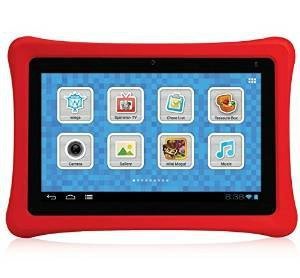
 

nabi 2s review

nabi 2S review

nabi 2S Review


best tablets for kids


See the nabi 2S  and other nabi reviews on Amazon 

nabi 2S vs. nabi 2

The nabi 2S is Southern California-based Fuhu’s newer version of the nabi 2. It now has twice as much memory (16 GB instead of 8), a better display (1280 x 800 pixels vs 1024 x 600), upgraded Wi-fi and Bluetooth networking capabilities, a more durable charger, and a longer-lasting battery. It’s a big improvement over an already popular kids’ tablet.

The display on the nabi 2S is much sharper than on the nabi 2. Images look crisp. On the downside, it doesn’t have a mini HDMI port, and the 2 did. However, the 2S works well with Google Chromecast.

Because of its speed, content, and parental controls, the nabi 2S is one of the top tablets for kids in its class. Many nabi reviews have praised this model.

Type of Tablet

Children’s tablet, Android

Age group

pre-K to 8

What’s in the box

nabi 2S tablet
Drop-safe Bumper
Power adapter (100-240V)
proprietary nabi connector to USB Cable
Product info
Quick start guide
nabi cares Card

The bumper on the nabi 2S, like the 2, is made of non-toxic, food-grade silicone. The bumpers are removable and come in many colors, including glow-in-the-dark.

Features

Dual mode: nabi kid-friendly nabi Mode and Parent mode
Screen: 7-inch with Multi-Touch (Capacitive)
Resolution 1280 x 800 pixels
NVIDIA Tegra 3 Mobile Processor with Quad-Core CPU
16GB, expandable via MicroSD (up to 32GB)
1GB RAM
2MP front-facing camera
Takes photos and shoots 720p Video
plastic body
headphone jack
runs on Android KitKat with Blue Morpho, a nabi overlay to the Android OS

Dimensions

Width: 8.69 Inches (220.8 mm)
Height: 6.05 Inches (153.7 mm)
Depth: 1.14 Inches (29.08 mm)
Weight: 1.31 Pounds (596 g)
These sizes and weights include the bumper.

Durability

The bumper protects very well even after many, many drops.

ince it isn’t fused to the nabi (allowing you to take it off and change it to the various colors of bumper that nabi sells) it does not protect the nabi from liquid spills.


https://youtu.be/aHsH8P1HT9I


Dual Mode – Parental Controls

The nabi sports two modes, nabi mode, which is kid-safe, and Parent Mode, which is a standard Android mode. These modes are already set up and ready to go as soon as you turn on the tablet for the first time. Parents can allow or block apps, create customized channels for kids, set automatic time limits for tablet use, create a Chore list and dole out nabi “Coins” for completing them, set rules for individual apps, and create ways for children to earn extra tablet time.

You can make multiple profiles for more than one child.

The kids’ apps include kid-safe sharing and messaging app called nabi Konnect. Skype can be used only in Parent Mode. The nabi Coins are for sale in the nabi store and can be used to buy kid-friendly content from the nabi Treasure Chest.

Content

The proprietary Wings Learning System features reading, writing, social studies, math, and an “iStorytime” app, for pre-K through third grade. It adapts to your child’s levels of proficiency.  It’s designed to build skills and confidence, and ties in with Common Core. The Wings N-sight feature delivers reports on how well your child is doing and recommends areas to improve. It’s accessible in the dashboard. There’s also content from educational providers such as MeeGenius.

The apps provide a personalized, adaptive way of learning,  meaning the content adjusts to the child’s proficiency level. The system includes videos made by classroom teachers. Wings can supplement school learning. Wings Challenge, a gamified way of delivering educational content, has over 16,000 lessons and 300,000 questions. Fuhu says the system supplements school learning and helps a child’s achievement and confidence.

Kids can play HD games on the nabi and listen to music. The sound is high-quality.

Besides the preloaded content, and you can also install lots of apps, many free, from the Google Play Store, the Amazon Appstore, and 1Mobile Market. For those unfamiliar with 1Mobile Market, it’s an app store that has editors who sift through the millions of apps Google Play and curate them, sorting them into categories and displaying them in a user-friendly menu, making it easy for you to find quality apps.

Storage

To get the preloaded content, you use Tap to Download (TTD). The preloaded content is not removeable, and takes up about half the available 16 GB of storage if you download all of it–you’re not forced to download every single one, so you can be choosy if you want to save space. But you might want all the nabi apps since they are of high quality and are a lot of what you’re paying for. Any third-party apps you install are removable.

Using a micro SD card isn’t any help with storing apps, because like all Android devices, you cannot store apps on the card, but you can store media and other files on it. The nabi’s micro SD card slot holds up to a 32GB card. The tablet doesn’t come with a card.

Tip: If your child shoots a lot of photos and video, that can fill up the internal storage. This data can be stored on a micro SD card instead of in the tablet.

nabi Grid

The back has the Nabi Grid, which is rows of squares with slots. These protruding squares have multiple uses. One is that the slots hold Nabi “Kinabi” alphabet letterpack bundle so kids can spell their names or messages and stick them on the back.

Another use of the nabi Grid is to fasten optional accessories such as car mounts, stroller mounts, stands, and additional cameras. The 2S itself only comes with a front-facing camera, but you can add a Bluetooth camera or other cameras. The nabi Square HD Camera does a lot and is of high quality. (Update: it’s no longer being made by the company, but is still available.)

Drawing

You can draw on the screen with fingers or use a capacitive stylus. There are plenty of art apps, both free and paid. There is no pressure sensitivity.

Pros

Case is protective from drops and scratches; very durable
Excellent parental controls
Access to all Android markets
good sound quality (though some feel it could be louder–but do you want your kids to have that much volume?)

Cons

No HDMI (though the nabi 2S works well with Chromecast)
Volume could be higher
Cannot run Flash on KitKat–though some people manage to via the Dolphin browser and some additional hacks. Google Chromecast works well on the nabi 2S. But that’s just a fact about Android, it doesn’t affect this nabi 2S review.
Screen not fingerprint-proof
Bumper not fused on, so is detachable but not spill-proof.
Menus can be complicated
Tablet is pretty chunky at over an inch thick (to compare, the new iPads are 1/3″ thick. However, there is some kid appeal to chunkiness).
A bit heavy

User reviews

Most users were very happy with the nabi and so were their kids. Some users who wrote a less than glowing nabi 2S review had issues with charging or glitching, but nabi customer service promptly helped them with replacements or fixes. For freezing/glitching, nabi suggests a hard reset, and provides a video.

Customer service

Excellent; very responsive. They respond publicly to every grumbling nabi 2S review on Amazon, and when we asked them questions they answered quickly and thoroughly. Hopefully you won’t have to return your nabi, but it’s good to know the company is so accessible and helpful. There is also an active group of “nabi moms” on Facebook who provide info and help.

Battery life

about 4-5 hours of steady use. Also takes 4-5 hours of charging to fully charge.

Chargers

The nabi 2 charger will not fit the nabi 2S.  The 2S, nabi Jr. nabi Jr.S, DreamTab, and nabi XD all use the same charger. Only the nabi 2 and the nabi BigTab have unique chargers. Still, you can only use nabi chargers, not third-party ones.

Bumpers

The nabi 2 and nabi 2S are the same size, so bumpers for one will fit the other.

The Verdict

The 2S has been highly praised by parents and kids with the biggest complaints being glitching, but nabi customer service quickly comes to the rescue. For the price, the nabi is a tablet that both kids and parents will like. The content is engaging and educational; the tablet is fast. The parental controls are excellent. Even adults enjoy the nabi 2S, and can get some work or play done themselves on the nabi, including email, Facebook, and Netflix.

The nabi 2S is fast, educational, and versatile. With its combination of learning and fun, it’s like having your cake and eating your vegetables too. See more reviews on Amazon.


end of nabi 2S review

ArmorShield nabi screen protector with lifetime replacements

nabiscreenprotector


nabi Square Camera

nabi 2s review


More nabis…. Really want both front and rear facing cameras? AND a pressure-sensitive, Wacom pen?

nabidreamtabtablet
nabi DreamTab HD8 Tablet has a slightly bigger screen than the 2S and has a both front and rear-facing camera. It’s called DreamTab because it has preinstalled content from Dreamworks.

The DreamTab also has a pressure-sensitive, Wacom pen for your budding artist. Further, your child can create and edit animation and movies. The price point and weight are both quite a bit higher, though. Review to come.


Want a rully BIG nabi? Check out the nabi BigTab.

best tablets for kids


end of nabi 2S review

Also see our post about cheap tablets for kids.

Microsoft Surface 3 review: Windows, pen pressure in an affordable tablet

microsoft surface 3 review

Microsoft Surface 3

Microsoft Surface 3 review: we’re not in RT-land anymore

by Tablets for Artists

Type of tablet

Slate PC with detachable keyboard

Features

Windows 8.1 (64-bit), with free upgrade to Windows 10 when that becomes available

Intel Atom Quadcore x7 processor

Multitouch screen takes finger or pen input

N-trig digitizer with 256 levels of pressure sensitivity

Palm rejection

64 and 128 GB options

full-size USB port

mini USB charging port

takes microSD cards of up to 18 GB

less expensive than Surface Pros

One year of Office 365

Nice design and solid build

Surface Pen with eraser button (not included). Pen takes AAAA battery

Detachable, click-in keyboard (not included)

Bluetooth

Dock (not included)

Can connnect to most TVs and Monitors using  Mini DisplayPort or Microsoft Wireless Display Adapter

Ambient light sensor and more


What’s Included:

Tablet, charger (only works with the Surface 3), documentation, Quickstart guide

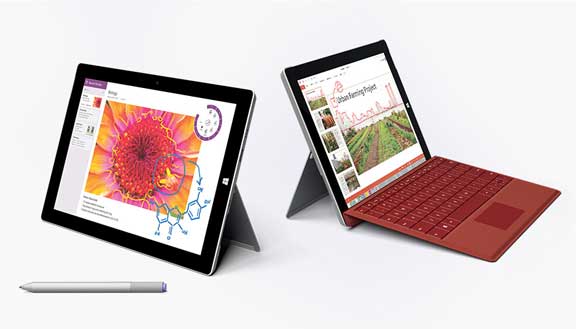
Microsoft touts the Surface 3 as being a rival to the iPad, because of its light weight, 3:2 aspect ratio, and comparable price; as a potential laptop replacement, it does much more than an iPad. It certainly could take the place of an iPad in terms of what it does, and it does far more than the iPad; if all you need is the functions of an iPad, then you may be happier with one. I see the S3 as a lower-cost rival to the more premium Surface Pro 3 because the S3 has almost the same features, including pressure sensitivity. So this Microsoft Surface Pro review will focus on the comparison with the SP3 rather than an iPad, because many artists are simply looking for an affordable drawing tablet with a screen and stylus and pressure sensitivity.

It’s far better than the now-discontinued Surface RT line, which had no pressure sensitivity and an irritating operating system.  If you want something that can also act as a laptop and art tablet, the Surface 3 is good deal. It has apps such as Netflix and iTunes, or you can use your browser to watch Netflix and you can run desktop iTunes.

This is the first computer to run the Intel Quadcore Atom X7, which as as powerful as an i3. You can run any Windows 8.1 program on the Surface 3. The X7 is made to run cool. It will handle Photoshop well.

The 3:2 aspect ratio is that of a sheet of paper. The Surface and Surface Pros 1 and 2, Samsung Ativ, and some other Windows slates have a wide screen. The 3:2 feels more natural hold and to draw on, and fits drawings such as comics better. It’s the same aspect ratio as the Surface Pro 3.

Surface 3 vs. Surface Pro 3

Surface 3Surface Pro 3
OS Windows 8.1Windows 8.1
Screen size


10.8"12"
Aspect ratio3:23:2
Resolution1920 x 1280 full HD Plus2160 x 1440
Weight1.37 lbs.1.76 lbs.
Dimensions10.52" x 7.36" x 0.34"11.5” x 7.93” x 0.36”
Thickness .034".036"
ProcessorQuadcore Intel Atom x74th Generation Intel Core i3,i5, or i7
Pressure Sensitivity256 levels (N-trig)256 levels (N-trig)
Battery lifeup to 10 hrs. of video playbackup to 9 hours of Web browsing

The SP kickstand takes only 3 positions, making it less flexible than the SP3, but also adding less weight and cost.

Storage options are 64 and 128GB, the 128GB is definitely better for art, since art programs and files can take up so much memory, and Windows also takes a lot of memory.

The S3 has an optional detachable keyboard with buttons.

For lefties

You can actually set left or right-handedness by swiping from the right of the screen and writing the word “hand” (without quotation marks) in Search. A result will pop up asking you to specify the hand you write with, so you tap or click.

The pen that comes with the Surface 3 is the same as the Surface Pro 3 pen.

N-trig digitizer

The N-trig 3 is good for drawing, though you do have to press harder, exerting a higher initial activation force to get a line and the line can be a bit skippy if you don’t maintain the force. It’s something you can get used to There is no line jagging around the edges of the tablet as there are with Wacom digitizers. Microsoft consulted with some digital artists when creating the N-trig interface. Some people don’t like drawing on the N-trig, and others do. It’s good to test it out in person before committing. If you want a similar computer with a Wacom digitizer, which some prefer as it feels a bit smoother, you can still get a Surface Pro 2 or Surface Pro 1.

Pen

microsoft-surface-3-review-surface-pen


Surface Pen

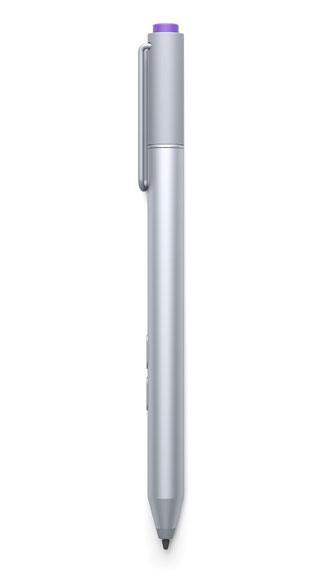
The Surface Pen is solid and metal, and handles nicely. It takes a single AAA battery. You will have to pair the pen to the tablet via Bluetooth when you first get it, but only once. You can pair it automatically at setup, or do it manually later.

The pen resembles a metal ballpoint pen and produces a fine line. The barrel comes in 4 colors. It works with art programs in addition to apps that support Microsoft’s Ink, such as Word, PowerPoint, and OneNote.

The pen has three buttons. The top button connects to the SP3 via Bluetooth. Single-clicking the top button will open OneNote, and double-clicking will take a screenshot.

On the barrel are two more buttons. The one farther from the tip is the Right-Click button. That one can open a pen menu where you can choose an ink color for OneNote, or select text.

The button nearest the tip is the eraser button.

Note: The Surface Pen works with the Surface 3 and the Surface Pro 3. It is included with the Surface Pro 3, but not with the Surface 3.

You cannot use a pen from the Surface Pro or Surface Pro 2 with the Surface 3 or Surface Pro 3. The SP1 and SP2 use the Pro Pen.

Drawing on the Surface 3

The screen is responsive and nice to draw on. When drawing, you don’t get jitter around the edges as happens with Wacom devices. However, there is a different problem specific to N-trig, which is that when drawing a diagonal line slowly, you get a jagged line. This is because the N-trig digitizer is arranged on a grid. Microsoft is aware of this problem and attempted to make the pen connection more powerful in the 3, but the problem continues. In testing the N-trig, I got this problem some of the time, depending on what strokes I was drawing. Here are some possible fixes:

-Draw a straight line, select the line, and rotate it.

-Use Manga Studio, which has line smoothing and fixes the issue.

-Use Lazy Nezumi, an app that gives you line smoothing. It has a Photoshop plugin, or you can do it canvas by canvas in other programs. It has a 30-day free trial, and is fairly affordable to buy.

-The Surface Pro or Surface Pro 2 have Wacom digitizers so would not have the jagged line issue (but do have edge jitter).

Customer ratings and reviews

Mostly very positive, with some complaints of defective tablets. One Microsoft Surface 3 review described it as being great for students, while another praised it for business and giving client presentations. As an artist, you could show your portfolio on it. So it’s a good all-in-one. As a tablet it’s very portable, and adding a keyboard gives you a functioning laptop.


The Verdict

The Surface 3 is arguably the best art tablet with screen that you can get for this price. You will not be able to get tilt sensitivity the way you can on the more expensive Wacom Intuos and Cintiq. There is not a variety of pens available as there is with Wacom devices. Professional artists who use Adobe CC and a lot of memory would do better to get a Surface Pro with its more powerful processor.

With the Surface 3, you will have pressure sensitivity, a desirable aspect ratio, lots of computing power (not quite as much as with the Surface Pro 3) and the ability to do anything a Windows laptop can do. You can run Metro Apps such as Fresh Paint and the Sketchbook Express app, or full Adobe programs and full Sketchbook Pro or Manga Studio, games, and Word. It seems that pressure sensitivity is becoming much more common in tablets. As for the diagonal-line problem, not everyone seems to have it, but if you do, try one of the solutions above. This is an annoying problem and may turn you off of the Surface 3 as an art tablet.

When preparing this Microsoft Surface 3 review post, I expected to make more of a comparison to an iPad, but in studying the specs, that comparison doesn’t quite make sense. As far as a buying choice, though, you are getting more for your money as an art tablet and a computer than with an iPad, but that doesn’t take away from what the iPad does offer, which is the Mac OS and breezy design. The Surface 3 has a nice design too.

Because the screen is not quite as large and the processor not quite as powerful, we still favor the Surface Pro line for professional digital artists, but if you’re on a budget, you can be very productive with the Surface 3. It’s not limited to use as a digital sketchbook; it goes beyond that. It’s also a good general-use device.

see it on Amazon

Optional Accessories for Surface 3

Surface Pen

Keyboard

Dock

Case


end of Microsoft Surface 3 review

Want to learn more about the different types of art tablets? Read our introductory article.

Toshiba Encore 2 Write review: a Wacom-powered sketchbook

Toshiba Encore 2 Write Review: affordable Wacom tech

by Tablets for Artists


toshiba-encore-2-write-review

Toshiba Encore 2 Write. See it on Amazon.

Type of Tablet

Windows 8.1 tablet with digitizer pen

About the Encore 2 Write

If Toshiba’s new Encore 2 Write is the shape of things to come, then this is an encouraging time to be a digital artist. The Encore 2 Write was featured at the 2015 Consumer Electronics Show (CES),  an annual international convention held in Las Vegas that showcases the latest in gadgety innovations.

This tablet’s price point and features are comparable to the Asus Vivotab (read our review), which is no longer being manufactured. The Write is newer and has received more favorable reviews than the Vivotab. Like the Vivotab, it’s a portable tablet that runs full Windows 8.1 and has a Wacom digitizer. While the Vivotab gave you 1,024 levels of pressure sensitivity, the Encore 2 gives you the maximum, 2,048. The VivoTab only had a thin pen, but the Write has a full-size pen; the tablet does not have a slot to old it. Unlike Wacom pens for the Cintiq and Intuos tablets, the Encore 2 Write’s stylus takes a battery, size AAAA. The battery should last a few months with regular usage. It has two hi-res cameras and dual mics.

Specs

Intel Atom Z3735F processor
Windows 8.1
micro-USB port
16:10 aspect ratio
2GB RAM
64 GB storage
dual mics
two hi-res cameras
active Wacom digitizer with 2,048 levels of pressure sensitivity
comes in 8″ or 10″ screen
Dimensions: 6.9 x 10.2 x .35″
screen resolution 1280 x 800
Micro SD slot takes up to 128GB Micro SD storage, tablet
supports MSDXC standard
Bluetooth-enabled
GPS
HDMI video out
Pen does not have removeable nibs.

What’s Included

The tablet, pen (called Trupen) with lanyard

One-year subscription to Office 365™ Personal plus unlimited OneDrive storage (subject to change)

Charger

Reset pin


Features

The digitizer is not EMR (electromagnetic radiation) like a Cintiq. Instead, it is called “Active ES” (electrostatic) digitizer, which makes for a lighter tablet, as an EMR tablet requires a separate layer. The ES is a capacitive digitizer that is in front of the LCD screen. It’s somewhat like the N-Trig, and the metal pen that resembles a ballpoint pen also has the feel and look of the N-Trig pen. The screen is touch-screen and you could use it without the pen.

Though the Encore 2  does not currently support Wacom’s Wintab Feel It driver, which allows you to get pressure sensitivity in all the art apps that support it as well as map the pen,Wacom has unofficially said it will be getting this valuable feature. The Surface Pro 3 with its N-trig “dual sense” does not have this feature. The ES digitizers could in the future be the norm for lower cost (under $1,000), more portable, lighter-weight tablets.

Drawing on the Encore 2

With some programs  you will get an initial blob, as with the Surface Pro 3, as the tablet decides whether you are touching it with a finger or pen. The pressure curve is very good. The hover is a bit higher than on the Surface Pro 3, so it might seem like the palm recognition isn’t quite as good, but it works. The “hover tracking” is better, so there is less parallax with this than the Surface Pro 3. According to the video below, shot at CES, the initial activation force (geekspeak for how hard you have to press on it) is a light 3 grams. The line does not get jittery around the edges as it would in a Cintiq or the Vivotab. Both the N-trig and ES are fine even right near the edges. The pen provides some “bite” which gives a paperlike feel.

Screen

The screen resolution is not that high, but for this price you would not expect it to be.


Pen

toshiba-encore-2-write-review-pen

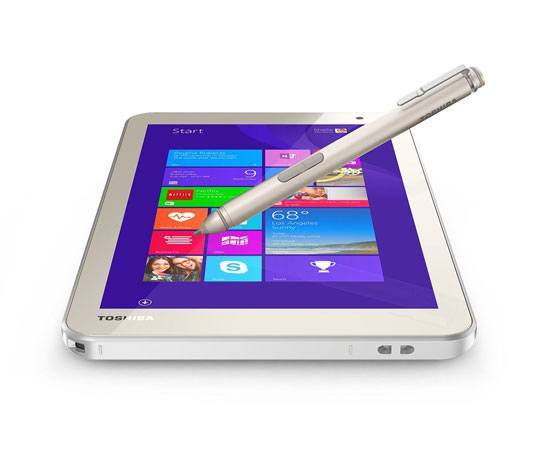
The metal TruPen is fine-tipped, “pro grade,” and takes a AAAA battery. The eraser is a button on the side. The palm rejection kicks in when the pen is hovering at about 3/8″ above the screen.


Software

Windows 10 will allow desktop apps on tablets 8″ or over. You can run desktop apps on this, since it’s a full Windows tablet, but it’s a little hard to use Photoshop since the tablet is small. As well, since it is an Atom processor, doing serious digital painting in Photoshop could be laggy, though basic image editing is OK. What will work best are apps such as Fresh Paint and the Sketchbook Express app, which are optimized for a tablet. One user who wrote an Encore 2 Write review praised using Manga Studio (desktop) with this, so by all means, try it.

The tablet is centered around note-taking. It comes with the preinstalled apps TruNote, TruCapture, and TruRecord. TruNote lets you take and organize handwritten notes, TruCapture is to take hi-res photos of text in books or from a blackboard, chalkboard, or whiteboard and do OCR, and TruRecord lets you record sound. There is an organizing and tagging system, kind of like Evernote. So you can not only draw on it, but use it as a multimedia creative diary.

Microsoft Office and OneNote work fine with this tablet.


Portability

It’s super slim at .04″ thick, and easy to carry at 13.4 oz. for the 8″ model and 1.2 lbs. for the 10″ model.


User reviews

Many people enthusiastically recommend this tablet as a digital sketchbook. One Encore 2 Write review praised its ability to work with Manga Studio. The high-res cameras, dual mics, and other features add appeal.


Pros

relatively affordable art tablet with screen
portable, lightweight
cameras do OK in low light
Pen and tablet are both fast and responsive


Cons

The screen resolution is not that high.
Atom processor works pretty well, but is not as fast as a full computer when you run graphics-heavy full Windows programs.
Cannot access battery.

Customer Service

I found them pleasant and professional when I did a chat to ask questions. If you happen to get a faulty one, Toshiba or Amazon will send you a new tablet.


The Verdict

This is an exciting development in tablets. It would be great if there were one that was a little larger. But this is a great portable sketchbook with pressure sensitivity that allows you to run both desktop and Metro apps. You can also use OneNote, play games, watch videos, and use a Bluetooth keyboard. I don’t see it as quite a Cintiq replacement, because of the size and there is not as much memory as with a full computer, so large programs such as Photoshop would not be ideal, though you could run Photoshop to an extent. For artists, this is overall better than an Android tablet or iPad because of the digitizer and ability to run desktop programs. It doesn’t have the great screen resolution of an iPad, but is more of a productivity tool.


Optional Accessories


iLLumiShield – Toshiba Encore 2 Write 8 Screen Protector

Cooper Cases Encore 2 Write Folio Case with Bluetooth Keyboard 

More Encore 2 Write opinions, price, and info on Amazon

https://www.youtube.com/watch?v=tO4nC83U6NY


End of Toshiba Encore 2 Write Review


Consumer Electronics Show, Wikipedia

official CES site

Astropad: Turn your iPad into a Cintiq?

Astropad app gives your iPad Cintiq-like powers

This week saw the Astropad app launch. Its pitch is that it can “turn your iPad into a professional graphics tablet.” Now your iPad becomes an input device.
It works over wifi or a USB. It can handle up to 60 frames per second, fast enough for animation and video (though not for sophisticated gaming, but you wouldn’t create or play those on the iPad).
ipadcintiq

To use Astropad, you need a Mac that runs 10.9 (Mavericks) or later and any iPad running iOS 8. Watch a video here.

It’s using your iPad as a graphics tablet/input device–so what’s on your Mac will be mirrored on your iPad.

Pressure sensitivity is dependent on your having the iPad styluses that are best for art, as well as the apps that give you the sensitivity.

Besides regular iPads, it works with the iPad Pro with the Apple Pencil.

If you use an iPad Pro, you’re getting a lot of the functionality of a Cintiq, though it doesn’t do all the same things.

It would be nice if Apple itself made more iPad and Mac compatibility, but it took the Astropad developers, who run an independent studio, to do it. Perhaps next comes a way of hooking up Android tablets.

You can download a 7-day trial from the Apple store.

Duet Display is an iPad app that’s similar but works with both Windows and Mac.