Leapfrog LeapPad 2 Power Learning Tablet Review

LeapFrog LeapPad 2 Power Learning Tablet Review

by Tablets for Artists

The LeapFrog LeapPad 2 Power Learning Tablet (see it on Amazon) is a popular tablet among children and adults. LeapFrog tablets are award-winning, educational  devices that fascinate most kids. This model has many features of a grownup tablet, such as rear- and front-facing cameras and a video camera. Kids can edit their photos in the Photo Studio app. They can draw on photos or in the art apps using their fingers or a stylus. So instead of spending the money on an iPad, this tablet is for toddlers through age 9. It says 3-9, but if your kids are familiar with Nintendo and other tablets, it skews younger, such as 2 to 6.

Several apps are included, but for content, cartridge games and apps must be purchased. You go to Leapfrog.com/connect for more apps. There are often download cards on sale at Amazon and other stores. Kids can be encouraged to create their own art on these creative devices. They can create paintings, draw, write, and make movies and edit them. This particular tablet doesn’t have wifi, so pictures can be transferred to computers via the included USB. One parent wrote in her LeapFrog LeapPad2 Power review that she prefers her young children to not be able to get Internet. The newer LeapPad3 does have wifi, with browsing limited to LeapFrog content.


The company listened to parents who said the biggest problem with the LeapPad1 was the battery life. This LeapPad2 Power Tablet has a rechargeable battery pack, a huge plus, and is faster than the 1. It’s same as the regular LeapPad 2 except for the battery pack and the inclusion of the Utility Suite, which are 4 apps not found with the 2: a Calculator, Calendar, Note Pad, and Clock and Stopwatch. While these apps do not earn it a better  LeapFrog LeapPad2 Power review compared to the 1, the rechargeable battery and faster speed certainly rank it higher. The battery pack would cost $40 if sold separately, so the price of this tablet is very reasonable.

FEATURES

Comes in pink, green, and Disney Doc McStuffins design5-inch backlit resistive touchscreen with 480 x 272 resolution

550 MHZ processor

Front and back facing 2 MP cameras
240p video recorderMP3 player

Motion sensor so kids can play games and apps that respond to shaking and moving
4 GB memory
apps including Photo Lab, Cartoon Studio, Pet Pad, and more
personalized learning
No wifi. If you want wifi, get the LeapPad3, which features limited, kid-friendly browsing

Price: under $100; price has dropped to $70.00 as of this writing

WHAT’S IN THE BOX

Rechargeable battery
AC adapter
USB cord
Quickstart and Parent Guides
Stylus that fits into side compartment, attached by a cord

Battery life

9 hours


leapfrog leappad2 power tablet review

2 free app codes (from a customer):
The Book of Super Awesome Stuff (e-book): 5813 1140 1518 1413
Alphabet Stew (game): 5813 0790 4610 4973

USING THE LEAPPAD

This tablet has fast, crisp graphics and good sound. The buttons are large and easy for small hands to navigate. It’s a favorite of both parents and kids. Leapfrog’s learning library is educator-approved, and there are over 2,600 skills that go beyond core subjects. Some of the apps will automatically adjust to a child’s learning level as has been charted by Leapfrog.

The cartridge games are more expensive than the downloads. The games go for around $25 and the apps start at $3 with many in the $5 to $10 range.

With this kids’ tablet, children can learn math, writing, the alphabet, art, and photo editing.

It’s a good idea to spend time with your child at first, and of course along the way. But they can learn and play independently with this device.

This is a great kids’ tablet for a long car trip. Kids can watch videos, take pictures, play games, or learn.  You will have to convince them to keep the sound down while you’re driving.

Connect to your computer to the LeapFrog site to chart your child’s LeapFrog learning path. You can your child’s work and play progressing and improve any areas that need it. Each child will learn about themselves. You can be fascinated by the different charts for each son and daughter.

Kids are limited to seeing what’s in the LeapFrog library, which is all educator-approved and ties in with school curricula.

Customer Reviews

There are over 800 LeapFrog LeapPad2 Power reviews on Amazon, attesting to its popularity. Positive ones far outweigh the negatives.

PROS

Durable, fun, educational, great battery life, rechargeable batteries. Long battery life. The fact that the stylus is attached by a cord is a plus.

CONS

Screen is a bit small for kids who have been exposed to larger screens, but for small kids it’s fine, and it’s lightweight and portable. Content needs to be purchased, and it’s not cheap. The cartridge games run around $25 and the downloads $3 to $10. Some software bundles range from $80-$100 for 4-6 more apps.

Both cartridges and the stylus compartment can be a little tricky for kids to use.

While it’s reasonably rugged and has been drop tested, and is made of drop-resistant plastic, stepping on it will break the screen, and some parents reported that even normal drops broke the screen. However, this is more rugged than many kids’ tablets out there.


http://www.youtube.com/watch?v=FZ03YZJpJJA


end of LeapPad LeapFrog 2 Power Learning Tablet review

Here is the LeapPad3, which features Wi-fi. With this, kids can only access Leapfrog materials, rather than the whole Web.


See reviews of more tablets for children here.
best ipad stylus for drawing

What’s the best iPad stylus for drawing? Psst, they work on Android too

best ipad stylus for drawing

What’s the best iPad stylus for drawing?

best ipad stylus for drawing

Wacom Bamboo Styluses for iPad

Looking for the best iPad stylus for drawing? (Most of these work on Android tablets as well). Many artists enjoy drawing and painting on their iPads. An accurate iPad stylus is great for note-taking as well. An iPad is a valuable digital sketchbook, and styluses and art apps have made fast progress in expanding the iPad’s art capabilities. While tablet PCs, Cintiqs and similar art tablets are still the usual choice for professional artists, and you can now do sophisticated art on the iPad.

Yes, you can get pressure sensitivity

Some iPad styluses use Bluetooth to get 2,048 levels of pressure sensitivity, as much as any art tablet does. These styluses only achieve the pressure sensitivity in that are designed to provide it. There are art apps for Android that get pressure sensitivity as well.

Here’s a handy comparison chart that will help you shop for the best iPad stylus for drawing.

StylusFeaturesOur Rating/Check price on Amazon
Adonit Jot Touch with Pixelpoint
Bluetooth; 2,048 levels of pressure sensitivity;
shortcut buttons; diskless, precision tip;
connects to Adobe Creative Cloud; works with many apps
3.5/5
Check price

Pencil 53
palm rejection; eraser; blends; best with Paper app; wood or metal; rechargeable; magnet snaps to Apple Smartpad case; Bluetooth; surface pressure (change marks according to how you hold the tip). For writing, try Noteshelf app4/5
Check price
Sensu Artist Brush and Stylus
best ipad stylus sensu
Brush and stylus. Achieve a painterly style. Best with the Procreate app.4/5
Check price

Adonit Jot Pro Fine Point Stylus
fine point; magnetic cling; rubber grip;
metal tip with circular plastic disk; sound dampener
4.5/5
Check price
Wacom Bamboo Stylus for iPad/Tablet
Solid build; thin, rubber tip. Replacement tips available.
Has Bamboo app
3.5/5
Check price

AluPen by Just Mobile
alupen ipad stylus
Solid aluminum; soft rubber tip; chunky; good for drawing and for older kids.4/5
Check price
DotPen Active Stylus
dotpen stylus

Aluminum barrel with hard, fine-point plastic nib; rubber grip; glides smoothly; replacement tips available; takes AAA battery (included). No palm rejection.4.5
Check price

Although Steve Jobs famously said, “If there’s a stylus, they blew it,” plenty of people choose to use them with their iPads.  In 2011, Apple filed for a patent for an active stylus. UPDATE: We now of course have the Apple Pencil and iPad Pro. The Apple Pencil is made only for the iPad Pro. Lots of people are still using regular iPads, and the styluses below will work on any iPad.

Write and draw on Android as well

If you can draw and write using a stylus on the iPad, you can use it on other capacitive touchscreens too, such as the iPhone, nearly any smartphone, computer touchscreens, Android tablets, and Kindle Fire. The best Android styluses for drawing are pretty much the same list, but those that works with apps are OS-specific.

Pencil by Fifty-Three only gets pressure via the iPad Paper app, so won’t work with Android, but you can use it without pressure. However, Microsoft worked with Fifty-three to create a Windows Paper app, so you can use it with Windows.

Adonit and DotPen have apps for iOS and Android.

What to look for in a stylus:

Pressure sensitivity. This feature is only possible via Bluetooth with specific apps, and only some iPad styluses offer it. It means you can vary the width of the line, just as if you were drawing with a real pencil, pen, or brush. The sensitivity should work as a smooth curve, not suddenly changing line width.

Apps are what make variations in pressure possible on an iPad or iPhone. Otherwise you will get a same-width line. Most artists prefer a varied line, but it depends on your own art style. Examples of iPad styluses with pressure sensitivity are the Adonit Jot Touch with Pixelpoint and Pencil by FiftyThree.

Palm rejection. The things to look for in choosing the best stylus for iPad for drawing are accuracy, responsiveness, ease of use, and reliability. You also want palm rejection. Without palm rejection, the iPad cannot distinguish between your hand and the stylus, since you can finger paint on the IPad.

If your stylus doesn’t have palm rejection, you have to do a Michael Jackson move and wear a glove with cut-off fingers on one hand. And even with that, it may not be enough. The best is not to touch the screen at all with your hand. Still, some of the most popular IPad styluses for drawing do not feature palm rejection. Artists are a resourceful lot and work around this problem.

best ipad stylus for drawing

Pencil by FiftyThree, Walnut

Rechargeable. Also desirable is having a rechargeable stylus. While some of the best styluses for iPad lack rechargeable batteries, this becomes an added expense, and creates waste, not to mention your stylus may suddenly stop working when you’ve forgotten to tote an extra battery. But, some of the best iPad styluses for drawing use nonrechargeable batteries. You can always buy a separate rechargeable battery and a battery charger.

Nibs that last a long time or do not cost a lot to replace. Some tips or nibs wear out quickly with use, so you should check into ease and cost of replacement before choosing your iPad stylus.

Compatibility with your favorite apps. The quality of compatibility of styluses with apps can vary quite a bit, so try out different apps with different styluses. You can’t pick the best iPad stylus for drawing without taking what apps you want to use into consideration.

Other things you may want to consider:

Noise. Some styluses make a clack-clack sound. Are you noise-sensitive? Will you be using your stylus in classes and meetings, to take notes or sketch? The model of the Adonit Jot Pro  (without pressure sensitivity) has a plastic disk on the end that clacks on the screen, but they added a “dampener” to soften the sound.

Traction and glide. Make sure you are happy with the relative slipperiness of your stylus across the iPad glass. A screen protector can add traction with some apps; others, such as Paper, advise against using one. Your drawings can be affected; some people prefer a lot of glide for long lines, others don’t. Some users have mentioned in reviews that though they thought they were getting the best iPad stylus for drawing, but slipperiness was a big enough issue that they ended up returning the stylus.

Looks. Do you get inspired by a sleek, or maybe a funky art implement? While I wouldn’t pick by looks, if all else is equal you might want to make a fashion statement.

Comfort. Very important, especially if you draw for hours on end. Does the stylus feel good in your hand? Are there certain angles you need to hold it at to get it to work best? Is it lightweight, or heavy? Is the length of the stylus comfortable to you? What about the thickness?

Grip. Does it have a good grip in your hand, or does it slip?

Writing. Everyone has to write sometimes, and sometimes a stylus that’s good for drawing is also good for writing, but that’s not always the case. It’s often app-dependent. You might have trouble writing in some art apps but do fine writing in note-taking apps.

The best iPad stylus for drawing is not always the best iPad stylus for writing. For writing, you want a fine-tipped stylus such as the Adonit Jot Pro. The Apple Pencil is excellent for notetaking. However, the Sensu paint stylus obviously is not. The Bamboo one is OK but it’s not my favorite for writing due to the tip size being fairly large. That doesn’t affect the line size, but it just feels a little more difficult.

Painting. Some styluses are actually like paintbrushes. While you can do digital painting with any stylus, if you want a painterly look you might want one of these brush styluses in your toolbox. These are not that expensive and you can get beautiful effects with them. The Sensu brush and tablet stylus gives you both a brush and stylus, and we recommend this painting and drawing tool as a good addition in your search for the best iPad stylus for digital artmaking.

If you want to read more, here’s an interesting New York Times article about styluses for the iPad.

With all these options, you can enjoy your Apple technology and be creative as you wish.

Learn about how to pick the right tablet.


End of Best iPad Stylus for drawing

Book Review: iPad for Artists: How to Make Great Art With Your iPad

Book Review: iPad for Artists: How to Make Great Art With Your iPad

by Tablets for Artists

ipadforartistsbook


iPad for Artists by Dani Jones

iPad for Artists is an illustrated book with tons of tips on making digital art, choosing the best iPad styluses, the best iPad drawing apps, and more

If you’re looking for a book with an in-depth discussion of tools and techniques for iPad art, digital illustrator Dani Jones’s iPad for Artists: How to Make Great Art With Your iPad is your ticket. It’s available only in paperback form–here it is on Amazon. We wish it were available as an e-book that we could read on IPad. But on paper, we can read it while working on your iPad at the same time, so paper makes sense.

The author is an excellent digital artist whose site is at danidraws.com. Here is one of the many books she has illustrated:

ipadforartists


The Best Mariachi in the World
by J.D. Smith, 
illustrated by Dani Jones

Jones reviews styluses, art apps, and more. The book contains many illustrations in her delightful style, as well as artist spotlights to show other artists’ work.

Her favorite iPad painting and drawing apps

Her favorite painting and drawing apps for iPad are Sketchbook, Procreate, ArtRage, and Brushes. You get those from the app store on your iPad, and they will install onto the iPad.

Besides introducing tools, she takes you step-by-step through creating a work of art on your iPad. You will learn to use layers and other important features. She used to have a lot of great tutorials on her blog, but she has changed her focus and taken them down–so you’re going to have to buy the book to get her excellent instruction.

She covers creating art that looks as if it has been done in different media, including pencils, cartoons, watercolor, oil paint to create portraits, landscapes, and other types of art. She does children’s books. (You may be surprised that a lot of kids’ books are done digitally, but it’s quite normal now.) You’ll also learn about working with photos. an She takes you through creating slideshows and organizing your work.

She also talks about which iPad is best for artists. Any iPad is fine and they all can be used with all the art apps. Newer versions are faster. iPads with more memory will allow you to store more artwork. However, storage space isn’t that important as far as the amount of pictures, as if you have a lot of iPad high-resolution art, you can store them in ICloud, or transfer them to your computer.

Her favorite iPad styluses

As for styluses, she prefers the Adonit Jot Touch, and the Wacom Bamboo iPad Stylus.

(See our article on the best iPad styluses.)


The apps are up to date as of now, but we hope she releases a new edition. The apps have universal characteristics, and this book will show you those, so it should help with any finding the best art apps for iPad, new or old. iPad for Artists does not cover every single app out there, but it’s plenty to get you up to speed.

She points out that while tablet PCs have a much wider capability for artists, the iPad is a popular item, is portable, and versatile. More and more art apps and styluses are made for IPad.

The book will get you much farther than just playing around on the iPad, though playing around is a must for any artist of any kind–it makes you understand the tools and media, and to overcome limitations.

We highly recommend Dani Jones’ iPad for Artists: Make Great Art with your iPad, for those starting out on the iPad and for artists making the transition to digital. It covers not only tools, techniques, and apps, but helps you become a better artist.


Besides using her iPad, Dani does a lot of her work on a Wacom Cintiq–here is my review of the 13HD Cintiq.)


ipadair2


iPad Air 2


ipad for artists

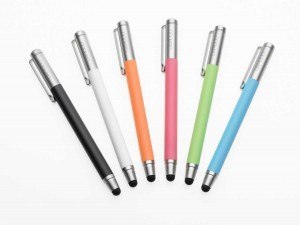
The Wacom Bamboo Stylus comes in lots of colors! You can use it on your iPhone, Kindle Fire, Android phone, and any other tablets that use a capacitive stylus. See our article on best iPad styluses for artists.


End of review of digital art book iPad for Artists


Asus VivoTab Note 8 Review: Wacom in a small tablet

Asus VivoTab Note 8 Review: digital drawing in a pint-sized package, with Windows

by Tablets for Artists


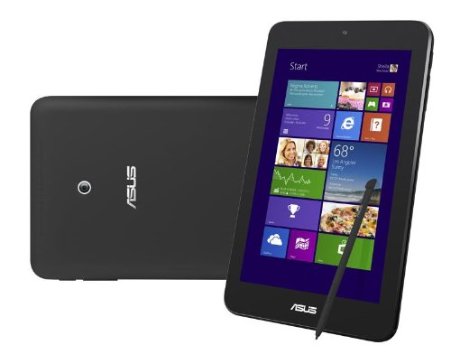
asus vivotab note 8 review

ASUS VivoTab Note 8, 64GB

 Also see our review of the Toshiba Encore Write 2 , new in 2015.

The Vivotab also  comes in a 32GB model, but most of that would be used up simply for the OS, so get the 64GB, it’s about $50 more.

This tablet is quite exciting because it has the Wacom digitizer at a much lower price point than a Cintiq or any tablet where you draw on the screen that also has full Windows, as opposed to Atom or Android. It’s comparable in size and price to the iPad mini, but iPads lack  pressure sensitivity and can only run apps, not full programs. (Also, this tablet would let you watch Flash videos without an app.)


Type of Tablet

Small, 8″ slate tablet. A Bluetooth keyboard can optionally be added.
Unlike some tablets of the same size that run Atom or Android, this one runs full Windows 8.1.


For Lefties

This would be all right for the left-handed, but you should use the stylus for commands as it could be in inconvenient to use the multitouch with conventional Windows menus being on the left. Also, the screen is small, so whether righty or lefty, the stylus is easier.


Features

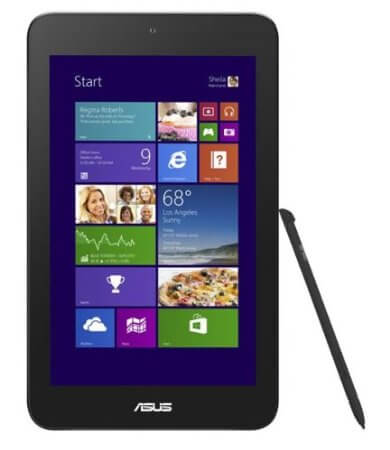
Wacom active stylus with 1,024 pressure levels (included)
Pre-installed full license MS Office Home & Student included. Win 8.1 full version.
8″ IPS HD 1280×800 Display
Intel Baytrail-T Z3740 Quad-Core 1.3 GHz.
64GB solid state storage. 2GB RAM
1.2MP front camera, 5MP rear camera
Bluetooth 4.0
microUSB slot
microSDXC slot
GPS

Thickness 0.4 inch
Weight 0.8 pound
Height 8.7 in.
Width 5.2 inch
Weight 12.8 oz.


This small tablet packs quite a punch as far as features–namely, the Wacom digitizer and pen, and full Windows make this a nice choice for artists, and it’s the reason we chose to review it. The Windows start button is on the left edge, which can be hard to find. One the right side opposite it is the sleep button, so you have to remember which is which.


asus vivotab note 8 review2

Portability

At 12.8 oz., it’s easy to tote along.


What’s Included

The tablet, charger, micro-USB cable, quickstart guide and documentation, warranty, and a license for Microsoft Office Home & Student 2013 edition.


Screen

The screen is not that high-resolution. It can’t be compared to something high-res like a Cintiq 13HD, but for the price, it’s not bad. If you, for instance, make Print on Demand cards, the screen is larger than the card, and you could zoom in while drawing. You could create comics for online or print. Not all digital art needs a large monitor. The screen does attract smudges so I suggest a smudgeguard glove, screen protector. Built-in palm rejection favors the stylus, so you can hold the tablet while drawing without your hand causing anything to happen. The screen has is multitouch. It’s quick and responsive to pen and touch, and has good viewing angles. Smooth glass goes from one edge to the other with no lip or plastic border.


Stylus

The pen comes neatly tucked into the stylus, which is good news. It’s fine for drawing, and handwriting, but you might do more precise work with a larger pen.


Controls

The Windows button and power button are on the sides, which can be a bit confusing. The Windows key is on the left edge. The camera is in an unusual place, right in the vertical center on the back. There’s no video output; you’d need an adapter.


Software

Comes with One Note, Microsoft Office, and you can use any Windows programs, including Photoshop, Illustrator, etc.


Battery Life

6 to 8 hours (Amazon says 6 and Asus says 8; customers say 8-12)

Customer Ratings and Reviews

This has good reviews on Amazon, with people praising its. One Asus Vivotab Note 8 review said the battery lasted for 12 hours, and many said all day. Some said it is more useful than their Ipad (which makes sense, as it can do a lot more, though you will have to deal with things like Windows updates).

Unfortunately, there were some negative notes as well. In particular, this model has issues with the pen suddenly stopping working, and there is a very long thread about this here. So if you do buy this, it’s good to get it from Amazon because they have a 30-day return policy and make it easy to make returns, and the problem usually happens sooner. The extended warranty is a good idea too. I wish I could write an unreservedly positive Asus VivoTab Note 8 review, but because of the many customers who had issues with it, I have to say buyer beware. As it is, it’s not the most powerful tablet in its class, but it’s the only one so far that has the Wacom digitizer, so it’s an exciting development for artists on the go and for artists on a budget. If you get one with no problems, and you don’t mind the small size, this could be a joy.

Pros

Wacom digitizer and pen at much lower price than larger tablet PCs or Cintiqs

portable, light

Rubberized back can take a fall

Excellent battery life

Good handwriting recognition; will convert handwriting to text

Comes bundled with Office

Cons

No HDMI out, but can use an adapter

Some devices have been failing for some users (see Consumer Ratings and Reviews, above)

Screen smudges easily

The Verdict

If you get one without any issues, I think this tablet would be fun for an artist. Because of the small size I wouldn’t want it to be my sole art tablet, but I think this is a good starter tablet or extra tablet, especially with a Bluetooth keyboard (any Bluetooth keyboard would work, not just the detachable one) so you could use it as a small, lightweight computer for art and general productivity.

The VivoTab is comparable to the Dell Venue 8 Pro, though artists may prefer the VivoTab’s Wacom tech.

See more info, reviews and price


Optional Accessories

IVSO Bluetooth Keyboard Portfolio Case

Stylish Versa Sleeve

Here’s an illustrator doing her thing on a VivoTab Note 8:

https://youtu.be/LUamQBAvJRE


End of Asus VivoTab Note 8 review

intousartpentouch

Intuos Art Pen and Touch Small review

Intuos Art Pen and Touch Small review

by Tablets for Artists

This Intuos Art Pen and Touch Small review takes a look at this affordable and very portable tablet. Whether you want to make art, edit photos, or just switch from a mouse or trackpad, this offering from Wacom packs in a lot of useful features.


intousartpentouch

Intuos Art Pen and Touch on Amazon

TYPE OF TABLET

The Intuos Art Pen and Touch is a graphics tablet, or pen tablet, that you attach to your computer via USB. You draw on it and see the image on your computer screen. (Click here for more info on types of tablets).

Note that this is not the “Pro” version, which has more features (such as greater pressure sensitivity and tilt sensitivity) and a higher price. The older version of this tablet was called the Intuos Pen and Touch.

What’s included

Pen

3 extra pen nibs

black pen loop (attached) as well as extra blue pen loop

rings to personalize the pen’s look, that match the pen loops

nib replacer ring

CD with driver, documentation, online user manual

Artpack with Corel Painter Express and other freebies

USB cord

You can also download drivers from the Wacom site.

Requires Mac 10.8. or above or Windows 7 or above.

FEATURES

The Intuos Art Pen and Touch Small Tablet measures 8.25″ by 6.7″ with an active area of 6″ x 3.7″. Its resolution is 2,540 lines per inch (half that of the Intuos Pro tablets). It has four customizable Express Keys. You can’t see the Express Keys unless the Express Key display is toggled on; it’s a lit-up display.

A handy pen loop on top helps keep the pen from getting lost. Three replacement nibs that come hidden in a compartment in the back of the tablet on top in the center, where the pen loop attaches.
A Wi-fi kit is not included, but can be purchased separately. (See under Optional Accessories at the end of this post). This line of Wacom tablets used to be called Bamboo, so if you are looking for a Wacom Bamboo review, you will see Intuos reviews instead. Bamboo is now Intuos, and the Intuos5 is now the Intuos Pro. Wacom still uses the Bamboo name for a stylus line.

TABLET

The tablet has multitouch. You can use your hands by using gestures to scroll, rotate, zoom, or flip through image files by tapping, swiping, clicking, and holding. It sports an attractive silver and black design. It attaches to your computer via USB. The USB cable is rather short, but as the USB can be detached from the tablet, you could use a longer USB cable if you choose.

The tablet surface has a rough, papery-like feel, which is nice to draw on because of the paper-like bite, but can wear down nibs. Besides its use for art, it has the ability to function as a finger-powered trackpad on any document, such as a Microsoft Word file. (The most popular tablet among artists is the Intuos Pro Pen and Touch Medium size.)

The small size is a bit small for drawing, and would be pretty useless if you are using multiple monitors and trying to stretch its resolution to cover all of them. You should not use too large a monitor with this tablet–up to 17″ would work well, up to 19″ is possible. The resolution on the regular Intuos line is only half that of the Pro line.

Drawing on the Intuos Art Creative Pen & Touch

The pressure sensitivity works very well. It’s not as sensitive as tablets with higher amounts of levels, but that doesn’t bother me. I like the scratchy surface. The only problem I find is the size. Because I draw fairly large then shrink down, I find I have to zoom in a lot on my drawings. So I tend to use this more as a companion to other tablets or for smaller drawings. Still, I’m very satisfied with the feel, quality, and sensitivity.

Tablet learning tips

Having a non-screen tablet forces more looseness in drawing and requires practice. When learning, it’s best to keep the tablet straight and directly in front of the computer, and to use it for everything, including word processing, instead of a mouse or trackpad.

Keeping it right in front you will considerably lessen confusion about points on the surface that correspond with your screen. Eventually, muscle memory will set in and you can move the tablet around.

PORTABILITY

At its small size, thinness and weight of 12.8 oz. it’s easy to carry around. I recommend getting a case to protect it; it can fit into any laptop case.

STYLUS

The black Intuos Pen matches the tablet. Its 1,024 levels of pressure sensitivity, while only half of the 2,048 the Pro line offers, are plenty. The battery-free pen has an eraser, which does not have pressure sensitivity. The pen is ergonomic for a comfortable hold. There are two programmable switches on the side. You have to click the buttons when the pen is within half an inch of the tablet for the buttons to work.

 SOFTWARE

Corel Painter Essentials comes bundled with the tablet. Here are some other free or inexpensive suggestions:

Autodesk Sketchbook Express is a free art program for Mac or Windows (not an app) that is a bit limited. It is adapted for tablets and makes use of gestures in its menus. Pressing the space bar opens up a “puck” that lets you navigate around the canvas. There are preset tools, but you can’t customize them a whole lot as you can the full version. It lets you draw perfect shapes such as squares and circles. There are 6 layers, which, depending how you work, may be fine or not enough. The full program, which costs under $100, has unlimited layers.

ArtRage has interesting brushes that resemble real oil paint, glitter, palette knife marks, and such.

I like to use the above programs in conjunction with Photoshop or the much less expensive Photoshop Elements. Though you can do a lot with ArtRage, you might still want features such as Save to Web (which shrinks file size) and to not create artwork as a specific ArtRage file which must then be exported as another file type.

FOR LEFTIES

The tablet is reversible, so it’s fine whether you are right-handed or left-handed.

GESTURES

With gestures, the tablet can act like a trackpad, or perhaps a mousepad with your hand becoming a mouse. Though the same tablet without touch is a bit cheaper, it’s worth it to get the touch capability.

However, the touch does have some drawbacks. If your hand accidentally brushes against the tablet, the tablet may interpret it as a gesture. Be a bit careful to not put your fingers too close together–if the gesture calls for three fingers, having all your fingers touching each other be interpreted as one finger.

It’s kind of like learning to drive a stick shift–well, easier than that. If the pen is touching or hovering over the tablet, touch will be disabled. Touch can also be shut off via an Express Key.

INTUOS ART PEN AND TOUCH SMALL VS. INTUOS DRAW SMALL

If you don’t want multitouch at all, the only Intuos option is the Intuos Draw Creative Pen Tablet Small, the simplest of the Intuos line. It has the same 1,024 levels of pressure sensitivity) and all else about the tablet is the same, but there’s no multitouch.

The pen has no eraser, but you can easily use the eraser tool in your art program instead. You don’t need multitouch to use this tablet as a mouse replacement; you can select text with the stylus just as with a mouse, through a series of clicks or by clicking and dragging.


artist-with-intuos-small

This photo actually shows the older Intuos Small, which is about the same size.

CUSTOMER REVIEWS AND RATINGS

This pen tablet is popular among users, who praise its response time and say they get much more work done than with just a mouse or trackpad.

Many report switching from mouse to pen helped their repetitive strain injuries, though if someone is suffering from RSI from drawing already, it can exacerbate it. In general, wrist injuries are common, so a stylus is much less likely to cause or aggravate injuries to the wrist than clicking a mouse would.

You may have trouble finding the replacement nibs. Wacom should try to do a better job of showing them.

PROS

USB cable is detachable from the tablet, so you can use one that has a longer cord if you want Great response time.

Accurate pen.

CONS

The tablet and pen may be a bit cramped for large hands. Some complain about the Wacom Web site registration process. Others find the tablet difficult to use. You do not have to use the Express Keys or gestures, they are there for your convenience.

Once you’ve tried an Intuos Pro tablet with 2,048 levels of pressure, you do feel the difference.

Nibs can wear down quickly due to the textured surface of the tablet.

TIP:

Try using a screen protector (see link below, under Optional Accessories) or even just a sheet of regular paper over the tablet.


THE VERDICT

The tablet is quite small and would be better to use with a monitor of no larger than 17″, 19″ at the most. Because of its size, moving the pen, mouse, or hand on the monitor even a little can move the cursor quite a lot.

I find small tablets best for basic photo editing or coloring small drawings that I’ve scanned in or created on a larger tablet. It’s not that easy to draw a larger picture on such a small tablet; you have to keep zooming and panning.

I end up zooming and panning even on my Cintiq, but most of my drawings are not much larger than the Cintiq 13HD screen, so some of the zooming is just because I like to do that with detailed areas.

The Intuos Art Pen & Touch small tablet is fine for doing small drawings that don’t require a lot of hand movement, as you can feel cramped on a small tablet both mentally and physically. It’s more ergonomic to use a larger tablet. This one is OK for drawing, and excellent for crafts, basic photo editing, and scrapbooking.

In my opinion, the best size for art is the Medium, which is also the most popular of the Wacom pen tablets among creative professionals. This size tablet is also find if you want to use it and the pen as a mousepad replacement. Multitouch gestures let you select text.

The Small it’s a good tablet for beginners who aren’t sure they’re going to commit to digital art. It’s fine for lots of other uses, too, but I wouldn’t recommend it for professional artists because it’s too small; it can be a good, portable backup tablet.

Looking for the Pro version? Here’s the Amazon page for the Intuos Pro Pen and Touch Small.

And here’s our review of the Intuos Medium Pro–similar to the small but a bit larger.

See our review of the Wacom Intuos Draw.

If you find the USB cord to be too short, we recommend this USB extension as a simple solution.

Read our introductory article about tablets.

OPTIONAL ACCESSORIES

You’ll have less cord clutter with the wireless kit.


end of Intuos Art Pen and Touch Small Review