drawing tablet comparison chart

Drawing tablet comparison charts: at a glance

Drawing tablet comparison charts

drawing tablet comparison chart

These drawing tablet comparison charts provide a look at all the tablets we’ve reviewed with their main features, with links to the reviews and where to buy. You can sort the chart by clicking on the arrows. For instance, if you want to see all graphics tablets, choose that to sort. Be sure to use the pull-down menu to see them all.

There’s a compete chart followed by a Wacom Intuos chart.

Drawing Tablet Comparison Chart

TabletTypeFeaturesOur RatingOur Review
Samsung Galaxy Tab 10.1 with S Pen
samsung galaxy tab a s pen 10.1
Android tabletWacom EMR digitizer with 1,024 levels of pressure sensitivity; S Pen included4.5 out of 5 starsRead our review

See more reviews and info on Amazon
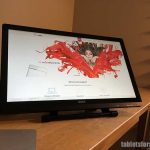
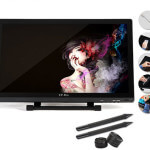
Ugee 2150
ugee2150review
Tablet monitor/Cintiq alternative22" HD display, Ugee EMR digitizer with 2,048 levels, 70% Adobe RGB coverage4.1 out of 5 starsRead our review
See it on Amazon
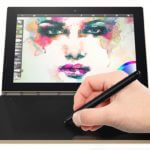
Lenovo Yoga Book
lenovo-yoga-book
Android or Windows. Graphics tablet/keyboard with screenUnique, portable, Wacom, 1,024 levels, Halo keyboard4.1 out of 5 stars
Lenovo Miix 720
Lenovo-Miix-720-review
Tablet PC laptopDetachable 2-in-1, 12" QHD, Wacom, 4,196 levels, up to i7, up to 1TB storageNot yet rated. Available April 2017Read our article
XP-Pen Artist 22ETablet monitor/Cintiq 22HD alternativeXP-Pen digitizer; 8 programmable Express Keys(16 total); 2048 levels4.3 out of 5 starsRead our review

See on Amazon
Ugee 1910B
ugee-1910b-review-th
Tablet monitor/Cintiq alternative19" display, Ugee EMR digitizer, 2,048 levels of pressure sensitivity, two pens included. Economical.4.0 out of 5 stars
Read our review

Check price
Lenovo ThinkPad X1 Yoga
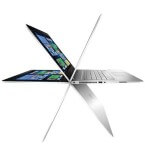
hpspectre2
Tablet PC laptop
Multitouch, 14" screen, Wacom ES, 2,048 levels of pressure sensitivity, lightweight, high-end Ultrabook, pen included4.6 out of 5 starsRead our review
Samsung Galaxy TabPro S
samsungtabprosblack
Windows tablet 2-in-112" display, sAMOLED screen, 4GB RAM, pen not yet availableRead our review


Apple iPad Pro

appleipadprofordrawing
iPad tablet, optional keyboard Force Touch digitizer, Bluetooth, iOS9, tilt sensitivity, unknown levels of pressure sensitivity, Apple Pencil sold separately4.5 out of 5 stars

Read our review

See more reviews, info, and price on Amazon
Wacom Intuos Pro Pen and Touch Medium Tablet
Graphics tabletWi-fi kit included; multitouch and gesture; 2,048 levels of
pressure sensitivity; tilt-recognition pen
4.7 out of 5 stars
Read our review

Toshiba Encore 2 Write
toshiba-encore-write-review
Windows tabletWacom digitizer with 2,048 levels of pressure sensitivity; battery-operated pen included; 8" and 10" models4.4 out of 5 stars

Read our review

Vaio Z Canvas

vaioz-canvas
Tablet PC 2-in-1N-trig digitizer, 1,024 levels of pressure sensitivity, pen included, 12.3" screen, powerful processor4.7 out of 5 stars

Read our review

See more reviews and info on Amazon
Yiynova MSP19U+
Tablet monitor/Cintiq alternative19" display; 2,048 levels of pressure sensitivity4.0 out of 5 stars

Read our review
Artisul D13
artisulD13review
Tablet monitor/Cintiq alternativeUC-Logic digitizer, EMR (non-Wacom) with 2,048 levels of pressure sensitivity; pen included4.5 out of 5 starsRead our review

Cintiq13 HD
cintiq-13HD-review
Tablet monitor13.3" HD Display; 2,048 levels of pressure sensitivity; tilt-recognition pen
4.7 out of 5 stars
Read our review

Microsoft Surface 3
microsoft surface 3 review
Tablet PC, optional keyboardMultitouch, Atom processor, 10.8" HD display lightweight (1.37 lbs.), N-trig pen, 256 levels of pressure sensitivity4.2 out of 5 stars
Read our review


See more reviews, info, and price on Amazon
Mytrix Complex 11t (Cube i7 Stylus)

cubei7review
Tablet PC, includes detachable keyboardWindows 10, 10.6" screen, Wacom EMR digitizer with 1,048 levels of pressure sensitivity, pen and keyboard included. Economical pick.4.0 out of 5 stars
Read our review

See more info and reviews on Amazon

Microsoft Surface Pro 4
microsoft surface pro 4 with surface pen
Tablet PC, detachable Multitouch, 12.3" screen, N-trig digitizer, 1,024 levels of pressure sensitivity, pen included4.6 out of 5 stars
Read our review

Microsoft Surface Pro 3
surface-pro-3-review
Tablet PC, detachableMultitouch, 12" screen, N-trig digitizer, 256 levels of pressure sensitivity, pen included4.2 out of 5 stars
See more reviews, info, and price on Amazon
Read our review

Toshiba dynaPad
toshiba-dynapad-review-pen
Windows tablet, optional keyboardWindows 10, 12" screen, lightweight, Wacom ES pen with 2,048 levels of pressure sensitivity4.5 out of 5 stars
Read our review

See more reviews, info, and price at Toshiba.com
Microsoft Surface Book
microsoft surface book review
Tablet PC, comes with detachable keyboard13.5" screen, N-trig digitizer, 1,024 levels of pressure sensitivity, pen included4.6 out of 5 stars

Read our review

See more reviews and info on Amazon
Asus VivoTab Note 8
asus vivotab note 8 review
Windows tabletMultitouch, 8", Wacom pen with 1,024 levels of pressure sensitivity3.8 out of 5 stars
Read our review

See more reviews, info, and price on Amazon
Lenovo ThinkPad Yoga
lenovothinkpadyoga14review
Tablet PC laptopWacom ES digitizer; battery-operated pen sold separately; 2,048 levels of pressure sensitivity4.4 out of 5 stars
Read our review
Lenovo ThinkPad 2 in 1 Yoga 2 in 1 Ultrabook
lenovo thinkpad yoga2 in 1 review
Tablet PC laptopWindows laptop running 8.1 Pro, Wacom digitizer with 1,024 levels of pressure sensitivity; stylus included; multitouch; 12.5"; 4 positions; HD display4.5 out of 5 stars
Read our review

See more reviews, info, and price on Amazon
Dell Venue 8 Pro
dell venue 8 pro review
Windows tabletSynaptics digitizer; 256 levels of pressure sensitivity; battery-operated pen (Dell Active Stylus)3.8 out of 5 stars
See more reviews, info, and price on Amazon
Read our review

2014 Samsung Galaxy Note 10.1
samsunggalaxynotereview
Android tabletWacom EMR digitizer with 1,024 levels of pressure sensitivity; bright, high-resolution display; S pen included4.4 out of 5 stars
Read our review

See more reviews, info, and price on Amazon
Acer Aspire R13
acer-aspire-r13review
Tablet PC laptopSynaptics digitizer with 256 levels of pressure sensitivity, pen sold separately3.7 out of 5 stars
Read our review
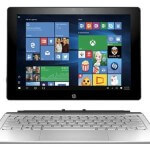
HP Spectre x360
hpspectre15review
Tablet PC laptopSynaptics digitizer, 2,048 levels of pressure sensitivity, pen not included. 15.6" and 13.3" options3.8 out of 5 starsRead our review

See it on Amazon
XP-Pen 22" pen display tablet
xppen22review
Tablet monitor/Cintiq alternativeUC Logic digitizer, 2,048 levels of pressure sensitivity4.1 out of 5 stars

Read our review


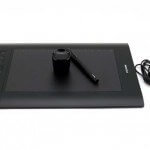
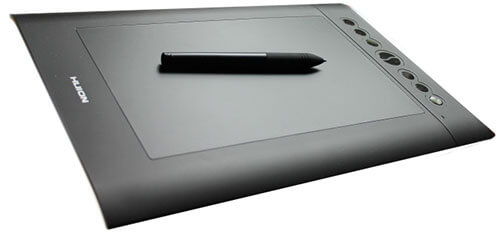
Huion H610 Pro
drawing-tablet-for-pc
Graphics tabletActive Area of 10'' x 6.25''; EMR digitizer, 2,048 levels of pressure sensitivity4.4 out of 5 stars
Read our review

See more reviews, info, and price on Amazon
Monoprice Graphics Tablet
monoprice tablet review
Graphics tablet2,048 levels of pressure sensitivity; attaches via USB 2.0; battery-operated pen included; affordable price4 out of 5 stars
Read our review

See more reviews, info, and price on Amazon
Wacom Intuos Pen and Touch (small)
intuos pen and touch small review
Graphics tabletMultitouch and gesture; 6 x 3.7" active area; 1,024 levels of pressure sensitivity4.4 out of 5 stars
Read our review

See more reviews, info, and price on Amazon
Turcom TS-6610
turcom tablet review
Graphics tabletTurcom digitizer, 2,048 levels of pressure sensitivity3.7 out of 5 starsRead our review

See it on Amazon

Wacom Graphics Tablets 2018 (non-screen)

Wacom Intuos (2018)New version with 4096 levels, Bluetooth, no multitouch. Smaller and lighter. 4 Express keys.Read our detailed article comparing the 2018 Intuos to the previous one.

See it now
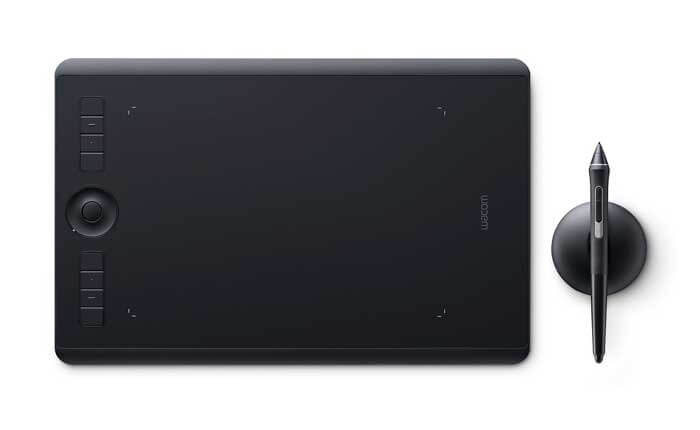
Wacom Intuos Pro Medium (2017)
wacom intuos pro 2017
Professional tablet allows you to customize controls per app.
Multitouch, gestures. 8 customizable Express Keys.
Pro Pen 2 has 8,192 levels of pressure, and tilt.
See on Amazon

Read our review
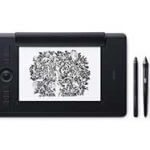
Wacom Intuos Pro Paper Edition
Wacom+Intuos+Pro+Paper+Edition-sm
Intuos Pro plus digitizing real ink pen and paper.
Save your work to the Inkscape App. 8,192 levels, tilt.
See it now

Read our article
Wacom Art Pen & Touch line
wacom intuos art pen and touch tablet
For hobbyists or beginners.
Models are Art, Comic/Manga, Photo, and 3D.
Each is the same tablet with different art programs.
Intuos Pen gets 1,024 levels.
See Art Pen & Touch line

Read our review
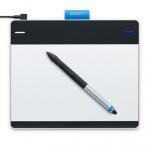
Wacom Intuos Draw
wacom-intuos-draw
Simplest, good for beginners.
No touch function. 1,024 levels.
Check price

Old Intuos Pro (up through 2016)

tablet-with-stylus
Multitouch, gestures.
Medium and Large have 8 customizable Express Keys. Small has 6.
If you want an Intuos Pro Small, this is it.
Pro Pen, 2,048 levels.
Check price
This chart gives an overview of Wacom Intuos Pro and Intuos drawing tablets, with photos, features, and links. It illustrates the accompanying article, "How to Pick the Best Wacom Tablet: Intuos graphics tablets." Each tablet comes with a pen.


drawing-tablet-for-pc-huion

Huion H610 Pro Review – 6 x 10″ workspace

Huion H610 Pro Review: lightweight, heavy on features

by Tablets for Artists


huion610prohandsonreview


Huion H610 Pro Graphics Drawing Pen Tablet


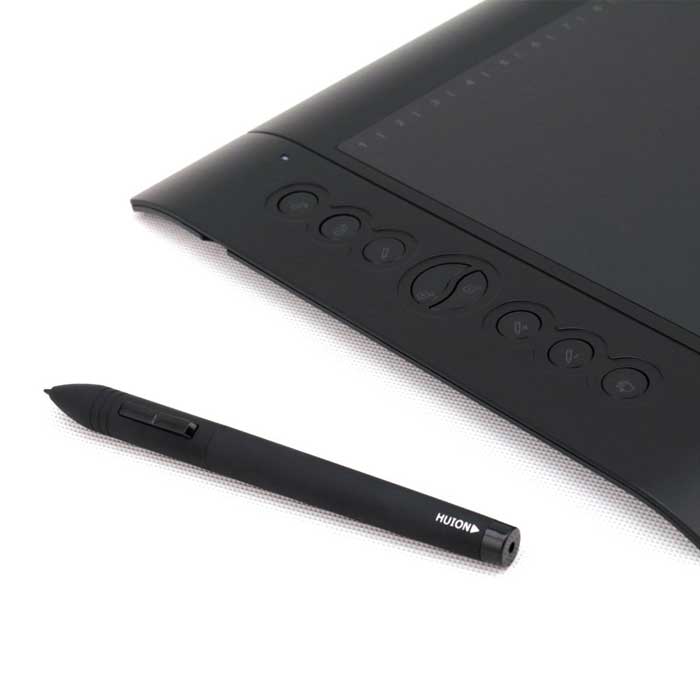
The Huion H610 Pro Review: the H610 Pro is a graphics tablet made by a Chinese animation company. It has a generous 6 x 10″ active drawing area and features that rival the Intuos Pro while being cheaper than even the lower-cost Wacom Intuos series. But what about the quality?

NOTE: Here’s a detailed H610Pro v2 review. This newer version is much improved with tilt sensitivity and a pen that doesn’t need charging. See the H610 Pro v2 on Amazon

(note: if you’re looking for the OSU model, the H420, scroll to the bottom of this article).


TYPE OF TABLET

It’s a graphics tablet that connects to a computer via USB. It is not a screen that you draw on–if you want that, please consider a tablet PC or tablet monitor such as Cintiq or Yiynova. For more on tablet types, please see this post.


FEATURES

The H610 has 8 Express Keys down the its side, and 16 hot cells on the tablet screen. Its workspace is 10 x  6.25 inches. It’s only about a quarter-inch thick. It works with Mac, PC, and Linux/Ubuntu. You can use wireless mice and keyboards with this tablet. The resolution is 5080 lines per inch. The battery-free, rechargeable pen has 2,048 levels of pressure sensitivity.


PORTABILITY

It’s lightweight and easy enough to carry.


WHAT’S INCLUDED

It comes with 4 replacement nibs and one inside the pen, for a total of 5. The nibs are all the same. Also included are two USB cables, one for the tablet and one for the pen, as well as a pen, pen charger, pen rest, and paper user manual. Their site, huion-tablet.com, has all the up-to-date driver.

FOR LEFTIES

This tablet now has a left-handed driver, so you can choose to draw in left-handed mode.


TABLET

The surface is mappable; you can decide how much of the tablet you want the pen to work on. The surface has a grip to it that eases drawing. It is hard plastic, not rubbery like the Wacom Bamboo. It feels not quite as slippery as glass, more like thick, smooth paper.

The surface of  this tablet is hard plastic, less prone to scratching than Wacom Intuos, partly because the pen nibs are rounded. If you are getting scratches it may depend how you are holding the pen, some people “sharpen” nibs as they draw. It also of course depends how much pressure you apply.


STYLUS

huionh610propen

The stylus is lighter and thus easier to handle than previous version. The company says the rechargeable pen lasts 800 hours after every 2-hour charge, though some say it lasts for far less time. The pen rest is not a pen holder per se, just something to balance the pen on.

The pen’s buttons let you right click, left click, or double right or left click, as with a mouse. They don’t let you add further commands.

When drawing with the Huion pen, the pressure curve is slightly harder than it is in Wacom. It does not create a “blob” as easily (unless your Huion driver is acting buggy). You can adjust pen sensitivity until you find a comfortable place; the default around the middle is good. Setting it high makes it too stiff. The 610Pro does not feature pen tilt or rotation recognition.

drawing-tablet-for-pc-with-pen

CONTROLS

The 16 programmable hotcells on the tablet allow you do macros, things like Photoshop operations like “tone/color adjust.” They are easy to program, though they only work with one software application. You would have to reprogram them if, say, you switch over from Photoshop to Illustrator.

The hotcells are right on the tablet surface along the top, and have the same texture, so if you are using the entire tablet rather than mapping part of it, remember the keys are there or you may end up drawing on them. The express keys on the left of the work area can zoom, scroll, erase, undo or whatever you want, but they don’t allow as many operations as the Intuos does.

The surface is mappable, so you can just pick part of the tablet to draw on. An LED indicator light lights up in the pen when you are drawing, though this is annoying to some and may only happen with some computer systems. If you find it annoying you might want to put opaque tape over the light!


SOFTWARE

You can use this tablet with any software your PC uses, such as Photoshop, Word, Toon Boom etc. At this date, the driver does not provide pressure sensitivity in Adobe Illustrator or Inkscape, though you can use the tablet with those without pressure. Huron says they are working on this.

The resolution, 5080, is the same as the Wacom Intuos Pro. The driver lacks some features of Wacom’s, such as screen mapping, radial menu, and the ability to customize by program that’s available in the Cintiq and Intuos Pro.

HUION H610 Pro driver TIP:

Before installing the drivers, you should disable any other Wacom drivers and mouse drivers, then the Huion, then restart. Turn off Internet and don’t turn it on again until after the tablet is connected and working, or else the computer’s plug and play driver may automatically be installed. Plug the tablet into the USB port of your computer only after you boot up the computer.

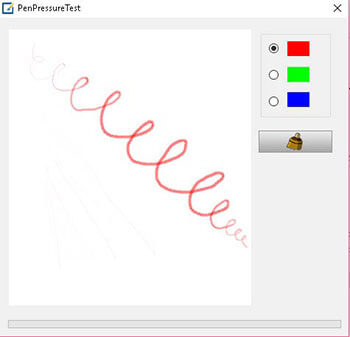
huionpenpressure

You can the pressure sensitivity using the driver.

You should install as Administrator. Shut off any antivirus programs. If you’re reinstalling, delete the old drivers. More discussion of the drivers at this post about the Turcom TS-6610 tablet, which can use this same driver.


PROS

Can recognize multiple monitors and you can choose which ones to use.

Value

Thin (just about 1/4″ thick)

Sleek design

Large work area (make sure you have enough desk space)

Lightweight pen


CONS

Edges get jitter, just as Wacom digitizers do.

Delicate USB ports (also a common complaint regarding Wacom products)

Makes a bit of noise when drawing on the tablet due to the hard plastic surface

Buggy drivers

Have to press hard at times

No wireless option in this model


CONSUMER REVIEWS AND RATINGS

Most customers were pleasantly surprised by the quality and the many features this tablet offers. Many  really liked the way the pen felt, though a few did not. The worst thing about the Huion is that the drivers are a bit fussy and sometimes buggy.

More than one Huion H610 Pro review complained about these oversensitivity and the pen making marks even when not touching the surface, such as when hovering half an inch over it. I have not experienced these problems myself. You should keep other electronic devices, even if they are not turned on, at least a few feet away, as they can cause interference.

It’s advisable to get the Amazon service plan. You should deinstall all other tablet drivers before installing this one. If you can get pressure sensitivity in one program but not in another, such as Photoshop CC, check to see if you have the Wintab (Wacom Feel) driver installed. If you do, delete it. You can use this graphics tablet with a tablet PC.


CUSTOMER SERVICE

Helpful and responsive, and they stick with you til the problem is resolved. They sometimes ask for videos of problems you report.


THE VERDICT

If you are patient and have some computer savvy, this could be a great art tool. But with quite a few reports of buggy drivers, many users end up being frustrated and spending time talking to customer support. So, when coming to a conclusion while writing this Huion H610 Pro review, we cannot give a 100% recommendation–the tablet is for those who have some patience and ability to troubleshoot. Remembering to remove other drivers on the system beforehand would save trouble.

Other than that, the quality of the product is solid. A couple of reviewers state it is superior to Monoprice. A tablet is something you may use for years, so, if you want top of the line, then going with Wacom is recommended. But,as long as you have a bit of tech know-how, this is  a strong choice that has the features of the Wacom Intuos Pro line, except for tilt and rotation sensitivity.

If you’re looking for a professional-quality drawing tablet  that’s a great value, the Huion 610 Pro is worthy of consideration.

Looking for a tablet for OSU?

If you’re into playing the rhythm game OSU, Huion makes a tablet for it. See the Huion H420 on Amazon.

OPTIONAL ACCESSORIES:

Huion’s soft carrying case will protect your tablet.

Manga Studio 5 is truly versatile, affordable drawing software.

See our review of the Monoprice graphics tablet.

See our article about choosing a Wacom graphics tablet.

Read about the Turcom tablet, similar to the Huion H610 non-Pro.

Read more about top-rated graphics tablets.


end of Huion H610 Pro Review


Microsoft Surface Pro 2 Review: a portable art studio

Surface Pro 2 review

by Tablets for Artists

surface-pro-2-review-1

Microsoft Surface Pro 2 with 128GB


TYPE OF TABLET

The Surface Pro 2 is a slate tablet PC that runs Windows 8.1 and Metro Apps.


FEATURES

The Surface Pro 2 and original Surface Pro have gained popularity among digital artists because of their portability and versatility. The original Surface Pro is similar, though with less battery life (see it on Amazon).

The Pro 2 weighs 2 pounds and features a Wacom digitizer offering 1,024 levels of pressure sensitivity. This tablet slate’s portability, fast processor, and the fact that you can add a real keyboard has led many to use the Pro as an all-in-one replacement for a laptop, Cintiq, iPad, and even desktop, since if you get the HDMI out accessory, you can hook up another monitor, or a TV if you want to watch your computer screen on TV, to the Surface Pro. As an art tablet PC, does the Surface Pro 2 deliver professional results, and does it help or hinder creativity?

The build of the Surface Pro is comfortingly solid and strong. The design is sleek. The Gorilla Glass is strong and has held up well in drop tests. MS didn’t cut corners here, this machine is built to last. The Surface Pro a flagship device. The form factor makes it. It’s actually slightly thinner than the Ipad3. Turning on the Surface Pro 2 is different from a lot of Windows computers in that it’s fast.  Its powerful Intel chip and solid state drive makes bootup under 10 seconds.

There is a single USB3 port. A micro SD card slot allows you to add 64GB of storage. It has Bluetooth 4.0, and dual 2×2 MIMO antennas for fast Internet connection.

The vents are on side, not back, so you can put it down on a soft surface, though it’s better to let air circulate around it. The cooling fan is pretty quiet.

It also has HDMI port, so you could have 3 or more screens. You can add a micro SD card for more RAM. Palm rejection favors the stylus, so if you put your hand down it it will not, for instance, give you a print of your hand.

Other specs: The Intel 4th Generation TM i5, 10.6 hi-def 1920 x 1080 widescreen, 10 touch points, 128 GB storage, 4 GB memory, micro SD card reader, headphone jack, mini display port output, one usb 3.0 port, Bluetooth, battery life about 6 hours.

IThe 256 GB hard drive model is better, but the 128GB should do for most digital artists.


surface-pro-2-with-keyboard11


WHAT’S INCLUDED

The Pro 2 comes with a Surface Pen,  built-in kickstand, two built-in cameras, power supply, Quickstart guide, safety and warranty documents.

The included kickstand is a really convenient item that lets you prop up the Pro on your desk, bed, or lap. You can watch movies while taking  a break from all that work.  The kickstand offers three positions (the first Surface Pro kickstand has just one).

The Pro 2 comes with a stylus but no keyboard besides the on-screen keyboard. You can purchase a Type or Touch Cover or use any Bluetooth keyboard.


FOR LEFTIES

The Pro can be a bit of a hassle for southpaws. The controls are all on the right, and flipping the tablet over will just flip the controls along with it. So lefties might not want to use the multitouch feature that allows you to use the screen with your hands alone, but instead use a keyboard.


STYLUS

The stylus it comes with is standard and good for writing and drawing. But for the best art experience, I recommend a stylus such as the Wacom Bamboo, which feels more solid and weighty (not too weighty–sort of like using an expensive pen vs. a ballpoint). The stylus input is accurate, except at the edges of the screen, which seems to be common across Wacom digitizers. But it’s not a big deal, because you can move the drawing around, and of course zoom in to the parts of the drawing you’re working on. The button on the stylus provides a right-click function. The bottom end of the stylus is an eraser.  (how many levels) The stylus attaches to the charger port via a magnet, but can easily come loose, and you have no built-in place to park it while charging. It’s a good idea to have designated places you keep your stylus while charging the computer.


SOFTWARE

You can use whatever you want, full programs for Windows to Metro Apps and even games. Photoshop, Illustrator, In Design and Maya all run fine. Because of the screen’s high resolution, the icons are a bit small in some programs, and text display is not always great. The fact is that some software, particularly word processing, is not ready for HD screens. The issue is more on the Adobe side of things, because it’s now the software that needs to catch up to the hardware.

You can use Metro Apps from the Windows Store as well. If you are using a Metro app that has small text, right-click on the app’s icon, go to properties, then to compatibility, and check the box to change the DPI scaling, meaning the resolution.

Apps tend to only cost a couple dollars, and some art apps such as Fresh Paint are good for sketching.

This 4 GB machine is fine for all these programs and even gaming, though an upgrade to the 8GB model would be better.

Because the Pro is a slate, and only about a half-inch thick, there is no disk drive. Disk drives have become a rarity even on laptops.You can get software by downloading onto the computer, or if you have it on disk,  you will need an external disk drive to load the software onto the computer. When you buy software as a download, if you need to download it again, you usually can.

One artist noted that in Autodesk Sketchbook Pro, the Color Picker tool did not work. She found that the solution was to change the screen magnification from the default 150% to 125%, which made text tiny, but made the Color Picker work. Hope Autodesk raises the program’s resolution.


SCREEN

The Gorilla Glass screen is glossy, not matte like the Cintiq. It lacks the slight bite like the Cintiq, and instead feels sort of like drawing on smooth paper, it’s more slippery. The pen glides over it. It’s fun to write, and you can use One Note.

surface-pro-2-review-21

CONTROLS

The on-screen keyboard offers good accuracy and pops up reliably when you need it, but I prefer a real keyboard. Drawing on the Pro is pleasant. If you like using keyboard shortcuts, you can lay the keyboard down and have the tablet on your drawing table. Or use the express keys. I particularly enjoy using Sketchbook Pro as it’s very intuitive.


http://www.youtube.com/watch?v=puyMmARTqck


BATTERY LIFE

Battery life is an excellent 7 to 10 hours, compared to the original Surface Pro’s short life of 2 to 6 depending on what the user is doing.


CONSUMER REVIEWS AND RATINGS

Many have penned a Surface Pro 2 review. Many users loved it. People taking notes liked One Note. Artists were able to get good results with the software. Most didn’t feel the smaller icons were much of  a problem but it did really bother some people. The Surface Pro 2 has a longer battery life of 7 hours.

Some complained that the stylus is in the charger port and comes loose easily when carrying the computer. That it runs warm to hot bothered some. Others did not have this problem. A fair amount of machines seemed to be faulty. Don’t hesitate to return your Pro if something doesn’t work.

Some professional artists decided to stop using Cintiq because this is more versatile and portable. Others prefer the Cintiq’s larger screen and matte finish. (I think having both is ideal–the Cintiq for home and a tablet PC for travel).


Pros

solid, durable build, sleek and attractive design

highly portable

fast versatile, runs full Windows plus Metro apps

beautiful HD display

One Note good for note-taking

kickstand makes it easy to prop up and keeps you from having to hold it a lot

comes with OneDrive cloud storage

has Wifi and Bluetooth so you can add a Bluetooth mouse, keyboard, headphones etc.

HDMI port makes it so you can have 3 or more screens

Feasibly can take the place of an Ipad, a Cintiq, and a laptop or desktop


Cons

Because of the HD screen, text can appear fuzzy in some apps, and icons small in some art programs. Hopefully the software will soon catch up to a more compatible resolution.

Small size can feel cramped

Digitizer doesn’t work well in corners (this seems to be an issue across Wacom products, including the Cintiq).

Has two Webcams, neither of them are very high quality

Left-handers may get aggravated using multitouch, since all controls are on the right. (Righties may not fare well with multitouch either, I don’t use it myself, I use the keyboard or a stylus to navigate)

Cannot change to larger hard drive

Stylus attaches magnetically to charger port, but falls out easily

Only one USB port (you can add a hub, and use Bluetooth, which cuts down on the need for a lot of USBs)

Trackpad a bit difficult, according to some


If you buy a lot of accessories, including the Type Pad cover, a slip case, and a Bamboo stylus, you may instead want to consider the Cintiq Companion, 256 GB model, the first truly mobile Cintiq; it’s a Windows computer that’s a Cintiq all in one, with all the art goodies of the Cintiq such as Rocker Ring and Express keys, and a 13.3-inch HD screen.


For art, a Wacom Bamboo stylus would be better than the basic pen that comes with the Surface Pro 2. The Wacom Bamboo Stylus comes in Black and Carbon. I suggest the Black.


THE VERDICT

Drawing right on the screen is a great boon to most digital artists, and this is miles above an Intuos or Bamboo non-screen tablet. It’s similar to the Samsung Ativ, but has more levels of pressure sensitivity. If you need a large screen, then it’s probably not for you, but otherwise, I do think this is an excellent affordable solution for professional artists as well as hobbyists. It’s nice-looking, useful for everything, and even comes with a year of Skype unlimited calls. It can take the place of a laptop, iPad, and Cintiq.

The original Surface Pro, though the battery life is not very good, most other features are comparable to the Surface Pro 2, so for around $600 you can get a very good all-in-one art tablet with a year warranty.


Microsoft Surface Pro Tablet (128 GB Hard Drive, 4 GB RAM, Windows 8 Pro)


The Microsoft Surface and Surface RT (without the “Pro”) computers are not powerful enough to effectively run Photoshop, only apps. Most professional artists will want a more powerful system that can run Adobe Creative Suite.


Accessories (docking station type cover 2, arc mouse, power cover)

No Surface Pro 2 review would be complete without discussing some of the accessories. While the computer is ready to use out of the box, certain add-ons will make your art experience more positive. You probably won’t want to hunt and peck only on-screen, so a keyboard is a good addition. The Touch and Type Covers attach to the Pro and are made specially for it. They come in a rainbow of colors, including basic black. I recommend the Type Cover, as it’s easier to type on. Or you can use any Bluetooth keyboard. The Power Cover extends your battery life by several hours.  A docking station is quite convenient.

You might want a mouse, too, though you can be stylus-only.

Type Cover 2 (comes in various colors)

Microsoft Surface Touch Cover Keyboard | Black (compatible with Surface Pro 2)

Wacom Bamboo Feel Stylus for Microsoft Surface Pro 1 and 2 and tablets with Feel technology


end of Surface Pro 2 review

Read our Surface Pro 3 review.


intuos-pro-medium-review

Wacom Intuos Pro Pen and Touch Review (Medium size): gesture and more

Wacom Intuos Pro Pen and Touch Review (Medium): powerful graphics tablet

Wacom-IntuosPro-new2017


Note: this product has been updated for 2017.

New Intuos Pro Medium (2017) vs. old Intuos Pro Medium

New Intuos Pro: It’s thinner, it’s under 1/2″ thick and has a smaller footprint. It’s easy to carry in a bag or backpack. The backing is anodized aluminum. The pen stand is smaller and pucklike; the pen case has been redesigned. It only comes in Medium and Large; both have eight ExpressKeys. The Pro Pen 2 has 8, 192 levels of pressure sensitivity.

Wacom+Intuos+Pro+Paper+Edition-2

Intuos Pro Paper Edition. Image courtesy Wacom

There’s also the Intuos Pro Paper Edition that comes with the Pro Pen 2 and a gel ink pen. Optionally, there’s also a ballpoint pen, and Wacom plans to add a pencil. The Paper Edition lets you utilize real paper and digitize via an app.

See Intuos Pro 2017 on Amazon

See Intuos Pro Paper Edition on Amazon

Type of Tablet

The Wacom Intuos Pro is a graphics tablet that you draw on while you look at your computer monitor. Comes with pen. Also called the Intuos Pro. All Intuos Pros have touch (and pens). The regular Intuos tablets have touch and non-touch models, and fewer high-end features than the Pro line.

Features

The Intuos Pro Pen and Touch Medium Tablet is a professional-grade tablet that lets you draw, design, or edit photos or use in place of (or alongside) a mouse in any program. It features 2,048 levels of pressure sensitivity.

The medium size is Wacom’s most popular tablet among creative professionals. It combines pen and touch and is wireless and customizable.  It comes with 10 nibs of varying sizes, and the pen has tilt recognition. The tablet is 14.9 by 9.9″ with a usable area of  9 x 5 1/2 inches. It weighs in at 10.9 oz.
Compatible with Windows Vista and up, Mac OS X 10.6.8 or later (with Intel processor).


Intuos5  Touch vs. Intuos Pro Medium

The Intuos Pro Medium is pretty much the same as the older Intuos 5 Touch with some differences to the form factor. (To make things even more confusing, what used to be called the Bamboo line is now called Intuos, without the “Pro”). Its express buttons, rocker ring, and gesture controls all give you easy shortcuts for common operations.Also, the Pro comes with the wifi kit, and you had to buy it separately with the Intuos5 Touch.

The look and feel of the tablet is more Cintiq-like now with Express Keys that are designed to be easier to press than in the Intuos5 Touch. The buttons are actual buttons rather than buttons that look like indentations. The inner surface and buttons are all beaded. The plastic is harder than in the Intuos5 Touch, but it still gives. The pen is a little thinner and lighter.

intuos pro pen and touch review

What’s Included

Tablet, Intuos Grip Pen

Color identification rings

Assorted replacement pen tips (total of 10 nibs of varying shapes and sizes)

Pen stand

Wireless kit

mini USB cable

Quick-start guide Installation CD with driver Online user manual Product information documentation

Bundled with Software:

Adobe Photoshop Elements 11 (sells for $79.99) Autodesk Sketchbook Express (tablet version based on complete version, features gesture-based menu)

Anime Studio Debut 8 (sells for $49.99)

Corel Painter 13 (30-day trial)

Nik Color Efex Pro 4 Select Edition (tablet version based on complete version)

The bundled software adds about $180 of value. (Ballpark estimate–not counting the free trial as anything.)

The Intuos Pro Pen and Touch Medium Tablet comes in three sizes: small, medium, and large. We’re reviewing the medium, since it’s Wacom’s most popular and also the most practical. The small tablet is not much cheaper and is less comfortable to use. It’s best if you have a small desk space. The large can be a bit too large–so the medium is rather like what Goldilocks might choose.

Unlike a mouse and mousepad, you can map Intuos tablets to your screen. So to move from one part of your screen to another, you need to move your hand around a bit, rather than making several swipes with a mouse. The large size may be a bit awkward to use spacewise. The Medium is good for monitors of up to 30″.


For Lefties

Good for righties and lefties. For left-handed use, the manual tells you how to make a small loop in the cable so it will go in the correct direction.


Portability

At just 10.9 oz., this is fine for on the go, and fits into most laptop cases.


Tablet

The 2,048 levels of pressure sensitivity offer a great deal of control over your digital art. The tablet is very responsive and you can adjust pressure sensitivity. It has a single USB cord and  a dongle for wireless access. You can map how much of the tablet you want to use as a live workspace.

OLED lights surround the active area, so you stay within your bounds. The medium’s size is good for working with multiple monitors.The medium is an excellent size to use with multiple monitors as well as for general work. It’s large enough to not feel cramped, but not so large as to be overwhelming.

Controls

The eight Express Keys and 4-function Touch Ring let you program custom shortcuts in your favorite programs or browser functions. If you happen to touch while using the pen, palm rejection will kick in and give preference to the pen.

A nice feature is the Express View Display, where you can rest a finger on theExpressKeys and a reminder of its function will light up on the screen. You can toggle between pen and touch. You can use hand gestures to pinch, pan, and zoom, such as pinching to zoom and swiping to navigate.

You can use the built-in gestures or program your own under the on-screen “My Gestures” menu, which lets you choose 3, 4, or 5 fingers. There’s also a handy radial menu you can bring up to give you 8 more customized commands.


Compatibility

Windows Vista SP3, 8, and 7 (32- or 64-bit), or 10; Mac OS X 10.6.8 or later (needs Intel processor).


Pen

The included Intuos Grip Pen comes with 10 extra nibs that will give you lots of control over drawing. It’s a little bit of a hassle to change the nibs, but I love that there are so many nibs, and it’s fun to try them out. On the other hand, I tend to stick with one, instead, I change the brushes in the art program.

The nibs come hidden in a  handy holder, the base that holds the pen (you have to open up this holder to find them). You can change brush size by using the ring.

The replacement nibs offer a fun array of tips with 5 regular, 1 flex, 1 stroke, 3 hard felt for a total of 10. The stroke nib is spring-loaded to give you more tactile feedback.

I really enjoy having my choice of nibs for different effects. Using a stylus or pen instead of a mouse really seems to ease wrist strain and carpal tunnel caused by the mouse.

The Grip Pen offers tilt recognition from -60 to +60 degrees, as well as rotation sensitivity which greatly expand your drawing and painting options in not only the lines, but also the textures and patterns you can make. You can also use the tilt sensitivity when drawing industrial designs that must be exact and follow angles and curves.


Software

Bundled software:

Adobe Photoshop Elements 11

Autodesk Sketchbook Express (a tablet-optimized “mini” version of Sketchbook Pro that’s free anyway)

Anime Studio® Debut 8

Corel Painter™ 13- 30 day trial

Nik Color Efex Pro 4 Select Edition (tablet version based on complete version)

You can use this with any software on your computer. The driver will automatically install for Windows, but with OSX (Mac), you have to install it from the disk or download it off Wacom site (wacom.com). Remember to deactivate any antivirus programs before installing, then reactivate them when finished. You can use this tablet with any programs on your computer (e.g., Photoshop, Illustrator, Maya, or as a mouse replacement in Word).

Remember that not all art programs support pressure sensitivity, and you may have to adjust tablet settings within programs, for instance, Photoshop allows you to choose which tools and functions (such as opacity) you want to respond to pressure.

For Linux Wacom drivers, please visit this Sourceforge page.

The Intuos Pro Medium detects the software you’re using and offers optimal short cuts and selections.

The tablet is useful for handwriting, with its Windows capabilities-you can take notes in Windows Journal and use the search function to search your handwritten content. You can also convert handwriting to typed characters.

There are digital ink tools that mark up documents in Office 2007 and later, if you’re not only using this for digital art. There is a standard mode and a recognition mode for handwriting recognition that is only necessary if the recognition software you are using isn’t working well because it is using a lot of memory. Recognition mode will maximize the data rate.

Pros

Good customer service

Ring lets you change brush size

Lightweight (10.9 oz.) and fits in most laptop cases

Comes bundled with 5 art programs including Photoshop Elements 11 and Autodesk Sketchbook Express

Intuos pens also compatible with Cintiqs

Cons

Some complain of loose USB port. You only need to use the USB while charging. Some say the included mini USB is too large and needs to be jammed into the port, and had better luck with a replacement mini USB.

Some people compained in their Intuos Pro Pen and Touch review about problems with wireless and touch connectivity

Battery doesn’t last long

Nibs wear down quickly and can leave pits in the tablet

TIPS: Decrease pressure sensitivity in the settings, and you will not need to press very hard. Also, laying a sheet of paper over the tablet while drawing can protect the tablet and pen nib. Or try the Posrus cover, link below, under Accessories.


User Reviews

Customers overall were very satisfied with this tablet. They remarked that the many small improvements made it more pleasant to use than both the Intuos5 Touch and the Intuos4, which did not have touch.

Some got buggy drivers in the Pro, leading to loss of pressure sensitivity and other issues. Drivers have to be downloaded from Wacom’s site.

Old Wacom drivers should be deleted before adding the new ones, and there can be other software conflicts as well when it comes to drivers.


Customer Service

I have always had good experiences when calling Wacom, even if the product is past warranty. They have been patient and helpful. Their online forums often provide answers for issues. It does seem that they stonewall a bit when it comes to drivers not working right with software.

Drivers relate to software made by other companies, for instance, Adobe, so if there are issues it may not be solely Wacom’s fault. Things sometimes seem a bit awry between the two companies.


The Verdict

The Pro Pen and Touch Medium is a professional artist tool that provides excellent results. It’s designed to be a cousin to the Cintiq. Nonetheless, some users have had issues with the USB and connectivity. We hope Wacom will iron out any connectivity and USB problems soon.

Our Intuos Pro Pen and Touch review concludes that this is a high-quality and solidly built tablet that could easily become an artist’s primary tool.

Video: Mapping the Display

https://youtu.be/ClDSx_wE-sE?list=PLqdnA02U-7GCAt2G-Cj3EtjSbfwBhsTjd

This video from Wacom shows you how to map the tablet to your screen. It shows the Intuos 5, since Wacom doesn’t have a video for the Pro, but as I mentioned earlier, they are the almost same tablet, with some differences in the form factor.

See the Intuos Pro Medium 2017 on Amazon

See Intuos Pro Paper Edition on Amazon

Need help choosing which one suits you best? Read our article: How to Pick the Best Wacom Tablet: Intuos graphics tablets

Read more about choosing the best graphics tablet for what you need,

 end of Wacom Intuos Pro Pen and Touch Review (Medium)


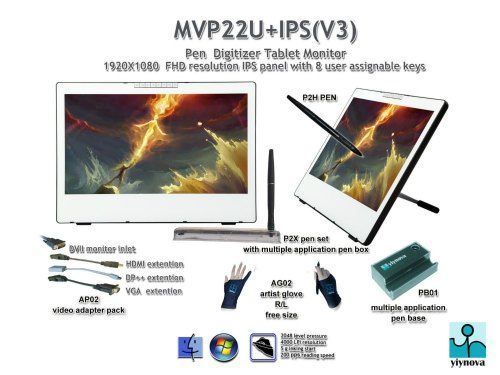
Yiynova MVP22U.V3 review

Yiynova MSP19U+ Review (model with Vesa stand)

Yiynova MSP19U+ review: large pen display won’t break the bank

by Tablets for Artists

Update: This newer Yiynova MVP22U.V3 has fixed some of the issues of the 19U. We recommend this one over the MSP 19U, and will be adding more information on it.  See more reviews and info on Amazon.

Update: Yiynova MVP22U.V3 worth a look

Yiynova MVP22U.V3 review

Yiynova MVP22U V3

Yiynova MSP19U+Yiynova-msp19u-review

For a small fraction of the cost of a Cintiq, you can have a Yiynova tablet monitor by the Chinese company Yiynova. While the first iteration of the this monitor, the MSP19, had some issues, this second one, the MSPI9U+, has remedied most of them, and the slightly higher price tag is worth it . The Yiynova at 19″ delivers almost as much screen real estate as the Wacom 22″, but it is far lighter. At about 9 lbs., I wouldn’t call the MSP19U+ highly portable, but it’s not as desk-bound as the 22″ Cintiq. The Yiynova works with Mac and Windows.


WHAT’S INCLUDED

The monitor, pen with 2 spare nibs, clip to attach it to the monitor, nib removal tool, attached mini USB, power supply, quickstart guide for Mac and PC, CD with drivers, and documents. The warranty (good for U.S. only) is one year, serviceable by The Panda City in Taiwan.


FEATURES

The Vesa-compatible kickstand, which is non-detachable, lets you prop up the Yiynova and has an adjustable angle of 5 to 45 to 90 degrees. Or you can use on Ergotron arm. Drawing area is 19″ diagonal with a 16:10 wide screen. There are 2,048 levels of pressure sensitivity, as many as the Cintiq. There are 16.7 million colors. It has a VGA input, a VGA output, a USB cord that is hardwired to the tablet, and a pen with kit. The pen needs an AAA battery. You can use it with multiple monitors.

System Requirements (for the -19U and -22U):

PC with USB3 port, video card with either VGA port, DVI port, or HDMI port (or mini-display port)

If your computer has a DVI or DisplayPort input, you will need a VGA to DVI cable.

Windows 7 or up, Mac 10.8 or up

What’s a VESA stand?

VESA stands for Video Electronics Standards Association, and being VESA-compatible means the mount, the square that attaches to the stand and the monitor, is of a standard size that can fit most TVs and modern flat-panel monitors.


Yiynova-msp19u-features-1


SCREEN

The screen is glassy, and smooth, reflective, not the matte of the Cintiq. While the Cintiq feels more like drawing on paper, the Yiynova gives you more of a glide. The colors start out a bit cool but can be calibrated.

The Yiynova lacks the expansive viewing angles of the Cintiq’s 175 degrees. The Yiynova’s are 85 degrees horizontally and 80 degress vertically, so you need to be more or less right in front of the Yiynova to see what’s on the monitor. Personally that’s how I work anyway, but to some it might be annoying.

The screen has a far lower resolution than the Wacom. It’s 1440 x 900. While users of the previous model complained of jagged lines in raster programs and font-rendering problems, this model has a different digitizer, so this problem has been solved for most. However, there are still some complaints.

The color gamut is a standard 16.7 million. Color calibration can be more difficult on the Yiynova than on the Cintiq. The display is bright and cheery with its LED backlight (which the Cintiq does not have). All the same, the colors themselves won’t necessarily be as bright as on your main monitor; this is also true of the CIntiq.

A smudgeguard glove will be useful, as fingerprints show on the glassy surface.

YIYNOVA PEN

The plastic pen has a rubber grip and two clicker buttons on the side. It needs an AA battery. The pen feels cheap compared to Wacom pens. It also lacks an eraser; you have to use the eraser tool in your art program, but that’s not a big drawback.

The pen requires a single AAA battery that should last for months with frequent use. It has a low-battery indicator light. The pen gets 2,048 levels of pressure sensitivity, just like the Wacom. It just has the one size nib, unlike the varied nibs of Wacom. The Yiynova comes with a “kit” including a spare nib and nib remover.

There is far more parallax in the Yiynova than the Cintiq, you see a good quarter-inch between the stylus tip and the line. While this takes a bit of getting used to, it actually makes it so you can see what you are drawing better, since the pen isn’t in the way. But it takes the experience a further step away from pencil and paper. When looking straight at it, it’s not noticeable.

CONTROLS

This model has power and adjustment buttons on the lower right side of the device. There are no controls on the front–that means no programmable ExpressKeys.

SOFTWARE

The drivers are more difficult than the Cintiq, though I can’t say that using Cintiq drivers is always a breeze. You need to uninstall all other tablet drivers before installing the Yiynova ones. You need to use two drivers. It’s better to use the ones from their Web site rather than the included ones on the CD, because the site will have all updates.

Unlike the Wacom, you can’t do things like mapping the drawing area, it’s just a 1:1 shot of your screen. I only use this anyway even with the Cintiq, but some artists might miss the extra features. The driver’s limitations compared to the Cintiq are one of the biggest differences between the two. The Yiynova works with any art or other software your computer works with (Photoshop, Illustrator, Toon Boom etc.)


PORTABILITY

At 11 pounds, it is not very portable, but if you really had to take it somewhere you could do this far easier than you could with the much heftier Wacom 22 and 24s.


USER REVIEWS AND RATINGS

Most of those who have written a Yiynova MSP19U+ review or participated in discussions have been positive.

Customers really like the feeling of the pressure sensitivity, and they love the price. The things that I thought might annoy them seem to be OK, such as the parallax, and some do not notice it at all, or only notice it on 25% of the screen. It would depend on the angle you are viewing from. One said he prefers the parallax because he can see his whole drawing now.

Some said the included cables are not long enough to use with a desktop computer, so they used their own cables. One Yiynova MSP19U review said the Yiynova colors because it doesn’t have the anti-glare screen of the Cintiq and therefore the colors are truer and the line more accurate; others miss the traction of the Cintiq screen and feel the Yiynova colors are less vibrant. Biggest complaints are the limited viewing angles and that the pen is not as good as Cintiq pens. Parallax does not seem to be much of an issue.

Some versions of Sketchbook Pro do not work in dual monitor mode (see below). Sai Paint Tool has also had problems in dual monitor mode.

Sketchbook Pro 6.0 and 7.1.1 work on dual monitor mode. Sketchbook Pro
6.02, and 7.0/7.1 won’t work in it.

TIP: For Sai Paint Tool, Yiynova suggests this solution:

Go to the SAI data folder and find the misc.ini file
Use the text editor to change the line
TabletMouseSimulation = 0
to
TabletMouseSimulation = 1

then restart Sai. This might fix the cursor issue.


PROS

Price a fraction of the Cintiq

functions

display brightness

ease of use

customer service

VESA-compatible stand is solidly built.


CONS

Pen not as good as Wacom’s

drivers can be difficult

viewing angles are limited

screen resolution not high, leading to some having issues with jagged lines and font rendering.

no programmable keys


CUSTOMER SERVICE

Customer service, provided by Panda City, is fast and excellent. They give detailed help in response to problems customers mention, and show that they are listening and concerned. They are closed on weekends, as is Wacom. The manuals and specs are all on the company Web site. Though the English is imperfect, it’s understandable.

This pen display tablet offers a lot of value to both hobbyists and pros, and can be compared to the Cintiq. Some artists like its underdog appeal. Others might miss the controls of the Cintiq, such as the ExpressKeys and rocker ring, which can streamline workflow.

INCLUDED ACCESSORIES:

It comes with a handy carrier with plastic handles, stylus, power supply, mini USB, and male VGA cable. As with the Cintiq, you will need to get an adapter if you have a Mac.

THE VERDICT

The more expensive Wacom Cintiq is better in many small ways, but with the closest-sized Cintiq, which is the 22 inch, costing almost 4 times as much, this Yiynova is a good, reliable solution for a student, and entry level designer, or any artist on a budget.


OPTIONAL ACCESSORIES

You might want an HP single monitor arm to make work more comfortable, and a longer cable if you need.
hp single monitor arm


HP Single Monitor Arm

Apple Mini DisplayPort to VGA Adapter

See our review of the XP-Pen 22 tablet monitor.

See our review of the Wacom Cintiq 13HD.

end of Yiynova MSP19U review