Cintiq 13HD Review: quality tablet gives you choice of pen or multitouch too

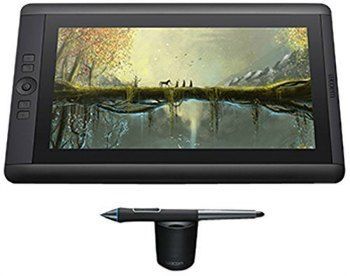
Wacom 13HD review. Image courtesy Wacom
This Cintiq 13HD review has been updated to include the Cintiq HD Touch.
The Cintiq has long been considered the top-of-the-line tablet for artists, including illustrators, graphic designers, fine artists, video artists, and photographers. Its high-resolution 13.3-inch, 1920×1080 display can render 16.7 million colors and offers 2,048 levels of pressure sensitivity.
The Cintiq 13HD is the successor to the 12UX. Weighing 2.6 pounds, it is considerably lighter than the 12ux. The peripherals (cables, converter box, power supply) add about another 6 pounds. This is about 2 pounds less in total than the 12ux. The dimensions are 14.75 x 9.75 x 0.5”. The expansive 178-degree viewing angle lets you see the image on the screen if you’re not directly in front of it.
TYPE OF TABLET
The Cintiq is a tablet monitor, pen display tablet, or hybrid (those are all terms that apply to it), meaning it’s a monitor that combines a digitizer and screen so you can draw directly on the screen. It If you have never used a drawing tablet with screen, the experience is hugely different, even life-changing.
You can choose to see the same thing you see in your computer screen or an extended view (this is set up in the computer’s Control Panel) and you can add more monitors as well.
The Cintiq is pretty easy to set up and comes with everything you need. On a Mac, you will need an HDMI input, an adapter costing about $15 that you have to buy separately. Wacom claims 85% of the art tablet market and is the most well known and trusted name in art tablets. than its competition, such as the Yiynova. Read our Yiynova review here.
WHAT’S INCLUDED
Included are a detachable, adjustable kickstand with 3 viewing angles (all landscape mode, not portrait), Pro Pen, a collection of 10 nibs (including the one that comes in the stylus) with a variety of tips, pen case, nib remover, 3 colored pen rings )so if you have more than one pen you can tell them apart) converter box, 3-in-1 cord, installation and driver CDs, and manual, and a download key for bundled software. (You now get a plastic case for the pen).
CINTIQ 13HD TOUCH

I’m updating this post to include information about the Cintiq 13HD Pen and Touch (see it on Amazon), more formally known as the Cintiq 13HD Creative Pen & Touch Display. Wacom added multitouch to this tablet monitor in 2015. For two years, it did not have touch. Now you can use gestures to navigate, pan, zoom, and rotate.
Larger versions are now also outfitted with touch, including the 22HD Cintiq Touch Interactive Pen Display (note: though for some reason it is not called “pen and touch,” it is), and the mother (in terms of size) of all Cintiqs, the 27″ one. So now you can happily finger paint on the Cintiq and play with vector lines with your finger. Palm rejection works well. You won’t get pressure sensitivity when drawing with your fingers.
Art-software companies including Adobe, Corel, and Autodesk, maker of Sketchbook, are increasingly integrating touch into the interface, giving your more capabilities.
If the topic interests you, here is a YouTube video that shows the Touch and also shows the artist using a plugin to draw with Adobe Illustrator with your fingers and actually get some variable line width based on speed. You can start at about 9:35 to see that demoed.
https://www.youtube.com/watch?v=pykYfcZ6Lqk
To do what he’s doing with Illustrator–getting a varied line width, you need to use the plugin he’s using. Without the plugin you would still be able to use your fingers to manipulate vector lines and shapes, sort of like on the iPad.
So now the iPad has a full-featured stylus version in the iPad Pro (see our review), and the Cintiq has incorporated touch. Nice that we can all get along.
13HD vs. CINTIQ 12UX
There are now fewer cords than the 12ux had; the whole thing is more manageable. The 12WX had a large, heavy converter box with cables sticking out of it, creating cord spaghetti, plus a hefty power brick. The 13HD has simplified the peripherals considerably. In the 12WX version you had to connect the AVI cable and a USB from the computer to the converter box and power brick. Now, a single 3-in-1 cord goes from your computer and branches out to the box that holds the power supply, HDMI port, and USB. The colors in the 13HD are brighter than in the 12WX. The screen on the 12HD is 13.3″ diagonal and on the 12WX it’s 12.1.” There is less plastic surrounding the screen on the 13HD. The 13HD weighs 2.6 lbs. and the 12WX 4.4 lbs.
FOR LEFTIES
The Cintiq is reversible and thus fine for both right- and left-handers.
SCREEN
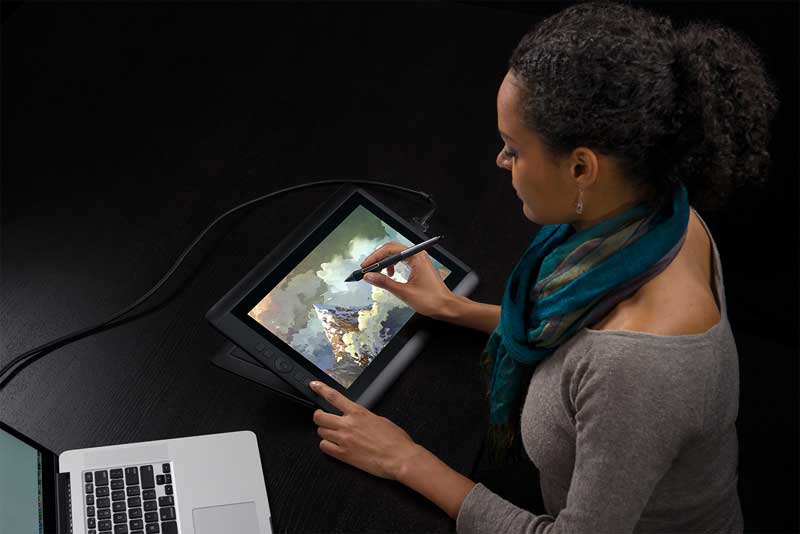
The beautiful HD display with a 16:9 aspect ration will show off your artwork. The display is ultra sharp. It’s not searingly bright, less bright than it probably is on your other monitor. The screen’s matte finish gives it a pleasing, paperlike bite. The matte finish cuts glare. More space is taken up by the display as compared to the 12UX display, which has quite a bit of plastic around it.
You can calibrate colors using your preferred color-calibration software. Only the Cintiq 24HD Touch comes with Wacom’s own color-calibration software, which can be used on the 13HD as well. The detachable stand has 3 positions, the one probably the most comfortable for drawing for most people being the 20 degree one.
If you already have a 12UX, the 13HD isn’t a must-have, but it’s more pleasant to use because of fewer weighty cables and boxes and the great HD display. The Cintiq 13HD is no multitouch, only pen input. You can’t use your fingers or hand gestures.
The only Cintiqs with multitouch are the larger, pricier 22HD Touch and 24 HD touch.
Because of the HD screen resolution of 165 pixels, icons in Photoshop will show up small. This is an issue with all high-res tablets. So it can be a little fussy to use, and better to look at Photoshop icons on your main monitor rather than on the Cintiq. (This could just as well be in an Adobe review as a Cintiq 13HD review, since the issue is the software not keeping up, and this should change someday, Adobe willing.) The 178-degree viewing angle makes it so you can see what’s on the screen from many vantage points.
PEN

The battery-free Pro Pen feels substantial, and the silicon grip makes it comfortable to hold for long periods. It’s solid but doesn’t feel too heavy. The tip and the eraser each have 2,048 levels of pressure sensitivity.
Pen accuracy is great, with very little parallax effect, meaning the line you see on the screen appears to be directly where the pen tip is touching it (in reality you are seeing the line under the glass). You can recalibrate the pen easily whenever you want by opening up the calibration screen and tapping on a series of points. The pen has a tip switch and two side switches for shortcuts and modifiers (these are optionally used).
The grip has no latex, so you don’t need to worry about latex allergies. The pen does not need to be charged. It’s nice to not have to worry about batteries or recharging the pen. The Pro Pen has plus or minus 60 levels of tilt recognition, so just like in the real world, the line will change according to the angle at which you hold the pen. This tilt can be very handy both in drawing lines and in creating patterns.
The Pro Pen is as it sounds–professional. There’s no advantage to replacing it, unlike with some tablets. While it comes with a nice sent of nibs, if you want even more variety, you can buy additional pens with different tips, such as the Airbrush Pen, and the Art Pen, which has the feeling of a felt-tip marker and allows for painterly strokes.
The Cintiq pen won’t work on tablet PCs, since the technology is different. Some pens work on both Cintiqs and Intuos tablets.
PORTABILITY
A Cintiq isn’t the type of thing you can tuck under your arm and run from place to place, though in a car it’s fine. On top of its weight of about 8 lbs. including power stuff, you would need to also lug a computer, the Cintiq cords, power brick, and converter box. I’ve taken my laptop, Cintiq and all in my carry-on bag numerous times, leaving some clothing behind in order to make room.
Airport security, while they allow iPads through without a hassle, often doesn’t know what to make of the Cintiq and one agent dusted it for explosives! A Cintiq isn’t something people see every day, so leave a few extra minutes for possible airport hassles.
There are now a couple of more portable Cintiq options: the all-in-one Wacom Cintiq Companion, which is an artist’s dream, a portable Cintiq (the computer is part of it, it’s the ultimate art tablet PC), and the Cintiq Hybrid, an Android tablet that’s a bit cheaper than the Companion and can work either as a standalone tablet or as a regular Cintiq that attaches to a computer.
SOFTWARE
You can use whatever software is on your computer (Adobe Suite, Maya, etc.), and you can use Mac or Windows. According to forums, it can be set to work with Linux. (For more Linux and Wacom info and drivers, please visit this page at Sourceforge.) Wacom drivers are on the Wacom site and also come on an included disk.
CONTROLS
The rocker ring and four express keys give you a convenient way to program shortcuts. The default ones are pretty good. You can use these keys to bring up an on-screen radial menu with further options. Personally I use the keyboard shortcuts since I’m used to them. Resizing a brush using the express keys requires several clicks, it can sometimes be simpler to use the commands in your art program.
http://www.youtube.com/watch?v=b8nfTCStFtU&
PRICE
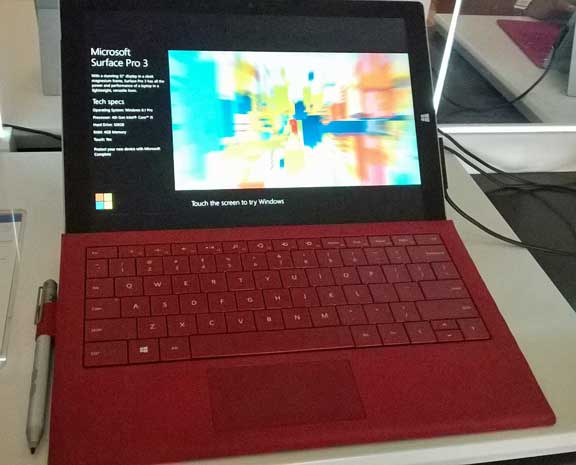
At around a grand, it’s pricey, but Cintiqs’ resale value holds quite well so far, and the tablets last for years. The 13HD is comparable in price to to a tablet PC such as the Surface Pro. You get more screen real estate with the 13HD, but of course you need to attach it to a separate computer.
CONSUMER REVIEWS AND RATINGS
Many users love their Cintiqs, but there are some detractors. In reading each Cintiq 13HD review, we looked for common complaints. The biggest gripe was that the USB connector was loose. There are some workarounds, but they are annoying. Other users had no problem or didn’t think it was a big deal. The USB issue seems to be a fairly common issue with Wacom as well as some other tablet companies.
TIP: A good place to look for Wacom answers and discussions is forum.wacom.eu.
PROS
Terrific art experience
Size is big enough to draw comfortably, small enough to hold in your lap
Simple to set up and use
Can outlast your computer; can be used with different computers and operating systems, including netbooks
Holds resale value
Pen is battery-free and does not need to be charged
CONS
Jitter in corners, common in Wacom digitizers
Some users complain of USB port looseness
Not easily portable
Some users have issues with the drivers
High-resolution screen means some programs’ tools, such as Photoshop, will be small on the Cintiq (hopefully Adobe will catch up)
Not cheap
THE VERDICT
I couldn’t live without my Cintiq. To me, a tablet PC is useful as an add-on or something to travel with, but it’s not a replacement. I like the line quality I get from the slight bite provided by the matte finish of the screen, it’s closer to what I would get on paper.
I also prefer having a dedicated work area, one I can hold in my lap. Sometimes I watch movies on it sometimes (got to take a break from work now and then). If portability is a priority, the Cintiq may not be for you. If you need a lower price, there are some other feasible options, though Wacom is still top of the line.
OPTIONAL ACCESSORIES

6D Art Pen
The 6D art pen with its chisel tip is great for painting. It’s compatible with other Cintiqs and the Intuos Pro 4 and Intuos Pro 5. You choose whether you want plastic or felt. You can rotate the barrel 360 degrees while drawing for interesting designs. It includes both hard plastic and felt nibs. I use the felt tip to mix colors and get painterly effects.
Read our review of the XP-Pen 22 tablet monitor. The newer XP-Pen Artist 22E tablet monitor is also something you might want to check out as it has Express Keys, like a Cintiq.
Read our review of a Yiynova tablet monitor.
Looking for a powerful Wacom all-in-one? Check out our Wacom MobileStudio Pro review.
end of Cintiq 13HD Review