Author Archives: Vicky

About Vicky

I'm an author and illustrator who has used drawing tablets since the early days. I love how flexible and forgiving they make everything. I'm also fascinated by the technology. I started this site to bring knowledge to everyone. I want this to be the only place you need to go to learn about drawing tablets.

art tablet infographic excerpt

Infographic: The five types of drawing tablet

The Five Types of Drawing Tablet

Here is an infographic depicting the five types of art tablet–graphics, 2-in-1, slate, convertible, and tablet monitor. Below is more info as well as an embed code if you would like to share the infographic on your site or blog. Also below it is a pin if you would like a Pinterest-sized pin to share.

5 types of drawing tablet

By art tablet, we mean tablets with pressure sensitivity and palm rejection, making them suited for drawing, painting, and handwriting.

For an introductory article about art tablets, please see this post.

Please share by using the social media buttons. To put this infographic your site, please use this embed code:

<a href=”http://www.tabletsforartists.com/infographic_art_tablet/”><img src=”http://www.tabletsforartists.com/wp-content/uploads/2016/05/artabletinfographic-2.jpg” border=”0″ /></a>

An example of a graphics tablet would be a Huion 610 Pro or Wacom Intuos. An example of a slate tablet is the Galaxy Tab A with S Pen or an iPad Pro. A Lenovo ThinkPad Yoga 14 is a convertible tablet. The TabPro S and Surface Pro 4 are 2-in-1s. A tablet monitor would be the XP Pen 22 or the Cintiq 13HD.

Pinterest Pin:

5pentabletspin

vector 10 colors

Vector vs. raster for noobs

For newbies: vector vs. raster files

If you’re new to digital art, you may have heard these terms, but perhaps you don’t quite understand, or know which to use when. Here’s a rundown of the differences between these two image types.

RASTER

Raster images, also called bitmap images or raster graphics, are made up of pixels. Most freehand drawing programs utilize raster, though some use vector too. Photographs, once scanned and digitized, or coming from a digital camera, are raster.

raster image

Raster image: photo of lotus

Pixels are tiny squares expressed in points per inch, also called dots per inch (ppi or dpi). Each pixel can be edited. Using Photoshop or another image editor, you can zoom in and see an individual pixel.

To understand pixels, think of a Chuck Close portrait, made of tiny little squares whose edges are invisible unless seen very close up. To see pixels, you need to zoom way in.

A 6″ x 6″ image at 300 dpi is is 1800 x 1800px or 324,000,000 million pixels! That’s a lot of information. A computer can handle that with no problem.

Early computer games were made with pixel art, which has a pleasing, toylike look whose popularity has resurfaced in films like Wreck-it Ralph.

Online images are usually 72ppi (often called dpi–though the terms are used interchangeably, there is some difference in meaning, but people know this and will understand). Print images usually use 300ppi. A very high-res image might be 600ppi.

Raster images cannot be enlarged without losing some information, resulting in fuzzy, “pixelated” images. Large, high-res images can slow down your computer, especially when you use a lot of layers in your drawing program. Despite the inconveniences, drawing freehand using raster graphics feels more similar to drawing on paper than drawing in vector does.

Raster image file types (this is not all of them but the main ones):
jpg (jpeg), gif, png, psd, tiff

Raster programs include Photoshop, Sketchbook, Gimp.

(See our introductory article about art tablets)

Uses of raster files

Photographs and digital drawings and paintings are usually raster. Most art online is raster to begin with, or vector art that was rasterized, because browsers don’t display vector files. Scanners output images into raster. The majority of freehand digital illustration is done in raster.

raster digital painting

Digital painting in raster, done in Krita. Image credit: David Revoy / Blender Foundation (Own work) [CC BY 3.0 (http://creativecommons.org/licenses/by/3.0)], via Wikimedia Commons. Page

Pros: Feels and looks like freehand drawing, can edit pixels, not much learning curve to start, most people can open files to view

Cons: large file sizes when in high-res, enlarging images creates pixelation, cannot edit lines.

VECTOR

Vector images are not made of dots. They are made of paths. A computer uses math to create the image you’re drawing as a wireframe.

Vector images can be resized with no loss of information. They can be blown up very large and will look the same. Vector art tends to look smooth, simple and geometric. It can resemble cut paper. Some artists are able to do vector art so that it has as much detail as any other kind, and it doesn’t look simple at all.

When you make vector art, you manipulate points. Vector art lends itself to working with a pen or mouse. It can feel like working in collage, where you create shapes and move them around, combine, or subtract them. When shading, if you zoom in, you will be able to perceive that the gradations of color are actually distinct shapes.

Some vector-based programs: Adobe Illustrator, CorelDraw, Inkscape, Flash, Autocad

Flash is a vector-based animation program. You can use it to draw non-animated art as well.
Autocad is a vector-based drafting program used by architects and engineers.

Many art programs now let you use both vector and raster–for instance, if you’re in Photoshop and need to open an Illustrator file, you open it as a Smart Image. Manga Studio allows you to use both raster and vector.

vector logos

Logos as examples of vector illustrations

What if you’re working with a client who doesn’t understand the difference?

Clients often do not understand the difference. It’s not our jobs as artists to explain it to them, it’s our job understand what they want. I once had a client ask me to do a job requiring detailed images delivered “in vector.” This job involved a lot of freehand drawing, which I do much better at in raster. At first I considered converting my raster images to vector, which would not have worked well.

But then I realized maybe they only meant they wanted art that could be resized easily, and they knew vector art did this. So I asked them if high-res Photoshop (TIFF or JPG) files were OK, and they said yes. Phew! Remember that clients don’t always know the terminology, so keep communication clear.

Raster to vector: Auto-trace

vector image

Image after being “Auto-Traced” and turned into vector

You can “auto-trace” raster images in vector programs such as Adobe Illustrator, meaning convert them to vector, but if you keep all the colors you will end up with a very large file too complex for some uses. If you don’t use all the colors, you will see the edges between the colors with the naked eye. So when printing photos or detailed raster art, it’s better to leave it as raster. Going the opposite way, converting vector to raster, does not change the image much.

vector 10 colors

Vectorized photo reduced to 10 colors
 

Uses of vector files

Most logos and text is created in raster. Fonts can be manipulated in vector. Graphic designers use vector extensively. Illustrators increasingly use vector for even detailed art, as the software becomes more sophisticated.

Some vector file types:
AI, CDR (Corel Draw), sometimes EPS

Pros: Enlargeable, prints well, is possible to do a beautiful illustration without great drawing skills (I do not meant that in a negative way), smaller file size. Can change line width and characteristics after drawing the line.

Cons: Challenging to get much detail, steep learning curve, not everyone can open them to view them.

vector-illustration

Vector illustration by artist Jannie Ho. She makes it look almost like raster.

Both file types support layers. Like raster, some vector programs support pressure sensitivity.

Want to try?

If you want to try a free vector and raster programs, Inkscape is a versatile and fun vector program. Gimp is a free raster program often compared to Photoshop. There are free vector and drawing apps for tablets.

You might say that using raster to “paint” and vector to “draw,” or design, unless you’re one of those artists who can make vector look like raster or like traditional media.

Vector and raster images are


recycleelectronics

Recycle your old electronics: how, where, why

How to recycle your old electronics

There’s nothing like a shiny, new device, and with frequent new releases, many people upgrade every couple of years. Cell phones with their two-year product cycles, are the biggest source of e-waste.
Putting electronics into a landfill risks leeching toxic metals. Further, a lot of what’s in landfills gets exported to developing countries where there are fewer laws about exposure to e-waste.

A good deal of what’s meant to be recycled ends up being illegally exported too, unfortunately, but it’s still important to recycle. But as consumer awareness and pressure increases, more companies are stepping up to regulate the recycling process. Many take back their own products, and some take back all electronics for reuse or recycling.

recycleelectronics

What are best practices for dealing with your old electronics gear?

Of course, giving them away or donating them to a charity or thrift shop is great if they still work, or you can sell your stuff for some cash ,via online marketplaces or classifieds, yard sales, etc.

Places to donate used electronics.

You can get valuable tax deductions by donating. Donating used equipment also keeps it out of landfills. Dell has a partnership with Goodwill where they will accept used electronics for donation and recycling. If there’s no location near you, you can do it through the mail. Info here.

This article on Mashable gives you that one and four more charities.

Extend the product lifecycle.

Using your products for longer keeps them out of landfills and necessitates buying less. If your computer is overheating, it may not be broken, perhaps it just needs a fan cleaning. Various parts can be replaced and upgraded–the keyboard, battery, memory, motherboard, screen, and more, may be replaceable if they’re no longer functioning well.

Being careful to avoid viruses, turning on software updates, and generally maintaining both hardware and software will keep your gear lasting longer. Be sure to use a charging cord that’s appropriate for the power needs of your device.

Recycle or trade in.

This helpful page on the EPA site has a list of stores and manufacturers that recycle as well as more info about donating. The EPA reminds you to delete your data and remove batteries. (Even though the recycling cos. say they delete your data, it’s a good idea to do it yourself! As for batteries, you should ask the place you’re taking it to if they can deal with the batteries or if you need to recycle them separately; check local laws for details.)

For some reason the EPA page does not mention Apple. Here’s the Apple program:
You can take your old Apple device to a store or do it online, they send you a free shipping label.

A lot of manufacturers will take back their own products. But even better, Staples and Best Buy will recycle electronics for you even if you didn’t buy them there.

Staples and Best Buy will recycle electronics for you for free.

You can sometimes trade in old electronics, if the place that accepts trades deems them to have some trade-in value. The trade is that they’ll give you a store gift card. Staples has an in-store and online Technology Trade-In program where they’ll evaluate your device. If they don’t accept it for trade, they’ll recycle it for you.

Best Buy also does electronics recycling, just bring the item to them.

According to the standards posted on their site, devices or their parts will not be incinerated or disposed of in a landfill. Recycling companies are required to make all data unrecoverable, and are not allowed to export non-working components or items. They screen for anything that can be reused or refurbished. They don’t employ “forced, bonded, indentured or involuntary prison labor.” Hopefully, they stick to these promises.

If we all do our part, at least we can lessen the environmental impact caused by our gadgets. Computers cut down on waste, too, by eliminating a lot of processes and other equipment that would use more resources. A computer or tablet can now be a phone, a camera, place to watch movies or TV, a recording device, word processor, fax machine, video editor, and more. Even a smartphone can perform these tasks. We no longer have to travel to do a lot of errands we used to need to. Photographers only use darkroom chemicals if they choose to. Many people telecommute, saving on gas, pollution, even dry cleaning.

So don’t feel bad about using a computer or tablet–just do it responsibly.

lenovoanypen

Lenovo AnyPen tablets: all the world’s a stylus

Lenovo AnyPen: Want a tablet with stylus? Grab a fork

Lenovo’s AnyPen is an enticing idea. Available on the Yoga Tablet 2 with AnyPen and some others of the company’s small, general-use tablets, this technology allows you to use just about, well, anything, as a stylus, except something made of pure plastic. Lenovo recommends using a pen or wood-and-graphite pencil. So now you can have a tablet with stylus even without a stylus.

This article is a look at AnyPen as an example of advancement in pen tablets. AnyPen tablets do not have pressure sensitivity or palm rejection.

Rather than using Gorilla Glass, a strengthened glass is used to protect the screen from scratches inflicted by the writing implements.

https://youtu.be/JdDc_D9HdrQ

Lenovo AnyPen demo by cbutters

You can get a fine point with these implements, making it easier to get precise input. On a non-Pro iPad or other capacitive tablet, to use a fine point you need to trick the screen, for instance with those styluses that have a plastic disc around the tip.

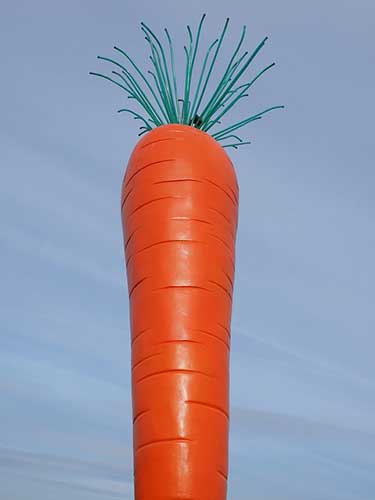
With AnyPen technology, no such trick is needed. You can use a stylus, a real pencil, a real pen, a carrot, a banana, a hammer, your finger, a screwdriver, or a stick as an input device. Just as long as it’s not pure plastic, most materials will work. Lenovo has said it’s not expensive, and they added it to the Yoga Tablet 2 without hiking up the tab a whole lot.

This is certainly useful for notetaking, sketching, and technical drawing. The Tablet 2 even lets you hang it up, for instance in a garage or workshop. So you can grab a Philips-Head and draft up some plans for that new shelving.

(See more Lenovo articles and reviews)

Tablet with stylus redefined

AnyPen uses a capacitive touchscreen, not a resistive one.  A carrot has skin, and thus is not all that different from a finger. But getting a stick or graphite pencil to work is a feat on Lenovo’s part and redefines the idea of a tablet with stylus. The company can be maddening with its confusing product releases, but they are doing some real R&D.

lenovo anypen

You can use a carrot as a stylus.

They aren’t the only company doing something like this; the Panasonic Toughpad FZ-M1 can also be used with a pencil or metal implement.

The touch controllers in these have a very high signal-to-noise ratio, making them recognize objects as small as 1mm, whereas most capacitive screens require at least a 5mm stylus. The non-Pro iPad, with its low signal-to-noise ratio, cannot recognize a fine tip unless it has a plastic disc around it. That’s why you have to use a squishy stylus on that kind of tablet; it’s large enough to drown out the noise, so to speak.

(see good styluses for drawing on iPad).

With AnyPen devices, you don’t have to press down hard at all to get a mark. On the downside, one user reported it was recognizing the entire tip of the pencil, skewing the line.

tablet with stylus

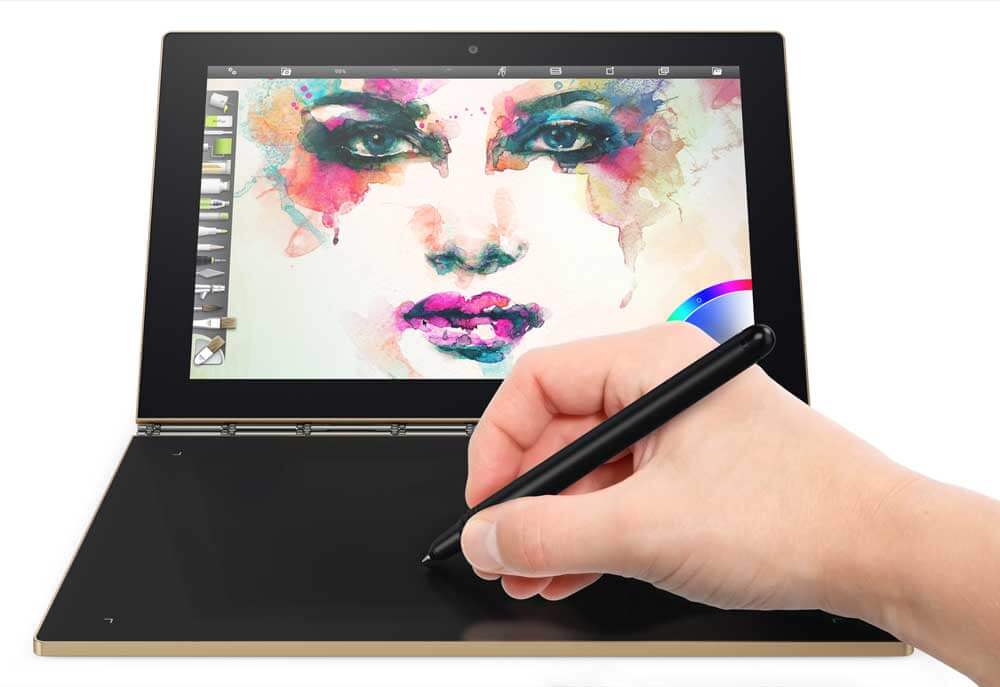
Lenovo Yoga Book

The Lenovo Yoga Book has a pressure-sensitive Wacom tablet in the black part, which also has a disappearing/reappearing Halo keyboard.

Not up to speed for art

Tablets with Lenovo AnyPen are not art tablets per se, since there’s no pressure sensitivity or palm rejection. But for those who geek out on pen tech, it’s a fun concept.

It would be great if a pressure-sensitive tablet came out with this feature, especially with a larger screen. Imagine if you could still be productive after dropping your digitizer pen down a storm drain. Hopefully, you keep some spare pens around just in case.

Lenovo has released AnyPen on Windows tablets and Android.

It’s certainly useful and cool, but artists will want to stick to their pressure-sensitive styluses.

If you want to read more about the tech, check out this post on the Lenovo blog.

https://www.youtube.com/watch?time_continue=105&v=m-AFZoWBb1Q

Suppertime! AnyPen demoed on Android

End of Lenovo AnyPen: all the world’s a stylus

galaxytabprosces2016

Samsung Galaxy TabPro S review: OLED hits Windows tablet

Samsung Galaxy TabPro S review: OLED screen, included keyboard

samsungtabprosblack

Samsung Galaxy TabPro S in black with keyboard cover attached

See it on Amazon

Type of Tablet

Windows 2-in-1, detachable tablet
Runs Windows 10 (Home and Pro)
Pen: Not yet released. Bluetooth, pressure-sensitive.

tabprosces

Samsung TabPro S release at CES 2016, Las Vegas

Features

Display: 12″ diagonal
Materials: Magnesium frame, rubberized plastic back
resolution FHD+ (2160 x 1440)
touch Super AMOLED display
216ppi
Memory: 4GB RAM (not upgradeable)
Storage: 128 or 256GB SSD

Ports: single USB-C, headphone jack, no micro SD
Processor: Intel Skylake Core M3, dual core, 2.3 GHz
Fanless
Graphics: Intel HD 515
Battery: 5200 mAh
LTE (Cat. 6) version available
Front and rear cameras both 5 MP
Comes in black or white
Dimensions: 11.43 x 0.25 x 7.83 inches (290.3×198.8×6.3mm_
1.53lbs (639g)
Wireless 802.11 abg

Why a 2-in-1?

The TabPro S is joining a growing population of Windows 2-in-1s. This type of tablet is all the rage, because it turns out lots of people want a portable device that works well for both entertainment and productivity. Active pens have really hit the mainstream.

Non-Pro iPads and other mobile tablets are most useful for entertainment, full, 64-bit Windows and a pen gives a lot more options. It can replace a laptop and tablet and fit neatly into your bag or briefcase.

You can use desktop programs as well as Windows apps (formerly known as Metro apps). The very high-res screen is the first OLED for a Windows tablet. So this is a milestone. Previously, they have been in smartphones, Android tablets (mostly Samsung’s), monitors, and just recently came to laptops.

galaxytabprosces2016

Pen

The Samsung people at CES told me there was not going to be a pen, though one of them said maybe. So either the pen was a weakly-kept secret, an agonizing decision, or an afterthought for them. I didn’t expect to be writing this review.

It’s the big MacGuffin here. Not much is known about it except it is pressure-sensitive, it probably won’t be a digitizer we’re familiar with, and that it uses Bluetooth.

Update: The pen has come out.


What’s in the Box

Tablet, charger with cable, keyboard dock/cover, documentation


Ports

There’s just a USB-C port and a headphone jack. No micro SD, nothin’. The 2015 MacBook also has this single-port feature and also faced criticism about it, but maybe it’s the future. Samsung says they’re going to release an adapter. Meantime, there are other adapters, but not that many peripherals for the USB-C.

The tablet may be ready for the future, but for now, users are the ones who need to be ready.

Fast-charging

On the plus side, the USB-C offers FAST charging, just 2 1/2 hours from zero to full and the battery optimally lasts up to 10.5 hours on this charge.


Display

The display is bright with excellent viewing angles. The colors are more saturated than we generally see.

The colors are rich, and the blacks very deep (because there is no light where there’s black with the OLED),  with great contrast. But this is is made with something called PenTile subpixels, which makes it so the resolution is effectively not quite as high as it says, and there’s a little too much green. Lots of people have been oohing and aah-ing over the display. I just prefer a regular LCD.

The screen is smooth and somewhat glossy, but not high-sheen. It doesn’t reflect so much light that you can’t see the display. Its 400 nits is very bright.

The bezel is relatively narrow, but provides enough of a visual “frame” that makes your artwork pop from the background.

Good proportions

The 3:2 aspect ratio is less oblong than the usual 16:9 or 16:10, and preferable for drawing. Portrait mode is more in proportion to a regular sheet of paper.
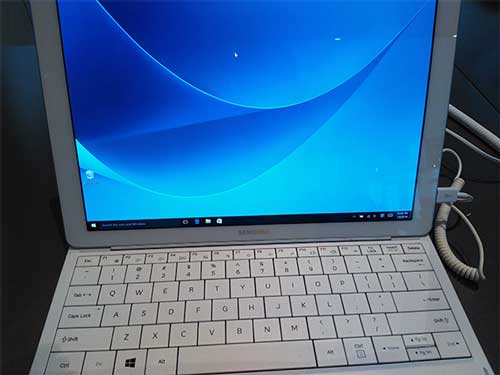
 

tabprosreviewwhite

TabPro S in white. Note the closeness of the keys.


Using the TabPro S

The machine is snappy and responsive, with apps opening quicky. Scrolling is peppy even in memory-intensive Chrome.

A 128 GB hard drive is not that big, so if you get that one, big files are best kept elsewhere. The 256 GB SSD is not huge.

You can run full Photoshop CC with the TabPro S, but you may experience some lag when running heavy graphics, such as filters with high-res files. With 4 GB and a Core M3, it’s not powerful enough for heavy use of Adobe Suite, you would need at least an i5 and 8 GB.

I have no complaints about the RAM and storage, since this is a portable tablet of a certain class and fulfills its duties well. A close cousin is the entry-level Surface Pro 4, which also has a Core M processor but has a lot more ports and a better keyboard. 

It would be nice if the battery were replaceable.

The machine is suitable for light gaming.

Build

The build is solid and feels and looks premium, with a metal frame. The TabPro S is almost as sleek as the luxe Galaxy S7 phone. The tablet’s back is a not-unpleasant black, rubbery, matte plasticky material that is very grippable and lowers the chance of dropping it. And the rubberized texture is not a dirt/fingerprint magnet.

I don’t know how much the rubbery surface protects the device in drops onto its back, but it probably provides a bit of cushioning, along with the cover.

Keyboard dock/cover

tabproscoverhigh

Upright position shows off the thinness of the tablet. Keyboard is not backlit.

Unlike with the Surface Pro line, here, a keyboard dock is included. It’s held on by a Pogo connector in the bottom center edge of the tablet. Once connected, it’s pretty stable, and doesn’t seem to cause lags or skips when typing.

The cover only takes two positions. It’s a trifold, similar to the Apple Smart Cover. It’s thin, but seems durable, and the design is clever: the cover wraps all the way around the tablet, protecting it from light mishaps.

The angles of  two positions are decent, but, they only work in Landscape mode. If they really had an art tablet in mind, maybe they would have designed the cover for Portrait position, too.

The cover’s square camera port lines up well with the camera. The whole tablet has straight lines, except for the rounded edges.

Typing on the keyboard

The keyboard wasn’t really to my liking for typing, I prefer island-style keys. There’s almost no space between the keys, they don’t have great travel at 1.4 mm, which is a bit low.  I also don’t love the look. It was challenging to type accurately. There’s no requirement to use the keyboard; a separate keyboard would work too.

tabproscovertyping

TabPro S cover in typing position

The keys are larger than most, but to me that doesn’t really help with accuracy. It might be a good for thick-fingered folks. The whole thing feels a bit floppy. It’s similar to the old Surface Pro Type Cover, except that one sat at an angle and this one is flat on the table, and the stand had more positions.

The trackpad works fine and works with Windows touch gestures.

You can use the TabPro S with  the keyboard on your lap, but being so light, it’s not super stable, and may cause worries about it falling. If you get really into painting and move like a digital Jackson Pollack, sitting on a wide, soft surface may calm those anxieties.

Color

The color gamut is standout. It covers 95% of Adobe RGB and  full (or more than full) sRGB, similar to the Vaio Z Canvas  (an N-trig tablet PC with an IPS screen) That makes it suitable for artists and photographers to use it to make their own prints for professional print work, provided they have a strong understanding of color correction.

Without that understanding,  the color gamut can be a source of confusion. According to DisplayMate, a trade organization, “OLEDs currently have the opposite problem of traditional LCDs, too large a native color gamut, which requires color management in order to deliver accurate sRGB/Rec.709 colors.”

If you’re a professional artist, you probably use a printer that uses Adobe RGB or, for photographers, ProPhoto RGB. Consumer printing is mostly done in sRGB. sRGB is also the standard for Web colors.

The high gamut can really make your work pop, and you can adjust settings to avoid the high saturation that can occur. There’s also an sRGB setting. The settings panel also gives you choices of how long the screen will remain bright before it auto-dims to prevent screen burn-in, which can be a problem with AMOLED screens.

Many love the saturated colors of AMOLED, but they are a bit hyper-real.

Samsung Flow

No, it’s not a psychological state, it’s a feature. If you’ve got an unlocked Galaxy phone, you can unlock the tablet by scanning your fingerprint, as well as easily turn on the phone’s hot spot and sync notifications.

Battery Life

Excellent, up to 10.5 hours, or 8-9 with a lot of video or gaming

Portability

Very portable, thin about 1.53 lbs.

User reactions

Most users who have penned a Samsung TabPro S review so far seem to be enamored with the lightweight 2-in-1, calling it speedy and able to handle a lot, and they like the sound quality and the rich display.

One pointed out its use as an e-reader for, ahem, ageing eyes because of its deep contrast. (I still prefer e-ink for reading, because it has less contrast and less glare than a computer).

The biggest complaint about the tablet is about the keyboard. The second biggest is the lack of ports. Wouldn’t it be nice if they included an adapter?


Pros

Exceptionally thin and light
Attractive, premium-looking
Choice of black or white
AMOLED screen, wide color gamut
Fast
3:2 aspect ratio good for drawing
Fast-charging,
Long battery life
Keyboard cover included
Keyboard cover wraps entire tablet, providing protection
Multitouch trackpad
Samsung Flow offers syncing options with Galaxy Phone
Good “lapability”
Good speaker sound


Cons

Just one port, USB-C
Keyboard cover sits in only two positions
Keys a bit clunky to type on
Keyboard not backlit
Stand only adjusts in landscape position (as with most keyboard covers)
Limited to 4GB
Not everyone likes AMOLED display color
Can’t replace battery (typical in tablets)


The Verdict

If you like the screen, then this is the only Windows tablet that’s got it. If you don’t mind the single port, or find the simplicity is appealing, this may be for you. There really are a lot of pros, and the cons are not so bad.

Update: TabPro S Pen is now available on Amazon.

The tablet is pretty peppy and the wide color gamut is appealing. Is the TabPro S overall better than its main rivals, the entry-level Surface Pro 4 and the iPad Pro? I don’t really think so, but the pen will be a a major factor.

But it has got its own unique character, and the field is getting wide enough that there’s something for everyone.


https://youtu.be/mz6AfYjXE28

Here’s a video of a Samsung spokesman showing the tablet in action. You can get a full look at the keyboard cover.

See more info, reviews, and price for the Galaxy TabPro S on Amazon


 End of Samsung Galaxy TabPro S review