I'm an author and illustrator who has used drawing tablets since the early days. I love how flexible and forgiving they make everything. I'm also fascinated by the technology. I started this site to bring knowledge to everyone. I want this to be the only place you need to go to learn about drawing tablets.
Best tablet computer art hacks: 10 ways to make your tablet PC more like a Cintiq Companion
The ideal tablet computer for artists would have all the bells and whistles of a high-end Wacom. But tablet computers don’t have a rocker ring, Express Keys, expansive and driver, or zoom strip.
Perhaps you’re wondering just what is in store with art features if you get a tablet PC. Or maybe you already have a 2-in-1 that runs Photoshop like a dream, but you’re wondering if you could squeeze a bit more creative juice out of it.
This article is focused on Wacom-penabled Windows tablet PC laptop (example: Lenovo ThinkPad Yoga) or 2-in-1s, though some of these tips can be used on other tablets as well.
Update: Adding the Tablet Pro Windows app, which gives extensive on-screen controls to your Windows multitouch tablet. Read about Tablet Pro here.
1. Tap and flick
In the pen settings, you will see a couple of options on what to do with the pen button and eraser (if the pen has one). You can customize the clicks of the pen to do what a mouse would have done.
Pen flicks make the pen to do gestures like swiping or other functions to help navigate and edit (such as Back or Copy). These can save time.
If you’re using a graphics tablet along with your tablet PC you should turn the flicks off. Flicks can confuse the tablet.
2. Turn off the touchscreen
Depending how you work, your hand may sometimes be in the zone where the computer gets confused and reads it as a pen, messing up palm recognition and leaving annoying marks. If this is an issue for you, you can disable the touchscreen and just use the pen or a mouse. Some systems make you choose one or the other. The ones that allow both touch and pen/mouse together are the ones where palm rejection can become an issue (usually not a major one).
Type the words Device Manager into your computer’s search. When you see HID-compliant devices on the list, click on that to expand the menu. Find the one that says touchscreen, right click on it, and select Disable. Voila, no touch. (Note: the list of HID devices will differ from computer to computer depending what’s installed).
Poof, touch be gone.
Note: Windows 10 has a Tablet Mode that switches your view to full screen. You can go into Settings/System, toggle the “make Windows more touch friendly (meaning Tablet Mode) on or off and choose whether you want the computer to switch modes automatically, or for it to ask you, or stays in one mode. Tablet Mode is not the same as Touch; it doesn’t affect turning Touch on and off, but only optimizes the display visually for touch.
3. Feel the Feel driver
If your tablet is Wacom-penabled, chances are it came with the Wacom Feel driver, also called Wintab. In older machines, you needed to put this in to get pressure sensitivity in certain programs such as Photoshop. T
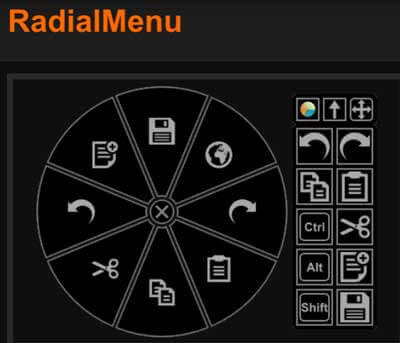
he Feel driver gives you many of the functions of Express Keys, allowing you to customize the pen buttons and the radial menu, a pie-shaped menu with programmable slices. You can put in keystrokes for your most-used commands.
In the pen part of the menu, you can adjust the pressure curve of the pen, from light pressure to firm.
4. A More Robust Radial Menu
If you’re feeling experimental, try this alternative, much more robust radial menu for Windows Tablet PCs. It features submenus, and goes a lot farther than the Wacom Radial Menu, providing and on-screen shortcut menu and customizable pie slices.
If you like it, a small donation to the developer will help him keep it updated.
The other radial menu
5. Calibrate, calibrate!
You may have to calibrate fairly often, especially if you are sometimes using your tablet PC with other tablets. Calibrating will keep your pen tip accurate. There’s even edge calibration.
Tablet PCs don’t seem to suffer from edge jitter the way Cintiqs do. I can draw right along the edge without jitter.
7. Create Photoshop Actions
If you want to get into the more advanced Photoshop functions, this can take the place of ExpressKeys. Photoshop Actions are shortcuts you can create yourself. Here’s some info on how.
8. Max out RAM and swap hard drives
Unlike most tablet tablets and some thinner laptops such as MacBook Air, many tablet PCs will allow you to add RAM and/or put in a larger, faster hard drive, and change the battery (many people do not seem to realize this). Batteries can be found through manufacturers or on Amazon and other stores. You’ll have the check the info for your particular system.
Crucial.com offers a handy tool to figure out what type of memory you need.
9. Use your laptop with a larger display
Your laptop may be small, but you can attach it to a larger monitor. Use the display settings and select Duplicate display. I think this is one of the best tablet computer possibilities, allowing you to enjoy pressure sensitivity and also get a big, clear view of your art.
10. Go to the Matte
Sometimes a tablet computer screen can be slippery, overly glossy, and reflective. Fix it by applying a screen protector; a high-quality one can make a real difference, and provide some “tooth” to make you feel more like you’re drawing on paper (on a Cintiq, texture is built in). We suggest Photodon.com, which offers some specially made for some models, and can custom cut to any size. The MXH 25% anti-glare offers good visibility while cutting shine.
11. An extra keyboard may save your posture
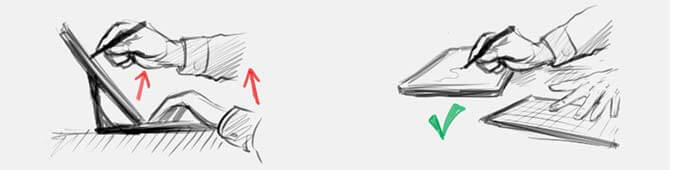
If you have a laptop tablet PC, you may find yourself contorting to draw on it, such as reaching past the screen, or using the keyboard upside-down, if you want to use keyboard shortcuts. Don’t strain yourself. Using an external USB or Bluetooth keyboard should take care of your limbs.
A tablet computer is a practical and versatile choice that can be just about anything you want it to be. Hopefully these hacks will bring it more toward being that perfect art tablet. If you find them helpful, please share them using the Share buttons.
end of 10 best tablet computer hacks
Looking for a fast art tablet PC? Check out our writeup on the Vaio Z Canvas.
As if I didn’t feel old enough already, the iPad Pro 2 is already in the rumor mill. Those in the know say it may be announced or even launched in Fall 2016–remember, the 9.7-inch iPad Pro just came out in March 2016. It’s more likely that said iPad Pro 2 will come out in the spring of 2017.
(This concept video was NOT made by Apple, but by someone just guessing that the new device will have stuff like up to 1TB memory and different colors of Apple Pencil. Nice thought. But we really don’t know.)
True Tone display
Likely, the iPad Pro 2 (if it follows Apple’s naming traditions, that’s what it would be called) will have the True Tone display that’s already in the 9.7″ version. True Tone is an adaptive display that adjusts white balance, making it easier to read text in different lighting as well as easier to see the screen in sunlight.
The iPad Pro 9.7″ has a wide color gamut with extreme color accuracy. The 12.9″ iPad Pro display is nearly as good, but not quite, and doesn’t now have, nor support, True Tone. (I still favor the larger size for drawing in spite of this, but am hoping the iPad Pro 2 will let us have our True Tone and eat it too).
Drawing on iPad Pro with Apple Pencil, Sketchbook Pro app
3D Touch
The iPad Pro does not have 3D touch, though iPhone 6S and 6S Plus already have it. So there’s a good chance Apple will add it to the iPad Pro 2, just to give us something to look forward to.
3D touch is a sensor in the touch screen that will cause different things to happen depending how hard you press on the screen. This works differently in different apps–for instance, you might tap lightly to see a photo but harder to open the photo app.
It would be nice if instead of 32GB, 128G was the base model, or at least 64GB. 32GB is not enough for most consumers; maybe it’s aimed at workplaces where employees don’t add a lot of apps or files.
If you’re interested, here’s a writeup on Ars Technica on the beta version of iOS 10.
Somehow I doubt Apple will add an SD card slot, but a girl can dream.
What file type should I use? Best file types for print and Web
Whether you’re creating digital art, scanning or editing digital files of traditional art, or working with digital photos, you may have questions about the best file type for Web and print. File types are associated with certain types of images and software used to create and edit them. This introductory article will show you the basics of image-file types.
A file extension is the two-to-four letter abbreviation at the end of a file. It’s preceded by a period: JPG (or .JPEG), .PDF, etc. Many programs allow you to save, export, and open various file extensions.
Best file type for Web
JPG is the best file type for Web use. If your drawing or photo is only for online display, save it as a 72ppi (or dpi) JPG.
PPI stands for pixels per inch. (dpi is dots per inch and has to do with printing, but “ppi” and “dpi” are often used interchangeably).
A JPG (pronounced jay-peg) can be opened and edited in most image-editing programs, such as Photoshop, Gimp, and Sketchbook. It is flat and cannot have layers or transparent areas.
A JPG is made of pixels. It’s a raster file. It can support 16.8 million colors, making it the best file type for Web display of images that have gradations of color, such as photographs and illustrations.
Saving and exporting/importing JPG files
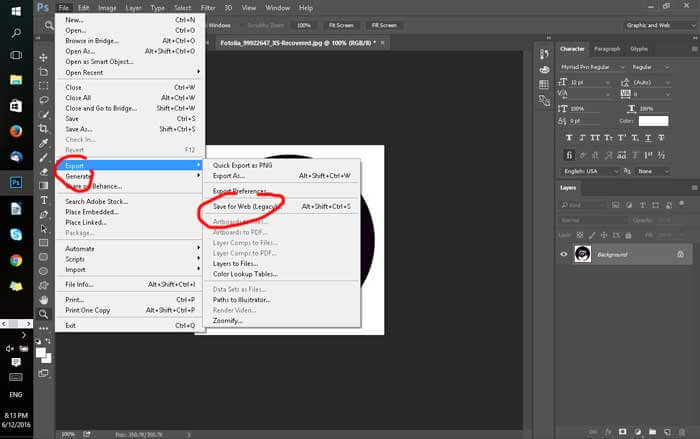
If you’re using Photoshop and saving a JPG file to use online, use Save for Web. You’ll have to do that by hitting Export/Save for Web. That makes the file size much smaller. If you don’t have Photoshop, you can use free sites that do something similar, such as tinypng.com, which is for PNGs and JPGs.
If you reopen that saved for Web file in Photoshop, it will reopen at the resolution you saved before choosing Save for Web.
Note that Save for Web is marked as “legacy,” meaning Adobe may replace it with something else.
Creating and saving images for print
For print, 300 ppi (dpi) is the best size for creating and saving most image files. It’s high-resolution enough to print well, but not so huge it will slow down your program.
Do not try to upsize a small file to a larger size. Doing so will result in a pixelated (fuzzy, blurred) image.
JPGs are “lossy” and saving as a JPG causes data loss. For printing with zero loss in image quality, save as TIFF.
In some situations, a printer may ask you to use a JPG. For instance, some print-on demand-sites, which allow you to upload your work to sell on products that get digitally printed will ask for a JPG because the sites have a file-size limit. JPGs are smaller than TIFFs. Each site will specify its requirements.
If you created your file with layers, save the PSD so you can make further edits to each layer. Then flatten it and make it 72ppi before hitting Save for Web. You now will have two files, one ending in JPG, one ending in PSD. You can change the file names if you wish.
PNG and GIF files
PNG and GIF files are types of low-resolution files also used online. GIF files can only have 256 colors maximum. PNGs do not have that limitation (except PNG-8 does).. Only PNG-16 and PNG-24 allow for fully transparent areas.
The correct way to say GIF is a topic of intense, good-humored debate. The inventor of the image type prefers to say it as “jif,” not “gif” with a hard G.
GIFs are best for continuous-tone images, such as clip art or text. Both GIFs and PNGs can have transparent areas. GIFs are often used in simple animations.
RACCOON by Ivan Pskov. Saved as JPG
Same image saved as GIF with 256 colors. Notice that some colors aren’t showing.
in Photoshop, the resolution will change, leaving you with the same file size.
EPS (vector) files
EPS files are for vector graphics, which are scalable–they can be resized up or down with no effect on image quality.. Some programs that use EPS are Illustrator and CorelDRAW. Illustrator’s native file type is called AI, for Adobe Illustrator.
PDF files: both document and image
PDFs are a flexible type of file, as they are like a combination of document and image. They are good for printing and can be saved at high or low resolution. They can also have searchable text.
Showing art on high-resolution screens
High-res screens are much more common now than before, and your online images could look pixelated if not adjusted for them. Your image will show better on them if you create it at double the desired viewing size. You can then display it smaller on your site.
Using larger images will result in a larger file size. Larger files can slow page load. So you should be picky about which images get the increased size–the most-viewed ones are the best candidates. For instance, images on a splash page or home page, the header, and images seen on all pages, such as in a sidebar.
Best file type for print
A TIFF is considered the best file type for print. So, save your artwork as a TIFF.
JPG is usually thought of as Web-only, but this is not always the case. In situations such as for print-on-demand, where there is a file-size limit, the company may ask for high-res JPG files, since JPGs are smaller. A high-res JPG can yield reasonably good print results, but not as good as TIFF. A PSD file can be printed too, but layers increase file size by a lot.
If you just keep some basics in mind, it should be easy to figure out which file type to use to create and save your images.
Vaio Z Canvas review: Cool 2-in-1 with desktop-PC power
The Vaio Z Canvas is a really powerful tablet PCs out there, and it’s designed for artists. If you’re looking for something like a Cintiq Companion 2 or Surface Pro 4, you may want to consider the Z Canvas.
Vaio was once part of Sony, but the Sony got out of the computer business. Several hundred designers and engineers at Vaio found investors and formed their own company in Japan using the same factory. The U.S. division opened in autumn of 2015. The fledgling company is seeking ways to distribute their devices and educate the public about them.
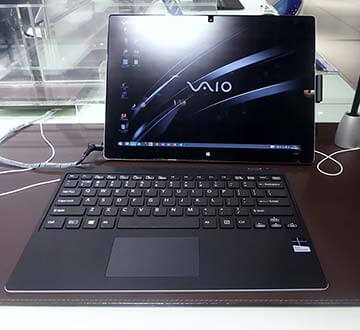
Now that’s a skinny keyboard.
Other than the name, they have no connection to Sony, and now they have creative freedom. They have advanced what began as the Sony Vaio line, creating this as a mega-tablet for graphics professionals.
Vaio designed the Z Canvas in consultation with illustrators, animators, and photographers, including from Adobe, to create this powerful prosumer 2-in-1. (Prosumer is a device for professionals and consumers). Each unit gets the engineers’ “Azumino Finish” 50-point quality check.
Features
Runs: Windows 10
Screen: 12.3 inch (diagonal)
Resolution: WQXGA+ 2560 x 1704
Aspect ratio: 3:2
Glossy, anti-smudge
Build: unibody aluminum, brushed aluminum surface
Color gamut: 100% sRGB, 95% Adobe RGB
Digitizer: N-trig with 1,024 levels of pressure sensitivity
Pen (included): DuoSense, takes an AAAA battery
Processor: Intel Core i7-4770HQ quadcore hyperthreaded
RAM: 8GB or 16GB (not upgradeable)
Storage: SSD 256 GB Serial ATA or SSD 512 GB PCI Express or 1 TB PCI Express
Graphics: Intel Iris Pro 5200 integrated graphics
Battery: 63-watt high-capacity
Dimensions: tablet 8.4 in x 11.9 in. x 0.5 in – 11.9 in
Keyboard: 8.4 in x – 11.9 in x .02 in
Weight: PC Approx. 2.67 lbs.
Keyboard: about .75 lbs. (12 oz.)
Ports: Two USB 3.0
SD memory card reader
mini DisplayPort
HDMI output
LAN (RJ45) port
Headphone/microphone
Front camera .92MP, rear camera 8MP
What’s in the Box
Tablet
Keyboard
Power cord and AC adapter
Pen
Cleaning cloth
Pen holder
Pen grip
documentation
SCREEN
The Z Canvas’s 3:2 aspect ratio makes it easier to use in both landscape and portrait, but the easel stand, as with most tablets, only works in landscape mode.
The super-sharp screen boats a wide color gamut of 100% sRGB and 95% of the larger Adobe RGB gamut, making it excellent for artists who demand color accuracy. It’s unusual for a tablet to have the Adobe RGB gamut and if it does, it’s usually not such a high percentage. (The Samsung Galaxy TabPro S has a similarly wide gamut, and the Surface Pro 4 gets about 70% of Adobe RGB.) The IPS display looks great, with rich colors and deep contrasts, as well as good viewing angles.
The Vaio Z Canvas in action, with drawing in Photoshop and 3D sculpting in Zbrush.
Battery life
5 – 6 hours with mixed use.
PROCESSOR
The Intel Core i7-4770HQ quadcore processor is extraordinary for a tablet and is usually found on laptops 15″ or larger. The Vaio Z is really a mobile workstation that functions as desktop replacement. It’s close to the MacBook Pro Retina in terms of processing power, and twice as fast as the Surface Pro 4 and Surface Book. It uses the 4th-gen. Haswell CPU rather than the latest Skylake, but the hyperthreading makes up for it–this machine can multitask.
The most compared product to it is the Surface Pro 4, but The Z Canvas is much more powerful and so unusual that it’s in a class by itself–a tablet mobile workstation. The question is if the Z Canvas a quirky, short-lived bunch of ideas, or a step in the direction of art tablets overpowering other tablets and replacing desktops.
The “Z engine” is the core of the Z series design. It has to do with dense circuitry and heat dissipation. There’s a bit more info here (it’s in Japanese, but if you have a Translate button it will translate).
The computer with its three fans runs cool and quiet. The nice-looking vent blows air out of the top. Among elements that contribute to its cooling system are big copper pipes on the inside. The power brick, though, can get toasty.
Triple fans and copper piping keeo the hot away.
A fast processor makes everything faster: bootup, opening programs, and graphics rendering. The Vaio is suitable for 2D and 3D animation, video editing, AutoCAD, and light to moderate gaming. While some desktops are faster, and this isn’t exactly a gaming machine, it’s the most powerful tablet so far. The Iris graphics are comparable to discrete graphics on other tablet PCs.
PORTABILITY The tablet alone weighs about 2.7 lbs. and with the keyboard gets to over 3.25 pounds, and then add in the pen and power brick. It’s not terribly light, but still portable. In comparison, the Surface Pro 4 tablet part weighs about 1.7 lbs. and with the keyboard, about 2.3 lbs.
KEYBOARD
The very thin keyboard is chiclet-style and has low travel, but is quiet and not hard to use. It’s not backlit, making it inconvenient for use in the dark. If you’re someone who likes to lie on a bed or couch to use your computer, it’s probably not the best choice, as the stand isn’t meant to balance on lumpy blankets or breathing bellies.
The keyboard is meant to stay separate from the screen, as with a desktop. It’s not Bluetooth but RF (Radio Frequency) so doesn’t need to be paired, though you need to have Bluetooth turned on for the RF to work.
The keyboard should be kept within 20” (50 cm) away from the tablet for optimal performance. Also, remember to keep thongs with magnetic strips, such as credit cards, away from it.
It connects via magnets and a couple of pins in the bezel or a micro USB. Connecting it charges the keyboard battery, but only the RF actually makes the keyboard work.
You can’t stand the tablet up via the keyboard. The keyboard snaps on top of it and forms a protective cover.
Drawing no. 2 shows the ideal position of the keyboard, according to Vaio. Images by Vaio.
There is a button that can toggle the keyboard power on and off so the keyboard won’t drain the battery.
You may find it most comfortable to put the keyboard a little behind the tablet, or to the side. These images, created by Vaio for a prototype, discourage the viewer from using the keyboard in the front, saying it causes fatigue. The second image is considered ideal. You might even try it the keyboard behind the screen–each user is different.
If you avail yourself of the Z Canvas’ on-screen shortcut menu, you won’t need to use the keyboard that much while drawing.
STAND
The easel stand is also unusual. Vaio, thinking ahead, says the idea is that the user might “unconsciously” want to change the angle of drawing, so they have designed the stand to be intuitive and easy to adjust without interrupting workflow.
You put the tablet on a table first then pull the stand down from where it’s ensconced flush in the middle of the back of the tablet, then push or pull the tablet to your desired angle. You can press reasonably hard while drawing without pushing it down.
To close it, push down on the tablet rather than closing it with your hand. You can set the tablet to any angle between 90 and 20 degrees, so fairly low to high. Vaio says the mechanism is made up of “springs, dampers, and cams.”
The Z Canvas is not very lappable, though with some effort it can be done. Best to place the keyboard on your lap and the tablet on a flat surface.
DRAWING ON THE VAIO Z CANVAS
PEN
The pen is N-trig, the digitizer tech now owned by Microsoft.
Two pen buttons sit flush in the barrel near the nib. The included soft grip collar provides a comfy, cushioned way to hold the pen, like memory foam for the fingers. Or you can go austere and take it off. Either way, the buttons are accessible. There is no eraser end. The buttons do right-click, open a clipping tool for making screen shots, and open OneNote
The pen attaches not that securely to a magnetic strip. There’s also a pen holder that attaches to holes on either side of the magnetic strip for a stronger way to keep the pen handy. The holder can be taken off with a pinch.
The pen has a tail cap, adding to the pen pieces to make sure to keep together—the cap, nib, battery, and collar.
Vaio pen, wearing its grip collar
Vaio worked hard to reduce parallax since the days of the Sony Vaio Flip. N-trig never did have much of a parallax issue, so they’re being perfectionistic here in trying for the look and feel of ink flowing right from the nib.
Instead of a gap of air between the top touch panel and the LCD, there’s now a thin layer of gel (optical resin), bringing the pen tip closer to the LCD. The DuoSense pen seems to be the same pen as with the old Sony Vaio devices.
You can also use the Surface Pen and its variety of nibs.
As with the Surface Pro 4, there are 1,024 levels of pressure sensitivity, which feels a lot smoother than N-trig’s previous 256. There’s some hover lag, and you need to press down a bit harder than with Wacom pens. There does seem to be less drawing lag than with the Surface Pro 4. The nib is longer than on the Surface Pen.
The pressure curve is excellent (no blobs or sudden shifts, as sometimes happens with Wacom) and can be adjusted in the pen pressure utility. The nib has a bit of bite compared to the regular tip of the Surface Pen, so drawing doesn’t feel like skating over glass, but you may still want to use a matte screen protector if you prefer a more papery surface. (Photodon makes excellent screen protectors and there’s one specifically for the Vaio Z Canvas here.)
You can adjust the pen pressure curve via four points in the Pen Pressure Utility while viewing preview.
Vaio Z Canvas vs. Cintiq Companion 2. The Z Canvas can be compared to the Cintiq Companion 2 as art-specialized 2-in-1 tablets and to the Surface Pro 4 as well.
The screen of the Cintiq Companion 2 is a larger 13.3″ vs. the Z Canvas’ 12.3″, and the CC2 has a textured surface, vs. the Vaio’s smooth one. The Companion 2 also has an EMR pen, which is the most sensitive (besides the Apple Pencil) and offers tilt sensitivity, as well as rotation sensitivity with the ArtPen, drawing more organic lines. The CC2’s aspect ratio is 16:9, making it less appealing to use in portrait mode.
The Vaio’s screen is brighter at 250 nits to the Companion’s 150, and the Companion 2 has only about 5 hours of battery life on a good day–neither device has a very long battery life.
The Vaio’s pen has less parallax and no edge jitter, but you have to press harder.
The Surface Pro 4’s screen is the same size and aspect ratio though much brighter at 436 nits; it doesn’t cover as much of the Adobe RGB gamut, though. The SP4 weighs a pound less; and the digitizer also does not recognize tilt or rotation. The SP4 gets half the speed and power of the Vaio. The keyboard cover attaches to the Surface Pro 4 and holds it up. Battery life is about the same.
Which to get is a tough and individual decision. The highest-spec “enhanced” Cintiq Companion 2 comes the closest to the Vaio and is fast, but is still dual-core and doesn’t hit the Vaio’s speed.
TRACKPAD The trackpad is large and works well, but doesn’t support 5-point gesture, which could be annoying if you’re used to using gesture on it, but I don’t think that’s a major issue.
Camera oddness. The Vaio has two cameras and oddly, the front facing one is only 1 MB (actually, .92). So you won’t be as tempted to spend a lot of time Skyping. The rear camera is a healthy 8 MB. You could go out and take photos and enjoy the 12.3″ inch preview. Or you could skip using a scanner by photographing your reference image, line drawing, or traditional art, etc. then importing it into your art program.
CONTROLS Two buttons on either side of the top edges reach a whole new level of cool. The one on the right shuts off the touchscreen, making it impervious to any palm-rejection glitches that might occur if your hand gets in the way of the hover area.
The left button brings up the customizable on-screen shortcuts, similar to those you would find on a graphics tablet or Cintiq. The shortcuts can be customized for each art program. You can use the automatic-fit setting so the menu won’t cover program icons.
You can also shut off the trackpad, which could come in handy if your hand keeps hitting it by accident.
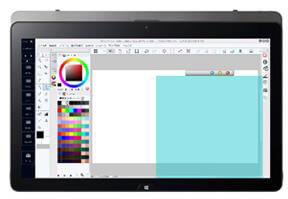
Vaio Pencil Board. You put the square over the part of your image you want to protect from changes.
Another interesting feature also found on the Vaio Flip is the Pencil board, accessible from the Tools menu. It gives you a transparent square that you can put over part of the screen, blocking any changes to it. It pleasantly slides around the screen. You can adjust its size and transparency, though it doesn’t become totally transparent. It’s easy to toggle on and off.
More art-specialized features: The unique mapping controls allow you to map the tablet to multiple monitors, so you can use the tablet as a sort of Cintiq, an input device for a larger display, making good use of the two ports that each support a 4K monitor.
More about those two buttons on top (the Express Keys or hotkeys and Disable Touchscreen): the hotkeys can be used on-screen even with the touchscreen is disabled–pretty ingenious, and it’s not hard to see why the disable-touch button has a patent pending.
USER REVIEWS AND EXPERIENCES A lot of artists voice enthusiastic praise in their Vaio Z Canvas reviews. For many, it’s the tablet they’ve been waiting for. Users love the speed, multitasking and multimedia abilities, and the touches such as the Pencil Window and keyboard shortcut menu.
On the downside, some feel it’s a bit heavy, or too difficult to balance other than on a flat table.
Pros Powerful, fast processor
SD card slot that lets you push card all the way in
Can open the back
Onscreen hotkeys
easy disabling of touch
good amount of ports, including Ethernet
on-screen shortcuts
Pencil window
Lots of ports (for a tablet)
Cons Some (not all) users have had problems with keyboard disconnecting
Not very lappable
Keyboard not backlit
Not the lightest tablet
Memory not upgradeable (as with most tablets)
Some glitches some users have noted are: light bleed; pen fragility; and issues with the keyboard disconnecting.
THE VERDICT
Despite a few odd choices (such as lack of a backlit keyboard, and the 1MP front camera), the Vaio Z Canvas is a powerful art tool with a “cool factor.” Too bad it doesn’t have a specially made carrying case. Or a USB-C port. Despite all this, our Vaio Z Canvas review is positive, because of all the good things it does have.
It’s probably the only tablet truly good for editing 4K video. It works well with AutoCAD too. It’s ideal for video editors or those working with very large photo and art files. Others won’t need all the power and may choose a larger screen.
The main sticking points are the small screen size, and, I still prefer the feel of Wacom pens and digitizers but that’s an individual thing (I’m a light presser). Many people are happy with both the Vaio pen and the Surface Pen, and both work on this. We will see what the future holds with the Wacom-Microsoft pens due out this holiday season.
Much work has gone into catering to the needs of graphics professionals, making the Z Canvas a powerful addition to any artist’s arsenal.
Wacom and Microsoft partner to make pens with 4,096 pressure levels
The Windows 10 Anniversary update will bring welcome advances in digitizer technology this coming holiday season 2016.
Microsoft has inked a deal with Wacom to work together to make Wacom AES and Microsoft pens cross-compatible with Microsoft devices. These “dual protocol pens” will be made by Wacom and work on Windows 10 devices. Some details have been released at the WinHEC (Windows Hardware Engineering Conference) in Shenzhen.
Wacom’s AES, short for Active Electrostatic, has replaced Wacom’s traditional EMR in Wacom Penabled tablet PCs, such as the ThinkPad Yoga 14 (Wacom’s Cintiqs still have EMR). The new pens will be for AES and Microsoft tablets across devices from large to small. Microsoft now uses N-trig digitizers in its own Surface line, and Vaio is using the N-trig DuoSense pen on the review of the Z Canvas 2-in-1 tablet PC.
Wacom-Microsoft pens. From WinHEC slide presentation.
These remarkable, yet-to-be-released Wacom pens using the Microsoft Pen Protocol have dispensed with buttons and erasers, making them more Apple Pencil-like.
The devices would sport a 240Hz pen speed and 120Hz touch speed.
Giving tilt a whirl
The new Wacom pens, called G13 or Generation 13, will feature tilt sensitivity to offer natural drawing angles. Right now, tilt is not available on most Penabled tablet PCs, nor on the Microsoft Surface line. (The Enhanced Samsung used on its Wacom-Penabled pen tablets currently offer some flexibility with tilt.)
The new pens’ 4,096 levels of pressure sensitivity is unprecedented–feels like just yesterday when MS was Micro-splaining to us that 256 levels of the Surface Pro 3 was perfectly fine?
I doubt the 4,096 levels will be a world-changing difference from 2,048, and indeed, 256 wasn’t too bad. But each increase seems to bring a slightly smoother pressure curve.
Simultaneous finger and touch
Other advances including more universal implementation of simultaneous finger and touch input, to the joy of finger-painters everywhere.
Palm rejection, lower latency, and more responsive trackpads are also listed in the directives discussed in the slideshow put on at the WinHEC conference.
If you’d like to see all the WinHEC presentation slides, they are available on this technically oriented Microsoft blog.
Wacom will create and make the Windows-Ink capable pens. From then on, Wacom’s pens will have both AES and Microsoft N-trig-based tech. N-trig is currently used in the Surface line.
Companies join the universal pen club
Companies that make pens and touch controllers are expected to jump onto the bandwagon, including Wacom, Sunwoda, and APS on the pen side, and, on the controller side, Wacom, Synaptics, Goodix, Elan, EETI, and Atmel.
Elan is playing a role in the push toward universal digital inking solutions. Photo: Tablets for Artists
It’s all a group effort. Slide from WinHEC.
As you can see below, Microsft aims its pen tablets at all ages and people in varying professions. Who doesn’t need a pen?
Slide from WinHEC presentation
Now, lest we be naive, these companies aren’t doing all this ONLY to make life easier for the artistically inclined. They wish to increase the population of pen users, and it’s working. The first Microsoft Tablet PCs, back in 2001, were a big flop with the public, though embraced by artists who saw their potential. It took Apple’s iPad to bring the gadget-using public into the tablet fold.
The more pencil and paperlike digital pens can get, the more people will use them, or so the company’s reasoning goes. And they seem to be right–pen tablets are expected to double in 2015 to 20 million, up from 10 million in 2015.
Universal’s the word
Microsoft may be going universal, but it’s not abandoning the N-trig tech that powers its popular Surface tablets. N-trig is an Israeli company that created this tech; Microsoft purchased the company in 2015 for $30 million. N-trig tech will still be present in the “DNA” of the new pens. But Wacom, with its many devices and long history. will be the one creating and manufacturing the new pens, using the Microsoft Pen Protocol under Wacom’s UPF (Universal Pen Framework).
There will be a firmware update for older Wacom digitizers that are G11 and G12. How that will work remains to be seen.
The upshot is that it’s all getting closer to the Apple Pencil, and to the modest wooden pencil as well. According to Wacom President & CEO Masahiko Yamada, “Supporting multiple protocols makes our pen incredibly fast and easy for people to write intelligent notes, be creative, and get productive when using Windows Ink on their Windows 10 devices…”
Echoing this message of harmony, Kevin Gallo, corporate VP of MS’s Windows Developer Platform, “Windows Ink makes it easy for people to turn their thoughts into actions…. People that use pens with their Windows 10 devices are happier, more engaged, more creative, and productive.”
Digital inking push
I’m including some photos from CES showing the move toward universality.
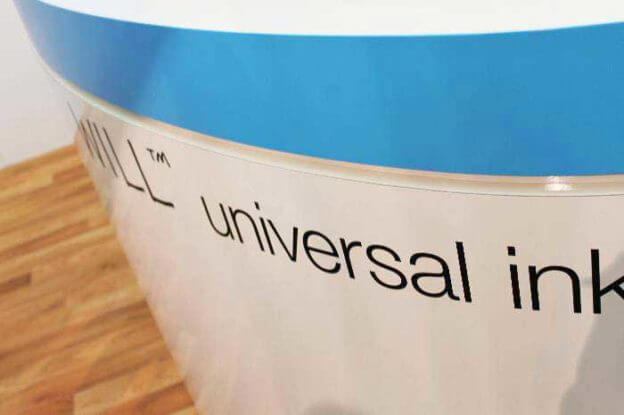
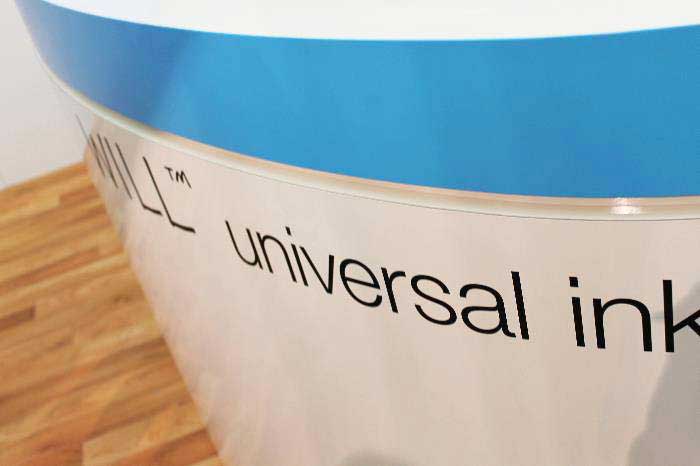
At Wacom’s universal ink spot at CES. Photo: Tablets for Artists
This new effort coincides with a push by Wacom in the digital-inking space. Wacom showed off its inking initiative during the Consumer Electronics Show (CES) earlier this year with these funky digital crayons, each with a unique ID, that allow worldwide collaboration with consistent colors. (These were just for show and I don’t know of any plans by the company to sell them, unfortunately.)
Masahiko Yamada also mentioned digital stationery as a product to develop. The Digital Stationery Consortium began on Jan. 7, 2016 and will be implemented across a range of business sectors.
A universal digitizer? This tablet, displayed at CES, allows the use of different types of pen on the same tablet. Photo: Tablets for Artists
I don’t this is going to affect Wacom EMR, which is still used in the Intuos, Cintiq, and some tablet PCs. Please check our post categories to see which tablets we’ve reviewed have which type of digitizer.
The word “universal” is music to my ears. It’s just so much easier. Chargers, pens, and other accessories are so much more accessible when you don’t need a different one for every device.
A reminder: the free upgrade to Windows 10 is ending on July 29, 2016, and some of these changes are going to be included in the next Win10 update, so if you’re holding back, you might want to take the plunge to Windows 10.
With this announcement of a Microsoft-Wacom pen pal pact, it looks like late 2016 has holiday cheer in store for digital artists.