Category Archives: Articles

Informational articles on various topics related to art tablets and digital art, tech news, and more.

iskn_imagink_slate

iskn’s Slate 2 puts a ring on it, transform pencils to digitizers

iskn’s Slate and digitizer Ring wed traditonal and digital-art worlds

iskn_ring_pencil-slate

With this ring, 32 magnometers, 20 patents, a Magic Slate, and an app, pixels and pencils finally make a commitment.


Slate (Slate 2)

Length: 9.7″
Width: 7.3″
Thickness: 0.4″
Weight : 13.8 oz

Imagink App compatibility:

iPad (except iPad 1 and iPad 2)
iPhone (6 and 6+ and after)
Mac (OSX 10.10 Yosemite and after)
PC (Windows 7 and after).
Android coming soon

Memory 4 MB (approx. 50 pages)
holds micro SD card up to 32 GB (approx. 800,000 pages)
micro USB 2.0
Bluetooth Low Energy 4.0
32-bit

Five years ago in Grenoble, France, now the headquarters of iskn, French user-interface specialists Timothee Jobert and Jean-Luc Vallejo decided to make the analogue world a better place by improving interaction with the digital world. Their vision was to make that most human of implements, the pen, capable of opening the technological portal. Teaming up with Tristan Hautson, an engineer, they came up with a magnetic ring that functioned as a digitizer collar for pens, pencils, and markers. Fast forward, and the company iskn was born.

iskn_imagink_slate

iskn has now issued the Slate, exhibited at IFA 2016, a large consumer-electronics show in Berlin. The Slate is plastic surface with a digitizer layer sandwiched in that lets you draw with your own art supplies and digitize your markings.

At 14 oz. and about the size of a sheet of paper you can carry the Slate around in your bag, just like your trusty old paper sketchbook. Unlike your sketchbook, the Slate development involved 20 patents.

One Ring to rule them all

You can’t use absolutely any writing implement, there are some limitations, but the list is long and there shouldn’t be any problems finding writing utensils that work. The diameter that the Ring will fit goes up to .33″ or 8.4 mm. A regular pencil is 6 mm. You help the Ring stay in place via stoppers.

This is not anything like Lenovo’s AnyPen, which does away with the pen itself. Rather, this turns your old-fashioned pen or pencil into an active pen.

Note: The Ring does not pick up the color of your tool, only the texture. So if you’re coloring a green apple on your page, you’d select green in the art app to get green on the screen.

You can also buy The Pen, which has the Ring built-in, and offers two tips: square, like the traditional Conte crayon, and round like a regular pen.

A 32-magnometer digitizer in the Slate tracks the Ring-wearing writing implement’s motions in space, including tilt angle, giving natural tilt sensitivity to your linework. You can use letter-sized paper on it, leaving a margin around the Slate’s 5¾” x 8¼” active area.

If you use your own implement with Ring on the Slate in standalone mode, meaning without a device such as the iPad, the line will default to the built-in black ballpoint pen line and you won’t get your tool’s own texture.

Imagink app works on computer, tablet, phone

The pen interacts with an app called Imagink. The app is an art app, giving you a variety of pens, art tools, and palettes. You can easily share your images, or upload your work to the Adobe Creative Cloud. Images appears immediately on your screen. It lets you use four layers. The company says it’s working on adding 3D. You can download and use Imagink without the Slate or Ring.

Speed and tilt sensitivity, plus real implements (even the iskn Pen has no batteries or electronics inside, just the Ring already built in), bring the drawing experience closer to involving all the senses. (One thing I really do miss about traditional art is the smell of all those art supplies–wood shavings, paint, crayons–they have a stimulating effect on creativity the way coffee does on getting thoughts going).

Digitizing from paper is familiar from the Bamboo Slate, syncing Boogie Boards, and other e-paper, but those require a special pen rather than just a ring.

The advantage of using your own implements is the variety of tips, and the verisimilitude–a digital 4B pencil that comes straight from the real thing will be closer to the real thing than a brush made to look like a 4B pencil, even if that originally came from a digitized real 4B pencil, because a brush is a repeated image.

The Ring is quite inexpensive. Snazzy clips are also available to protect your art from dropping onto the real floor.

Video: How to use the Slate

Remember: keep metal objects 10″ away from the Slate and your iPad at least 2″ away.

You can also use the Slate alone, using its memory to store your images or notes, then later transfer your work to your device.

The Lenovo Yoga Book for fall 2016 operates on a similar idea, building the digitizer right into the computer, but you need a digitizer pen for that. The transformative Ring keeps iskn’s creation unique.

There’s not real pressure sensitivity in the Slate, though the company is working on this.

The accuracy of the image on the screen is not always 100%; it takes practice.

Like quite a few other art apps, Imagink has a replay function so you can replay your strokes.

Update: A Slate update allows the Slate to export files to both PSD and SVG instead of being usable only in the native app. It also fixes some issues with hover and accuracy.

The Ring is a bit similar to artist/inventor’s Giulio da Vita’s iLapis.

We are at the dawn of a paradigm shift, where the border between the digital world and the physical/material world is opening up and allowing for simple, creative interaction between the two worlds!” — Jean-Luc Vallejo, CEO of iskn
Visit the iskn site.


tablet pro app review

Conquer your workflow with Tablet Pro Windows app

tablet pro app review

Tablet Pro app lets you ditch the keyboard and mouse

Tablet Pro, an app accessible from the Windows Store, offers on-screen touch controls that can make you work more efficiently, potentially trimming hours from your workflow. We don’t hear a whole lot about Windows apps, and some tablet PC users may have never even visited the Windows Store. But now there’s a good reason to.

The app allows you to ditch your mouse and keyboard and work on the couch or anyplace, because all the controls are moved to the screen. You can program dozens of keyboard shortcuts, use gestures and a digital trackpad, zoom way into any part of the desktop, and use pen and touch simultaneously. More info and videos can be found on the company’s Web site.

Developed by Takashi Yamamoto and Justice Frangipane, the app was once called Tablet PC Mouse.  Its features have expanded to make it a must-use for serious digital artists who want to get control over the Windows touchscreen.

Installing Tablet Pro from the Windows Store

The app works on any device running Windows 10 or 8.1 with multitouch–it will work on pen-only touchscreen computers, but you won’t be able to use gestures.

There are two stages to installation–first the app, then the desktop program. Both are free and provide the touchscreen trackpad with basic gestures. There are also several optional paid features. You get an automatic 14-day free trial of the whole package upon downloading the desktop program. If you continue, you can purchase the package or buy them a la carte.

The Artist Pad is the feature that would be of most interest for readers. Here’ s a quick look.

https://www.youtube.com/watch?v=WiXgpXRhlv4

Artist Pad on-screen menu

I highly recommend that you sign up for the free “14-day challenge” email series where Justice walks you through each step via video.

Tablet PC headaches solved

If you use a tablet PC, you’ve probably experienced the conundrum–a tablet ought to offer mobility, but you end up having to use a keyboard to access shortcuts, as well as a mouse and trackpad to move the cursor.

With a convertible tablet PC, you may end up using an extra keyboard because your computer’s keyboard becomes inaccessible in tablet mode, or, you may be using a clamshell laptop and leaning over the keyboard in order to reach the screen–you may even be working “upside-down” to avoid reaching your arm over the keyboard to access the screen. Or you may use a detached tablet on the couch or on a plane, with the keyboard awkwardly next to you on your lap. No more acrobatics are needed–Tablet Pro solves these headaches.

There is precedent for improving productivity via on-screen controls– the Vaio  Z Canvas has a shortcut menu, and there’s Radial Menu, which expands on Wacom’s radial menu. (See all these methods in this post about best tablet computer hacks), but Tablet Pro goes much farther, giving you dozens of shortcuts and layout options.

The main timesaver is reducing the amount your hand has to travel to access tools. All those little seconds add up.

https://www.youtube.com/watch?v=1G440tdvbCs

Krita demo using the app

Seeing is speeding

One common annoyance is that Adobe icons scale to such a small size. You will be be able to see them larger when using the app. And because you can increase the size of buttons, “fat finger syndrome” is abolished.

You can also use touch to adjust volume and brightness, and swipe between desktop and your projects, and swipe through slideshows. I especially like the ability to zoom in not just in art programs, but to anything. It’s like having a skin over Windows 10 that makes it do just what you want.

With a Cintiq, the hotkeys, buttons in the tablet body that let you program keyboard shortcuts, rank highly for the way they increase productivity. Now you can have shortcuts on any tablet PC using any digitizer, such as the Surface Pro, which uses N-trig.

The Four Parts of Tablet Pro

The four paid desktop features are Artist pad, Zoom Desktop, Virtual Mouse and Gesture, and Game Pad. I would suggest Artist Pad as a minimum, but I also really like Virtual Mouse and Gesture and Zoom Desktop. It’s helpful to be able to zoom in on anything on your desktop. It’s cheaper to install the whole shebang than just do three features without Game Pad. (And you could use Game Pad to program shortcuts as well.)

Artist Pad preset panel with Photoshop

This screenshot shows you one of the presets for the Artist Pad. You can see that the pad can be transparent , and you can also bring up on-screen keypad and make that transparent.

tabletproreview

Because the app does so much, there is some complexity in setting it up, especially the more advanced features. The primary users of those will be animators and artists with a complex workflow. Following the 14-day challenge will increase your understanding of its many features, and if you’re a quick study, there’s an option to go through the videos faster than the 14 days.

Not all artists need keyboard shortcuts; even if they’re not for you, the app is useful for different work styles and even for non-art use. A lot of businesses work on tablets now, and Tablet Pro is currently being used by thousands in hospitals, casinos, by U.S. government land/property assessors, special-effects studios, professional artists and designers, and more. With 2-in-1s becoming the norm among the public, it makes sense to have on-screen controls that go beyond just the built-in on-screen keyboard.

Tablet Pro lets you customize the Windows interface, lose the mouse and keyboard, and enjoy Cintiq-like hotkey functions. It may be just what you’ve been waiting for.

Here it is in the Windows Store.

Astropad 2.0 faster now: use iPad Pro as Cintiq

For those anxiously awaiting, today’s the day the new Astropad 2.0 is being released. Some improvements:

The Liquid engine, developed by Astropad, is now 3x faster and the company has managed to lower the pixelation by a while lot. The polling rate is much faster to correct issues with latency and improve images. It’s also now using way less memory so you can work longer and not run down your power so quickly. The pressure curve has been improved. Gestures are now available on more programs., including ArtRage, Clip Studio Paint, Mischief, Affinity Designer and Photo, Lightroom, and Sketcbook. You can now auto-hide the cursor. And, the UI has been given an overhaul.

Astropad turns your iPad or iPad Pro into a Cintiq-like input device and allows you to use any programs that are on your Mac. It’s available at the iTunes store. For OSX only.


greattimeillustrator

15 reasons it’s a great time to be an ILLUSTRATOR

15 reasons it’s a great time to be an ILLUSTRATOR

greattimeillustrator

1: Tablets! I think we can agree that tablets have revolutionized illustration, allowing creative freedom, portability, and ease of delivering files.

2: Web sites It used to cost a lot of time and money to build one, but now there are lots of free and low-cost options, from sites, to blogs. For example: WordPress, Weebly, Wix, Squarespace.

3: Social media it’s easier than ever to get the word out, and be part of a community.

4: Print on demand there are now lots of places to upload and sell your work printed onto goods or in digital form, such as Society6, Zazzle, Greeting Card Universe, Kindle, and more.  You can sell and publish your own print and e-books.

5: Crafts sites You can sell your original art, crafts, and other handmade goods via Etsy and more, or locate art and crafts fairs to participate in in every place under the sun.

6: Conferences Conferences abound, including ICON, ComicCon, SCBWI, conventions, trade shows, and more, where you can network face to face with clients and fellow illustrators.

7: Art supplies You used to have to schlep out and stand in line to get them. If you’re not lucky enough to live near a decent art-supply store, you can simply order them online.

8: Inspiration with all the dramatic, bizarre, and sometimes humorous things going on in the world, there’s plenty to spark your work.

9: Art retreats Need a break from your studio?  You can go to art colonies where your art comes first. Or try a yoga or health retreat–it’s all good.

10: Classes! There are more illustration courses than ever online, and lots  in person, too. You can even teach your own courses via Skillshare, Udemy, and other venues.

11. Software There’s a ton of free art software, including GIMP, Krita, Mischief, and more.

12: Portfolio sites You can upload your portfolio for free on Coroflot, CreativeShake, Behance, and more useful sites such as Illustration Friday, where you might be discovered.

13: Career choices You have a wider variety of fields that use art skills–besides illustration, design, and architecture, there’s animation, Web graphics, special effects, gaming, and more. Virtual reality is getting bigger by the day. You can connect  with clients. You can also teach, or in some cases do school visits.

14: Local community Meetups, art fairs, classes, and volunteering brings people closer together.

15: You’re now considered a real artist! The art world no longer frowns on illustration the way it used to, and artists and animators who straddle the line between illustration and fine art are some of the best known in the film, museum, and gallery worlds.

Illustration is still a difficult career, but now there are so many ways to promote and leverage your talent. Don’t get discouraged, you can find and, best of all, CREATE opportunity. Draw on!

See our gift guide for digital artists.

Find the best drawing tablet.


besttabletpctips

10 best tablet computer productivity hacks for artists

Best tablet computer art hacks: 10 ways to make your tablet PC more like a Cintiq Companionbesttabletpctips


The ideal tablet computer for artists would have all the bells and whistles of a high-end Wacom. But tablet computers don’t have a rocker ring, Express Keys, expansive and driver, or zoom strip.

Perhaps you’re wondering just what is in store with art features if you get a tablet PC. Or maybe you already have a 2-in-1 that runs Photoshop like a dream, but you’re wondering if you could squeeze a bit more creative juice out of it.

This article is focused on Wacom-penabled Windows tablet PC laptop  (example: Lenovo ThinkPad Yoga)  or 2-in-1s, though some of these tips can be used on other tablets as well.

Update: Adding the Tablet Pro Windows app, which gives extensive on-screen controls to your Windows multitouch tablet. Read about Tablet Pro here.

1. Tap and flick

In the pen settings, you will see a couple of options on what to do with the pen button and eraser (if the pen has one). You can customize the clicks of the pen to do what a mouse would have done.

pensettings

Pen flicks make the pen to do gestures like swiping or other functions to help navigate and edit (such as Back or Copy). These can save time.

If you’re using a graphics tablet along with your tablet PC you should turn the flicks off. Flicks can confuse the tablet.

best tablet computer hacks


2. Turn off the touchscreen

Depending how you work, your hand may sometimes be in the zone where the computer gets confused and reads it as a pen, messing up palm recognition and leaving annoying marks. If this is an issue for you, you can disable the touchscreen and just use the pen or a mouse. Some systems make you choose one or the other. The ones that allow both touch and pen/mouse together are the ones where palm rejection can become an issue (usually not a major one).

Type the words Device Manager into your computer’s search. When you see HID-compliant devices on the list, click on that to expand the menu. Find the one that says touchscreen, right click on it, and select Disable. Voila, no touch. (Note: the list of HID devices will differ from computer to computer depending what’s installed).

windowstouchscreen

Poof, touch be gone.

Note: Windows 10 has a Tablet Mode that switches your view to full screen. You can go into Settings/System, toggle the “make Windows more touch friendly (meaning Tablet Mode) on or off and choose whether you want the computer to switch modes automatically, or for it to ask you, or stays in one mode. Tablet Mode is not the same as Touch; it doesn’t affect turning Touch on and off, but only optimizes the display visually for touch.

3. Feel the Feel driver

If your tablet is Wacom-penabled, chances are it came with the Wacom Feel driver, also called Wintab. In older machines, you needed to put this in to get pressure sensitivity in certain programs such as Photoshop. T

he Feel driver gives you many of the functions of Express Keys, allowing you to customize the pen buttons and the radial menu, a pie-shaped menu with programmable slices.  You can put in keystrokes for your most-used commands. 

besttabletcomputerhacks

In the pen part of the menu, you can adjust the pressure curve of the pen, from light pressure to firm.

4. A More Robust Radial Menu

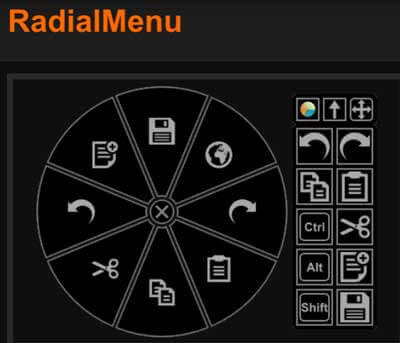
If you’re feeling experimental, try this alternative, much more robust radial menu for Windows Tablet PCs. It features submenus, and goes a lot farther than the Wacom Radial Menu, providing  and on-screen shortcut menu and customizable pie slices.

If you like it, a small donation to the developer will help him keep it updated.

radialmenupc

The other radial menu

5. Calibrate, calibrate!

You may have to calibrate fairly often, especially if you are sometimes using your tablet PC with other tablets. Calibrating will keep your pen tip accurate. There’s even edge calibration.

Tablet PCs don’t seem to suffer from edge jitter the way Cintiqs do. I can draw right along the edge without jitter.

7. Create Photoshop Actions

If you want to get into the more advanced Photoshop functions, this can take the place of ExpressKeys. Photoshop Actions are shortcuts you can create yourself. Here’s some info on how.

8. Max out RAM and swap hard drives

Unlike most tablet tablets and some thinner laptops such as MacBook Air, many tablet PCs will allow you to add RAM and/or put in a larger, faster hard drive, and change the battery (many people do not seem to realize this). Batteries can be found through manufacturers or on Amazon and other stores. You’ll have the check the info for your particular system.

Crucial.com offers a handy tool to figure out what type of memory you need.

9. Use your laptop with a larger display

Your laptop may be small, but you can attach it to a larger monitor. Use the display settings and select Duplicate display. I think this is one of the best tablet computer possibilities, allowing you to enjoy pressure sensitivity and also get a big, clear view of your art.

10. Go to the Matte

Sometimes a tablet computer screen can be slippery, overly glossy, and reflective. Fix it by applying a screen protector; a high-quality one can make a real difference, and provide some “tooth” to make you feel more like you’re drawing on paper (on a Cintiq, texture is built in). We suggest Photodon.com, which offers some specially made for some models, and can custom cut to any size. The MXH 25% anti-glare offers good visibility while cutting shine.

11. An extra keyboard may save your posture

If you have a laptop tablet PC, you may find yourself contorting to draw on it, such as reaching past the screen, or using the keyboard upside-down, if you want to use keyboard shortcuts. Don’t strain yourself. Using an external USB or Bluetooth keyboard should take care of your limbs.


A tablet computer is a practical and versatile choice that can be just about anything you want it to be. Hopefully these hacks will bring it more toward being that perfect art tablet. If you find them helpful, please share them using the Share buttons.

end of 10 best tablet computer hacks

Looking for a fast art tablet PC? Check out our writeup on the Vaio Z Canvas.

This Lenovo Thinkpad Yoga 14 has an NVIDIA graphics card.