Category Archives: Tablet PC

tablet PCs run Windows (with some exceptions) and have pressure-sensitive screens.

dell-active-pen-new-venue

New Dell Active Pen and Stylus: Wacom ES for New Venue 8 and 10 Pro

New Dell Active Pen and Dell Active Stylus: New Venue 8 Pro and Venue 10 Pro get Wacom ES

Dell unveiled revamped Venue 8 and 10 tablets at CES 2016 in January. They included the New Venue 8 Pro 5000, now with a Wacom ES digitizer and the New Dell Venue 10 Pro (5055) and Venue 10 (5050).

“New” is part of the name of the New Venue 10 Pro, but not part of the name of the revamped Venue 10, though they refer to it as  a ‘new’ Venue 10 with a lower-case “n” in the product info. Sigh. So, in with the New.

These new models are  currently sold only through Dell.

New Venue 8 Pro 5000 (see at Dell.com):

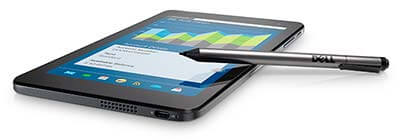
dell-active-pen-new-venue

Dell New Venue 8 Pro

The New Venue 8 Pro comes in 32 and 64GB storage and 2GB and 4GB RAM, runs Windows, and has an Atom processor and 8″ screen.


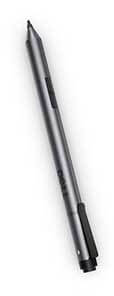
Dell Active Pen

The New Venue 8 Pro 5000 (5855) now uses  a Wacom ES pen, the Dell Active Pen. See it on Dell.com. The pen is sold separately. You cannot use the Dell Active Stylus from the old Venue Pro line on the New Venue Pro line. The old ones used Synaptics tech and Dell has now switched over to Wacom and is using the term “pen” rather than “stylus.”

dell-active-pen

Manufacturer Part# : N1DNK
Dell Part# : 750-AAMI
PN556W

The Dell Active Pen is also compatible with some other Dell 2-in-1 laptops and tablets. It uses Bluetooth and takes an AAAA battery and 319-type coin-cell batteries. It has an LED light that indicates pairing. Its tip is 3 mm, which is still pretty fine-tipped.

Here is the list of compatible Dell devices:

Inspiron 7568, Latitude 11 5715, Latitude 11 5179, Latitude 7275, Venue 10 Pro 5056, Venue 8 Pro 5855, and XPS 12 9250.

The new system is an improvement over the old Venue Pro line. The new one has 2,048 levels of pressure sensitivity and good palm rejection.

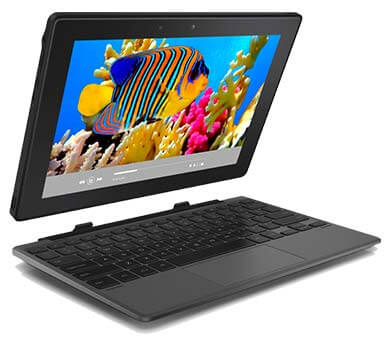
New Dell Active Stylus for New Venue 10 Pro

There’s also a new Dell Active Stylus, the 750-AAIZ, (click to see it on Amazon) for the also-revamped Venue 10  (5050) and Venue 10 Pro (5055). “New” is not part of the name of the stylus. Same name, different stylus than the old one. Double sigh.

Wish they could at least call it “Dell Active Stylus 2” or something–they already caused heaps of confusion with the three versions of Dell Active Stylus for the old Venue Pro. Maybe “Son of Dell Active Stylus”? If you’re confused now, try finding info on their site–it’s a haystack! So I’ve compiled the relevant info in this post.

dellactivestylus


The new “universal” Wacom Bamboo Smart Stylus, a Wacom ES pen, will work on the Venue 10 5000 Series (5050) and the Venue 10 Pro 5000 Series (5055). That one comes with two swappable tips, one firm and one soft. Since the tablets don’t come to a pen, you could get this one instead, then you would have the two tips.

Even though the new Dell pens are both Wacom ES, they are not interchangeable.

Here’s the Bamboo Smart Stylus on the Wacom site.


dell active pen 5055

New Dell Venue 10 Pro (5055)

The New Dell Venue 10 Pros also have 2GB and 4GB models with a 10.1″ screen.

These tablets, which run on Atom processors, are for sale only at Dell. See them

See our review of the old Venue 8 Pro

Comparable: Asus VivoTab Note 8
Toshiba Encore 2 Write
Samsung Galaxy Tab A with S Pen

cubei7review

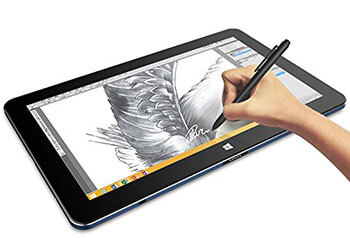
Mytrix Complex 11t / Cube i7 Stylus review: budget 2-in-1

Mytrix Complex 11t (Cube i7 Stylus) review: affordable EMR all-in-1

The Mytrix Complex 11t is a version of the Cube i7 Stylus, a Chinese tablet made by a company called 51 Cube (it was also rebranded for a while as the rhyming Cytrix Complex 11t.)

The Mytrix has been changed a bit from the original to get FCC approval, which is required for electronics in the U.S. market. If you get the Cube i7 Stylus alone, but it won’t come with the keyboard and stylus, and the whole package is economical (you can compare prices).

cubei7stylusreview

Mytrix Complex 11t, also known as the Cube i7 Stylus. See it on Amazon

If you want to see the plain Cube i7 and read Cube i7 Stylus reviews, here they are on Amazon.

To clarify a few naming things: The name i7 is confusing; this does not have an i7 processor, it has Core M. Also, this is not a review of a stylus, the name of the computer is Cube i7 Stylus in it, so it’s a Cube i7 Stylus review.

Type of tablet: WIndows tablet PC 2-in-1

Digitizer: Wacom EMR with 1,024 levels of pressure sensitivity

Comes with pen? Yes. Keyboard too

This 2-in-1 Windows tablet has recently come to the U.S. It has been available on Chinese sites such as Gear Best for a while, but that means waiting for shipping, and inconvenience if problems arise. Now, the computer has been rebranded as the Mytrix Complex 11t and for sale in the U.S. market, having been changed a bit to fit FCC standards, according to the seller.

It’s got 4GB RAM, which is soldered in, so not upgradable. It’s got an SD card slot for up to 32GB of extra storage. Its processor is speedy and good for light gaming. It has a Core M processor and 4GB RAM. You can run large programs on it, but it has some limitations.

Like the Surface 3, it’s best used with programs less intensive than Photoshop, such as Photoshop Elements, ArtRage, or Sketchbook Pro, Krita, and Manga 5. It has only 64GB of storage, so best to keep your files on an SD card or elsewhere. You can, with some elbow grease, add a larger SSD.

The Cube i7 has Core M, not the most powerful processor, but a big step up from Atom tablets.  It’s fanless, so it’s quiet. As far as speed, it’s competitive with an i5.  Its LPDDR RAM is fast. The HDMI connector allows you to connect it to TVs, monitors, and projectors to enjoy content on a big screen.

This is quite a good deal if you want a Wacom-penabled PC. It’s reminiscent of the Samsung Ativ line in its size, but that had Atom, so this one is more powerful. What it does do, it does well. And, you can swap the SSD to give you considerably more power.

What’s in the Box

Tablet
screen protector already installed
Wacom pen
keyboard that attaches via magnets
OTG cable (USB On-the-Go)
manual (very basic); paperwork

FEATURES

Screen size: 10.6 inch diagonal
16:9 aspect ratio (the norm for Windows), multitouch
Resolution:1920 x 1080 full HD IPS display
Windows 10
Intel Core M 5Y10 5th generation Broadwell
4GB RAM
64GB storage, SSD
802.11 b/g/n Wi-fi
Micro USB 3.0
micro SD slot for up to 32GB
12-volt DC charging port
mini HDMI connector
Weight: 1.2 K (lib/??)
Bluetooth
audio jack
metal chassis
screen protector, if you see scratches, try removing it as the scratches may be on the screen protector.
Portability
It’s a bit heavy for a tablet of its size, but it’s portable.

Screen

The IPS screen has good viewing angles and is bright with 350 nits. It’s the same screen used that was used in the higher-end Microsoft Surface Pro 2. It has good contrast and 75% of the Adobe SRBG, which is good for something in this class, though less than a higher-end computer would have. It has an accelerometer which you can lock or let go, flipping your image to portrait or keyboard mode depending on the angle of the tablet.

The screen protector can get scratched, so if you get one where the screen appears to be scratched, try peeling off the protector. You might want get a matte screen protector for some tooth while drawing.

Battery Life
6 hours mixed use, 4 hours of video

Pen
The pen has good accuracy. It’s a standard Wacom EMR pen, so if you have one already you could use that one as well.

cube i7 stylus review

User reviews and ratings

This tablet has been well-received with positive ratings from Tech Mobile review and various sites where Cube i7 reviews appear. Artists writing a Cube i7 review have praised its pen accuracy and speed. Wacom penabled tablets can actually vary in accuracy.

Pros
good for light gaming
very affordable for a Wacom penabled tablet

Cons
Trackpad can be sticky
can get hot
speaker quality tinny

The Verdict

It doesn’t have a lot of bells and whistles, very good value for students or hobbyists or people who want to draw, do art, take notes who like the natural feel of Wacom EMR.

Here’s a drawing demo by Samson Lee:

Here’s a Photoshop CS5 demo on it. As you can see though it works, there’s some lag on this 16MP image. That’s not because anything is wrong with the tablet, but because it’s Core M. However, there are a lot of less intensive art programs you can use.


See the Mytrix on Amazon

If you’re searching for more info, looking up articles about and reviews of the Cube i7, or Cube i7 Stylus, might turn up more than searching for Mytrix.

end of Mytrix Complex 11/Cube i7 Stylus review

Read our reviews of these comparable models:
Microsoft Surface 3
Toshiba dynaPad
Asus Vivotab Note 8
Surface Pro 2


best tablet PC

Surface Pro 4 Review: a step (or 1,024) forward

Surface Pro 4 Review: a go-anywhere drawing solution

by Tablets for Artists

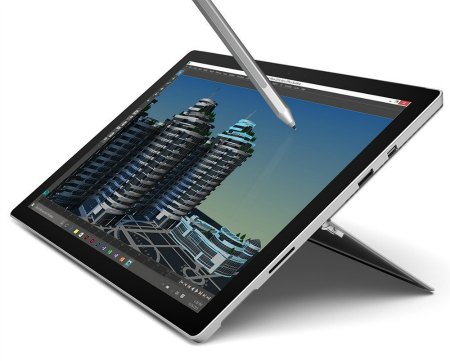
microsoft surface pro 4 with surface pen

Type of Tablet

Surface Pro 4 Review: Convertible 2-in-1 with pen

The Surface Pro 4 and Surface Book (read our review) have arrived on the scene to a great deal of fanfare. Some artists who already have a Surface Pro 3 may be wondering if it’s worth getting the 4. Others may be trying to decide between the SP4 and the pricier Book.

The SP4 can become a laptop when you add the optional (purchased separately) Type Cover; it’s a tablet-first device, whereas the Book is a laptop-first device. The Pro 4 and the Book have the same screen resolution, a very high 271 ppi, though the Book’s screen is larger. Both the SP4 and Book are built from magnesium alloy and come in just one color, a silvery gray, though the SP4’s Type Cover adds a splash of color, with 6 colors. Only the Onyx (black) has the fingerprint sensor, though, to give you that Get Smart cred.

UPDATE: There have been many reports of short battery life and other issues and this takes a bit of glow off the Surface Pro 4 review, which would otherwise be very positive. The last updates issued by Microsoft were Dec. 2 and Dec. 17, which fixed some issues but not the power management. They did suggest a workaround, which you can read here, which is to put it into hibernate instead of sleep mode. Also, Windows Hello facial recognition drains the battery  and may be to blame for the issues. You can say bye-bye to Hello by turning it off in Settings> Accounts > Sign-in options. Will be following these issues and updating further.

UPDATE #2: Microsoft issued a Surface Pro 4 and Surface Book firmware update on Jan. 27, 2016. This one improves battery charging, Bluetooth, and the fingerprint sensor. Apparently it improves the sleep bug (the battery drain issue) but does not completely fix it. You should receive a notification on your device, and follow instructions. They should automatically install, but if you’re doing it manually, go to Settings > Update & Security > Windows Update > Check for updates and follow the steps.

UPDATE #3: Microsoft released a slew (16!) updates in April, 2016, which apparently have corrected issues with screen flickering and waking up from sleep or hibernation, and other issues. Guess the early adopters were really beta testers. Anyway, it’s considerably improved. Note that they do not install all at once after you update.

List of updates at the Microsoft update page.

Specifications

Windows 10 Pro
Display: 12.3″
Digitizer: N-Trig
Screen Resolution: 2736 x 1824 pixels (271 ppi)
Processor: 6th-generation Intel Core i5; i7; entry-level model has Intel Core M3
RAM:  4 GB, 8GB, or 16GB
Hard Drive: models with 128 GB, 256 GB, 512 GB, and1 TB
Ports: one USB 3.0, MicroSD slot
Core M3 model is fanless; others have hybrid cooling system
Kickstand allows posing at any angle
Glass trackpad 40% larger than SP3
8 MP rear camera, 5 MP front (SP3 had 5MP for both)
new Surface Pen and nib kit included
Pen has 1,024 levels of pressure sensitivity
graphics are all integrated, no discrete
Keyboard has fingerprint sensor (only the Onyx/black color)
weight 1.76 lbs. (786 g) tablet only; 2.44 lbs. including Type Cover and pen

What’s in the Box

Surface Pro 4
Surface Pen
Power Supply
Quick Start Guide
Safety and warranty documents

Surface Pro 4 vs. Surface Pro 3

As you can see, the Surface Pro 4’s screen is a bit bigger; its screen resolution is quite a bit higher, and it still manages to be a little lighter. Microsoft’s PixelSense screen is a mere 400 microns thick and uses Gorilla Glass 4; the Surface Pro 3 used Gorilla Glass 3 and did not have PixelSense, which pushes the optics closer to the screen. The footprint is the same on the SP4 and SP3, as is the 3:2 aspect ratio, which resembles a sheet of drawing paper. This aspect ratio, which emulates the Golden Mean, is generally better to draw on than the 16:9 tablets. The pen now magnetically snaps to either side of the tablet, instead of using a pen loop.

There is also no Start button on the tablet bezel in the SP4; there was in the SP3, but it’s less useful in Windows 10.

Here is a Surface Pro 3 vs. Surface Pro 4 comparison chart.

FeaturesSurface Pro 4Surface Pro 3Difference
Dimensions11.5 by 7.93 by 0.33 inches11.5 x 7.93 x 0.36 inchessame
Thickness8.5 mm SP3 9.1SP4: 7% thinner
Screen size12.3"12"SP4: 5% larger
DigitizerN-trig, 1,024 levels of pressure sensitivity N-trig, 256 levels of pressure sensitivitySP4: 4x as pressure-sensitive
Resolution2736 x 1824
(4,990,464 pixels)
2,160 x 1,440
(3,110,400 pixels)
SP4: 60% more pixels
Screen ppi (pixels per inch)271ppi213 ppiSP4: 27% denser
ProcessorIntel gen. 6 Intel gen. 4SP4: 30% faster
Weight (tablet only)1.69 lbs, 767g - Core M
1.73 lbs, 786g - i5 and i7
1.76 lbs, 798 gSP4: slightly lighter (4% for Core M, 2.5% for Core i5and i7)


surface pro 4 review

Surface Pro 4 with Surface Pen

The Surface Pro 4 with i5 with 128 or 256 GB of flash storage would be fine for most artists who use Photoshop or the whole Adobe Suite. But if you use really resource-intensive programs, then the i7 is better. For instance, Autocad 3D requires the i7.

The Book has an option with dedicated NVIDIA GeForce graphics, good for gaming or getting a boost in Photoshop performance.

Battery Life

9 hours of video for the 8GB Ram i5 with 256 GB storage

Portability

At 1.76 pounds, it’s very portable. If you add on the Type Cover (.64 lbs./292 g) and pen (21 g) then you get about 2.43 lbs., still not a bad load.


Surface Pen

surface pen surface book

The new Surface Pen for Surface Pro 4 (see it on Amazon) snaps to the sides of the tablet via magnets, unlike the Surface Pro 3 and earlier Surfaces which had a pen loop. The pen is much improved, now enabling 1,024 levels of pressure sensitivity. Not only that, but it has its own nib kit , which has 4 tips that simulate artist pencil leads of HB (preinstalled), H, 2bB B, and a fine-point pen. The nib kit does not come with the pen that comes with the tablet. You can buy it separately (it’s inexpensive) or, if you buy an additional pen, the kit is included. The pen that comes with the Surface Pro 4 has a silver barrel, but the additional pens come in other colors.

The pencil leads have some friction and give some bite, somewhat like drawing on paper. Another boon is that you can buy a nib kit if your nibs wear down or get lost. The pen also has an eraser tip that feels cushiony. The previous pen had two buttons, one of which activated the eraser, but this new one has just one, which can open OneNote or Cortana, or take a screenshot if you double-click the button. Microsoft says the new pen has reduced latency–perhaps it won’t go into sleep mode when not touching the screen, so will be faster. The digitizer is N-trig, connected by Bluetooth, and takes an AAA battery that Microsoft says lasts a year. The pen itself (the barrel, not talking about inking) comes in 5 colors.

surface pen nib kit

new Surface Pen nib kit

Compare this to the previous Surface Pen, which delivered 256 levels of pressure sensitivity. Its single, preinstalled nib would wear out quickly and was not replaceable, forcing you to buy another pen. So if you’re ready to buy one, the new Surface Pen is the right choice. The new pen is backward compatible with the Surface Pro 3, though you’d still get 256 levels of pressure sensitivity, not the 1,024 of the Surface Pro 4 or Surface Book.

For some images and discussion of drawing with the Surface Pro 4 pen, and a comparison with Wacom pens, please see this review of the Surface Book. Here’s an image of the line from one of the pen tips. You can change the canvases as well as the brushes in your art program to get different effects with the different tips.

While this is cool, there are many, many brushes available for Photoshop and you can get any effect. Depending on your screen, though, you might not get the little “bite” of friction that the pencil nibs offer.

.surfacepentiptestBtip


Type Cover

surface pro 4 type cover

Surface Pro 4 Type Cover

The Type Cover has been redesigned and is also backward-compatible with Surface Pro 3. It has dedicated buttons for Windows shortcuts, media controls, and screen brightness. The Type Cover comes in 6 colors, and is lighter and slimmer than its predecessor. The keys are now spaced apart and have better travel for faster and more comfortable typing. The keys are sturdier than on the last version, and the keyboard has a better magnetic connection to the tablet part. The trackpad with 5-point multitouch is 40% larger, and now made of glass. You can fold back the cover so you can still use the tablet while it’s connected, or fold it over the tablet to protect the screen. The keys are backlit.

Only the Onyx (black) Type Cover uses Windows Hello, a fingerprint ID system that lets you log in to the computer and shop in the App Store. It costs a bit more than the non-fingerprint ID Type Covers (there is also a non-fingerprint-ID Onyx Type Cover). The Onyx fingerprint Type Cover can be pre-ordered from the Microsoft Store here.

surface dock for surface pro 4

Surface Dock

Surface Dock

The Surface Dock is optional. It can be used with the Surface Pro 3, Surface Pro 4, and Surface Book. It provides two additional ports: four USB 3.0 ports, and two 4K-capable DisplayPort outputs. The slender Surface Book lacks an Ethernet port, but the dock provides one. This can come in handy when traveling in places without steady Wi-fi.

Pros

new Surface Pen and nibs
faster processor
many configurations
hybrid cooling system (or fanless on the Core M) quieter

Cons

Still not ideal as a laptop replacement, due to top-heaviness
Opinions divided on N-trig

The Verdict

If you like N-trig, then this is a very promising computer with great specs for speed, a display that’s high-resolution with high contrast for deep blacks, lightweight, and it can do double duty as a laptop, though the Type Cover doesn’t feel as solid as a traditional laptop. For now, though there are still battery drain issues to be fixed, the workaround should provide release. Even taking that into account, this Surface Pro 4 review is mostly positive, and this sleek machine opens a new chapter in the Surface Pro story.

See more info or order from the Microsoft store


The iPad Pro is a competitor to the Surface Pro 4. Read our iPad Pro review.

end of Surface Pro 4 review

microsoft surface book review

Microsoft Surface Book Review: a laptop-first 2-in-1

Microsoft Surface Book Review: Solid laptop, detachable art tablet

by Tablets for Artistsmicrosoft surface book review


See it on Amazon.

See it at the Microsoft Store.

UPDATE: Many users have had a short battery life and other problems. Microsoft last issued and update on Dec. 2 and 17th,  but the power management has not been addressed. Their suggested workaround, is to not use sleep mode, where the battery drains, but rather hibernate. Windows Hello may be the core of the problem.. You can say good-bye to Hello by shutting it off in Settings> Accounts > Sign-in options.

UPDATE #2: Another firmware update has been released for the Surface Book and Surface Pro 4 on Jan. 27, 2016. This one is for Bluetooth, battery, and fingerprint sensor, but though the battery drain issue anecdotally is better, it’s still there. To see more about updates, check this page on Microsoft’s site.

Type of tablet

2-in-1 convertible

Specifications

Magnesium build, including keyboard
Windows 10 Pro
12.30” x 9.14” x 0.51 – 0.90” (312.3mm x 232.1mm x 13.0 – 22.8mm)
Screen: 13.5” PixelSense display
Resolution: 3000 x 2000 (267 PPI)
Aspect ratio: 3:2
1700:1 contrast ratio gives you deep blacks
10 point multi-touch
Two USB 3.0 ports
SD card reader
Surface Connect (an 80-pin connector)
Mini DisplayPort
Solid state drive (SSD) options: 128GB, 256GB, 512GB, or 1TB
5.0MP front-facing HD camera
8.0MP rear-facing camera
Dual microphones (front and back); Dolby speakers
Starting at 2.34 lbs. (1,516 grams) including keyboard base
Glass trackpad with 5-point multitouch
Backlit keys
Intel Iris processor on the i7
4.5 lbs. with keyboard, 1.6 lbs. for clipboard (tablet) only
Power and volume buttons on clipboard (tablet)

The camera on the Surface Book and Surface Pro 4 is compatible with the Hello Windows facial recognition software that lets you use your face instead of saying “Swordfish” (or typing in a password) The Book does not have a fingerprint reader, so you can’t log in that way; only the fingerprint-reader model of the Onyx SP4 Type Cover does.

Graphics

i5: Intel HD graphics 520
i5/i7: Custom NVIDIA GeForce Graphics Processor

The discrete graphics are in the keyboard case, so when you detach the keyboard, the Book will switch back to regular integrated graphics, which are strong enough to do most things, but if you are using 3D programs and the like, you would need to flip the screen over and keep the keyboard on.

What’s in the box

Surface Book and keyboard
Surface Pen
Quickstart guide
Safety/warranty documents

Screen

The Gorilla Glass display is super sharp, with 6 million pixels at 271 ppi (same ppi as in the slightly smaller Surface Pro 4, which has about 5 million pixels). Microsoft claims it will get the entire sRGB color gamut. The blacks are deep. The screen is 12.3 inches wide, and 13.4″ diagonally, with a small bezel. Its 3:2 aspect ratio is intentionally made to the proportions of a standard A4 sheet of paper. The screen is 21% larger than on the Surface Pro 4.

Portability

At about 3.4 lbs. including the keyboard and pen (pen weighs 21 g or about three-quarters of an ounce), it would start to feel heavy after carrying it around for a short time–maybe consider a rolling laptop case. The clipboard (tablet) without the keyboard weighs 1.6 lbs, quite light.

Battery Life

12 hours video with keyboard attached
3 hours with screen only (4 hours without video)

Microsoft says then when the lid is down, the battery will not drain.

To draw and get the longer battery life, you can remove the screen then flip it around and re-attach it to the keyboard so the screen is facing up. (see Update above for notes on widespread battery drain issues)

Call me Clipboard. Microsoft is calling the tablet part of the computer the “clipboard,” lest you forget to think of the Surface Book as a laptop. It’s first a laptop, second a tablet. Got it?

Good-bye, pen loop. The pen now snaps to either side of the clipboard via magnets.


The “dynamic fulcrum” hinge

microsoft surface book review 2

The innovative accordian-like hinge that Microsoft calls “dynamic fulcrum” gives a rounded edge, making it more comfortable to hold in your palm than a rectangular edge. When shut, there is a small gap between the keyboard base and screen. The hinge uses a wire dubbed “Muscle Wire” as part of the sinew that holds the two halves together. The hinge is strong and you can pick up the whole device by the keyboard or display. You can also open the Book to any angle. The Surface Book does not have the stand attached to the back that the Surface Pro line has, so if you want to prop up the tablet, er, clipboard, alone, you will have to use an exterior stand.

One Microsoft Surface Book review found that having the gap between the keyboard and clipboard was a problem when carrying it in a bag–dust and dirt would end up on the keyboard. So storing it in a laptop sleeve might be a good idea.

surface book muscle wire

Muscle Wire


surfacebookconnector


To detach the clipboard, you press a button on the keyboard. If you’re using the Nvidia graphics, which will cease to work once you take off the keyboard, you will see a notification.

surfacebookdetach

You hold down a key on the keyboard for a couple of seconds until you see this pop up. You will get another message when you have successfully attached it. The detaching/attaching process is not super simple.

Microsoft calls it a “continuum” when you take the clipboard off to continue using it.

Trackpad
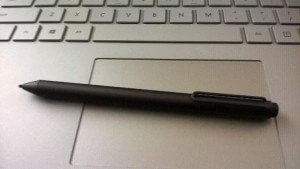
surfacebooktrackpad

Surface Book trackpad

The large, glass trackpad with 5 touch points feels great on the fingers–it’s smooth and responsive, like skating on ice.

When in laptop mode, you cannot open up the whole thing flat the way you can with a regular clamshell laptop. So if you’re drawing, you either need to somehow draw with the clipboard up, or switch to tablet mode, which gives you no access to the keyboard. You can’t use the keyboard base unless it’s attached. So if you want to use keyboard shortcuts, you will need to use the on-screen keyboard, a USB or Bluetooth keyboard, or try some Photoshop actions.

Despite the Surface Pro being laptop-first, when in laptop mode the clipboard wobbles  a bit. The keyboard base and the tablet are roughly equal in weight, but it seems it would balance better were the screen considerably lighter than the keyboard. However, it isn’t too bad.

New Surface Pen
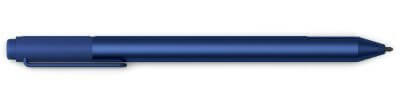
surface pen surface book

Blue Surface Pen. The one that comes with the Surface Book and Surface Pro 4 is silver.

The new Surface Pen is a great improvement over the old. First of all, it now has 1,024 levels of pressure sensitivity (after Microsoft spent some time assuring us that 256 was fine and most of us agreed). It’s still N-trig (Microsoft has purchased the technology behind N-trig, so it’s here to stay, and it’s nice to see them improving it with artists in mind). There’s  now a cushiony eraser on the back. The pen has only one button now; the previous pen used one of the buttons to activate an eraser. You can click to open OneNote or double-click to take a screenshot and put the image into OneNote.

Best of all, the pen comes with 4 nibs, including artist pencil nibs of 2H, H, HB, and H, and a fine-point pen. HB is the preinstalled tip. The nibs have some friction, giving some tooth to the drawing experience so it feels more like paper. The old pens did not come with extra nibs, the nibs didn’t last long, and there was no way to replace them; you had to buy a new pen. The pen takes one AAAA battery. Microsoft says this pen will have reduced latency (less lag). Testing it, it still has some lag, perhaps a bit less than the SP3. The pen has a solid heft to it.
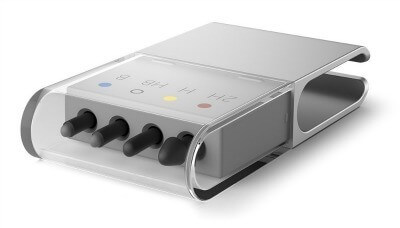
 

surface pen nib kit

Pen tip kit

Because of the replaceable nibs, this new pen should last much longer; it’s more economical and less wasteful. If your nibs wear out or get lost, you can buy an extra nib kit. It’s backward-compatible with the Surface Pro 3 (with which you would still get 256 levels of pressure sensitivity) and will also work with the Surface Pro 4 (which gives you the full 1,024 levels). Microsoft claims the pen has a full year of battery life. The pen barrel comes in five colors– charcoal, blue, red, silver and gold. The Surface Book and Surface Pro 4 come with the pen, but not the nib kit, which is inexpensive. If you buy an additional pen, that pen will come with the nib kit.

Surface Pen nib test
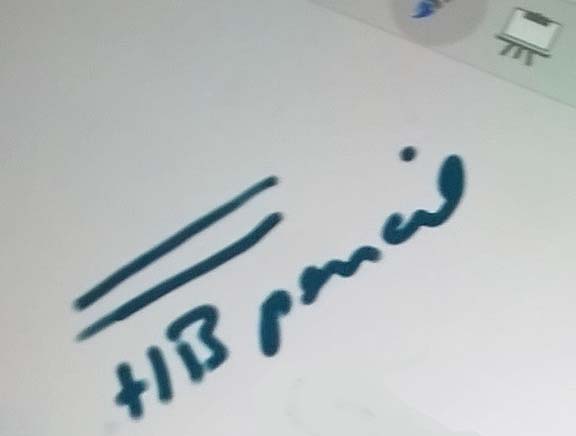
surfacepenhbnib

HB pencil on smooth canvas in Fresh Paint
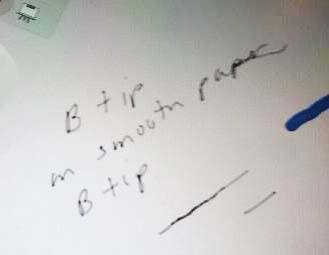
surfacepennib

B tip on smooth canvas in Fresh Paint

surfacepro4pencil

B tip on rough canvas in Fresh Paint

The B tip does look more like a pencil line. You can choose a brush that says, say, 4H and still use the 2B pencil, which I find a little hard to wrap my mind around. Every brush you choose will look a bit different with the different nibs.

Writing with the Surface Pen is not bad, but isn’t quite as natural as on paper–harder than with Wacom, but easier than using an iPad with a basic capacitive stylus.

When using the eraser tip, the eraser size doesn’t adjust in OneNote, it wipes out a large area, but in art programs it’s adjustable.
The issue with slowly-drawn diagonal lines being wavy is still there, and it’s just a function of the digitizer and the rate at which it “polls” the data. There are some ways to fix it, such as using Lazy Nezumi or a line smoother such as in Manga Studio. Or just draw lines more quickly. There is a definite and palpable improvement with the new pen and increased pressure levels. To me, N-trig is still not as satisfying as Wacom to draw with but it’s not because of the jitter. However, many artists really like N-trig. It’s best to try it out. The Surface Book is an ambitious concept and I hope we see more laptop-first tablet PCs with detachable tablets as these are ideal for drawing.

Surface Dock
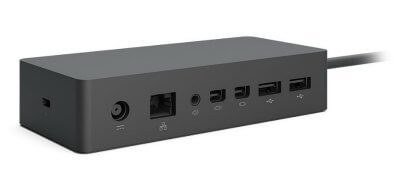
surface dock for surface book

The Surface Dock doesn’t come with the Surface Book or any computer. It’s not necessary for everyone, but is useful. It sports two 4K-capable DisplayPort outputs and four USB 3.0 ports. It also has an Ethernet port, which the Book itself lacks.  The dock is compatible with the Surface Pro 3, Surface Pro 4, and Surface Book. (There’s a different dock that works with the SP 1 and 2.)

Pros

fast (Microsoft claims that with the discrete graphics, it’s effectively twice as fast as the MacBook Pro)
improved pen
larger screen
wide color gamut
1700:1 contrast ratio gives deep blacks
very high-resolution display (267 ppi vs. MacBook Pro’s 232)

Cons

pricey
heavy with keyboard attached
a bit top-heavy
dirt can get onto keyboard when closed due to gap (suggest keeping it in a sleeve)

The Verdict

This is a powerful computer, though it has been marred by some battery-charging issues.  you’re trying to decide between this and the Surface Pro 4 and primarily want it for drawing, you would probably be fine with the Surface Pro 4, which has an improved keyboard. The i5 Surface Pro 4 is considerably cheaper than the i5 Surface Book.

If you want a more solid keyboard, a larger drawing surface, or if the discrete graphics are important to you, then the Surface Book would be the way to go. It also is just nice-looking. It certainly could be a solution to the artist who wants a laptop too.

If you’re interested in the history of PixelSense tech, here it is on Wikipedia.

See more Microsoft Surface Book reviews, price, and info on Amazon

https://www.youtube.com/watch?v=XVfOe5mFbAE

End of Microsoft Surface Book Review

See our Microsoft Surface Pro 4 review.


Microsoft Surface Pro 4: New Surface Pen offers more to artists

Microsoft new Surface Pen gets a big upgrade

microsoft surface pen with tip kitThe new Microsoft Surface Pro 4 is set to be released this October 26. It comes with an upgraded Surface Pen. The specs have been released, and the new pen, which is still N-trig, now delivers 1,024 levels of pressure sensitivity. It uses Bluetooth, as did the previous pen, and takes an AAAA battery. The back end functions as an eraser. Most interesting is that it has a tip kit with four tips corresponding to artists’ pencils: HB, B, H, and 2H. Looks like Microsoft is really going after the Wacom artist’s market. The tip kit is sold separately, but comes with any additional pens you buy. The pen no longer needs a loop to attach to the tablet as in the Surface Pro 3; it attaches to the Pro 4 via a magnet. The latency is reduced, making it less laggy. The pen’s accelerometer knows when you’re not touching the tablet and saves the battery; Microsoft claims the battery can last up to 18 months.

Surface Pen tip kit

You can use the new pen on Surface 3, Surface Pro 3, Surface Pro 4, and the new laptop, the Surface Book. We’ll be covering more developments.

microsoft surface pro 4 with surface pen

microsoft surface pro 4 with surface pen

Order the SP 4 with included Pen and Tip Kit.

Preorder the new Surface Pen with included Tip Kit.