Category Archives: Tablet PC

tablet PCs run Windows (with some exceptions) and have pressure-sensitive screens.

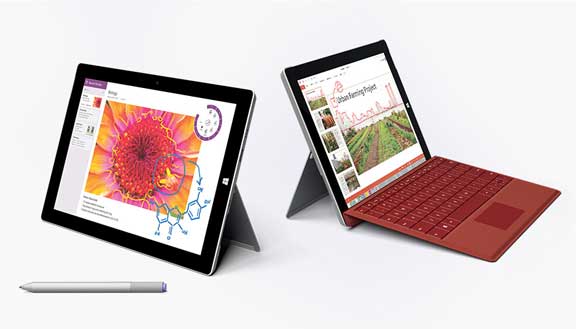
Microsoft Surface 3 review: Windows, pen pressure in an affordable tablet

microsoft surface 3 review

Microsoft Surface 3

Microsoft Surface 3 review: we’re not in RT-land anymore

by Tablets for Artists

Type of tablet

Slate PC with detachable keyboard

Features

Windows 8.1 (64-bit), with free upgrade to Windows 10 when that becomes available

Intel Atom Quadcore x7 processor

Multitouch screen takes finger or pen input

N-trig digitizer with 256 levels of pressure sensitivity

Palm rejection

64 and 128 GB options

full-size USB port

mini USB charging port

takes microSD cards of up to 18 GB

less expensive than Surface Pros

One year of Office 365

Nice design and solid build

Surface Pen with eraser button (not included). Pen takes AAAA battery

Detachable, click-in keyboard (not included)

Bluetooth

Dock (not included)

Can connnect to most TVs and Monitors using  Mini DisplayPort or Microsoft Wireless Display Adapter

Ambient light sensor and more


What’s Included:

Tablet, charger (only works with the Surface 3), documentation, Quickstart guide

Microsoft touts the Surface 3 as being a rival to the iPad, because of its light weight, 3:2 aspect ratio, and comparable price; as a potential laptop replacement, it does much more than an iPad. It certainly could take the place of an iPad in terms of what it does, and it does far more than the iPad; if all you need is the functions of an iPad, then you may be happier with one. I see the S3 as a lower-cost rival to the more premium Surface Pro 3 because the S3 has almost the same features, including pressure sensitivity. So this Microsoft Surface Pro review will focus on the comparison with the SP3 rather than an iPad, because many artists are simply looking for an affordable drawing tablet with a screen and stylus and pressure sensitivity.

It’s far better than the now-discontinued Surface RT line, which had no pressure sensitivity and an irritating operating system.  If you want something that can also act as a laptop and art tablet, the Surface 3 is good deal. It has apps such as Netflix and iTunes, or you can use your browser to watch Netflix and you can run desktop iTunes.

This is the first computer to run the Intel Quadcore Atom X7, which as as powerful as an i3. You can run any Windows 8.1 program on the Surface 3. The X7 is made to run cool. It will handle Photoshop well.

The 3:2 aspect ratio is that of a sheet of paper. The Surface and Surface Pros 1 and 2, Samsung Ativ, and some other Windows slates have a wide screen. The 3:2 feels more natural hold and to draw on, and fits drawings such as comics better. It’s the same aspect ratio as the Surface Pro 3.

Surface 3 vs. Surface Pro 3

Surface 3Surface Pro 3
OS Windows 8.1Windows 8.1
Screen size


10.8"12"
Aspect ratio3:23:2
Resolution1920 x 1280 full HD Plus2160 x 1440
Weight1.37 lbs.1.76 lbs.
Dimensions10.52" x 7.36" x 0.34"11.5” x 7.93” x 0.36”
Thickness .034".036"
ProcessorQuadcore Intel Atom x74th Generation Intel Core i3,i5, or i7
Pressure Sensitivity256 levels (N-trig)256 levels (N-trig)
Battery lifeup to 10 hrs. of video playbackup to 9 hours of Web browsing

The SP kickstand takes only 3 positions, making it less flexible than the SP3, but also adding less weight and cost.

Storage options are 64 and 128GB, the 128GB is definitely better for art, since art programs and files can take up so much memory, and Windows also takes a lot of memory.

The S3 has an optional detachable keyboard with buttons.

For lefties

You can actually set left or right-handedness by swiping from the right of the screen and writing the word “hand” (without quotation marks) in Search. A result will pop up asking you to specify the hand you write with, so you tap or click.

The pen that comes with the Surface 3 is the same as the Surface Pro 3 pen.

N-trig digitizer

The N-trig 3 is good for drawing, though you do have to press harder, exerting a higher initial activation force to get a line and the line can be a bit skippy if you don’t maintain the force. It’s something you can get used to There is no line jagging around the edges of the tablet as there are with Wacom digitizers. Microsoft consulted with some digital artists when creating the N-trig interface. Some people don’t like drawing on the N-trig, and others do. It’s good to test it out in person before committing. If you want a similar computer with a Wacom digitizer, which some prefer as it feels a bit smoother, you can still get a Surface Pro 2 or Surface Pro 1.

Pen
microsoft-surface-3-review-surface-pen


Surface Pen

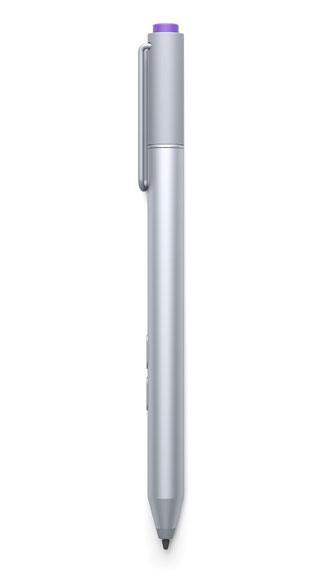
The Surface Pen is solid and metal, and handles nicely. It takes a single AAA battery. You will have to pair the pen to the tablet via Bluetooth when you first get it, but only once. You can pair it automatically at setup, or do it manually later.

The pen resembles a metal ballpoint pen and produces a fine line. The barrel comes in 4 colors. It works with art programs in addition to apps that support Microsoft’s Ink, such as Word, PowerPoint, and OneNote.

The pen has three buttons. The top button connects to the SP3 via Bluetooth. Single-clicking the top button will open OneNote, and double-clicking will take a screenshot.

On the barrel are two more buttons. The one farther from the tip is the Right-Click button. That one can open a pen menu where you can choose an ink color for OneNote, or select text.

The button nearest the tip is the eraser button.

Note: The Surface Pen works with the Surface 3 and the Surface Pro 3. It is included with the Surface Pro 3, but not with the Surface 3.

You cannot use a pen from the Surface Pro or Surface Pro 2 with the Surface 3 or Surface Pro 3. The SP1 and SP2 use the Pro Pen.

Drawing on the Surface 3

The screen is responsive and nice to draw on. When drawing, you don’t get jitter around the edges as happens with Wacom devices. However, there is a different problem specific to N-trig, which is that when drawing a diagonal line slowly, you get a jagged line. This is because the N-trig digitizer is arranged on a grid. Microsoft is aware of this problem and attempted to make the pen connection more powerful in the 3, but the problem continues. In testing the N-trig, I got this problem some of the time, depending on what strokes I was drawing. Here are some possible fixes:

-Draw a straight line, select the line, and rotate it.

-Use Manga Studio, which has line smoothing and fixes the issue.

-Use Lazy Nezumi, an app that gives you line smoothing. It has a Photoshop plugin, or you can do it canvas by canvas in other programs. It has a 30-day free trial, and is fairly affordable to buy.

-The Surface Pro or Surface Pro 2 have Wacom digitizers so would not have the jagged line issue (but do have edge jitter).

Customer ratings and reviews

Mostly very positive, with some complaints of defective tablets. One Microsoft Surface 3 review described it as being great for students, while another praised it for business and giving client presentations. As an artist, you could show your portfolio on it. So it’s a good all-in-one. As a tablet it’s very portable, and adding a keyboard gives you a functioning laptop.


The Verdict

The Surface 3 is arguably the best art tablet with screen that you can get for this price. You will not be able to get tilt sensitivity the way you can on the more expensive Wacom Intuos and Cintiq. There is not a variety of pens available as there is with Wacom devices. Professional artists who use Adobe CC and a lot of memory would do better to get a Surface Pro with its more powerful processor.

With the Surface 3, you will have pressure sensitivity, a desirable aspect ratio, lots of computing power (not quite as much as with the Surface Pro 3) and the ability to do anything a Windows laptop can do. You can run Metro Apps such as Fresh Paint and the Sketchbook Express app, or full Adobe programs and full Sketchbook Pro or Manga Studio, games, and Word. It seems that pressure sensitivity is becoming much more common in tablets. As for the diagonal-line problem, not everyone seems to have it, but if you do, try one of the solutions above. This is an annoying problem and may turn you off of the Surface 3 as an art tablet.

When preparing this Microsoft Surface 3 review post, I expected to make more of a comparison to an iPad, but in studying the specs, that comparison doesn’t quite make sense. As far as a buying choice, though, you are getting more for your money as an art tablet and a computer than with an iPad, but that doesn’t take away from what the iPad does offer, which is the Mac OS and breezy design. The Surface 3 has a nice design too.

Because the screen is not quite as large and the processor not quite as powerful, we still favor the Surface Pro line for professional digital artists, but if you’re on a budget, you can be very productive with the Surface 3. It’s not limited to use as a digital sketchbook; it goes beyond that. It’s also a good general-use device.

see it on Amazon

Optional Accessories for Surface 3

Surface Pen

Keyboard

Dock

Case


end of Microsoft Surface 3 review

Want to learn more about the different types of art tablets? Read our introductory article.
Toshiba Encore 2 Write review: a Wacom-powered sketchbook

Toshiba Encore 2 Write Review: affordable Wacom tech

by Tablets for Artists


toshiba-encore-2-write-review

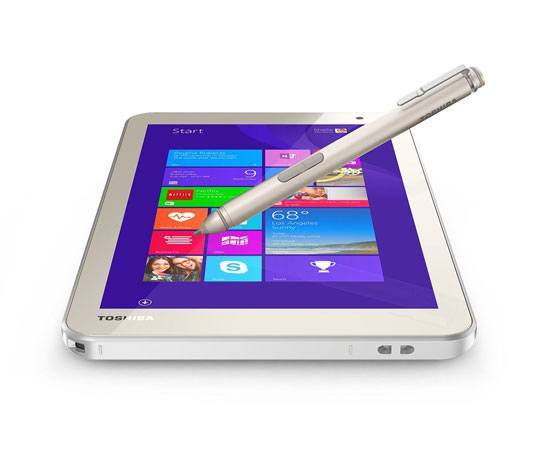
Toshiba Encore 2 Write. See it on Amazon.

Type of Tablet

Windows 8.1 tablet with digitizer pen

About the Encore 2 Write

If Toshiba’s new Encore 2 Write is the shape of things to come, then this is an encouraging time to be a digital artist. The Encore 2 Write was featured at the 2015 Consumer Electronics Show (CES),  an annual international convention held in Las Vegas that showcases the latest in gadgety innovations.

This tablet’s price point and features are comparable to the Asus Vivotab (read our review), which is no longer being manufactured. The Write is newer and has received more favorable reviews than the Vivotab. Like the Vivotab, it’s a portable tablet that runs full Windows 8.1 and has a Wacom digitizer. While the Vivotab gave you 1,024 levels of pressure sensitivity, the Encore 2 gives you the maximum, 2,048. The VivoTab only had a thin pen, but the Write has a full-size pen; the tablet does not have a slot to old it. Unlike Wacom pens for the Cintiq and Intuos tablets, the Encore 2 Write’s stylus takes a battery, size AAAA. The battery should last a few months with regular usage. It has two hi-res cameras and dual mics.

Specs

Intel Atom Z3735F processor
Windows 8.1
micro-USB port
16:10 aspect ratio
2GB RAM
64 GB storage
dual mics
two hi-res cameras
active Wacom digitizer with 2,048 levels of pressure sensitivity
comes in 8″ or 10″ screen
Dimensions: 6.9 x 10.2 x .35″
screen resolution 1280 x 800
Micro SD slot takes up to 128GB Micro SD storage, tablet
supports MSDXC standard
Bluetooth-enabled
GPS
HDMI video out
Pen does not have removeable nibs.

What’s Included

The tablet, pen (called Trupen) with lanyard

One-year subscription to Office 365™ Personal plus unlimited OneDrive storage (subject to change)

Charger

Reset pin


Features

The digitizer is not EMR (electromagnetic radiation) like a Cintiq. Instead, it is called “Active ES” (electrostatic) digitizer, which makes for a lighter tablet, as an EMR tablet requires a separate layer. The ES is a capacitive digitizer that is in front of the LCD screen. It’s somewhat like the N-Trig, and the metal pen that resembles a ballpoint pen also has the feel and look of the N-Trig pen. The screen is touch-screen and you could use it without the pen.

Though the Encore 2  does not currently support Wacom’s Wintab Feel It driver, which allows you to get pressure sensitivity in all the art apps that support it as well as map the pen,Wacom has unofficially said it will be getting this valuable feature. The Surface Pro 3 with its N-trig “dual sense” does not have this feature. The ES digitizers could in the future be the norm for lower cost (under $1,000), more portable, lighter-weight tablets.

Drawing on the Encore 2

With some programs  you will get an initial blob, as with the Surface Pro 3, as the tablet decides whether you are touching it with a finger or pen. The pressure curve is very good. The hover is a bit higher than on the Surface Pro 3, so it might seem like the palm recognition isn’t quite as good, but it works. The “hover tracking” is better, so there is less parallax with this than the Surface Pro 3. According to the video below, shot at CES, the initial activation force (geekspeak for how hard you have to press on it) is a light 3 grams. The line does not get jittery around the edges as it would in a Cintiq or the Vivotab. Both the N-trig and ES are fine even right near the edges. The pen provides some “bite” which gives a paperlike feel.

Screen

The screen resolution is not that high, but for this price you would not expect it to be.


Pen

toshiba-encore-2-write-review-pen

The metal TruPen is fine-tipped, “pro grade,” and takes a AAAA battery. The eraser is a button on the side. The palm rejection kicks in when the pen is hovering at about 3/8″ above the screen.


Software

Windows 10 will allow desktop apps on tablets 8″ or over. You can run desktop apps on this, since it’s a full Windows tablet, but it’s a little hard to use Photoshop since the tablet is small. As well, since it is an Atom processor, doing serious digital painting in Photoshop could be laggy, though basic image editing is OK. What will work best are apps such as Fresh Paint and the Sketchbook Express app, which are optimized for a tablet. One user who wrote an Encore 2 Write review praised using Manga Studio (desktop) with this, so by all means, try it.

The tablet is centered around note-taking. It comes with the preinstalled apps TruNote, TruCapture, and TruRecord. TruNote lets you take and organize handwritten notes, TruCapture is to take hi-res photos of text in books or from a blackboard, chalkboard, or whiteboard and do OCR, and TruRecord lets you record sound. There is an organizing and tagging system, kind of like Evernote. So you can not only draw on it, but use it as a multimedia creative diary.

Microsoft Office and OneNote work fine with this tablet.


Portability

It’s super slim at .04″ thick, and easy to carry at 13.4 oz. for the 8″ model and 1.2 lbs. for the 10″ model.


User reviews

Many people enthusiastically recommend this tablet as a digital sketchbook. One Encore 2 Write review praised its ability to work with Manga Studio. The high-res cameras, dual mics, and other features add appeal.


Pros

relatively affordable art tablet with screen
portable, lightweight
cameras do OK in low light
Pen and tablet are both fast and responsive


Cons

The screen resolution is not that high.
Atom processor works pretty well, but is not as fast as a full computer when you run graphics-heavy full Windows programs.
Cannot access battery.

Customer Service

I found them pleasant and professional when I did a chat to ask questions. If you happen to get a faulty one, Toshiba or Amazon will send you a new tablet.


The Verdict

This is an exciting development in tablets. It would be great if there were one that was a little larger. But this is a great portable sketchbook with pressure sensitivity that allows you to run both desktop and Metro apps. You can also use OneNote, play games, watch videos, and use a Bluetooth keyboard. I don’t see it as quite a Cintiq replacement, because of the size and there is not as much memory as with a full computer, so large programs such as Photoshop would not be ideal, though you could run Photoshop to an extent. For artists, this is overall better than an Android tablet or iPad because of the digitizer and ability to run desktop programs. It doesn’t have the great screen resolution of an iPad, but is more of a productivity tool.


Optional Accessories


iLLumiShield – Toshiba Encore 2 Write 8 Screen Protector

Cooper Cases Encore 2 Write Folio Case with Bluetooth Keyboard 

More Encore 2 Write opinions, price, and info on Amazon

https://www.youtube.com/watch?v=tO4nC83U6NY


End of Toshiba Encore 2 Write Review


Consumer Electronics Show, Wikipedia

official CES site

Lenovo ThinkPad Yoga 2 in 1 Review: Business in the front, arty when bent back

lenovo thinkpad yoga 2 in 1 review
Lenovo ThinkPad Yoga 2 in 1: a business laptop with an arty bent

by Tablets for Artists

(Note: also called 2nd-gen. Lenovo Yoga ThinkPad 12)

Type of tablet

Convertible (or hybrid) laptop/tablet PC Ultrabook that comes with Windows 8.1 Pro, 64 bit.

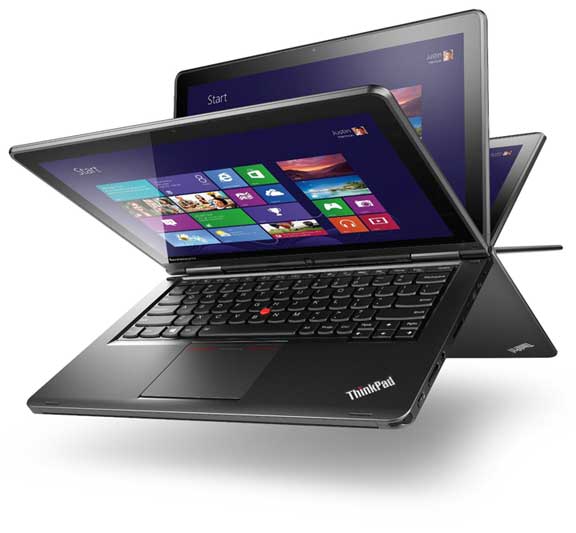
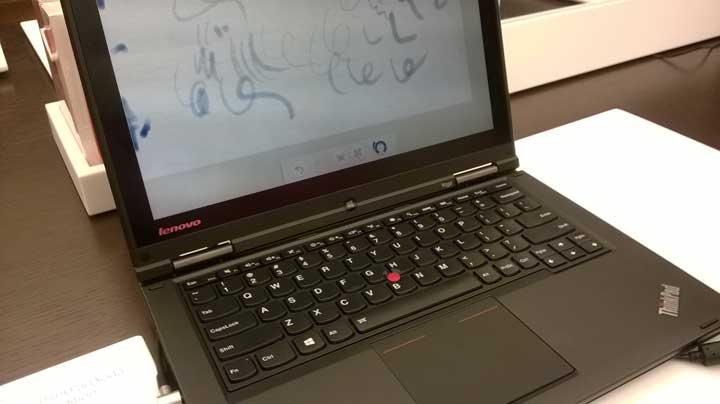
The Lenovo ThinkPad Yoga 2 in 1 is business in the front, arty when bent back. By appearances, it’s a business machine. “Suits” shuffling spreadsheets would be happy working in Office Suite on this unremarkable-looking black rectangle.

But use it as a tablet, and artists can get real mileage out of it. It’s a definite rival to the Surface Pro 3 (read our Surface Pro 3 review) for creatives who want a real laptop while still getting art features. The ThinkPad Yoga offers a Wacom digitizer with 1,024 levels of pressure sensitivity, and Windows 8.1 allows you to run full programs such as Photoshop as well Metro apps. The screen flips 360 degrees into four positions: laptop, tablet, tablet with stand, and tent.

Specs

12.5-inch Full HD touchscreen
Intel Core i7-4500U (there is i5 model too)
8GB memory/256GB SSD
12.5 in Full HD IPS (1920 x 1080)
10-finger multi-touch support
4-in-1 card reader (SD/SDHC/SDXC/MMC)
2 USB 3.0 (1 charge)
Mini HDMI
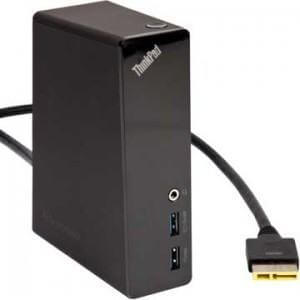
Lenovo OneLink dock port (dock not included)
Dimensions: 12.46 x 8.70 x 0.76 in (316.48 x 220.98 x 19.30 mm)
Weight: 3.49 lbs (1.58 kg)

For lefties:

It’s a laptop, so “handedness” is the same as on any laptop.


Pen


lenovo thinkpad yoga stylus

The pen that comes with the ThinkPad Yoga 2 in 1


The pen, which fits into the side chassis, is pretty flimsy and you would probably want some others. Several artists and note-takers recommend the Fujitsu T5000 pen for use because its hard tip meets well with the screen, it has two buttons and an eraser, and is solidly built.

Most tablet PC pens will work with the ThinkPad Yoga. The N-trig pen for Surface Pro 3 will not.


Features

The screen connects to the keyboard via a stiff hinge that feels more durable than a lot of convertibles that swivel instead of bend into the four “poses.” (With other tablet PC laptops, the keyboard gets sandwiched into the middle in tablet mode.) In tablet mode, the keyboard ends up on the back. Its innovative “lift and lock” mechanism makes the keyboard retract and lock, so pressing it by accident while you’re holding the tablet won’t do anything. The trackpad doesn’t lock, so you might click on it if you’re holding the computer in your hand. At 3.5 lbs., you probably won’t hold it in one hand all that much.

While it’s a boon that the screen is slightly bigger than the Surface Pro 3, the widescreen of the Yoga with its 16:9 aspect ratio (1920 x 1080p) isn’t always welcomed. The SP 3 has a 2:3 “golden mean” ratio, more like a piece of paper or an iPad. (The Surface Pro s 1 and 2 are also widescreen).

I’m nearly always zoomed in when drawing, or else I’m drawing something smaller than the screen, so I tend to forget the screen size while I’m drawing, but aesthetically I prefer the 2:3 aspect ratio. The widescreen can feel awkward when drawing in portrait mode. The 16:9 size has some benefits–it’s the perfect proportions to watch a movie.

Portability

At 3.5 lbs., this is portable, but for those of us who feel weighed down by that much, it may be something that you don’t want to carry over your shoulder for long periods. Still, as far as travel, its dimensions are pretty compact, and you can watch it on a plane (even in economy class).

Screen

The Corning Gorilla Glass is comes installed with a matte screen protector that is supposed to stay on. While I’m uncertain if removing it would void the warranty, it might, and you should consult the warranty co. if you want to remove it. But I and other artists think it provides a nice “bite” or resistance which benefits drawing.

The screen is not as bright as the Surface Pro 3. The matte surface, being less reflective than glossy gives better visibility when outdoors or near a window. While looking at art on a bright screen is great, while working, keeping the brightness lower not only saves battery, but saves your eyes. But if you like a really bright display, this might not be for you.

lenovo thinkpad yoga 2 in 1 review

The keyboard is nice and is backlit.

One drawback of the Yoga is that in tablet mode with the keyboard on the back in a locked position, if you’re using Photoshop or some other program with keyboard shortcuts, you’re going to have to open the keyboard to unlock it, or use a Bluetooth keyboard or the onscreen keyboard (these can be a pain when there are key combinations you have to press). It’s an issue with any convertible tablet PC, but with this one it’s a bit more of an issue.

There is some edge jitter, and some parallax (space between the cursor and pen) as with any Wacom digitizer. One Lenovo ThinkPad Yoga 2 in 1 review said that the calibration of multitouch and pen was off. I don’t use multitouch much and prefer to shut it off while using the stylus, but this has 10 points of multitouch and you can do gestures.

Drawing on the Yoga is a much better experience than on my Lenovo ThinkPad X201 tablet, where any stylus I use leaves sort of a thin trail coming off every line (though the computer itself is a workhorse that has been going for four years). So it seems Lenovo has worked out this digitizer issue.

No more ghosts. They also say they have solved previously reported screen ghosting issues as of July 2014, so you can check your manufacture date on the box or bottom of the computer to see if you got an updated one.

The Lenovo ThinkPad Yoga 2 in 1 has a rugged exterior. It weighs about a pound more than the Surface Pro 3 (.36″ thick) and is thicker (.75″ thick), but still under an inch thick.

The Yoga is probably a better choice than a detachable-keyboard tablet like a Surface Pro if you do a lot of typing. Using a Bluetooth keyboard that connects via a hinge, like on the Surface Pro, can lead to issues such as the cursor skipping around, so heavy typing can be a headache. A full laptop is more versatile all around-work machine, though heavier to carry around.

Battery Life

Though Lenovo says up to 8, it’s more like 5. 30-day standby.

Pros

Wacom digitizer and pen, 1,024 levels of pressure sensitivity.
Solid state drive gives fast bootup.
Durable magnesium alloy frame.
Nice, backlit keyboard.
Linux-friendly, according to a review.
Comes with port to OneLink Dock.

Cons

Rear-facing heat vents blow heat into your lap if you hold it in your lap. One Lenovo Yoga 2 in 1 review called it a “heat sink.” But putting any laptop on a soft surface isn’t a good idea.
Can’t use keyboard in tablet mode.
A bit heavy to carry at 3.5 lbs.
Battery life not that great, about 5 hours,  longer if just light use.
Trackpad a bit noisy/flimsy.

User reviews

Most reviews are really positive. One Lenovo ThinkPad Yoga 2 in 1 review said it was the best laptop the writer had ever used (and they had used a lot), others said though imperfect, said it’s the best of the convertibles, while another complained of the heat blowing into his or her lap. Many praised its solid build. Some prefer the matte screen while others don’t. See more reviews on Amazon.

The Verdict

This is a good, durable overall computer that can last for years and act as a main typing computer as well as nearly a Cintiq. (The difference between 1,024 levels of pressure sensitivity and 2,048 are not perceptible). We think it’s a good choice for those who want to both draw and type, who like a matte screen and don’t mind that the laptop weighs 3.5 lbs. and isn’t exactly a looker. The pressure sensitivity works well.

The Thinkpad Yoga 2 in 1 doesn’t heavily improve on other tablet PC laptops with Wacom digitizers, but it’s one that’s out now, has no major known problems, will receive updates, has plenty of storage, and the 4 positions it yoga-bends into are pretty useful at times. The upside of this is that when you carry a laptop, it’s much more protected than a plain tablet is, you don’t need to buy a fancy case or keyboard, and you can run full programs such as Photoshop.

Read more about the ThinkPad Yoga 2 in 1 on Amazon

See Surface Pro 3 on Amazon

See our review of the ThinkPad Yoga 14.


end of Lenovo ThinkPad Yoga 2 in 1 review

ThinkPad Yoga 2 Accessories:

fujitsu t5000 stylus


Fujitsu T5000 Stylus


Cable Matters mini HDMI to VGA

Amazon Basics Laptop Sleeve

onelinkprodock

Lenovo ThinkPad OneLink Pro Dock


ThinkPad OneLink Pro Dock

Dell Venue 8 Pro review: the latest Active Stylus helps UPDATED

Dell Venue 8 Pro Review: the latest Active Stylus helpsdell venue 8 pro review

Dell Venue 8 Pro (5830)

by Tablets for Artists

UPDATE: Dell has refreshed this line with a new Dell Venue 8 Pro and Dell Venue 10 Pro that both have Wacom ES. Please see this post about the New Venue Pros and pens.


Type of Tablet

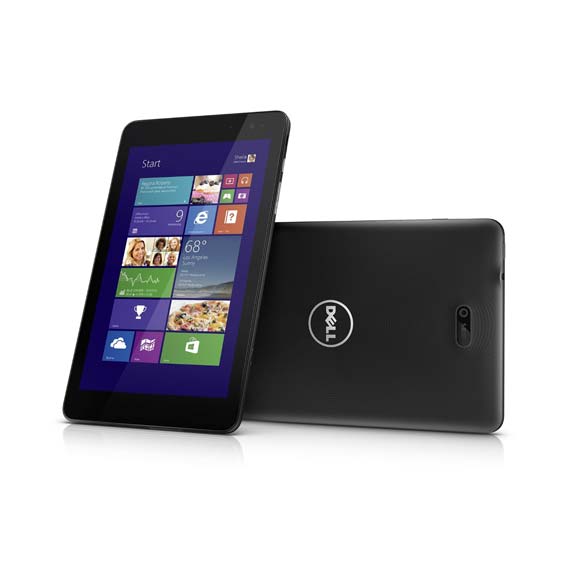
The Venue 8 Pro is a Windows 8.1 tablet.  It offers both touch and pen input.
Just to be clear, what we are reviewing is the 5830, part of the 5000 line. The “newer” Venue 8 Pro, the 3000, doesn’t offer a digitizer (so has no pressure sensitivity). Nor does the plain old non-Pro Venue 8, which is an Android tablet. Some sites are selling the 3000 line but not making it clear that that one lacks the digitizer. Some also sell the 5830 without making it clear that it HAS the digitizer. If it says the 5000 line, it’s OK even if it doesn’t specify it’s a 5830. If you’re unsure which Venue tablet you’re seeing, check with the seller.

There is a 32GB and 64GB model, the 64GB will do you more good; Windows alone takes up substantial RAM.


For Lefties

It’s fine for left-handers, though the Windows button is on the top right edge.

Features

Intel Bay trail Atom Z3740D processor (quad core)
2GB memory
64 GB hard drive (there’s also a 32GB model)
32-bit
8″ HD display 8.0 (WXGA 1280 x 800)
Used with Dell Active Stylus (optional; not included)
Multitouch touchscreen with 10-pt capacitive touch,
Two cameras (5 MP rear-facing, 1.2 MP front)
Can take MicroSD, SDHC and SDXC memory cards of up to 128GB
includes MS Office Home and Student edition
Micro USB port (just one)
8.50 x 5.12 x 0.35 inches
weight 13.9 oz. (395 g), thickness about 3/8″ (9mm)
Windows 8.1 (32 bit, as is normal for this size tablet)
Bluetooth 4.0
Palm rejection
Color: Black

Supports Miracast wireless tech, which lets you stream to TV even if you don’t have local wifi. does not have HDMI, you’d have to buy an HDMI adapter (or see the cool Plugable dock below, under Optional Accessories) if you want to beam images from tablet to TV.

Does not come with GPS. You would have to use a GPS app; there are free ones.

Since the stylus is optional and not included, there’s no silo for it in the tablet.

The Windows button is on the top right edge instead of on the front, so that’s something unusual that takes some getting used to; it’s not a bad thing, because the button isn’t in the way of anything you’re doing.. The back has a ridged texture, and feels rubberized and not that rigid, making the tablet easy to grip. The texture also keeps fingerprints away. The bezel doesn’t cover much of the screen. The tablet has a pleasing design and for the price, the materials and build are of high quality.

Intel Bay Trail Atom processors are much faster than the older Atoms, and for ordinary use, the 8 Pro runs without hiccups. You can use programs like  Photoshop and Manga Studio 5, but some CPU-havey effects and filters may lag. We recommend the 64GB model over the 32GB; Windows alone takes up substantial RAM.

Here’s info from Wikipedia on Atom processors.

Portability

At 13.9 oz and slightly under 3/8″ thick, it’s compact, thin, and easy to tote.

What’s Included

The tablet, micro USB cord, wall charger, quickstart guide, registration/warranty info. Stylus not included.


Screen

The 1280×800 resolution with a pixel density of 200ppi is decent for a screen this size, though it’s not the highest. (Compare it to the iPad retina at 264ppi, though 240 could also qualify as Retina; the original iPad and  iPad2 had a ppi of only 132). The Venue 8 Pro’s IPS screen offers good viewing angles. The colors are bright in the Dell, and at this screen size, the display is fine for reading, drawing, and video.

The previous issue of the light sensor defaulting to too dim a setting has been fixed via a firmware update. allows you to tap, slide, swipe, pinch

The palm rejection works well; the screen senses when you are holding the pen.

The on-screen keyboard has frustrated some users, as it will sometimes be oversensitive and do things like type extra characters.


Dell Active Stylus

 dell active stylus a03

Dell Active Stylus A03: ta-daa!

At 0.4 in. thick x 5.7 in, this is thicker than the average wood pencil, so is really is more of a pen than a stylus, but Dell calls it a stylus. I’ll call it a stylus pen. It has a fine, 1mm tip and two buttons that you can use to erase, click, and highlight.

The digitizer uses Synaptics technology, which is closer to N-trig than to Wacom, and like N-trig, there are 256 levels of pressure sensitivity.  Dell active stylii are metal and take a single AAAA battery, which should last about a year with regular usage.

The stylus pen is not included with the tablet, and there is no set place on or in the tablet to store it. You could try getting creative with Velcro.

The Dell Active Stylus has quite a saga. The first two versions had issues with ghosting and leaving trails and were met with many complaints. Though firmware updates fixed some problems in the second pen, problems remained. The latest pen is a huge improvement. This new pen, the AO3, is silver and gray; the previous two were all-black. Odd as it may sound, the new stylus uses Wacom technology, and works with the Venue Pro 8, the Venue Pro 10, and the Venue Pro 11.

The Dell part no. for the A03  is 750-AAGN.

You will not be able to use other Wacom pens, or the N-trig pen, with the Venue Pro line; only the Dell Active Stylus. You can, however, use a capacitive stylus (like an iPad stylus) or even finger paint on the Venues.

The Dell Active Stylus pen works with the Venue 8 Pro (5830, the one we’re reviewing here), the Venue 11 Pro (5130, 7130, 7139, 7140),  and Latitude 2-in-1 7000 Series (7350). It will not work with other tablets regardless of model or brand.

With the benefit of the improved Active Stylus, this Dell Venue 8 Pro review has become more
positive than it would have been otherwise. It did take Dell a while, but it’s commendable that they listened to customer feedback about both the stylus and the auto-brightness and did something about it. The stylus pen is now responsive and accurate, and makes the Venue 8 into a good drawing tool. The tablet isn’t as powerful as a Surface Pro or using a Cintiq with a computer, but it’s peppy and portable.

Battery life

Excellent; up to 10 hours.

Controls

Buttons and volume rocker are on the side. Accelerometer lets you switch from portrait to landscape.


Software

You can put any Windows 8.1-compatible software on. It comes with 2013 MS Home and Student Office.


Customer Reviews and Ratings

The Venue 8 Pro has been generally favorably received. But, some have had negative experiences, such as having the tablet fail, or problems with the charger not fitting well into the micro USB. The old stylus was a major source of problems, too. One positive Dell Venue 8 Pro review praised it as a tool for both content creation and consumption. Many praised both its design and performance.

Pros

Excellent battery life

bright screen with good viewing angles

Good handwriting recognition; will convert handwriting to text

Bluetooth

Multitasking

Fast

Nice materials and build for the price


Cons

On-screen keyboard buggy for some people

Iffy USB port and charger, with some people saying the shipped chargers did not fit into the USB socket the right way, resulting in broken pins.  Some are saying it’s a Micro A charger with a Micro B cable and others are saying it’s a Micro AB charger that takes an A or B cable. I will provide an update if I can get a definite answer. Do not try to force the charger. If you have problems, contact Dell.

Customer Service

I did several chats to confirm information, and it was a combination of pleasant (they’re very polite) and frustrating (they’re not that well informed, but no worse than at other computer companies). Customers with complex issues have reported some pretty serious problems, including language barriers, and being transferred from rep to rep for hours. Others had positive interactions. So, service is inconsistent. There is both Dell Home and Dell Small Business, and you should remember which one you purchased from, as the two arms don’t always communicate with each other. There is a lack of detailed information on the site in general. The Dell Community forum can be helpful, and Dell does answer questions there.


Newer in town: The Dell Venue Pro 10 and
Dell Venue Pro 11

Dell Venue 8 Pro vs. Dell Venue Pro 11

The Dell Venue 11 Pro 7000 is a high-end Windows tablet with a larger, 10.8″ Windows tablet with a more powerful processor, one you would find in a laptop, up to Intel Core 5. It boasts a full HD screen at 1920 x 1080p. It has an HDMI port. Dell calls it “three devices in one,” meaning a tablet, an Ultrabook, and desktop (when used with the keyboard). It’s certainly not the only device you could call a 3-in-1.

(Note: An Ultrabook is a high-end Intel-powered subnotebook. A subnotebook is a notebook that’s thinner and lighter than a laptop.)


The Dell Venue 10 Pro is aimed at the academic market and has a detachable keyboard, a multitouch, high-res screen, and an Atom processor.

All these use the Dell Active Stylus and have pressure sensitivity.

The Verdict

It’s got a lot of great qualities at an affordable price, and artists can use it as a digital sketchbook; it doesn’t take the place of a Cintiq or full-fledged tablet PC. But it’s more versatile than an Android tablet, and it’s fast. It doesn’t have an extremely high-res screen, but for this size tablet it’s not a big issue–I would not use this size for my main drawing tablet. On the downside, there are some potential bugs, as noted, with the on-screen keyboard and the USB port; not everyone will have these problems. Like the Surface Pro 3, the Venue 8 Pro has 256 levels of pressure sensitivity, not as many as Wacom tablets, but it doesn’t make an enormous difference. The build quality, speed, price, and improved stylus make this a nice little portable art tool, as long as you don’t run into the aforementioned problems.

It’s comparable in price and overall functionality to the Asus VivoTab 8 and the Toshiba Encore 2 Write. (Click the links to read our reviews.)

Optional Accessories

(Again), the newest Active Stylus.

Startech Micro USB to USB Adapter

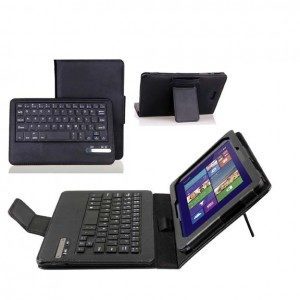
IVSO Bluetooth Keyboard Portfolio Case, made especially for the Dell Venue 8 Pro.

dell venue 8 pro review ivso keyboard cover

Also, the Fintie Stand Cover with Detachable Keyboard.

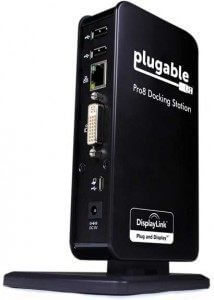
This Plugable docking station, which came to life via Kickstarter, allows you to charge your tablet and attach various USB and other devices, including HDMI. It’s about 6″ tall. Reviews are positive.

Plugablepro8

Here’s a video by Plugable:

https://youtu.be/V232eL-YV38


End of Dell Venue 8 Pro review

Asus VivoTab Note 8 Review: Wacom in a small tablet

Asus VivoTab Note 8 Review: digital drawing in a pint-sized package, with Windows

by Tablets for Artists


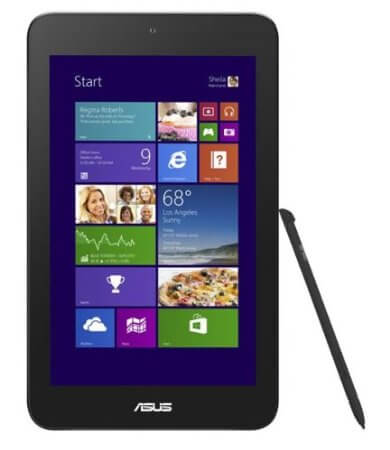
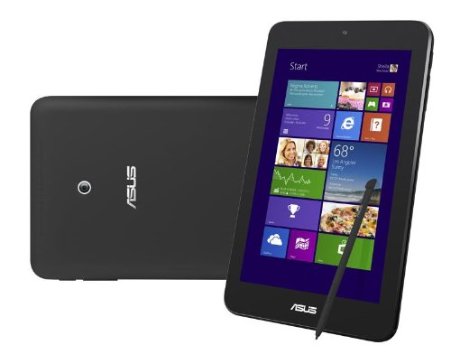
asus vivotab note 8 review

ASUS VivoTab Note 8, 64GB

 Also see our review of the Toshiba Encore Write 2 , new in 2015.

The Vivotab also  comes in a 32GB model, but most of that would be used up simply for the OS, so get the 64GB, it’s about $50 more.

This tablet is quite exciting because it has the Wacom digitizer at a much lower price point than a Cintiq or any tablet where you draw on the screen that also has full Windows, as opposed to Atom or Android. It’s comparable in size and price to the iPad mini, but iPads lack  pressure sensitivity and can only run apps, not full programs. (Also, this tablet would let you watch Flash videos without an app.)


Type of Tablet

Small, 8″ slate tablet. A Bluetooth keyboard can optionally be added.
Unlike some tablets of the same size that run Atom or Android, this one runs full Windows 8.1.


For Lefties

This would be all right for the left-handed, but you should use the stylus for commands as it could be in inconvenient to use the multitouch with conventional Windows menus being on the left. Also, the screen is small, so whether righty or lefty, the stylus is easier.


Features

Wacom active stylus with 1,024 pressure levels (included)
Pre-installed full license MS Office Home & Student included. Win 8.1 full version.
8″ IPS HD 1280×800 Display
Intel Baytrail-T Z3740 Quad-Core 1.3 GHz.
64GB solid state storage. 2GB RAM
1.2MP front camera, 5MP rear camera
Bluetooth 4.0
microUSB slot
microSDXC slot
GPS

Thickness 0.4 inch
Weight 0.8 pound
Height 8.7 in.
Width 5.2 inch
Weight 12.8 oz.


This small tablet packs quite a punch as far as features–namely, the Wacom digitizer and pen, and full Windows make this a nice choice for artists, and it’s the reason we chose to review it. The Windows start button is on the left edge, which can be hard to find. One the right side opposite it is the sleep button, so you have to remember which is which.


asus vivotab note 8 review2

Portability

At 12.8 oz., it’s easy to tote along.


What’s Included

The tablet, charger, micro-USB cable, quickstart guide and documentation, warranty, and a license for Microsoft Office Home & Student 2013 edition.


Screen

The screen is not that high-resolution. It can’t be compared to something high-res like a Cintiq 13HD, but for the price, it’s not bad. If you, for instance, make Print on Demand cards, the screen is larger than the card, and you could zoom in while drawing. You could create comics for online or print. Not all digital art needs a large monitor. The screen does attract smudges so I suggest a smudgeguard glove, screen protector. Built-in palm rejection favors the stylus, so you can hold the tablet while drawing without your hand causing anything to happen. The screen has is multitouch. It’s quick and responsive to pen and touch, and has good viewing angles. Smooth glass goes from one edge to the other with no lip or plastic border.


Stylus

The pen comes neatly tucked into the stylus, which is good news. It’s fine for drawing, and handwriting, but you might do more precise work with a larger pen.


Controls

The Windows button and power button are on the sides, which can be a bit confusing. The Windows key is on the left edge. The camera is in an unusual place, right in the vertical center on the back. There’s no video output; you’d need an adapter.


Software

Comes with One Note, Microsoft Office, and you can use any Windows programs, including Photoshop, Illustrator, etc.


Battery Life

6 to 8 hours (Amazon says 6 and Asus says 8; customers say 8-12)

Customer Ratings and Reviews

This has good reviews on Amazon, with people praising its. One Asus Vivotab Note 8 review said the battery lasted for 12 hours, and many said all day. Some said it is more useful than their Ipad (which makes sense, as it can do a lot more, though you will have to deal with things like Windows updates).

Unfortunately, there were some negative notes as well. In particular, this model has issues with the pen suddenly stopping working, and there is a very long thread about this here. So if you do buy this, it’s good to get it from Amazon because they have a 30-day return policy and make it easy to make returns, and the problem usually happens sooner. The extended warranty is a good idea too. I wish I could write an unreservedly positive Asus VivoTab Note 8 review, but because of the many customers who had issues with it, I have to say buyer beware. As it is, it’s not the most powerful tablet in its class, but it’s the only one so far that has the Wacom digitizer, so it’s an exciting development for artists on the go and for artists on a budget. If you get one with no problems, and you don’t mind the small size, this could be a joy.

Pros

Wacom digitizer and pen at much lower price than larger tablet PCs or Cintiqs

portable, light

Rubberized back can take a fall

Excellent battery life

Good handwriting recognition; will convert handwriting to text

Comes bundled with Office

Cons

No HDMI out, but can use an adapter

Some devices have been failing for some users (see Consumer Ratings and Reviews, above)

Screen smudges easily

The Verdict

If you get one without any issues, I think this tablet would be fun for an artist. Because of the small size I wouldn’t want it to be my sole art tablet, but I think this is a good starter tablet or extra tablet, especially with a Bluetooth keyboard (any Bluetooth keyboard would work, not just the detachable one) so you could use it as a small, lightweight computer for art and general productivity.

The VivoTab is comparable to the Dell Venue 8 Pro, though artists may prefer the VivoTab’s Wacom tech.

See more info, reviews and price


Optional Accessories

IVSO Bluetooth Keyboard Portfolio Case

Stylish Versa Sleeve

Here’s an illustrator doing her thing on a VivoTab Note 8:

https://youtu.be/LUamQBAvJRE


End of Asus VivoTab Note 8 review