wacommobilestudioproreview

Wacom MobileStudio Pro review: Hands-on with power slate

Wacom MobileStudio Pro Review: Slate up with a twist of awesome

We got to try out this powerful drawing tablet hands-on to write this Wacom MobileStudio Pro review. We found it’s strides ahead of the Cintiq Companion 2 and other competitors.
wacom mobilestudio pro review

This pricey all-in-one comes in two sizes, the 13 and 16, with five configurations going up to i7 with 512GB storage.

The 13 model has three configurations, from i5 to i7, with 8 to 16GB RAM and 64 to 512GB storage (the lowest I would go for storage is 128). Displays range from QHD to 4K. The 16 has a NVIDIA Quadro M600M graphics card. The others have Iris 550.

Download the MobileStudioProFactSheet 

The MobileStudio Pro is a professional-level tablet for those who want a larger tablet that’s a portable mobile workstation. The 13, at 13.3″ diagonal is larger than its closest competitors, the Vaio Z Canvas and Surface Pro 4.

The included Pro Pen 2 has 8,192 levels of pressure sensitivity. It’s the same pen that comes with the 2017 Intuos Pro, Intuos Pro Paper Edition, and Cintiq Pro.

When not drawing, you can game on the MobileStudio Pro with the NVIDIA card. You can also edit video.

The 512GB versions in both sizes come with a fingerprint scanner to log in.

wacom-mobilestudiopro-pro pen 2, pen stand, wacom keyboard

Wacom MobileStudio Pro with Pro Pen 2, pen stand, Wacom keyboard

FEATURES

Type of tablet: all-in-one slate
Runs Windows 10
Digitizer: Wacom EMR
Pro Pen 2, batteryless, two programmable buttons, eraser tip, 8,192 levels of pressure sensitivity
Tilt range 40 degrees, tilt recogniton 60 to -60
Display: QHD ((2560 x 1440) or 4K (3840 x 2160)
i5 to 17; 64 to 512 GB RAM
SSD
Intel Iris 550 to discrete NVIDIA Quardro M600M 2GB or 4GB GDDR5
Multitouch
Color: 94% of Adobe RGB
Dimensions: 16.4 x 10.3 x 0.8 inches
Weight: 4.8 lbs.
Both sizes have the 3D camera option (camera is on the back) in the 17/512GB configuration.
The 13 has six Express Keys; the  16 has eight.
Front and back cameras (5MP on front, 8MP on back)

Pen demo video showing the Pro Pen 2 in action in Sketchbook Pro and Photoshop.

What’s in the Box

MobileStudio Pro
Pro Pen 2 with 3 extra nibs (one felt tip, two standard)
Pen case
Pen holder (attaches)
Power cord
Documentation

Ports: 3 USB Type C
MiniDisplay Port (when used with optional Wacom Link)
SD slot
Headphone jack
Kensington lock port

What’s NOT in the Box

Stand
Keyboard
Wacom Link (to plug into Mac or PC and use the MSP as second screen or Cintiq)
Carrying case or sleeve
Standalone pen holder

The first three items all came with the Cintiq Companions, which were 2-in-1s.

Battery Life

Power users may get as little as 2 to 3 hours, with lighter use getting up to 6.

High screen resolution, large files, screen brightness, and resource-demanding programs all take a toll on battery life. Turning off Bluetooth and Wi-fi when you’re not using them can extend battery time.

Portability

At about 5 lbs., I wouldn’t want to carry it around all day, or keep it on my lap. Wacom doesn’t make a case, and there are not that many than the 16 can fit into comfortably. The power brick is big and adds to the weight. Still, it’s a lot easier than carrying a Cintiq plus a laptop.
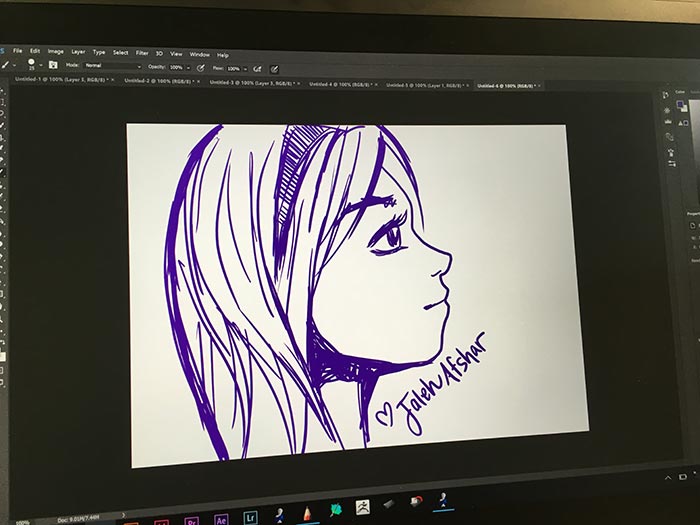
mobilestudio pro artist

Art by Jaleh Afshar

Drawing on the Wacom MobileStudio Pro

The pen glides smoothly, with the etched glass screen acting as advertised, providing a paperlike bite. It would be even more paperlike with the included felt-tip nib. Perhaps it’s a placebo effect of just knowing there are so many pressure levels, but it feels like butter.

In reality I don’t quite sense the difference, and I’ll never use all the levels because I’ll never use a brush larger than 8,192 pixels.

Some artists may actually need to adjust their pressure curve from their accustomed settings to make it more sensitive, because there are now thousands more steps.

I am still not crazy about a 16:9 aspect ratio. It would be even better if if they made it 4:3.

Using the Pro Pen 2

The grip and the way the pen balances makes it feel more like a paintbrush or ink pen. The pen has tilt from the tip.

While Wacom states there’s no lag, I experienced some in I believe it was Clip Studio Paint–I’d put the pen down, then see the mark. Wacom said that can happen to any computer, and that’s true. It was a big file.

Subsequent drawing did not have any lag. So I think Wacom can say they’ve eliminated most lag, but it’s not infallible. A little lag now and then isn’t a dealbreaker, but the rarer the better.

I’m not sure what more they can do now, except perhaps make nibs that allow side shading like the Apple Pencil. Adding a multiple of more pressure levels would be excessive.

Pen compatibility

Wacom’s site states that these previous generation Cintiq pens are compatible: the Airbrush, Art Pen, Classic Pen, Grip Pen, and Pro Pen.

MobileStudio Pro vs. Cintiq Companion 2

Times have changed. While the Cintiq Companion 2 felt great to draw on, it was plagued by loud fan noise and it wasn’t all that powerful. The pen still had a bit of parallax. The old Pro Pen supported 2,048 pressure levels.

The MobileStudio Pro’s included Pro Pen 2, which can be used on the Cintiq Pro as well, gets 8,192 levels of pressure sensitivity. There’s zero parallax, bringing it up to par with the Surface Pen in the parallax department. That’s because Wacom, like Microsoft, is now using optical bonding, bringing the surface of the glass closer to the digitizer layer, thus eliminating parallax.

The MSP’s back has convenient grips to keep us butterfingers from disaster. The Companion 2 was QHD, like some models of the MSP. The Cintiq 13HD is HD.

The fans are, sensibly, now on the side instead of the bottom, so the air blows out instead of getting trapped onto your desk or lap. Now they are quiet. The unit can get warm, but I haven’t heard complaints about excessive heat.

The build materials are premium; it’s metal, not plastic. MobileStudio Pro’s bezel is smaller than the Cintiq Companions’. It doesn’t have the inner bezel the Companions do.

Screen

The Companions’ screen protector, like on other Cintiqs, provided Wacom’s signature matte finish. The MobileStudio Pro has an etched glass surface that gives the slight resistance that emulates a pen and paperlike feel.

The glass also allows light to shine through. It’s not oversaturated like Cintiq displays. It’s also not slippery, since the etched glass gives a similar paperlike texture to the Cintiqs, without the filmy coating. The color gamut covers 94% of the Adobe RGB spectrum.

This screen does give some brownie points in this MobileStudio Pro review, for having clearer colors than Cintiqs.

Controls

The MSP sports chrome-trimmed Express Keys rather than the the utilitarian rounded rectangles of the Companions and Intuos Pros. I’m not a big fan of  the chrome trim, but it does make it easier to see the buttons. The tablet has a luxury look and feel. The color is close to black.

The functions are similar; there are six keys on the 13 and eight on the 16, and the Rocker Ring with Touch Ring. The batteryless, Wacom EMR pen still has two programmable buttons and an eraser tip with the same 8,192 levels of pressure as the pen tip.

The included pen case is cylindrical and resembles a cigar case. The pen holder clips onto the lock port. You can slide the pen in, or stand it up. It doesn’t come with a, standalone pen holder.
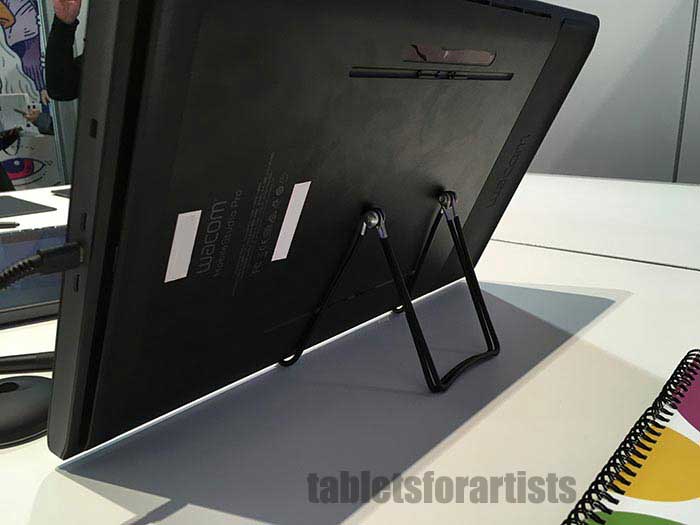
Wacom MobileStudio Pro Review

Back with grips, rear camera, 3D camera (note: this stand in this photo is not the official Wacom Stand)

Software

In all the models you can use a variety of 2D and 3D programs, such as Photoshop, Illustrator, zBrush, and Corel Painter, Paintshop Pro X9, and Mosketch, a program for 3D character animation.

The processors can run an array of 2D and 3D programs. The discrete NVIDIA M600M graphics is the same as in the Lenovo P70 mobile workstation, which has the 2GB card. The models with Intel Iris 550 are also powerful enough for 3D.

The highest model of MobileStudio Pro, available only in the 16, possesses 3D Intel Real Sense. That’s a 3D camera, aimed at industrial designers or engineers who use CAD and 3D sculptors who start with real objects. It comes with with a year’s license for Artec Studio 11 Ultimate scanning software.

Being a slate, it doesn’t have a dedicated keyboard that can be attached. You can use the Wacom Mobile Keyboard (optional purchase) or any Bluetooth or USB keyboard. There is a fingerprint sensor to log in.

Icons will look small due to the high-res display. Not every art program will get all the possible levels of pressure.

One Wacom MobileStudio Pro review remarked upon lag and other problems in Illustrator. Perhaps this is related to the Clip Studio Paint issue I experienced. Hopefully this will get ironed out as much as it can be.
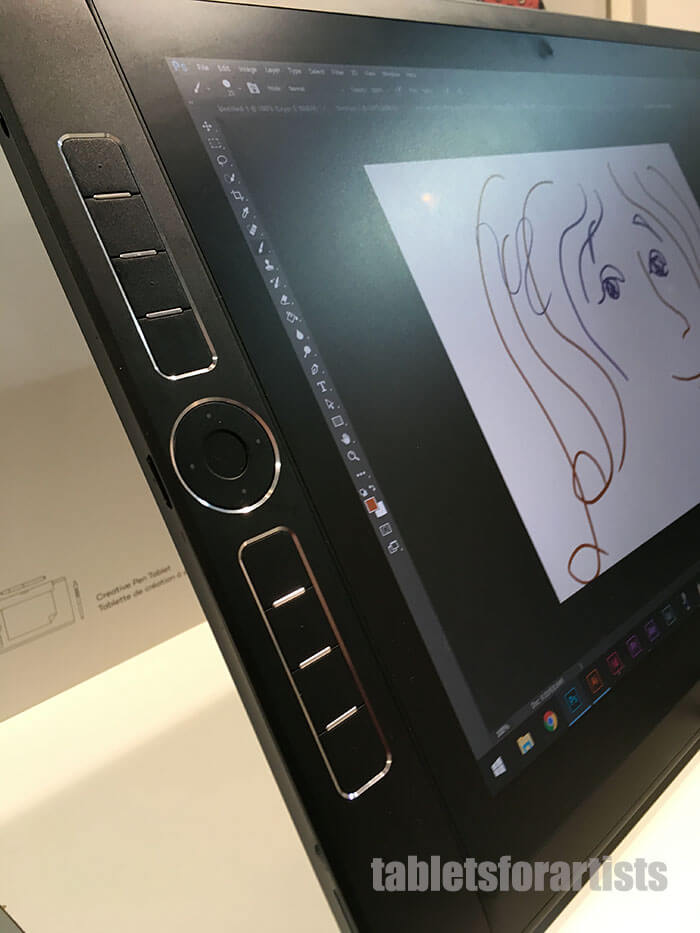
chrome express keys

The Express Keys have some bling.

User reactions

Most Wacom MobileStudio Pro reviews from artists so far are very positive, with many on Cloud 9, and some detractors. Since the tablet only just came out, users are now bringing attention to bugs for the company to look at. Lots of artists, including me, are craving one! But it’s a luxury unless you really need some of the features, or can drop the dough with no problem.

When you buy something right after release, you become sort of a de facto beta tester, even if you don’t want to be. Unfortunately, Wacom isn’t the easiest place to deal with in getting repairs or doing returns.

Wacom MobileStudio Pro review Pros & Cons

Pros

Sensitive, responsive pen
Portable
Powerful
When used with Wacom Link, can attach to Mac or Windows and use as Cintiq
NVIDIA graphics
3D camera option
two sizes
Can use pen on some other Wacom devices

Cons

Expensiiiive
Battery life not great
Some bugs and glitches such as lag or bootup issues
Type C ports means you will need dongles for peripherals, for now
Does not come with accessories

The Verdict

This is a pricey proposition. It would nice if Wacom included the accessories that came with the Companions, such as a keyboard and the Wacom Link, considering the price tag.

There are other options with the same amount of power. The MSP is not the most lappable, because 5 lbs. on your lap can add up. However, I prefer the all-in-one form to using an attached tablet monitor, since an all-in0one takes up so much less space.

The MSP 13 is a good sequel to the Cintiq 13HD if you don’t like having to attach a computer. If you want the latest Cintiq, consider the Cintiq Pro.

The MobileStudio Pro 16 is more of a commitment in price but expands your capabilities in multimedia and rendering. The 3D camera would be utterly useless for many artists, but for some it’s a great feature.

A tablet that’s a computer makes you stuck with the OS unless you’re using the Link to use it as a Cintiq past the OS’s expiration date. Having it be an all-in-one also limits its resale time and value a bit, but it should last for years with proper updates.

Having a large screen, portability, and all the Wacom art controls makes this a joy to work on; you may have to live with a few bugs and imperfections for now.

This MobileStudio Pro review  is a thumb’s up for the specs and fun of using it. In designing this sleek slate, Wacom has listened to consumers and is, so far, still winner of the art tablet game. This would be a great high-end portable art studio to have if budget allows.

end of Wacom MobileStudio Pro review

See it on Amazon
(link takes you to the store in country you’re in)

Optional Accessories

Artisul Freestyle Stand fits both sizes (if you don’t want to get the Wacom Stand)

USB C-to USB-3.0 adapter

Wacom Link and Stand

end of Wacom MobileStudio Pro review

Wacom+Intuos+Pro+Paper+Edition-2

Intuos Pro Paper Edition hits the stands: Hands on

Intuos Pro Paper Edition: Take note

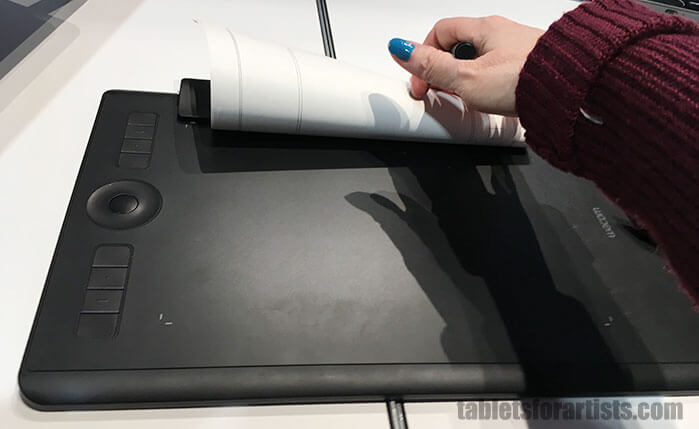
The Intuos Pro Paper Edition is here, joining the ranks of tablets that add real paper and pen to the mix. It comes in only Medium and large, and is a regular Intuos Pro except for the addition of a paper pad and fine-tipped pen.

Like the paperless model, it comes with the Wacom Pro Pen 2, which gets an eye-popping 8,192 levels of pressure sensitivity.

The regular Intuos Pro has also been updated.

Intuos Pro Paper Edition

Intuos Pro Paper and pens. Image courtesy Wacom

New Intuos Pro and Paper Edition features

The new Intuos Pro, including the Intuos Pro Paper Edition (as they’re the same tablet)  is thinner than the old version and has a smaller footprint. The pen stand is now smaller, the pen case is updated. Then nibs sit in the pen holder, which is now flatter and cookie-like.

You also get three Texture Sheets that you can use to get the look of three drawing textures.

The Paper Edition still has touch, the ExpressKeys, and Rocker Ring as controls.

It also includes the 0.4mm Finetip gel ink pen, which is also an EMR pressure-sensitive pen.

Inkscape App

Like the Bamboo Slate and Spark, the tablet comes with the Inkscape app. (Though the app is free to download, eventually it becomes subscription-based).

intuospropapereditionreview

Intuos Pro Paper with Pro Pen 2 and new, thinner pen stand

Besides the gel pen, there’s an optional ballpoint pen. Wacom says that in mid-2017, there’s going to be a pencil option. Yippie! Wonder if it will have an eraser end.

With the app, which works on mobile or desktop, your drawings get digitized and you can store or share them.

intuospropaper

You can use the Paper Clip (that thing on top) to attach your favorite drawing paper to the Intuos Pro Paper Edition. Or you can use the tablet as a regular Intuos Pro.

WIth the paid app, you get 50 GB storage instead of 5; you can convert text to notes, collaborate with others, or turn raster into vector. It costs $3.56 per month as of this writing. The basic app is free and can be used on its Web platform or as an Android and iOS mobile app.

newintuosprogelpen

Intuos Pro Paper Edition Bamboo gel pen

The Intuos Pro Paper now has this whole new functionality. While I like the ink pens, can’t wait for mid-2017 when the pencil comes out in time for summer sketching.

See it on Amazon

Read more about the top Wacom tablets.

Lenovo Yoga_Book_review

Lenovo Yoga Book review

Lenovo Yoga Book Review: Windows and Android

lenovoyogabookreview

A while back, I wrote a fairly detailed Lenovo Yoga Book article when the product was announced, including specs. So here I’ll focus on my experience with it.  I have to say that it was as expected, and in some ways better–it’s a cool and very portable device that delivers in the art area. It comes in both WIndows and Android versions.

lenovo-yoga-book

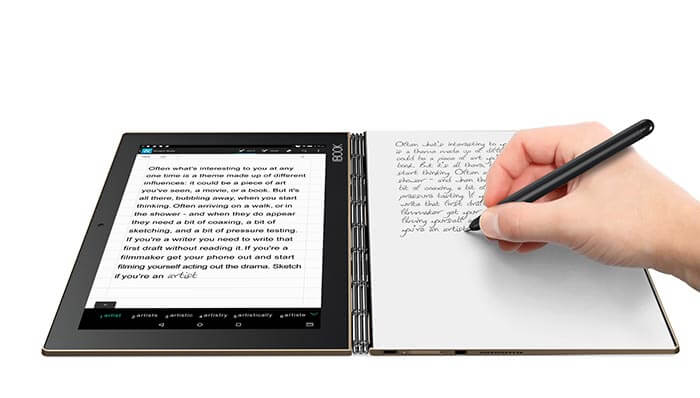
Lenovo Yoga Book and Real Pen

See the Lenovo Yoga Book on Amazon

The Windows version comes only in black, while the Android Yoga Book’s hues are black, gray, and gold. Perhaps that’s a clue that they expect to sell more of the Android.

Specs

Wacom digitizer, 2,048 levels of pressure sensitivity
EMR pen
100 degrees of tilt sensitivity
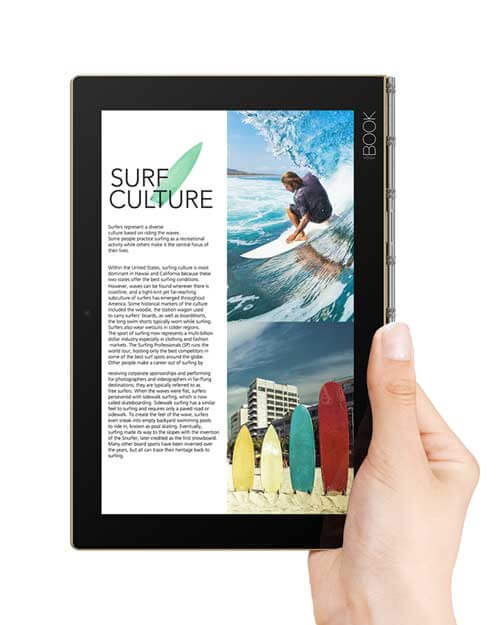
Screen: 10.1″ IPS LCD with Lenovo Anypen, multitouch,  HD1920×1200
OS: Android or Windows
Dimensions: 10.1″ × 6.72″ × 0.38″ (256.6 × 170.8 × 9.6 mm)
Build: Magnesium aluminum alloy
Processor: Atom X5, 2.4GHz
Weight: 1.52 lbs (.69 kg)
RAM: 4GB, 64GB storage, microSD can be added
Memory: LPDDR3
Dolby speakers

Comes with:

Yoga Book
Charger
micro USB cord
Documentation
Real Pen
3 ink-cartridge refills
Paper pad with 15 sheets of paper (refill pads have 75 sheets)
Book Pad (metal clipboard accessory)

On Feb. 8, 2017, he A12, a lower-specced, Android version of this was released but it does NOT have a digitizer.

Design

Needless to say, the Yoga Book is really cool-looking and the hinge is beautiful, with a bit of Steampunk sensibility. Lenovo is known for its utilitarian style. Here, the design has lightened and become whimsical.

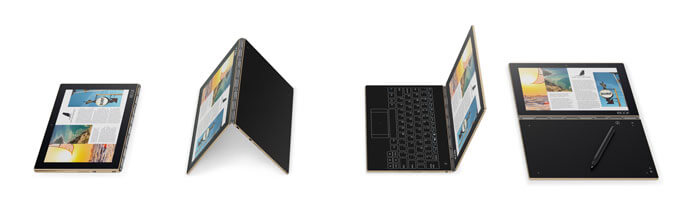
As with all Yogas, the device bends into myriad poses. The smallness of it makes posing it easier and more fun than with the large ones. The large bezel lets you hold it without touching the screen, and visually sets off the display from its surroundings.

yogabookmodes

Tent pose would be great for showing your portfolio, letting an art director finger-scroll through your work. Or you could prop it on an airplane tray table and watch a movie.

yogabooksize

Ports

There’s a micro-USB and micro-HDMI, a conventional mic-headphone jack, as well as a microSD slot for a card up to 128GB. There’s no USB-C. To use USB peripherals, you will need to provide your own adapter, such as a USB to Go. You won’t be able to simultaneously charge the computer and use a peripheral unless you use a USB hub.

While some people are wishing for more ports, they wouldn’t fit into the skinny tablet body that gives the Yoga Book such great portability.

Display

It’s a bright 400 nits. It’s just HD, but I think at a small size, that matters less than it would at a large size. It also makes the battery last longer. Lenovo reports 70% of Adobe RGB though some places are finding up to 90%. It doesn’t have professional-level color accuracy, but is fine for a digital sketchbook.

You can write or draw on the multi-touch Lenovo AnyPen touchscreen with the stylus tip of the Real Pen, or with anything conducive, from a fork to a banana, because the screen uses Lenovo AnyPen. The one thing that will not work is pure plastic. No matter what, though, you won’t get pressure sensitivity or palm rejection on the screen.

Portability

At about 1.5 lbs., it’s very light and easy to carry in a small bag. The Yoga Book feels more like carrying a paperback book or Kindle with a protective cover. To compare, a 13″ MacBook Air weighs about twice as much. I find my MacBook Air starts to feel heavy after a while so if I have to cover a lot of ground I leave it at home.

Since the Yoga Book is a clamshell, the screen is protected. This means savings, as with an open tablet like an iPad, you have to invest in serious armor or padding.

Comparatively, the large iPad Pro weighs about the same as this, and the small one less than a pound. But then you have to figure in the weight of a case, and the Apple Pencil adds about 3/4 ounce.

Light as the Yoga Book is, though, you also have the paper pad, pen, and additional nib to carry around. There’s no silo for the pen. So having a sleeve that holds everything, and closes would be a good solution.

Lenovo Real Pen

lenovo yoga book pen tips

Yoga Book Wacom EMR Real Pen with stylus tip (top) and ink pen tip

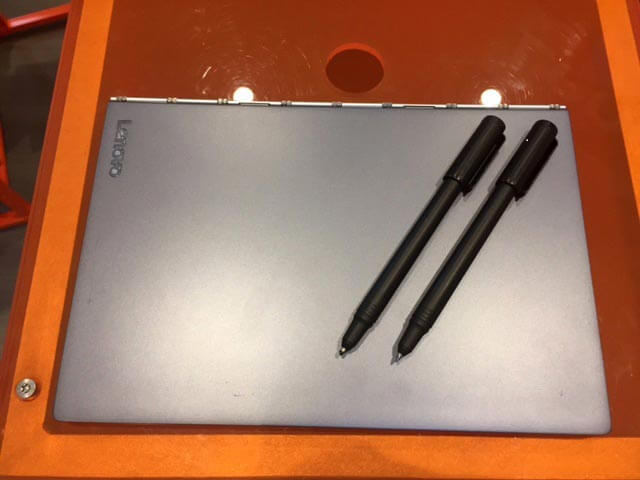
The Yoga Book Real Pen is a batterlyess, Wacom EMR pen with 2,048 levels of pressure sensitivity and 100 degrees of tilt. Lenovo tried over 200 pen designs to get one that fulfilled the Real Pen’s dual functions. While on the large side, the pen is light and comfortable to hold. There’s no eraser tip, so you’ll need to use your program’s eraser brush.

lenovo yoga book pen styluses

If you want to draw for a while on the Create Pad, then change to drawing on the screen, you switch out the nibs, from the digitizer nib to the real ink nib. To switch them out requires using a little hole in the cap to pry out one nib. It’s reminiscent of the hole in the top of the Intuos that you use to pull out nibs.

Notice the fine tip of the top pen, which is the stylus to use on the AnyPen screen. The tip is coated with conduction polyoxymethylene (POM).

yogabookrealpen

Yoga Book Real Pen interior

If you’re a frequent switcher, getting an extra pen isn’t a bad idea. If you don’t like the nib remover you can use a ring one that comes with a Wacom pen. (photo illustration by Lenovo) Or, you can use just about anything to draw on the screen.

 Drawing on the Yoga Book

Here is a super-short pen demo. You can see how the line appears with my pen strokes with no lag. This is just one layer, though. If you have a very large file, you could get some lag as the Atom processor catches up.

Yoga Book Create Pad

The Create Pad is the black drawing tablet. Pushing a button switches it to stylus mode from keyboard mode.

Drawing is where the Lenovo Yoga Book shines. The Creator Pad is very responsive, perfectly mimicking what you draw or write. The Wacom digitizer works great, offering 2,048 levels of pressure and 100 degrees of tilt. There are no hotkeys.

Create Pad with paper pad (right) and color art on the screen (left)

It would be nice if the EMR pen offered nibs other than a ballpoint, but it has to conduct electricity.

There is something nice about getting back to paper.  I found myself keeping my eyes on the paper, whereas with a graphics tablet you have to look at the screen. (Though the new Intuous Pro includes a paper option). If the paper or just the novelty of it inspires you to draw more, than that’s a good thing. You can use any normal paper. To get retro, you could use tracing paper to build up your drawing on paper.

If you didn’t bring paper, you can draw straight onto the Create Pad with no paper. TheCreate Pad is actually the surface of the drawing tablet, not the paper pad. Then you can wipe off the ink. Similarly, you could use the ink pen on the AnyPen screen then wash it off. But I don’t like washing off ink, so I stick to the paper and Real Pen tip.

The ink refills are regular ink refills. You can buy them at stationery stores or from Lenovo or other places.

yogabookkeyboard

Halo keyboard

The keyboard is cool-looking, but difficult to type on, not a whole lot better than texting or typing on an on-screen keyboard. There’s a vibration when you hit the keys. It’s not good ergonomics to type on a flat keyboard. The haptic vibration may help you reflexively not strike as hard, but I’d still be careful and use this just for emails or short items. The size of the keyboard is also challenging to type.

I asked Lenovo if they considered adding more keyboards, such as those for other languages, but they said that wasn’t a possibility right now, since the keyboard is etched in.

Battery Life

Lenovo estimates 12-15 hours, which is really long; realistically, using art apps,. 9 for Windows and 11 for Android. The device doesn’t get very hot.

Art Software

Since the processor is Atom, there’s no point in trying to run heavy-duty programs such as Photoshop or Gimp. You can use them but only in the lightest way before you run into problems.

The Yoga Book comes bundled with a trial of ArtRage Lite, a versatile art program with loads of realistic brushes and effects, even glitter and impasto. It’s a very affordable program to purchase.

Lenovo Yoga Book Windows vs. Android

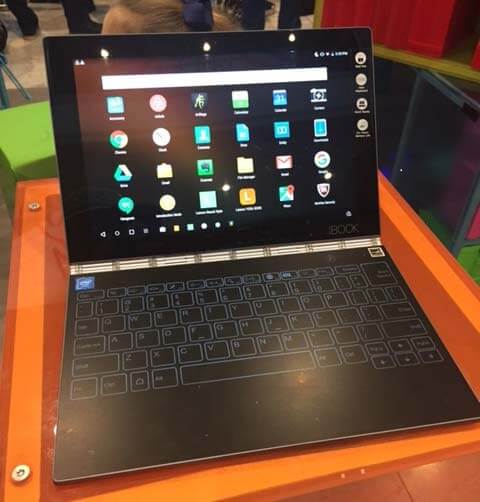
lenovo yoga book keyboard

Lenovo Yoga Book, Android version

The hardware for both are the same. The one difference you can see is that on the Android, you can’t see the touchpad as well because it isn’t outlined; there are just markings on the corners.

With the Android version you can use any app in the Google Play store, such as Procreate. With Windows, you could use ArtRage desktop, Photoshop Elements, Sketchbook Pro, Mischief, Krita, Sketchable, and other art programs that are not too resource-intensive.

Which is best? If you’re used to Windows, you might want to stick with the familiar. But the Android actually has more going for it. The Yoga Book is a tablet-first laptop. Its specs are low for a Windows machine, but high for an Android tablet.

The Android version lets you use anything in the Google Play store, including Procreate, Sketchbook Pro, Photoshop Express, and tons more. The Android apps are smaller, hence run faster. In the Android you can turn off the screen to save battery while you draw on the Create Pad, with the image still getting digitized.

In the Windows version, there is two-fingered scroll. You will also get Windows Ink and handwriting to text. And you can use Microsoft Office or Open Office. However, if writing is your main thing, I doubt this can replace a full-size laptop.

lenovo yoga book review

Converting handwriting to text on the Yoga Book.

All in all, the Android is  bit better, but there’s not a huge difference, so get whichever one you’re more comfortable with. Just realize that large Windows applications aren’t going to work well. There are Windows mobile apps (the apps formerly known as Metro) in the Windows Store, but nowhere near the amount for Android.

User Reactions

A lot of people are enjoying this tablet. Some Lenovo Yoga Book reviews say the Dolby speakers are louder in the Windows version. Some are also reporting problems with pressure sensitivity in full Photoshop and Corel Draw, but I think those are too large to run on this tablet anyway. The device seems to be sort of “comfort food” for some users.

The biggest sticking points are the trackpad and keyboard.

Pros

Lightness, portability
Multi-positions
Multi-functions
Display
Responsiveness of tablet
Touchscreen
Pen refills are affordable and easy to find

Cons

Typing is difficult
Processor and storage not very high
Create Pad limited to ballpoint pen

The Verdict

The design of the Lenovo Yoga Book is excellent, the hinge is beautiful, and it’s fun to tote around and show off. It’s a neat digital sketchbook, and nice to have a graphics tablet that’s already connected without dealing with cords.

You could get a Wacom Spark for less money if your main goal is to digitize your ink drawings as you draw.  If you want a very portable device to draw and do light typing on, the Book is a fun, versatile digital sketchbook. The main draws for me are the si

What the Yoga Book has done is combine a bunch of functions. Some call it gimmicky, others just enjoy it. I think there’s a bit of that old Apple charm going on here–though it may not give you a ton of power, it’s got a certain charisma and ease of use that’s getting it a lot of fans (and some detractors).

This functions somewhat better with Android, but go with your needs and preferences.

https://youtu.be/HFZJmV_4sbs

This artist, Arthur Walker, has created this great time-lapse video of drawing on the Yoga Book. He has even mastered touch typing.

See the Lenovo Yoga Book  (Android and Windows) on Amazon


Optional accessories include extra paper, ink refills, carrying case.


End of Lenovo Yoga Book review

astropadstudio

Astropad Studio review: iPad Pro meets Mac

Astropad Studio: iPad Pro inches toward Cintiqdom

astropad studio review

Astropad Studio for iPad Pro and Mac. Photo by Astropad


Update, July 2017: Astropad Standard and Studio both work with the new 10.5″ iPad.

Astropad has just released a new product specifically for use with the iPad Pro and Apple Pencil. It’s subscription-based, unlike Astropad Standard, which is still available. Astropad Studio is only for iPad Pro with Apple Pencil, whereas Standard is for iPad2 and up. Whereas Standard is a onetime purchase, Studio is a yearly or monthly fee, and has monthly updates.

Astropad Studio vs. Astropad Standard

Studio has “Liquid Extreme,” which offers a much faster bitrate of 60 frames per second, so less lag. It bas better image quality. Together with GPU acceleration and velocity control, there’s excellent image quality and responsiveness. You can customize program shortcuts in the supported programs, as well as customizing Magic Gestures, which are Pencil/finger combos. If you don’t want to customize, you can use the built-in ones, such as calling up the eraser tool with your finger and the control ring.

Installing both applications is simple, as is the setup. All you have to do get both the Mac and iPad Pro app–the Mac app from the Astropad site, and the iPad Pro app from the App Store.

One nice thing is that you can use the iPad Pro’s USB to connect it to the Mac, instead of Wi-fi, if you’re having Wi-fi issues like I have been lately and can’t get them on the same network.

astropadmagicgestures

Magic Gesture. Photo by Astropad

Once that’s done, you’ll see the controls have three program names–Photoshop, Illustrator, and Clip Studio Paint. These are all popular desktop programs and have a somewhat complex workflow. You can still use Procreate, Sketchbook and any apps or desktop programs you want.

astropad interface

Astropad Interface

The app allows you to customize shortcuts in these programs, which can save a lot of time.

The new improved Liquid Engine is far faster than the old one and I experienced no lag. Lag was an issue for some with Astropad Standard (which is still around).

Astropad Studio is also made to work with any keyboard, so you can use keyboard shortcuts, with one hand on the keyboard and other other on your Pencil.

Magic Gestures are fully customizable and involve that ring, your finger, and the Apple Pencil. Here I’m conjuring the Eraser Tool.

astropad gesture

Using a Magic Gesture while taking a photo of using it (awkward!)

You can move the ring around, press on or hold. Pressing and holding it only brought up the choice of full screen or 100%. But there are ways of setting the amount of screen to use. You can also move and zoom.

You might zoom in on the iPad Pro to work, then zoom out to see the result. I’m not crazy about two screens, and frankly I prefer to just draw on one. But when doing art with a lot of detail, it really helps to see it on a big screen. Seeing art on a big screen not only lets you see any errors you might have made when drawing, and focus on parts individually.

What kind of monthly updates can we expect? According to Astropad, in the works are functions such as a personalized pressure curve. Not sure we can expect such dramatic moves every month, but that’s OK. In a way I like to know what to expect from an app–but this is ready to deliver a lot even if we don’t know exactly what’s in store. (Let’s just hope they don’t keep redoing parts of the UI, a habit that gets to me with Adobe stuff.)

If you’d rather just draw on the iPad Pro alone, Astropad isn’t necessary. But if you want to see your work on a bigger screen, it does get closer to a Cintiq or other graphics tablet. Some might find it doesn’t completely replace a Cintiq, because a Cintiq has that toothy texture, and lets you customize more programs. But the release of Astropad Studio certainly brings a high level of professionalism to the Astropad workflow.

For Windows users, there’s still Duet Display.

Is it worth the extra cost to invest in Astropad Studio over Astropad Standard? The yearly fee right now is about $65, or you can pay monthly and pay a bit more. You get a monthly update with the subscription. I dislike the idea of subscription-based software, but it’s the world we live in. The monthly update assures you’ll be getting the latest features as soon as they come out.

Is Astropad Studio worth the upgrade?

I found Astropad Studio works as advertised. If you’re a frequent use of Astropad with Photoshop, Illustrator, or Clip Studio Paint, I think Studio is worth the extra investment. If you’re using other programs, you might be okay with Standard, which also allows you to use the iPad Pro. I suggest you download the free trial of Studio, or both, and decide.

end of Astropad Studio review

Dell Canvas 27: Hands-on at CES

dellcanvas27review

The new Dell Canvas 27″ tablet monitor, slated to hit the shelves at the end of April 2017, was on display at this year’s CES 2017. I was fortunate enough try it out. It’s the first large art tablet monitor made by Dell.

Dell-Canvas-and-UltraSharp

Dell Canvas 27 (bottom) and Ultra Sharp monitor (top). Photo by Dell

Dell Canvas uses Wacom EMR pen

The Canvas is a bit like a Surface Studio except that the Canvas is a tablet monitor, not a 2-in-1, so it’s more similar to the Cintiq 27″ and has the same resolution. Dell states the Canvas pen is Wacom EMR. (Dell’s recent products have used Wacom AES, and before that they used Synaptics).

EMR is the most sensitive and what Wacom uses on its own Cintiqs. This pen was thick but comfortable and had two buttons. Its girth and simple barrel shape reminded me of pens by Huion more than the skinnier, shapelier pens used by Wacom and Microsoft.

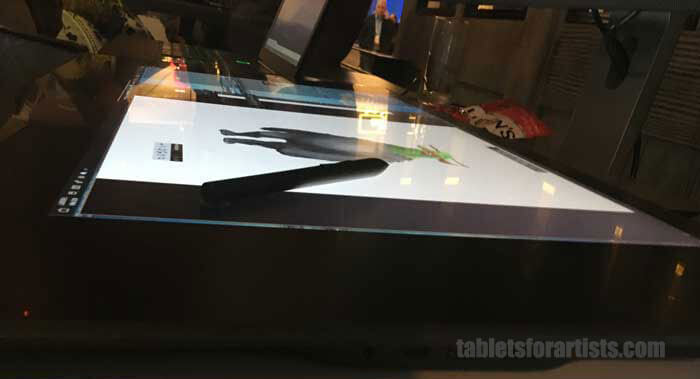
dell-canvas-side-pen-2

It only does Windows

The Canvas has to be connected to a computer, and that computer has to be running Windows. This is a big difference from any other tablet monitor, as most will work with Windows PCs or Macs out of the box. (Maybe Apple will fight back by coming out with its own tablet monitor or all-in-one with Apple Pencil!)

Dell partnered with Microsoft on the Canvas, and the Canvas will work with the Creators Update, and will run with AVID. Dell, naturally, suggests using the Canvas with the Dell Precision workstation, which is powerful enough to create VR content.

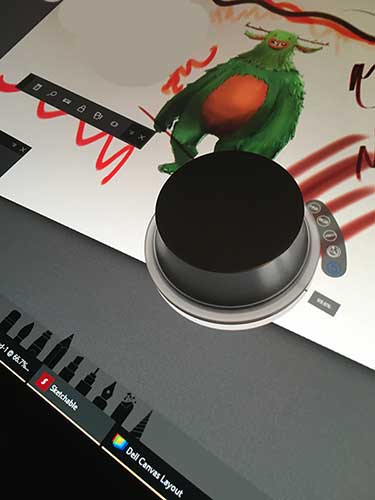
The Canvas is protected by Gorilla Glass. It has some cool functions like virtual desktops, and it comes with two kinds of “Totems” (ahem, Surface Dial clones) that you can twist and turn.

dellcanvasoverlay

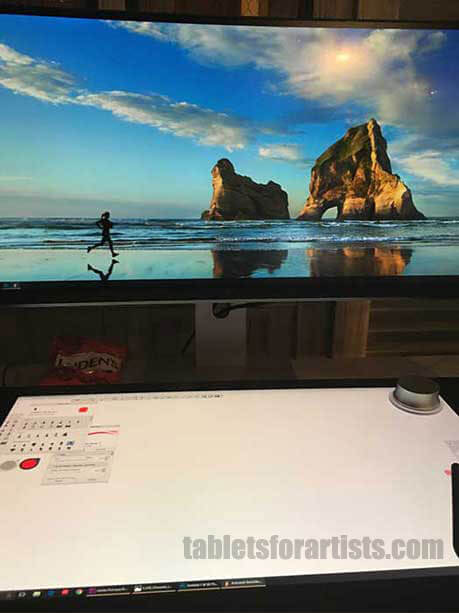
Display overlay shows open programs. Photo: tabletsforartists.com

Dell’s initial idea was the SmartDesk, where the two monitors would interact, but it’s not clear if that will come to fruition or if it will be the regular routine. In this case, there are actually three monitors–the laptop, the Canvas, and the eye-level monitor.

2.5k display resolution

The display has a 2560 x 1440 QHD resolution (111 PPI). A close competitor would be Wacom’s 27″ Cintiq, with the same resolution (2.5K). The all-in-one, 28″ Surface Studio packs 4500 x 3000 (192 PPI). So the Canvas is pretty high resolution, but it could be higher. However, the 2.5K will have an easier time working with more Windows computers than a 4K or higher would.

The Dell Canvas’ wide color gamut covers 100% of Adobe RGB, which is a welcome feature for pros who print their own work.

Palm rejection worked well. The stand is adjustable, and I like that it can lie flat as a desk, something the Surface Studio’s hinge does not allow.

As you can see, the pen is accurate with no jitter. It also had no detectable tilt sensitivity (which could change) or perhaps there were tilt settings I needed to adjust.

Two Totems for the Dell Canvas 27

To me, two Totems plus the pen and multiple monitors is a lot to think about and the idea of the 20-point multitouch, which can accommodate an extra person or two, starts to seem a bit left-brained. Right now there are not a whole lot of apps for the Totem and Surface Dial, but these are in their early stages.

dellcanvastotemdellcanvastotem√

Totem with contextual menu. The Canvas comes with two kinds of Totems. Photo: tabletsforartists.com

The whole thing is very BUSY pus there are lots and lots of on-screen menus. It’s not exactly Zen, but it offers a lot of options. Right now the levels of pressure sensitivity are not clear, nor are other specs.

For now, my hands-on experience with the Dell Canvas 27 leaves me feeling like it’s not a huge leg up over other 27″ tablet monitors as far as hardware.

The jury’s out on the software, as that’s such a big part of this, and it is impressive. But what are the specific benefits? Do all the accessories and tools make the designer’s workload easier, or is this an exercise in deconstructing and fragmenting workflow?

For most users who draw, having the top monitor is not needed. It looks cool, and there are good reasons to use it, but the Canvas doesn’t need it. For multimedia design, or if you want to make sure colors match, or you want to see your work higher-res, it makes sense. But it’s part of the packaging of the Canvas.

The Verdict–for now

Because at the time of this writing, the product has not yet come out, this Dell Canvas review is focused on testing the pen, examining the screen, speed of the computer, and more. For now, I’m not sold on the Totem/Dial, though that could change, and no one’s forcing me to use it. Microsoft’s Surface Dial is an optional purchase, unlike the two Totems, suggesting that Dell feels they’re integral to the software.

dell-canvas-smartdesk-3

The display is certainly pleasing and I like the idea of the eye-level monitor, though that’s an individual choice. For drawing, I would probably just prop up the Canvas to 20 degrees and use that.

Dell released a lot of innovative and award-getting products at CES, including a super-thin 8k monitor and the Dell XPS 13 2-in-1, which uses Wacom AES.  Dell has put out numerous tablets, but somehow you didn’t hear about them all that much–most of them have been small portables, such as the Venue series. They had a rocky journey with three versions of a Synaptics pen before switching over to AES.

The pen and digitizer information on their site seems to confuse people, as I can tell from the questions I’ve gotten, but this is de rigueur with large companies who didn’t focus on pen tablets. Now, Dell has stepped into the limelight with this large art gizmo.

Now Dell is working with Microsoft and incorporating Wacom, aiming to get in more seriously on the art action. I particularly like the software, such as the overlay, and look forward to seeing the finished product.