Author Archives: Vicky

About Vicky

I'm an author and illustrator who has used drawing tablets since the early days. I love how flexible and forgiving they make everything. I'm also fascinated by the technology. I started this site to bring knowledge to everyone. I want this to be the only place you need to go to learn about drawing tablets.

Artisul D13 review: quality pen-display tablet lets you unplug

the Artisul D13 review: high-quality 13″ pen tablet lets you unplug
artisul d13 review

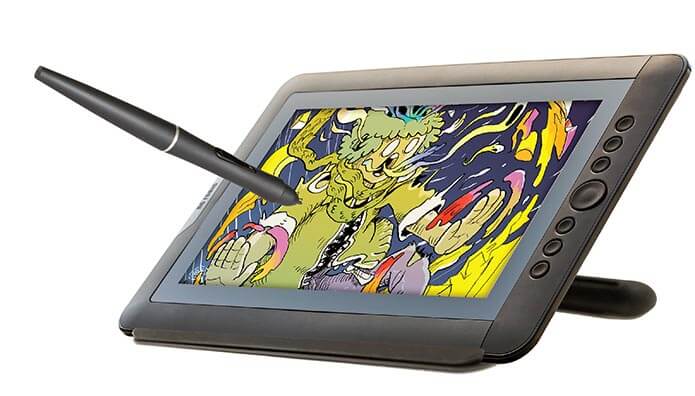
The Artisul D13 with U-Pen

Artisul is part of UC-Logic, a Taiwanese company that has been making digitizer tech since the 1990s. The company kindly lent me a unit for this Artisul D13 review. The Artisul line, which includes the Artisul D10 (which has very similar specs to the D13 but is smaller) and Artisul Pencil Sketchpad, is the first tablets the company has produced. Its Web site describes the tablets as the culmination of a dream.

The D13 is a tablet monitor you might consider if you are looking for something more affordable than a Cintiq 13HD.

The tablets are designed in San Francisco and created in Taiwan. The name comes from Art and Soul. Will this drawing tablet find a place in your heart?

Type of tablet

Tablet monitor/pen display tablet (draw on screen)

Digitizer

UC-Logic
Electromagnetic resonance (EMR)
2,048 levels of pressure sensitivity

Dimensions

13.3″ diagonal screen

What’s in the Box?

Tablet
Pen (called U-pen)
Pen case with 9 extra nibs and nib remover
Stand for pen
HDMI cable (HDMI on one side, mini HDMI on other)
USB cable (USB on one side, micro USB on other)
Y-type cable
Power adapter, plugs for U.S./Asia, Europe, Australia

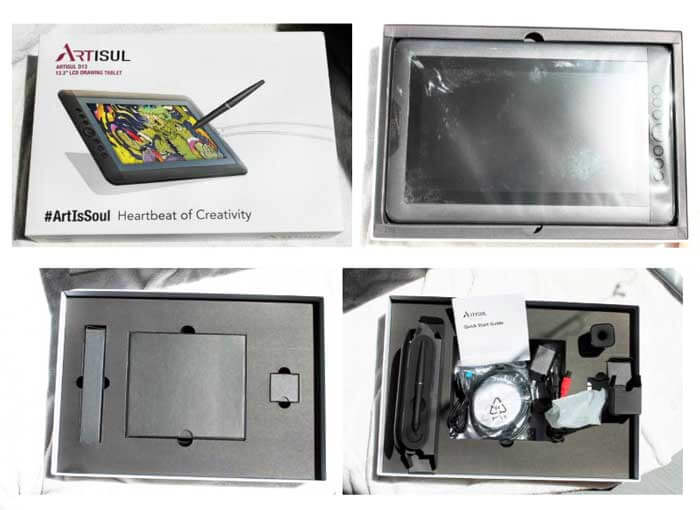
Opening the box, you can’t help but being wowed by the presentation. The cables and small items come in individual, black, quality cardboard boxes in a sturdy, sleeved box with a foam-lined lid. The tablet is sleek and solidly built, and the slim, gold-trimmed pen looks would look good in one of those fancy pencil cups executives keep on their desks. The D13’s packaging pretty much screams “gift me!”
artisul d13 review

Unboxing the D13. There’s an outer sleeve with a box inside.

Features

Works with: Win 7/8/8.1/10, Mac OS 10.8 or later
Aspect Ratio:16:9
Active Area: 11.5″ x 6.5″
Weight: 2.42 lbs. (1.1kg)
Dimensions: 12.8″ (L) x 7.6″ (W) x 0.7″ (H) (in mm: 389.0 x 250.7 x 14)
Screen: LCD, 13.3″ FHD 1920 x 1080 IPS
Wide Viewing Angle: 178° (89°/89°) H, (89°/89°)
Brightness: 300 nits
Resolution 5080 LPI
Reading speed 200 PPS
Powered by: USB 3.0, HDMI input
6 assignable hotkeys and Quickdial scroll wheel on tablet
2 pen buttons

The build quality is excellent, with a solid plastic body. I only had a it a month, but the ports seem durable and the cables fit well. The thin, relaxed cables actually put less stress on the connectors.

Unusual Features of the Artisul D13

One really cool thing is that you can power the Artisul off your computer’s battery alone. This will work with a single USB 3.0 port, or two 2.0 ports. This ability to unplug  is a major advantage for those who want to work in places out of reach of a wall outlet. You also have the option of plugging the tablet into an outlet.

This ability isn’t unique (a small Yiynova also offers this feature, as mentioned in this New York Times article about trying out a Cintiq and a rival), but it’s not common.

Another unusual feature is that in Windows, the Artisul will work and get pressure sensitivity just from the pen and digitizer alone, without even installing the driver. Without the driver, you won’t be able to customize the hotkeys and other settings, of course, but let’s say you just got the tablet and have no Internet connection–you can still use it. On Mac, you will need the driver to use the tablet.

Portability

At 2.42 lbs., it’s quite portable–of course, you will also need to have a computer. The lightweight power cords and option to power from the computer alone adds to the Artisul’s portability.

For lefties

The tablet can be turned so that the hotkeys are on the left side, making it suitable for southpaws.

Setting up the Artisul D13

Documentation

The documentation is well-designed, but it could be more thorough. Some of the cables may not be familiar to everyone; the detailed diagram in the manual is hard to see clearly; and the instructions take you through, but don’t always explain what to expect. For instance, I thought the installer would show up on the desktop, but had to click on it from inside the folder instead.

There are ample instructions about working with different graphics cards, and some troubleshooting tips.

Cables

There are several cables you’ll need to use, including a splitter. Though it’s a lot, there’s no large power brick. To avoid having so many cables, you may choose to work more often using your computer power.

If your computer lacks an HDMI port, you will need to supply an adapter; that doesn’t come with it. (You can ignore the note in the Artisul manual about only using Artisul cables as far as HDMI adapters). You can find them on Amazon for various connections.

Artisul drivers

Installing the drivers is easy, though if you’re new to it, setting them up may be a little tricky. Like Cintiq drivers, the Artisul drivers offer lots of customization options. Once set up correctly, they perform well and and are free of the unpredictability that plagues some drivers in budget tablets.

More description on the download page of which driver to choose would be helpful–for instance, the word “beta” might scare some people off, but the beta drivers have been deemed ready to use. Capabilities varied a bit on different programs and different operating systems. The company continuously works on the drivers.

Be sure to uninstall all other tablet drivers you’ve previously installed before installing the D13 drivers.

You can use a mouse and pen, but you cannot use both at the same time. You can map the D13 to multiple monitors.

There are some preset hotkeys (the co. calls them FastAccessKeys) for Photoshop, CorelPaint, Clip Studio Paint (Manga Studio), and some basic defaults.

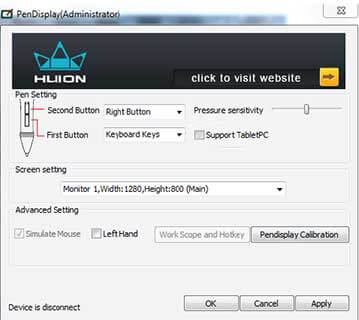
Though the drivers look like Huion’s, such as the little icon of a tablet and pen, UC Logic and Huion are not related. In fact, Artisul says UC Logic launched a lawsuit against Huion.

U-Pen

The batteryless, cordless fine-point U-pen weighs just 11 grams. It looks very much like a ballpoint pen. It would give more balance and drawing oomph if it weighed more, but I prefer light to too heavy, and didn’t feel that the lightness affected my drawing. Your hand won’t get tired holding this pen for hours. If you’re a fan of heavy pens, this one may feel too light.

It comes with 9 nibs nested neatly into the pen case. The nibs are hard, and they’re all the same; they don’t have different tips or pen choices.

This Artisul tablet is aimed at the educational market as well as consumer, and I think the pen, being light and suitable for small or larger hands, is ideal for kids middle-school age and up for note-taking and art. It’s used in classrooms for creative learning, writing, and calligraphy, and the company offers a student discount for educators and students in the U.S., Mexico, and Canada.

Screen

The screen comes with a removeable, replaceable anti-glare matte screen protector that cuts glare and allows the brightness of the display to shine through. It gets fingerprinty, but cleans up well. As with other tablet monitors, you can wear an artist’s glove to keep the screen clean and keep moisture from your hands from sticking.

Neither the D13 nor the 13HD are super sharp, both being HD, but the display looks good. The screen gets a bit fingerprinty, but cleans up well. You can wear an artist’s glove to not only keep the screen clean, but to keep moisture on your skin from causing stickiness.

The screen protector has slight texture that’s pen-and-paperlike and not slippery or glossy.  It lacks the rougher “bite” of Wacom’s offering, but has some tooth. The D13’s surface provides enough traction for a pleasant drawing experience. There are color calibration settings. Colors are bright, with a 75% percent Adobe RGB coverage, same as Cintiq 13HD. Bottom line, the screen is nice.

Drawing on the D13

The drawing experience is excellent. I got no lag when drawing and almost no parallax (the slight gap between pen tip and screen) either; the line was right under the tip; I did not have to keep an eye on the cursor to see where my line would appear.

The D13’s pressure curve is smooth. The pen makes a bit of tapping noise, but no squeaking, as can happen with glossier screens.

cintiq alternative reviews

Drawing with the U-Pen

Drawing on the Artisul easily matches drawing on a Cintiq. The Artisul uses EMR tech, as does Wacom, each using their own technology. EMR offers the most sensitive digitizer outside that of Apple’s iPad Pro. You don’t have to press hard at all to make a mark with the Artisul pen.

I don’t have a number for the initial activation force, but I noticed dragging the tip lightly across the screen made marks, also some skips due to my not being able to precisely control the pressure. The pen is lighter than the Wacom pen and feels about as sensitive.

Palm rejection worked well, with a comfortable hover distance.

Art Programs

Will work with most software, including Photoshop, Sketchbook, Maya, Corel, Clip Paint, Photoshop, After Effects, Anime Studio Pro, Toon Boom, and Affinity Designer. Works with Illustrator, but without pressure sensitivity at this time (this may change). I tried it with Photoshop, Sketchbook, Gimp, and Illustrator. Photoshop and Sketchbook worked great. The manual has instructions about working with Paint Tool SAI.

I told the company about some issues I had with Gimp with one of the drivers and they quickly identified the problem and said they’d fixed it (that was after I returned the tablet). Later they said they had a new Windows driver that fixed that issue plus some others.

Controls

The six hotkeys are on the tablet and are round and a good size. They’re a little bit stiff to click on. You can program the hotkeys to presets, or customize your own commands.

You can also assign them to different programs–the programs don’t automatically show up in the driver as with Wacom; on the Artisul, you program the buttons, then save them, and on the next screen assign them to the applications of your choice. There’s also a scroll wheel. The two pen buttons are programmable to an extent.

The stand goes from 13 to 70 degrees, which is a lot more flexible than the Cintiq stand’s three positions. Easel mode is good for working on and gallery mode for admiring your work.

Artisul Freestyle Stand

artisulstand

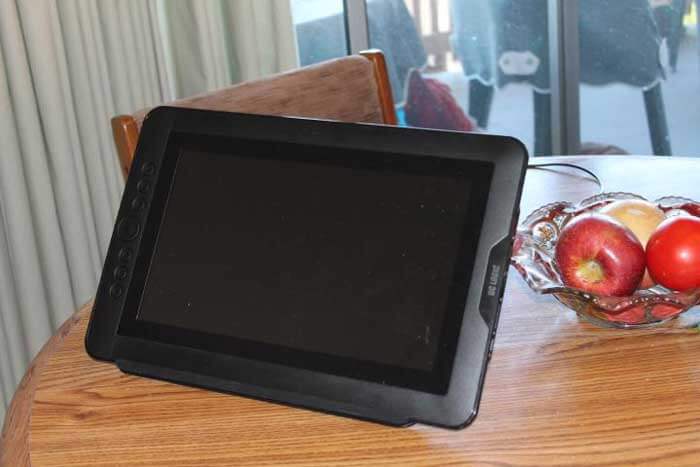
The Artisul Freestyle stand is made of is fully adjustable to any angle between 13 and 70. You can use it when drawing in “easel” mode or upright in “gallery” mode. (20 degrees is an advisable angle to draw on for good ergonomics).
artisul stand gallery mode

Artisul Freestyle stand in gallery mode

Artisul D13 vs. Cintiq 13HD

The Wacom Cintiq 13HD and Artisul D13 have a lot in common, and some differences.

Win for Artisul: Artisul is more portable because it doesn’t always be plugged into a wall outlet. The display is 50 nits brighter. There are six hotkeys embedded into the tablet body, as opposed to just four with the 13HD. The screen protector is removeable and replaceable. The Artisul Freestyle stand adjusts to any angle between 13 and 70, as compared to the Cintiq’s 3-position stand.

The response rate of the monitor is 19ms to the Cintiq’s is 25 ms (milliseconds)–lower is better. 

Win for Cintiq: You’ll get tilt sensitivity, rotation sensitivity with an optional pens, and pressure sensitivity in Illustrator. The two pen buttons have more customization options. Also, the Wacom pen has an eraser end, which like the tip has 2,048 levels of pressure.

Cintiq has various kinds of pens and nibs as an optional purchase. Its screen has more “bite,” though Artisul’s has enough.  Cintiq comes with some freebie software and Artisul doesn’t. The Cintiq’s cords are simpler.

The Artisul’s design and build are just as good, I think, and its ports seem durable. Many of the Artisul specs are identical to the Cintiq’s, including screen resolution, resolution in lines per inch (5080), and amount of colors displayed (16.9 million).

Customer support

Artisul was extremely helpful in answering my questions both about products and technical aspects. You can contact them or post on their forum. They will set up a remote screen-sharing session if needed. They are a small and dedicated company and open to feedback.

User reviews and reactions

User reviews have been positive. Reading the Artisul forums and some other comments, some people are having some issues with things like offset, but this should be fixable by adjusting the driver. Though some people have had some glitches, overall, this tablet has been well-received.

Pros

Pressure curve
Quality build
Stylish
Pleasant drawing surface
Comfortable pen width
Lightweight, portable
Reversible for lefties
Drivers work well
Battery-free, cordless pen
Can work without being plugged in to wall
Can work without driver in Windows

Cons

Can be a little tricky to set up, depending on your skills
Documentation could be more detailed
Drivers have some differing features, so it can be hard to know which to choose
Nibs all the same (for now)

Artisul D13 review: the Verdict

This is not a budget tablet, but a high-quality one that offers value. It has its own character and some unique and convenient features, particularly that you can run it from your computer’s battery, adding to the tablet’s portability.

The Artisul is a durable and well-made tablet with great drawing capability for tablet users whether students or pros. It’s one of the better, probably the nicest in quality, of the Wacom competitors.

artisul d13 pen

Artisul U-Pen with nibs and carrying case


See the Artisul D13 on Amazon – includes pen and stand

Mini Display Port to HDMI Adapter on Amazon

Extra screen protectors, pens and nibs, cables, and stands are all available on the Artisul site.
end of Artisul D13 review
tablet pro app review

Conquer your workflow with Tablet Pro Windows app

tablet pro app review

Tablet Pro app lets you ditch the keyboard and mouse

Tablet Pro, an app accessible from the Windows Store, offers on-screen touch controls that can make you work more efficiently, potentially trimming hours from your workflow. We don’t hear a whole lot about Windows apps, and some tablet PC users may have never even visited the Windows Store. But now there’s a good reason to.

The app allows you to ditch your mouse and keyboard and work on the couch or anyplace, because all the controls are moved to the screen. You can program dozens of keyboard shortcuts, use gestures and a digital trackpad, zoom way into any part of the desktop, and use pen and touch simultaneously. More info and videos can be found on the company’s Web site.

Developed by Takashi Yamamoto and Justice Frangipane, the app was once called Tablet PC Mouse.  Its features have expanded to make it a must-use for serious digital artists who want to get control over the Windows touchscreen.

Installing Tablet Pro from the Windows Store

The app works on any device running Windows 10 or 8.1 with multitouch–it will work on pen-only touchscreen computers, but you won’t be able to use gestures.

There are two stages to installation–first the app, then the desktop program. Both are free and provide the touchscreen trackpad with basic gestures. There are also several optional paid features. You get an automatic 14-day free trial of the whole package upon downloading the desktop program. If you continue, you can purchase the package or buy them a la carte.

The Artist Pad is the feature that would be of most interest for readers. Here’ s a quick look.

https://www.youtube.com/watch?v=WiXgpXRhlv4

Artist Pad on-screen menu

I highly recommend that you sign up for the free “14-day challenge” email series where Justice walks you through each step via video.

Tablet PC headaches solved

If you use a tablet PC, you’ve probably experienced the conundrum–a tablet ought to offer mobility, but you end up having to use a keyboard to access shortcuts, as well as a mouse and trackpad to move the cursor.

With a convertible tablet PC, you may end up using an extra keyboard because your computer’s keyboard becomes inaccessible in tablet mode, or, you may be using a clamshell laptop and leaning over the keyboard in order to reach the screen–you may even be working “upside-down” to avoid reaching your arm over the keyboard to access the screen. Or you may use a detached tablet on the couch or on a plane, with the keyboard awkwardly next to you on your lap. No more acrobatics are needed–Tablet Pro solves these headaches.

There is precedent for improving productivity via on-screen controls– the Vaio  Z Canvas has a shortcut menu, and there’s Radial Menu, which expands on Wacom’s radial menu. (See all these methods in this post about best tablet computer hacks), but Tablet Pro goes much farther, giving you dozens of shortcuts and layout options.

The main timesaver is reducing the amount your hand has to travel to access tools. All those little seconds add up.

https://www.youtube.com/watch?v=1G440tdvbCs

Krita demo using the app

Seeing is speeding

One common annoyance is that Adobe icons scale to such a small size. You will be be able to see them larger when using the app. And because you can increase the size of buttons, “fat finger syndrome” is abolished.

You can also use touch to adjust volume and brightness, and swipe between desktop and your projects, and swipe through slideshows. I especially like the ability to zoom in not just in art programs, but to anything. It’s like having a skin over Windows 10 that makes it do just what you want.

With a Cintiq, the hotkeys, buttons in the tablet body that let you program keyboard shortcuts, rank highly for the way they increase productivity. Now you can have shortcuts on any tablet PC using any digitizer, such as the Surface Pro, which uses N-trig.

The Four Parts of Tablet Pro

The four paid desktop features are Artist pad, Zoom Desktop, Virtual Mouse and Gesture, and Game Pad. I would suggest Artist Pad as a minimum, but I also really like Virtual Mouse and Gesture and Zoom Desktop. It’s helpful to be able to zoom in on anything on your desktop. It’s cheaper to install the whole shebang than just do three features without Game Pad. (And you could use Game Pad to program shortcuts as well.)

Artist Pad preset panel with Photoshop

This screenshot shows you one of the presets for the Artist Pad. You can see that the pad can be transparent , and you can also bring up on-screen keypad and make that transparent.

tabletproreview

Because the app does so much, there is some complexity in setting it up, especially the more advanced features. The primary users of those will be animators and artists with a complex workflow. Following the 14-day challenge will increase your understanding of its many features, and if you’re a quick study, there’s an option to go through the videos faster than the 14 days.

Not all artists need keyboard shortcuts; even if they’re not for you, the app is useful for different work styles and even for non-art use. A lot of businesses work on tablets now, and Tablet Pro is currently being used by thousands in hospitals, casinos, by U.S. government land/property assessors, special-effects studios, professional artists and designers, and more. With 2-in-1s becoming the norm among the public, it makes sense to have on-screen controls that go beyond just the built-in on-screen keyboard.

Tablet Pro lets you customize the Windows interface, lose the mouse and keyboard, and enjoy Cintiq-like hotkey functions. It may be just what you’ve been waiting for.

Here it is in the Windows Store.

Astropad 2.0 faster now: use iPad Pro as Cintiq

For those anxiously awaiting, today’s the day the new Astropad 2.0 is being released. Some improvements:

The Liquid engine, developed by Astropad, is now 3x faster and the company has managed to lower the pixelation by a while lot. The polling rate is much faster to correct issues with latency and improve images. It’s also now using way less memory so you can work longer and not run down your power so quickly. The pressure curve has been improved. Gestures are now available on more programs., including ArtRage, Clip Studio Paint, Mischief, Affinity Designer and Photo, Lightroom, and Sketcbook. You can now auto-hide the cursor. And, the UI has been given an overhaul.

Astropad turns your iPad or iPad Pro into a Cintiq-like input device and allows you to use any programs that are on your Mac. It’s available at the iTunes store. For OSX only.


greattimeillustrator

15 reasons it’s a great time to be an ILLUSTRATOR

15 reasons it’s a great time to be an ILLUSTRATOR

greattimeillustrator

1: Tablets! I think we can agree that tablets have revolutionized illustration, allowing creative freedom, portability, and ease of delivering files.

2: Web sites It used to cost a lot of time and money to build one, but now there are lots of free and low-cost options, from sites, to blogs. For example: WordPress, Weebly, Wix, Squarespace.

3: Social media it’s easier than ever to get the word out, and be part of a community.

4: Print on demand there are now lots of places to upload and sell your work printed onto goods or in digital form, such as Society6, Zazzle, Greeting Card Universe, Kindle, and more.  You can sell and publish your own print and e-books.

5: Crafts sites You can sell your original art, crafts, and other handmade goods via Etsy and more, or locate art and crafts fairs to participate in in every place under the sun.

6: Conferences Conferences abound, including ICON, ComicCon, SCBWI, conventions, trade shows, and more, where you can network face to face with clients and fellow illustrators.

7: Art supplies You used to have to schlep out and stand in line to get them. If you’re not lucky enough to live near a decent art-supply store, you can simply order them online.

8: Inspiration with all the dramatic, bizarre, and sometimes humorous things going on in the world, there’s plenty to spark your work.

9: Art retreats Need a break from your studio?  You can go to art colonies where your art comes first. Or try a yoga or health retreat–it’s all good.

10: Classes! There are more illustration courses than ever online, and lots  in person, too. You can even teach your own courses via Skillshare, Udemy, and other venues.

11. Software There’s a ton of free art software, including GIMP, Krita, Mischief, and more.

12: Portfolio sites You can upload your portfolio for free on Coroflot, CreativeShake, Behance, and more useful sites such as Illustration Friday, where you might be discovered.

13: Career choices You have a wider variety of fields that use art skills–besides illustration, design, and architecture, there’s animation, Web graphics, special effects, gaming, and more. Virtual reality is getting bigger by the day. You can connect  with clients. You can also teach, or in some cases do school visits.

14: Local community Meetups, art fairs, classes, and volunteering brings people closer together.

15: You’re now considered a real artist! The art world no longer frowns on illustration the way it used to, and artists and animators who straddle the line between illustration and fine art are some of the best known in the film, museum, and gallery worlds.

Illustration is still a difficult career, but now there are so many ways to promote and leverage your talent. Don’t get discouraged, you can find and, best of all, CREATE opportunity. Draw on!

See our gift guide for digital artists.

Find the best drawing tablet.


turcomreview

Turcom TS-6610 graphics tablet review

Turcom TS-6610 tablet review, with art-program testing

turcomreview
Turcom TS-6610

Turcom makes audio equipment, security cameras, LED lights, and drawing tablets, including one pen-display tablet (as of 7/16).

Summary: The tablet is built well, and the pressure curve is great, but the driver can be difficult.

I tested it with various art programs on both Mac and Windows, and reported the results below.

Type of tablet
Graphics tablet (no screen), attaches to computer
What’s in the Box

Tablet
USB cord
Pen
Nib holder
5 nibs (one in pen and 4 extra; nibs are all the same)
AAA battery (Pardeer brand) for pen
disk with driver
Quickstart guide

Features

2,048 levels of pressure sensitivity
Size: 12.5 inches x 16 inches x 2 inches
Weight: 2.15 pounds
Active area: 10 inches by 6.25 inches
Report rate (RPS) 220
Plastic build
8 Hot Keys
16 customizable “functional cells,” on-screen softkeys
Pen included, takes AAA battery (included)
Resolution: 4000 LPI (Lines per Inch)
Driver available from included disk or from Turcom site
Pen takes AAA battery (included); no eraser tip
Pen weight with battery: 26g (battery alone is 11g)


turcomts6610tablet

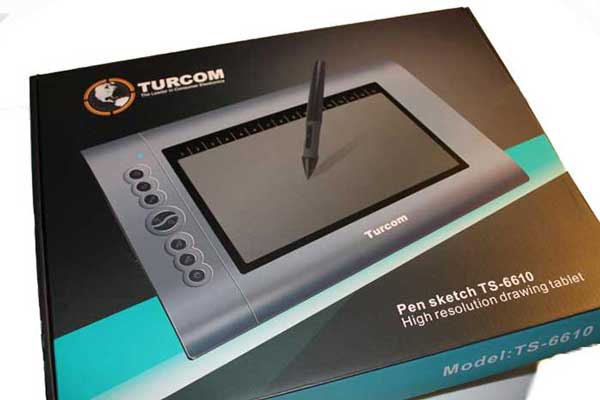
Turcom TS-6610 tablet box

Portability

It’s pretty easy to take with you at a little over 2 pounds.

For Lefties

The driver has a feature that will adjust for lefties once they turn the tablet so the buttons are on the right.

Turcom was kind enough to send me this tablet. I tested art programs and installed the driver on different computers and operating systems. Overall the drivers worked best on Mac, then Windows 10 on laptop/desktop, then Windows tablet. The tablet and other items came safely packed in styrofoam . The quickstart guide doesn’t look professionally designed, but it has the basic information needed. There’s no larger guide on the TurcomUSA site (compare to Huion, which sends a more complete set of information in a booklet).

The Turcom TS-6610 tablet has a solid build quality, with eight customizable Hot Keys, including a two-button ring with a zoom in/out default function, and 16 softkeys you can program in the advanced driver settings. It looks a lot like the Huion H610Pro, but I weighed the two and the Huion weighs slightly more. The Turcom’s beaded surface is rougher than the H610 Pro’s, which is also beaded, but smoother. There are no Touch features.

turcomgraphicstablet

See the Turcom TS-6610 on Amazon

Some reviews say  it’s the same tablet as the Huion H610 (non-Pro), which has an AAA battery-powered pen. The specs and appearance seem to match. The driver for the Turcom is made by Huion. The download is on the Turcom site. I also tried the Huion H610/H610 Pro driver from the Huion site and it worked.

Turcom pen

turcom ts 6610

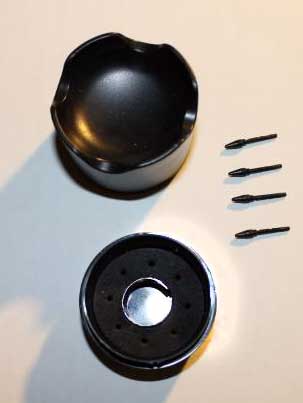
Penrest, nibolder, nibs. These parts attach.

turcompen

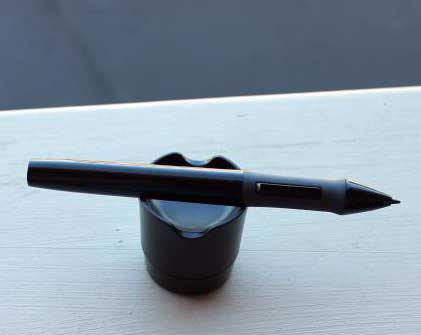
Turcom pen on penrest

The pen is chunky, about 1/2″ at the thickest part, with the grip part being a little thinner. It’s pretty heavy with the battery in it–this is an AAA battery, not a smaller AAAA. The pen has no eraser at the end. The gray grip is hard, but has a more graspable texture than the rest of the pen, which is smoother.

The buttons are placed so that you have to be a little careful to not press them by accident, but you can get used to it and avoid accidental presses. The build is plastic and seems quite durable. The weight of the pen doesn’t result in too-heavy lines. The penn makes a scratchy noise when drawing on the beaded surface.

Drawing on the Turcom tablet

Palm rejection and hover work fine. The beaded surface provides a rough area that’s pleasant to draw on despite the noise, and the surface may cause nibs may wear down quickly–luckily, they’ve provided extras. There’s a row of numbers across the top that visually correspond to the softkeys.

Setting the pressure curve in the middle produced the best results for me. The most sensitive setting still provided good variation.

The pressure curve works great. It’s responsive and snappy and goes from a very thin line to thick. Setting it at lower sensitivity still gives a good variation. Both lower and middle sensitivity feel comfortable to draw, and I’m not a hard presser. It’s quite comparable to Wacom, and some may even prefer the Huion. It doesn’t cause any blobs or sudden changes. I didn’t have a jitter problem.

The tablet shows the numbers 1-16, so you can access these softkeys while drawing.

TIP: Keep other tablets and other items with electrical components at least a few feet a way, as interference from them can cause odd hover issues.

Installing the Turcom/Huion driver

Both the 6610 driver from the Turcom site and the Huion H610/H610 Pro driver from the Huion site work on the tablet. Both drivers are made by Huion. It’s best to use the site ones because they are kept up up to date. The Huion H610 driver seemed a bit better than the 6610 driver, in that the 6610 would open up a page of what seemed to be developer’s notes. But otherwise they are similar.

Turcom/Huion driver on Windows 10

When it works well, the driver installs quickly and easily. It can be a breeze or a hurricane, depending what’s on your computer.

huiondriversettings

Driver settings


turcomdriveradvanced

Advanced driver settings

Troubleshooting the Turcom/Huion driver. If you’re having problems, these are things to look into: Install the drivers as Administrator. Delete all Wacom drivers and any other graphics tablet drivers. Even if they are not showing up in Control Panel they could still be there, visible in RegEdit (please ask someone for help if you are not comfortable going into your system and deleting files; deleting the wrong files can cause problems with your computer). Delete the Wacom Feel/Wintab driver if you have that (it can be redownloaded here). Delete all previous versions of this driver. Shut off all antivirus, including the default Windows Defender. Once all that’s done (and that is not the totality of possible considerations, but the main things I encountered after trying it on several different Windows 10 computers), you should be able to open the settings. Huion has a support thread on Deviant Art as well as offering other ways to contact them, including Skype.

Using a penabled Tablet PC will not interfere with the driver.
Turcom/Huion driver on Mac (El Capitan)
On the Mac, the driver installed beautifully, but I have less stuff on the Mac. The Mac driver doesn’t have the Pen Pressure Test panel, but that’s no big deal. 

I could not get Tablet Mapping to work.

Wacom drivers vs. Huion drivers

Wacom drivers are more robust with more ways to customize, since the Radial Menu with its submenus offers 64 different programmable shortcuts to the Turcom’s 24 (not counting pen buttons for either). Wacom has a more complex pen-pressure options, the ability in the Pro tablets to customize per application, and screen mapping as well as tablet mapping. They generally are easier to install (some will disagree). Some Wacom tablets have touch. Wacom offers tilt sensitivity, and in the Pro versions (Intuos Pro and Cintiq) also rotaton sensitivity. Wacom’s has a mouse mode and the Huion driver does not.

See more info on choosing a Wacom graphics tablet.

Not everyone needs to use a lot of customization (or any; they are totally optional), and the Huion drivers do nearly the same amount of things as Wacom’s.

Wacom’s tablets come with some art software bundled and some offer Touch.

Art programs in Windows 10
I got pressure in Photoshop and Sketchbook, though it took a restart whereas GIMP and Krita worked right away. The tablet worked in Inkscape, but I couldn’t get pressure in Inkscape’s Calligraphy tool with the pressure box checked. It works in Illustrator without pressure. Huion says they are working on pressure for Illustrator.

The product info lists CorelDraw and Painter, Autodesk Sketchbook, MAYA, ZBrush, Infinite Stratos, Photoshop, Illustrator, Fireworks, Flash, ComicStudio, and SAI as working with the 6610.

Art Programs on Mac
Same results as Windows but less fussing to get pressure in Photoshop and Sketchbook.

As with other graphics tablets, this one also works well as a rather large mouse substitute for opening programs, editing documents in Word, etc.

Customer support. Huion seems to have a bigger online presence than Turcom, and since the drivers are Huion’s, asking Huion or perusing Huion threads where they have responded can be helpful in troubleshooting. Huion is good about answering, and can be reached via email, Skype, or phone. The company also a support thread on Deviant Art here.

Turcom TS-6610 vs. Huion H610 Pro

The Huion H610 Pro specs are higher–it has a higher resolution (5080) and report rate. The H610Pro’s pen attaches by a cord, avoiding taking a battery, thus the pen is lighter. Other than that, the pen size is similar to the Turcom pen. The Turcom tablet is a little heavier and its surface somewhat smoother (all models may not be exactly the same). The Turcom’s resolution is like the Intuos, and the Huion 610 Pro’s is like the Intuos Pro.

User reviews

Most users are happy with this tablet, praising its affordability, size, and capabilities. Many see it as a good alternative to Wacom. Some had problems with the drivers and some reported hover issues, but overall, comment are positive.

Pros

Quite a few customization options
Good size drawing surface
Extra nibs and pen battery included
2,048 levels of pressure
Good value
Draws well
High resolution (less high than H610 Pro)


Cons:

Drivers can be fussy
Pen is heavy and takes a battery
Mapping not working (on mine anyway)
No additional instructions online

The Verdict

The Turcom TS-6610 graphics tablet is a viable starter alternative to a Wacom graphics tablet; you may want to upgrade after a while. The drawing experience is really good, with a large surface and good pressure sensitivity.  If you have a decent understanding of your computer and file systems, then potential driver issues should be manageable. If that kind of thing is overwhelming to you, you may be better off going with Wacom.

Free software such as Gimp and Krita actually worked better off the bat for me with this tablet than did Photoshop CC,  which took a restart to get pressure working. Using this with free software can get you going in digital art without a major investment.

The Huion H610/H610 Pro driver on the Huion site is a bit better than the Turcom driver on the Turcom site, so you might want to use the 610 one.

What the Turcom TS-6610 graphics tablet can do, it does well, and offers a lot of value. Good for students, beginners, or those on a budget.

See more reviews and info of the Turcom TS-6610 graphics tablet on Amazon

See our review of the Huion H610 Pro

See our review of the Monoprice graphics tablet

See our review of the Intuos Pro

See our review of the Intuos Pen and Touch Small

end of Turcom TS-6610 drawing tablet review