I'm an author and illustrator who has used drawing tablets since the early days. I love how flexible and forgiving they make everything. I'm also fascinated by the technology. I started this site to bring knowledge to everyone. I want this to be the only place you need to go to learn about drawing tablets.
Wacom MobileStudio Pro: Powerful portable packs 8,192 levels, up to 4K display, 3D camera
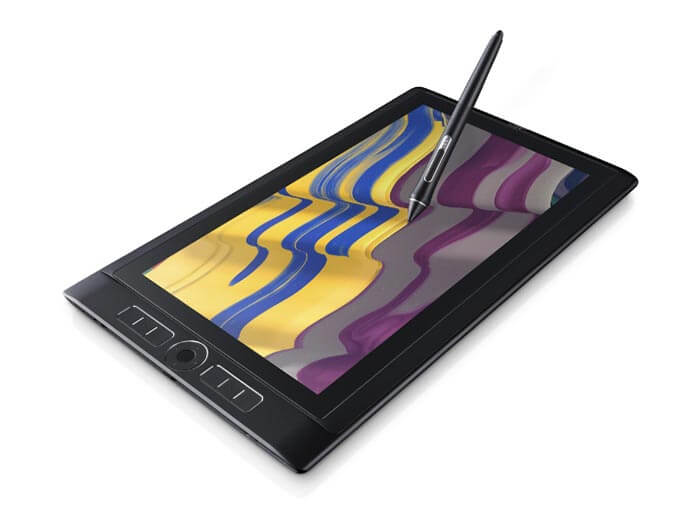
Wacom MobileStudio Pro With Pro Pen 2. Source: Wacom
Wacom has created an amped-up successor to the Cintiq Companion 2, this one a lightweight portable with up to a 4K display, 8,192 levels of pressure sensitivity, discrete NVIDIA graphics, and a 3D camera. It will run Windows 10 and full versions of desktop programs such as Photoshop, Illustrator, Maya, and Cinema 4D.
Engineers, artists, and designers can all tote it around, as it can run not only art programs, but CAD. There will be two sizes: four versions of a 13.3″ display and two 15.6″ models, all with Intel processors, and NVIDIA Quadro M600 or M1000 graphics, depending which model. Storage will range from 64GB to 512GB.
The pen will be the all-new Pro Pen 2, with 8x the pressure levels of the current 1,024-level Pro Pen.
Some of the models will include an Intel 3D camera called RealSense, which captures 3D scans that can be opened in 3D programs such as Zbrush.
(For those without the budget for this who still want to work in 3D, Wacom is also releasing the Intuos 3D).
Use as standalone or as Cintiq with Mac or Windows computer
The controls for the Wacom MobileStudio Pro will be similar to the ones on the Cintiq and Cintiq Companion line, including ExpressKeys and Touch Ring, and programmable pen buttons. As with the Cintiq Companion 2, users will be able to attach the MobileStudio pro to any Mac or PC and use it as a Cintiq display and input device, so you’ll be able to use the Mac OS as well as Windows.
MobileStudio Pro 13 vs. 16 specs
The four models of the13.3″ display, called the MobileStudio Pro 13, will have 2.5K WQHD resolution as well as a wide color gamut of 96% of Adobe RGB. SSDs will have 64, 128, 256, or 512 GB storage. The 512GB one will have the 3D camera.
The 15.6″ models, called the MobileStudio Pro 16, have the nearly the same color gamut with 94% of Adobe RGB. SSD sizes will range from 64GB to 512GB. The 16 hasa 4K UHD display and the 256GB will have NVIDIA Quadro M600M an 2GB VRAM. The highest-end model of all of them is the 16 with 512GB SSD, NVIDIA Quadro M1000M, and 4GB VRAM. Both models of the 16 contain the 3D camera.
With these high specs and high expectations, we can only hope they’ve improved upon the flaws of the Cintiq Companion 2, including loud fan noise and not-so-great battery life. This has got to have a pretty major battery to power the display and discrete graphics, and hopefully it will also power the computer for a long time. The NVIDIA graphics should keep things moving without lag. Maybe the MobileStudio Pro will be the moveable feast so many are waiting for.
Just when you thought you’d seen everything, Wacom has stepped into the growing world of 3D with the Intuos 3Dtablet. This new release will enable the public eager to try 3D art, design, and modelling in an affordable and accessible way.
The tablet will integrate with ZBrushCore program, made from the same foundation that powers ZBrush, popular 3D software used by virtual reality, game and film studios, and illustrators.
But it’s not all arts and entertainment, it’s also for engineers and fabricators. According to Jeff Mandell, Executive VP for Wacom’s Branded Business, “3D Design has been undergoing a transformation driven by trends in 3D engineering, rapid prototyping and on-demand parts production.”
Cintiqs have been the main tablets for 3D sculpting, but with the popular Intuos, anyone can get started. Other 3D software that has expanded Wacom’s foray into the third dimension includes Dassault’s Solidworks and Autodesk’s Mudbox.
Intuos 3D and package
Wacom worked with Shapeways, Pixologic (maker of ZBrush), and Sketchfab to put hardware and software together into one package.
The Intuos 3D will come with ZBrushCore software and “special offers” from Sketchfab and Shapeways.
Once you’ve created your design, you can send it to Shapeways for printing, or publish it on Sketchfab. Sketchfab is a place to explore virtual reality items. History, geography, culture, animals–it’s all there, and you can view it or upload your own.
I’m already a Shapeways fan for the amazing designs people upload, such as jewelry and other items. This new package will make creating for 3D printers a lot more accessible. If you’ve never seen a 3D printer, they basically extrude molten plastic into layers, which build up, forming a shape. The layers and patterns can be programmed to create amazing organic or Spirograph-like forms.
With Shapeways, you don’t need to buy your own 3D printer, those these may become common household items someday. (Lose your cell-phone case? Print one out.)
The Intuos 3D will be for sale in late October 2016. Hopefully there will be enough time to sculpt a Halloween mask.
New Lenovo, Acer art tablet offerings for Fall 2016
Create on the Lenovo Miix 510 in your private art studio
Active pens are becoming pretty much de rigueur these days, since the technology has become less expensive, and hey, it’s a nice option for everyone. This Fall 2016, Lenovo and Acer showcased several new art tablets at Berlin’s IFA tech show.
These have pens (sometimes included, sometimes not), pressure sensitivity, palm rejection, and draw-on screens. These offerings are all draw-on-screen with those features; the Lenovo Yoga Book is covered in this post and lets you draw on a non-screen tablet.
Acer unveiled its Spin line of 2-in-1s at the show. The spotlight is on the lightweight 14″ Spin 7 convertible notebook, but as the Spin 7 lacks drawing features such as support for an active pen, artists will be more interested in its siblings, the 13.3″ Spin 5 and the Spin 1, which comes in 11.6 and 13.3″ options.
Both the Spin 5 and the Spin 1 will feature support for the Acer Active Pen, which will be sold separately. The Acer Active Pen supports Windows Ink. All run Windows 10. The Acer Active Pen Stylus, as it has been called in previous Acers, uses a Synaptics digitizer.
The Spins, true to their name, will turn on a dual-torque, 360-degree hinge. They will have a blue light filter to ease eyestrain, and Color Intelligence, which maximizes color saturation.
Acer Spin 5 features
The Spin 5 has up to a 7th-generation Intel processor, a full HD IPS screen, up to 16GB DDR4 memory, and up to 512 SSD storage. Battery life will last up to 10 hours. It will have a textured, fabric-like finish to make it harder to drop.
Acer Spin 1 – affordable and comes in two sizes
Acer calls the Spin 1 ideal for “students or as a second computer,” meaning its performance will be less than speedy. Its two screen sizes are 13″ or 11.6″ HD IPS, and it will carry Intel Celeron or Pentium processors and antimicrobial Gorilla Glass to keep out those classroom germs.
The Spin 1 will also support the optional Acer Active Pen and Windows Ink, and will be very affordable, which is rare in a pressure-sensitive tablet. It could be a decent-sized portable digital sketchbook that won’t break the bank.
Lenovo launched no less than four 2-in-1s at the show. The attention-getter is the Lenovo Yoga Book, but for those who want something where you can draw on the screen with pressure sensitivity, there’s the new Lenovo Miix detachable.
The company is offering a “backlit keyboard or pen with Windows Ink,” so prepare for confusion over specs. There may be an option to purchase a backlit keyboard if you get the model with the pen.
The Miix 510 weighs in at 880 grams (almost two lbs., without the keyboard) has a 12.2″ screen, up to 1TB SSD (now that’s good!) and optional LTE. It will have Core i7, 7.5 hours of battery life, a metallic finish, and a 16:10 aspect ratio, which we prefer over 16:9 because it’s less long and thin. The keyboard and pen will be included. Though they haven’t been specific, Lenovo uses Wacom AES in their other pressure-sensitive tablets.
As for their other 2-in-1s coming out, the new Yoga Book is an art tablet (more like a graphics tablet with separate screen), but the other newly announced devices do not seem to be. However, the company has been known for being unclear about these details from their initial information, so I will monitor the situation, so to speak.
These new art-tablet offerings ensure it’s going to be a bountiful Fall 2016. These babies will be out in September and October.
Lenovo Yoga Book first look: keyboard and tablet meld into one
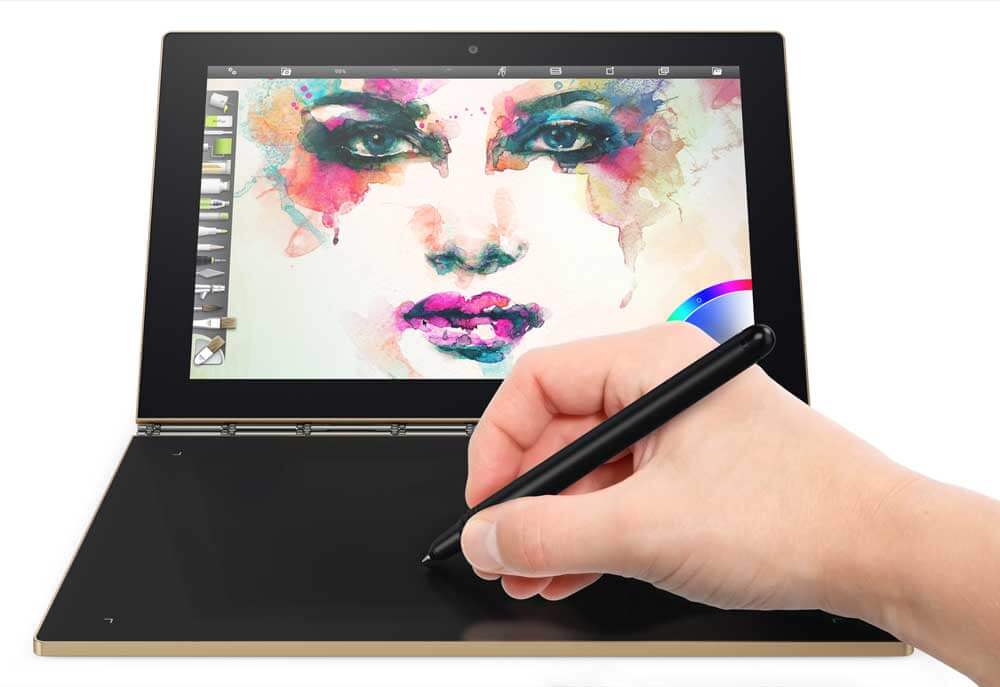
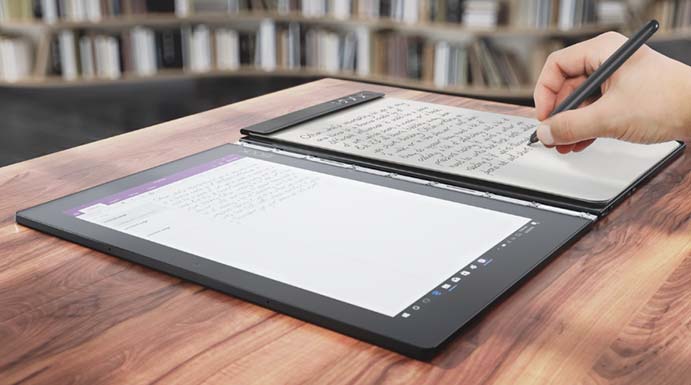
Yoga Book in Create Mode
Lenovo, which was once IBM, has never been known for being artsy. Despite the fact that a lot of their laptops, such as the ThinkPad Yoga line, are tablet PCs with Wacom pressure sensitivity, the computers are still marketed largely at business.
So this Chinese company’s upcoming release, the Lenovo Yoga Book, is a pleasant surprise. It’s super-slim and light–right now, it’s the world’s lightest, thinnest 2-in-1 of the major 2-in-1s. It just debuted at IFA, a consumer tech-convention in Berlin, and has not yet been released to the public. I’ve gone over the available info to present all I can about this new art tablet.
Perhaps Lenovo is following the zeitgeist that has brought us the paper-to-pixel Wacom Spark and iskn Slate. Whatever they’re doing, they’ve created a versatile digital art and writing tool. Their focus was on mobile productivity, and they asked many users what they wanted in a mobile device.
The two Lenovo Yoga book pen tips, one with real ink and the other a stylus
Lenovo product developers spent 18 months working out each detail, listening to focus groups, conducting studies, and testing different components.
As a computer, the specs are nothing special. It sports an Atom X5 CPU and 4GB RAM, so it’s more of a kitten than a beast. The Atom probably keeps the price low, and it is quite affordable. It’s discouraging that it has only 64GB of on-board storage, but it has a micro SD slot to go up to 256GB.
Features
Digitizer (on keyboard/drawing surface only, not on screen): Wacom EMR with 2,048 levels of pressure sensitivity
100 degrees of tilt sensitivity
Screen: 10.1″ (diagonal) Capacitive touch IPS LCD with Lenovo Anypen tech
IPS display (1920×1200)
OS: Android and Windows model (hardware is the same on both)
Build: Magnesium aluminum alloy
Processor: Atom X5, 2.4GHz
Brightness: 400 nits
Color Gamut: 70% of sRGB
Colors: Champagne Gold, Gunmetal Gray
Battery Life: 8,500mAh battery. Android 15 hours, Windows 13 hours
Dimensions: 10.1″ × 6.72″ × 0.38″ (256.6 × 170.8 × 9.6 mm)
Weight: 1.52 lbs (.69 kg)
RAM: 4GB
Storage: 64GB
Micro SD slot up to 256GB
LTE (AT&T, T-Mobile)
Ports: micro USB, HDMI out, microSD card slot
Cameras: 8MP rear, MP front
Software: comes with Windows Mobile Microsoft Office apps, OneNote, trial of ArtRage Lite
Optional Accessories: Sleeve, ink-cartridge refills, paper refills
It’s compact and goes well with this hand model.
What’s in the Box:
Yoga Book
Charger
USB cable
Warranty card
Quick Start Guide
Real Pen
3 ink-cartridge refills
Book Pad (metal clipboard accessory with paper pad, the whole thing clips into the cover)
Portability
Very portable at a little over a pound and a half and a slim .38 of an inch. Its clamshell design protects it, so you can use a sleeve and put the pen in the sleeve if you want, but you don’t have to add weight with a hard-shell case the way you do with, say, an iPad Pro.
Art Programs
Photoshop CC and other Adobe CC programs will run sluggishly; the Atom is not made to handle them. But smaller art programs such as Photoshop Elements and Sketchbook Pro should work fine, and their file-saving options are compatible with Photoshop CC. So you could open your art on a more powerful computer with CC.
The tablet comes with a trial of ArtRage Lite, which is very inexpensive even in the full version. I can see why they picked ArtRage because of its many simulations of real-world brushes, including oil paint, rollers, and glitter–it’s a fun and well-made program.
The Google Play store has plenty of Android art apps, some of which are good such as Procreate, but given that the hardware is the same here for either OS, if you’re trying to choose between the Android and Windows version, I’d go for Windows since its environment allows for desktop programs as well as Windows apps.
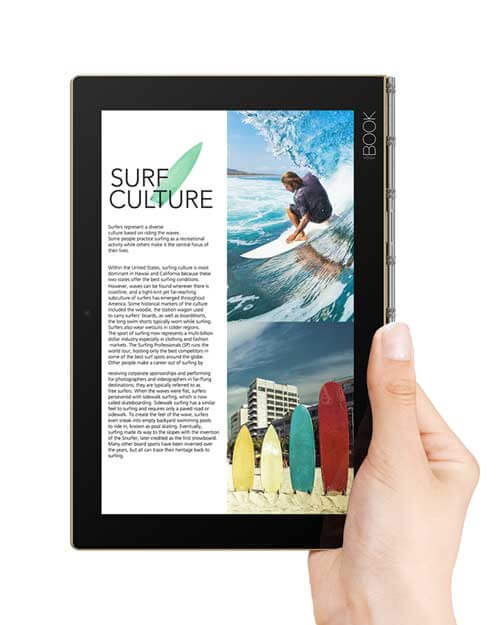
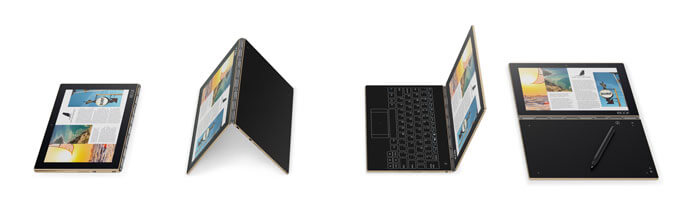
Like the rest of the Lenovo Yoga line, the Book takes various poses, including Tent, Stand, Tablet. and Laptop. It’s a clamshell design, and can open fully flat.
Battery Life
The Book comes in both Android and Windows version, with the Android lasting an impressive 15 hours on a single charge, and the Windows a long 13 hours. That’s quite a bit of stamina.
The Create Pad offers 100 degrees of tilt sensitivity, giving a natural look and feel to drawing and handwriting.
Pen
Yoga Book dual-use Real Pen uses real, custom ink
The batteryless, Wacom EMR pen gives feedback so you can tell the difference between a brush, crayon, or pencil. It sounds like the sensors respond to assorted digital brushes and trigger haptic feedback.
The Real Pen has no buttons or eraser end. The cap is metal and attaches magnetically to the Book or to the metal Book Pad accessory. The Real Pen uses real ink for when you want to place real paper over the digitizer surface and draw or write. The Book comes with three ink cartridge refills, and you have to use that kind of ink, but you can use any paper. The Real Pen comes with a white digitizer tip to use on the Create Pad as well as on the touchscreen. When you want to use the real ink, you put in a Real Ink cartridge.
By the way, it seems they’ve bumped up the levels of EMR from 1,024 to match the 2,048 of the more recent Wacom AES digitizers. EMR is smoother and more natural-feeling than AES, and better for small writing. AES is really not bad, but EMR is the gold standard, and I’m glad they’ve brought it back, because it has been getting phased out in favor of the less-expensive AES.
Using digitizing ink isn’t anything new, but your work appears immediately on the screen rather than having to sync. There are integrated note-taking, sharing, and annotating abilities for writing. The pen does not convert handwriting to text. The company explains that the use of multiple languages and characters is problematic with such conversions, and they want you to use the Halo Keyboard for text input.
Screen
You can also draw on the LCD screen but, apparently, without pressure sensitivity. The screen has AnyPen tech, but lacks the EMR digitizer layer. The company gives you two pen tips, one that compatible with the screen and one with the digitizer. You can also use your fingers on the touchscreen.
AnyPen does not offer pressure sensitivity and thus is not very different from a normal touchscreen, except you can use non-pens on it–metal or organic things–such as a banana, or fork–anything not fully plastic.
Since the Book has an HDMI port, you can attach a larger monitor to it.
Using the Yoga Book with a larger monitor
Halo Keyboard
The Halo Keyboard is only there where you need it, brought to life by a ghostly membrane that comprises one of the inner layers. When you’re not typing, it takes on its alter ego, the Create Pad, where you draw on the pad or on paper, with your handwriting or drawing immediately showing on the screen.
You can use art programs, OneNote, or other programs to write or draw. To avoid accidental keystrokes, touch is disabled when you type, except at the center. There is no key travel, which saves time. Key-travel distance means the distance the key has to be pressed down to be recognized, and is zero, because it’s flat.
Lenovo says because they honed the design so much and added haptic feedback, typists typed 66% faster than other touch keyboards. Not only that, but slower typists can used a fixed layout, while touch typists jog along on a “virtual moving layout.”
Perhaps we’re looking at a future with changeable, customizable keyboards for different programs, such a as Photoshop hotkeys.
Halo Keyboard: now you see it, now you don’t, and when you don’t, it’s the drawing surface
People tend to whack at touch keyboards as if there are keys there, but there’s nothing to absorb the blow, causing the force to bounce back onto your fingertips, which can be uncomfortable and make for poor ergonomics. The haptic feedback may help in not overstressing your digits.
Resting your palms at the bottom will not disturb anything; this keyboard has palm rejection where needed. Not only that, but the keyboard measures the strength of each finger tap and can tell the difference between an accidental slip of a fingertip and a real keystroke. Haptic vibrations make you feel like the comforting clackety-clack.
The whole touch panel is semi-transparent, with Lenovo considering over 100 samples to get the best anti-glare coating.
Lenovo Yoga Book Pad included accessory (right)
Create Pad
The top layer of Gorilla Glass has an anti-glare coating and a matte/grainy feeling to give the bite of paper, with the EMR layer underneath. The Create Pad has a decent-sized area to draw, something near a regular sheet of paper, and the metal pen cap attaches to the Yoga Book and the Book Pad notepad–since there’s no bezel, it’s good there’s something to stop the pen from rolling off should you have the Book at an angle. Since the Gorilla Glass Create Pad surface has texture, it won’t slip like on glass.
Right side shows artwork on the Create Pad, left side is after coloring using digital tools.
The Create Pad goes into, what else–Create Mode, when you draw or handwrite. The pad is a flush, flat, active area, hence there’s a good-sized workspace; painted borders show you the active area, the inactive area is a fairly small margin.
There are no hotkeys, it’s just one continuous piece. It’s hard to compare this to a regular drawing tablet; its simple form is reminiscent of the basic tablets just used for signatures, but this one has lots of pressure levels and tilt as well.
Thoughts on the Lenovo Yoga Book
It’s sort of like using a graphics tablet along with a screen, but the screen is a lot closer, and you can see what you’re doing when using ink. But since you’re using an art program with various colors and brushes, what you end up drawing won’t necessarily look like what’s on paper. I have more to do to learn exactly how this works.
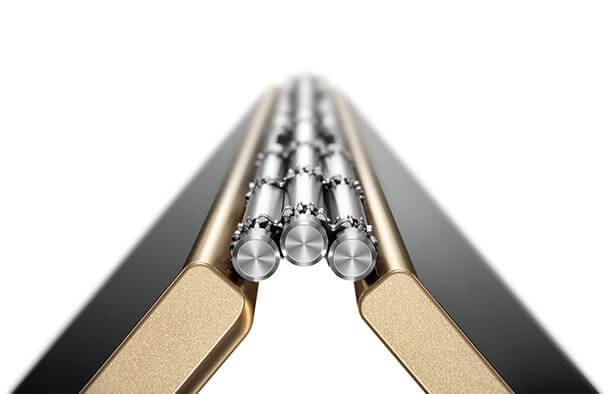
The custom, watchband-style hinge has three axes, and is made of five materials, and 130 mechanical pieces. A touch of Steampunk, no?
The sheer lightness and user-friendliness, and its novelty make this a fun and useful device if it fills your needs. Those who want a powerful computer will not be satisfied. Those who want something similar in concept but that works across devices might check out the iskn Slate, which lets you use real markers, pen, and pencils.
If you want a handy, light, on-the-go, art-writing-journaling bringalong with a cool design may like this as a productivity tool. It should be out in Fall 2016.
iskn’s Slate and digitizer Ring wed traditonal and digital-art worlds
With this ring, 32 magnometers, 20 patents, a Magic Slate, and an app, pixels and pencils finally make a commitment.
Slate (Slate 2)
Length: 9.7″
Width: 7.3″
Thickness: 0.4″
Weight : 13.8 oz
Imagink App compatibility:
iPad (except iPad 1 and iPad 2)
iPhone (6 and 6+ and after)
Mac (OSX 10.10 Yosemite and after)
PC (Windows 7 and after).
Android coming soon
Memory 4 MB (approx. 50 pages)
holds micro SD card up to 32 GB (approx. 800,000 pages)
micro USB 2.0
Bluetooth Low Energy 4.0
32-bit
Five years ago in Grenoble, France, now the headquarters of iskn, French user-interface specialists Timothee Jobert and Jean-Luc Vallejo decided to make the analogue world a better place by improving interaction with the digital world. Their vision was to make that most human of implements, the pen, capable of opening the technological portal. Teaming up with Tristan Hautson, an engineer, they came up with a magnetic ring that functioned as a digitizer collar for pens, pencils, and markers. Fast forward, and the company iskn was born.
iskn has now issued the Slate, exhibited at IFA 2016, a large consumer-electronics show in Berlin. The Slate is plastic surface with a digitizer layer sandwiched in that lets you draw with your own art supplies and digitize your markings.
At 14 oz. and about the size of a sheet of paper you can carry the Slate around in your bag, just like your trusty old paper sketchbook. Unlike your sketchbook, the Slate development involved 20 patents.
One Ring to rule them all
You can’t use absolutely any writing implement, there are some limitations, but the list is long and there shouldn’t be any problems finding writing utensils that work. The diameter that the Ring will fit goes up to .33″ or 8.4 mm. A regular pencil is 6 mm. You help the Ring stay in place via stoppers.
This is not anything like Lenovo’s AnyPen, which does away with the pen itself. Rather, this turns your old-fashioned pen or pencil into an active pen.
Note: The Ring does not pick up the color of your tool, only the texture. So if you’re coloring a green apple on your page, you’d select green in the art app to get green on the screen.
You can also buy The Pen, which has the Ring built-in, and offers two tips: square, like the traditional Conte crayon, and round like a regular pen.
A 32-magnometer digitizer in the Slate tracks the Ring-wearing writing implement’s motions in space, including tilt angle, giving natural tilt sensitivity to your linework. You can use letter-sized paper on it, leaving a margin around the Slate’s 5¾” x 8¼” active area.
If you use your own implement with Ring on the Slate in standalone mode, meaning without a device such as the iPad, the line will default to the built-in black ballpoint pen line and you won’t get your tool’s own texture.
Imagink app works on computer, tablet, phone
The pen interacts with an app called Imagink. The app is an art app, giving you a variety of pens, art tools, and palettes. You can easily share your images, or upload your work to the Adobe Creative Cloud. Images appears immediately on your screen. It lets you use four layers. The company says it’s working on adding 3D. You can download and use Imagink without the Slate or Ring.
Speed and tilt sensitivity, plus real implements (even the iskn Pen has no batteries or electronics inside, just the Ring already built in), bring the drawing experience closer to involving all the senses. (One thing I really do miss about traditional art is the smell of all those art supplies–wood shavings, paint, crayons–they have a stimulating effect on creativity the way coffee does on getting thoughts going).
Digitizing from paper is familiar from the Bamboo Slate, syncing Boogie Boards, and other e-paper, but those require a special pen rather than just a ring.
The advantage of using your own implements is the variety of tips, and the verisimilitude–a digital 4B pencil that comes straight from the real thing will be closer to the real thing than a brush made to look like a 4B pencil, even if that originally came from a digitized real 4B pencil, because a brush is a repeated image.
The Ring is quite inexpensive. Snazzy clips are also available to protect your art from dropping onto the real floor.
Video: How to use the Slate
Remember: keep metal objects 10″ away from the Slate and your iPad at least 2″ away.
You can also use the Slate alone, using its memory to store your images or notes, then later transfer your work to your device.
The Lenovo Yoga Book for fall 2016 operates on a similar idea, building the digitizer right into the computer, but you need a digitizer pen for that. The transformative Ring keeps iskn’s creation unique.
There’s not real pressure sensitivity in the Slate, though the company is working on this.
The accuracy of the image on the screen is not always 100%; it takes practice.
Like quite a few other art apps, Imagink has a replay function so you can replay your strokes.
Update: A Slate update allows the Slate to export files to both PSD and SVG instead of being usable only in the native app. It also fixes some issues with hover and accuracy.
The Ring is a bit similar to artist/inventor’s Giulio da Vita’s iLapis.
“We are at the dawn of a paradigm shift, where the border between the digital world and the physical/material world is opening up and allowing for simple, creative interaction between the two worlds!” — Jean-Luc Vallejo, CEO of iskn