Category Archives: Reviews

xppenartist22ereview

XP-Pen Artist 22E review, art testing

XP-Pen Artist 22E review: Express Keys bring it closer to a Cintiq

xp-penartist22ereview

The XP-Pen Artist 22E is an update of the XP-Pen Artist  22, a pen tablet monitor in the family of “Wacom alternatives.” It offers many of the features of a Cintiq, without the price tag. I’ll go over the differences.

XP-Pen started out in Japan in 2005, and since then has opened offices in Taiwan; Shenzhen, China; and the U.S. They state their concern with the environment led to them to make their pens battery-free. They were kind enough to send me this tablet to review, so I have had time to test out various art programs on it.

In a hurry? See the XP-Pen Artist 22E tablet monitor on Amazon.

XP-Pen Artist 22E vs. XP-Pen Artist 22

The 22E is an update of the XP-Pen 22. The main obvious change is the addition of the Express Keys. The 22 had no Express Keys. (Those are buttons on the outside of the monitor, or sometimes on-screen keys, that can be programmed with software commands). The 22E also uses A+ LED, which has better color quality than the 22.

The 22E has two sets of keys, eight on each side, making life equally convenient for lefties, righties, and the ambidextrous. They mirror each other, so there are a total of 8 programmable keys, not 16. These are all on the outside. They are slightly raised.

The cords now get tucked vertically in the back. On the XP-Pen 22 they were in a row under the stand. They are now easier to reach. This version does not have speakers. (Installing it, though, may alter the speaker settings on your computer–it did on my Mac–so you may need to go and reset them to continue getting sound from your computer).
 

xppenartist22epin

XP-Pen Artist 22E review drawing test


Features

Type of digitizer: XP-Pen
Included EMR pen with 2,048 levels of pressure sensitivity, charges via USB

Display: 21. 5 inch diagonal IPS?)Dimensions: 567 x 326 x 30 mm
Display Area: 476.64×268.11mm
1080p resolution (HD)
178° viewing angles (wide)
4- and 9-point calibration
16 Express Keys (8 are programmable, 8 are mirrored)
Pen has two programmable buttons that map to mouse functions
Color gamut: 72% of Adobe RGB
VESA-compatible
Pen weight: 0.6 oz. (17g)

LPI (lines per inch): 5,080
Response time: 14ms
Contrast Ratio: 1000:1
Brightness: 250 nits
Ports: USB, DC power, VGA, DVI, HDMI
Report rate: 220 rps
No multitouch (cannot use your fingers to draw–only has pen input)

What’s in the Box

XP-Pen Artist 22E 21.5″ tablet monitor
2 rechargeable pens
Pen power adapter
Cables: VGA, USB, HDMI, HDMI to Mini Display Port adapter cable
Power adapter
Power cord
Stylus pen stand/holder (8 replacement pen nibs and one pen nib removal ring tool inside)
CD driver
User manual
Cleaning cloth
Black drawing glove
Screen protector


xppenartist22ereview-back

Back of the Artist 22E–(ignore the extra cord). The cords in the 22E are vertically next to the stand; making them easier to access; in the XP-Pen Artist 22, they were in a horizontal row beneath it.


Since XP-Pen has included an HDMI to Mini Display Port adapter, you don’t need to buy anything additional to use it with a Mac.

To install the driver, you have to uninstall all other tablet drivers I had zero problems installing the driver on my Mac. On Windows, the tablet icon that you click to open the driver settings, didn’t appear, but I opened the driver settings in the folder.

If you’ve had other tablet drivers on your computer, you’re going to have to uninstall them and all remnants of them–this can be tricky. XP-Pen has a troubleshooting page for driver issues.

The driver lets you program the Express Keys, adjust your pressure sensitivity, test it by drawing with four colors, calibrate the touch points (4 or 9 points), and rotate the image on the screen in 90-degree increments.

It came well-packaged, not fancily, but safely. The accessories are all individually wrapped and put in one box. The box has a handy handle.

Portability

At around 17 lbs. including the stand and power supply, this (or any) large tablet monitor is not very portable. The handle on the box helps. The attached stand folds up. It’s not terribly heavy to pick up, though I would not want to walk around with it for long. The power brick is not that big.

For Lefties

The right- and left-hand columns of Express Keys make this a great choice for lefties.

Screen

The XP-Pen’s HD screen is brighter than a Cintiq, since it doesn’t have that filmy coating Wacom uses to give the screen a paperlike bite. So the XP-Pen screen is smoother, but isn’t too slippery. It’s fun to draw on. The screen doesn’t get that dark even with brightness turned all the way down. Turning it up increases color intensity.

The screen has been measured at 250 nits brightness to the Cintiq 22’s 230 nits.
The pen squeaks a little on the screen once in a while but not often, and that should go away after a while. There were no dead pixels. There was a little dust on the outside of the monitor.

Screen protector

The screen protector had some bubbles that were difficult to get rid of. I also just preferred the feeling of the pen on the screen, so after trying the screen protector I removed it.

Pen
xppenartist22estylus

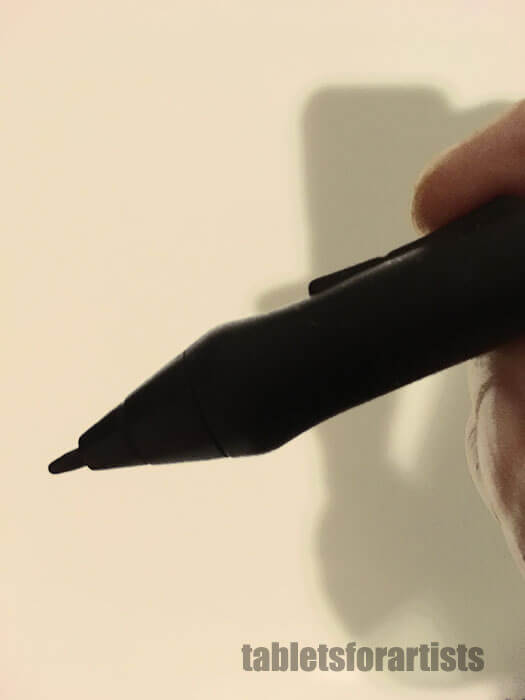
The pen has a pretty fine tip.

The pen needs to be charged via USB. A full charge takes about an hour and a half, but 30 minutes is enough to work for quite a while. The company says the pen can go up to 130 hours on one full charge. It has red and blue indicator lights showing when it’s charging or low.
The pen has no indentation to grip, but it’s comfortable to hold, and a good weight at 17g–a combination of light enough to not get tired, but giving some balance. The barrel has two buttons. They are easily reachable.

The default settings are right-click and erase, but you can change that in the driver settings. The pen does not have an eraser end. The buttons cannot be customized to keyboard shortcuts, but only to eraser and things your mouse does (right-click, etc.).

Art Software

Mac: I tested on Mac El Capitan: Photoshop, Illustrator, Manga Studio, Sketchbook, and the free programs Gimp, Inkscape, Paint Too Sai, Sculptris, and  Krita.  The pressure sensitivity worked great in all of them (I am not that familiar with Sculptris, a free 3d program, so I was not sure what to expect but the pressure did make a difference).

As expected, the pressure sensitivity doesn’t work in Illustrator; so far, Wacom Cintiqs and Intuos Pros have the monopoly on that. The pressure also, as expected, doesn’t work in the Inkscape calligraphy brush, since Inkscape is similar to Illustrator. You can still use the tablet in those programs, without pressure. Pressure sensitivity worked in vector layers in Manga Studio Pro, so you can draw in vector with this.

The one little glitch I experienced in Mac was that the pen suddenly seemed to stop working, a major bummer. But then I realized it was working, but stuck on the eraser tool. Yet, I still got pen lines in the area of the driver where you can test.

Looking this up, I see it’s an issue on Wacom too, so I’m going to chalk it up to a Mac thing. Unplugging the tablet from the computer then plugging it back in fixed it.

Windows: On Windows 10 I tested Photoshop, Gimp, and Sketchbook, and got the same results–works great.

Controls

There are basic controls on the bottom right. There are no speakers in the monitor, and when you attach it, you may have to change speaker settings to get sound in your computer as it may change the settings (this did happen and it’s on the XP-pen site). The driver settings let you test and adjust pen pressure, calibrate the screen to the pen, and set up the Express Keys.

On the bottom there are controls to adjust brightness, bring up the menu that allows some color adjustments, and the power on/off.

Out of the box, the Express Keys are on default settings that work in all programs.  You can reprogram them to your favorite keyboard shortcuts using the driver settings. The pen’s two buttons are programmable as well, to mouse commands such as right and left-click, and eraser.

Drawing on the XP-Pen 22

Here’s a pen test showing pressing down harder and softer in Photoshop CC. I’m working on some more video.

https://youtu.be/1V9EU5XiZvE

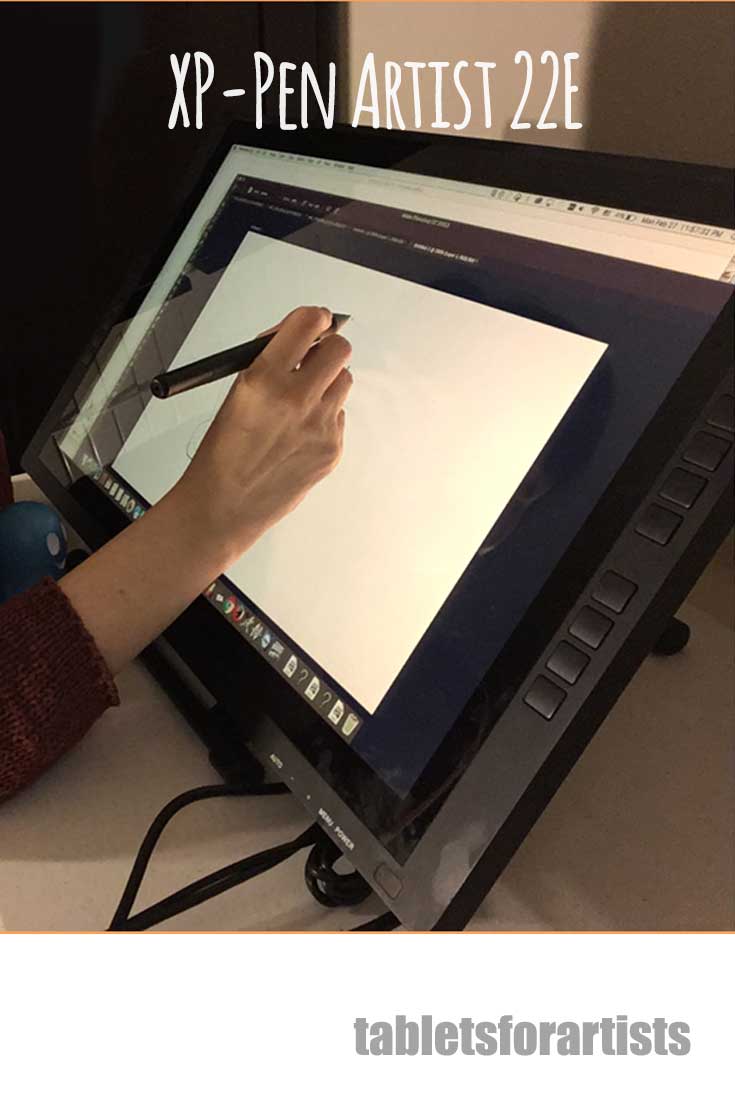
Me drawing curlicues on the XP-Pen Artist 22E. You can see the pressure sensitivity at work.

Have to say I really enjoyed the XP-Pen Artist 22E for drawing. The lines are fluid, the pen sensitive. I adjusted it to a bit higher in pressure as it’s very sensitive at the lower areas. The driver, which Ugee and XP-Pen developed together, gives a springiness to drawing. XP-Pen (the company) also used to work with UC-Logic (the company), but no longer does.

Tip: On a Windows 10 computer, some programs, including Photoshop and Sketchbook, require “supports digital ink” to be ON in your PC tablet settings in order to get pressure sensitivity.

In Photoshop, remember to have Brush Shape Dynamics turned on.

It seems to take slightly more initial activation force than Wacom to make a mark, but less than N-trig pens of the Surface line. There is a little parallax because of the glass. No jitter whether drawing forward, back, or faster  I didn’t experience any hover issues.

Pros

Sensitive, responsive to drawing
Affordability
Display
Stand
Extra pen, cables, adapter for Mac, glove, and screen protector all included
Easy setup
Ports are in good place
Battery-free pen; charge lasts up to 130 hours of use

Cons

Some have issues with driver installation
No multitouch (pen only–doesn’t respond to hand touch)
Drivers more limited in functions than Wacom’s
No tilt or rotation sensitivity
No pressure sensitivity in Adobe Illustrator (only Wacom has this. But, the XP-Pen does get pressure with vector tools in Manga Studio/Clip Studio Paint)
Pen button customization is limited
Stand does not rotate

Stand

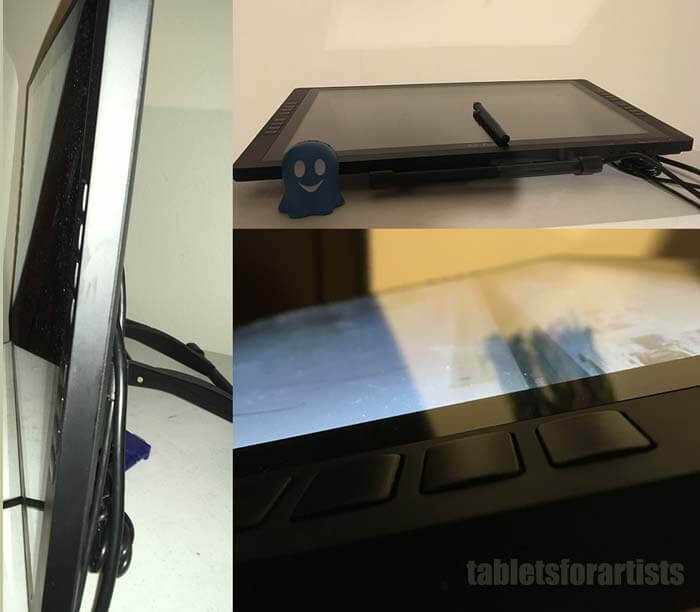
The stand is very sturdy and highly adjustable. Simply press a lever in back and it goes from nearly straight up to nearly all the way down, to about 15 degrees. Twenty degrees is considered the most “neutral” and offers the best ergonomics (I confirmed this with a physical therapist). It doesn’t rotate; you can instead rotate the art, turn the tablet itself, or use a mounting arm. The monitor is VESA-compatible.

XP-Pen Artist 22E vs. Cintiq 22HD: main differences

Same: display resolution, size, line resolution, pressure levels, Adobe RGB coverage. The Cintiq 22 pen still has 2,048 levels, not 8,192 like the newer MobileStudio Pro and Cintiq Pro. So pressure levels are the same as the XP-Pen.

The earlier XP-Pen had no Express Keys, and now it does, so that brings it closer to a CIntiq, though the XP-Pen has 8 programmable keys (16 keys in mirrored columns) and the Cintiq has 16 different programmable keys.

The Cintiq is a premium item made of premium materials, but the XP-Pen is solidly built. The drivers give a slightly different feel, both very responsive. Here are the major differences:

Cintiq 22HD:

-Drivers let you customize Express Keys per-app

-Pen has eraser end

-Wacom pen is battery-free and cordless

-Cintiq 22HD Pen and Touch model has multitouch (you can use your hand for gestures such as pan, zoom, and rotate, and you can finger paint, but only the pen gets pressure sensitivity)

-Additional controls such as Rocker Ring, Touch Strip, Radial Menu

-Tilt and rotation sensitivity

-Cintiq stand rotates

-Pen buttons can be customized to keyboard shortcuts

-Wacom pen has different types of nibs

XP-Pen Artist 22:

-Greater affordability

-Brighter (250 nits to Cintiq 22’s 230)

-Screen not coated, so smoother, but not too slippery

-Pen can be mapped only to mouse buttons and eraser

-Comes with extra pen, glove, screen protector

-Pen is battery free, needs to be charged via USB
xp-pen artist 22e review

XP-Pen Artist 22E up as far as it will go, down as far as it will go, Express Keys close-up


The Verdict

I can’t find much to complain about. It works well and is great to draw on. This is a good professional or starter pen tablet monitor. It doesn’t have every feature of the Cintiq, so the decision should come down to how much you need those additional features. Customizable keys increase efficiency, but you can draw without using them at all if you prefer, or just use some.

This XP-Pen Artist 22E review is a thumb’s up. The color is bright and vivid, and it gets most of the Adobe RGB. This is a great tablet if you want a large, responsive drawing surface to create digital art.

End of XP-Pen Artist 22E review

 See the XP-Pen 22E on Amazon

UK customers

Canada customers

Compare the Cintiq 22HD:

U.S. customers

UK customers

Canada customers

(Remember that if you want the Cintiq with multitouch, you must get the Pen and Touch version.)

Optional accessories::

Amazon Basics Display Mounting Arm
 

Dell-XPS-13-2-in-1-tablet-mode

Dell XPS 13 2-in-1 review: Let’s get small

dellxps13-2-in-1reviewDell XPS 13 2-in-1

Dell XPS 13 2-in-1 review: Sleek, but is it meek?

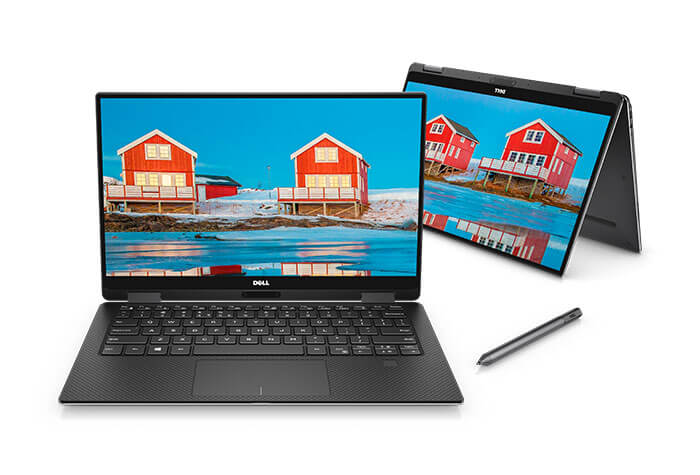
The Dell XPS 13 (9365) 2-in-1 convertible wonthet CES 2017 Innovation Award. The compact 2-in-1 looks similar to its non-pen predecessor, the Dell XPS 13. I was excited to see this penabled (OK, its AES and technically only Wacom EMR is penabled) version, but it does have its compromises for those who hope to put it through its paces for art.

See it on Amazon

The build quality is sturdy and the device is attractive, though it took me a while to appreciate its subtleties–at first glance it’s another laptop–but then I noticed its thinness, sturdiness, and small bezel.

Both have the Infinity Edge, a small bezel that allows the laptop to have the footprint of an 11″ laptop with a 13″ display. This model is slightly thinner than the original. This one is not a detachable, but a convertible with a 360-degree hinge. That makes it easier to type on than most detachables, which tend to have bouncy or loosely connected keyboards (the Microsoft Surface Book being an exception).

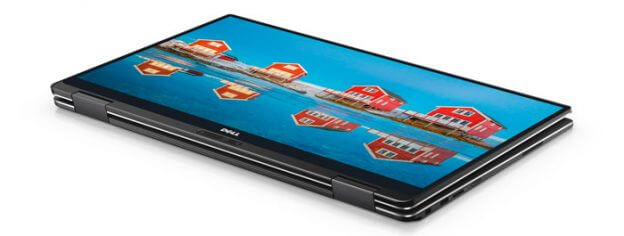
Like the Lenovo Yoga line, the XPS 2-in-1 can be set in four poses: laptop, tent, tablet, and stand.

The display is bright with wide viewing angle and rich blacks. The Infiniti Edge gives it a window-like feeling.

dellxps132in1review

The display on theDell XPS 13 2-in-1 is bright, with rich blacks.

Digitizer: Wacom AES (pen takes one AAAA battery)
2048 levels of pressure sensitivit

Pen: Dell Active Stylus (PN556W)

Processor
7th Gen. Intel i5-7Y54  to i7-7Y75


Graphics
Intel HD Graphics 615​

Display
13.3″ Full HD (1920×1080) or UltraSharp QHD (3200×1800)
10-point Multitouch
Brightness: 400 nits
Contrast ratio: 1000:1
Color: over 100% Adobe sRGB% color gamut
Anti-reflective
Wide viewing angle of 170 degrees
4GB, 8GB or 16GB LPDDR3 SDRAM
SSD: 128 GB to 1 TB
Build: machined aluminum
Gorilla Glass
Carbon fiber palm rest and deck
Steel and aluminum hinges

Dimensions
Thickness: 0.32-0.54”  inches (with/without keyboard in tablet mode) x 11.98″ x  7.8″
mm. 8 – 13.7  x 304 x 199
Weight: Starting at 2.7 pounds (1.24 kg)​

Keyboard
Full size, backlit, chiclet, 1.33 mm travel

Pen dimensions
1.9 oz without battery, 7.3 in.
Microsoft Hello fingerprint scanner


Ports
Thunderbolt 3, two USB-C 3.1 ports, microSD, headset jack, Noble lock slot

Battery
46WHr battery (integrated, non-replaceable)

Battery Life
Around 8 hours of mixed use–longer on the HD screen.


The full-size keyboard has chiclet-style keys with 1.3 mm key travel.

Power

Dell’s engineers developed Dynamic Power Mode, which raises the performance of the Y chip while still managing to keep the device fairly cool without fans–it gets warm but not hot. It spits out bursts of energy in a type of Turbo Boost to keep things in balance.

Though Y chips are similar to Core M, Dell has gotten higher performance here. Battery life is quite good, and you can certainly multitask. Dell has succeeded in making a thin computer that cools itself.

But it’s not as fast as competitors Surface Pro 4, HP Spectre x360, or the original XPS 13.

Portability

At 2.7 lbs., it’s lightweight, and it only takes up the space of an 11″ laptop. It’s solid, not something you can comfortably hold in one hand.

Battery Life

Good–8 hours on the i5 and up to 10 hours on the i7, both with mixed use.

Drawing on the XPS 13 2-in-1

The Dell Active Stylus glides smoothly and sensitivity is good. Palm rejection works well. Accuracy is good too as is hover range. No issues here. There’s no place to attach the pen to the computer, no magnet, clip, or anything. The Dell Active Pen is a little stubby at 7.3″ but it’s not much of an issue.

The trackpad is nice and smooth and isn’t too stiff. The keyboard is comfortable.

As scenic as it makes the computer, with the image on the display almost melding with its surroundings, the narrow bezel could prove a distraction when drawing. I suspect one reason for the Cintiq’s large bezel is to frame the art and visually isolate it from its environment, as a picture frame does.

If you want to draw at an angle, such as 20 degrees, you can use a separate stand i. Or you could place an object, such as a book, between the lid and keyboard.

The XPS 13 2-in-1 works with the Dell Active Stylus, a Wacom AES pen with 2,048 levels of pressure sensitivity. I tried the pen on it and found it worked well. The screen is slippery, like most laptops.

In my short time with it I got an error message when trying to open OneNote. Other programs opened smoothly. The Internet worked well, with videos looking sharp on the display, with deep blacks.

When there is less bezel, there’s a pleasant blending into the surroundings.

User reactions

People who have used this for non-art use seem overall pleased with it. Its design, display, the typing, and the responsive pen have all received praise. The computer was a star at CES for its slimness.

However, one user offering a Dell XPS 13 2-in-1 review complained it was impossible to turn off Adaptive Brightness, even if it is turned off in the power settings. I read they may issue a patch for this, but until they do, having it adjust its brightness on its own with no way to stop it would be detrimental to creating art. Update: They have issued a fix–thank you to the commenter who sent this. Here’s the link to the firmware update if you need it.

Color

Tests have shown that  thought brighness and contrast are good, color accuracy is not that high. It also doesn’t have Adobe RGB. It does have over 100% of sRGB.

Dell XPS 13 2-in-1 review

The steel hinges covered in aluminum keep the Dell sturdy.


Pros

Wacom pen
Has the footprint of a smaller, 11″ computer
Good battery life
Quiet, fanless
Light, slim, portable
Bright display
Comfortable, backlit keyboard
Handles multitasking and light gaming
includes USB 3.1 dongle

Cons

Processor not as fast as the fastest for serious digital art
Some users have experienced bugs
Adaptive brightness issue, unless Dell issues a fix
No place to keep pen
Doesn’t come with pen
Pen is a little short
Color accuracy not the best
Cannot remove battery
Front Webcam is below the screen
Need dongles for peripherals

The Verdict

The laptop is innovative in its design both inside and out. It’s aimed at consumers who want versatility, portability, and long battery life.

It’s a fine computer, and the power difference is not enormous compared to other pen convertibles. You can use Photoshop, Illustrator etc. on it but it will not be the very fastest. In concluding this Dell XPS 13 2-in-1 review, I can say it’s OK for digital artists but not the most powerful. For that, something at mobile-workstation level is better. It’s fine for moderate art use.

Dell is taking the artist market seriously with the Dell Canvas, a large tablet monitor with an array of innovations and connections to Microsoft. Perhaps Dell will come out with a more art-targeted laptop.

See more Dell XPS 2-in-1 reviews on Amazon.

Learn more finding the best art tablet PC for your needs.

end of Dell XPS 13 2-in-1 review

lenovomiix720review

Lenovo Miix 720 review: 4096 is the new 1024

miix720review

Lenovo Miix 720

Lenovo Miix 720 goes to art studio and office

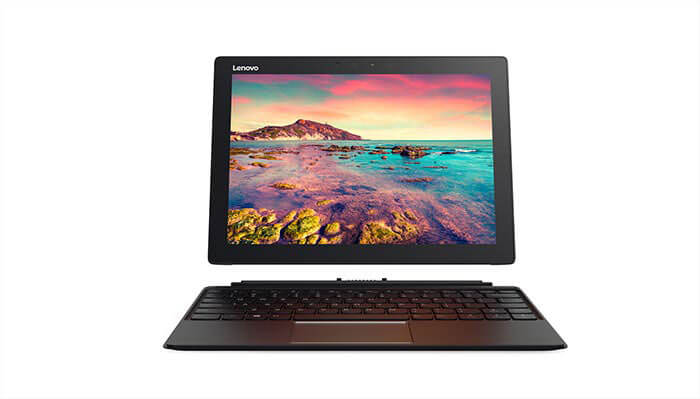
Lenovo has put out several Miixes with active pens–the Miix 510, 520, and IdeaPad Miix 700. The Miixes have been somewhat quiet competition to the Surface Pro. Now the Miix 720 has come.

Lenovo has gone on a listening tour, and is trying to deliver what people want. The Miix 720’s assortment of varying USB ports makes it so you can use your existing peripherals without dongles.  

Download the Miix 720_Spec Sheet (PDF)

This tablet is aimed at artists, designers, writers, business, and general use. Its integrated graphics can handle 4K video. It has the latest Kaby Lake processor. And it has fast memory.

Storage goes all the way up to 1TB. That way, you can be choosy about what you save to the Cloud. As well, you can work offline.

Lenovo Active Pen 2

The new Lenovo Active Pen 2 now has 4,096 levels of pressure sensitivity. It’s not hiked to the 8,192 of the newer Wacom Pro Pen 2 for the art-specific Intuos Pro (2017) and MobileStudio Pro, but it’s plenty. Even 1,024 wasn’t bad. 


Lenovo-Miix-720-review

Lenovo has long used Wacom digitizers in its PCs. Lenovo went from using Wacom EMR to Wacom AES in laptops and 2-in-1s. It switched back to EMR in the Yoga Book (which is really a graphics tablet with a separate screen), but is continuing to use AES on the Miix.

Lenovo’s Pro Pen and Active Pen 1 and 2 are both AES. The Active Pen 2 has raised the pressure levels to 4,192.

The Miix 720 comes in two colors, Champagne and Iron Gray.

Lenovo Miix 720 vs. Microsoft Surface Pro 4

Though it’s certainly thin, the computer part is a hair thicker than the Microsoft Surface Pro 4, at .35″ to the Microsoft’s skinny-Minnie .33.” There is little weight difference. The 12″ screen is a bit smaller than the SP4’s 12.3, but the Miix’s resolution is higher. The Miix, as far as I know, will not have a version with dedicated graphics the way the Surface Pro 4 does.

The Surface Pro 4’s pen is the less-sensitive N-trig, but the Surface Pro 5‘s pen also has 4096 levels as well as tilt, shading, and a soft eraser.

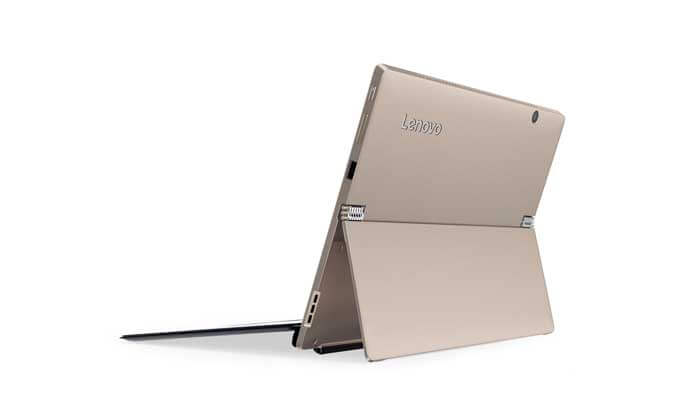
The dual watchband hinge on the Miix’s kickstand is adjustable up to 150 degrees, as well as aesthetically appealing.

Features

Type of tablet: detachable 2-in-1
Display: 12″ QHD (2880 x 1920)
400 nits with Gorilla Glass
Digitizer: Wacom AES, 4,096 levels
Processor: Intel up to  i7, Kaby Lake
Graphics: integrated
Build: one-piece metal alloy
dual-watchband hinge
RAM: Up to 16 GB DDR4
Dimensions
inches : 11.5″ x 8.27″ x 0.35″
mm: 292 x 210 x 8.9
With Keyboard
inches : 11.53″ x 8.5″ x 0.57″
mm): 293 x 216 x 14.6

One USB 3.1 (Type-C1)
One USB 3.0
One USB 2.0
microSD
Audio Combo Jack
Cameras: front 1MP, rear 5MP

Storage: up to 1 TB PCIe SSD
Dolby speakers

Weight: tablet starts at 1.72 lbs (780 g). With keyboard, starts at 2.42 lbs (1.1 kg)

Full-sized Backlit Keyboard
Lenovo Active Pen 2

WIndows Hello
Colors: Champagne Iron Gray

What’s included:

Miix 720
Keyboard
Power supply
Documentation

The Lenovo Active Pen 2 is listed as a separate purchase in the US from Lenovo.

Battery Life:
Up to 8 hours of mixed use

Portability

It’s very thin. At a little over half an inch thick and a little under 2 1/2 lbs. including the keyboard, it can fit into bags and backpacks without a bulge. The penholder keeps the pen where you can find it.

It has Windows Hello, the somewhat creepy facial-recognition program that keeps you from the sweat of typing in a password. It’s optional. Here’s some privacy info about Windows Hello if you’re concerned.

Here’s a neat factoid from Lenovo: 20% of 2-in-1 users use a pen every day.

With the Thunderbolt 3 has a download speed of 40 GBps, you could attach this to a 4K monitor for video feed, and download stuff at the same time.

Keyboard

The keyboard is full-sized and has 1.5″ of key travel, just a shade (.1″) over the Surface Pro 4’s detachable keyboard. Unlike the Surface Pro 4’s bouncy slab, the Miix’s keyboard is rigid, and fully backlit.

Kickstand with dual-watchband hinge

miix720kickstand

The kickstand goes up to 150 degrees, which is almost upright, so you can watch movies or videoconference. Or you can adjust it down to draw on.

Drawing on the Lenovo Miix 720

Update: I tested the Lenovo Active Pen, the one that says it gets 4096 levels of pressure, yet lives in the body of an Active Pen 1. I can’t quite tell from the feel how many levels it’s getting, but it was smooth and sensitive, and performed as it should. There were no blobs; it’s the standard Windows interface, with plenty of power to run Photoshop. The screen is not that slippery.

Multimonitor

You can use this in a multi-monitor setting, connecting up to two displays.

If this is as it sounds, if the price is right it could be pretty appealing.

Lenovo Miix 720 review: the verdict

Right now the Miix 720 is a bit ahead of the Surface Pro 4 on most counts but has some competition in the Surface Pro 5. Still, if you like Wacom, you may want to go with the Miix. As pens are starting to have similar specs and that Wacom-Microsoft pen is finally here. So now the pen and digitizer may still be important, but there may be more factors to look at.

In the past, I’d be wiilling to compromise on other things in favor of a positive pen experience. Now, since tablet PCs are getting more and more drawing-friendly, the other features become more important. Companies should start adding dGPUs to more of them if they really want to get the Photoshop crowd, and ways to attach the pen, and Adobe could do a few things better too, such as maybe fixing icon scaling.

4096 seems to have become the new 1024. Things get ever more interesting.

End of Lenovo Miix 720 review.


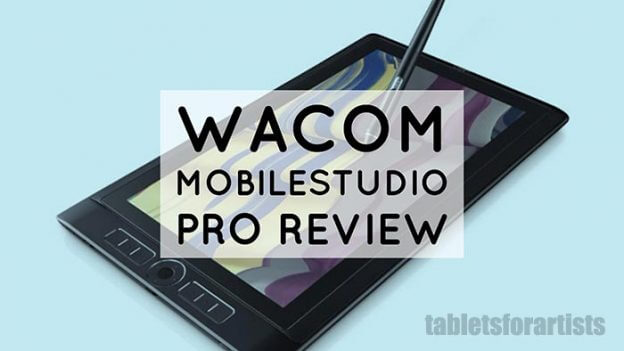
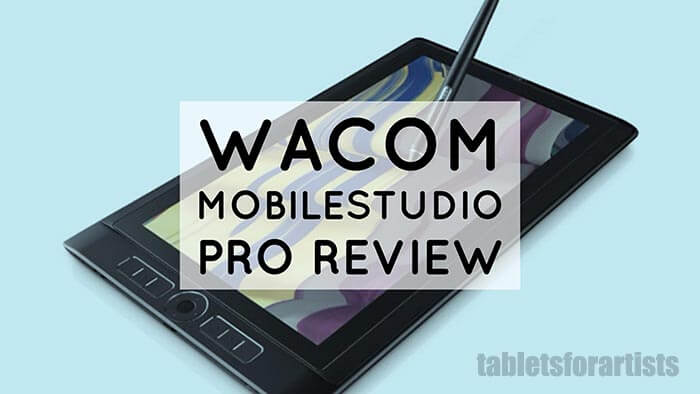
wacommobilestudioproreview

Wacom MobileStudio Pro review: Hands-on with power slate

Wacom MobileStudio Pro Review: Slate up with a twist of awesome

We got to try out this powerful drawing tablet hands-on to write this Wacom MobileStudio Pro review. We found it’s strides ahead of the Cintiq Companion 2 and other competitors.

wacom mobilestudio pro review

This pricey all-in-one comes in two sizes, the 13 and 16, with five configurations going up to i7 with 512GB storage.

The 13 model has three configurations, from i5 to i7, with 8 to 16GB RAM and 64 to 512GB storage (the lowest I would go for storage is 128). Displays range from QHD to 4K. The 16 has a NVIDIA Quadro M600M graphics card. The others have Iris 550.

Download the MobileStudioProFactSheet 

The MobileStudio Pro is a professional-level tablet for those who want a larger tablet that’s a portable mobile workstation. The 13, at 13.3″ diagonal is larger than its closest competitors, the Vaio Z Canvas and Surface Pro 4.

The included Pro Pen 2 has 8,192 levels of pressure sensitivity. It’s the same pen that comes with the 2017 Intuos Pro, Intuos Pro Paper Edition, and Cintiq Pro.

When not drawing, you can game on the MobileStudio Pro with the NVIDIA card. You can also edit video.

The 512GB versions in both sizes come with a fingerprint scanner to log in.

wacom-mobilestudiopro-pro pen 2, pen stand, wacom keyboard

Wacom MobileStudio Pro with Pro Pen 2, pen stand, Wacom keyboard

FEATURES

Type of tablet: all-in-one slate
Runs Windows 10
Digitizer: Wacom EMR
Pro Pen 2, batteryless, two programmable buttons, eraser tip, 8,192 levels of pressure sensitivity
Tilt range 40 degrees, tilt recogniton 60 to -60
Display: QHD ((2560 x 1440) or 4K (3840 x 2160)
i5 to 17; 64 to 512 GB RAM
SSD
Intel Iris 550 to discrete NVIDIA Quardro M600M 2GB or 4GB GDDR5
Multitouch
Color: 94% of Adobe RGB
Dimensions: 16.4 x 10.3 x 0.8 inches
Weight: 4.8 lbs.
Both sizes have the 3D camera option (camera is on the back) in the 17/512GB configuration.
The 13 has six Express Keys; the  16 has eight.
Front and back cameras (5MP on front, 8MP on back)

Pen demo video showing the Pro Pen 2 in action in Sketchbook Pro and Photoshop.

What’s in the Box

MobileStudio Pro
Pro Pen 2 with 3 extra nibs (one felt tip, two standard)
Pen case
Pen holder (attaches)
Power cord
Documentation

Ports: 3 USB Type C
MiniDisplay Port (when used with optional Wacom Link)
SD slot
Headphone jack
Kensington lock port

What’s NOT in the Box

Stand
Keyboard
Wacom Link (to plug into Mac or PC and use the MSP as second screen or Cintiq)
Carrying case or sleeve
Standalone pen holder

The first three items all came with the Cintiq Companions, which were 2-in-1s.

Battery Life

Power users may get as little as 2 to 3 hours, with lighter use getting up to 6.

High screen resolution, large files, screen brightness, and resource-demanding programs all take a toll on battery life. Turning off Bluetooth and Wi-fi when you’re not using them can extend battery time.

Portability

At about 5 lbs., I wouldn’t want to carry it around all day, or keep it on my lap. Wacom doesn’t make a case, and there are not that many than the 16 can fit into comfortably. The power brick is big and adds to the weight. Still, it’s a lot easier than carrying a Cintiq plus a laptop.

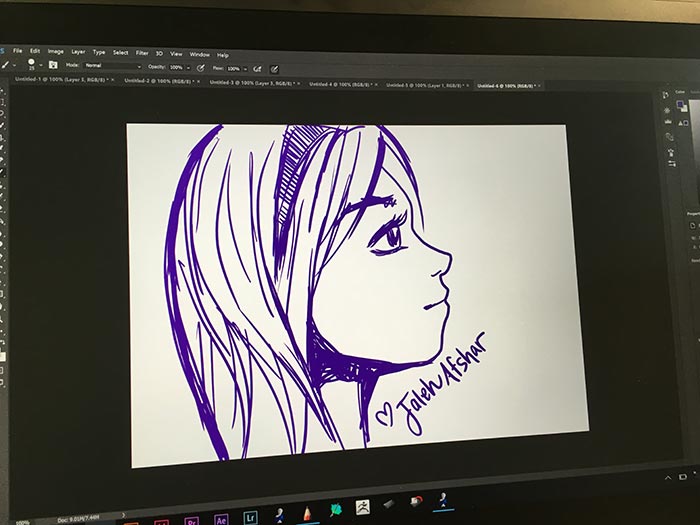
mobilestudio pro artist

Art by Jaleh Afshar

Drawing on the Wacom MobileStudio Pro

The pen glides smoothly, with the etched glass screen acting as advertised, providing a paperlike bite. It would be even more paperlike with the included felt-tip nib. Perhaps it’s a placebo effect of just knowing there are so many pressure levels, but it feels like butter.

In reality I don’t quite sense the difference, and I’ll never use all the levels because I’ll never use a brush larger than 8,192 pixels.

Some artists may actually need to adjust their pressure curve from their accustomed settings to make it more sensitive, because there are now thousands more steps.

I am still not crazy about a 16:9 aspect ratio. It would be even better if if they made it 4:3.

Using the Pro Pen 2

The grip and the way the pen balances makes it feel more like a paintbrush or ink pen. The pen has tilt from the tip.

While Wacom states there’s no lag, I experienced some in I believe it was Clip Studio Paint–I’d put the pen down, then see the mark. Wacom said that can happen to any computer, and that’s true. It was a big file.

Subsequent drawing did not have any lag. So I think Wacom can say they’ve eliminated most lag, but it’s not infallible. A little lag now and then isn’t a dealbreaker, but the rarer the better.

I’m not sure what more they can do now, except perhaps make nibs that allow side shading like the Apple Pencil. Adding a multiple of more pressure levels would be excessive.

Pen compatibility

Wacom’s site states that these previous generation Cintiq pens are compatible: the Airbrush, Art Pen, Classic Pen, Grip Pen, and Pro Pen.

MobileStudio Pro vs. Cintiq Companion 2

Times have changed. While the Cintiq Companion 2 felt great to draw on, it was plagued by loud fan noise and it wasn’t all that powerful. The pen still had a bit of parallax. The old Pro Pen supported 2,048 pressure levels.

The MobileStudio Pro’s included Pro Pen 2, which can be used on the Cintiq Pro as well, gets 8,192 levels of pressure sensitivity. There’s zero parallax, bringing it up to par with the Surface Pen in the parallax department. That’s because Wacom, like Microsoft, is now using optical bonding, bringing the surface of the glass closer to the digitizer layer, thus eliminating parallax.

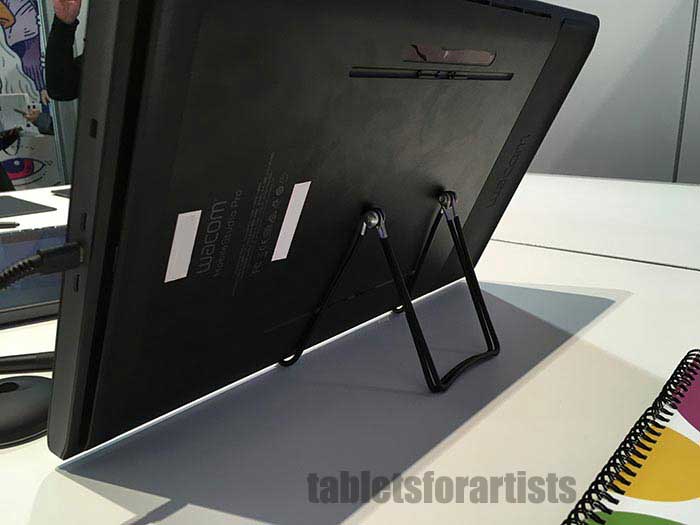
The MSP’s back has convenient grips to keep us butterfingers from disaster. The Companion 2 was QHD, like some models of the MSP. The Cintiq 13HD is HD.

The fans are, sensibly, now on the side instead of the bottom, so the air blows out instead of getting trapped onto your desk or lap. Now they are quiet. The unit can get warm, but I haven’t heard complaints about excessive heat.

The build materials are premium; it’s metal, not plastic. MobileStudio Pro’s bezel is smaller than the Cintiq Companions’. It doesn’t have the inner bezel the Companions do.

Screen

The Companions’ screen protector, like on other Cintiqs, provided Wacom’s signature matte finish. The MobileStudio Pro has an etched glass surface that gives the slight resistance that emulates a pen and paperlike feel.

The glass also allows light to shine through. It’s not oversaturated like Cintiq displays. It’s also not slippery, since the etched glass gives a similar paperlike texture to the Cintiqs, without the filmy coating. The color gamut covers 94% of the Adobe RGB spectrum.

This screen does give some brownie points in this MobileStudio Pro review, for having clearer colors than Cintiqs.

Controls

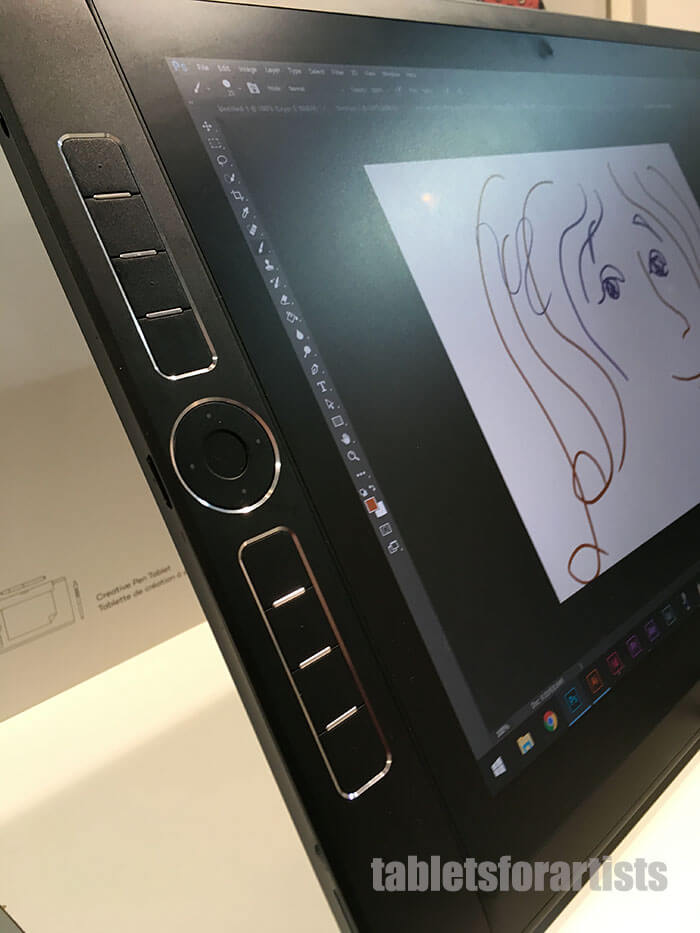
The MSP sports chrome-trimmed Express Keys rather than the the utilitarian rounded rectangles of the Companions and Intuos Pros. I’m not a big fan of  the chrome trim, but it does make it easier to see the buttons. The tablet has a luxury look and feel. The color is close to black.

The functions are similar; there are six keys on the 13 and eight on the 16, and the Rocker Ring with Touch Ring. The batteryless, Wacom EMR pen still has two programmable buttons and an eraser tip with the same 8,192 levels of pressure as the pen tip.

The included pen case is cylindrical and resembles a cigar case. The pen holder clips onto the lock port. You can slide the pen in, or stand it up. It doesn’t come with a, standalone pen holder.

Wacom MobileStudio Pro Review

Back with grips, rear camera, 3D camera (note: this stand in this photo is not the official Wacom Stand)

Software

In all the models you can use a variety of 2D and 3D programs, such as Photoshop, Illustrator, zBrush, and Corel Painter, Paintshop Pro X9, and Mosketch, a program for 3D character animation.

The processors can run an array of 2D and 3D programs. The discrete NVIDIA M600M graphics is the same as in the Lenovo P70 mobile workstation, which has the 2GB card. The models with Intel Iris 550 are also powerful enough for 3D.

The highest model of MobileStudio Pro, available only in the 16, possesses 3D Intel Real Sense. That’s a 3D camera, aimed at industrial designers or engineers who use CAD and 3D sculptors who start with real objects. It comes with with a year’s license for Artec Studio 11 Ultimate scanning software.

Being a slate, it doesn’t have a dedicated keyboard that can be attached. You can use the Wacom Mobile Keyboard (optional purchase) or any Bluetooth or USB keyboard. There is a fingerprint sensor to log in.

Icons will look small due to the high-res display. Not every art program will get all the possible levels of pressure.

One Wacom MobileStudio Pro review remarked upon lag and other problems in Illustrator. Perhaps this is related to the Clip Studio Paint issue I experienced. Hopefully this will get ironed out as much as it can be.

chrome express keys

The Express Keys have some bling.

User reactions

Most Wacom MobileStudio Pro reviews from artists so far are very positive, with many on Cloud 9, and some detractors. Since the tablet only just came out, users are now bringing attention to bugs for the company to look at. Lots of artists, including me, are craving one! But it’s a luxury unless you really need some of the features, or can drop the dough with no problem.

When you buy something right after release, you become sort of a de facto beta tester, even if you don’t want to be. Unfortunately, Wacom isn’t the easiest place to deal with in getting repairs or doing returns.

Wacom MobileStudio Pro review Pros & Cons

Pros

Sensitive, responsive pen
Portable
Powerful
When used with Wacom Link, can attach to Mac or Windows and use as Cintiq
NVIDIA graphics
3D camera option
two sizes
Can use pen on some other Wacom devices

Cons

Expensiiiive
Battery life not great
Some bugs and glitches such as lag or bootup issues
Type C ports means you will need dongles for peripherals, for now
Does not come with accessories

The Verdict

This is a pricey proposition. It would nice if Wacom included the accessories that came with the Companions, such as a keyboard and the Wacom Link, considering the price tag.

There are other options with the same amount of power. The MSP is not the most lappable, because 5 lbs. on your lap can add up. However, I prefer the all-in-one form to using an attached tablet monitor, since an all-in0one takes up so much less space.

The MSP 13 is a good sequel to the Cintiq 13HD if you don’t like having to attach a computer. If you want the latest Cintiq, consider the Cintiq Pro.

The MobileStudio Pro 16 is more of a commitment in price but expands your capabilities in multimedia and rendering. The 3D camera would be utterly useless for many artists, but for some it’s a great feature.

A tablet that’s a computer makes you stuck with the OS unless you’re using the Link to use it as a Cintiq past the OS’s expiration date. Having it be an all-in-one also limits its resale time and value a bit, but it should last for years with proper updates.

Having a large screen, portability, and all the Wacom art controls makes this a joy to work on; you may have to live with a few bugs and imperfections for now.

This MobileStudio Pro review  is a thumb’s up for the specs and fun of using it. In designing this sleek slate, Wacom has listened to consumers and is, so far, still winner of the art tablet game. This would be a great high-end portable art studio to have if budget allows.

end of Wacom MobileStudio Pro review

See it on Amazon
(link takes you to the store in country you’re in)

Optional Accessories

Artisul Freestyle Stand fits both sizes (if you don’t want to get the Wacom Stand)

USB C-to USB-3.0 adapter

Wacom Link and Stand

end of Wacom MobileStudio Pro review

Wacom+Intuos+Pro+Paper+Edition-2

Intuos Pro Paper Edition hits the stands: Hands on

Intuos Pro Paper Edition: Take note

The Intuos Pro Paper Edition is here, joining the ranks of tablets that add real paper and pen to the mix. It comes in only Medium and large, and is a regular Intuos Pro except for the addition of a paper pad and fine-tipped pen.

Like the paperless model, it comes with the Wacom Pro Pen 2, which gets an eye-popping 8,192 levels of pressure sensitivity.

The regular Intuos Pro has also been updated.

Intuos Pro Paper Edition

Intuos Pro Paper and pens. Image courtesy Wacom

New Intuos Pro and Paper Edition features

The new Intuos Pro, including the Intuos Pro Paper Edition (as they’re the same tablet)  is thinner than the old version and has a smaller footprint. The pen stand is now smaller, the pen case is updated. Then nibs sit in the pen holder, which is now flatter and cookie-like.

You also get three Texture Sheets that you can use to get the look of three drawing textures.

The Paper Edition still has touch, the ExpressKeys, and Rocker Ring as controls.

It also includes the 0.4mm Finetip gel ink pen, which is also an EMR pressure-sensitive pen.

Inkscape App

Like the Bamboo Slate and Spark, the tablet comes with the Inkscape app. (Though the app is free to download, eventually it becomes subscription-based).

intuospropapereditionreview

Intuos Pro Paper with Pro Pen 2 and new, thinner pen stand

Besides the gel pen, there’s an optional ballpoint pen. Wacom says that in mid-2017, there’s going to be a pencil option. Yippie! Wonder if it will have an eraser end.

With the app, which works on mobile or desktop, your drawings get digitized and you can store or share them.

intuospropaper

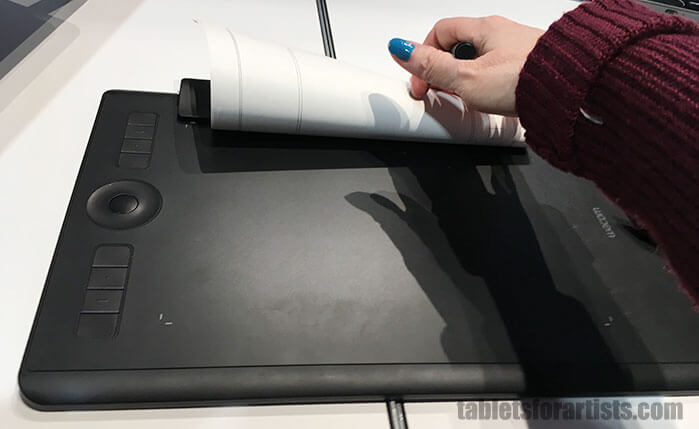
You can use the Paper Clip (that thing on top) to attach your favorite drawing paper to the Intuos Pro Paper Edition. Or you can use the tablet as a regular Intuos Pro.

WIth the paid app, you get 50 GB storage instead of 5; you can convert text to notes, collaborate with others, or turn raster into vector. It costs $3.56 per month as of this writing. The basic app is free and can be used on its Web platform or as an Android and iOS mobile app.

newintuosprogelpen

Intuos Pro Paper Edition Bamboo gel pen

The Intuos Pro Paper now has this whole new functionality. While I like the ink pens, can’t wait for mid-2017 when the pencil comes out in time for summer sketching.

See it on Amazon

Read more about the top Wacom tablets.