Category Archives: Reviews

best laptop for photoshop

Best laptops for Photoshop and photo editing: 2016-2017 picks

Top laptop and 2-in-1s for photo editing, Photoshop
best laptops for photoshop

What’s the best laptop for Photoshop and photo editing? While desktops can pack a lot of power, laptops have come a long way. Many people need the portability, lap-ability, and space-saving qualities of a laptop or 2-in-1.

The best laptops for Photoshop painting, or photo editing in Photoshop and Lightroom, have to serve many purposes. Certainly you need something powerful for working with large files in high quantities. You also need a high-res screen and good color quality, preferably wide gamut.

Some believe you need a laptop suitable for gaming in order to run Photoshop well, but this isn’t the case.  What’s more important is having the power of a mobile workstation. You can use many laptops for photo editing, but certain features make for an optimal experience.

Best laptop for Photoshop and photo editing: what to look for

Here’s a handy chart showing our top choices so far for 2017.

Best laptops for Photoshop and photo editing 2016-2017
MacBook Pro Retina 15
NVIDIA GeForce GT 650MSee it on Amazon
Dell XPS 15
Dell-XPS-15
Multitouch option
Nvidia 960M graphics
See it on Amazon
ASUS ZenBook Pro UX501 VW 15.6" 4KNvidia GTX960M GPUSee it on Amazon
Lenovo ThinkPad P40 YogaQuadro M500M Discrete Graphics with 2GB VRAMSee it on Amazon
Vaio Z Flip
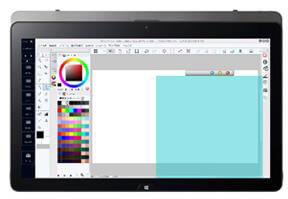
(Vaio Z Canvas, pictured, also recommended)
vaioz-canvas
Pen tablet with pressure sensitivity, N-trig, 1,024 levelsSee it on Amazon

See our Vaio Z Canvas review
Surface Pro 4
microsoft surface pro 4 with surface pen
Pen tablet with pressure sensitivity, N-trig, 1,024 levels
128MB Intel HD Graphics 520
See it on Amazon

See it at Microsoft

Read our review
Surface Book

microsoft surface book review
Pen tablet with pressure sensitivity, N-trig, 1,024 levels, optional NVIDIA GeForce GTX 965M 2GB GDDR5 memory See it on Amazon

See it at Microsoft

Surface Book

Wacom MobileStudio Pro

Wacom MobileStudio Pro. Source: Wacom

Pen tablet with pressure sensitivity, Wacom, 8,192 levels

NVIDIA Quadro M600M 2GB GDDR5 to NVIDIA Quadro M1000M 4GB GDDR5
See it on Amazon

Processor

An Intel i7 is the best option for handling the demands of Photoshop. You should at least get an Intel i5. Xeon E3 is another processor that’s strong enough. If an i7 is too pricey, an i5 will work.

CPU
At least dual core, quad core is fine too. Photoshop doesn’t always take advantage of all the cores available.

SSD
An SSD, or solid state drive, is faster, quieter, and more reliable than a hard drive (HDD). It does cost more. Another option is a hybrid SSD/HDD is more affordable and delivers most of the benefits of an SSD.

Memory
If you don’t want to spend a lot on a computer with a ton of storage, you could get a 256 GB or 512 SSD, and a 1TB external hard drive to store your art and photos for the long term. It’s a good idea to have multiple backups, on drives as well as in the Cloud.

Keeping layers makes files much larger, so flatten layers when you can. Some laptops have space for additional storage drives.

Screen resolution
A high screen resolution such as Retina, 4K, or UHD will really let you zero in on pixels. You’ll be able to see some large files in actual size instead of partial. Most programs by now have adjusted scaling so text and icons won’t show teeny-tiny on a high-res screen. This may still be an issue with older software. With programs that have not adjusted, you can dial down the resolution by adjusting it in your display settings.

Matte vs. glossy
Matte is better for screens because it’s less reflective. If you work indoors and can control lighting, then glossy is okay, but outdoors it can be hard to see. It also tends to exaggerate brightness.

IPS
An IPS display is important because it provides good viewing angles. You don’t want your image to become invisible to you because you looked at it from the side.

Screen size
Laptops mainly go from 11 to 17″. We favor 15,” as being portable but large enough to see what you’re doing. If compactness is a priority, then 13″ is OK. Eleven is too small to be very productive.

Operating system
Mac or Windows will both do equally, it’s a personal preference. They both support Adobe programs. Chrome OS does not.

Color gamut
While average laptops cover about 60-70% of the sRGB color gamut, for Photoshop, you’re better off getting one that has around 100%. Some also have some or all of Adobe RGB color gamut. Adobe RBG can look oversaturated on the screen; if you have one with Adobe RBG, it will allow you to switch to sRGB.

You also have the option of using a good external monitor for color-sensitive work, and using a calibrator on your laptop. I don’t think it’s necessary to get all the Adobe RGB on a laptop, as working on a larger external monitor is preferable. Some of the best laptops for Photoshop and photo editing include the Adobe RGB gamut, and others do not.

Pen (optional)
As you can see, this site focuses on pen tablets. But many people attach tablets to a computer, so this post includes laptops that have no pen.

A pen allows accurate input without attaching an additional tablet. It’s an option in deciding what features you want in the best laptops for Photoshop. When photo editing, it’s easy to cut out backgrounds, make quick masks, and selectively do things like burn in small areas. If you don’t get a pen tablet, you can attach a separate graphics tablet to your laptop.

Battery life
Battery life is important, unless you always work indoors. The same features that boost performance also drain the battery, including high-res screens, fast graphics, and a fast processor. So you want to get a balance of features and good battery life.

Ports
To connect an external monitor you will need an HDMI, DisplayPort, or, older, a VGA. To connect a Cintiq, you will need an HDMI. If your laptop has a VGA, you can use a VGA to HDMI adapter. To connect a graphics tablet, you just need a USB. All laptops have full USB ports, usually USB 3.0 or USB-C.

Do I need dedicated graphics?
This is a common question and one surrounded by confusion and misinformation. In short, the answer is no. Discrete, or dedicated, GPUs are more important for gaming and 3D rendering and intensive video editing than they are for most digital art and photo editing. They will give you a performance boost in Photoshop, but are not required.

Photoshop doesn’t access the regular GPU that much–it’s there for certain functions, including blurs and image rotation. If you do want the discrete GPU, preferably use an NVIDIA with 2 GB or more memory.

There are many great laptops for photo editing and creating art in Photoshop. Here are our favorites in 2016-2017:

MacBook Pro Retina

Many creatives opt for Macs. Using Photoshop on a Mac is not any different than using it on a PC. A long time ago, it was, and, largely from tradition, graphic designers have largely stuck to Macs. Also, the MacBook Pro is color-managed. There’s a 13- and 1- inch option, and integrated graphics. The MPB covers about 99% of sRGB and 88% of Adobe RGB. With its beautiful display and powerful processor, it’s a top laptop for Photoshop.

Dell XPS 15 Touch

The Dell XPS Touch and non-Touch are also top choices. It has  over 100% of both Adobe RGB and sRGB. It also has discrete NVIDIA graphics. The highest end has a 4k touch IPS display (3840 x 2160), 3 million more pixels than the Macbook Pro. Spec-wise, this Dell laptop is is equal  to or even better for photo editing than the MacBook Pro.

See Dell XPS 15 Touch on Amazon

Read our review of the newer Dell XPS 13 2-in-1 if you’re wondering. In short, it’s a fine laptop but a bit  less powerful than the first XPS.

ASUS ZenBook Pro UX501VW

This 15.6″ Touch IPS sports and 4K Ultra­-HD display, 3840 x 2160 resolution, Intel Skylake Core i7­-6700HQ 2.6 GHz Quad­core CPU and Nvidia GTX960M GPU graphics suitable for gaming. You shouldn’t have any problem tackling photos or with demanding rendering tasks such as using filters.

See the ASUS ZenBook Pro UX501VW on Amazon

Best laptop for photo editing: pen tablet PCs

Want the added accuracy and sensitivity of a pressure-sensitive pen? These laptops have touchscreens that are like Wacom tablets, delivering great accuracy and allowing you to sensitively edit your work using a stylus. I believe the best laptop for photo editing has an active stylus.

Surface Pro 4

If you want a laptop with a pressure-sensitive pen, the Surface Pro 4 is an excellent choice, though the screen is pretty small. Its compact size is perfect for when you’re scrunched into an airline seat.

Surface Book
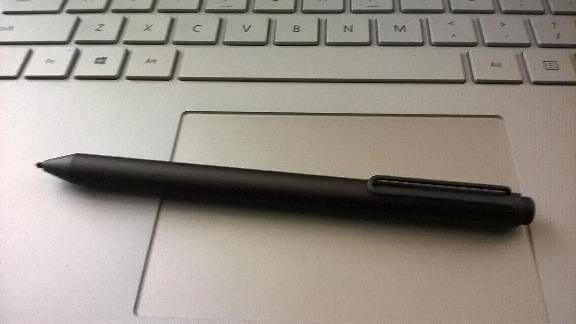
surfacebooktrackpad

Surface Book pen and keyboard

The Surface Book is Microsoft’s laptop-first detachable 2-in-1 pen tablet. One configuration of it boasts NVIDIA graphics.

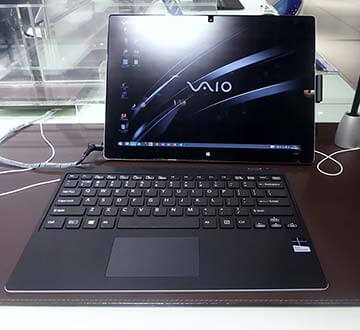
Same with the Vaio Z Canvas (read our review)–which has a healthy battery life. This remarkable 2-in-1 is as powerful as a mobile workstation and good for video editing as well as Photoshop. Drawbacks? The display isn’t very big (that can be good or bad, depending) and the keyboard lacks a backlight. But it’s a powerhouse.
best laptops for photo editing

Vaio Z Canvas with keyboard.

Lenovo ThinkPad Yoga X1

The Lenovo ThinkPad Yoga X1 delivers excellent color accuracy, over 100% of sRGB, and is Wacom AES penabled. There’s an OLED option. See more about Lenovo tablets.

WACOM OPTIONS

The Yoga X1 has a Wacom digitizer, but the computer is not made by Wacom and doesn’t have the controls that make for the Cintiq workflow. Cintiq controls can really speed up your work whether you’re painting or photo editing.

Wacom’s new MobileStudio Pro and Cintiq Companion 2 provide these express keys and rocker ring. While some criticize the CC2’s less than stellar battery life and noisy fan, it’s still great for digital painting and photo editing.

Read our Wacom MobileStudio Pro review

Wacom MobileStudio Pro


Wacom MobileStudio Pro

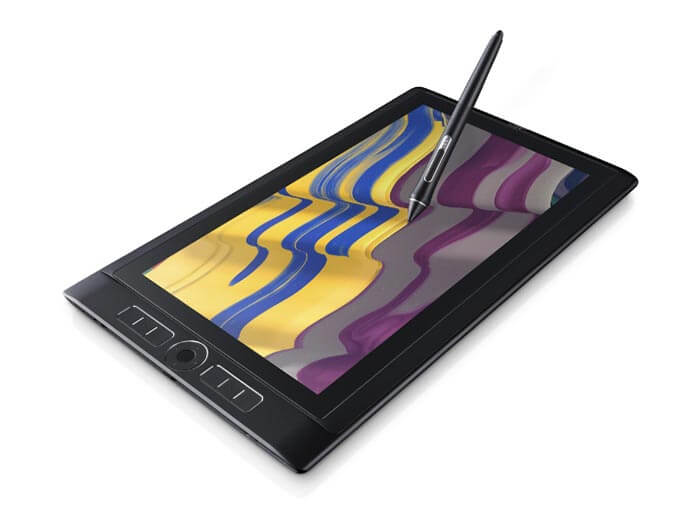
Wacom MobileStudio Pro. Source: Wacom

This recent offering from Wacom comes in two sizes, the 13 and 16. It’s a very powerful slate tablet. The 16 has an option with dedicated graphics and even a 3D camera. If you want to be able to carry just one thing around, this will serve your needs. You can also purchase the Wacom Link and use it as a Cintiq, attached to a Mac or PC. See our Wacom MobileStudio Pro review.

See the MobileStudio Pro on Amazon
 

cintiqcompanion2

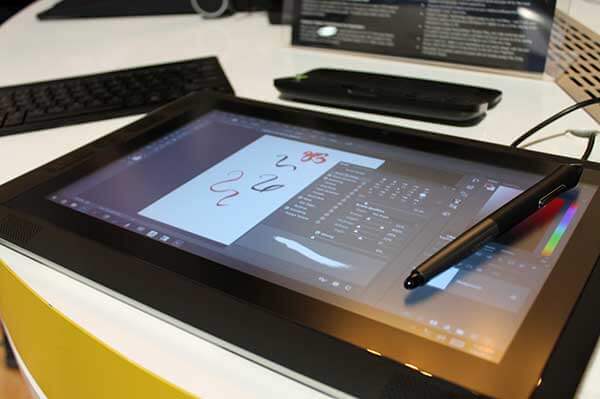
Cintiq Companion 2 (see on Amazon)

The Cintiq Companion 2 is the predecessor to the Wacom MobileStudio Pro. It comes with more extras than the MobileStudio Pro. While it doesn’t deliver all the power of the MSP, it’s still very good for photo editing and Photoshop. You also have the option of using any Mac or PC with an attached pressure-sensitive tablet.

Hope this article has helped you pick one of the best laptops for Photoshop and photo editing for your needs. If you’ve got further suggestions, leave them in the comments.


Artisul D13 review: quality pen-display tablet lets you unplug

the Artisul D13 review: high-quality 13″ pen tablet lets you unplug

artisul d13 review

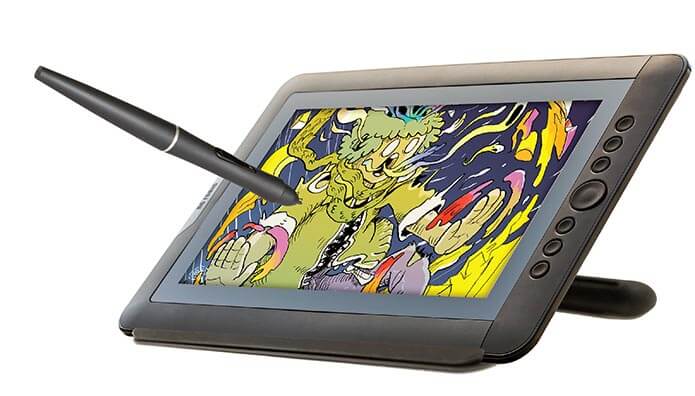
The Artisul D13 with U-Pen

Artisul is part of UC-Logic, a Taiwanese company that has been making digitizer tech since the 1990s. The company kindly lent me a unit for this Artisul D13 review. The Artisul line, which includes the Artisul D10 (which has very similar specs to the D13 but is smaller) and Artisul Pencil Sketchpad, is the first tablets the company has produced. Its Web site describes the tablets as the culmination of a dream.

The D13 is a tablet monitor you might consider if you are looking for something more affordable than a Cintiq 13HD.

The tablets are designed in San Francisco and created in Taiwan. The name comes from Art and Soul. Will this drawing tablet find a place in your heart?

Type of tablet

Tablet monitor/pen display tablet (draw on screen)

Digitizer

UC-Logic
Electromagnetic resonance (EMR)
2,048 levels of pressure sensitivity

Dimensions

13.3″ diagonal screen

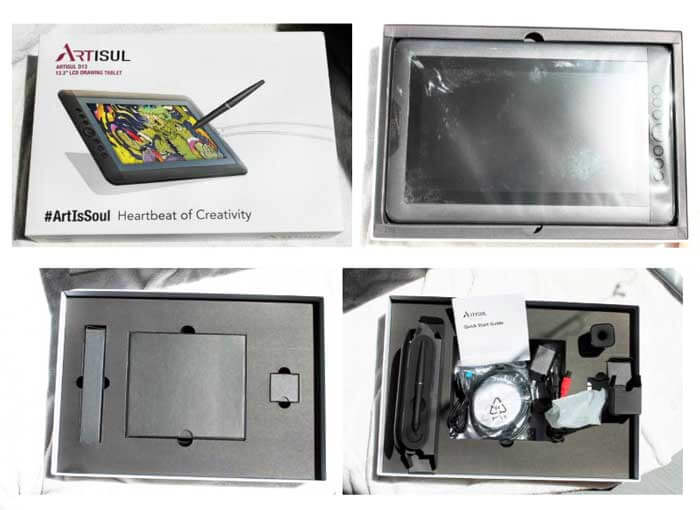
What’s in the Box?

Tablet
Pen (called U-pen)
Pen case with 9 extra nibs and nib remover
Stand for pen
HDMI cable (HDMI on one side, mini HDMI on other)
USB cable (USB on one side, micro USB on other)
Y-type cable
Power adapter, plugs for U.S./Asia, Europe, Australia

Opening the box, you can’t help but being wowed by the presentation. The cables and small items come in individual, black, quality cardboard boxes in a sturdy, sleeved box with a foam-lined lid. The tablet is sleek and solidly built, and the slim, gold-trimmed pen looks would look good in one of those fancy pencil cups executives keep on their desks. The D13’s packaging pretty much screams “gift me!”

artisul d13 review

Unboxing the D13. There’s an outer sleeve with a box inside.

Features

Works with: Win 7/8/8.1/10, Mac OS 10.8 or later
Aspect Ratio:16:9
Active Area: 11.5″ x 6.5″
Weight: 2.42 lbs. (1.1kg)
Dimensions: 12.8″ (L) x 7.6″ (W) x 0.7″ (H) (in mm: 389.0 x 250.7 x 14)
Screen: LCD, 13.3″ FHD 1920 x 1080 IPS
Wide Viewing Angle: 178° (89°/89°) H, (89°/89°)
Brightness: 300 nits
Resolution 5080 LPI
Reading speed 200 PPS
Powered by: USB 3.0, HDMI input
6 assignable hotkeys and Quickdial scroll wheel on tablet
2 pen buttons

The build quality is excellent, with a solid plastic body. I only had a it a month, but the ports seem durable and the cables fit well. The thin, relaxed cables actually put less stress on the connectors.

Unusual Features of the Artisul D13

One really cool thing is that you can power the Artisul off your computer’s battery alone. This will work with a single USB 3.0 port, or two 2.0 ports. This ability to unplug  is a major advantage for those who want to work in places out of reach of a wall outlet. You also have the option of plugging the tablet into an outlet.

This ability isn’t unique (a small Yiynova also offers this feature, as mentioned in this New York Times article about trying out a Cintiq and a rival), but it’s not common.

Another unusual feature is that in Windows, the Artisul will work and get pressure sensitivity just from the pen and digitizer alone, without even installing the driver. Without the driver, you won’t be able to customize the hotkeys and other settings, of course, but let’s say you just got the tablet and have no Internet connection–you can still use it. On Mac, you will need the driver to use the tablet.

Portability

At 2.42 lbs., it’s quite portable–of course, you will also need to have a computer. The lightweight power cords and option to power from the computer alone adds to the Artisul’s portability.

For lefties

The tablet can be turned so that the hotkeys are on the left side, making it suitable for southpaws.

Setting up the Artisul D13

Documentation

The documentation is well-designed, but it could be more thorough. Some of the cables may not be familiar to everyone; the detailed diagram in the manual is hard to see clearly; and the instructions take you through, but don’t always explain what to expect. For instance, I thought the installer would show up on the desktop, but had to click on it from inside the folder instead.

There are ample instructions about working with different graphics cards, and some troubleshooting tips.

Cables

There are several cables you’ll need to use, including a splitter. Though it’s a lot, there’s no large power brick. To avoid having so many cables, you may choose to work more often using your computer power.

If your computer lacks an HDMI port, you will need to supply an adapter; that doesn’t come with it. (You can ignore the note in the Artisul manual about only using Artisul cables as far as HDMI adapters). You can find them on Amazon for various connections.

Artisul drivers

Installing the drivers is easy, though if you’re new to it, setting them up may be a little tricky. Like Cintiq drivers, the Artisul drivers offer lots of customization options. Once set up correctly, they perform well and and are free of the unpredictability that plagues some drivers in budget tablets.

More description on the download page of which driver to choose would be helpful–for instance, the word “beta” might scare some people off, but the beta drivers have been deemed ready to use. Capabilities varied a bit on different programs and different operating systems. The company continuously works on the drivers.

Be sure to uninstall all other tablet drivers you’ve previously installed before installing the D13 drivers.

You can use a mouse and pen, but you cannot use both at the same time. You can map the D13 to multiple monitors.

There are some preset hotkeys (the co. calls them FastAccessKeys) for Photoshop, CorelPaint, Clip Studio Paint (Manga Studio), and some basic defaults.

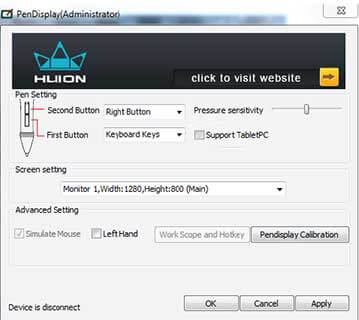
Though the drivers look like Huion’s, such as the little icon of a tablet and pen, UC Logic and Huion are not related. In fact, Artisul says UC Logic launched a lawsuit against Huion.

U-Pen

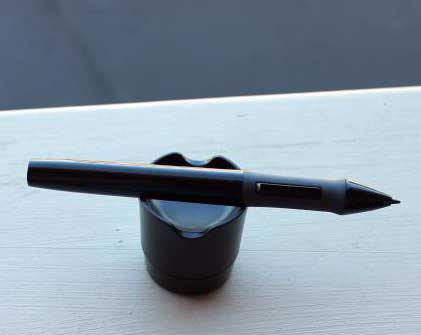
The batteryless, cordless fine-point U-pen weighs just 11 grams. It looks very much like a ballpoint pen. It would give more balance and drawing oomph if it weighed more, but I prefer light to too heavy, and didn’t feel that the lightness affected my drawing. Your hand won’t get tired holding this pen for hours. If you’re a fan of heavy pens, this one may feel too light.

It comes with 9 nibs nested neatly into the pen case. The nibs are hard, and they’re all the same; they don’t have different tips or pen choices.

This Artisul tablet is aimed at the educational market as well as consumer, and I think the pen, being light and suitable for small or larger hands, is ideal for kids middle-school age and up for note-taking and art. It’s used in classrooms for creative learning, writing, and calligraphy, and the company offers a student discount for educators and students in the U.S., Mexico, and Canada.

Screen

The screen comes with a removeable, replaceable anti-glare matte screen protector that cuts glare and allows the brightness of the display to shine through. It gets fingerprinty, but cleans up well. As with other tablet monitors, you can wear an artist’s glove to keep the screen clean and keep moisture from your hands from sticking.

Neither the D13 nor the 13HD are super sharp, both being HD, but the display looks good. The screen gets a bit fingerprinty, but cleans up well. You can wear an artist’s glove to not only keep the screen clean, but to keep moisture on your skin from causing stickiness.

The screen protector has slight texture that’s pen-and-paperlike and not slippery or glossy.  It lacks the rougher “bite” of Wacom’s offering, but has some tooth. The D13’s surface provides enough traction for a pleasant drawing experience. There are color calibration settings. Colors are bright, with a 75% percent Adobe RGB coverage, same as Cintiq 13HD. Bottom line, the screen is nice.

Drawing on the D13

The drawing experience is excellent. I got no lag when drawing and almost no parallax (the slight gap between pen tip and screen) either; the line was right under the tip; I did not have to keep an eye on the cursor to see where my line would appear.

The D13’s pressure curve is smooth. The pen makes a bit of tapping noise, but no squeaking, as can happen with glossier screens.

cintiq alternative reviews

Drawing with the U-Pen

Drawing on the Artisul easily matches drawing on a Cintiq. The Artisul uses EMR tech, as does Wacom, each using their own technology. EMR offers the most sensitive digitizer outside that of Apple’s iPad Pro. You don’t have to press hard at all to make a mark with the Artisul pen.

I don’t have a number for the initial activation force, but I noticed dragging the tip lightly across the screen made marks, also some skips due to my not being able to precisely control the pressure. The pen is lighter than the Wacom pen and feels about as sensitive.

Palm rejection worked well, with a comfortable hover distance.

Art Programs

Will work with most software, including Photoshop, Sketchbook, Maya, Corel, Clip Paint, Photoshop, After Effects, Anime Studio Pro, Toon Boom, and Affinity Designer. Works with Illustrator, but without pressure sensitivity at this time (this may change). I tried it with Photoshop, Sketchbook, Gimp, and Illustrator. Photoshop and Sketchbook worked great. The manual has instructions about working with Paint Tool SAI.

I told the company about some issues I had with Gimp with one of the drivers and they quickly identified the problem and said they’d fixed it (that was after I returned the tablet). Later they said they had a new Windows driver that fixed that issue plus some others.

Controls

The six hotkeys are on the tablet and are round and a good size. They’re a little bit stiff to click on. You can program the hotkeys to presets, or customize your own commands.

You can also assign them to different programs–the programs don’t automatically show up in the driver as with Wacom; on the Artisul, you program the buttons, then save them, and on the next screen assign them to the applications of your choice. There’s also a scroll wheel. The two pen buttons are programmable to an extent.

The stand goes from 13 to 70 degrees, which is a lot more flexible than the Cintiq stand’s three positions. Easel mode is good for working on and gallery mode for admiring your work.

Artisul Freestyle Stand

artisulstand

The Artisul Freestyle stand is made of is fully adjustable to any angle between 13 and 70. You can use it when drawing in “easel” mode or upright in “gallery” mode. (20 degrees is an advisable angle to draw on for good ergonomics).

artisul stand gallery mode

Artisul Freestyle stand in gallery mode

Artisul D13 vs. Cintiq 13HD

The Wacom Cintiq 13HD and Artisul D13 have a lot in common, and some differences.

Win for Artisul: Artisul is more portable because it doesn’t always be plugged into a wall outlet. The display is 50 nits brighter. There are six hotkeys embedded into the tablet body, as opposed to just four with the 13HD. The screen protector is removeable and replaceable. The Artisul Freestyle stand adjusts to any angle between 13 and 70, as compared to the Cintiq’s 3-position stand.

The response rate of the monitor is 19ms to the Cintiq’s is 25 ms (milliseconds)–lower is better. 

Win for Cintiq: You’ll get tilt sensitivity, rotation sensitivity with an optional pens, and pressure sensitivity in Illustrator. The two pen buttons have more customization options. Also, the Wacom pen has an eraser end, which like the tip has 2,048 levels of pressure.

Cintiq has various kinds of pens and nibs as an optional purchase. Its screen has more “bite,” though Artisul’s has enough.  Cintiq comes with some freebie software and Artisul doesn’t. The Cintiq’s cords are simpler.

The Artisul’s design and build are just as good, I think, and its ports seem durable. Many of the Artisul specs are identical to the Cintiq’s, including screen resolution, resolution in lines per inch (5080), and amount of colors displayed (16.9 million).

Customer support

Artisul was extremely helpful in answering my questions both about products and technical aspects. You can contact them or post on their forum. They will set up a remote screen-sharing session if needed. They are a small and dedicated company and open to feedback.

User reviews and reactions

User reviews have been positive. Reading the Artisul forums and some other comments, some people are having some issues with things like offset, but this should be fixable by adjusting the driver. Though some people have had some glitches, overall, this tablet has been well-received.

Pros

Pressure curve
Quality build
Stylish
Pleasant drawing surface
Comfortable pen width
Lightweight, portable
Reversible for lefties
Drivers work well
Battery-free, cordless pen
Can work without being plugged in to wall
Can work without driver in Windows

Cons

Can be a little tricky to set up, depending on your skills
Documentation could be more detailed
Drivers have some differing features, so it can be hard to know which to choose
Nibs all the same (for now)

Artisul D13 review: the Verdict

This is not a budget tablet, but a high-quality one that offers value. It has its own character and some unique and convenient features, particularly that you can run it from your computer’s battery, adding to the tablet’s portability.

The Artisul is a durable and well-made tablet with great drawing capability for tablet users whether students or pros. It’s one of the better, probably the nicest in quality, of the Wacom competitors.

artisul d13 pen

Artisul U-Pen with nibs and carrying case


See the Artisul D13 on Amazon – includes pen and stand

Mini Display Port to HDMI Adapter on Amazon

Extra screen protectors, pens and nibs, cables, and stands are all available on the Artisul site.
end of Artisul D13 review

turcomreview

Turcom TS-6610 graphics tablet review

Turcom TS-6610 tablet review, with art-program testing

turcomreview
Turcom TS-6610

Turcom makes audio equipment, security cameras, LED lights, and drawing tablets, including one pen-display tablet (as of 7/16).

Summary: The tablet is built well, and the pressure curve is great, but the driver can be difficult.

I tested it with various art programs on both Mac and Windows, and reported the results below.

Type of tablet
Graphics tablet (no screen), attaches to computer
What’s in the Box

Tablet
USB cord
Pen
Nib holder
5 nibs (one in pen and 4 extra; nibs are all the same)
AAA battery (Pardeer brand) for pen
disk with driver
Quickstart guide

Features

2,048 levels of pressure sensitivity
Size: 12.5 inches x 16 inches x 2 inches
Weight: 2.15 pounds
Active area: 10 inches by 6.25 inches
Report rate (RPS) 220
Plastic build
8 Hot Keys
16 customizable “functional cells,” on-screen softkeys
Pen included, takes AAA battery (included)
Resolution: 4000 LPI (Lines per Inch)
Driver available from included disk or from Turcom site
Pen takes AAA battery (included); no eraser tip
Pen weight with battery: 26g (battery alone is 11g)


turcomts6610tablet

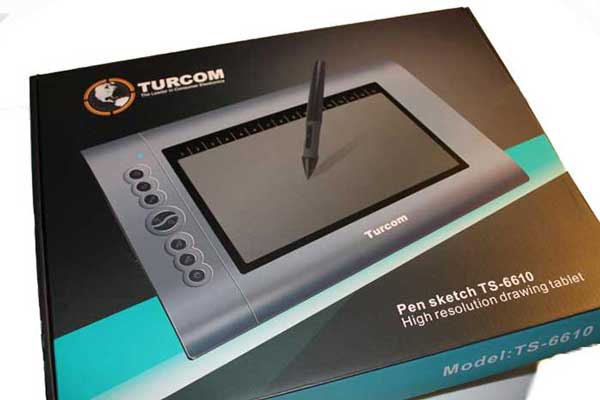
Turcom TS-6610 tablet box

Portability

It’s pretty easy to take with you at a little over 2 pounds.

For Lefties

The driver has a feature that will adjust for lefties once they turn the tablet so the buttons are on the right.

Turcom was kind enough to send me this tablet. I tested art programs and installed the driver on different computers and operating systems. Overall the drivers worked best on Mac, then Windows 10 on laptop/desktop, then Windows tablet. The tablet and other items came safely packed in styrofoam . The quickstart guide doesn’t look professionally designed, but it has the basic information needed. There’s no larger guide on the TurcomUSA site (compare to Huion, which sends a more complete set of information in a booklet).

The Turcom TS-6610 tablet has a solid build quality, with eight customizable Hot Keys, including a two-button ring with a zoom in/out default function, and 16 softkeys you can program in the advanced driver settings. It looks a lot like the Huion H610Pro, but I weighed the two and the Huion weighs slightly more. The Turcom’s beaded surface is rougher than the H610 Pro’s, which is also beaded, but smoother. There are no Touch features.

turcomgraphicstablet

See the Turcom TS-6610 on Amazon

Some reviews say  it’s the same tablet as the Huion H610 (non-Pro), which has an AAA battery-powered pen. The specs and appearance seem to match. The driver for the Turcom is made by Huion. The download is on the Turcom site. I also tried the Huion H610/H610 Pro driver from the Huion site and it worked.

Turcom pen

turcom ts 6610

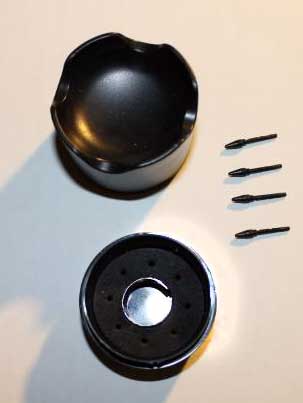
Penrest, nibolder, nibs. These parts attach.

turcompen

Turcom pen on penrest

The pen is chunky, about 1/2″ at the thickest part, with the grip part being a little thinner. It’s pretty heavy with the battery in it–this is an AAA battery, not a smaller AAAA. The pen has no eraser at the end. The gray grip is hard, but has a more graspable texture than the rest of the pen, which is smoother.

The buttons are placed so that you have to be a little careful to not press them by accident, but you can get used to it and avoid accidental presses. The build is plastic and seems quite durable. The weight of the pen doesn’t result in too-heavy lines. The penn makes a scratchy noise when drawing on the beaded surface.

Drawing on the Turcom tablet

Palm rejection and hover work fine. The beaded surface provides a rough area that’s pleasant to draw on despite the noise, and the surface may cause nibs may wear down quickly–luckily, they’ve provided extras. There’s a row of numbers across the top that visually correspond to the softkeys.

Setting the pressure curve in the middle produced the best results for me. The most sensitive setting still provided good variation.

The pressure curve works great. It’s responsive and snappy and goes from a very thin line to thick. Setting it at lower sensitivity still gives a good variation. Both lower and middle sensitivity feel comfortable to draw, and I’m not a hard presser. It’s quite comparable to Wacom, and some may even prefer the Huion. It doesn’t cause any blobs or sudden changes. I didn’t have a jitter problem.

The tablet shows the numbers 1-16, so you can access these softkeys while drawing.

TIP: Keep other tablets and other items with electrical components at least a few feet a way, as interference from them can cause odd hover issues.

Installing the Turcom/Huion driver

Both the 6610 driver from the Turcom site and the Huion H610/H610 Pro driver from the Huion site work on the tablet. Both drivers are made by Huion. It’s best to use the site ones because they are kept up up to date. The Huion H610 driver seemed a bit better than the 6610 driver, in that the 6610 would open up a page of what seemed to be developer’s notes. But otherwise they are similar.

Turcom/Huion driver on Windows 10

When it works well, the driver installs quickly and easily. It can be a breeze or a hurricane, depending what’s on your computer.

huiondriversettings

Driver settings


turcomdriveradvanced

Advanced driver settings

Troubleshooting the Turcom/Huion driver. If you’re having problems, these are things to look into: Install the drivers as Administrator. Delete all Wacom drivers and any other graphics tablet drivers. Even if they are not showing up in Control Panel they could still be there, visible in RegEdit (please ask someone for help if you are not comfortable going into your system and deleting files; deleting the wrong files can cause problems with your computer). Delete the Wacom Feel/Wintab driver if you have that (it can be redownloaded here). Delete all previous versions of this driver. Shut off all antivirus, including the default Windows Defender. Once all that’s done (and that is not the totality of possible considerations, but the main things I encountered after trying it on several different Windows 10 computers), you should be able to open the settings. Huion has a support thread on Deviant Art as well as offering other ways to contact them, including Skype.

Using a penabled Tablet PC will not interfere with the driver.
Turcom/Huion driver on Mac (El Capitan)
On the Mac, the driver installed beautifully, but I have less stuff on the Mac. The Mac driver doesn’t have the Pen Pressure Test panel, but that’s no big deal. 

I could not get Tablet Mapping to work.

Wacom drivers vs. Huion drivers

Wacom drivers are more robust with more ways to customize, since the Radial Menu with its submenus offers 64 different programmable shortcuts to the Turcom’s 24 (not counting pen buttons for either). Wacom has a more complex pen-pressure options, the ability in the Pro tablets to customize per application, and screen mapping as well as tablet mapping. They generally are easier to install (some will disagree). Some Wacom tablets have touch. Wacom offers tilt sensitivity, and in the Pro versions (Intuos Pro and Cintiq) also rotaton sensitivity. Wacom’s has a mouse mode and the Huion driver does not.

See more info on choosing a Wacom graphics tablet.

Not everyone needs to use a lot of customization (or any; they are totally optional), and the Huion drivers do nearly the same amount of things as Wacom’s.

Wacom’s tablets come with some art software bundled and some offer Touch.

Art programs in Windows 10
I got pressure in Photoshop and Sketchbook, though it took a restart whereas GIMP and Krita worked right away. The tablet worked in Inkscape, but I couldn’t get pressure in Inkscape’s Calligraphy tool with the pressure box checked. It works in Illustrator without pressure. Huion says they are working on pressure for Illustrator.

The product info lists CorelDraw and Painter, Autodesk Sketchbook, MAYA, ZBrush, Infinite Stratos, Photoshop, Illustrator, Fireworks, Flash, ComicStudio, and SAI as working with the 6610.

Art Programs on Mac
Same results as Windows but less fussing to get pressure in Photoshop and Sketchbook.

As with other graphics tablets, this one also works well as a rather large mouse substitute for opening programs, editing documents in Word, etc.

Customer support. Huion seems to have a bigger online presence than Turcom, and since the drivers are Huion’s, asking Huion or perusing Huion threads where they have responded can be helpful in troubleshooting. Huion is good about answering, and can be reached via email, Skype, or phone. The company also a support thread on Deviant Art here.

Turcom TS-6610 vs. Huion H610 Pro

The Huion H610 Pro specs are higher–it has a higher resolution (5080) and report rate. The H610Pro’s pen attaches by a cord, avoiding taking a battery, thus the pen is lighter. Other than that, the pen size is similar to the Turcom pen. The Turcom tablet is a little heavier and its surface somewhat smoother (all models may not be exactly the same). The Turcom’s resolution is like the Intuos, and the Huion 610 Pro’s is like the Intuos Pro.

User reviews

Most users are happy with this tablet, praising its affordability, size, and capabilities. Many see it as a good alternative to Wacom. Some had problems with the drivers and some reported hover issues, but overall, comment are positive.

Pros

Quite a few customization options
Good size drawing surface
Extra nibs and pen battery included
2,048 levels of pressure
Good value
Draws well
High resolution (less high than H610 Pro)


Cons:

Drivers can be fussy
Pen is heavy and takes a battery
Mapping not working (on mine anyway)
No additional instructions online

The Verdict

The Turcom TS-6610 graphics tablet is a viable starter alternative to a Wacom graphics tablet; you may want to upgrade after a while. The drawing experience is really good, with a large surface and good pressure sensitivity.  If you have a decent understanding of your computer and file systems, then potential driver issues should be manageable. If that kind of thing is overwhelming to you, you may be better off going with Wacom.

Free software such as Gimp and Krita actually worked better off the bat for me with this tablet than did Photoshop CC,  which took a restart to get pressure working. Using this with free software can get you going in digital art without a major investment.

The Huion H610/H610 Pro driver on the Huion site is a bit better than the Turcom driver on the Turcom site, so you might want to use the 610 one.

What the Turcom TS-6610 graphics tablet can do, it does well, and offers a lot of value. Good for students, beginners, or those on a budget.

See more reviews and info of the Turcom TS-6610 graphics tablet on Amazon

See our review of the Huion H610 Pro

See our review of the Monoprice graphics tablet

See our review of the Intuos Pro

See our review of the Intuos Pen and Touch Small

end of Turcom TS-6610 drawing tablet review


vaioz-canvas

Vaio Z Canvas review 2016: art tablet on steroids

Vaio Z Canvas review: Cool 2-in-1 with desktop-PC power

The Vaio Z Canvas is a really powerful tablet PCs out there, and it’s designed for artists. If you’re looking for something like a Cintiq Companion 2 or Surface Pro 4, you may want to consider the Z Canvas.

Vaio was once part of Sony, but the Sony got out of the computer business. Several hundred designers and engineers at Vaio found investors and formed their own company in Japan using the same factory. The U.S. division opened in autumn of 2015. The fledgling company is seeking ways to distribute their devices and educate the public about them.

vaio z canvas review

Now that’s a skinny keyboard.

Other than the name, they have no connection to Sony, and now they have creative freedom. They have advanced what began as the Sony Vaio line, creating this as  a mega-tablet for graphics professionals.

Vaio designed the Z Canvas in consultation with illustrators, animators, and photographers, including from Adobe, to create this powerful prosumer 2-in-1. (Prosumer is a device for professionals and consumers). Each unit gets the engineers’ “Azumino Finish” 50-point quality check.


Features
Runs: Windows 10
Screen: 12.3 inch (diagonal)
Resolution: WQXGA+ 2560 x 1704
Aspect ratio: 3:2
Glossy, anti-smudge
Build: unibody aluminum, brushed aluminum surface
Color gamut: 100% sRGB, 95% Adobe RGB
Digitizer: N-trig with 1,024 levels of pressure sensitivity
Pen (included): DuoSense, takes an AAAA battery
Processor: Intel Core i7-4770HQ quadcore hyperthreaded
RAM: 8GB or 16GB (not upgradeable)
Storage: SSD 256 GB Serial ATA or SSD 512 GB PCI Express or 1 TB PCI Express
Graphics: Intel Iris Pro 5200 integrated graphics
Battery: 63-watt high-capacity
Dimensions: tablet 8.4 in x 11.9 in. x 0.5 in – 11.9 in
Keyboard: 8.4 in x   – 11.9 in x .02 in
Weight: PC Approx. 2.67 lbs.
Keyboard: about .75 lbs. (12 oz.)
Ports: Two USB 3.0
SD memory card reader
mini DisplayPort
HDMI output
LAN (RJ45) port
Headphone/microphone
Front camera .92MP, rear camera 8MP

What’s in the Box

Tablet
Keyboard
Power cord and AC adapter
Pen
Cleaning cloth
Pen holder
Pen grip
documentation

SCREEN

The Z Canvas’s 3:2 aspect ratio makes it easier to use in both landscape and portrait, but the easel stand, as with most tablets, only works in landscape mode.

The super-sharp screen boats a wide color gamut of 100% sRGB and 95% of the larger Adobe RGB gamut, making it excellent for artists who demand color accuracy. It’s unusual for a tablet to have the Adobe RGB gamut and if it does, it’s usually not such a high percentage. (The Samsung Galaxy TabPro S has a similarly wide gamut, and the Surface Pro 4 gets about 70% of Adobe RGB.) The IPS display looks great, with rich colors and deep contrasts, as well as good viewing angles.

The Vaio Z Canvas in action, with drawing in Photoshop and 3D sculpting in Zbrush.

Battery life
5 – 6 hours with mixed use.

PROCESSOR

The Intel Core i7-4770HQ quadcore processor is extraordinary for a tablet and is usually found on laptops 15″ or larger. The Vaio Z is really a mobile workstation that functions as desktop replacement. It’s close to the MacBook Pro Retina in terms of processing power, and twice as fast as the Surface Pro 4 and Surface Book. It uses the 4th-gen. Haswell CPU rather than the latest Skylake, but the hyperthreading makes up for it–this machine can multitask.

The most compared product to it is the Surface Pro 4, but The Z Canvas is much more powerful and so unusual that it’s in a class by itself–a tablet mobile workstation. The question is if the Z Canvas a quirky, short-lived bunch of ideas, or a step in the direction of art tablets overpowering other tablets and replacing desktops.

The “Z engine” is the core of the Z series design. It has to do with dense circuitry and heat dissipation. There’s a bit more info here (it’s in Japanese, but if you have a Translate button it will translate).

The computer with its three fans runs cool and quiet.  The nice-looking vent blows air out of the top. Among elements that contribute to its cooling system are big copper pipes on the inside. The power brick, though, can get toasty.

vaiofans

Triple fans and copper piping keeo the hot away.

A fast processor makes everything faster: bootup, opening programs, and graphics rendering. The Vaio is suitable for 2D and 3D animation, video editing, AutoCAD, and light to moderate gaming. While some desktops are faster, and this isn’t exactly a gaming machine, it’s the most powerful tablet so far. The Iris graphics are comparable to discrete graphics on other tablet PCs.

PORTABILITY
The tablet  alone weighs about 2.7 lbs. and with the keyboard gets to over 3.25 pounds, and then add in the pen and power brick. It’s not terribly light, but still portable. In comparison, the Surface Pro 4 tablet part weighs about 1.7 lbs. and with the keyboard, about 2.3 lbs.

KEYBOARD
The very thin keyboard is chiclet-style and has low travel, but is quiet and not hard to use. It’s not backlit, making it inconvenient for use in the dark. If you’re someone who likes to lie on a bed or couch to use your computer, it’s probably not the best choice, as the stand isn’t meant to balance on lumpy blankets or breathing bellies.

The keyboard is meant to stay separate from the screen, as with a desktop. It’s not Bluetooth but RF (Radio Frequency) so doesn’t need to be paired, though you need to have Bluetooth turned on for the RF to work.

The keyboard should be kept within 20” (50 cm) away from the tablet for optimal performance. Also, remember to keep thongs with magnetic strips, such as credit cards, away from it.

It connects via magnets and a couple of pins in the bezel or a micro USB. Connecting it charges the keyboard battery, but only the RF actually makes the keyboard work.

You can’t stand the tablet up via the keyboard. The keyboard snaps on top of it and forms a protective cover.

vaiozcanvasreview.

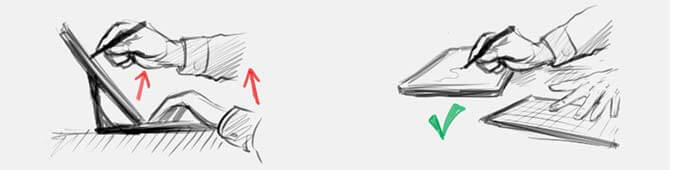
Drawing no. 2 shows the ideal position of the keyboard, according to Vaio. Images by Vaio.

There is a button that can toggle the keyboard power on and off so the keyboard won’t drain the battery.

You may find it most comfortable to put the keyboard a little behind the tablet, or to the side. These images, created by Vaio for a prototype, discourage the viewer from using the keyboard in the front, saying it causes fatigue. The second image is considered ideal. You might even try it the keyboard behind the screen–each user is different.

If you avail yourself of the Z Canvas’ on-screen shortcut menu, you won’t need to use the keyboard that much while drawing.

STAND

The easel stand is also unusual. Vaio, thinking ahead, says the idea is that the user might “unconsciously” want to change the angle of drawing, so they have designed the stand to be intuitive and easy to adjust without interrupting workflow.

vaio-z-canvas-stand

You put the tablet on a table first then pull the stand down from where it’s ensconced flush in the middle of the back of the tablet, then push or pull the tablet to your desired angle. You can press reasonably hard while drawing without pushing it down.

To close it, push down on the tablet rather than closing it with your hand. You can set the tablet to any angle between 90 and 20 degrees, so fairly low to high. Vaio says the mechanism is made up of “springs, dampers, and cams.”

The Z Canvas is not very lappable, though with some effort it can be done. Best to place the keyboard on your lap and the tablet on a flat surface.


DRAWING ON THE VAIO Z CANVAS

PEN
The pen is N-trig, the digitizer tech now owned by Microsoft.

Two pen buttons sit flush in the barrel near the nib. The included soft grip collar provides a comfy, cushioned way to hold the pen, like memory foam for the fingers. Or you can go austere and take it off. Either way, the buttons are accessible. There is no eraser end. The buttons do right-click, open a clipping tool for making screen shots, and open OneNote

The pen attaches not that securely to a magnetic strip. There’s also a pen holder that attaches to holes on either side of the magnetic strip for a stronger way to keep the pen handy. The holder can be taken off with a pinch.

The pen has a tail cap, adding to the pen pieces to make sure to keep together—the cap, nib, battery, and collar.

vaiodualsensestylus

Vaio pen, wearing its grip collar

Vaio worked hard to reduce parallax since the days of the Sony Vaio Flip. N-trig never did have much of a parallax issue, so they’re being perfectionistic here in trying for the look and feel of ink flowing right from the nib.

Instead of a gap of air between the top touch panel and the LCD, there’s now a thin layer of gel (optical resin), bringing the pen tip closer to the LCD. The DuoSense pen seems to be the same pen as with the old Sony Vaio devices.

You can also use the Surface Pen and its variety of nibs.

As with the Surface Pro 4, there are 1,024 levels of pressure sensitivity, which feels a lot smoother than N-trig’s previous 256. There’s some hover lag, and you need to press down a bit harder than with Wacom pens. There does seem to be less drawing lag than with the Surface Pro 4. The nib is longer than on the Surface Pen.

The pressure curve is excellent (no blobs or sudden shifts, as sometimes happens with Wacom) and can be adjusted in the pen pressure utility. The nib has a bit of bite compared to the regular tip of the Surface Pen, so drawing doesn’t feel like skating over glass, but you may still want to use a matte screen protector if you prefer a more papery surface. (Photodon makes excellent screen protectors and there’s one specifically for the Vaio Z Canvas here.)

You can adjust the pen pressure curve via four points in the Pen Pressure Utility while viewing preview.

Vaio Z Canvas vs. Cintiq Companion 2. The Z Canvas can be compared to the Cintiq Companion 2 as art-specialized 2-in-1 tablets and to the Surface Pro 4 as well.

The screen of the Cintiq Companion 2 is a larger 13.3″ vs. the Z Canvas’ 12.3″, and the CC2 has a textured surface, vs. the Vaio’s smooth one. The Companion 2 also has an EMR pen, which is the most sensitive (besides the Apple Pencil) and offers tilt sensitivity, as well as rotation sensitivity with the ArtPen, drawing more organic lines. The CC2’s aspect ratio is 16:9, making it less appealing to use in portrait mode.

The Vaio’s screen is brighter at 250 nits to the Companion’s 150, and the Companion 2 has only about 5 hours of battery life on a good day–neither device has a very long battery life.

The Vaio’s pen has less parallax and no edge jitter, but you have to press harder.

The Surface Pro 4’s screen is the same size and aspect ratio though much brighter at 436 nits; it doesn’t cover as much of the Adobe RGB gamut, though. The SP4 weighs a pound less; and the digitizer also does not recognize tilt or rotation. The SP4 gets half the speed and power of the Vaio. The keyboard cover attaches to the Surface Pro 4 and holds it up. Battery life is about the same.

Which to get is a tough and individual decision. The highest-spec “enhanced” Cintiq Companion 2 comes the closest to the Vaio and is fast, but is still dual-core and doesn’t hit the Vaio’s speed.

TRACKPAD
The trackpad is large and works well, but doesn’t support 5-point gesture, which could be annoying if you’re used to using gesture on it, but I don’t think that’s a major issue.

Camera oddness. The Vaio has two cameras and oddly, the front facing one is only 1 MB (actually, .92). So you won’t be as tempted to spend a lot of time Skyping. The rear camera is a healthy 8 MB. You could go out and take photos and enjoy the 12.3″ inch preview. Or you could skip using a scanner by photographing your reference image, line drawing, or traditional art, etc. then importing it into your art program.

CONTROLS
Two buttons on either side of the top edges reach a whole new level of cool. The one on the right shuts off the touchscreen, making it impervious to any palm-rejection glitches that might occur if your hand gets in the way of the hover area.

The left button brings up the customizable on-screen shortcuts, similar to those you would find on a graphics tablet or Cintiq. The shortcuts can be customized for each art program. You can use  the automatic-fit setting so the menu won’t cover program icons.

You can also shut off the trackpad, which could come in handy if your hand keeps hitting it by accident.

vaiopenciboard

Vaio Pencil Board. You put the square over the part of your image you want to protect from changes.

Another interesting feature also found on the Vaio Flip is the Pencil board, accessible from the Tools menu. It gives you a transparent square that you can put over part of the screen, blocking any changes to it. It pleasantly slides around the screen. You can adjust its size and transparency, though it doesn’t become totally transparent. It’s easy to toggle on and off.

More art-specialized features: The unique mapping controls allow you to map the tablet to multiple monitors, so you can use the tablet as a sort of Cintiq, an input device for a larger display, making good use of the two ports that each support a 4K monitor.

More about those two buttons on top (the Express Keys or hotkeys and Disable Touchscreen): the hotkeys can be used on-screen even with the touchscreen is disabled–pretty ingenious, and it’s not hard to see why the disable-touch button has a patent pending.

USER REVIEWS AND EXPERIENCES
A lot of artists voice enthusiastic praise in their Vaio Z Canvas reviews. For many, it’s the tablet they’ve been waiting for. Users love the speed, multitasking and multimedia abilities, and the touches such as the Pencil Window and keyboard shortcut menu.

On the downside, some feel it’s a bit heavy, or too difficult to balance other than on a flat table.

Pros
Powerful, fast processor
SD card slot that lets you push card all the way in
Can open the back
Onscreen hotkeys
easy disabling of touch
good amount of ports, including Ethernet
on-screen shortcuts
Pencil window
Lots of ports (for a tablet)

Cons
Some (not all) users have had problems with keyboard disconnecting
Not very lappable
Keyboard not backlit
Not the lightest tablet
Memory not upgradeable (as with most tablets)

Some glitches some users have noted are: light bleed; pen fragility; and issues with the keyboard disconnecting.


THE VERDICT
Despite a few odd choices (such as lack of a backlit keyboard, and the 1MP front camera), the Vaio Z Canvas is a powerful art tool with a “cool factor.” Too bad it doesn’t have a specially made carrying case. Or a USB-C port. Despite all this, our Vaio Z Canvas review is positive, because of all the good things it does have.

It’s probably the only tablet truly good for editing 4K video. It works well with AutoCAD too. It’s ideal for video editors or those working with very large photo and art files. Others won’t need all the power and may choose a larger screen.

The main sticking points are the small screen size, and, I still prefer the feel of Wacom pens and digitizers but that’s an individual thing (I’m a light presser). Many people are happy with both the Vaio pen and the Surface Pen, and both work on this. We will see what the future holds with the Wacom-Microsoft pens due out this holiday season.

Much work has gone into catering to the needs of graphics professionals, making the Z Canvas a powerful addition to any artist’s arsenal.

VAIO_Z_Canvas-review

Vaio Z Canvas with keyboard

See it on Amazon.

End of Vaio Z Canvas review


galaxytabprosces2016

Samsung Galaxy TabPro S review: OLED hits Windows tablet

Samsung Galaxy TabPro S review: OLED screen, included keyboard

samsungtabprosblack

Samsung Galaxy TabPro S in black with keyboard cover attached

See it on Amazon

Type of Tablet

Windows 2-in-1, detachable tablet
Runs Windows 10 (Home and Pro)
Pen: Not yet released. Bluetooth, pressure-sensitive.

tabprosces

Samsung TabPro S release at CES 2016, Las Vegas

Features

Display: 12″ diagonal
Materials: Magnesium frame, rubberized plastic back
resolution FHD+ (2160 x 1440)
touch Super AMOLED display
216ppi
Memory: 4GB RAM (not upgradeable)
Storage: 128 or 256GB SSD

Ports: single USB-C, headphone jack, no micro SD
Processor: Intel Skylake Core M3, dual core, 2.3 GHz
Fanless
Graphics: Intel HD 515
Battery: 5200 mAh
LTE (Cat. 6) version available
Front and rear cameras both 5 MP
Comes in black or white
Dimensions: 11.43 x 0.25 x 7.83 inches (290.3×198.8×6.3mm_
1.53lbs (639g)
Wireless 802.11 abg

Why a 2-in-1?

The TabPro S is joining a growing population of Windows 2-in-1s. This type of tablet is all the rage, because it turns out lots of people want a portable device that works well for both entertainment and productivity. Active pens have really hit the mainstream.

Non-Pro iPads and other mobile tablets are most useful for entertainment, full, 64-bit Windows and a pen gives a lot more options. It can replace a laptop and tablet and fit neatly into your bag or briefcase.

You can use desktop programs as well as Windows apps (formerly known as Metro apps). The very high-res screen is the first OLED for a Windows tablet. So this is a milestone. Previously, they have been in smartphones, Android tablets (mostly Samsung’s), monitors, and just recently came to laptops.

galaxytabprosces2016

Pen

The Samsung people at CES told me there was not going to be a pen, though one of them said maybe. So either the pen was a weakly-kept secret, an agonizing decision, or an afterthought for them. I didn’t expect to be writing this review.

It’s the big MacGuffin here. Not much is known about it except it is pressure-sensitive, it probably won’t be a digitizer we’re familiar with, and that it uses Bluetooth.

Update: The pen has come out.


What’s in the Box

Tablet, charger with cable, keyboard dock/cover, documentation


Ports

There’s just a USB-C port and a headphone jack. No micro SD, nothin’. The 2015 MacBook also has this single-port feature and also faced criticism about it, but maybe it’s the future. Samsung says they’re going to release an adapter. Meantime, there are other adapters, but not that many peripherals for the USB-C.

The tablet may be ready for the future, but for now, users are the ones who need to be ready.

Fast-charging

On the plus side, the USB-C offers FAST charging, just 2 1/2 hours from zero to full and the battery optimally lasts up to 10.5 hours on this charge.


Display

The display is bright with excellent viewing angles. The colors are more saturated than we generally see.

The colors are rich, and the blacks very deep (because there is no light where there’s black with the OLED),  with great contrast. But this is is made with something called PenTile subpixels, which makes it so the resolution is effectively not quite as high as it says, and there’s a little too much green. Lots of people have been oohing and aah-ing over the display. I just prefer a regular LCD.

The screen is smooth and somewhat glossy, but not high-sheen. It doesn’t reflect so much light that you can’t see the display. Its 400 nits is very bright.

The bezel is relatively narrow, but provides enough of a visual “frame” that makes your artwork pop from the background.

Good proportions

The 3:2 aspect ratio is less oblong than the usual 16:9 or 16:10, and preferable for drawing. Portrait mode is more in proportion to a regular sheet of paper.


tabprosreviewwhite

TabPro S in white. Note the closeness of the keys.


Using the TabPro S

The machine is snappy and responsive, with apps opening quicky. Scrolling is peppy even in memory-intensive Chrome.

A 128 GB hard drive is not that big, so if you get that one, big files are best kept elsewhere. The 256 GB SSD is not huge.

You can run full Photoshop CC with the TabPro S, but you may experience some lag when running heavy graphics, such as filters with high-res files. With 4 GB and a Core M3, it’s not powerful enough for heavy use of Adobe Suite, you would need at least an i5 and 8 GB.

I have no complaints about the RAM and storage, since this is a portable tablet of a certain class and fulfills its duties well. A close cousin is the entry-level Surface Pro 4, which also has a Core M processor but has a lot more ports and a better keyboard. 

It would be nice if the battery were replaceable.

The machine is suitable for light gaming.

Build

The build is solid and feels and looks premium, with a metal frame. The TabPro S is almost as sleek as the luxe Galaxy S7 phone. The tablet’s back is a not-unpleasant black, rubbery, matte plasticky material that is very grippable and lowers the chance of dropping it. And the rubberized texture is not a dirt/fingerprint magnet.

I don’t know how much the rubbery surface protects the device in drops onto its back, but it probably provides a bit of cushioning, along with the cover.

Keyboard dock/cover

tabproscoverhigh

Upright position shows off the thinness of the tablet. Keyboard is not backlit.

Unlike with the Surface Pro line, here, a keyboard dock is included. It’s held on by a Pogo connector in the bottom center edge of the tablet. Once connected, it’s pretty stable, and doesn’t seem to cause lags or skips when typing.

The cover only takes two positions. It’s a trifold, similar to the Apple Smart Cover. It’s thin, but seems durable, and the design is clever: the cover wraps all the way around the tablet, protecting it from light mishaps.

The angles of  two positions are decent, but, they only work in Landscape mode. If they really had an art tablet in mind, maybe they would have designed the cover for Portrait position, too.

The cover’s square camera port lines up well with the camera. The whole tablet has straight lines, except for the rounded edges.

Typing on the keyboard

The keyboard wasn’t really to my liking for typing, I prefer island-style keys. There’s almost no space between the keys, they don’t have great travel at 1.4 mm, which is a bit low.  I also don’t love the look. It was challenging to type accurately. There’s no requirement to use the keyboard; a separate keyboard would work too.

tabproscovertyping

TabPro S cover in typing position

The keys are larger than most, but to me that doesn’t really help with accuracy. It might be a good for thick-fingered folks. The whole thing feels a bit floppy. It’s similar to the old Surface Pro Type Cover, except that one sat at an angle and this one is flat on the table, and the stand had more positions.

The trackpad works fine and works with Windows touch gestures.

You can use the TabPro S with  the keyboard on your lap, but being so light, it’s not super stable, and may cause worries about it falling. If you get really into painting and move like a digital Jackson Pollack, sitting on a wide, soft surface may calm those anxieties.

Color

The color gamut is standout. It covers 95% of Adobe RGB and  full (or more than full) sRGB, similar to the Vaio Z Canvas  (an N-trig tablet PC with an IPS screen) That makes it suitable for artists and photographers to use it to make their own prints for professional print work, provided they have a strong understanding of color correction.

Without that understanding,  the color gamut can be a source of confusion. According to DisplayMate, a trade organization, “OLEDs currently have the opposite problem of traditional LCDs, too large a native color gamut, which requires color management in order to deliver accurate sRGB/Rec.709 colors.”

If you’re a professional artist, you probably use a printer that uses Adobe RGB or, for photographers, ProPhoto RGB. Consumer printing is mostly done in sRGB. sRGB is also the standard for Web colors.

The high gamut can really make your work pop, and you can adjust settings to avoid the high saturation that can occur. There’s also an sRGB setting. The settings panel also gives you choices of how long the screen will remain bright before it auto-dims to prevent screen burn-in, which can be a problem with AMOLED screens.

Many love the saturated colors of AMOLED, but they are a bit hyper-real.

Samsung Flow

No, it’s not a psychological state, it’s a feature. If you’ve got an unlocked Galaxy phone, you can unlock the tablet by scanning your fingerprint, as well as easily turn on the phone’s hot spot and sync notifications.

Battery Life

Excellent, up to 10.5 hours, or 8-9 with a lot of video or gaming

Portability

Very portable, thin about 1.53 lbs.

User reactions

Most users who have penned a Samsung TabPro S review so far seem to be enamored with the lightweight 2-in-1, calling it speedy and able to handle a lot, and they like the sound quality and the rich display.

One pointed out its use as an e-reader for, ahem, ageing eyes because of its deep contrast. (I still prefer e-ink for reading, because it has less contrast and less glare than a computer).

The biggest complaint about the tablet is about the keyboard. The second biggest is the lack of ports. Wouldn’t it be nice if they included an adapter?


Pros

Exceptionally thin and light
Attractive, premium-looking
Choice of black or white
AMOLED screen, wide color gamut
Fast
3:2 aspect ratio good for drawing
Fast-charging,
Long battery life
Keyboard cover included
Keyboard cover wraps entire tablet, providing protection
Multitouch trackpad
Samsung Flow offers syncing options with Galaxy Phone
Good “lapability”
Good speaker sound


Cons

Just one port, USB-C
Keyboard cover sits in only two positions
Keys a bit clunky to type on
Keyboard not backlit
Stand only adjusts in landscape position (as with most keyboard covers)
Limited to 4GB
Not everyone likes AMOLED display color
Can’t replace battery (typical in tablets)


The Verdict

If you like the screen, then this is the only Windows tablet that’s got it. If you don’t mind the single port, or find the simplicity is appealing, this may be for you. There really are a lot of pros, and the cons are not so bad.

Update: TabPro S Pen is now available on Amazon.

The tablet is pretty peppy and the wide color gamut is appealing. Is the TabPro S overall better than its main rivals, the entry-level Surface Pro 4 and the iPad Pro? I don’t really think so, but the pen will be a a major factor.

But it has got its own unique character, and the field is getting wide enough that there’s something for everyone.


https://youtu.be/mz6AfYjXE28

Here’s a video of a Samsung spokesman showing the tablet in action. You can get a full look at the keyboard cover.

See more info, reviews, and price for the Galaxy TabPro S on Amazon


 End of Samsung Galaxy TabPro S review