Category Archives: Reviews

newthinkpadyoga14

Newer model ThinkPad Yoga 14 / ThinkPad Yoga 460 review

New Model Lenovo ThinkPad Yoga 14 (also ThinkPad Yoga 460) review: pen included


Type of tablet

Laptop Ultrabook (nondetachable keyboard) 2-in-1
Digitizer: Wacom ES with 2,048 levels of pressure sensitivity. Pen included.

newthinkpadyoga14


See at Amazon

Model no. 20FY0002US

Features

Display 14″ diagonal, 1920 x 1080 IPS
Processor: 6th-gen. Skylake Intel Core i5-6200U
Graphics: dedicated NVIDIA GeForce 940M graphics with 2GB dedicated video memory
Folds 360 degrees, into laptop, stand, tent, tablet modes
8GBDDR3L RAM
256GB SSD
Ports: 4-in 1 media card reader
Three USB 3.0 and two 2.0, though some say they got three 3.0 USB ports. The 3.0 ports are backward-compatible with 2.0 devices, at 2.0 speeds.
HDMI, miniDisplayPort
Weight: 3.85 lbs
backlit keyboard
Touchpad and ThinkPad red TrackPoint button
Dimensions: 13.31″ width x 9.37″ x .75″ (depth)

It is the same as the Lenovo Yoga 460, so you could read this as a Yoga 460 review as well. The 460 actually does have an i7 model. That listing is lacking in further detail.

As of April, 2016: the Yoga 460 now on the Lenovo site does not have the discrete (separate) graphics card, only integrated graphics. That 460 features up to a 6th-gen processor.

Windows 10, comes with Home edition

This Lenovo Yoga 14 has an i5 processor, powerful enough to run Photoshop and all the Adobe programs. The dedicated graphics card offers a speed boost, and the Skylake i5 is the equivalent of an i7 from the previous generation. That being said, it would be nice if there were an i7 model.

The RAM and SSD on this ThinkPad Yoga are both upgradeable, though there is just one RAM slot, so you can take out the 8GB stick and put in a 16.

Thanks to the dedicated graphics, you’ll be able to do moderate gaming and video editing, and get better results in Photoshop operations that use a lot of rendering, such as filters. This is still not a heavy-duty gaming monster machine, but a general overall Ultrabook with wide capabilities.

Screen

While it’s HD, 1920 x 1080p is not that high-res compared to a lot of computers coming out. However, the fact that it’s not 4K makes battery life last longer. The resolution is fine for looking at artwork, reading text, and watching video. The colors are clear and bright. It’s not overly glossy. The IPA screen supplies good viewing angles.

You can add two more displays, such as a monitor or TV to it via the HDMI and miniDisplayPort.

Portability

At 3.85 lbs., it’s not bad to carry around for short periods, but feels heavy holding in one hand or resting on the lap.

Pen

The pen is not miniature or very short, but it’s skinny and not optimal to draw or write with for long periods. You can purchase a  more normal-sized pen (both thicker and longer) if you prefer. This pen needs a battery, but the one included with the tablet PC does not, because it charges from the computer.

Wacom ES has excellent accuracy and pressure sensitivity, second only to Wacom EMR in terms of sensitivity (ES requires a little more force to get a mark). Its accuracy exceeds EMR, with no parallax and no jitter around the edges as Wacom EMR gets. I did notice a little more jitter when drawing slow lines than with traditional EMR. Palm rejection works well. The pressure curve is smooth, no blobs, no little “tails.” You will not be able to use a traditional EMR pen on this.

If you want a thicker pen, you can buy the ThinkPad Pro Pen, a Wacom AES active capacitive pen with 2,048 levels of pressure sensitivity that takes an AAAA battery.

thinkpad active capacitive-pen

The thicker pen: ThinkPad Pro Pen, takes an AAAA battery. See it on Amazon

Keyboard

The backlit, chiclet-style keyboard is comfortable and easy to type on. If you type a lot, but also want an art tablet, this is a good choice. The keyboard is Lift and Lock, so when you have it folded into Tablet mode, the frame rises around the keys and the keyboard is disabled. So you won’t be able to reach back for keyboard shortcuts. Instead, you could use an external keyboard, either Bluetooth or USB. The ThinkPad red TrackPoint nub lets you move the cursor long distances with a small finger movement. Its sporelike top with tiny bumps gives your fingertip traction (and a little massage).

Battery life
6-8 hours, depending what you’re doing.

User reviews

Most users have been very happy with this computer, feeling it’s a great value with its many features, bright screen, speed, and build quality. A few got ones with glitches but managed to address them. Aside from irregular complaints, this has been a successful release.  I haven’t seen any complaints about overheating or battery problems, though some wish the battery lasted longer.

Pros

solid, durable, well-built
dedicated graphics
nice keyboard
pen is included and fits into a slot in the body
value

Cons

on the heavy side for drawing
single RAM slot (upgradeable, but would be nice if there were two slots)
pen that comes with it is thin
some have reported touchscreen glitches


yoga 460 review

The Verdict
This new Lenovo Yoga 14 review is a drawing-hand thumb’s up. It doesn’t have the issues of the last release, which included some that shipped with bad batteries. It’s a solid, portable, and versatile machine.

Weird facts: did you know the ThinkPad’s design was inspired by the Japanese Bento box? This post on Lenovo’s blog explains.

I think the simple design is one of the main appeals of the ThinkPad. The box shape offers protection. The ThinkPad has a utilitarian look. It’s easy to not notice it much at first, but the details show a great deal of thought, and the many poses add new uses. You can also open it flat if you wish to draw using the keyboard shortcuts without a spare keyboard.

The Yogas have more Penabled devices than anyplace else and continue to offer them.

This is a great choice for an art tablet that’s an all-around tablet. It’s not super duper powerful, but powerful enough to run Photoshop and do moderate gaming. You can add more RAM and a faster hard drive. This computer can be your whole office and art studio.

In some ways I prefer the previous ThinkPad Yoga 14, which had a discrete GPU and superior color gamut. This is one is more of a general-use machine that’s suitable for drawing.

Here’s a detailed drawing test by Shogmaster.

https://youtu.be/puFE9-luWzc

end of New Lenovo ThinkPad Yoga 14 / ThinkPad Yoga 460 review


hpspectre15review

HP Spectre x360 15 Review: sleek ultrabook deserves a better pen

HP Spectre x360 15 review: sleek ultrabook, but HP pen falls short

The HP Spectre x360 2-in-1 with 15.6″ touchscreen was released in Feb., 2016, following 2015’s successful HP Spectre x360 13″. This larger version has some more-powerful options, such as an extremely high-resolution 4K display.

Type of tablet

2-in-1 ultrabook (tablet PC laptop, nondetachable keyboard)
Digitizer: Synaptics (256 levels of pressure sensitivity)
Pen: HP Active Pen (not included), or (see on Amazon)


Update: Dell Active Stylus 750-AAGN used to work on both models (13.3 and 15″) but updates have caused it to stop working.

hp spectre x360 15 review

HP x360 Spectre 15.6″. See it at Best Buy

Notice that the screen is squarer than most laptops. The touchpad is about 6″ wide. My phone fit neatly on to of it. Notice the shiny hinges.

hpspectre360-15 4kscreen


hp-active-stylus

See the HP Active pen at Best Buy

The pen is flat on one side lengthwise, and snaps onto the computer via a magnet that’s across from the button.

Features

Operating system: Windows 10, has Home and Pro options
15.6″ screen (diagonal) UHD
Dimensions” 14.8 x 9.75 x 0.63″ (15.9 mm thin)
Weight: 4.02 lb
backlit keyboard
brushed aluminum unibody
geared hinge
large touchpad with multi-gesture and customizable settings
Display: 15.6″ Multitouch, backlit. IPS panel with viewing angles to 180 degrees
LPDDR3 RAM

Display options

1920×1080 px full HD 2 million pixels (px)

Ultra HD 4K, 3840×2160 (8.3 million px)

Storage: 128, 256, or 512GB SSD

Miracast, which lets project wirelessly to a TV or other display

Note: This is not the OLED display you may have heard about. That one is scheduled for the 13.3″ HP Spectre x360, and the OLED screen for that has not yet been released as of this writing.

Processor/graphics

Intel Skylake 6th-Gen. Dual-Core, Intel integrated graphics with these options:

i5-6200U with HD Graphics 520 and 8GB RAM

i7-6500U with HD Graphics 520 and 8GB or 16GB RAM

i7-6560U with Iris Graphics and 16GB RAM


Ports

Three USB 3.0 Type A (you can still us 2.0 devices and get 2.0 speed)
USB-C port, no Thunderbolt support
Full HDMI
mini DisplayPort
SD card reader
headphone jack

No Ethernet port or CD/DVD drive.

Battery life

HP states up to 13 hours for the full HD version and up to 9.5 hours of mixed use for the highest configuration. The 3-cell lithium-ion polymer battery gives this exceptional battery life.
Portability

4.02 pounds is very light for a 15.6″ screen. While it may be difficult to carry it around all day, it’s quite portable. Its slim .63″ profile and compact power brick makes it more portable.
Screen

4K is very high-definition, over four times as many pixels as full HD. It doesn’t look pixelated even from up close. Your content has to be as high-res as the screen to get the effect. It’s not yet common to have this high a resolution on laptops, but it’s getting more so. The colors are good with 72% of the Adobe color gamut sRGB. The display is very sharp, but doesn’t seem super bright. The screen is smooth, but not super glossy.

The Spectre 15’s  screen has a 3:2 aspect ratio, which some may find better for drawing than the video-centric 16:9 that’s on most laptops. 3:2 is a bit squarer. Surface Pros and the Surface Book are also 3:2, as is the Chromebook Pixel, which is not an art tablet. The iPad and iPad Pro are  4:3, more like a sheet of paper, and perhaps more natural-feeling to hold and draw on. (The Spectre x360 13.3″ model has 16:9)

hp spectre x360 review

The HP Spectre x360 15 has a 3:2 aspect ratio. Most laptops have 16:9. The iPad has 4.3.


Design

The Spectre x360 is sleek and comfortable to hold in two hands. Its unibody aluminum chassis gives it durability and dissipates heat. There are generous-sized, aesthetically pleasing vents on the side.

The aluminum chassis was carved with CNC (computer numerical control–see on Wikipedia) machines. Used by the aerospace industry, these machines cut with great precision. These cutting tools give the Spectre an elegant look. The shape tapers, getting thinner as it goes toward the user. At its thickest, the bottom part is thick as a pencil and considerably thinner as it gets toward the trackpad. The thin profile is remarkable for the large screen size. It’s a thin as the 13″ version. The most noticeable thing about the x360 is the thinness.

The 360-degree “flip and fold” design is a LOT like a Lenovo ThinkPad Yoga. Like the Yoga, it’s even poseable into four positions of stand, tent, tablet, and notebook. The keys do not retract the way they do in the Yoga 14 (do they still work)?? You can open the HP to any angle, including flat.

Tablet mode

When you fold it to Tablet mode with the keys facing away from the tablet, the keys do not lock in place, but they disable themselves. The keyboard backlight goes off and the keys no longer function. So if you’re drawing in that mode, you’d need an external keyboard  to use shortcuts (anyway, it’s inconvenient to use the keyboard even if they still worked in that position, but easier).

HP has put a lot of engineering muscle into the geared hinge. It makes the tablet stays in its positions. The hinge is encased in stainless steel to keep it clean and functional. It can be a little bit stiff as you push the lid upward.

Usage

There are no discrete graphics, but the 4K model has Intel Iris graphics which are powerful enough to do video editing. Photoshop will work fine in any of the models. If you’ve got high-res video, it will display in all its glory on the 4K. But for intensive or professional video editing, a computer with discrete graphics would be better. Similarly his computer is best suited for light gaming. The thinness leaves no room for the cooler that discrete graphics requires. If you want to do a lot of video editing, this probably isn’t the right computer. Photoshop will work fine.

Keyboard

The backlit keyboard is island-style with chiclet (separated) keys. It has no numerical pad, though it could have had one with all the space.

The key travel is 1.5mm, which is the same as the keys on larger, full-size notebooks, so they are very comfortable to type on–they felt a bit far apart at first but I find that my typing accuracy was better on it than with keys that are closer together and my (small) hands appreciated the big keyboard. The silvery painted characters on the white keys can be a little bit hard to see, unlike the white paint on black letters of laptops such as the ThinkPad Yogas.

Other than the contrast, this keyboard makes typing comfortable and could boost productivity.

Trackpad

The large Synaptics trackpad is about 6″ long, and you might find yourself hitting it by accident. It’s very responsive, and can even be adjusted via its own driver settings. It supports multitouch gestures, so you can use it to pan and zoom. The part you click on is only on the bottom half.

Pen

HP Active Stylus

Takes one AAAA battery, which is included. For a replacement, you may need to go to an electronics store to find these, or buy them online. The end of the pen unscrews to put the battery in. The pen is round but has a flat part that goes the length of the pen, to keep it from rolling away. It snaps magnetically to the laptop’s frame or cover.

TIP: If you have trouble getting the HP Active Pen to work,download the touchscreen firmware from Spectre x360 15 product page. (LINK)

Dell Active Stylus (750-AAGN), takes one AAAA battery. Lighter than the HP Active Pen and works better on the x360, tested on the 13.3″ version so far.

Drawing on the HP Spectre x360

The metallic pen feels solid and similar to the Surface Pen. It could feel heavy after holding for long periods. The black that bounces up and down, sinking when you draw with it, which gives it less of a “hard” feel on the screen. To get any mark on the screen, you have to press even a little harder than with N-trig (Surface Pro). As with the Surface Pros, if you very gently run the pen over the screen, you will not get a mark. Scribbling on the screen with the pen brought on an annoying, though not very loud, squeaking sound. You can get a light mark with some practice.

I found the pen to be pretty bad for drawing. You have to press down quite hard ( a high initial activation force). There are no parallax issues, but still, handwriting isn’t that accurate unless you make an effort. There’s not any more jitter than on an N-trig device.

Drawing, it felt like I was battling the pen to get the line I wanted, and got some skipped lines. he palm rejection faltered once in a while when I was bringing my hand down quickly and I got some weird lines. It’s definitely not as good as the Surface Pro 4, and a bit worse than the Surface Pro 3, which also has 256 pressure levels.

drawinghpspectre

Here’s an example of a skipped line, (top) in drawing an oval.


Dell Active Stylus on HP Spectre x360

UPDATE 6/16: Updates by HP have caused the Dell pen to stop working. I have tested the Dell Active Stylus (the Synaptics one, 750-AAGN, see on Amazon) on the Spectre x360 13.3″ and the Spectre x360 15.6″ and it works MUCH better than the HP Active Pen. It requires a little more force than Wacom EMR to make a mark, but much less force than the HP Active Pen, and there’s a little jitter when drawing slowly. It flows great, pressure sensitivity works well, and there’s little parallax. It flows as well as Wacom but with slightly less accuracy.

Handwriting was okay, but the letters seemed flattened down. Drawing worked better than handwriting, as differences in one’s own handwriting are more noticeable. Using the Dell on this is not the equal of Wacom EMR or ES, but I think exceeds the Surface line with N-trig pens in terms of drawing–this of course is a subjective opinion.

User Reviews

Most HP Spectre x360 15 reviews are very positive about the computer, praising its design, build quality, and value, though most don’t go into the drawing part that much. One exception was Mobile Tech Review, and I’ve included their video drawing demo below.

One criticism I’ve heard mentioned (though it was for a refurbished model) was about cracking. The computer is well-built but very thin. I don’t know what caused the cracking, but this very pretty laptop should be handled with care.

Pros


Comfortable, backlit keyboard
Choices of configurations, including 4K
Long battery life
Big screen
Slim profile
Can open it to replace battery
Not much bloatware

Cons

Trackpad big enough to get in the way of typing
HP Active Pen not that great
Synaptics less accurate than other digitizers
No discrete graphics available
Cannot upgrade memory yourself
Thin, not flimsy, but should be protected

Verdict

I can’t give this HP Spectre x360 review a negative verdict because it’s a very good computer,. You can use Photoshop and any art software, and it’s great that even the starter configuration has 8GB RAM. It’s a pleasure to type on, and a nondetachable keyboard means you won’t have any connector glitches, though it also means you can’t have a separate tablet.

But as an art tablet, the Synaptics digitizer doesn’t measure up to Wacom. It’s maybe a bit smoother than N-trig for drawing, but harder to get handwriting that really looks like your own. Synaptics is okay for note-taking, drawing, or drafting. But if you want to exact, delicate, freehand drawing, it’s not a top choice. I do think your hand would adjust and I would consider this a good contender for a drawing tablet, less so for note-taking.


https://www.youtube.com/watch?v=4PMPjxQly1s

See the HP Spectre x360 15.6″ 4k and other x360 models at Best Buy

See the x360 15.6″ at HP.com (the 4K here is referred to as UHD. You can configure your own specs on the HP site)

See the HP Spectre x360 13.3″ signature Edition at Microsoft

Comparable:

Surface Book

Surface Pro 4

Lenovo ThinkPad Yoga 14

Lenovo ThinkPad X1 Yoga

end of HP Spectre x360 15 review

dell-active-pen-new-venue

New Dell Active Pen and Stylus: Wacom ES for New Venue 8 and 10 Pro

New Dell Active Pen and Dell Active Stylus: New Venue 8 Pro and Venue 10 Pro get Wacom ES

Dell unveiled revamped Venue 8 and 10 tablets at CES 2016 in January. They included the New Venue 8 Pro 5000, now with a Wacom ES digitizer and the New Dell Venue 10 Pro (5055) and Venue 10 (5050).

“New” is part of the name of the New Venue 10 Pro, but not part of the name of the revamped Venue 10, though they refer to it as  a ‘new’ Venue 10 with a lower-case “n” in the product info. Sigh. So, in with the New.

These new models are  currently sold only through Dell.

New Venue 8 Pro 5000 (see at Dell.com):

dell-active-pen-new-venue

Dell New Venue 8 Pro

The New Venue 8 Pro comes in 32 and 64GB storage and 2GB and 4GB RAM, runs Windows, and has an Atom processor and 8″ screen.


Dell Active Pen

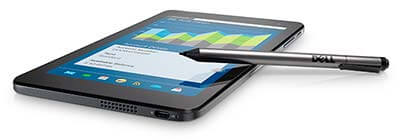
The New Venue 8 Pro 5000 (5855) now uses  a Wacom ES pen, the Dell Active Pen. See it on Dell.com. The pen is sold separately. You cannot use the Dell Active Stylus from the old Venue Pro line on the New Venue Pro line. The old ones used Synaptics tech and Dell has now switched over to Wacom and is using the term “pen” rather than “stylus.”

dell-active-pen

Manufacturer Part# : N1DNK
Dell Part# : 750-AAMI
PN556W

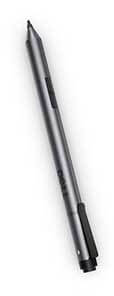
The Dell Active Pen is also compatible with some other Dell 2-in-1 laptops and tablets. It uses Bluetooth and takes an AAAA battery and 319-type coin-cell batteries. It has an LED light that indicates pairing. Its tip is 3 mm, which is still pretty fine-tipped.

Here is the list of compatible Dell devices:

Inspiron 7568, Latitude 11 5715, Latitude 11 5179, Latitude 7275, Venue 10 Pro 5056, Venue 8 Pro 5855, and XPS 12 9250.

The new system is an improvement over the old Venue Pro line. The new one has 2,048 levels of pressure sensitivity and good palm rejection.

New Dell Active Stylus for New Venue 10 Pro

There’s also a new Dell Active Stylus, the 750-AAIZ, (click to see it on Amazon) for the also-revamped Venue 10  (5050) and Venue 10 Pro (5055). “New” is not part of the name of the stylus. Same name, different stylus than the old one. Double sigh.

Wish they could at least call it “Dell Active Stylus 2” or something–they already caused heaps of confusion with the three versions of Dell Active Stylus for the old Venue Pro. Maybe “Son of Dell Active Stylus”? If you’re confused now, try finding info on their site–it’s a haystack! So I’ve compiled the relevant info in this post.

dellactivestylus


The new “universal” Wacom Bamboo Smart Stylus, a Wacom ES pen, will work on the Venue 10 5000 Series (5050) and the Venue 10 Pro 5000 Series (5055). That one comes with two swappable tips, one firm and one soft. Since the tablets don’t come to a pen, you could get this one instead, then you would have the two tips.

Even though the new Dell pens are both Wacom ES, they are not interchangeable.

Here’s the Bamboo Smart Stylus on the Wacom site.


dell active pen 5055

New Dell Venue 10 Pro (5055)

The New Dell Venue 10 Pros also have 2GB and 4GB models with a 10.1″ screen.

These tablets, which run on Atom processors, are for sale only at Dell. See them

See our review of the old Venue 8 Pro

Comparable: Asus VivoTab Note 8
Toshiba Encore 2 Write
Samsung Galaxy Tab A with S Pen

cubei7review

Mytrix Complex 11t / Cube i7 Stylus review: budget 2-in-1

Mytrix Complex 11t (Cube i7 Stylus) review: affordable EMR all-in-1

The Mytrix Complex 11t is a version of the Cube i7 Stylus, a Chinese tablet made by a company called 51 Cube (it was also rebranded for a while as the rhyming Cytrix Complex 11t.)

The Mytrix has been changed a bit from the original to get FCC approval, which is required for electronics in the U.S. market. If you get the Cube i7 Stylus alone, but it won’t come with the keyboard and stylus, and the whole package is economical (you can compare prices).

cubei7stylusreview

Mytrix Complex 11t, also known as the Cube i7 Stylus. See it on Amazon

If you want to see the plain Cube i7 and read Cube i7 Stylus reviews, here they are on Amazon.

To clarify a few naming things: The name i7 is confusing; this does not have an i7 processor, it has Core M. Also, this is not a review of a stylus, the name of the computer is Cube i7 Stylus in it, so it’s a Cube i7 Stylus review.

Type of tablet: WIndows tablet PC 2-in-1

Digitizer: Wacom EMR with 1,024 levels of pressure sensitivity

Comes with pen? Yes. Keyboard too

This 2-in-1 Windows tablet has recently come to the U.S. It has been available on Chinese sites such as Gear Best for a while, but that means waiting for shipping, and inconvenience if problems arise. Now, the computer has been rebranded as the Mytrix Complex 11t and for sale in the U.S. market, having been changed a bit to fit FCC standards, according to the seller.

It’s got 4GB RAM, which is soldered in, so not upgradable. It’s got an SD card slot for up to 32GB of extra storage. Its processor is speedy and good for light gaming. It has a Core M processor and 4GB RAM. You can run large programs on it, but it has some limitations.

Like the Surface 3, it’s best used with programs less intensive than Photoshop, such as Photoshop Elements, ArtRage, or Sketchbook Pro, Krita, and Manga 5. It has only 64GB of storage, so best to keep your files on an SD card or elsewhere. You can, with some elbow grease, add a larger SSD.

The Cube i7 has Core M, not the most powerful processor, but a big step up from Atom tablets.  It’s fanless, so it’s quiet. As far as speed, it’s competitive with an i5.  Its LPDDR RAM is fast. The HDMI connector allows you to connect it to TVs, monitors, and projectors to enjoy content on a big screen.

This is quite a good deal if you want a Wacom-penabled PC. It’s reminiscent of the Samsung Ativ line in its size, but that had Atom, so this one is more powerful. What it does do, it does well. And, you can swap the SSD to give you considerably more power.

What’s in the Box

Tablet
screen protector already installed
Wacom pen
keyboard that attaches via magnets
OTG cable (USB On-the-Go)
manual (very basic); paperwork

FEATURES

Screen size: 10.6 inch diagonal
16:9 aspect ratio (the norm for Windows), multitouch
Resolution:1920 x 1080 full HD IPS display
Windows 10
Intel Core M 5Y10 5th generation Broadwell
4GB RAM
64GB storage, SSD
802.11 b/g/n Wi-fi
Micro USB 3.0
micro SD slot for up to 32GB
12-volt DC charging port
mini HDMI connector
Weight: 1.2 K (lib/??)
Bluetooth
audio jack
metal chassis
screen protector, if you see scratches, try removing it as the scratches may be on the screen protector.
Portability
It’s a bit heavy for a tablet of its size, but it’s portable.

Screen

The IPS screen has good viewing angles and is bright with 350 nits. It’s the same screen used that was used in the higher-end Microsoft Surface Pro 2. It has good contrast and 75% of the Adobe SRBG, which is good for something in this class, though less than a higher-end computer would have. It has an accelerometer which you can lock or let go, flipping your image to portrait or keyboard mode depending on the angle of the tablet.

The screen protector can get scratched, so if you get one where the screen appears to be scratched, try peeling off the protector. You might want get a matte screen protector for some tooth while drawing.

Battery Life
6 hours mixed use, 4 hours of video

Pen
The pen has good accuracy. It’s a standard Wacom EMR pen, so if you have one already you could use that one as well.

cube i7 stylus review

User reviews and ratings

This tablet has been well-received with positive ratings from Tech Mobile review and various sites where Cube i7 reviews appear. Artists writing a Cube i7 review have praised its pen accuracy and speed. Wacom penabled tablets can actually vary in accuracy.

Pros
good for light gaming
very affordable for a Wacom penabled tablet

Cons
Trackpad can be sticky
can get hot
speaker quality tinny

The Verdict

It doesn’t have a lot of bells and whistles, very good value for students or hobbyists or people who want to draw, do art, take notes who like the natural feel of Wacom EMR.

Here’s a drawing demo by Samson Lee:

Here’s a Photoshop CS5 demo on it. As you can see though it works, there’s some lag on this 16MP image. That’s not because anything is wrong with the tablet, but because it’s Core M. However, there are a lot of less intensive art programs you can use.


See the Mytrix on Amazon

If you’re searching for more info, looking up articles about and reviews of the Cube i7, or Cube i7 Stylus, might turn up more than searching for Mytrix.

end of Mytrix Complex 11/Cube i7 Stylus review

Read our reviews of these comparable models:
Microsoft Surface 3
Toshiba dynaPad
Asus Vivotab Note 8
Surface Pro 2


wacom graphics tablets

Best Wacom tablet: Intuos graphics tablets

What’s the best Wacom tablet for your needs? Understanding the Intuos and Intuos Pro lines

Wacom Graphics Tablets 2018 (non-screen)

Wacom Intuos (2018)New version with 4096 levels, Bluetooth, no multitouch. Smaller and lighter. 4 Express keys.Read our detailed article comparing the 2018 Intuos to the previous one.

See it now
Wacom Intuos Pro Medium (2017)
wacom intuos pro 2017
Professional tablet allows you to customize controls per app.
Multitouch, gestures. 8 customizable Express Keys.
Pro Pen 2 has 8,192 levels of pressure, and tilt.
See on Amazon

Read our review
Wacom Intuos Pro Paper Edition
Wacom+Intuos+Pro+Paper+Edition-sm
Intuos Pro plus digitizing real ink pen and paper.
Save your work to the Inkscape App. 8,192 levels, tilt.
See it now

Read our article
Wacom Art Pen & Touch line
wacom intuos art pen and touch tablet
For hobbyists or beginners.
Models are Art, Comic/Manga, Photo, and 3D.
Each is the same tablet with different art programs.
Intuos Pen gets 1,024 levels.
See Art Pen & Touch line

Read our review
Wacom Intuos Draw
wacom-intuos-draw
Simplest, good for beginners.
No touch function. 1,024 levels.
Check price

Old Intuos Pro (up through 2016)

tablet-with-stylus
Multitouch, gestures.
Medium and Large have 8 customizable Express Keys. Small has 6.
If you want an Intuos Pro Small, this is it.
Pro Pen, 2,048 levels.
Check price
This chart gives an overview of Wacom Intuos Pro and Intuos drawing tablets, with photos, features, and links. It illustrates the accompanying article, "How to Pick the Best Wacom Tablet: Intuos graphics tablets." Each tablet comes with a pen.

This article covers facts about the Intuos line and how to pick the best Wacom tablet, whether you’re a beginner, hobbyist, or professional artist or photographer.

Wacom graphics tablets: from Bamboo to Intuos Pro

Choosing the best Wacom tablet is not always easy. On Wacom graphics tablets you do not draw on the screen, but on an opaque tablet attached to a computer. Wacom tablet monitors where you draw on the screen, such as the Cintiq, are not the same thing. The chart provides links to corresponding Wacom tablet reviews on this blog.

Most artists getting into digital art begin with a graphics tablet rather than a tablet with screen, since this category has the most affordable options. Still, there are some tablets with screens that are less costly than the top graphics tablets.

Click here to see Intuos comparison chart with additional details.

Wacom, a Japanese company, is the leader in the art tablet market. Wacom drawing tablets are the most popular, and considered to be the best quality and they tend to cost more. The best Wacom tablet for your needs is not necessarily the most expensive one.

With a Wacom tablet, you can draw with a natural feeling, and get great accuracy in photo editing. You can do handwriting, sign documents, and cut and paste. With the pen and touch line, you can use your hands to do gestures such and panning and zooming.

Wacom Bamboo

You won’t see the Bamboo line in our list of best Wacom tablets. Why? Bamboo used to be the standard name for Wacom graphics tablets, but the company renamed the Bamboo line into the Intuos, leaving a few in the Bamboo line, mainly signature pads that don’t have the advantages of the more fully-featured Intuos graphics tablets.

Many people still refer to Wacom tablets as Bamboo, since the Bamboo line was made for a very long time. Wacom still updates Bamboo drivers. The company also make some pens and styluses bearing the name Bamboo.

Intuos (2018)

In 2018, Wacom updated its non-pro Intuos series. The main differences are that the 2018 gets 4,096 pressure levels with the included 4k  Pen. And the Intuos now has Bluetooth (except for one lower-priced model). BUT to keep the price down, Wacom has removed the touch feature. Read my detailed post about the 2018 Intuos.

Intuos Pro (2017)

The Intuos Pro 2017, Medium size, is the most popular Wacom tablet among artists and designers. With its ample size and professional features, it’s the gold standard of graphics tablet. The 2017 model is an upgrade over the old Intuos Pro. The pen now has 8,192 levels of pressure instead of 2,048, and the tablet is thinner. There is less lag when using the pen.

Our top pick is the Intuos Pro Pen and Touch Medium.
Wacom-Intuos-Pro

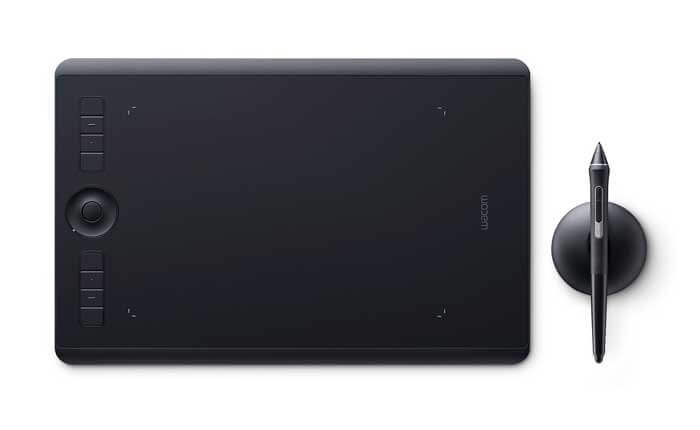
Intuos Pro 2017 with Pro Pen 2. Image courtesy Wacom

It has 10 nibs (not all different), 4 of them felt tip. The pen stand is flatter and more pucklike. The Pro Pen 2 can also be used on the Cintiq Pro and MobileStudio Pro.

Intuos Pro Paper Edition 2017

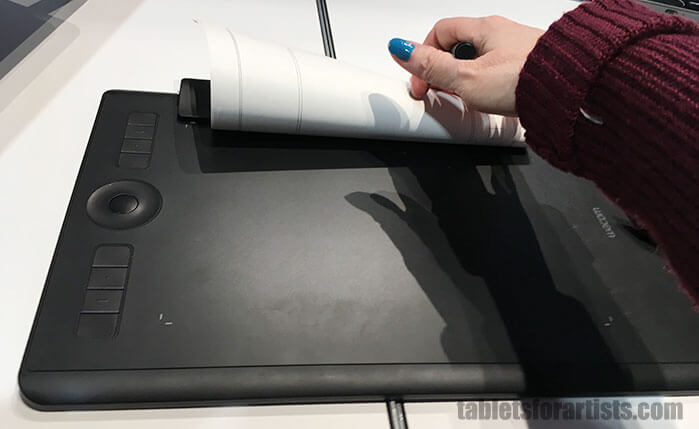
The Intuos Pro Paper Edition is the same tablet as the 2017 Intuos Pro, but the Paper lets you use real ink and your favorite paper, which attaches via an included clip called, of course, the Paper Clip.

Wacom+Intuos+Pro+Paper+Edition-2

Intuos Pro Paper Edition with Pro Pen 2 and pressure-sensitive, finepoint gel pen. Image courtesy Wacom

It comes with the Pro Pen 2, as well as a pressure-sensitive, fine-point gel pen. The gel pen looks like a regular pen and is Bamboo brand. There’s also an optional ballpoint pen. In mid-2017, Wacom plans to release a pencil.

With the Paper Edition, you use the Inkscape App, either online or via mobile app. The app has a free and pro version. The pro version lets you collaborate with others, vectorize raster art, and offers more memory (50 GB instead of 5).

Even if you’re not online, the Paper Edition tablet will store 200 files with multiple layers, or 1000 single-layered files.

intuospropapereditionreview

Intuos Pro Paper Edition with Pro Pen 2 and pen stand

The paper the tablet comes with is just regular paper, not some special kind. You can use any paper of reasonable thickness. An optional purchase is three different texture sheets you place over the tablet that simulate different paper surfaces. The Intuos Pro Paper Edition only comes in Medium and Large.

If you get the Intuos Pro, you can add the Paper accessories later.

Top Wacom tablet: Intuos Pro Paper

If drawing on paper is a feature you want, the Paper Edition may be the best Wacom tablet for you. The choice of pens and papers, the plan to issue a pencil, and the optional drawing-surface sheets make this a fun and sophisticated tablet.

With the regular Intuos tablet, you CAN put paper over the tablet and trace over the drawing with the Pro Pen 2 with varying results depending on the paper thickness. Though it’s not the same as using the ink pens of the Paper Edition, but if you miss the feel of paper, it’s an option.

Wacom Intuos tablets: Intuos Pro vs. Intuos Pen & Touch and Intuos Draw

There are many Intuoses to choose from. In the non-Pro line, there are quite a few models, with the main difference being the art programs that come with them.

best wacom tablet

Intuos Pro Pen 2, with 8,192 pressure levels in both the tip and eraser end

The Intuos line is comprised of the Intuos Pro and the Intuos, which includes the Intuos Art Pen & Touch line and the Intuos Draw. On the Wacom site, these are also referred to as the Creative Pen & Touch line, such as the Art Creative Pen & Touch, etc.

All (both Pro and non-Pro) come bundled with art programs which vary depending which package you get, so you’re getting more for your money than just a tablet. Last year, Wacom introduced the Intuos 3D, which has 3D software.

intuos 3d sculpting

Sculpting in 3D. Image courtesy Wacom

Main differences, Pro vs. non-Pro

The Intuos Pro with Pro Pen 2 has 8,192 pressure levels; the pen’s eraser tip has the same amount of pressure levels. The Pro tablet has more Express Keys. It allows you to customize commands per application. The Pro Pen 2 has tilt. A Wi-fi kit is included rather than optional.

The Pro Pen 2 can work with newer Wacom tablets that have screens as well, such as the MobileStudio Pro and Cintiq Pro. It comes with a set of 10 nibs, including 4 felt-like ones.

The Intuoses have the Intuos Pen, which gets 1,048 pressure levels. The pen has no eraser tip. You can customize commands, but not differently for each program. The tablet does not support tilt or rotation. A Wi-fi kit was not included in earlier Intuos versions. However, the Intuos (2018) comes with Bluetooth so you can use it wirelessly.

Features of all Intuos tablets

All Intuoses, indeed all graphics tablets, have palm rejection. If the pen is touching or hovering over the tablet, it will take precedence over your hand.

All come with a pen. Wacom pens are battery-free and pressure-sensitive. The digitizer is traditional EMR, which is top of the line, along with the Apple’s iPad Pro digitizer. (For more on that, see our introductory article about tablets). You can use your fingers to do gestures such as pinch, zoom, and navigate, but you won’t be able to draw using your fingers.

You can use a desktop or laptop, Windows or Mac, with the Intuos. There’s no best Intuos tablet for Mac or PC, they work equally well with both. You can also use Linux.

Intuoses come with customizable Express Keys that you program in the driver. You can add more customizable functions using the Radial Menu, which shows on your computer screen.

Because I find the Wacom site difficult to find specific information on, I’ve gone through it and digested the main info in this article. But there is additional information there.

Intuos Pro: Features

Intuos Pros are professional-level. They offer advanced features such support for pen tilt, and rotation sensitivity. Intuos Pro tablets also have higher specifications, with twice the resolution of the regular Intuos line (2,540 lines per inch or LPI, vs. 5,080 for the Pro line).

So the Pro line has the highest LPI of all Wacom non-screen tablets, equal to the LPI of high-resolution Cintiqs. LPI means Lines Per Inch, which defines the resolution of the drawn line.
 

intuos-pro-pen-and-touch-review

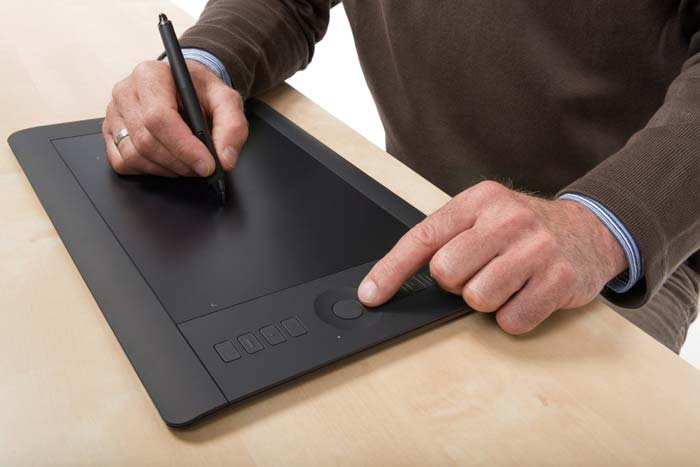
Drawing on Intuos Pro

The Intuos Pro’s Touch Ring functions as a scroll wheel, which can be useful to architects using design software such as CAD. You can also assign pen buttons to scroll.

All Intuos Pros have multitouch, so calling them Pro Pen and Touch is redundant, yet it’s still the name.

All Intuos Pros have Bluetooth built in, except the Intuos Pro Small, which has RFID, according to Wacom.

Specs for Intuos Pro 2017

– 8,192 levels of pen pressure sensitivity in both pen tip and eraser when using Pro Pen 2 (Pro Pen original had a respectable 2,048, which is plenty).
-Multitouch, allowing gestures such as pan, rotate your artwork, zoom, and navigate
-Multi-function touch ring with 4 customizable functions
-USB
-Wi-fi kit included
-Customizable Express Keys are application-specific, i.e., you can program them to different commands in different programs.
-Touch Ring with 4 programmable functions.
-battery-free Pro Pen 2 with tilt recognition
-corners light up to show active area
-built-in Bluetooth

See the Intuos Pros on Amazon.

Intuos 3D. There is a model of the Wacom Intuos that comes with 3D software. Read our writeup: Wacom Intuos 3D: Step into a digital dimension
 

intuospropaper

Intuos Pro Paper Edition. See, it’s just a regular Wacom Intuos Pro under all that paper.

All Intuos Pros have tilt sensitivity, which gives you a natural drawing feeling. It’s when the tablet recognizes the angle you’re holding the pen at and changes the mark according to it, like a real pen on paper. The Pro allows this, as does the pen that comes with it.

Rotation sensitivity allows you to make complex, Spirograph-like patterns when you rotate the pen in various art programs.  The Pro tablet accommodates this, but the pen that comes with the tablet doesn’t have this feature, it only has tilt.

To get rotation sensitivity, you need to buy the optional Wacom Art Pen, which has both tilt and rotation. The Art Pen does not work on newer models. It is only compatible with: Cintiq (these models including the Touch versions): 27QHD, 24HD, 22HD, 21 UX, Cintiq 13HD, all Cintiq Companion 1 and 2 models, Companion Hybrid, Intuos Pro, Intuos5, Intuos4.

2017 Intuos Pro dimensions (same for Paper Edition):

Medium:

13.2 x 8.5 x 0.3 in. (338 x 219 x 8mm )

Active area  8.7 x 5.8 in. (224 x 148 mm)

8 Express Keys

Large:

16.8 x 11.2 x 0.3 in (430 x 287 x 8mm)

Active Area  12.1 x 8.4 in. (311 x 216 mm)

8 Express Keys


Old Intuos Pro dimensions

tablet-with-stylus-intuos

old Intuos Pro small


Intuos Pro Pen and Touch Small

Total Size: 12.6 x 8.2 x 0.5 in
Active area: 6.2 x 3.9 in
Weight: 1.5 lbs.

Intuos Pro Pen and Touch Medium
Total size: 15 x 9.9 x 0.5 in.
Active area: 8.8 x 5.5 in
Weight: 2.2 lbs.

Intuos Pro Pen and Touch Large
Total Size: 19.2 x 12.5 x 0.5 in
Active area: 12.8 x 8.0 in, Touch 11.8 x 7.5 in
Weight: 4 lbs.

Intuos Pros are larger than the non-Pros because of the large grip area and the buttons, but the active area of the Intuos Pro and Intuoses are almost the same.

One advantage of the old one is you can use the 6D ArtPen, which supports rotation sensitivity or barrel roll.

Top pick

Top pick: Intuos Pro Pen and Touch Medium. It’s the most versatile and most comfortable to use. You can use with a small or large monitor, and its high resolution makes it ideal for single or multiple displays. It’s large enough to allow comfortable arm movement and long strokes, but portable enough to fit into a laptop bag or backpack. Most Wacom tablet reviews agree on this.

Of course, it’s about what you’re happy with–some prefer the larger or smaller one. But many artists, designers, and photographers feel the Pro Medium is the best Wacom tablet.

There’s now a much wider gap in pen sensitivity between the Pro and regular Intuos than there used to be; while the Pro has gone from equaling the regular’s still-current 1,024 levels, the Pro then rose to 2,048 and now to 8,192.

The discernible difference between the 1,024 and 2,048 in my opinion is greater than the jump from 2,048 to 8,192. The Pro’s tilt sensitivity makes a difference as well.


Intuos Art Pen & Touch tablets (these have been replaced by the 2018 Intuos)

Intuos Art Pen & Touch is the non-Pro Intuos line.

Wacom didn’t update this line for 2017, though it did release the 3D Pen & Touch last year.

The Wacom Intuos Art Pen & Touch line comes in four packages: Draw, Art, Photography, Comic/Manga, and 3D.  Each tablet is referred to by its software: Art Pen & Touch, Comics Pen & Touch, etc.

Though it’s all the same tablet, but the bundled software package is specialized for each creative practice. You can purchase any of the software separately or use other programs, including free ones.

The Creative Pen & Touch line also has touch capability, but has 1,024 levels of pressure sensitivity as opposed to 8,192, comes in Small and Medium (no Large), and does not come with the Wi-fi kit–that’s an optional purchase. The non-Pro line does not support tilt or rotation sensitivity. The pen does not have an eraser tip.

The Photography tablet comes only in Small and the color black, with photo-editing software. It has a Wi-fi kit option.

The Intuos Art comes in Small and Medium, and has software for digital painting. The Intuos Comic comes in Small, though there’s a Japanese Wacom tablet called Intuos Manga that comes in Medium.

wacom intuos draw

Small Intuos Art Pen & Touch

Bundled software changes from time to time.

The Art, Photography, and Comic, and 3D tablets all have touch. The Draw is the only one that doesn’t. (Most non-Wacom graphics tablets do not have touch, tilt, or rotation sensitivity.) Because it lacks touch, you can’t use gestures on the Draw.

Toggle off the Touch.

Touch speeds up workflow. If you don’t always want Touch, all Intuoses have a toggle that let you turn off the feature. You may find you don’t use Touch at all.

See the Art Pen & Touch line on Amazon.


Best Wacom tablet for beginners: 2018 Intuos

The Intuos comes only in small and medium, It has four Express Keys. Like the Intuos Draw (our previous top recommendation now replaced by the Intuos 2018), it doesn’t have touch. It has Bluetooth so you can use it wirelessly.

Photoshop, Illustrator, and other art programs, as well as Mac and Windows operating systems, are increasingly integrated with touch. So getting one with touch prepares you for the future. However, you will now have to get an Intuos Pro to get touch, or buy one of the older Intuos Pen & Touch tabltets.

We think the best Wacom tablet for beginners or those on a budget is the Intuos 2018. If you’re just dipping your toe in digital paint, it’s a good place to start.


Intuos Pen

The pen that comes with the Intuos line does not have an eraser. You can erase using your art program instead. The Intuos Pen is different than the Pro Pen that comes with the Intuos Pro, whereas the Intuos Pen is thinner and has no eraser end.


wacom tablet reviews - intuos pen

Intuos Pen

With Intuoses, most of the tablet is the active area. The buttons are in the top corners. The Intuoses have the benefit of saving desk space.

Most of the tablet is the active area. The dots on the tablet mark the active areas where you can map the tablet.

Choosing a size of Intuos/Intuos Pro

A good rule of thumb in finding the best Wacom tablet is that the tablet’s active area should be at least 1/3 the size of your computer screen, diagonally measured. So if you’ve got up to a 19″ screen, you need at least a 6″ in active area, which would be the Small size. Though it would work, you might feel constrained.

When drawing on a small tablet, a small hand movement can cover a lot of space on the monitor, so you may find it hard to get good accuracy. You can zoom in on the drawing to help.

If you’re using a desktop or tablet with a keyboard, the keyboard is going to take up more room on your desk, so that’s one consideration. A desk with a slideout tray is useful to place the tablet or keyboard.

Using multiple displays? The settings will allow you to map the tablet to a horizontal area that works with more than one display.

Tablet resolution is much higher than monitor resolution, so you shouldn’t have resolution issues, unless perhaps you are using a small, non-Pro tablet on multiple high-res monitors.

A “too large” tablet, one larger than your screen, will still work if mapped to the monitor correctly.

When choosing the best Wacom tablet, ask yourself: What will you use it for? How large is your monitor? Will you use more than one display at a time? How much desk space do you have? Do you need to carry the tablet around? What’s your budget? Are you going to be happy with a tablet that does not have a screen? Do you have any problems such as repetitive strain injury (RSI)? If you do have RSI, a Small may cause cramping.

Intuos Creative Pen & Touch sizes

Intuos Creative Pen & Touch Small:
8.5 inches x 10.75 inches x 0.25 inches
Active area: 6.0 x 3.7 in

Intuos Creative Pen & Touch Medium
Total Size: 10.75 x 8.75 in.
Active Area: 8.5 x 5.3 in

Only the Pro comes in large.

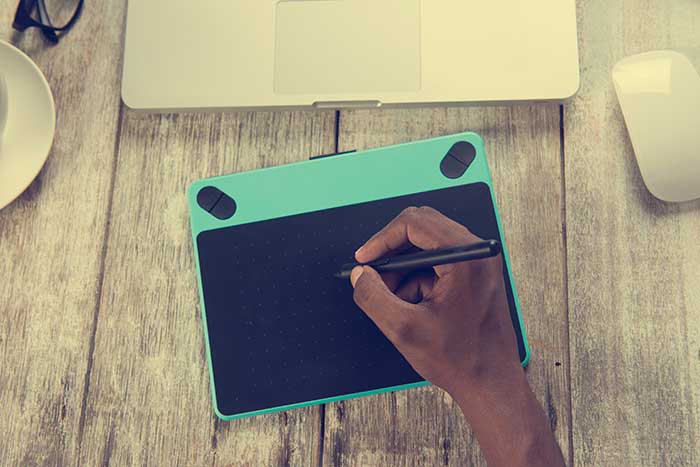
Pick a Small Wacom drawing tablet if: you’re using the tablet mainly to lightly touch up photos, scrapbooking, or drawing or coloring if you don’t mind drawing small. Or, you have a small desk space,  or if you need something really easy to carry.
wacomartpenandtouchsmallreview

Drawing on a small Wacom tablet

Pick Medium if: you’re illustrating, or doing detailed photo editing or graphics, Medium is the best graphic tablet size, as you will be able to get more detail and precision. It’s the most comfortable for drawing, too. It will let you move your arms and shoulders, which is positive for drawing. It’s he best Wacom tablet for most uses. Like Goldilocks, you’ll probably find that the one in the middle is “just right.”

Pick Large (Pro only) if: you have a very large monitor or multiple displays. Large is not optimal for drawing. Your arm will be traveling a lot and it can get tiring.

This video shows a graphic designer using an Intuos with gestures (a small part of the video also shows a CIntiq).

https://youtu.be/gXBt9XImEL0

Getting started with Intuos

Wacom has an extensive YouTube channel with information and tutorials.

Conclusion: There are quite a few things to keep in mind in choosing an Intuos graphics tablet, including comfort, pen capabilities, desk space, and included software. Luckily, there are a lot to pick from, so finding the best Wacom tablet for your needs shouldn’t be too difficult.
More Wacom tablet reviews

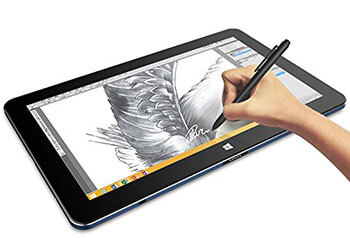
Check out our detailed Wacom tablet reviews. We have reviews of both Wacom brand and tablets that use a Wacom pen. The company has lent its technology to quite a few tablet PCs. In those, you won’t get all the customization but you will get pressure sensitivity.

Read our detailed Intuos Draw review: http://www.tabletsforartists.com/intuos-draw-review/

Economical alternatives

Looking for a more affordable graphics tablet? Check out our Huion 610 Pro review. The Huion  has 2,048 pressure levels, but no touch, tilt, or rotation. It allows much less customization, and installation can be a little tricky for some. Still, it offers quite a lot.

Or our Monoprice graphics tablet  or Turcom TS-6610 review.

Wacom Intuos alternatives are a viable choice, especially compared to the regular Intuos, but you’re missing out on the Pro features.

All in all, you can’t really go wrong with a tablet from the Intuos line. These are a solid, classic choice of graphics tablet, and should last you through years of drawing.

Check prices of the Intuos line.

Want to more about all the different types of tablets? Check out our complete guide to the best drawing tablet.

end of Choosing the best Wacom tablet