wacomuniversalink

Wacom and Microsoft: Pen pals at last

Wacom and Microsoft partner to make pens with 4,096 pressure levels

The Windows 10 Anniversary update will bring welcome advances in digitizer technology this coming holiday season 2016.

Microsoft has inked a deal with Wacom to work together to make Wacom AES and Microsoft pens cross-compatible with Microsoft devices. These “dual protocol pens” will be made by  Wacom and work on Windows 10 devices. Some details have been released at the WinHEC (Windows Hardware Engineering Conference) in Shenzhen.

Wacom’s AES, short for Active Electrostatic, has replaced Wacom’s traditional EMR in Wacom Penabled tablet PCs, such as the ThinkPad Yoga 14 (Wacom’s Cintiqs still have EMR). The new pens will be for AES and Microsoft tablets across devices from large to small. Microsoft now uses N-trig digitizers in its own Surface line, and Vaio is using the N-trig DuoSense pen on the review of the Z Canvas 2-in-1 tablet PC.

wacom microsoft pen

Wacom-Microsoft pens. From WinHEC slide presentation.

These remarkable, yet-to-be-released Wacom pens using the Microsoft Pen Protocol have dispensed with buttons and erasers, making them more Apple Pencil-like.

The devices would sport a 240Hz pen speed and 120Hz touch speed.

Giving tilt a whirl

The new Wacom pens, called G13 or Generation 13, will feature tilt sensitivity to offer natural drawing angles. Right now, tilt is not available on most Penabled tablet PCs, nor on the Microsoft Surface line. (The Enhanced Samsung used on its Wacom-Penabled pen tablets currently offer some flexibility with tilt.)

The new pens’ 4,096 levels of pressure sensitivity is unprecedented–feels like just yesterday when MS was Micro-splaining to us that 256 levels of the Surface Pro 3 was perfectly fine?

I doubt the 4,096 levels will be a world-changing difference from 2,048, and indeed, 256 wasn’t too bad. But each increase seems to bring a slightly smoother pressure curve.

Simultaneous finger and touch

Other advances including more universal implementation of simultaneous finger and touch input, to the joy of finger-painters everywhere.

Palm rejection, lower latency, and more responsive trackpads are also listed in the directives discussed in the slideshow put on at the WinHEC conference.

If you’d like to see all the WinHEC presentation slides, they are available on this technically oriented Microsoft blog.

Wacom will create and make the Windows-Ink capable pens. From then on, Wacom’s pens will have both AES and Microsoft N-trig-based tech. N-trig is currently used in the Surface line.

Companies join the universal pen club

Companies that make pens and touch controllers are expected to jump onto the bandwagon, including Wacom, Sunwoda, and APS on the pen side, and, on the controller side, Wacom, Synaptics, Goodix, Elan, EETI, and Atmel.

elanuniversalcontroller

Elan is playing a role in the push toward universal digital inking solutions. Photo: Tablets for Artists

elancontroller

It’s all a group effort. Slide from WinHEC.

As you can see below, Microsft aims its pen tablets at all ages and people in varying professions. Who doesn’t need a pen?

whihec wacom slide

Slide from WinHEC presentation

Now, lest we be naive, these companies aren’t doing all this ONLY to make life easier for the artistically inclined. They wish to increase the population of pen users, and it’s working. The first Microsoft Tablet PCs, back in 2001, were a big flop with the public, though embraced by artists who saw their potential. It took Apple’s iPad to bring the gadget-using public into the tablet fold.

The more pencil and paperlike digital pens can get, the more people will use them, or so the company’s reasoning goes. And they seem to be right–pen tablets are expected to double in 2015 to 20 million, up from 10 million in 2015.

Universal’s the word

Microsoft may be going universal, but it’s not abandoning the N-trig tech that powers its popular Surface tablets. N-trig is an Israeli company that created this tech; Microsoft purchased the company in 2015 for  $30 million. N-trig tech will still be present in the “DNA” of the new pens. But Wacom, with its many devices and long history. will be the one creating and manufacturing the new pens, using the Microsoft Pen Protocol under Wacom’s UPF (Universal Pen Framework).

There will be a firmware update for older Wacom digitizers that are G11 and G12. How that will work remains to be seen.

The upshot is that it’s all getting closer to the Apple Pencil, and to the modest wooden pencil as well. According to Wacom President & CEO Masahiko Yamada, “Supporting multiple protocols makes our pen incredibly fast and easy for people to write intelligent notes, be creative, and get productive when using Windows Ink on their Windows 10 devices…”

Echoing this message of harmony, Kevin Gallo, corporate VP of MS’s Windows Developer Platform, “Windows Ink makes it easy for people to turn their thoughts into actions…. People that use pens with their Windows 10 devices are happier, more engaged, more creative, and productive.”

Digital inking push

I’m including some photos from CES showing the move toward universality.
wacomuniversalink-1

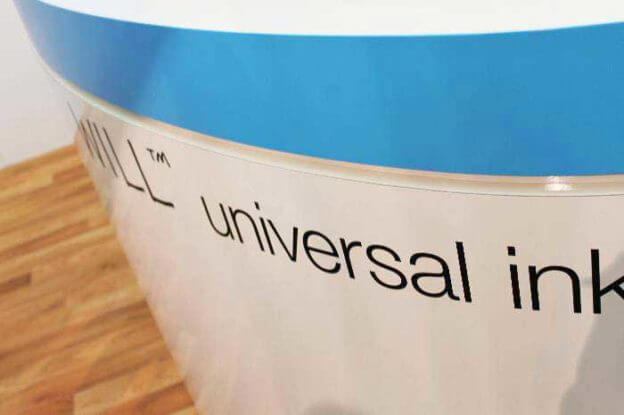
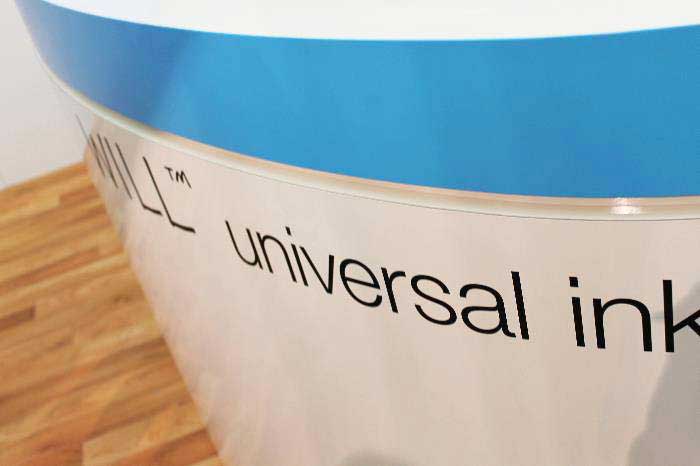
At Wacom’s universal ink spot at CES. Photo: Tablets for Artists

This new effort coincides with a push by Wacom in the digital-inking space. Wacom showed off its inking initiative during the Consumer Electronics Show (CES) earlier this year with these funky digital crayons, each with a unique ID, that allow worldwide collaboration with consistent colors. (These were just for show and I don’t know of any plans by the company to sell them, unfortunately.)

Masahiko Yamada also mentioned digital stationery as a product to develop. The Digital Stationery Consortium began on Jan. 7, 2016 and will be implemented across a range of business sectors.


wacomuniversalink-4

A universal digitizer? This tablet, displayed at CES, allows the use of different types of pen on the same tablet. Photo: Tablets for Artists

I don’t this is going to affect Wacom EMR, which is still used in the Intuos, Cintiq, and some tablet PCs. Please check our post categories to see which tablets we’ve reviewed have which type of digitizer.

The word “universal” is music to my ears. It’s just so much easier. Chargers, pens, and other accessories are so much more accessible when you don’t need a different one for every device.

A reminder: the free upgrade to Windows 10 is ending on July 29, 2016, and some of these changes are going to be included in the next Win10 update, so if you’re holding back, you might want to take the plunge to Windows 10.

With this announcement of a Microsoft-Wacom pen pal pact, it looks like late 2016 has holiday cheer in store for digital artists.

end of Wacom and Microsoft: Pen pals at last


art tablet infographic excerpt

Infographic: The five types of drawing tablet

The Five Types of Drawing Tablet

Here is an infographic depicting the five types of art tablet–graphics, 2-in-1, slate, convertible, and tablet monitor. Below is more info as well as an embed code if you would like to share the infographic on your site or blog. Also below it is a pin if you would like a Pinterest-sized pin to share.

5 types of drawing tablet

By art tablet, we mean tablets with pressure sensitivity and palm rejection, making them suited for drawing, painting, and handwriting.

For an introductory article about art tablets, please see this post.

Please share by using the social media buttons. To put this infographic your site, please use this embed code:

<a href=”http://www.tabletsforartists.com/infographic_art_tablet/”><img src=”http://www.tabletsforartists.com/wp-content/uploads/2016/05/artabletinfographic-2.jpg” border=”0″ /></a>

An example of a graphics tablet would be a Huion 610 Pro or Wacom Intuos. An example of a slate tablet is the Galaxy Tab A with S Pen or an iPad Pro. A Lenovo ThinkPad Yoga 14 is a convertible tablet. The TabPro S and Surface Pro 4 are 2-in-1s. A tablet monitor would be the XP Pen 22 or the Cintiq 13HD.

Pinterest Pin:

5pentabletspin

vector 10 colors

Vector vs. raster for noobs

For newbies: vector vs. raster files

If you’re new to digital art, you may have heard these terms, but perhaps you don’t quite understand, or know which to use when. Here’s a rundown of the differences between these two image types.

RASTER

Raster images, also called bitmap images or raster graphics, are made up of pixels. Most freehand drawing programs utilize raster, though some use vector too. Photographs, once scanned and digitized, or coming from a digital camera, are raster.

raster image

Raster image: photo of lotus

Pixels are tiny squares expressed in points per inch, also called dots per inch (ppi or dpi). Each pixel can be edited. Using Photoshop or another image editor, you can zoom in and see an individual pixel.

To understand pixels, think of a Chuck Close portrait, made of tiny little squares whose edges are invisible unless seen very close up. To see pixels, you need to zoom way in.

A 6″ x 6″ image at 300 dpi is is 1800 x 1800px or 324,000,000 million pixels! That’s a lot of information. A computer can handle that with no problem.

Early computer games were made with pixel art, which has a pleasing, toylike look whose popularity has resurfaced in films like Wreck-it Ralph.

Online images are usually 72ppi (often called dpi–though the terms are used interchangeably, there is some difference in meaning, but people know this and will understand). Print images usually use 300ppi. A very high-res image might be 600ppi.

Raster images cannot be enlarged without losing some information, resulting in fuzzy, “pixelated” images. Large, high-res images can slow down your computer, especially when you use a lot of layers in your drawing program. Despite the inconveniences, drawing freehand using raster graphics feels more similar to drawing on paper than drawing in vector does.

Raster image file types (this is not all of them but the main ones):
jpg (jpeg), gif, png, psd, tiff

Raster programs include Photoshop, Sketchbook, Gimp.

(See our introductory article about art tablets)

Uses of raster files

Photographs and digital drawings and paintings are usually raster. Most art online is raster to begin with, or vector art that was rasterized, because browsers don’t display vector files. Scanners output images into raster. The majority of freehand digital illustration is done in raster.

raster digital painting

Digital painting in raster, done in Krita. Image credit: David Revoy / Blender Foundation (Own work) [CC BY 3.0 (http://creativecommons.org/licenses/by/3.0)], via Wikimedia Commons. Page

Pros: Feels and looks like freehand drawing, can edit pixels, not much learning curve to start, most people can open files to view

Cons: large file sizes when in high-res, enlarging images creates pixelation, cannot edit lines.

VECTOR

Vector images are not made of dots. They are made of paths. A computer uses math to create the image you’re drawing as a wireframe.

Vector images can be resized with no loss of information. They can be blown up very large and will look the same. Vector art tends to look smooth, simple and geometric. It can resemble cut paper. Some artists are able to do vector art so that it has as much detail as any other kind, and it doesn’t look simple at all.

When you make vector art, you manipulate points. Vector art lends itself to working with a pen or mouse. It can feel like working in collage, where you create shapes and move them around, combine, or subtract them. When shading, if you zoom in, you will be able to perceive that the gradations of color are actually distinct shapes.

Some vector-based programs: Adobe Illustrator, CorelDraw, Inkscape, Flash, Autocad

Flash is a vector-based animation program. You can use it to draw non-animated art as well.
Autocad is a vector-based drafting program used by architects and engineers.

Many art programs now let you use both vector and raster–for instance, if you’re in Photoshop and need to open an Illustrator file, you open it as a Smart Image. Manga Studio allows you to use both raster and vector.

vector logos

Logos as examples of vector illustrations

What if you’re working with a client who doesn’t understand the difference?

Clients often do not understand the difference. It’s not our jobs as artists to explain it to them, it’s our job understand what they want. I once had a client ask me to do a job requiring detailed images delivered “in vector.” This job involved a lot of freehand drawing, which I do much better at in raster. At first I considered converting my raster images to vector, which would not have worked well.

But then I realized maybe they only meant they wanted art that could be resized easily, and they knew vector art did this. So I asked them if high-res Photoshop (TIFF or JPG) files were OK, and they said yes. Phew! Remember that clients don’t always know the terminology, so keep communication clear.

Raster to vector: Auto-trace

vector image

Image after being “Auto-Traced” and turned into vector

You can “auto-trace” raster images in vector programs such as Adobe Illustrator, meaning convert them to vector, but if you keep all the colors you will end up with a very large file too complex for some uses. If you don’t use all the colors, you will see the edges between the colors with the naked eye. So when printing photos or detailed raster art, it’s better to leave it as raster. Going the opposite way, converting vector to raster, does not change the image much.

vector 10 colors

Vectorized photo reduced to 10 colors
 

Uses of vector files

Most logos and text is created in raster. Fonts can be manipulated in vector. Graphic designers use vector extensively. Illustrators increasingly use vector for even detailed art, as the software becomes more sophisticated.

Some vector file types:
AI, CDR (Corel Draw), sometimes EPS

Pros: Enlargeable, prints well, is possible to do a beautiful illustration without great drawing skills (I do not meant that in a negative way), smaller file size. Can change line width and characteristics after drawing the line.

Cons: Challenging to get much detail, steep learning curve, not everyone can open them to view them.

vector-illustration

Vector illustration by artist Jannie Ho. She makes it look almost like raster.

Both file types support layers. Like raster, some vector programs support pressure sensitivity.

Want to try?

If you want to try a free vector and raster programs, Inkscape is a versatile and fun vector program. Gimp is a free raster program often compared to Photoshop. There are free vector and drawing apps for tablets.

You might say that using raster to “paint” and vector to “draw,” or design, unless you’re one of those artists who can make vector look like raster or like traditional media.

Vector and raster images are


recycleelectronics

Recycle your old electronics: how, where, why

How to recycle your old electronics

There’s nothing like a shiny, new device, and with frequent new releases, many people upgrade every couple of years. Cell phones with their two-year product cycles, are the biggest source of e-waste.
Putting electronics into a landfill risks leeching toxic metals. Further, a lot of what’s in landfills gets exported to developing countries where there are fewer laws about exposure to e-waste.

A good deal of what’s meant to be recycled ends up being illegally exported too, unfortunately, but it’s still important to recycle. But as consumer awareness and pressure increases, more companies are stepping up to regulate the recycling process. Many take back their own products, and some take back all electronics for reuse or recycling.

recycleelectronics

What are best practices for dealing with your old electronics gear?

Of course, giving them away or donating them to a charity or thrift shop is great if they still work, or you can sell your stuff for some cash ,via online marketplaces or classifieds, yard sales, etc.

Places to donate used electronics.

You can get valuable tax deductions by donating. Donating used equipment also keeps it out of landfills. Dell has a partnership with Goodwill where they will accept used electronics for donation and recycling. If there’s no location near you, you can do it through the mail. Info here.

This article on Mashable gives you that one and four more charities.

Extend the product lifecycle.

Using your products for longer keeps them out of landfills and necessitates buying less. If your computer is overheating, it may not be broken, perhaps it just needs a fan cleaning. Various parts can be replaced and upgraded–the keyboard, battery, memory, motherboard, screen, and more, may be replaceable if they’re no longer functioning well.

Being careful to avoid viruses, turning on software updates, and generally maintaining both hardware and software will keep your gear lasting longer. Be sure to use a charging cord that’s appropriate for the power needs of your device.

Recycle or trade in.

This helpful page on the EPA site has a list of stores and manufacturers that recycle as well as more info about donating. The EPA reminds you to delete your data and remove batteries. (Even though the recycling cos. say they delete your data, it’s a good idea to do it yourself! As for batteries, you should ask the place you’re taking it to if they can deal with the batteries or if you need to recycle them separately; check local laws for details.)

For some reason the EPA page does not mention Apple. Here’s the Apple program:
You can take your old Apple device to a store or do it online, they send you a free shipping label.

A lot of manufacturers will take back their own products. But even better, Staples and Best Buy will recycle electronics for you even if you didn’t buy them there.

Staples and Best Buy will recycle electronics for you for free.

You can sometimes trade in old electronics, if the place that accepts trades deems them to have some trade-in value. The trade is that they’ll give you a store gift card. Staples has an in-store and online Technology Trade-In program where they’ll evaluate your device. If they don’t accept it for trade, they’ll recycle it for you.

Best Buy also does electronics recycling, just bring the item to them.

According to the standards posted on their site, devices or their parts will not be incinerated or disposed of in a landfill. Recycling companies are required to make all data unrecoverable, and are not allowed to export non-working components or items. They screen for anything that can be reused or refurbished. They don’t employ “forced, bonded, indentured or involuntary prison labor.” Hopefully, they stick to these promises.

If we all do our part, at least we can lessen the environmental impact caused by our gadgets. Computers cut down on waste, too, by eliminating a lot of processes and other equipment that would use more resources. A computer or tablet can now be a phone, a camera, place to watch movies or TV, a recording device, word processor, fax machine, video editor, and more. Even a smartphone can perform these tasks. We no longer have to travel to do a lot of errands we used to need to. Photographers only use darkroom chemicals if they choose to. Many people telecommute, saving on gas, pollution, even dry cleaning.

So don’t feel bad about using a computer or tablet–just do it responsibly.

lenovoanypen

Lenovo AnyPen tablets: all the world’s a stylus

Lenovo AnyPen: Want a tablet with stylus? Grab a fork

Lenovo’s AnyPen is an enticing idea. Available on the Yoga Tablet 2 with AnyPen and some others of the company’s small, general-use tablets, this technology allows you to use just about, well, anything, as a stylus, except something made of pure plastic. Lenovo recommends using a pen or wood-and-graphite pencil. So now you can have a tablet with stylus even without a stylus.

This article is a look at AnyPen as an example of advancement in pen tablets. AnyPen tablets do not have pressure sensitivity or palm rejection.

Rather than using Gorilla Glass, a strengthened glass is used to protect the screen from scratches inflicted by the writing implements.

https://youtu.be/JdDc_D9HdrQ

Lenovo AnyPen demo by cbutters

You can get a fine point with these implements, making it easier to get precise input. On a non-Pro iPad or other capacitive tablet, to use a fine point you need to trick the screen, for instance with those styluses that have a plastic disc around the tip.

With AnyPen technology, no such trick is needed. You can use a stylus, a real pencil, a real pen, a carrot, a banana, a hammer, your finger, a screwdriver, or a stick as an input device. Just as long as it’s not pure plastic, most materials will work. Lenovo has said it’s not expensive, and they added it to the Yoga Tablet 2 without hiking up the tab a whole lot.

This is certainly useful for notetaking, sketching, and technical drawing. The Tablet 2 even lets you hang it up, for instance in a garage or workshop. So you can grab a Philips-Head and draft up some plans for that new shelving.

(See more Lenovo articles and reviews)

Tablet with stylus redefined

AnyPen uses a capacitive touchscreen, not a resistive one.  A carrot has skin, and thus is not all that different from a finger. But getting a stick or graphite pencil to work is a feat on Lenovo’s part and redefines the idea of a tablet with stylus. The company can be maddening with its confusing product releases, but they are doing some real R&D.

lenovo anypen

You can use a carrot as a stylus.

They aren’t the only company doing something like this; the Panasonic Toughpad FZ-M1 can also be used with a pencil or metal implement.

The touch controllers in these have a very high signal-to-noise ratio, making them recognize objects as small as 1mm, whereas most capacitive screens require at least a 5mm stylus. The non-Pro iPad, with its low signal-to-noise ratio, cannot recognize a fine tip unless it has a plastic disc around it. That’s why you have to use a squishy stylus on that kind of tablet; it’s large enough to drown out the noise, so to speak.

(see good styluses for drawing on iPad).

With AnyPen devices, you don’t have to press down hard at all to get a mark. On the downside, one user reported it was recognizing the entire tip of the pencil, skewing the line.

tablet with stylus

Lenovo Yoga Book

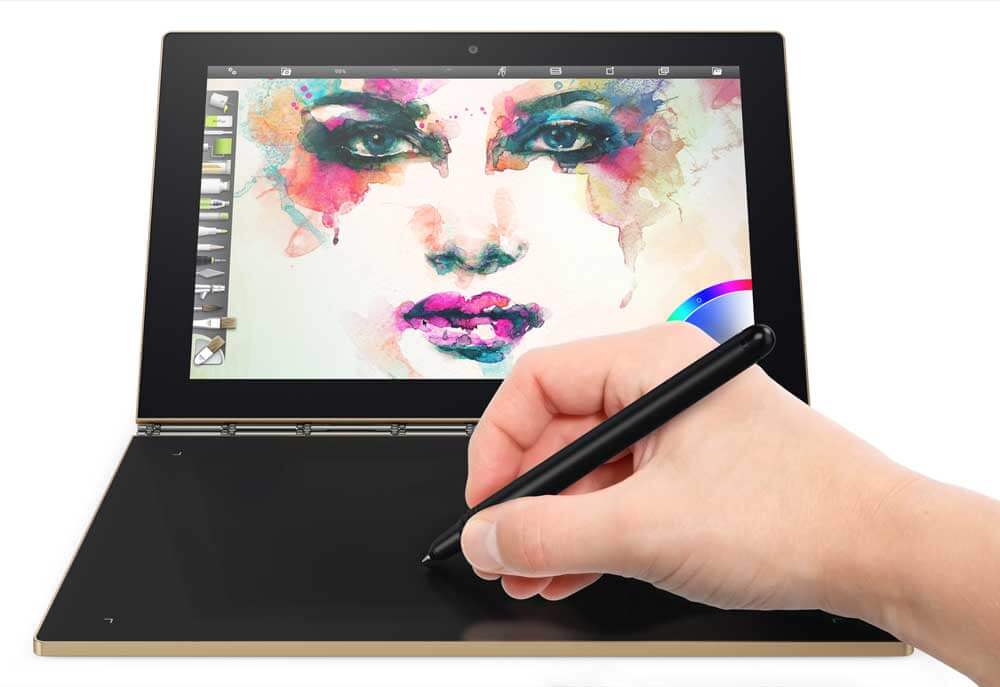
The Lenovo Yoga Book has a pressure-sensitive Wacom tablet in the black part, which also has a disappearing/reappearing Halo keyboard.

Not up to speed for art

Tablets with Lenovo AnyPen are not art tablets per se, since there’s no pressure sensitivity or palm rejection. But for those who geek out on pen tech, it’s a fun concept.

It would be great if a pressure-sensitive tablet came out with this feature, especially with a larger screen. Imagine if you could still be productive after dropping your digitizer pen down a storm drain. Hopefully, you keep some spare pens around just in case.

Lenovo has released AnyPen on Windows tablets and Android.

It’s certainly useful and cool, but artists will want to stick to their pressure-sensitive styluses.

If you want to read more about the tech, check out this post on the Lenovo blog.

https://www.youtube.com/watch?time_continue=105&v=m-AFZoWBb1Q

Suppertime! AnyPen demoed on Android

End of Lenovo AnyPen: all the world’s a stylus