galaxytabprosces2016

Samsung Galaxy TabPro S review: OLED hits Windows tablet

Samsung Galaxy TabPro S review: OLED screen, included keyboard

samsungtabprosblack

Samsung Galaxy TabPro S in black with keyboard cover attached

See it on Amazon

Type of Tablet

Windows 2-in-1, detachable tablet
Runs Windows 10 (Home and Pro)
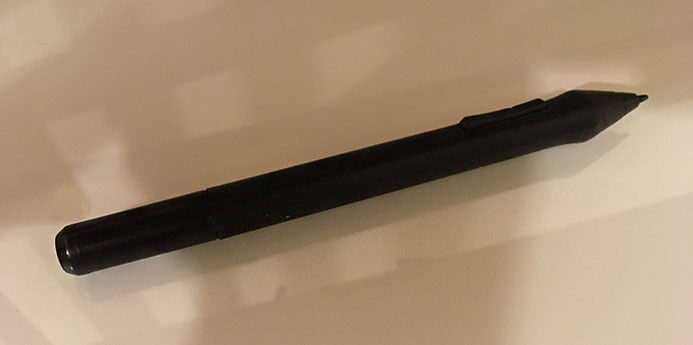
Pen: Not yet released. Bluetooth, pressure-sensitive.

tabprosces

Samsung TabPro S release at CES 2016, Las Vegas

Features

Display: 12″ diagonal
Materials: Magnesium frame, rubberized plastic back
resolution FHD+ (2160 x 1440)
touch Super AMOLED display
216ppi
Memory: 4GB RAM (not upgradeable)
Storage: 128 or 256GB SSD

Ports: single USB-C, headphone jack, no micro SD
Processor: Intel Skylake Core M3, dual core, 2.3 GHz
Fanless
Graphics: Intel HD 515
Battery: 5200 mAh
LTE (Cat. 6) version available
Front and rear cameras both 5 MP
Comes in black or white
Dimensions: 11.43 x 0.25 x 7.83 inches (290.3×198.8×6.3mm_
1.53lbs (639g)
Wireless 802.11 abg

Why a 2-in-1?

The TabPro S is joining a growing population of Windows 2-in-1s. This type of tablet is all the rage, because it turns out lots of people want a portable device that works well for both entertainment and productivity. Active pens have really hit the mainstream.

Non-Pro iPads and other mobile tablets are most useful for entertainment, full, 64-bit Windows and a pen gives a lot more options. It can replace a laptop and tablet and fit neatly into your bag or briefcase.

You can use desktop programs as well as Windows apps (formerly known as Metro apps). The very high-res screen is the first OLED for a Windows tablet. So this is a milestone. Previously, they have been in smartphones, Android tablets (mostly Samsung’s), monitors, and just recently came to laptops.

galaxytabprosces2016

Pen

The Samsung people at CES told me there was not going to be a pen, though one of them said maybe. So either the pen was a weakly-kept secret, an agonizing decision, or an afterthought for them. I didn’t expect to be writing this review.

It’s the big MacGuffin here. Not much is known about it except it is pressure-sensitive, it probably won’t be a digitizer we’re familiar with, and that it uses Bluetooth.

Update: The pen has come out.


What’s in the Box

Tablet, charger with cable, keyboard dock/cover, documentation


Ports

There’s just a USB-C port and a headphone jack. No micro SD, nothin’. The 2015 MacBook also has this single-port feature and also faced criticism about it, but maybe it’s the future. Samsung says they’re going to release an adapter. Meantime, there are other adapters, but not that many peripherals for the USB-C.

The tablet may be ready for the future, but for now, users are the ones who need to be ready.

Fast-charging

On the plus side, the USB-C offers FAST charging, just 2 1/2 hours from zero to full and the battery optimally lasts up to 10.5 hours on this charge.


Display

The display is bright with excellent viewing angles. The colors are more saturated than we generally see.

The colors are rich, and the blacks very deep (because there is no light where there’s black with the OLED),  with great contrast. But this is is made with something called PenTile subpixels, which makes it so the resolution is effectively not quite as high as it says, and there’s a little too much green. Lots of people have been oohing and aah-ing over the display. I just prefer a regular LCD.

The screen is smooth and somewhat glossy, but not high-sheen. It doesn’t reflect so much light that you can’t see the display. Its 400 nits is very bright.

The bezel is relatively narrow, but provides enough of a visual “frame” that makes your artwork pop from the background.

Good proportions

The 3:2 aspect ratio is less oblong than the usual 16:9 or 16:10, and preferable for drawing. Portrait mode is more in proportion to a regular sheet of paper.
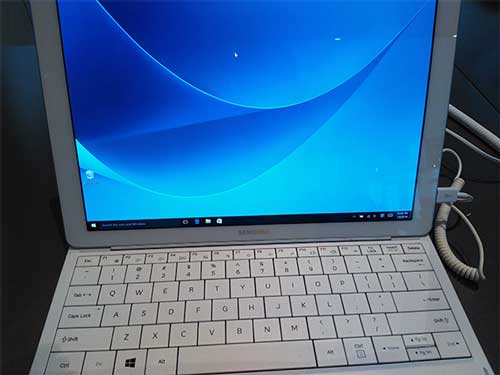
 

tabprosreviewwhite

TabPro S in white. Note the closeness of the keys.


Using the TabPro S

The machine is snappy and responsive, with apps opening quicky. Scrolling is peppy even in memory-intensive Chrome.

A 128 GB hard drive is not that big, so if you get that one, big files are best kept elsewhere. The 256 GB SSD is not huge.

You can run full Photoshop CC with the TabPro S, but you may experience some lag when running heavy graphics, such as filters with high-res files. With 4 GB and a Core M3, it’s not powerful enough for heavy use of Adobe Suite, you would need at least an i5 and 8 GB.

I have no complaints about the RAM and storage, since this is a portable tablet of a certain class and fulfills its duties well. A close cousin is the entry-level Surface Pro 4, which also has a Core M processor but has a lot more ports and a better keyboard. 

It would be nice if the battery were replaceable.

The machine is suitable for light gaming.

Build

The build is solid and feels and looks premium, with a metal frame. The TabPro S is almost as sleek as the luxe Galaxy S7 phone. The tablet’s back is a not-unpleasant black, rubbery, matte plasticky material that is very grippable and lowers the chance of dropping it. And the rubberized texture is not a dirt/fingerprint magnet.

I don’t know how much the rubbery surface protects the device in drops onto its back, but it probably provides a bit of cushioning, along with the cover.

Keyboard dock/cover

tabproscoverhigh

Upright position shows off the thinness of the tablet. Keyboard is not backlit.

Unlike with the Surface Pro line, here, a keyboard dock is included. It’s held on by a Pogo connector in the bottom center edge of the tablet. Once connected, it’s pretty stable, and doesn’t seem to cause lags or skips when typing.

The cover only takes two positions. It’s a trifold, similar to the Apple Smart Cover. It’s thin, but seems durable, and the design is clever: the cover wraps all the way around the tablet, protecting it from light mishaps.

The angles of  two positions are decent, but, they only work in Landscape mode. If they really had an art tablet in mind, maybe they would have designed the cover for Portrait position, too.

The cover’s square camera port lines up well with the camera. The whole tablet has straight lines, except for the rounded edges.

Typing on the keyboard

The keyboard wasn’t really to my liking for typing, I prefer island-style keys. There’s almost no space between the keys, they don’t have great travel at 1.4 mm, which is a bit low.  I also don’t love the look. It was challenging to type accurately. There’s no requirement to use the keyboard; a separate keyboard would work too.

tabproscovertyping

TabPro S cover in typing position

The keys are larger than most, but to me that doesn’t really help with accuracy. It might be a good for thick-fingered folks. The whole thing feels a bit floppy. It’s similar to the old Surface Pro Type Cover, except that one sat at an angle and this one is flat on the table, and the stand had more positions.

The trackpad works fine and works with Windows touch gestures.

You can use the TabPro S with  the keyboard on your lap, but being so light, it’s not super stable, and may cause worries about it falling. If you get really into painting and move like a digital Jackson Pollack, sitting on a wide, soft surface may calm those anxieties.

Color

The color gamut is standout. It covers 95% of Adobe RGB and  full (or more than full) sRGB, similar to the Vaio Z Canvas  (an N-trig tablet PC with an IPS screen) That makes it suitable for artists and photographers to use it to make their own prints for professional print work, provided they have a strong understanding of color correction.

Without that understanding,  the color gamut can be a source of confusion. According to DisplayMate, a trade organization, “OLEDs currently have the opposite problem of traditional LCDs, too large a native color gamut, which requires color management in order to deliver accurate sRGB/Rec.709 colors.”

If you’re a professional artist, you probably use a printer that uses Adobe RGB or, for photographers, ProPhoto RGB. Consumer printing is mostly done in sRGB. sRGB is also the standard for Web colors.

The high gamut can really make your work pop, and you can adjust settings to avoid the high saturation that can occur. There’s also an sRGB setting. The settings panel also gives you choices of how long the screen will remain bright before it auto-dims to prevent screen burn-in, which can be a problem with AMOLED screens.

Many love the saturated colors of AMOLED, but they are a bit hyper-real.

Samsung Flow

No, it’s not a psychological state, it’s a feature. If you’ve got an unlocked Galaxy phone, you can unlock the tablet by scanning your fingerprint, as well as easily turn on the phone’s hot spot and sync notifications.

Battery Life

Excellent, up to 10.5 hours, or 8-9 with a lot of video or gaming

Portability

Very portable, thin about 1.53 lbs.

User reactions

Most users who have penned a Samsung TabPro S review so far seem to be enamored with the lightweight 2-in-1, calling it speedy and able to handle a lot, and they like the sound quality and the rich display.

One pointed out its use as an e-reader for, ahem, ageing eyes because of its deep contrast. (I still prefer e-ink for reading, because it has less contrast and less glare than a computer).

The biggest complaint about the tablet is about the keyboard. The second biggest is the lack of ports. Wouldn’t it be nice if they included an adapter?


Pros

Exceptionally thin and light
Attractive, premium-looking
Choice of black or white
AMOLED screen, wide color gamut
Fast
3:2 aspect ratio good for drawing
Fast-charging,
Long battery life
Keyboard cover included
Keyboard cover wraps entire tablet, providing protection
Multitouch trackpad
Samsung Flow offers syncing options with Galaxy Phone
Good “lapability”
Good speaker sound


Cons

Just one port, USB-C
Keyboard cover sits in only two positions
Keys a bit clunky to type on
Keyboard not backlit
Stand only adjusts in landscape position (as with most keyboard covers)
Limited to 4GB
Not everyone likes AMOLED display color
Can’t replace battery (typical in tablets)


The Verdict

If you like the screen, then this is the only Windows tablet that’s got it. If you don’t mind the single port, or find the simplicity is appealing, this may be for you. There really are a lot of pros, and the cons are not so bad.

Update: TabPro S Pen is now available on Amazon.

The tablet is pretty peppy and the wide color gamut is appealing. Is the TabPro S overall better than its main rivals, the entry-level Surface Pro 4 and the iPad Pro? I don’t really think so, but the pen will be a a major factor.

But it has got its own unique character, and the field is getting wide enough that there’s something for everyone.


https://youtu.be/mz6AfYjXE28

Here’s a video of a Samsung spokesman showing the tablet in action. You can get a full look at the keyboard cover.

See more info, reviews, and price for the Galaxy TabPro S on Amazon
 

 End of Samsung Galaxy TabPro S review

microsoft windows

Surface Pro 5 and Surface Book 2 to be released … sooner or later

Surface Pro 5 and Surface Book 2 coming this year, or next–sharper screen, longer battery life

microsoft windows

WIndows of the mind

Rumor has it that Microsoft will soon be unveiling the Surface Pro 5, as early as May 2016.

There’s limited info right now, but basically it sounds like a snazzier version of the Surface Pro 4. While the SP 4 ran about five hours with video, the SP 5 could get up to 7. That’s pretty good for a machine that’s slated to have a sharp-as-a-razor 4k display. The screen will not be any larger, though, you’ll still need to get the Surface Book if you want a larger screen (13.5 in. vs. 12.3 in.).

The Surface Pro 5 will either continue using Intel’s Skylake processor, or move on to the next iteration, the Kaby Lake.

Supposedly, the pen will be rechargeable, a welcome trend away from batteries.

Hopefully, the new Surface Pro 5 will also iron out the problems that have plagued a lot of Surface Pro 4s and Surface Books. That would be a nice coat of “fresh paint” for customers.

Surface Book 2 also in the works

Surface Book 2: The Sequel has also been greenlighted, possibly with a June, 2016 premiere or maybe it will be 2017. That’s the problem with rumors–they have no consistency or reliability. Let’s hope these new devices do.

It would make more sense for it to be 2017, so that the new Kaby Lake processor is ready for rollout. That might edge these machines into becoming the souped-up powerhouses they could be.

Or, it could be as soon as June, 2016, to coincide with a Windows 10 update.

https://youtu.be/krY_uvZHgNQ

Microsoft has a part of its site dedicated to Surface art and artists. This is one of the videos from that, featuring Mulga, an illustrator/designer/muralist.


newthinkpadyoga14

Newer model ThinkPad Yoga 14 / ThinkPad Yoga 460 review

New Model Lenovo ThinkPad Yoga 14 (also ThinkPad Yoga 460) review: pen included


Type of tablet

Laptop Ultrabook (nondetachable keyboard) 2-in-1
Digitizer: Wacom ES with 2,048 levels of pressure sensitivity. Pen included.

newthinkpadyoga14


See at Amazon

Model no. 20FY0002US

Features

Display 14″ diagonal, 1920 x 1080 IPS
Processor: 6th-gen. Skylake Intel Core i5-6200U
Graphics: dedicated NVIDIA GeForce 940M graphics with 2GB dedicated video memory
Folds 360 degrees, into laptop, stand, tent, tablet modes
8GBDDR3L RAM
256GB SSD
Ports: 4-in 1 media card reader
Three USB 3.0 and two 2.0, though some say they got three 3.0 USB ports. The 3.0 ports are backward-compatible with 2.0 devices, at 2.0 speeds.
HDMI, miniDisplayPort
Weight: 3.85 lbs
backlit keyboard
Touchpad and ThinkPad red TrackPoint button
Dimensions: 13.31″ width x 9.37″ x .75″ (depth)

It is the same as the Lenovo Yoga 460, so you could read this as a Yoga 460 review as well. The 460 actually does have an i7 model. That listing is lacking in further detail.

As of April, 2016: the Yoga 460 now on the Lenovo site does not have the discrete (separate) graphics card, only integrated graphics. That 460 features up to a 6th-gen processor.

Windows 10, comes with Home edition

This Lenovo Yoga 14 has an i5 processor, powerful enough to run Photoshop and all the Adobe programs. The dedicated graphics card offers a speed boost, and the Skylake i5 is the equivalent of an i7 from the previous generation. That being said, it would be nice if there were an i7 model.

The RAM and SSD on this ThinkPad Yoga are both upgradeable, though there is just one RAM slot, so you can take out the 8GB stick and put in a 16.

Thanks to the dedicated graphics, you’ll be able to do moderate gaming and video editing, and get better results in Photoshop operations that use a lot of rendering, such as filters. This is still not a heavy-duty gaming monster machine, but a general overall Ultrabook with wide capabilities.

Screen

While it’s HD, 1920 x 1080p is not that high-res compared to a lot of computers coming out. However, the fact that it’s not 4K makes battery life last longer. The resolution is fine for looking at artwork, reading text, and watching video. The colors are clear and bright. It’s not overly glossy. The IPA screen supplies good viewing angles.

You can add two more displays, such as a monitor or TV to it via the HDMI and miniDisplayPort.

Portability

At 3.85 lbs., it’s not bad to carry around for short periods, but feels heavy holding in one hand or resting on the lap.

Pen

The pen is not miniature or very short, but it’s skinny and not optimal to draw or write with for long periods. You can purchase a  more normal-sized pen (both thicker and longer) if you prefer. This pen needs a battery, but the one included with the tablet PC does not, because it charges from the computer.

Wacom ES has excellent accuracy and pressure sensitivity, second only to Wacom EMR in terms of sensitivity (ES requires a little more force to get a mark). Its accuracy exceeds EMR, with no parallax and no jitter around the edges as Wacom EMR gets. I did notice a little more jitter when drawing slow lines than with traditional EMR. Palm rejection works well. The pressure curve is smooth, no blobs, no little “tails.” You will not be able to use a traditional EMR pen on this.

If you want a thicker pen, you can buy the ThinkPad Pro Pen, a Wacom AES active capacitive pen with 2,048 levels of pressure sensitivity that takes an AAAA battery.

thinkpad active capacitive-pen

The thicker pen: ThinkPad Pro Pen, takes an AAAA battery. See it on Amazon

Keyboard

The backlit, chiclet-style keyboard is comfortable and easy to type on. If you type a lot, but also want an art tablet, this is a good choice. The keyboard is Lift and Lock, so when you have it folded into Tablet mode, the frame rises around the keys and the keyboard is disabled. So you won’t be able to reach back for keyboard shortcuts. Instead, you could use an external keyboard, either Bluetooth or USB. The ThinkPad red TrackPoint nub lets you move the cursor long distances with a small finger movement. Its sporelike top with tiny bumps gives your fingertip traction (and a little massage).

Battery life
6-8 hours, depending what you’re doing.

User reviews

Most users have been very happy with this computer, feeling it’s a great value with its many features, bright screen, speed, and build quality. A few got ones with glitches but managed to address them. Aside from irregular complaints, this has been a successful release.  I haven’t seen any complaints about overheating or battery problems, though some wish the battery lasted longer.

Pros

solid, durable, well-built
dedicated graphics
nice keyboard
pen is included and fits into a slot in the body
value

Cons

on the heavy side for drawing
single RAM slot (upgradeable, but would be nice if there were two slots)
pen that comes with it is thin
some have reported touchscreen glitches


yoga 460 review

The Verdict
This new Lenovo Yoga 14 review is a drawing-hand thumb’s up. It doesn’t have the issues of the last release, which included some that shipped with bad batteries. It’s a solid, portable, and versatile machine.

Weird facts: did you know the ThinkPad’s design was inspired by the Japanese Bento box? This post on Lenovo’s blog explains.

I think the simple design is one of the main appeals of the ThinkPad. The box shape offers protection. The ThinkPad has a utilitarian look. It’s easy to not notice it much at first, but the details show a great deal of thought, and the many poses add new uses. You can also open it flat if you wish to draw using the keyboard shortcuts without a spare keyboard.

The Yogas have more Penabled devices than anyplace else and continue to offer them.

This is a great choice for an art tablet that’s an all-around tablet. It’s not super duper powerful, but powerful enough to run Photoshop and do moderate gaming. You can add more RAM and a faster hard drive. This computer can be your whole office and art studio.

In some ways I prefer the previous ThinkPad Yoga 14, which had a discrete GPU and superior color gamut. This is one is more of a general-use machine that’s suitable for drawing.

Here’s a detailed drawing test by Shogmaster.

https://youtu.be/puFE9-luWzc

end of New Lenovo ThinkPad Yoga 14 / ThinkPad Yoga 460 review


XP-Pen Artist 22 review: a good CintiqHD alternative

e

XP-Pen Artist 22 review: affordable Cintiq 22HD alternative

Update: XP-pen has released a sequel to this Cintiq alternative, the Artist 22E. You can read our review here: XP-Pen Artist 22E review, art testing. XP Pen tablets are lower priced than Wacom’s, and have much of the same functionality.

The main difference between the XP-Pen Artist 22 and 22E is that the 22E has Express Keys, two sets of them: one on each side, for left- and right-handed use. The XP-Pen 22 does not have any Express Keys.

XP-Pen started in Japan in 2005, has offices in Taiwan and China, and in 2015 they opened offices in the U.S. The company that product development is in the U.S. and meets U.S. standards.

Type of tablet

Pen-display monitor or tablet monitor (Draw on the screen, must be connected to a computer to work.). Also called Cintiq alternative.

See the XP-Pen 22 on Amazon

The XP Pen comes in both 22″ and 10.1″ models. This XP-Pen Artist 22 review will focus on the 22″.

Digitizer: XP-Pen, 2,048 levels of pressure.


What’s in the Box?

Two pens
One pen charging cable with pin-type USB charger
pen holder
8 nibs
nib remover
CD (drivers also available on the XP-Pen site)
smudge-protection glove
screen protector
power adapter, power cord
VGA cable, USB cable, HDMI cable, HDMI to Mac adapter cable
user manual
cleaning brush
microfiber cleaning cloth
Adjustable stand (attached to monitor) made of plastic with rubber on feet
monitor has rubber on base and bracket


Features

Weight: about 15.4 lbs (7 kg)
2,048 levels of pressure sensitivity
IPS LED screen with good viewing angles (178 degrees, or +/-89 degrees)
Dual-monitor, Mirror/Extended mode
Diagonal 21.5″
57 x 321 x 30 mm
active area 18.76″ x 10.5″ (476.64 x 268.11 mm)
16:10 aspect ratio
worth with Windows (XP through Windows 10) or Mac. No Linux.
1920×1080 dpi up to 16M colors
VESA-mount compatible
Report rate 220rps
Accuracy (parallax, gap between pen’s drawn line and screen) plus or minus .01 in
Resolution 5080 lpi
UC-Logic digitizer

The tablet is not multitouch, meaning you can’t use your fingers to paint or do anything on it.

For Lefties

It’s fine for lefties. Controls are on the right side, but they don’t need to be used frequently. There are no Express Keys.

Screen

The display, color quality, and resolution are equal to the Wacom Cintiq 22HD non-touch model. There’s no real difference there. On the XP-Pen’s glossy screen, colors look brighter; the Cintiq tablet color gamut covers over 90% of Adobe RGB and the XP-Pen over 70%.

The matte screen of a Cintiq tablet tends to mute the color, though many find it preferable to draw on as it offers a paper-like “bite.”

You can choose a 4- or 9-point display calibration. Pen accuracy is very good, and most people say they do not need to calibrate it as it’s calibrated correctly out of the box.

The 178-degree viewing angle means the picture will be clear even if you are standing somewhat to the side of it, up to 89 degrees on each side.

Unlike Wacom, the XP-Pen doesn’t offer a  multitouch model. Multitouch isn’t necessary to draw with and some artists don’t even use it if they have it. Reasons to use multitouch are to take advantage of the increasing Adobe software touch features, and it can be seen as future-proofing the device for a while. Others just like to finger paint or manipulate tools by hand, or use gestures to pinch, zoom, and navigate.

The included glove, which is pretty large, keeps your screen clean and smudge-free.  It covers your pinkie and ring finger only, so your hand slides smoothly across the screen. Without it, you may find that your hand may stick to the screen while drawing broad strokes.

A screen protector is included, but you might choose not to use it. It cuts down on the glossy glare.

Pen

The pen weighs 17 grams and is comfortable to hold. It doesn’t have indentations or a grip, but it has a good balance in the hand. It slides quickly over the glass, since the screen is slick, though not super-slippery.

Using the screen protector slows it down somewhat. Some people like to draw on a glossy surface; others prefer a textured screen such as that on the Cintiq, or a more matte screen protector.

The pen has good tracking, with a bit of parallax due to the thickness of the screen, as does a Cintiq tablet.  I did not notice any jitter.

The pen features an auto-sleep function to save battery life. It takes 1 to 2 hours to charge, which will last a couple of weeks, up to 130 hours depending on use. Because two pens are included, you can keep one charged and switch to it when needed. The pen weighs 17 grams.

There’s a blue light indicator to signal when the battery is low. The pen is rechargeable, but the battery that comes in it is not replaceable.

While charging, the pen light will be red until fully charged.

The two buttons on the pen are programmable in the driver. You can toggle it with just one click and one hand, since the button is within reach of your drawing hand’s fingers, so you could program one button to switch to the eraser, which could save you time.

Unlike the Wacom Pro pen, this pen does not have an eraser on the back end. The buttons can only be customized for mouse functions, such as right-click, as well as eraser.

XP-22 vs. Cintiq tablet

The pen’s build quality isn’t as premium as Wacom’s  pens, which do not take batteries so they do not need to be charged. It’s just a different technology.

The XP-pen does not have tilt sensitivity. Lack of tilt sensitivity means that the line will not change depending what angle you hold it at, as it would if you were holding a real pencil. Cintiqs have tilt sensitivity.

Tilt sensitivity is not a dealbreaker for most people. Nor is rotation sensitivity (barrel roll, when you can twist the pen to make patterns), which this also doesn’t have–only the Wacom Intuos Pro and Cintiq tablets support rotation sensitivity, and only with certain pens.

The pen can be squeaky while vigorously drawing or erasing, but as the nib wears down it should stop squeaking.

There is only one kind of pen, whereas with Cintiqs, there are several options for pens and nibs.

Build and Design

The buttons are on the bottom. They are not too hard to reach because the stand lifts the tablet above the table; still, it would be nice if they were in a more convenient place.

The monitor build quality as a whole isn’t as premium as Wacom’s, but it’s solid and stable. Though there are volume controls, there are no speakers; they are for speaker support.

The device is made of rugged textured plastic with rubber on the base and bracket.

Adjustable Stand

The stand can be adjusted up and down to any angle but does not rotate (the Cintiq 22’s metal stand both rotates and goes up and down) It’s a good idea to replace the stand with a mounting arm such as this Amazon Basics one.

The monitor sits on the stand above the table, making the buttons, which are on the right and along the bottom, easy to access. The ports for the cables are on the back, and a little hard to get to because of the stand. The cables can also get mixed up in the stand.

The stand is removeable and VESA-compatible; you can replace it with a mounting arm.

Art Software

Programs for Mac and Windows,including open-source software, work fine, including Photoshop, Paint Tool SAI, Illustrator, Open Canvas, Comic Studio, and Zbrush.

Here’s the company’s video, so you can see the XP-Pen in action:


https://youtu.be/01m7WZPLWQQ

Drivers

Some users report no problems at all and others had some glitches. The XP-Pen site has a page of troubleshooting tips. Drivers from other tablet systems, such as Wacom, should be uninstalled. So if you want to switch off with a Wacom Intuos or Cintiq, you would have to reinstall those (it’s probably a good idea to uninstall the XP drivers before reloading the Cintiq ones). There don’t seem to be major driver issues overall.

TIP: There is a conflict in Windows 7 and 8 laptops where the XP “Star” driver may stop the computer from being able to type. This is fixable and the fix is covered in Troubleshooting on the XP-Pen site.

Pros

Value
Screen and display of high quality
Good accuracy
Comes with generous amount of extras (extra pen; several types of cable; cleaning brush and cloth, screen protector, adapter for Mac)
programmable pen buttons

Cons

No programmable express keys
No tilt or rotation sensitivity; pen tilt is manually adjustable, though.
No multitouch option
Pen needs to be charged, though the extra pen helps
Only one type of pen and one type of nib, as opposed to the variety available for Cintiq

xp pen 22e cintiq alternative

Look, Ma, no eraser end.

User reviews and experiences

Users have been positive about this tablet. They report no dead pixels (a problem sometimes with Cintiqs, though it could be that many more Cintiqs are sold, since Wacom takes most of the market).

Artists have had few issues with it, and many did not have to do any calibration at all. They do well using a mounting arm. Some felt the stand wasn’t very useful. Several feel the XP’s colors are slightly better than on a Cintiq.

This tablet monitor is the same as the Ugee 2150. Ugee, another economical art tablet company, partnered on the XP-drivers. UC-Logic once worked with XP-Pen but no longer does.

Some have commented that this is one of the best Cintiq alternatives in its class. Update: the 22E is a stronger Cintiq alternative because of its Express Keys.

Customer service

The customer service has received praise, and people are available via Skype from the U.S., China, and Taiwan. Email addresses and phone numbers are also on the XP-Pen site. XP-Pen emphasizes its commitment to listening to customer requests and taking them into consideration in product development.

They state their commitment to the environment as well, with all products conforming to the European ROHS  standards, which restrict hazardous substances in electronics.

The Verdict

The XP-Pen is an excellent and economical choice as a Cintiq alternative. It offers almost all the Cintiq 22HD’s features, with only some bells and whistles missing–chief among them are tilt/rotation sensitivity, the XP-Pen tablet’s lack of programmable express keys, the coating over the screen, and a touch option (the Cintiq 22HD comes in two models, the 22HD and the 22HD Touch). While many had no problem with drivers, some did.

So, some willingness to troubleshoot potential driver issues is in order; the company is helpful but you may need a bit of confidence with such matters. This XP-Pen 22 review gives a thumb’s up as an impressive art tool and Cintiq  alternative.

See the XP-Pen 22″ display on Amazon.

See the XP-Pen Artist 22E, which is an updated 22, this time with Express Keys (and on each side) on Amazon.

Accessories

A mounting arm such as Amaon Basics or Ergotron lets you mount, rotate, and tilt the screen as you wish.


More Cintiq Alternatives

Artisul, Turcom, Parblo, Bosto, Huion, Monoprice, and others also make devices similar to the Cintiq and Intuos. The drivers resemble each other though are not all the sam. Some are cross-compatible. Read more reviews of the best Cintiq alternatives.

Linux users

Good news for users of Linux, an open-source operating system: XP-Pen says it is working on its own Linux drivers and they will first work on its graphics tablets, then on its tablet monitors. They get a lot of requests.

Related:

Read our XP-Pen Artist 22E review.

Read our review of Yiynova tablet monitor.

Read our review of the Cintiq 13HD tablet monitor.

New to digital art? Check out the homepage article, Best drawing tablet for you: An introduction

end of XP Pen 22 review: HD display a good CIntiq alternative


hpspectre15review

HP Spectre x360 15 Review: sleek ultrabook deserves a better pen

HP Spectre x360 15 review: sleek ultrabook, but HP pen falls short

The HP Spectre x360 2-in-1 with 15.6″ touchscreen was released in Feb., 2016, following 2015’s successful HP Spectre x360 13″. This larger version has some more-powerful options, such as an extremely high-resolution 4K display.

Type of tablet

2-in-1 ultrabook (tablet PC laptop, nondetachable keyboard)
Digitizer: Synaptics (256 levels of pressure sensitivity)
Pen: HP Active Pen (not included), or (see on Amazon)


Update: Dell Active Stylus 750-AAGN used to work on both models (13.3 and 15″) but updates have caused it to stop working.

hp spectre x360 15 review

HP x360 Spectre 15.6″. See it at Best Buy

Notice that the screen is squarer than most laptops. The touchpad is about 6″ wide. My phone fit neatly on to of it. Notice the shiny hinges.

hpspectre360-15 4kscreen


hp-active-stylus

See the HP Active pen at Best Buy

The pen is flat on one side lengthwise, and snaps onto the computer via a magnet that’s across from the button.

Features

Operating system: Windows 10, has Home and Pro options
15.6″ screen (diagonal) UHD
Dimensions” 14.8 x 9.75 x 0.63″ (15.9 mm thin)
Weight: 4.02 lb
backlit keyboard
brushed aluminum unibody
geared hinge
large touchpad with multi-gesture and customizable settings
Display: 15.6″ Multitouch, backlit. IPS panel with viewing angles to 180 degrees
LPDDR3 RAM

Display options

1920×1080 px full HD 2 million pixels (px)

Ultra HD 4K, 3840×2160 (8.3 million px)

Storage: 128, 256, or 512GB SSD

Miracast, which lets project wirelessly to a TV or other display

Note: This is not the OLED display you may have heard about. That one is scheduled for the 13.3″ HP Spectre x360, and the OLED screen for that has not yet been released as of this writing.

Processor/graphics

Intel Skylake 6th-Gen. Dual-Core, Intel integrated graphics with these options:

i5-6200U with HD Graphics 520 and 8GB RAM

i7-6500U with HD Graphics 520 and 8GB or 16GB RAM

i7-6560U with Iris Graphics and 16GB RAM


Ports

Three USB 3.0 Type A (you can still us 2.0 devices and get 2.0 speed)
USB-C port, no Thunderbolt support
Full HDMI
mini DisplayPort
SD card reader
headphone jack

No Ethernet port or CD/DVD drive.

Battery life

HP states up to 13 hours for the full HD version and up to 9.5 hours of mixed use for the highest configuration. The 3-cell lithium-ion polymer battery gives this exceptional battery life.
Portability

4.02 pounds is very light for a 15.6″ screen. While it may be difficult to carry it around all day, it’s quite portable. Its slim .63″ profile and compact power brick makes it more portable.
Screen

4K is very high-definition, over four times as many pixels as full HD. It doesn’t look pixelated even from up close. Your content has to be as high-res as the screen to get the effect. It’s not yet common to have this high a resolution on laptops, but it’s getting more so. The colors are good with 72% of the Adobe color gamut sRGB. The display is very sharp, but doesn’t seem super bright. The screen is smooth, but not super glossy.

The Spectre 15’s  screen has a 3:2 aspect ratio, which some may find better for drawing than the video-centric 16:9 that’s on most laptops. 3:2 is a bit squarer. Surface Pros and the Surface Book are also 3:2, as is the Chromebook Pixel, which is not an art tablet. The iPad and iPad Pro are  4:3, more like a sheet of paper, and perhaps more natural-feeling to hold and draw on. (The Spectre x360 13.3″ model has 16:9)

hp spectre x360 review

The HP Spectre x360 15 has a 3:2 aspect ratio. Most laptops have 16:9. The iPad has 4.3.


Design

The Spectre x360 is sleek and comfortable to hold in two hands. Its unibody aluminum chassis gives it durability and dissipates heat. There are generous-sized, aesthetically pleasing vents on the side.

The aluminum chassis was carved with CNC (computer numerical control–see on Wikipedia) machines. Used by the aerospace industry, these machines cut with great precision. These cutting tools give the Spectre an elegant look. The shape tapers, getting thinner as it goes toward the user. At its thickest, the bottom part is thick as a pencil and considerably thinner as it gets toward the trackpad. The thin profile is remarkable for the large screen size. It’s a thin as the 13″ version. The most noticeable thing about the x360 is the thinness.

The 360-degree “flip and fold” design is a LOT like a Lenovo ThinkPad Yoga. Like the Yoga, it’s even poseable into four positions of stand, tent, tablet, and notebook. The keys do not retract the way they do in the Yoga 14 (do they still work)?? You can open the HP to any angle, including flat.

Tablet mode

When you fold it to Tablet mode with the keys facing away from the tablet, the keys do not lock in place, but they disable themselves. The keyboard backlight goes off and the keys no longer function. So if you’re drawing in that mode, you’d need an external keyboard  to use shortcuts (anyway, it’s inconvenient to use the keyboard even if they still worked in that position, but easier).

HP has put a lot of engineering muscle into the geared hinge. It makes the tablet stays in its positions. The hinge is encased in stainless steel to keep it clean and functional. It can be a little bit stiff as you push the lid upward.

Usage

There are no discrete graphics, but the 4K model has Intel Iris graphics which are powerful enough to do video editing. Photoshop will work fine in any of the models. If you’ve got high-res video, it will display in all its glory on the 4K. But for intensive or professional video editing, a computer with discrete graphics would be better. Similarly his computer is best suited for light gaming. The thinness leaves no room for the cooler that discrete graphics requires. If you want to do a lot of video editing, this probably isn’t the right computer. Photoshop will work fine.

Keyboard

The backlit keyboard is island-style with chiclet (separated) keys. It has no numerical pad, though it could have had one with all the space.

The key travel is 1.5mm, which is the same as the keys on larger, full-size notebooks, so they are very comfortable to type on–they felt a bit far apart at first but I find that my typing accuracy was better on it than with keys that are closer together and my (small) hands appreciated the big keyboard. The silvery painted characters on the white keys can be a little bit hard to see, unlike the white paint on black letters of laptops such as the ThinkPad Yogas.

Other than the contrast, this keyboard makes typing comfortable and could boost productivity.

Trackpad

The large Synaptics trackpad is about 6″ long, and you might find yourself hitting it by accident. It’s very responsive, and can even be adjusted via its own driver settings. It supports multitouch gestures, so you can use it to pan and zoom. The part you click on is only on the bottom half.

Pen

HP Active Stylus

Takes one AAAA battery, which is included. For a replacement, you may need to go to an electronics store to find these, or buy them online. The end of the pen unscrews to put the battery in. The pen is round but has a flat part that goes the length of the pen, to keep it from rolling away. It snaps magnetically to the laptop’s frame or cover.

TIP: If you have trouble getting the HP Active Pen to work,download the touchscreen firmware from Spectre x360 15 product page. (LINK)

Dell Active Stylus (750-AAGN), takes one AAAA battery. Lighter than the HP Active Pen and works better on the x360, tested on the 13.3″ version so far.

Drawing on the HP Spectre x360

The metallic pen feels solid and similar to the Surface Pen. It could feel heavy after holding for long periods. The black that bounces up and down, sinking when you draw with it, which gives it less of a “hard” feel on the screen. To get any mark on the screen, you have to press even a little harder than with N-trig (Surface Pro). As with the Surface Pros, if you very gently run the pen over the screen, you will not get a mark. Scribbling on the screen with the pen brought on an annoying, though not very loud, squeaking sound. You can get a light mark with some practice.

I found the pen to be pretty bad for drawing. You have to press down quite hard ( a high initial activation force). There are no parallax issues, but still, handwriting isn’t that accurate unless you make an effort. There’s not any more jitter than on an N-trig device.

Drawing, it felt like I was battling the pen to get the line I wanted, and got some skipped lines. he palm rejection faltered once in a while when I was bringing my hand down quickly and I got some weird lines. It’s definitely not as good as the Surface Pro 4, and a bit worse than the Surface Pro 3, which also has 256 pressure levels.

drawinghpspectre

Here’s an example of a skipped line, (top) in drawing an oval.


Dell Active Stylus on HP Spectre x360

UPDATE 6/16: Updates by HP have caused the Dell pen to stop working. I have tested the Dell Active Stylus (the Synaptics one, 750-AAGN, see on Amazon) on the Spectre x360 13.3″ and the Spectre x360 15.6″ and it works MUCH better than the HP Active Pen. It requires a little more force than Wacom EMR to make a mark, but much less force than the HP Active Pen, and there’s a little jitter when drawing slowly. It flows great, pressure sensitivity works well, and there’s little parallax. It flows as well as Wacom but with slightly less accuracy.

Handwriting was okay, but the letters seemed flattened down. Drawing worked better than handwriting, as differences in one’s own handwriting are more noticeable. Using the Dell on this is not the equal of Wacom EMR or ES, but I think exceeds the Surface line with N-trig pens in terms of drawing–this of course is a subjective opinion.

User Reviews

Most HP Spectre x360 15 reviews are very positive about the computer, praising its design, build quality, and value, though most don’t go into the drawing part that much. One exception was Mobile Tech Review, and I’ve included their video drawing demo below.

One criticism I’ve heard mentioned (though it was for a refurbished model) was about cracking. The computer is well-built but very thin. I don’t know what caused the cracking, but this very pretty laptop should be handled with care.

Pros


Comfortable, backlit keyboard
Choices of configurations, including 4K
Long battery life
Big screen
Slim profile
Can open it to replace battery
Not much bloatware

Cons

Trackpad big enough to get in the way of typing
HP Active Pen not that great
Synaptics less accurate than other digitizers
No discrete graphics available
Cannot upgrade memory yourself
Thin, not flimsy, but should be protected

Verdict

I can’t give this HP Spectre x360 review a negative verdict because it’s a very good computer,. You can use Photoshop and any art software, and it’s great that even the starter configuration has 8GB RAM. It’s a pleasure to type on, and a nondetachable keyboard means you won’t have any connector glitches, though it also means you can’t have a separate tablet.

But as an art tablet, the Synaptics digitizer doesn’t measure up to Wacom. It’s maybe a bit smoother than N-trig for drawing, but harder to get handwriting that really looks like your own. Synaptics is okay for note-taking, drawing, or drafting. But if you want to exact, delicate, freehand drawing, it’s not a top choice. I do think your hand would adjust and I would consider this a good contender for a drawing tablet, less so for note-taking.


https://www.youtube.com/watch?v=4PMPjxQly1s

See the HP Spectre x360 15.6″ 4k and other x360 models at Best Buy

See the x360 15.6″ at HP.com (the 4K here is referred to as UHD. You can configure your own specs on the HP site)

See the HP Spectre x360 13.3″ signature Edition at Microsoft

Comparable:

Surface Book

Surface Pro 4

Lenovo ThinkPad Yoga 14

Lenovo ThinkPad X1 Yoga

end of HP Spectre x360 15 review