Category Archives: Reviews

Lenovo ThinkPad X1 Yoga 2016: light, slim, and Wacom

Lenovo ThinkPad X1 Yoga 2016: lithe spirit

by Tablets for Artists

thinkpadx1yoga2016

ThinkPad X1 Yoga 2016 on display at CES

See it on Amazon.

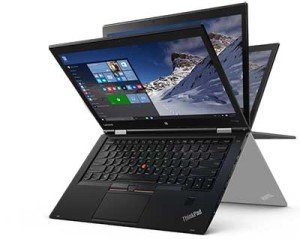
The ThinkPad X1 Yoga 2016 was released at CES this year. I’s a business laptop very similar to the X1 Carbon but with a touchscreen and active pen. It has several innovations. One is that one model sports an optional OLED display. That model will be released in April, 2016. OLED offers richer colors and deeper silky blacks. The second innovation is that the pen, which is battery-free and has 2048 levels of pressure sensitivity, can be charged in the chassis. This is already done with the iPad Pro using their digitizer, but it’s new for a PC with a Wacom digitizer. The third “first” is that at release time, it’s the thinnest and lightest 2-in-1 out there. Preliminary feedback has been positive for both the computer itself and the drawing experience. You don’t have to worry about pen batteries, and the laptop is plenty powerful enough for Photoshop and more. Like other ThinkPad Yogas, it bends into the traditional ThinkPad Yoga’s four modes and  has the 360-degree swiveling hinge.

The computer is lightweight and downright skinny with a .66″ profile, and the The ThinkPad X1 Yoga could make artists very happy, if they can afford the price tag.

Features

Display: 14″ screen, IPS (OLED option coming in April, 2016), 2K display (2560 x 1440), antiglare touchscreen
Dimensions (width, depth, height):
16.8″ width x 13.11″ x 9.01″ x 0.66″
mm: 333 x 229 x 16.8
OLED Version 17 13.11″ x 9.01″ x 0.67″
mm : 333 x 229 x 17
OS: WIndows 10, Home and Pro versions available
Weight: 2.8  lbs
Dockable Wacom ES active pen included
pen: 2,048 levels of pressure sensitivity
Graphics
Intel HD Graphics 520
Memory: Up to 16GB RAM and 1TB NVMe storage (that’s storage designed for SSDs). RAM not upgradeable after purchase.
Processor: i5 to i7
3 USB-3 ports (no USB-C)
full HDMI displayport
Graphics: Intel HD 520
360-degree hinge turns around; hinge opens and closes to 180 degrees (can open flat)
Retractable Lift-n-Lock keys (auto-retracts when folded to tablet mode)
Pen stored and charges in laptop body
Fingerprint sensor
WRITE-IT software understands and corrects your handwriting across apps
MicroSD and SIM card slots
optional 4G LTE
optional wireless dock

Battery Life

8 hours

Portability

Lightweight, very portable weightwise at 2.8 lbs. and .66″ depth. Sizewise, the 14″ screen takes up more space.

Pen

Going back to earlier ThinkPads, the pen, with 2,048 pressure levels, gets stored inside the laptop body. But differing from earlier ThinkPads, this pen does not have a battery, but a tiny capacitor. To charge the pen, you can insert it into a port in the laptop (as with the iPad Pro’s Apple Pencil) and it only takes 15 seconds to get a charge that lasts up to 100 minutes. So you’ll never need to worry about pen downtime or pen batteries. AES pens do have a bit of jitter, as you can see in the video below, but it’s manageable. They do not suffer from the bad jitter around the edges of the screen that plagues traditional Wacom EMR. There is less parallax than EMR, and a slightly lower hover distance, the distance at which the pen causes anything to happen. It’s high enough to still have good palm rejection. The initial activation force is low–even though AES is similar to N-trig, to me it feels more on the Wacom side even when compared with the new Surface Pen.

Modes

Like other ThinkPad Yogas, this one has 4 modes, or positions: Laptop, Stand, Tablet, and Tent.

lenovo-thinkpad-x1-yoga

Keyboard

Because the ThinkPad X1 Yoga 2016 has Lift-n-Lock keys that disable the keyboard when folded into tablet mode, you will probably want to use an external USB or Bluetooth keyboard to access keyboard shortcuts when drawing in tablet mode. You could open the whole thing up into an open clamshell, since the hinge opens to 180 degrees, but it’s awkward to draw that way. The keyboard is full-size and backlit.

Screen

You might not want the OLED model, because the screen can burn in.

The pen that comes with the Yoga skinny, though the length is decent. You might want to buy a thicker pen if you prefer to draw with one. (I’m searching for a link to that pen).

Traditionally, Ultrabooks have exchanged power for portablity, but this one has plenty of power.

The Lenovo ThinkPad X1 Yoga can run full desktop programs such as Photoshop, Illustrator, Manga, and all that, as well as Metro Apps such as Fresh Paint.

The poor laptop was put to military-grade endurance tests against moisture, drops, fungus, and more. The full-size, backlit keyboard is spillproof. Speaking as one who once fried a motherboard with lemonade, I appreciate that.

Here’s Lisa Gade’s video Lenovo ThinkPad X1 Yoga 2016 drawing demo. As you can see, the Wacom pen settings are pretty much the same as for traditional EMR Wacom pen settings.

See it on Amazon.


https://www.youtube.com/watch?v=d0PVjrzc-xk


See review of ThinkPad Yoga 14 (also Wacom AES)

See review of ThinkPad Yoga 2-in-1 (traditional Wacom)

For more explanation of the different types of art tablets, see our front page article.

This high-quality all-in-one should be a good bet for artists.

This is a preliminary review/article, since it just came out.

end of ThinkPad X1 Yoga 2016 just released

Best tablets for kids

Best tablets for kids

by Tablets for Artists

What are the best tablets for youngsters? It seems like kids’ digital gear is getting more like grownups’. For better or worse, children probably consume as much electronic media as adults. Quality educational content, password protection, user profiles for each child, a good amount of memory and speed, and of course, durability are all things to look for in choosing a mobile device for kids.

(On a budget? See our article Cheap tablets for kids)

besttabletsforkids2015

Amazon Fire Kids

The Amazon Fire Kids Edition is an Amazon Fire with kids’ content. The Amazon Fire is a pretty nice tablet worth twice the price. You can even buy a sixpack for a discount. The browser is fast; movies open right away and play well. The Kids Edition carries a two-year “worry-free guarantee” that Amazon will replace the tablet if it gets damaged. (Warning: I had them replaced my damaged Kindle once and they sent me a refurbished one–not that that’s surprising, but they don’t tell you).

The Kids Edition also comes with a year of Free Time Unlimited, Amazon’s children’s content. You can expand storage by adding microSD card of up to 128 GB. It has Wi-fi and Bluetooth. The price and quality make it in our book one of best tablets for kids, and Consumer Reports agrees. Parental controls let you oversee what goes on the tablet and open some content only after the youngsters have met their educational goals–quite a taskmaster.


leapfrogepickidstablet

Leapfrog Epic

This popular, durable kids’ tablet has strong parental controls, kid-safe browsing, and educational games common to quality children’s tablets. It has in interesting feature in that kids can create their own “worlds” with home screens featuring images and animations that they pick. The tablet sports Android 4.4 and a quadcore processor, and 16 MB of RAM with an expandable SD card, so it’s quite powerful. The Leapfrog Epic apps list is large and continues to grow.  The Google Play  store is not available on this, but adults can access the Amazon apps store; the company says the Amazon app store provided smoother integration. It doesn’t take cartridges, which is nice; you download games and other content instead. Aimed at kids ages 3-9.

Navi DreamTab HD8 with Wacom DreamPennavidreamtabhd8wacom


Navi Dreamtab HD8 with Wi-fi

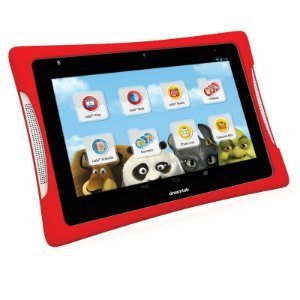
Fuhu developed the Navi Dreamtab 8 in conjunction with DreamWorks Studio, and brings kids into the world of Dreamworks and the Wings Learning System. Some users have experienced glitches, but I’m including the tablet here because of its pressure-sensitive Wacom stylus with palm rejection and accompanying Dreamworks art app. This is the only kids’ tablet I know of with Wacom; there aren’t details available about the levels, but if drawing is an important part of your child’s life and you want expand their toolbox into digital art, this gives them more of an art experience. It has an 8″ display Android KitKat 4.4 and an NVIDIA Tegra chip for real speed.


ipadminiretina

iPad mini

While it might not be thought of as the best tablets for kids because of its relative fragility, the iPad mini (pictured: Mini 3 Retina Display) can deliver plenty of great children’s content from the Apple app store. I wouldn’t recommend it for a toddler but more for a careful, gentle child… :-)… a good rugged case for kids would help a lot. If you combine it with the creative Osmo gaming system (below) for iPad, the kiddies will keep busy well into the New Year.


Osmo gaming system for iPad

 osmogamingkids

Not a tablet, but a gaming system that goes with an iPad. The Osmo award-winning game system for iPad conjoins the digital and offline worlds. It’s an app that comes with a starter kit of 5 offline games, including the Tangram, composed of wooden pieces, as well as a drawing, words, and numbers games. It’s compatible with iPad 2, iPad 3, iPad 4 iPad Mini, iPad Mini Retina, and all versions of the iPad Air. Encourages learning, creativity, thinking skills, and playing with others; with features that appeal to all ages, the whole family can join in.


Also see Cheap tablets for kids

Looking for a tablet for any age? See our post on finding the best drawing tablet for adults.


end of Best Tablets for Kids

ipadpencilreview

iPad Pro review: the Pencil is mightier than the stylus
Man skating, done in SketchBook app

iPad Pro review: the Pencil is mightier than the stylus

ipadprofordrawing

by Tablets for Artists

Note: here’s a post about what’s new on the iPad Pro 2017 (10.5″ and new 12.9″)

Features

12.9″ (diagonal) Retina display, LED backlit, multitouch
4GB RAM, 32 GB and 128 GB models (memory not upgradeable)
Wi-fi and cellular models. Wifi superior to regular iPad
Resolution: 2732 x 2048 (5.6 million pixels, 264 ppi)
Colors: silver with white faceplate, gold with white faceplate, Space Gray with black faceplate
Adjustable refresh rate increases speed
A9X chip with 64‑bit architecture, fast enough to edit 4K video
Speakers directly in unibody enclosure; four hi-fi speakers
Magnetic connector connects keyboard and other accessories
8MP camera
Sound adjusts according to tilt

9.7″ iPad Pro:
2GB memory
2048 x 1536 resolution (also 264 ppi)

ipad pro

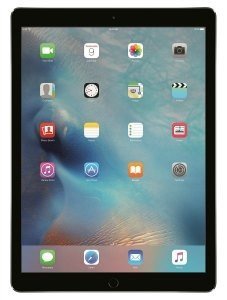
iPad Pro 12.9″ with Apple Pencil

What’s in the Box:

iPad Pro
Lightning to USB Cable
USB Power Adapter

Optional Accessories:

Apple Pencil
Apple Smart Keyboard or third-party keyboard

ipadproreviewpin


Overview

Update: Additional info about the 9.7″ iPad Pro further down the page. The main advance of the smaller one is the display.

The first thing I noticed about the iPad Pro was how much lighter it feels than it looks. It’s rail-thin, but has a sturdy build. The screen real estate is generous, giving 78% more space than the iPad Air 2, and there’s enough bezel to let you hold the tablet by it. I like the subtle silver trim, a bit of tinsel for the holiday-season release. There’s even a matching silver band near the charger end of the Pencil.

You can keep the screen print-free by using the Apple Pencil, whose sleek, white surface brings to mind a pipette. I’ve always found inspiration in the sight and smell of worn graphite nubs with their flaking ochre paint. But this colorless, plastic implement feels just familiar enough, and its blankness begs you to add color and life. Whereas the MacBook had a pressure-sensitive, Touch Force touchpad, the iPad Pro put that into the screen, and integrated it with the Pencil. It brings to mind Steve Jobs’ pronouncement: “Design is not just what it looks like and feels like. Design is how it works.” (I think we can move past his anti-stylus stance at this point). But for all the great design, it isn’t a complete artist’s paradise, as we will see.

The Pro’s size is the main difference from an ordinary iPad tablet. It’s a heck of a lot faster, too, with performance rivaling many desktop computers, both Apple and PC. It has a powerful graphics and adjustable screen refresh rate, which lengthens battery life. The high-res retina display screen has great color and is sharp as can be. You could probably find a needle in a photo of a haystack.

The ppi is 264, about the same as the Surface Pro 4.

Portability

At about a pound and a half, it’s light enough on its own to carry around easily, but not that comfy to hold in one hand, or hold up to read in bed. The size requires a bag big enough to hold a laptop. And after adding a protective hard cover and keyboard, you end up with as much weight as a laptop.

Drawing with the Apple Pencil

applepencilfordrawing
Apple Pencil. (Click image to see it at Amazon)


applepencilreview

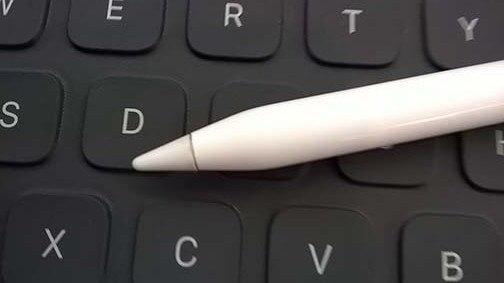
Apple Smart Keyboard keys


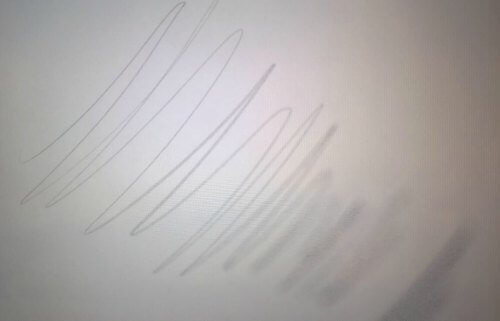
The long, elegant Pencil, powered by Bluetooth, has terrific accuracy. There’s no parallax or jagged lines around the edge, no skips or stepped lines. The processor uses Force Touch to provide pressure sensitivity. Tilt and rotation feel natural. You even draw using the Pencil with the tip on its side to do shading. The line is quite soft and natural looking, like a 4B pencil. It’s the best stylus for drawing that there is. Kudos to Apple for continuing to innovate.

appleipadproreviewdrawing

Soft, natural-looking pencil lines

Below are lines and shading done with the tip and then, going toward the bottom right corner, with the side of the Apple Pencil.
applepencilreview.lines


Palm rejection works well, unless you put several fingers down at the same time, then it gets confused, but that’s to be expected.

In keeping with the minimalist creed, there are no buttons on the Pencil, and no eraser–a cap covers the non-drawing end, and you take off the cap to plug in the Pencil to charge it. There aren’t settings for the Pencil, you just pair it with Bluetooth and that’s it.

The Pencil is comfortable to hold, though I think it could feel heavy after drawing for long periods. One neat thing is that you can grip the pencil near the non-tip end and use some wrist action to draw loosely, as you might with a charcoal pencil. This is made possible by the shape of the tip, and the weight helps. Because a fair amount of the tip can leave marks, the Apple Pencil reminds me a bit of a woodless graphite pencil, which I enjoy using in my non-digital time.

Some of the brushes took time to settle into a shape slightly different from what I’d drawn, as if to impart the effect of liquid ink. There was no such delay or change using the Pencil for pencil lines.

There’s no “tooth”; the glass screen is slick. The Pencil’s tip has a hint of cushioning but is pretty hard. It’s difficult to say if or how much the tips will wear down. So far, Apple is not selling replacement tips. If it shows signs of wear, you can rotate it while drawing to keep it sharp, as artists often do with graphite pencils.

One annoyance is that there’s no way to attach the Pencil to the iPad Pro. There’s no pen loop, USB holder, slot, or magnet, as on the Microsoft’s Surface Pro 4.  There’s no ridge to stop it from rolling should the iPad be resting at an angle. You gotta have a plan for that.

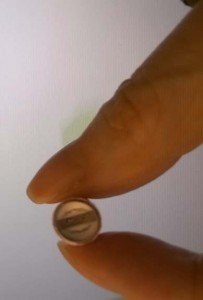
Worse, the little cap that covers the charger can easily get lost, leaving the charger vulnerable. It would be nice if the cap could fit over the pencil end while the pencil is charging, but it doesn’t.
applepencilreview

Is that a charger cap in your hand, or an aspirin for when you lose it?

You can’t use the Apple Pencil on other iPads, only the Pro. Bluetooth styluses and keyboards will still work; the Pencil pairs with the iPad Pro via Bluetooth.

man skating for illustration friday site

You can draw with the side of the tip of the Pencil. Drawing at a less sideways angle with the Pencil brought better and more realistic results. Drawing directly with the side didn’t look so much like a pencil mark as a soft, spongy brush or big crayon.


ipadpencilreview

This dog is practically drooling over the Lightning Connector.

You can use your finger to make playful marks while also using the Pencil.

My handwriting looked pretty natural, but it felt like a bit more effort to write, and when writing in cursive the letters flattened out a little. That doesn’t happen with Wacom.

ipadproreview.pencil

You can put your John Hancock onto documents.

In the Notes app, you can pull up a virtual clear plastic ruler and move it around with the Pencil or your fingers, and use it to draw straight edges. Very cool, and useful for drafting. You can use apps that have layers, such as Sketchbook Pro.

You can only use apps, not full desktop programs. There’s no easy way to access your files to open them in different apps, and, annoyingly, no central way of saving them.

Display: 12.9″ iPad Pro vs. 9.7″ iPad Pro

The gorilla glass is pretty slick, and the Pencil slides across it, but it isn’t as slippery as some screens. Colors look great.

Both the larger and smaller iPad Pros cover and slightly exceed the whole sRGB gamut. The 12.9″ iPad Pro has excellent color accuracy, and the 9.7″ very good, with a very bright screen, about 430 nits. The larger Pro is less bright, at about 375 nits. The smaller one, though, has TrueTone color, which adapts itself to your surroundings, and is supposed to emulate paper. Don’t worry, you can disable TrueTone in the settings if you want.)

It also uses a second color gamut, the DCI-P3 Wide Color Gamut. That’s what’s used in 4K UHD TVs as well as digital cinema. It also has Night Shift, which takes out the blue light that keeps you up (similar to fl.ux, a free Windows app). The smaller iPad Pro has virtually perfect color accuracy.

So is the amazing screen a reason to choose the smaller one? Maybe, but I still prefer the larger screen. Hopefully Apple will make the next version of the larger one with an equally great display.

Lightning Connector

Now instead of just charging your iPad, the Lightning Connector is bidirectional–it can give, and take, power. On the iPad Pro, it serves to not only charge the device, but to connect a keyboard and charge the Apple Pencil.

Battery Life

The Pro has 10 hours of battery life, and the Pencil lastsfor 12 hours on a full charge. And charging the Pencil for just 15 seconds, a deed akin to sharpening a wooden pencil, gives you 30 more minutes of drawing.

The charging port is on the side of the iPad Pro, so that the Pencil point sticks out at a perpendicular angle into the air–so be a little careful in crowded coffee shops.

User Reviews

The iPad Pro pushes pressure-sensitive tablets into the mainstream. Some users are finding that it substitutes for a laptop and a tablet, while some who already have a laptop and tablet can’t find much use for it and think the size is awkward. It wears many hats (caps?)–people are using it as a TV, a newspaper, ebook reader, a way to get work done on planes, trains, and buses, and a not-the-most-efficient laptop once you connect a keyboard. One iPad Pro review by an attorney praised it for saving a lot of paper, as you can pull up and sign PDFs so easily. It is ideal for paperwork. Professional artists doing an iPad Pro review seem to pretty much agree that it’s a sketchbook, not a substitute for a computer with desktop apps. Using the Apple Pencil for drawing is a hit with most people. Many iPad Pro and Apple Pencil reviews rave that the Pencil beats Cintiq pens. I do agree that it gives a new level to the digital drawing experience, and is fun as well.

Pros

Pencil has excellent accuracy
Tilt and rotation sensitivity, including using the side of the tip
Excellent palm rejection
Good for note-taking
Portability
Generous size
4:3 aspect ratio
High-res screen
Fast
LTE options
Good for tasks such as signing documents, dealing with PDFs–can replace a lot of paper


Cons

Cost
No way to tether Pencil to the iPad, or the end cap to the Pencil
Lack of eraser tip
OS doesn’t allow for convenient file management
Cannot use full programs such as Photoshop
no USB port
No SD card slot; storage not upgradeable
Screen is slick
Pencil is a bit heavy

Optional Accessories

 

icon

Apple Pencil. Click image to see at Best Buy
icon

ipadproreview

Apple Smart Keyboard. Click image to see at Best Buy
icon

The Verdict

Is the iPad Pro a substitute for a laptop? Not really. Even using the iPad Pro with a keyboard is limiting. The keyboards for it can’t provide touchpads, you can’t use a mouse, and you can’t adjust the angle of the screen.

Is it a substitute for a Cintiq? Not really. You can only use apps with the iPad Pro, pressure sensitivity is app-dependent. The Pencil is not the issue here, nor is the screen. It does supply more of an “experience,” and solves the small, irritating issues with lines that affect Wacom, N-trig and other digitizers. But the OS is limiting. You can’t use full Photoshop or Illustrator or do efficient file management.

On the positive side, I think anyone could pick this up and intuitively go with the flow, just draw, without any learning curve, and that’s motivating. Drawing could get pretty addictive, especially with the ability to share the drawings so easily. Even the Wacom Cintiq 6D art pen doesn’t perform the side-shading feat. Beginning or hobby artists would love this, and professional artists would enjoy it as a very cool-looking digital sketchbook. I have no doubt it will be popular.

Apple hasn’t deigned to tell us how many levels of pressure sensitivity there are. Guess we shouldn’t worry our pretty little heads about it.

See the iPad Pro on Amazon

There are some handy, low-cost accessories out there that solve the annoying problem of the loose cap that can roll away. They add a little weight, but many artists are happy with them.


Here’s a cool Apple Pencil clip:

Alternatives

If you’re looking for a less expensive digital sketchbook, we recommend the Samsung Galaxy Tab A 9.7″ with S Pen or the 2017, higher-end Samsung Galaxy Tab S3, both Android tablets with a Wacom digitizer.

Update: Here’s the new Surface laptop (Surface Pro 5)


The Toshiba dynaPad, a mobile Windows 10 tablet, is also one to consider if you’re seeking a portable sketchbook. (note: this product is older now and no longer being made).

The Surface Pro 4 is probably the main competition to the iPad Pro as far as non-art issues; the Pro 4 will let you use Photoshop.

Accessories

If you’re looking for a handmade iPad Pro case that with an amazing set of positions, read our post about the FlipSteady.

Read all about the top drawing and graphics tablets.

end of iPad Pro review

See top iPad drawing apps.

See best artist tablet PCs

Finding the best laptop bags: A buying guide

carrying laptop or tablet


Best laptop bags: how to find durability, safety, and style

by Tablets for Artists

Finding the best laptop bag for your lifestyle doesn’t have to be a chore. But there are a lot of things to consider before taking the plunge. You want a bag that’s going to last and serve your needs for a long time to come.

Many of us carry a laptop as well as a tablet. So the best laptop bag for digital artists should have certain features, chief among them a dedicated laptop compartment or pocket, and a dedicated tablet compartment or pocket. These should be padded.

Laptop and tablet sizes are measured diagonally and referred to by screen size. So a 15” laptop would fit into a computer bag of 15” or larger. Most laptops are 13.1″ to 15″. 17″ is fairly common too, and some are 19″. There are netbooks that are much smaller. Tablets come in many sizes, but 7″, 8″, and 10″ are common. Some bags specifically state computers that will fit into them; it doesn’t mean that other computers won’t, but customers could be searching for a bag for their MacBook Pro.

pelican computer case

The Pelican 1495 Black Computer Case is a hard-shelled briefcase with protective foam inside.

A waterproof pouch on the inside to protect your electronics is a useful feature. Extra outer pockets for books and magazines, paper notebooks/ work items, an e-reader, water bottle, and other sundries are a good addition.

There are laptop bags you carry over your shoulder; backpacks; rolling backpacks; cross-body bag, e.g., messenger bags; roller bags with two or four wheels (spinners); pocketbook styles; and briefcases. There should be room for chargers, headphones, external hard drives, and the like. A very small container can be handy for small electronics that get lost easily, such as SD cards, USB sticks, batteries, and other small personal items. Photographers who don’t want to carry a separate camera bag would also look for a pocket to carry a DSLR and lenses. Especially handy for artists are small pockets for pens and styluses and pockets for extra nibs.

Does the bag’s style match its purpose? You probably don’t want to go to the office with a bag that looks like you’re going hiking, even if the hiking bag is one of the best laptop bags there is.

Are the zippers well made?  Lockable zippers–ones that have ports that allow you to add a luggage lock–are important.

A rolling bag takes the weight off you. Spinner bags have four wheels instead of two. They are easier to maneuver, but can be hard to control. Their wheels take up extra space. Roller bags tend to have cutouts for the wheels and the wheels tend to be larger.


Delsey rolling bag for laptops

This Delsey Luggage Helium Aero spinner has an external compartment that gives you quick access to your laptop and helps speed you through airport security. See it on Amazon.

victorinox laptop roller bag


victorinox trevi

This Victorinox Trevi Laptop Brief is a (pricey) example of a two-wheeled bag specially made to accommodate a laptop. It’s got pockets galore! Victorinox is considered one of the best luggage brands.

Many bags come in different colors and sometimes patterns.

While most bags are unisex, there are laptop bags specifically aimed at men or women, mostly based on style.

Your bag should be structured and firm, but offer some flexibility.

For a tablet, you will want a soft sleeve or hard case to keep your screen safe in the tablet compartment of the bag. For a laptop, if the pocket is larger than your computer, you may want to use a sleeve to keep the computer from moving around too much in transit, as moving toward the sides of the bag can increase any impact on the device. A tablet or laptop should fit snugly into the pocket. Some bags have straps to secure devices.

Art tablets. For a graphics tablet like an Intuos that doesn’t have a screen to scratch, you can get away without an extra sleeve if the bag has enough padding. Some art tablets, particularly the older Cintiqs, have a large amount of gear you need to carry to power them. Make sure your bag can accommodate the necessities. At the very least, wrap your 13HD in a t-shirt and put it in the middle of soft clothing so there are inches of clothes around it. The larger-size Cintiqs and other large display tablets are generally better off in a hard-shelled roller bag with a sleeve, plenty of extra cushioning and optionally, a box or hard case. If you still have it, you could use the box and packing material the tablet came in.

Being TSA-compliant is a timesaver for travelers. This popular Timbuk2 messenger bag has a TSA- compliant outer laptop sleeve. You can open it up flat with your laptop showing and easily remove your laptop. It also has a tablet sleeve.

timbuk2 messenger tsa

Weight is an important consideration. Get something that doesn’t add too much weight to the gear you’re putting in it, but not something flimsy or nonsecure.

When online shopping, you can’t try putting your laptop in. So if you’re unsure your computer will fit, you can contact the manufacturer. Remember to take the thickness of your computer or tablet, sleeve included, into account when fitting a bag.

Sometimes bag companies seem to forget to add product images of the inside. More images can be often be found on the company’s Web site or you may need to download or request a catalogue.

Back support is important to remember when looking for the best laptop bag. It can be hard to carry a laptop around even for fairly short periods if you have back pain, and it can make back pain worse or even cause it. So the part next to your back should be strong but flexible. The straps should also be padded, comfortable, and easy to adjust.  A chest strap is good if you will be carrying a heavy load and want added support. A waist strap can also add support and take some load off your spine.

If you’re going to be carrying the bag by hand, choose a bag with extra fabric on the carrying handle or a smooth, rounded carrying strap. Your hand can feel cut up from carrying a heavy bag.

Not enough little pockets? If your bag is missing some of these features, you can buy an organizing grid to increase your packing options. We love this Cocoon Grid-it Organizer for the little things. It not only straps things into place, it has a zipper pocket to keep more items. If you have a lot of chargers they won’t get tangled up together. (It does take a bit of work to arrange things this artfully).


best laptop bags grid-it organizer

See the Cocoon Grid-it Organizer on Amazon.

There are many things to keep in mind when choosing from the best laptop bags.

Do you want an open bag, such as an over-the-shoulder type, to easily take out your laptop/tablet, or do you want to keep it zipped or buttoned? One without a zipper or buttons is much less secure and open to pickpockets. But it might be OK for indoors, such as walking around an office, or for quick errands. Still, keep the device in a sleeve.

What is the bag made of? Bags come in many materials. Polyester is popular and easy to clean. There’s also leather, both real and synthetic, both of which protect from water; thick cotton canvas; neoprene, and hemp. Protection is accomplished via padding, air cells, or elastic slings. Obviously, the hard ones can handle more impact. But your laptop and tablet needs to be protected from the hard sides themselves, so they should be put in a sleeve.

Zippers should be strong and sturdy. It’s preferable if they have a loop to make them lockable. The zipper should not have jagged teeth, which can hurt your hands while opening and closing the zipper—I had that happen with one bag. Be sure that the zipper is in good condition when you first get your bag, and that any buttons, and clasps are securely attached. Broken zippers and falling buttons can make your bag less useful and less attractive. Magnets can be good closures, but be careful to not leave magnetized cards around them, as the cards can get demagnitized.

What’s around you? Consider your environment. Will the bag see rough weather? Would you be using it often? Would you fly with it as a carry-on personal item? Will you be biking, hiking with your laptop? If you’re going to get sweaty, getting breathable fabric with padded straps tha have mesh is optimal. If you’re going to school and will also be carrying books, be mindful of back strain. If you’re a parent, when purchasing a bag for a child, be sure it’s not going to be too heavy, and be careful of how much goes into it.

Will you be in crowded spaces such as trains? If so, you might want one with a slender profile and/or a handle on top to avoid banging into people. As well, many museums will let you carry your backpack in only by hand, so if you’re an art lover you may want a bag that’s not so long it or parts of it would drag on the ground, and a top handle helps. This Dakine Mission backpack is slender and the straps cleverly form a back handle.

best laptop bags dakine mission

How tall are you? You don’t want to be dwarfed by your bag. And you don’t want a bag that fits tightly.

Do you want to carry other things besides your digital equipment? If so, you might want a weekend bag type of laptop carrier, one with room for some clothing and other items. Using it for work? You might want there to be a sleeve that can carry folders. You might want to check the specs to make sure you can put folders in the way you want. Horizontally is best, so your papers can face up.

Many bags have some padding, but the best laptop bags have ample padding on the bottom as well, as that part of the bag is likely to receive some knocks no matter how careful you are. If the bag does not have a lot of padding, use a padded laptop sleeve. You might want to use one at all times even if the bag is padded; however, if the pocket is both well-padded with a cushioned interior and firm exterior, your laptop should be safe for every day carrying.

Some of the best laptop bags offer advanced security, antitheft, and safety features. These can include zippers that lock, cut-proof shoulder straps, cut-proof fabric, lockable compartments, reflectors, secret pockets for your passport, and RFID blocking. Safety features can include a reflector and loops to attach carabiners, a flashlight, and a whistle. Having an accessible pocket for your cell phone is both a convenience and a safety feature.

As well, some have small, fleece-lined pockets for cell phones and glasses or ski goggles.

osprey backpack for laptop


This Osprey Quasar laptop backpack offers many antitheft features, including RFID, which stops thieves with electronic readers from being able to read your credit card numbers.

We hope this has covered the basics of what you need to know to find the perfect laptop bag to be your travel companion–so go ahead and compartmentalize.

end of Finding the best laptop bags: a buying guide


best tablet PC

Surface Pro 4 Review: a step (or 1,024) forward

Surface Pro 4 Review: a go-anywhere drawing solution

by Tablets for Artists

microsoft surface pro 4 with surface pen

Type of Tablet

Surface Pro 4 Review: Convertible 2-in-1 with pen

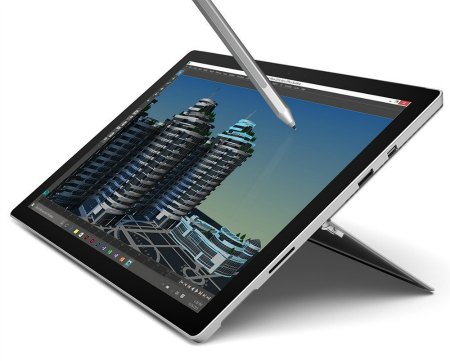
The Surface Pro 4 and Surface Book (read our review) have arrived on the scene to a great deal of fanfare. Some artists who already have a Surface Pro 3 may be wondering if it’s worth getting the 4. Others may be trying to decide between the SP4 and the pricier Book.

The SP4 can become a laptop when you add the optional (purchased separately) Type Cover; it’s a tablet-first device, whereas the Book is a laptop-first device. The Pro 4 and the Book have the same screen resolution, a very high 271 ppi, though the Book’s screen is larger. Both the SP4 and Book are built from magnesium alloy and come in just one color, a silvery gray, though the SP4’s Type Cover adds a splash of color, with 6 colors. Only the Onyx (black) has the fingerprint sensor, though, to give you that Get Smart cred.

UPDATE: There have been many reports of short battery life and other issues and this takes a bit of glow off the Surface Pro 4 review, which would otherwise be very positive. The last updates issued by Microsoft were Dec. 2 and Dec. 17, which fixed some issues but not the power management. They did suggest a workaround, which you can read here, which is to put it into hibernate instead of sleep mode. Also, Windows Hello facial recognition drains the battery  and may be to blame for the issues. You can say bye-bye to Hello by turning it off in Settings> Accounts > Sign-in options. Will be following these issues and updating further.

UPDATE #2: Microsoft issued a Surface Pro 4 and Surface Book firmware update on Jan. 27, 2016. This one improves battery charging, Bluetooth, and the fingerprint sensor. Apparently it improves the sleep bug (the battery drain issue) but does not completely fix it. You should receive a notification on your device, and follow instructions. They should automatically install, but if you’re doing it manually, go to Settings > Update & Security > Windows Update > Check for updates and follow the steps.

UPDATE #3: Microsoft released a slew (16!) updates in April, 2016, which apparently have corrected issues with screen flickering and waking up from sleep or hibernation, and other issues. Guess the early adopters were really beta testers. Anyway, it’s considerably improved. Note that they do not install all at once after you update.

List of updates at the Microsoft update page.

Specifications

Windows 10 Pro
Display: 12.3″
Digitizer: N-Trig
Screen Resolution: 2736 x 1824 pixels (271 ppi)
Processor: 6th-generation Intel Core i5; i7; entry-level model has Intel Core M3
RAM:  4 GB, 8GB, or 16GB
Hard Drive: models with 128 GB, 256 GB, 512 GB, and1 TB
Ports: one USB 3.0, MicroSD slot
Core M3 model is fanless; others have hybrid cooling system
Kickstand allows posing at any angle
Glass trackpad 40% larger than SP3
8 MP rear camera, 5 MP front (SP3 had 5MP for both)
new Surface Pen and nib kit included
Pen has 1,024 levels of pressure sensitivity
graphics are all integrated, no discrete
Keyboard has fingerprint sensor (only the Onyx/black color)
weight 1.76 lbs. (786 g) tablet only; 2.44 lbs. including Type Cover and pen

What’s in the Box

Surface Pro 4
Surface Pen
Power Supply
Quick Start Guide
Safety and warranty documents

Surface Pro 4 vs. Surface Pro 3

As you can see, the Surface Pro 4’s screen is a bit bigger; its screen resolution is quite a bit higher, and it still manages to be a little lighter. Microsoft’s PixelSense screen is a mere 400 microns thick and uses Gorilla Glass 4; the Surface Pro 3 used Gorilla Glass 3 and did not have PixelSense, which pushes the optics closer to the screen. The footprint is the same on the SP4 and SP3, as is the 3:2 aspect ratio, which resembles a sheet of drawing paper. This aspect ratio, which emulates the Golden Mean, is generally better to draw on than the 16:9 tablets. The pen now magnetically snaps to either side of the tablet, instead of using a pen loop.

There is also no Start button on the tablet bezel in the SP4; there was in the SP3, but it’s less useful in Windows 10.

Here is a Surface Pro 3 vs. Surface Pro 4 comparison chart.

FeaturesSurface Pro 4Surface Pro 3Difference
Dimensions11.5 by 7.93 by 0.33 inches11.5 x 7.93 x 0.36 inchessame
Thickness8.5 mm SP3 9.1SP4: 7% thinner
Screen size12.3"12"SP4: 5% larger
DigitizerN-trig, 1,024 levels of pressure sensitivity N-trig, 256 levels of pressure sensitivitySP4: 4x as pressure-sensitive
Resolution2736 x 1824
(4,990,464 pixels)
2,160 x 1,440
(3,110,400 pixels)
SP4: 60% more pixels
Screen ppi (pixels per inch)271ppi213 ppiSP4: 27% denser
ProcessorIntel gen. 6 Intel gen. 4SP4: 30% faster
Weight (tablet only)1.69 lbs, 767g - Core M
1.73 lbs, 786g - i5 and i7
1.76 lbs, 798 gSP4: slightly lighter (4% for Core M, 2.5% for Core i5and i7)


surface pro 4 review

Surface Pro 4 with Surface Pen

The Surface Pro 4 with i5 with 128 or 256 GB of flash storage would be fine for most artists who use Photoshop or the whole Adobe Suite. But if you use really resource-intensive programs, then the i7 is better. For instance, Autocad 3D requires the i7.

The Book has an option with dedicated NVIDIA GeForce graphics, good for gaming or getting a boost in Photoshop performance.

Battery Life

9 hours of video for the 8GB Ram i5 with 256 GB storage

Portability

At 1.76 pounds, it’s very portable. If you add on the Type Cover (.64 lbs./292 g) and pen (21 g) then you get about 2.43 lbs., still not a bad load.


Surface Pen

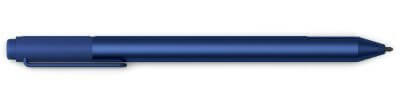
surface pen surface book

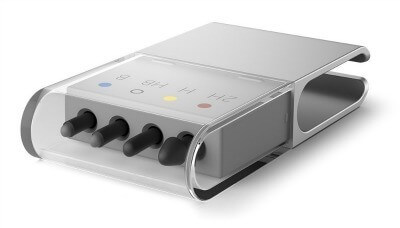
The new Surface Pen for Surface Pro 4 (see it on Amazon) snaps to the sides of the tablet via magnets, unlike the Surface Pro 3 and earlier Surfaces which had a pen loop. The pen is much improved, now enabling 1,024 levels of pressure sensitivity. Not only that, but it has its own nib kit , which has 4 tips that simulate artist pencil leads of HB (preinstalled), H, 2bB B, and a fine-point pen. The nib kit does not come with the pen that comes with the tablet. You can buy it separately (it’s inexpensive) or, if you buy an additional pen, the kit is included. The pen that comes with the Surface Pro 4 has a silver barrel, but the additional pens come in other colors.

The pencil leads have some friction and give some bite, somewhat like drawing on paper. Another boon is that you can buy a nib kit if your nibs wear down or get lost. The pen also has an eraser tip that feels cushiony. The previous pen had two buttons, one of which activated the eraser, but this new one has just one, which can open OneNote or Cortana, or take a screenshot if you double-click the button. Microsoft says the new pen has reduced latency–perhaps it won’t go into sleep mode when not touching the screen, so will be faster. The digitizer is N-trig, connected by Bluetooth, and takes an AAA battery that Microsoft says lasts a year. The pen itself (the barrel, not talking about inking) comes in 5 colors.

surface pen nib kit

new Surface Pen nib kit

Compare this to the previous Surface Pen, which delivered 256 levels of pressure sensitivity. Its single, preinstalled nib would wear out quickly and was not replaceable, forcing you to buy another pen. So if you’re ready to buy one, the new Surface Pen is the right choice. The new pen is backward compatible with the Surface Pro 3, though you’d still get 256 levels of pressure sensitivity, not the 1,024 of the Surface Pro 4 or Surface Book.

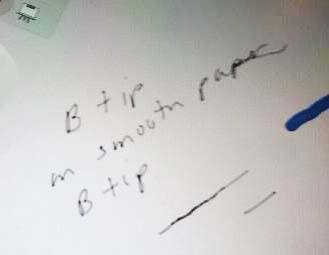
For some images and discussion of drawing with the Surface Pro 4 pen, and a comparison with Wacom pens, please see this review of the Surface Book. Here’s an image of the line from one of the pen tips. You can change the canvases as well as the brushes in your art program to get different effects with the different tips.

While this is cool, there are many, many brushes available for Photoshop and you can get any effect. Depending on your screen, though, you might not get the little “bite” of friction that the pencil nibs offer.

.surfacepentiptestBtip


Type Cover

surface pro 4 type cover

Surface Pro 4 Type Cover

The Type Cover has been redesigned and is also backward-compatible with Surface Pro 3. It has dedicated buttons for Windows shortcuts, media controls, and screen brightness. The Type Cover comes in 6 colors, and is lighter and slimmer than its predecessor. The keys are now spaced apart and have better travel for faster and more comfortable typing. The keys are sturdier than on the last version, and the keyboard has a better magnetic connection to the tablet part. The trackpad with 5-point multitouch is 40% larger, and now made of glass. You can fold back the cover so you can still use the tablet while it’s connected, or fold it over the tablet to protect the screen. The keys are backlit.

Only the Onyx (black) Type Cover uses Windows Hello, a fingerprint ID system that lets you log in to the computer and shop in the App Store. It costs a bit more than the non-fingerprint ID Type Covers (there is also a non-fingerprint-ID Onyx Type Cover). The Onyx fingerprint Type Cover can be pre-ordered from the Microsoft Store here.

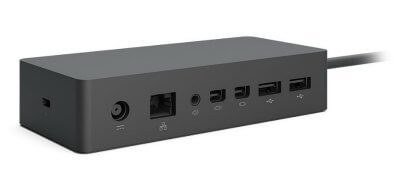
surface dock for surface pro 4

Surface Dock

Surface Dock

The Surface Dock is optional. It can be used with the Surface Pro 3, Surface Pro 4, and Surface Book. It provides two additional ports: four USB 3.0 ports, and two 4K-capable DisplayPort outputs. The slender Surface Book lacks an Ethernet port, but the dock provides one. This can come in handy when traveling in places without steady Wi-fi.

Pros

new Surface Pen and nibs
faster processor
many configurations
hybrid cooling system (or fanless on the Core M) quieter

Cons

Still not ideal as a laptop replacement, due to top-heaviness
Opinions divided on N-trig

The Verdict

If you like N-trig, then this is a very promising computer with great specs for speed, a display that’s high-resolution with high contrast for deep blacks, lightweight, and it can do double duty as a laptop, though the Type Cover doesn’t feel as solid as a traditional laptop. For now, though there are still battery drain issues to be fixed, the workaround should provide release. Even taking that into account, this Surface Pro 4 review is mostly positive, and this sleek machine opens a new chapter in the Surface Pro story.

See more info or order from the Microsoft store


The iPad Pro is a competitor to the Surface Pro 4. Read our iPad Pro review.

end of Surface Pro 4 review