News from Tablet Pro Windows app

A word from Tablet Pro Windows app

Tablet Pro app will be adding new features. The app will be on sale before prices goes up Dec. 4.

… posting this for my buddy Justice over at Tablet Pro. Tablet Pro is an app available in the Windows store that provides a robust on-screen menu for artists. It lets you stop using your keyboard and mouse and just use your screen.

Check out the Tablet Pro site

They’re going to add features like pen-button remapping, layout switching and more. Because of all the new features and their concentration on this app, they’re going to increase the price. But if you get it before next Monday Dec. 4th, it will be discounted.

This is one of the very few Windows apps out there for tablet artists. If you have a Surface Pro or other tablet PC, it’s well worth a try.

Here’s the update:

Next Monday we are going to be changing our pricing. The new price of the total package will be $54.99. This is a big jump and I’d like to explain our thinking.

In order to further develop Tablet Pro, we need to increase our funding. I believe the end goal is to have the best software possible, that means adding a number of exciting new features (like automatic layout switching, built in pen button remapping, custom button colors and a host of new awesome improvements)

Here is the idea for the price change. We are wanting to increase revenue while doing our best to give our users the best possible deal.

Pricing will look like this next Monday. Artist Pad $19.99 (doubles in price) Fullscreen and Gesture $14.99 ($5 additional) Touchzoomdesktop $9.99 Gamepad $9.99 ($5 additional) Total Price Valued @ $54.99  Full package bundle price $34.99

This is a good discount for the whole package. Most of the time however, we plan on putting the discounted full package price at a steeper discount at $27.49 (50% off for a limited time). In practical terms this is a price increase of $1.50 over the current full package price of $25.99.  We feel that this price will more effectively convince new users to opt for the whole package with more confidence in its value.

So, why am I telling you? It occurred to me that some of our current users may have bought one or part of our software and upgrading from a single purchase to the Full package doesn’t make sense as the price doesn’t adjust to compensate for your previous purchase.

So this week only we are doing the Full Package for $9.99  It’s important to me that we honor and do our best to treat our current and future users well. I hope this pricing change makes sense to you. Our goal is to increase profits enough for Takashi to make improving Tablet Pro his full time job. This will benefit all of us greatly.

Please share this sale with as many people as possible (Reddit) and any news sites or social communities you feel would post an article. We want to grow and continue to develop Tablet Pro at an increased speed for everyone’s benefit!

Thank you for being a fantastic community to serve, Justice Frangipane


https://youtu.be/ZxvdDlMS57Y

hpsprout

HP Sprout Pro G2 hands-on with inventor Brad Short

HP Sprout Pro G2: overview and video demo

hpsprout

The first HP Sprout was launched two years ago (with Windows 8) after a development period of about 4 years. This article shows the HP Sprout Pro G2 in action. The non-Pro Sprout is quite affordable, at about the cost of a laptop.

hp sprout review

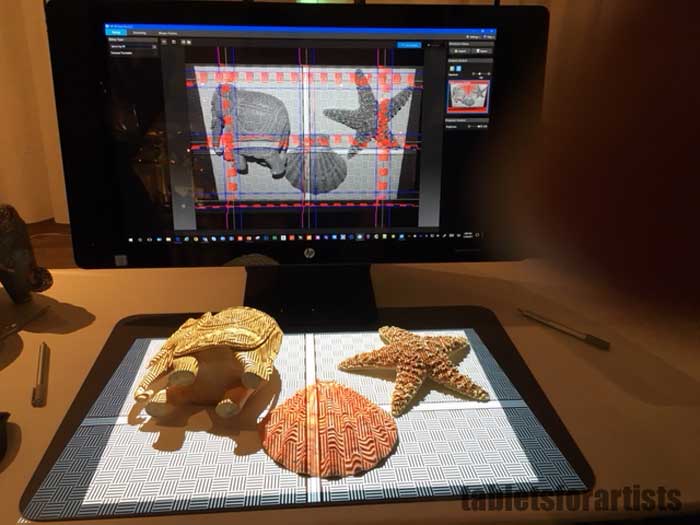
HP Sprout Pro G2 3D image capture in action

HP Sprout is a dual-screen PC that runs Windows 10 Pro. It’s meant to allow an immersive computing experience that breaks the boundaries between physical objects and the digital world.

It’s got an i7 processor, a camera/projector, an amazingly thin, flexible 20-point touch screen with 2,048 levels of pressure sensitivity (HP Active Pen included), and a scanner that scans both 2D and 3D objects.

Brad Short,  HP Distinguished Technologist and the inventor and creator of the HP Sprout, showed off the HP Sprout Pro G2 at CES Unveiled NY 2017. I was on hand to watch and try out the drawing touchpad.

Here’s the creator himself doing a demo of the Sprout Pro G2.

https://youtu.be/I1uesuqKFW8

Drawing demo on the HP Sprout touchpad. The included pen gets 2,048 levels of pressure.

What can artists do with the HP Sprout?

What can we not do? Artists can draw on the touchpad, scan objects and immediately place them into a 2D or 3D image, create 2D and 3D art, edit music and video, and send files to a 3D printer such as a Dremel. We can incorporate blended reality, VR (virtual reality), and AR (augmented reality).

It’s not just for artists. Short says blended reality will soon be a common way of communicating. Instead of a photograph, people will take a 3D scan and post it on social media. The HP Sprout isn’t meant for super-heavy-duty 3D scans but to create something that looks nice and is manageable in many apps. Here, Brad Short demos creative uses for 3D scans, such as putting the images into a video or into PowerPoint 3D. (Microsoft Office now supports 3D).

https://youtu.be/4rPWtA_47ng

The Sprout runs Windows 10 Pro, has an i7 processor and 21.3″ HD display.

Basic specs:
Windows 10 Pro
i7, Intel HD graphics 630
21.3″ screen, HD 1920×1020
wide viewing angle
full keyboard
Ports: SD media card slot, 4 usb 3.0, HDMI 2.0, RJ-45, audio, controller


Bottom monitor:
Intel HD Graphics 6305
discrete NVIDIA GeForce GTX 960M
wireless mouse, active pen that uses Wacom
camera: HP High def 14MP
Top screen is touchscreen

The Sprout has real-time tracking of the object. You can move it around and it will capture.

hp sprout pro 3d capture

HP Sprout Pro G2 captures objects and creates 3D scans.

The camera somehow ignores your hands and fingers, if you are holding up the object. If you’re holding it and you put down the object or otherwise let it lose tracking, it easily regains it.

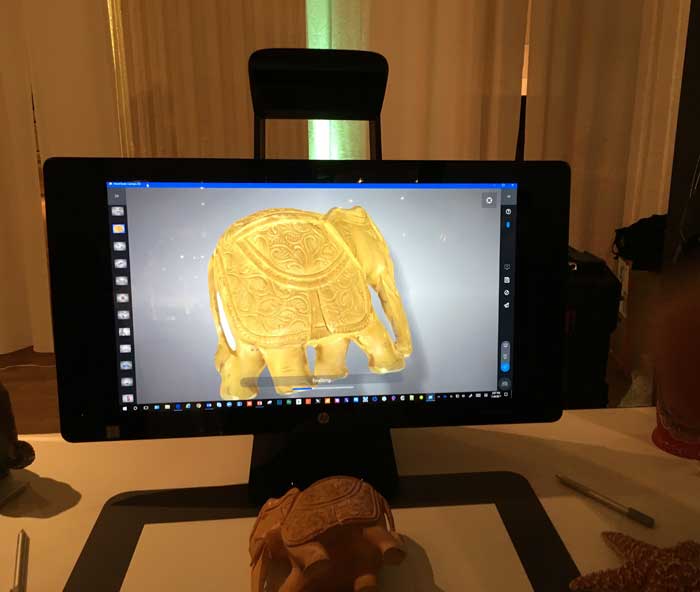
At the end of the scan, you can see a mesh version with superimposed high-res photos of the surface. The files are .obj files you can open in surface mesh editing software, or AR and VR programs. The files are not very large at all.

You can also open the files in Photoshop and 3D Builder in Windows Creator. Short talks about how “fun” is an important part of Sprout ,and the idea of bringing 3D to everyone. “Sprout is a creative product for creativity,” he says.

hpsproutproG2

The HP Sprout Pro G2 captures an elephant

Accuracy: The 2d aspect is more accurate than the 3D in the camera used here; here, the 3D has 1mm accuracy. But if you use the the other 3D scanner that comes with the HP Sprout Pro G2, which is a higher-end, professional one, you get a high 10 to 15 micron accuracy.

You can then print it on a 3D printer such as a Dremel. You can also use it to create textures for your own 3D creations. You can quickly drag it to the touch mat and draw on it using the Active Pen or your finger on the touch mat.

Using it with Microsoft Creator Studio, you can integrate it into their videos or add your own 3D objects to libraries. You can edit music and video.

The HP Sprout is a tool, but also can be a fun a toy; a kid can use it.

The HP Sprout Pro G2 is a remarkable machine with a ton of potential. I find the flexible touchpad to be amazing.

The HP Sprout’s main use has been in the educational and manufacturing areas, but as it evolves, and consumers are more used to using 3D, AR, and VR, we could see more of these machines in homes. For artists who create game art, 3D models, or use AR and VR, it’s already extremely useful. Paired with Microsoft’s 3D tools, the Sprout may become a household word.

See the Amazon listing for more about the HP Sprout and HP Sprout Pro G2.

artistgiftguide2018

2017 Digital Artist Gift Guide

artistgiftguide2018

It’s that time of year ago when we take time out to remember the artists in our lives who bring us so much cheer year-round. There are many fun gifts out there, a lot of them tech gifts.

The best artist gifts are inspiring, personal, and will last a while (or, are edible or drinkable).  We may not be mind-readers, but there are certain things that any digital artist or any artist at all would love to receive.

Life-Phorm All-in-One Positioning Device for iPad 3, iPad 4, Tablets, Smartphones and Cameras

Life-Phorm All-in-One Positioning Device for iPad 3, iPad 4, Tablets, Smartphones and Cameras

This extremely adorable “positioning device” is turns your mobile device or camera into a character, and is useful as well. See it on Amazon


Prop ‘n Go Slim Lap Desk


A lap desk is a terrible thing to waste… when it could be used to draw on. This one has grooves so you can set your kickstand at different angles. Others have features such as slideout keyboards.

This angled one from Halter Desk is pretty cool too, and you don’t need a kickstand. Click image to see more info.


PNBOO PN10 10.1 Inch Drawing Monitor (under $250 as of Dec. 2017)

This super-affordable tablet is a small, solidly built Wacom Cintiq alternative that I have done a full review of. Please read my PNBOO PN10 review if you’re considering it.


Wacom Bamboo Spark Smartpad Digital Notebook

Draw on paper with a regular pen while the Spark (below the paper) digitizes your drawing. Save it to the Cloud. Digitize your handwritten notes. A cool way to carry a sketchbook and open your drawing later on your computer or tablet.


Anker 20000mAh Portable Charger PowerCore 20100 

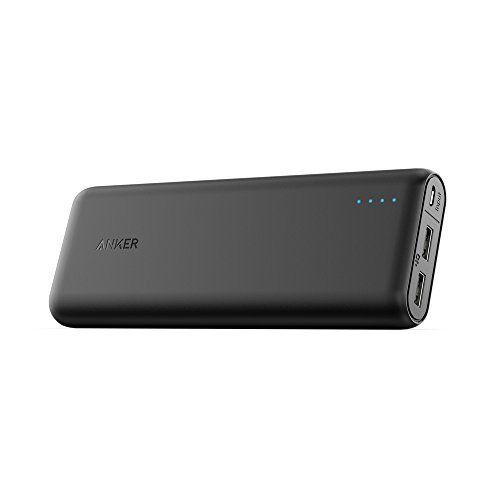
Ultra-high-capacity power bank for Samsung Galaxy, iPad, iPhone and more. Power banks are getting better and better. This weighs about 12 oz. and delivers a serious charge to your tablet or phone. Can charge iPhone almost 7 times, iPad mini 4 two times, Galaxy S6 five times. Comes in black or white.

Anker 20000mAh Portable Charger PowerCore 20100


 Natural Light Desk Lamp by Verilux

This LED desk lamp casts full-spectrum light, which reduces eyestrain and fatigue. Adjustable and dimmable. The base has a USB charging port so you can keep your tablet juiced.


Tecboss 3D Printing and Drawing Pen

Have doodles of fun drawing, writing, and sculpting with a 3D printing pen. This is great for kids (with adult supervision) and artists of all ages. A thin stream of plastic comes from the tip and lets you create your dreams.


Apple 29W USB-C Power Adapter

This 29-watt charger from Apple turbocharges your iPad pro 12.9 and Macbook, with this 29-watt charger from Apple. It charges the iPad Pro (ONLY the 12.9 inch models, do not use it on smaller iPads) way faster than the charger the tablet comes with.

Sadly, the cable isn’t included. Apple brand USB-C to Lightning cable. The Apple one has a chip that’s needed. Your iPad Pro 12.9 should charge in a few hours (mine takes about 3 hours)  instead of overnight.

Three-Piece Fintie for Apple Pencil cap holder / Nib cover / Lightning cable adapter tether

3-piece kit fixes multiple Apple Pencil annoyances: the silicone rubber cover keeps the Pencil’s cap from rolling away like a meatball. The nib cover protects the Pencil tip. The Lightning cable adapter tether secures the cable to the micro-USB. Comes in a rainbow of colors.


Virtual Reality System

A virtual reality system immerses your artist’s mind in a whole new universe. These systems that include headsets, controllers, and sensors. Draw and paint with 3D painting apps such as Google Tilt Brush. Watch 3D movies or play games in an alternate reality. You may not want to come back!

Oculus Rift + Touch

HTC Vive


Copic Ciao markers

Copic Ciao markers are permanent, nontoxic markers great for manga, adult coloring books, and rendering. They come in zillions of colors. They are highly blendable, especially if you use the Copic clear blender marker. Though pricey, Copics are refillable and the nibs are replaceable. They come in different types and quantities, individually or in a set.


The Manga Artist’s Workbook: Easy-to-Follow Lessons for Creating Your Own Characters

Master the basics of the most popular style of cartooning with The Manga Artist’s Workbook by Christopher Hart, a bestselling author in the field of art instruction. 

Yearning to become a manga artist? Learn proportion, action, hair and costume to create unique manga characters. This is a set with both an art instruction book and a workbook with blank pages, tracing paper, and exercises.


iPad Pro 10.5″

Need I say more? The iPad Pro has become the main or only digital art tool for many illustrators and fine artists. The 12.9 is a great size for drawing, while the 10.5 is newer and big enough.

Etch A Sketch Classic

Who could forget the Etch-a-Sketch? I think all that time playing with one as a kid may be the reason I got hooked on art tablets later. It looks like a computer and is interactive, but it’s filled with sand. Glad these are still around. (By the way, I’m also a huge Wooly Willy fan–a super fun stocking stuffer or Secret Santa gift!).

Samsung Galaxy Tab A 10.1 with S Pen

samsung galaxy tab a with s pen

This popular and affordable drawing tablet has a pressure-sensitive Wacom pen with tilt sensitivity. The Galaxy Tab is an Android tablet, so that gets you access to all the apps in the Google Play store. That includes lots of art apps. See our review

See it on Amazon

Pencil by 53

This stylish Bluetooth-enabled stylus will supply pressure sensitivity on a non-Pro iPad or any touchscreen tablet or phone that has Bluetooth. This one’s made of real wood; they also come in metal.

Aeropress coffee and espresso maker


Who wouldn’t love Aeropress? Long a geek favorite, it’s a fun, dynamic way to make a strong coffee or espresso really, really fast, so you can get back to that drawing. The coffee won’t have any grit, and the plastic has no BPA.

Streaming media player

Nothing like having your favorites on while you paint. Streaming media streamlines the process, connecting your devices to make something like an entertainment complex.

Fire TV Stick with Alexa Voice Remote

Powerful streaming media stick has Alexa Voice Remote, so you can say, “Launch Netflix” like a boss.There are tens of thousands of channels, some by subscription. You can also order food, play music, and more. If you have an Amazon Prime membership, you’ll get access to a ton of movies and TV. Plug the Fire Stick into any TV’s HDMI port and fire up Wi-fi.

Roku Express Streaming Media

In the same vein as the Fire stick, the Roku is aweseome.


SwissGear Travel Gear 1900 Scansmart TSA Laptop Backpack

This TSA-friendly backpack opens up to speed you through airport security. It has compartments for laptop and tablets and places for water, keys, and drawing utensils. It’s weather-resistant and ventilated.


Why Comics? From Underground to Everywhere

Comics scholar Hillary Chute’s book is a literary analysis of the significance of comics–the whats and whys of this important art form. If you want to delve deep, this book will make you think.

why comics book by hilary shute


A4 Ultra-thin Portable LED Light Box

Working off the computer? Well, you can still have some light. Transfer and trace drawings, do scrapbooking, stenciling, animation etc. with this thin, lightweight LED light box.

Tran Economy Artist Portfolio, 24 by 36-Inch

When you get that call from an art director or design client that says “I’d like to see your portfolio, please come in,” you’d better be ready. This simple, attractive, portfolio will show your work in a positive light.


Tombow Dual Brush Markers

It’s always good to get away from the screen for a while. These Tombow markers make art a lot of fun with beautiful watercolor-like effects. The set comes with a colorless blender. Each brush has two tips, one soft and flexible, one fine tip. You can also add water using a paintbrush.

Schpirrer Farben colored pencils.

A woman into coloring sourced the materials herself and had them custom-made. They are oil-based pencils that achieve rich effects. Users love them.


HAPPY HOLIDAYS!


tiltbrushsnowman

Alas, there’s no “corncob pipe” brush.

Creative gifts are awesome, whether they’re for others or yourself. They’re an investment that keeps giving for years to come.


See our 2018 artist gift guide!

pnboo 2150 review

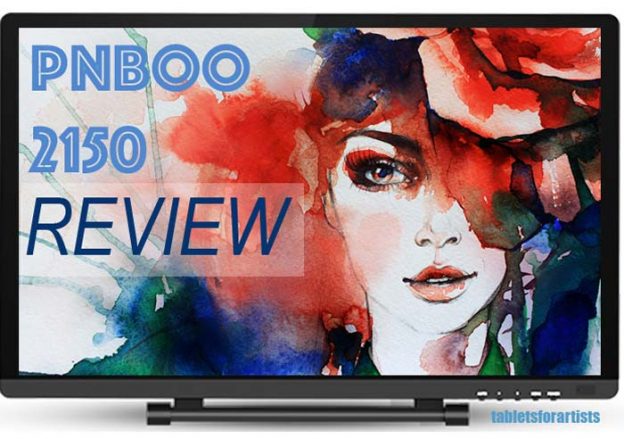
PNBoo PN2150 review: affordable graphics monitor

pnboo pn2150 review

PNboo PN2150 review: budget tablet monitor

Here’s a full PNboo PN2150 review and art program tests.

Pnboo graphics monitors are made by China’s Shenzhen Pnboo technology company. Their products are sold in over 100 countries.

This 21.5″ tablet monitor is a new offering, in the vein of Huion and Ugee tablet monitors known as Wacom Cintiq alternatives. These attach to a computer and provide a second monitor with a touchscreen and pressure sensitivity. PNBoo also sells a 15.6″ version they call the PNBoo 1560.

Here’s a video showing the pressure sensitivity in Photoshop. A pen test showing the tablet from the outside is below.

https://youtu.be/_fz4K5TjFwk

Type of tablet

Tablet monitor
Needs to be attached to computer

Type of digitizer

EMR (Electromagnetic Resonance)

Features

21.5″ diagonal screen
HD display
2048 levels of pressure sensitivity
batteryless pen (charges with cord)

Comes with: 2 pens, 2 pen power cables, screen protector, drawing glove, extra pen nibs. Cables: HDMI, VGA, USB, power cord, English user manual, CD drive. Drivers also available for download on the PNBoo site.

Drivers available for Mac and Windows.

Packaging

The Pnboo graphics monitor arrived safely nested in styrofoam blocks inside two inner boxes, one of which has a plastic handle, and one outer Amazon box. As with some other budget tablet monitors, the box containing the tablet was plain cardboard without any printing.

The PNboo comes with lots of accessories such as a glove, two pens, and screen protector. It also has numerous cables: USB, HDMI, VGA, and two pen charging cables.

It does not come with a Mac adapter, so you’ll need to have a mini display port or USB-C to VGA or HDMI adapter for your Mac.

Display

The HD screen is nice, clean and shiny, with no dead pixels. The black border is reflective. It’s about an inch wide on the top and bottom and a little thinner on the sides. The plastic screen isn’t too glossy. It doesn’t have a texture the way Cintiqs do.

The screen has a black border with no bezel, so you can run your pen right off of it, making it easier to draw right out to the edge.

pnboo pn2150 review

Build quality

The body has a pleasing design with a curved back. The back has a textured plastic that’s grippable. The plastic is not that thick, but the thing seems sturdy. I would not want to drop it. The back has a rounded design

There are air vents in the back, as well as speaker holes, which a lot of these types of tablets seem to have.
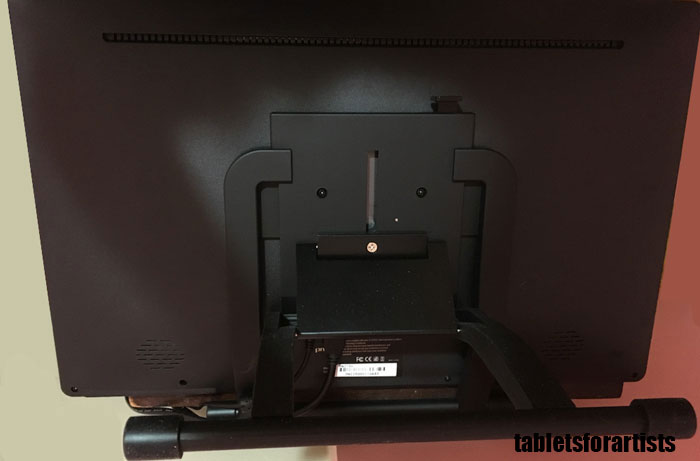
pnboo 2150 tablet monitor back

Adjustable stand

The metal stand is solid and adjusts easily. You pull up a lever and pull on the stand to lower it.

The ports for the cables are under a panel in the stand, which to me isn’t optimal. It’s harder to access them that way, and it makes it easier for them to get jiggled loose. The ports seem fine, not loose.

With the stand extended. the footprint of the stand and tablet from front to back is about a foot. The stand goes all the way back to about a 25-30 degree angle.

The stand has a rubber cover on each side of the bottom bars to keep it from slipping around or scratching your table.


PNboo stylus pen

The pen requires charging from a USB port. The cord is long enough that you can charge it and draw at the same time. The pen is lightweight, since it has no battery. It’s pretty thick but comfortable to draw with.  It’s the standard pen used with Huion, Ugee, and most other Chinese tablets. The pen has a blue LED indicator light that stays on while it’s charging. I charged it overnight, as there’s not a clear way to show if it’s fully charged.

Drawing on the PNBOO 2150

Here’s a quick pen test. This is using a thin pen.

https://youtu.be/P0pWPri5j9k


First off, there was that familiar squeak when I used the pen. I’ve begun the process of rubbing my hands on the screen to impart some oils from my hands to quiet it down.

Though it comes with a screen protector; I don’t use one unless a screen is too slippery, and I don’t find this one to be. I like the way the plastic pen tip feels on the bare screen. So for now, I’m living with the squeak. It’s that new tablet-monitor sound.

Software

Installing the driver was quick and easy. Even though I’d forgotten to remove a Wacom driver, the PNBOO 2150 driver installed and worked anyway. (I do recommend not forgetting to remove other tablet drivers you’ve added!)

As with most affordable graphics monitors, the driver functions are very limited compared to Wacom drivers. You can test and adjust the pressure curve from heavy to light. You can program the pen button to click toggle to eraser.

You can calibrate the screen and draw lines in different colors to test the pressure. But that’s all. You can’t program your favorite shortcuts into Photoshop and other programs.

Drawing on the PNBOO 2150

pnboostyluspen

The PN2150 comes with two of these stylus pens.

The screen came calibrated, but it could have been better. I recalibrated and it was more accurate afterward. On Mac, there was a 5-point calibration. The accuracy now is fine. Because of the glass, there’s a little parallax, but now there’s no offset.

I first tried Photoshop. The pressure curve is smooth and controllable. Some of the low-cost tablets have almost too springy a line but this one is very natural-feeling.

You have to apply a bit of pressure to draw. It’s not quite as sensitive as Wacom, where the inital activation force is really low, and even lightly dragging the pen without all the pen’s weight can leave a mark. On the PNboo, dragging the pen across it using the pen’s weight resulted in a very light line.

I have the settings on the lowest, requiring the least amount of pressure. I don’t like to press down much; it’s an individual preference. The Pnboo feels comfortable to draw on for me.

Art programs tested

So far I have only tested on a Mac. I plan to add Windows testing soon.

Besides Photoshop, the pen pressure and drawing works great in Gimp, Sketchbook Pro, Clip Studio Paint/Manga Studio, Inkscape, and Illustrator. Some of the cheap tablet monitors I’ve tried have had drivers that haven’t played well with Photoshop and Gimp right away, but this one seems perfectly attuned to the pressure settings in those programs. (I am working with clean installs of the programs, and hadn’t tweaked anything.)

This not being a Wacom driver, there’s no pressure sensitivity in Illustrator (Illustrator limits the pressure sensitivity to a couple of types of brushes). If you want to get pressure in vector, you can use Clip Studio Paint’s vector layers, but you can’t export the file type into other vector programs.

I experienced no lag or latency with any programs. The driver really works well.

You can draw with the pen plugged in, but let it charge for a while first.

Color

The display color is a bit warm out of the box. I fiddled with the menu on the display, which lets you adjust color temperature, brightness, contrast, and red/green/blue. This took a while, but I got it to a nice neutral white.

Pros

Nice design
Driver easy to install (in my experience)
Smooth, consistent drawing across programs
Comes with extra pen and other accessories

Cons

Features are basic: no programmable buttons
Cables on bottom of panel
Doesn’t come with adapter for Mac
Needed to fiddle with calibration and color settings

User reactions

So far this PNboo 2150 review seems to be one of only a few out there, but I’m sure that will change.

PNBoo 2150 vs. Wacom Cintiq

The PNboo 2150 has the same screen size as the Wacom Cintiq 21. It has the same HD (1920×1080) resolution and the same amount of pressure sensitivity as traditional Cintiqs (2048 levels. Newer Wacoms such as the Cintiq Pro and Wacom Studio Pro have more). 2048 is more than enough in real-world use.

The tablet has no programmable shortcut keys. It does not get tilt/angle sensitivity.
With the current stand, you can’t swivel it like you can with a Cintiq stand.

But, this costs a heck of a lot less.

PNboo PN2150 review: The Verdict

Though it required some adjusting of the settings, I found it took less adjusting in the art software I tried. I’m using fresh installs of these particular programs, so it’s not because I saved settings from before. Everyone’s system is going to have different things on it that could affect things but in this case it went well.

The tablet overall is pretty similar to the XP Pen, Ugee, and Huion ones that have no programmable keys.

So far the driver stands out for working well across programs, while the rest of the package is basic. It can do most of what a Cintiq can do. This tablet is a great starter tablet monitor, or one to keep.

The conclusion of this PNBoo PN2150 review is that it’s a solid addition to the budget graphics monitor lineup. It doesn’t have bells and whistles, but if you want to draw on the screen it works well. Recommended for students and artists on a budget or just those who don’t need the advanced features of a Cintiq.

See the PNboo PN2150 on Amazon

See/Buy on Amazon UK

Pnboo site: pnbootech.com

See more budget tablet monitors

Read intro post about top drawing tablets

End of PNBOO PN2150 review


google tilt brush

Google Tilt Brush app review: paint in virtual reality

Google Tilt Brush: sculpting in thin air

Google’s tilt brush app is a fun, free app you can use with Vive and Oculus Rift headsets. I gave it a whirl to try to compare it to the experience of drawing on a tablet.

tiltbrushappart

“Art” in the cosmos. (credit: Tablets for Artists)

The first thing is that the software is simple, comparable to a mobile app. It takes 15 minutes or so to learn your way around the app. The biggest challenge is sensory overload. It feels absolutely real. I suggest not doing things too quickly. I didn’t make much attempt to make a finished work of art, and am still a beginner. I can see that it has a lot of potential, and would take a lot of practice to get better control over it.

Drawing is a bit challenging because your sight line and angle easily changes. For instance, this virtual snowman’s carrot nose looked a lot better in the headset. And the 3D effects aren’t coming through with this brush. Even approaching the snowman was tricky; I learned I had to walk right up to it rather than trying to reach it.

Another issue is that in a hot room, the headset can end up sliding down your face due to moisture, which can make it harder to see the controls, and affect visibility of the whole thing. It works best in a cool, dry room.

tiltbrushsnowman

Alas, there’s no “corncob pipe” brush. (credit: Tablets for Artists)

Tilt Brush app lets you paint in virtual reality that you’re right in the middle of. The room is your canvas. Just put on your virtual reality glasses and fire it up. Anyone can use it immediately; it’s intuitive.

You hold a controller in each hand; I found myself switching brushes a lot with one and taking a lot of snapshots, videos, and gifs with the others. The virtual controller has brushes with strokes of fire, snowflakes, and stars. There’s a full color wheel and picker. You can have a lot of fun with the effects. One of the coolest ones is smoke, which produces a foggy atmosphere (reminded me more of fog than smoke).

Inside Tilt Brush, you’re in charge of the sky and the backdrop of your world. You can pick different environments, moving from skies to mountains. For gaming veterans, the interiors of Tilt Brush may feel like a step backward, as there’s nothing that fancy, no characters or elaborate worlds. But you’re the creator here.

You can import 3D objects and draw on them. This was a bit tricky due to the angles. There are even audio-reactive brushes that bounce along to tunes. You can paint along with others as a group. VR parlors provide equipment for kids to Tilt Brush at parties.

Google has enlisted artists-in-residence at the Google Cultural Institute in Paris to share their creations. They work in a range of media, from animation to murals to computer art, and bring these sensibilities to their Tilt Brush work. They created pieces including disembodied organic, geometric tangles; humorous game-inspired animation; a “junk robot” aesthetic; and, from a hip-hop artist, dancing light beams.

One of the importable objects is dress form. Why a dress form? One possible use of the app for clothing designers to quickly make 3D mockups using realistic fabrics and textures.

Tilt Brush brings the potential of digital art to a new level–that of sculpture. It can also be just fun way to doodle or play with friends. The app has recently gotten an update.

It’s definitely worth a try if you’ve got access to a headset or VR parlor near you.


See user-uploaded Tilt Brush sketches.

The Tilt Brush app itself costs about $20.00. it’s bundled with the HTC Vive. Share your Vive art in the Steam Community. You can also use it on Oculus Rift. Follow #tiltbrush on Twitter.


See article on the Mobile Digital Creativity Summi