Author Archives: Vicky

About Vicky

I'm an author and illustrator who has used drawing tablets since the early days. I love how flexible and forgiving they make everything. I'm also fascinated by the technology. I started this site to bring knowledge to everyone. I want this to be the only place you need to go to learn about drawing tablets.

2016 Digital Artist Holiday Gift Guide

2016  Digital Artist Gift Guide

Hard to believe it’s that time again–winter holidays of 2016! 2016giftguidepin


If you’ve got a pixel artist in your life, they’re probably looking for ways to enhance their creativity, work in comfort and style, travel with their tablet. They love traditional art supplies, too. To that end, we bring you our 2016 Tablets for Artists gift guide.

Will be adding to this page, so check back for more!


Apple iPad Pro

Elegant portable drawing solution with highly sensitive, tilt-enabled Apple Pencil (which needs to be purchased separately). Can be used as Cintiq-like input device with a Mac using the Astropad app.


Copic Markers

Sometimes you just need the smell of markers. Copic Markers are great for manga, marker rendering, sketching out logos, and everything else. Copics are alcohol-based, which is less toxic than solvent-based markers, but we like to keep a window open.


Tombow Dual Brush Pens

Tombow markers can be combined with water for beautiful blended effects. Tombows are water-soluble. The dual brush have a marker brush on one end and a marker tip on the other.

MAKING COMICS

by Scott McCloud. Learn to create comics, manga, and graphic novels from a master.


TONED TAN SKETCHBOOK

Drawing on medium-toned paper can make all the difference in your art. The Old Masters did it, and so can you.

Wacom Bamboo Slate

lets you create digital art or take notes, starting on paper. The notebook has its own memory, so you don’t need to snap a photo of your page. You open your pages in a mobile app. Wacom Inkscape lets you save to the Cloud. Comes with EMR digitizing pen. The older Bamboo Spark is similar.
The Moleskine Smart Notebook uploads your paper drawings from this classic artist’s sketcbook to Evernote after you you snap a photo using an iPad app. It then converts it into an SVG. There’s also a version with Adobe Creative Cloud.

SwissGear Travel Gear ScanSmart Backpack

A laptop backpack with extra pockets for a portable tablet that’s ready for airport security is a blessing. Most airports won’t make you take the laptop out, saving you time and hassle. It also has RFID protection from those trying to steal your info electronically.


Wacom graphics tablet

Read this post to figure out which one is best for your artist.
intousartpentouch


Handmade Leather iPad Pro Case

Beautiful and durable.


Case Logic WMBP-115 15.6-Inch Laptop and Tablet Backpack


Fujifilm INSTAX Mini 8 Instant Camera

Who doesn’t love instant photos? Take pics and have them on paper immediately with the . It has automatic exposure and a high-key setting perfect for portraits.


Aeropress Espresso Maker

Coffee! Without it, modern civilization wouldn’t exist. Whether that’s good or bad, we still need our fix. The Aeropress delivers a pungent cup in one quick blast. Geeks love it.


Computer Arts Magazine

Magazines keep artists on top of the latest developments. Computer Arts is a good one to follow to keep up with constantly changing tech.


Clip Studio Paint


Clip Studio Paint is an inexpensive art software program with a great brush engine.


Books on Creativity, Art, and Careers

BEGINNER’S GUIDE TO CREATING MANGA ART

This fascinating genre requires a lot of study,  but it can be learned.

This season will be special with creative gifts. And remember to check back, as I’m scouting for more swag.


Surface Studio review

Microsoft Surface Studio review: Supersize me?

Microsoft Surface Studio: big, skinny all-in-one

Microsoft Surface Studio review

At work using multitouch on the Microsoft Surface Studio.

Microsoft Surface Studio review

Along with the refreshed Surface Pro 4 with Performance Base, Microsoft has just released this large all-in-one, the Surface Studio, that will go nicely with a Starbucks Trenta (that’s the 31-oz. cup). How big is it? It’s 28″ and has lots of features, including four input methods for the touchscreen–with all that caffeine, you’ll be as productive a semi-octopus. I got to try it out and penned this Microsoft Surface Studio review.

Features

Resolution: 4500 x 3000 (192 DPI)
Color gamut: sRGB, DCI-P3, Vivid Color Profiles, individually color calibrated
Touch: 10-point multi-touch
Aspect Ratio: 3:2
Surface Pen
Zero Gravity Hinge that folds to 20 degrees

Processor: Quadcore 6th Gen Intel i5 or i7
Graphics: NVIDIA GeForce GTX 965M 2GB or NVIDIA GeForce GTX 980M 4GB
Memory:  8GB, 16GB, or 32GB RAM
Storage: 1TB or 2TB
Dimensions: 25.09 x 17.27 x 0.44 in. (637.35 x 438.90 x 11.4 mm)
Weight: up to 21.07 lbs (9.56 kg)
Ports: Four USB 3.0
Full-size SD card reader
Mini Displayport
headset jack

surfacestudiopin

Cameras: Windows Hello  5.0MP front-facing camera, 1080p HD video

What’s in the Box?

Surface Studio
Surface Pen
Surface Keyboard
Surface Mouse
Power cord

microsoft surface studio review

Surface Studio folded on Zero Gravity Hinge

Get  a free Surface Dial with pre-order: Shop Shop Surface Studio

The Microsoft Surface Studio has an amazingly thin, 12.5 mm 28″ PixelSense screen with 10-point multitouch and comes in models from i5 with 16 GB to i7 with 32 GB RAM. With a light touch of the Zero Gravity Hinge, the screen folds to any angle down to 20 degrees, similar to the angle of a drafting table. This is positive, because 20 degrees is the best angle for ergonomics–it’s “neutral” on your wrists.

The GPU options are 2GB NVIDIA GeForce with 1 or 2 TB memory. You should be able to have lots of fun and games on those. It even has XBox Wireless built in. Though its primary use will likely be art and design, can use it as an entertainment center, art studio, monitor, or very expensive drafting table.

The lower-end models of the Surface Studio, if you can call something this fancy lower-end, use the GTX 965M and the highest-end one has the GTX 980M. Both of these are from last year, and considerably less powerful than the latest GTX 1070. So if you’re working in CAD programs, it won’t be the fastest that’s possible. For Adobe programs and most 3D use it would be fine.

Surface Dial and Mouse

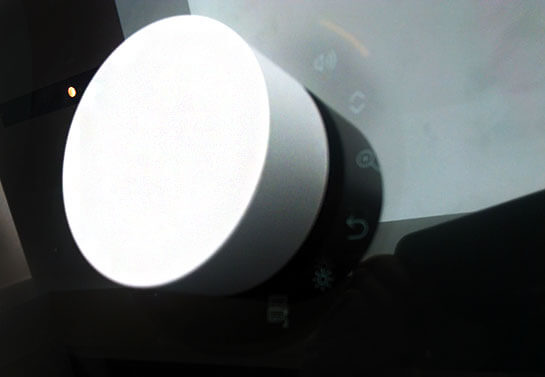
The Surface Dial is a sleek-looking puck that reminds me of gizmos of the future from the movie Sleeper. You place it on the screen, where it can open up the Radial Menu, or use it as a color picker. It’s even got haptic feedback. You turn it to access various settings, such as opening up menus of tools, palettes, or brush options. The dial has a black magnetic bottom that gets some traction on the screen, but doesn’t stick like a refrigerator magnet, you have to hold it.

The curvy Surface Mouse also can be used directly on the screen. So there are four possible touchscreen options–the mouse, the dial, the pen, and your fingers. Perfect if you like to accessorize. The Dial may feel gimmicky, and if you’re into keyboard shortcuts, turning the Dial may slow you down. Others may enjoy its tactility.

Adobe didn’t work with Microsoft on the Radial Menu, so it doesn’t offer granular support for the programs, and it’s not customizable in the same way as Wacom ExpressKeys. You make adjustments in Windows Settings. The dial will work via Bluetooth with the Surface Pro 3, 4, and Book (Surface Pro 3 and up) but the on-screen functions will only work on the Surface Studio.

It’s not that easy to say what the advantage is over something like the Wacom Feel Driver’s on-screen radial menu for tablet PC. That’s not an option for the Surface, but if you prefer an easily accessible on-screen menu, you might want to try the Tablet Pro app.

microsoft surface studio review dial

Surface Dial with Radial Menu

The power cord comes with a release grip, which is convenient since you might not be moving this around that much.

Screen

The screen is glossy, and if you don’t want that you’ll probably need a custom-made screen protector. With 13.5 million pixels, it’s 63% over 4K. Or, since the Surface Pen has a variety of nibs, some of which provide some bite, you could draw with one of these nibs. You can quickly switch color profiles, which are individually calibrated.

The sharp resolution, individualized color profiles, endless angle adjustability (to 20 degrees) and inviting 3:2 aspect ratio all make quite a feast for art. Adobe RGB Is not specifically supported; instead it’s DCi-P3, 25% larger than sRGB and similar to the iMac Retina.

Portability

Not much. But at around 21 pounds, it’s more portable than some desktops. And it looks really nice. The Bluetooth keyboard is full-size but light, with good key travel.

The Microsoft Surface Studio is basically a huge Surface Pro 4 with higher specs. Storage won’t be a problem, at least not for a while, with 1 to 2 terabytes.

Battery Life

9-16 hours, not bad at all.

Drawing on the Surface Studio

The Surface Pen is included, and gets 1,024 levels of pressure sensitivity via its N-trig digitizer, and same with its eraser end. That’s a far cry from the new, compact Wacom MobileStudio Pro‘s 8,192 levels, but hey, who’s counting. 1,024 is plenty and enough for a smooth pressure curve. S

However, compared to Wacom’s offerings, the Surface Pen isn’t quite there in terms of fluidity, and there’s no tilt or rotation sensitivity. It also requires more pressure than a Wacom pen to make a mark on the screen.

With something this expensive, it’s disappointing to not have tilt. It seemed like less of a compromise in the smaller Surfaces, since those were portable and could replace laptops and tablets. But this is a studiobound art tablet. It has lots of redeeming features, including the thinness, hinge, and relative lightness, as well as all the other good stuff (like the way over 4K display). This could work very well for photo editing.

The Zero Gravity Hinge  with 80 custom-set springs feels wonderfully weightless and the screen simply floats up and down, coming to a firm rest at 20 degrees–it doesn’t go all the way flat. As with the computer’s smaller cousins, the Surface Pen sticks magnetically to the upper-right side of the frame.

The screen is glossy, but not glarey and it doesn’t feel too slippery. It didn’t bother me that there was no “tooth” or screen protector.

The Studio would suit some people great, but others might prefer something Wacom. You can read some creatives’ reactions to the Studio in this Endgadget article. One who gave a quick Microsoft Surface Studio review lamented the lack of tilt sensitivity.

Pros

Gorgeous display would impress clients
Effortlessly adjustable hinge goes to ergonomically sound 20-degree angle
Will work with Creators 10 update focused on 3D and augmented reality
NVIDIA GPU
ample ports
full touchscreen, pressure sensitivity
3D-friendly
Pen has several nibs with varied textures
Dial has a lot of potential in future applications including Creators 10

Cons

Pricey (though Microsoft says it’s a great value, and you are getting a lot, but still)
Lack of tilt sensitivity for pen
Processor not the fastest or latest

The Verdict

I’m a bit wary of investing this much into an all-in-one, because of the speed at which computers obsolesce. You can keep a Cintiq around longer than the average computer, and Cintiqs hold their value longer. The Cintiq Companion 2 and the Wacom MobileStudio Pro can be attached to a larger monitor so that you can draw on and see your creation on the larger screen.

The Surface Studio is not the first large all-in-one, but it’s certainly the most powerful. Some Wacom-alternative companies have put out all-in-ones but they are seldom seen, and don’t have high specs like this one.

The Surface Studio has great build quality. Its hinge is graceful. There are plenty of ports. It’s gorgeous and would wow clients who walk in–which can be quite valuable.

If size and power are what you need, and you want the convenience of the hinge, this might be all you need.

Get a free Surface Dial with pre-order: Shop Surface Studio

end of Microsoft Surface Studio Review

tabletswithusbports

Tablets with USB Ports 2016

Full size, 3.0, 2.0, C, micro USB… what does that have to do with tablets?

tablets with usb ports

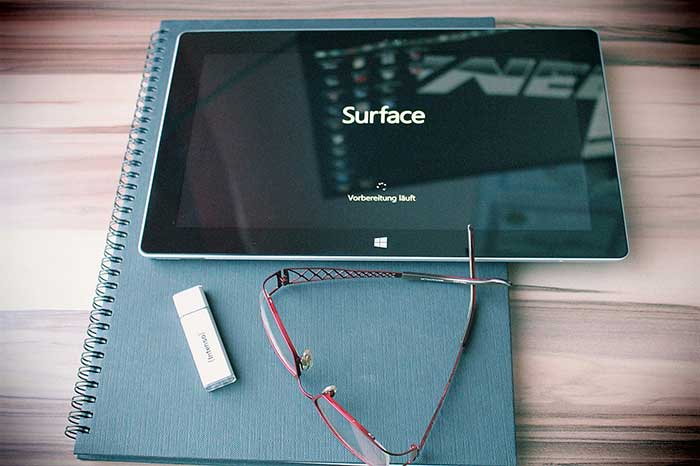
Surface tablet with USB stick

This article will give you the basics about tablets with USB ports. A tablet is a lot more useful when you can connect other devices into it. Different types of tablets have different sizes and speeds of ports.

You may be looking for a tablet with a USB port that’s full-size so you can hook up a mouse and keyboard, hard drives, printers, card readers, USB sticks, other peripherals, or even fun USB gadgets.

To use these devices, your tablet must become a USB host. Most portable tablets have micro-USB ports. If a tablet says it has USB 2.0, 3.0 etc., that refers to speed, not size, so you can’t assume it means a standard, full-size port. So if a full-size port is important to you, you need to choose your tablet according to this need.

OTG (On-the-Go)

To make your Android tablet into a host, you can usually use an inexpensive Micro USB OTG (On the Go) cable, thus named because of the portability of tablets. Some tablets come with the cable. Not every tablet supports OTG, so you need to check first.

OTG does have some power limitations. The devices you connect via the cable are the USB clients.

USB hubs

The tablet’s battery will be the power source for the peripheral (which is the thing you’ll be connecting to the tablet). If the peripheral’s power needs are more than the OTG cable can handle, you can use a powered USB hub.

A USB hub, powered or not, will also let you connect several devices at once.

Some cheap Android tablets may have a micro USB port that cannot become a host and is only there for charging the tablet, but most are capable of accepting OTG and many come with the OTG cable.

Tablet with USB port: Windows

The main tablets with USB ports are full Windows tablets and tablet PCs, such as the Surface Pro and Vaio Z Canvas and Lenovo Yoga 900. You can also use the older Surface 3 and Surface RT. These full tablet PCs will also have other ports such as HDMI to support external monitors and TVs.

The Windows 10 tablet by Fusion 5 is a portable tablet (not an art tablet) with a full-size USB.

Most Android tablets have USB 2.0, which doesn’t transfer data as quickly. Some Windows portable tablets, such as the Cube i7, have micro USB 3.0.

IPads have a Lightning port and come with a Lightning to USB cable, whether iPad Pro, regular iPad, or mini.

In PCs and desktop computers, USB 3.1 is the current standard. This is faster in transmitting data than 3.0 and 2.0. USB-C is a newer type of port that will likely become the standard for many types of devices. It can take the place of other ports, including one for charging and HDMI. Some Android tablets have USB-C.

Want more info? This Wikipedia article  goes into much more detail about USBs. This Forbes story tells you all about USB-C and why it’s turning things upside-down.

Android

Here are some Android tablets that have full-size USB ports. These are NOT art tablets–while they are touchscreens, to be art tablets they would need a pressure-sensitive touchscreen.

Google Pixel C

The Google Pixel C has a USB-C port, so it’s ready for anything. This Android tablet is thin and powerful, with a battery life of 10 hours. It’s got a really sharp screen: 10.2″ with 2560 x 1800 (308 PPI), and an NVIDIA Tegra X1 with Maxwell GPU. Would that our art tablets had these kinds of specs.

Dragon Touch X10

Dragon Touch X10 octacore Android tablet PC

Dragon Touch X10 octacore Android tablet with USB port

The Dragon Touch X10 has both a standard USB port and a mini HDMI port. Its Octa-Core CPU and  Octa-Core high-speed PowerVR SGX544 GPU will keep games going fast. It’s got a 10″ IPS screen that’s not high-res, but has good viewing angles.

If a tablet with a USB port is important to you for reasons such as attaching printers, you may be better off with one of the full Windows tablet computers above.

Pretty soon we’re likely to see lots of tablets with USB-C’s, but for now they’re still relatively rare.

It’s a good idea to have something like this Sabrent USB hub so you can use your port to multitask. The Sabrent is compatible with both USB 2.0 and 3.0. When buying accessories, be sure to check your device’s compatibility.


end of tablets with usb ports


best laptop for photoshop

Best laptops for Photoshop and photo editing: 2016-2017 picks

Top laptop and 2-in-1s for photo editing, Photoshop
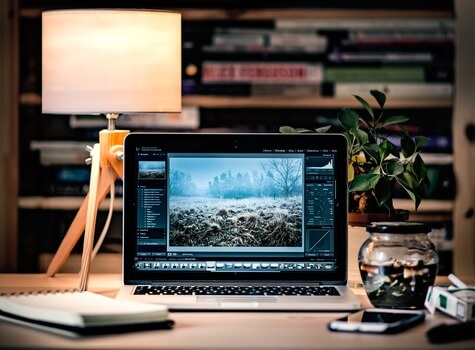
best laptops for photoshop

What’s the best laptop for Photoshop and photo editing? While desktops can pack a lot of power, laptops have come a long way. Many people need the portability, lap-ability, and space-saving qualities of a laptop or 2-in-1.

The best laptops for Photoshop painting, or photo editing in Photoshop and Lightroom, have to serve many purposes. Certainly you need something powerful for working with large files in high quantities. You also need a high-res screen and good color quality, preferably wide gamut.

Some believe you need a laptop suitable for gaming in order to run Photoshop well, but this isn’t the case.  What’s more important is having the power of a mobile workstation. You can use many laptops for photo editing, but certain features make for an optimal experience.

Best laptop for Photoshop and photo editing: what to look for

Here’s a handy chart showing our top choices so far for 2017.

Best laptops for Photoshop and photo editing 2016-2017
MacBook Pro Retina 15
NVIDIA GeForce GT 650MSee it on Amazon
Dell XPS 15
Dell-XPS-15
Multitouch option
Nvidia 960M graphics
See it on Amazon
ASUS ZenBook Pro UX501 VW 15.6" 4KNvidia GTX960M GPUSee it on Amazon
Lenovo ThinkPad P40 YogaQuadro M500M Discrete Graphics with 2GB VRAMSee it on Amazon
Vaio Z Flip
(Vaio Z Canvas, pictured, also recommended)
vaioz-canvas
Pen tablet with pressure sensitivity, N-trig, 1,024 levelsSee it on Amazon

See our Vaio Z Canvas review
Surface Pro 4
microsoft surface pro 4 with surface pen
Pen tablet with pressure sensitivity, N-trig, 1,024 levels
128MB Intel HD Graphics 520
See it on Amazon

See it at Microsoft

Read our review
Surface Book

microsoft surface book review
Pen tablet with pressure sensitivity, N-trig, 1,024 levels, optional NVIDIA GeForce GTX 965M 2GB GDDR5 memory See it on Amazon

See it at Microsoft

Surface Book

Wacom MobileStudio Pro

Wacom MobileStudio Pro. Source: Wacom

Pen tablet with pressure sensitivity, Wacom, 8,192 levels

NVIDIA Quadro M600M 2GB GDDR5 to NVIDIA Quadro M1000M 4GB GDDR5
See it on Amazon

Processor

An Intel i7 is the best option for handling the demands of Photoshop. You should at least get an Intel i5. Xeon E3 is another processor that’s strong enough. If an i7 is too pricey, an i5 will work.

CPU
At least dual core, quad core is fine too. Photoshop doesn’t always take advantage of all the cores available.

SSD
An SSD, or solid state drive, is faster, quieter, and more reliable than a hard drive (HDD). It does cost more. Another option is a hybrid SSD/HDD is more affordable and delivers most of the benefits of an SSD.

Memory
If you don’t want to spend a lot on a computer with a ton of storage, you could get a 256 GB or 512 SSD, and a 1TB external hard drive to store your art and photos for the long term. It’s a good idea to have multiple backups, on drives as well as in the Cloud.

Keeping layers makes files much larger, so flatten layers when you can. Some laptops have space for additional storage drives.

Screen resolution
A high screen resolution such as Retina, 4K, or UHD will really let you zero in on pixels. You’ll be able to see some large files in actual size instead of partial. Most programs by now have adjusted scaling so text and icons won’t show teeny-tiny on a high-res screen. This may still be an issue with older software. With programs that have not adjusted, you can dial down the resolution by adjusting it in your display settings.

Matte vs. glossy
Matte is better for screens because it’s less reflective. If you work indoors and can control lighting, then glossy is okay, but outdoors it can be hard to see. It also tends to exaggerate brightness.

IPS
An IPS display is important because it provides good viewing angles. You don’t want your image to become invisible to you because you looked at it from the side.

Screen size
Laptops mainly go from 11 to 17″. We favor 15,” as being portable but large enough to see what you’re doing. If compactness is a priority, then 13″ is OK. Eleven is too small to be very productive.

Operating system
Mac or Windows will both do equally, it’s a personal preference. They both support Adobe programs. Chrome OS does not.

Color gamut
While average laptops cover about 60-70% of the sRGB color gamut, for Photoshop, you’re better off getting one that has around 100%. Some also have some or all of Adobe RGB color gamut. Adobe RBG can look oversaturated on the screen; if you have one with Adobe RBG, it will allow you to switch to sRGB.

You also have the option of using a good external monitor for color-sensitive work, and using a calibrator on your laptop. I don’t think it’s necessary to get all the Adobe RGB on a laptop, as working on a larger external monitor is preferable. Some of the best laptops for Photoshop and photo editing include the Adobe RGB gamut, and others do not.

Pen (optional)
As you can see, this site focuses on pen tablets. But many people attach tablets to a computer, so this post includes laptops that have no pen.

A pen allows accurate input without attaching an additional tablet. It’s an option in deciding what features you want in the best laptops for Photoshop. When photo editing, it’s easy to cut out backgrounds, make quick masks, and selectively do things like burn in small areas. If you don’t get a pen tablet, you can attach a separate graphics tablet to your laptop.

Battery life
Battery life is important, unless you always work indoors. The same features that boost performance also drain the battery, including high-res screens, fast graphics, and a fast processor. So you want to get a balance of features and good battery life.

Ports
To connect an external monitor you will need an HDMI, DisplayPort, or, older, a VGA. To connect a Cintiq, you will need an HDMI. If your laptop has a VGA, you can use a VGA to HDMI adapter. To connect a graphics tablet, you just need a USB. All laptops have full USB ports, usually USB 3.0 or USB-C.

Do I need dedicated graphics?
This is a common question and one surrounded by confusion and misinformation. In short, the answer is no. Discrete, or dedicated, GPUs are more important for gaming and 3D rendering and intensive video editing than they are for most digital art and photo editing. They will give you a performance boost in Photoshop, but are not required.

Photoshop doesn’t access the regular GPU that much–it’s there for certain functions, including blurs and image rotation. If you do want the discrete GPU, preferably use an NVIDIA with 2 GB or more memory.

There are many great laptops for photo editing and creating art in Photoshop. Here are our favorites in 2016-2017:

MacBook Pro Retina

Many creatives opt for Macs. Using Photoshop on a Mac is not any different than using it on a PC. A long time ago, it was, and, largely from tradition, graphic designers have largely stuck to Macs. Also, the MacBook Pro is color-managed. There’s a 13- and 1- inch option, and integrated graphics. The MPB covers about 99% of sRGB and 88% of Adobe RGB. With its beautiful display and powerful processor, it’s a top laptop for Photoshop.

Dell XPS 15 Touch

The Dell XPS Touch and non-Touch are also top choices. It has  over 100% of both Adobe RGB and sRGB. It also has discrete NVIDIA graphics. The highest end has a 4k touch IPS display (3840 x 2160), 3 million more pixels than the Macbook Pro. Spec-wise, this Dell laptop is is equal  to or even better for photo editing than the MacBook Pro.

See Dell XPS 15 Touch on Amazon

Read our review of the newer Dell XPS 13 2-in-1 if you’re wondering. In short, it’s a fine laptop but a bit  less powerful than the first XPS.

ASUS ZenBook Pro UX501VW

This 15.6″ Touch IPS sports and 4K Ultra­-HD display, 3840 x 2160 resolution, Intel Skylake Core i7­-6700HQ 2.6 GHz Quad­core CPU and Nvidia GTX960M GPU graphics suitable for gaming. You shouldn’t have any problem tackling photos or with demanding rendering tasks such as using filters.

See the ASUS ZenBook Pro UX501VW on Amazon

Best laptop for photo editing: pen tablet PCs

Want the added accuracy and sensitivity of a pressure-sensitive pen? These laptops have touchscreens that are like Wacom tablets, delivering great accuracy and allowing you to sensitively edit your work using a stylus. I believe the best laptop for photo editing has an active stylus.

Surface Pro 4

If you want a laptop with a pressure-sensitive pen, the Surface Pro 4 is an excellent choice, though the screen is pretty small. Its compact size is perfect for when you’re scrunched into an airline seat.

Surface Book
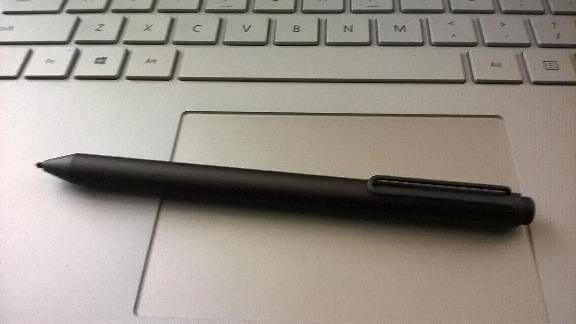
surfacebooktrackpad

Surface Book pen and keyboard

The Surface Book is Microsoft’s laptop-first detachable 2-in-1 pen tablet. One configuration of it boasts NVIDIA graphics.

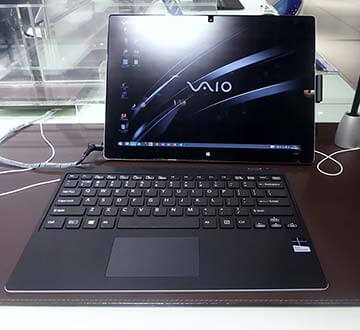
Same with the Vaio Z Canvas (read our review)–which has a healthy battery life. This remarkable 2-in-1 is as powerful as a mobile workstation and good for video editing as well as Photoshop. Drawbacks? The display isn’t very big (that can be good or bad, depending) and the keyboard lacks a backlight. But it’s a powerhouse.
best laptops for photo editing

Vaio Z Canvas with keyboard.

Lenovo ThinkPad Yoga X1

The Lenovo ThinkPad Yoga X1 delivers excellent color accuracy, over 100% of sRGB, and is Wacom AES penabled. There’s an OLED option. See more about Lenovo tablets.

WACOM OPTIONS

The Yoga X1 has a Wacom digitizer, but the computer is not made by Wacom and doesn’t have the controls that make for the Cintiq workflow. Cintiq controls can really speed up your work whether you’re painting or photo editing.

Wacom’s new MobileStudio Pro and Cintiq Companion 2 provide these express keys and rocker ring. While some criticize the CC2’s less than stellar battery life and noisy fan, it’s still great for digital painting and photo editing.

Read our Wacom MobileStudio Pro review

Wacom MobileStudio Pro


Wacom MobileStudio Pro

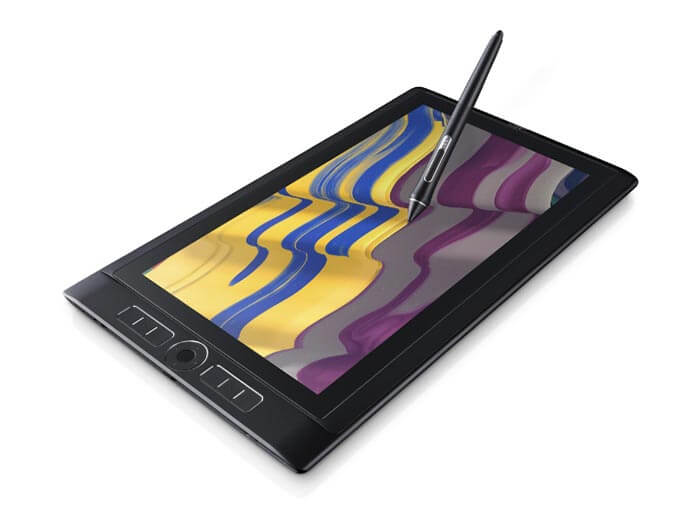
Wacom MobileStudio Pro. Source: Wacom

This recent offering from Wacom comes in two sizes, the 13 and 16. It’s a very powerful slate tablet. The 16 has an option with dedicated graphics and even a 3D camera. If you want to be able to carry just one thing around, this will serve your needs. You can also purchase the Wacom Link and use it as a Cintiq, attached to a Mac or PC. See our Wacom MobileStudio Pro review.

See the MobileStudio Pro on Amazon
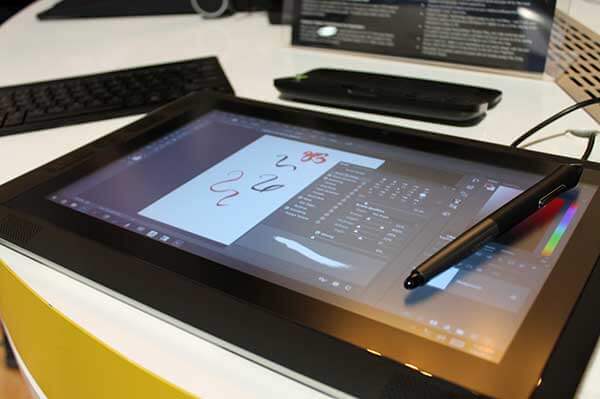
 

cintiqcompanion2

Cintiq Companion 2 (see on Amazon)

The Cintiq Companion 2 is the predecessor to the Wacom MobileStudio Pro. It comes with more extras than the MobileStudio Pro. While it doesn’t deliver all the power of the MSP, it’s still very good for photo editing and Photoshop. You also have the option of using any Mac or PC with an attached pressure-sensitive tablet.

Hope this article has helped you pick one of the best laptops for Photoshop and photo editing for your needs. If you’ve got further suggestions, leave them in the comments.


Best art tablets 2017: reaching for the stars

 Best drawing tablets 2017

Wacom Cintiq Pro and Pro Pen 2

bestdrawingtablets2017

Top art tablets 2017: a look ahead

Best drawing tablets 2017: which will it be? It looks like we will see the best tablets yet this coming year, including the promising releases of late 2016. Some older items are getting a refresh and totally new and different tablets are hitting the market.

(For our top 2016 picks, please see the chart in our homepage article “Find the best drawing tablet.”)

A key trend has been greater integration with the real world, such as the ability to use real pens, pencils, and paper. That already existed in digital notepaper like the Bamboo Spark, which is a paper notebook with a built-in digitizer. But some new products have streamlined and improved upon this idea.

wacommobilestudiopro

Wacom continues to dominate the industry provide the most advanced drawing tablet features, including increased levels of pressure sensitivity (8,192), pressure sensitivity in Adobe Illustrator, and barrel roll (rotation sensitivity, meaning you can roll the pen and make patterns, a feature supported in their higher-end tablets with a specific pen).

Best drawing tablet 2017: Wacom MobileStudio Pro

Their new offering, the Wacom MobileStudio Pro (read our article), is a powerful Windows PC in portable form. Professional illustrators and animators may pick this as the best drawing tablet 2017. The company has gotten away from the 2-in-1 model, so you will need to use your own external keyboard with it. This is an art-first tablet that’s not trying to be a laptop as well. With a strong, protective case, you’ll be feeling super and safe from anything, even Kryptonite. See the different versions on Amazon.


And now there’s the new CINTIQ PRO

Wacom Cintiq Pro

Specs: Cintiq Pro13 HD (1920 x 1080), 87% Adobe RBG
Cintiq Pro 16, 4K (3840 x 2160), 94% Adobe RGB
Pro Pen 2 is improved with 8,192 levels, no parallax
Both have fold out-legs
Connects with a single cable
Multitouch
Optional ExpressKey Remote
.


Released Dec. 31, 2016. See it on Amazon

Microsoft Surface Studio 28″ All-in-One

Surface Studio with Surface Dial

Surface Studio with Surface Dial

The new Microsoft Surface Studio is a large-scale art tablet that comes with a Surface Pen. It’s big and so is the price. The optional Surface Dial lets you open menus and also acts as a color picker. The 28″ PixelSense screen at 192 DPI give you lots of space and sharpness. It’s got a 3:2 aspect ratio and Adobe RGB as well as DCI-P3 and Vivid Color Profiles. This is for power users. It’s available for pre-order and the co. is at present offering a free Surface Dial.
See more and check price on the Microsoft Surface Studio

Word on the street is that Dell is coming out with something similar (OEM) and the puck looks black!

Lenovo Yoga Book

Lenovo surprised us by releasing the stylish Yoga Book, which attaches a pressure-sensitive graphics tablet that also serves as a touch keyboard. The stylus has dual nibs, one of which is a real pen with real ink that will digitize from real paper placed on the tablet. It’s certainly one of the most interesting, and portability wise it may be one of the best drawing tablet 2017 in the graphics tablet-tablet PC category–it’s also the only contender.


best drawing tablet 2017

Lenovo Yoga Book

Besides the analogue ink, the advantage for artists is the closeness of the tablet to the screen, eliminating awkward positions and the need for another keyboard. The Yoga Book bends into many positions, and the screen part, while not pressure sensitive, is a touchscreen with Lenovo AnyPen tech. The portability, flexibility, looks, and affordability of the Yoga Book has won it fans.

Microsoft has just refreshed the Surface Pro 4 with NVIDIA graphics and a much longer battery life. They’re calling it Performance Base. Not new, but improved.

The Surface Pro 5 should be making its appearance in 2017 as well. There’s always more Microsoft can add to get it to be a truly mobile workstation, and, if they add the Microsoft-Wacom universal pen, it could well be the best drawing tablet 2017 in the tablet PC (non-Wacom) category.

Samsung is updating its Galaxy Tab A with S Pen with something even better–an HD version. The Galaxy Tab A 10.1 will have an HD display, 3GB of RAM, 16GB storage, and a lonnggg 13 hours of video battery life. Coming in late October 2016.

Huawei will be coming out with new Matebooks in 2017 that rival the Surface Pro 5’s specs,. They may be aimed more at the Chinese market, but we’ll see.

Best Graphics Tablet 2017

We still recommend a Wacom Intuos Pro and favor the medium size. Once called the Bamboo line, these are considered the best graphics tablets. They pack advanced features and have many sizes and models to choose from. Every one of them comes with a high-quality Wacom EMR digitizer and battery-free pen. Wacom is sure to still offer the best graphics tablet in 2017, as it has been a top art pick in 2016.

For something more affordable, the Huion 610 Pro offers a lot of the functionality of Wacom for a much lower price. However, it lacks advanced features such as tilt and rotation. We recommend this for those who have a bit of computer savvy, but it’s a popular choice with an excellent pressure curve. Monoprice and Turcom also offer value.

Best portable digital sketch pad 2017

Lower-cost tablets with screens and styluses are popping up. The Acer Spin 1 is aimed at students. It’s a pressure-sensitive tablet that’s portable and doesn’t have the most advanced specs, but it’s heartening that this technology is getting more accessible to those on a budget. The Spin 5 will be a more robust version of this portable Windows tablet PC.

Late October (the 28th) brings a new and improved Samsung Galaxy Tab A with S Pen with a 10″ HD display, more memory, and more power. The main drawback of the 9.7 was its low screen resolution, so this is a step up for this popular Wacom-penabled art tablet.

Looks like the next-gen iPad Pro will be with us soon. Hard to say how they could improve upon the Apple Pencil. We feel the iPad Pro will be the best drawing tablet 2017 in the mobile category. While we still prefer desktop programs, mobile apps for drawing are getting better and better.

Wacom competitors moving forward in 2017

Artisul, XP-Pen, Bosto, Huion, and Ugee are all continuing to, trying to catch up with Wacom, as well as competing with each other. Huion is coming out with some new tablets with screens. XP-Pen will be updating their well-received XP-Pen 22 tablet monitor. You never know, maybe one of these companies will put out the best drawing tablet 2017, or some later year.

3D sculpting and printing

Wacom hasn’t put out all-new software for their Intuos in a while, so the release of the Wacom Intuos 3D is a big step. It’s a regular Intuos tablet with software by Pixologic. It ties into to 3D sculpting and printing so you can add those easily into your workflow, and will provide feedback to make you feel like you’re really manipulating 3D objects.

2017 will be bringing some top art tablets and ones that are just trying new things. It looks to be a very creative year ahead.
end of Best Drawing Tablet 2017