Last updated Monday, March 20, 2017
What’s the best Wacom tablet for your needs? Understanding the Intuos and Intuos Pro lines
Wacom Graphics Tablets 2018 (non-screen)
| Wacom Intuos (2018) | New version with 4096 levels, Bluetooth, no multitouch. Smaller and lighter. 4 Express keys. | Read our detailed article comparing the 2018 Intuos to the previous one.
See it now |
Wacom Intuos Pro Medium (2017)
 | Professional tablet allows you to customize controls per app.
Multitouch, gestures. 8 customizable Express Keys.
Pro Pen 2 has 8,192 levels of pressure, and tilt. | See on Amazon
Read our review
|
Wacom Intuos Pro Paper Edition
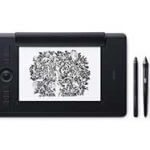 | Intuos Pro plus digitizing real ink pen and paper.
Save your work to the Inkscape App. 8,192 levels, tilt. | See it now
Read our article |
Wacom Art Pen & Touch line
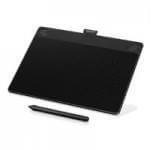 | For hobbyists or beginners.
Models are Art, Comic/Manga, Photo, and 3D.
Each is the same tablet with different art programs.
Intuos Pen gets 1,024 levels. | See Art Pen & Touch line
Read our review
|
Wacom Intuos Draw
 | Simplest, good for beginners.
No touch function. 1,024 levels. | Check price
|
Old Intuos Pro (up through 2016)
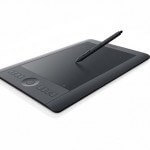 | Multitouch, gestures.
Medium and Large have 8 customizable Express Keys. Small has 6.
If you want an Intuos Pro Small, this is it.
Pro Pen, 2,048 levels. | Check price |
This chart gives an overview of Wacom Intuos Pro and Intuos drawing tablets, with photos, features, and links. It illustrates the accompanying article, "How to Pick the Best Wacom Tablet: Intuos graphics tablets." Each tablet comes with a pen.
This article covers facts about the Intuos line and how to pick the best Wacom tablet, whether you’re a beginner, hobbyist, or professional artist or photographer.
Wacom graphics tablets: from Bamboo to Intuos Pro
Choosing the best Wacom tablet is not always easy. On Wacom graphics tablets you do not draw on the screen, but on an opaque tablet attached to a computer. Wacom tablet monitors where you draw on the screen, such as the Cintiq, are not the same thing. The chart provides links to corresponding Wacom tablet reviews on this blog.
Most artists getting into digital art begin with a graphics tablet rather than a tablet with screen, since this category has the most affordable options. Still, there are some tablets with screens that are less costly than the top graphics tablets.
Click here to see Intuos comparison chart with additional details.
Wacom, a Japanese company, is the leader in the art tablet market. Wacom drawing tablets are the most popular, and considered to be the best quality and they tend to cost more. The best Wacom tablet for your needs is not necessarily the most expensive one.
With a Wacom tablet, you can draw with a natural feeling, and get great accuracy in photo editing. You can do handwriting, sign documents, and cut and paste. With the pen and touch line, you can use your hands to do gestures such and panning and zooming.
Wacom Bamboo
You won’t see the Bamboo line in our list of best Wacom tablets. Why? Bamboo used to be the standard name for Wacom graphics tablets, but the company renamed the Bamboo line into the Intuos, leaving a few in the Bamboo line, mainly signature pads that don’t have the advantages of the more fully-featured Intuos graphics tablets.
Many people still refer to Wacom tablets as Bamboo, since the Bamboo line was made for a very long time. Wacom still updates Bamboo drivers. The company also make some pens and styluses bearing the name Bamboo.
Intuos (2018)
In 2018, Wacom updated its non-pro Intuos series. The main differences are that the 2018 gets 4,096 pressure levels with the included 4k Pen. And the Intuos now has Bluetooth (except for one lower-priced model). BUT to keep the price down, Wacom has removed the touch feature. Read my detailed post about the 2018 Intuos.
Intuos Pro (2017)
The Intuos Pro 2017, Medium size, is the most popular Wacom tablet among artists and designers. With its ample size and professional features, it’s the gold standard of graphics tablet. The 2017 model is an upgrade over the old Intuos Pro. The pen now has 8,192 levels of pressure instead of 2,048, and the tablet is thinner. There is less lag when using the pen.
Our top pick is the Intuos Pro Pen and Touch Medium.
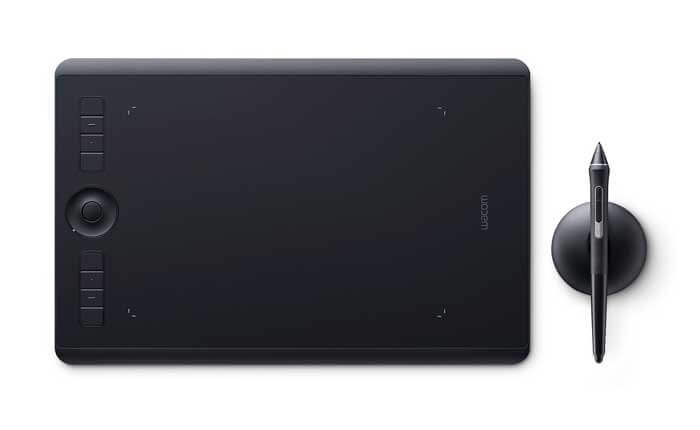
Intuos Pro 2017 with Pro Pen 2. Image courtesy Wacom
It has 10 nibs (not all different), 4 of them felt tip. The pen stand is flatter and more pucklike. The Pro Pen 2 can also be used on the Cintiq Pro and MobileStudio Pro.
Intuos Pro Paper Edition 2017
The Intuos Pro Paper Edition is the same tablet as the 2017 Intuos Pro, but the Paper lets you use real ink and your favorite paper, which attaches via an included clip called, of course, the Paper Clip.

Intuos Pro Paper Edition with Pro Pen 2 and pressure-sensitive, finepoint gel pen. Image courtesy Wacom
It comes with the Pro Pen 2, as well as a pressure-sensitive, fine-point gel pen. The gel pen looks like a regular pen and is Bamboo brand. There’s also an optional ballpoint pen. In mid-2017, Wacom plans to release a pencil.
With the Paper Edition, you use the Inkscape App, either online or via mobile app. The app has a free and pro version. The pro version lets you collaborate with others, vectorize raster art, and offers more memory (50 GB instead of 5).
Even if you’re not online, the Paper Edition tablet will store 200 files with multiple layers, or 1000 single-layered files.

Intuos Pro Paper Edition with Pro Pen 2 and pen stand
The paper the tablet comes with is just regular paper, not some special kind. You can use any paper of reasonable thickness. An optional purchase is three different texture sheets you place over the tablet that simulate different paper surfaces. The Intuos Pro Paper Edition only comes in Medium and Large.
If you get the Intuos Pro, you can add the Paper accessories later.
Top Wacom tablet: Intuos Pro Paper
If drawing on paper is a feature you want, the Paper Edition may be the best Wacom tablet for you. The choice of pens and papers, the plan to issue a pencil, and the optional drawing-surface sheets make this a fun and sophisticated tablet.
With the regular Intuos tablet, you CAN put paper over the tablet and trace over the drawing with the Pro Pen 2 with varying results depending on the paper thickness. Though it’s not the same as using the ink pens of the Paper Edition, but if you miss the feel of paper, it’s an option.
Wacom Intuos tablets: Intuos Pro vs. Intuos Pen & Touch and Intuos Draw
There are many Intuoses to choose from. In the non-Pro line, there are quite a few models, with the main difference being the art programs that come with them.

Intuos Pro Pen 2, with 8,192 pressure levels in both the tip and eraser end
The Intuos line is comprised of the Intuos Pro and the Intuos, which includes the Intuos Art Pen & Touch line and the Intuos Draw. On the Wacom site, these are also referred to as the Creative Pen & Touch line, such as the Art Creative Pen & Touch, etc.
All (both Pro and non-Pro) come bundled with art programs which vary depending which package you get, so you’re getting more for your money than just a tablet. Last year, Wacom introduced the Intuos 3D, which has 3D software.

Sculpting in 3D. Image courtesy Wacom
Main differences, Pro vs. non-Pro
The Intuos Pro with Pro Pen 2 has 8,192 pressure levels; the pen’s eraser tip has the same amount of pressure levels. The Pro tablet has more Express Keys. It allows you to customize commands per application. The Pro Pen 2 has tilt. A Wi-fi kit is included rather than optional.
The Pro Pen 2 can work with newer Wacom tablets that have screens as well, such as the MobileStudio Pro and Cintiq Pro. It comes with a set of 10 nibs, including 4 felt-like ones.
The Intuoses have the Intuos Pen, which gets 1,048 pressure levels. The pen has no eraser tip. You can customize commands, but not differently for each program. The tablet does not support tilt or rotation. A Wi-fi kit was not included in earlier Intuos versions. However, the Intuos (2018) comes with Bluetooth so you can use it wirelessly.
Features of all Intuos tablets
All Intuoses, indeed all graphics tablets, have palm rejection. If the pen is touching or hovering over the tablet, it will take precedence over your hand.
All come with a pen. Wacom pens are battery-free and pressure-sensitive. The digitizer is traditional EMR, which is top of the line, along with the Apple’s iPad Pro digitizer. (For more on that, see our introductory article about tablets). You can use your fingers to do gestures such as pinch, zoom, and navigate, but you won’t be able to draw using your fingers.
You can use a desktop or laptop, Windows or Mac, with the Intuos. There’s no best Intuos tablet for Mac or PC, they work equally well with both. You can also use Linux.
Intuoses come with customizable Express Keys that you program in the driver. You can add more customizable functions using the Radial Menu, which shows on your computer screen.
Because I find the Wacom site difficult to find specific information on, I’ve gone through it and digested the main info in this article. But there is additional information there.
Intuos Pro: Features
Intuos Pros are professional-level. They offer advanced features such support for pen tilt, and rotation sensitivity. Intuos Pro tablets also have higher specifications, with twice the resolution of the regular Intuos line (2,540 lines per inch or LPI, vs. 5,080 for the Pro line).
So the Pro line has the highest LPI of all Wacom non-screen tablets, equal to the LPI of high-resolution Cintiqs. LPI means Lines Per Inch, which defines the resolution of the drawn line.
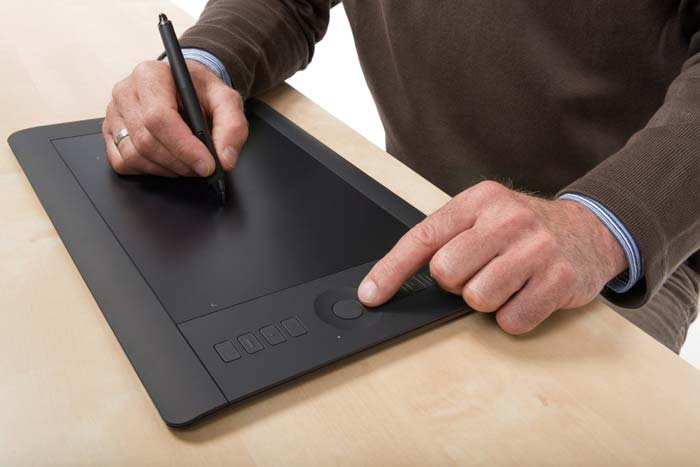
Drawing on Intuos Pro
The Intuos Pro’s Touch Ring functions as a scroll wheel, which can be useful to architects using design software such as CAD. You can also assign pen buttons to scroll.
All Intuos Pros have multitouch, so calling them Pro Pen and Touch is redundant, yet it’s still the name.
All Intuos Pros have Bluetooth built in, except the Intuos Pro Small, which has RFID, according to Wacom.
Specs for Intuos Pro 2017
– 8,192 levels of pen pressure sensitivity in both pen tip and eraser when using Pro Pen 2 (Pro Pen original had a respectable 2,048, which is plenty).
-Multitouch, allowing gestures such as pan, rotate your artwork, zoom, and navigate
-Multi-function touch ring with 4 customizable functions
-USB
-Wi-fi kit included
-Customizable Express Keys are application-specific, i.e., you can program them to different commands in different programs.
-Touch Ring with 4 programmable functions.
-battery-free Pro Pen 2 with tilt recognition
-corners light up to show active area
-built-in Bluetooth
See the Intuos Pros on Amazon.
Intuos 3D. There is a model of the Wacom Intuos that comes with 3D software. Read our writeup: Wacom Intuos 3D: Step into a digital dimension
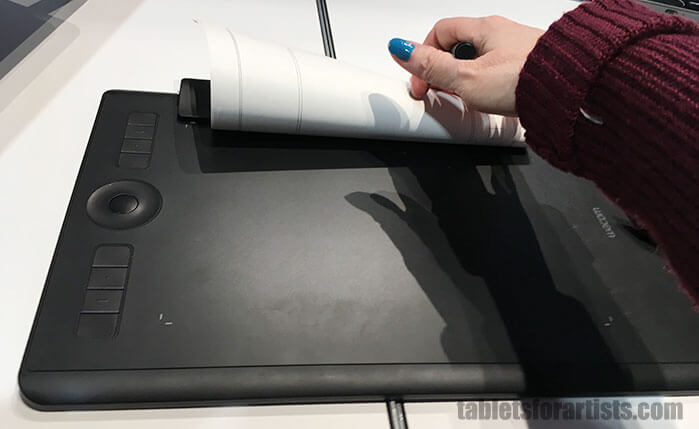
Intuos Pro Paper Edition. See, it’s just a regular Wacom Intuos Pro under all that paper.
All Intuos Pros have tilt sensitivity, which gives you a natural drawing feeling. It’s when the tablet recognizes the angle you’re holding the pen at and changes the mark according to it, like a real pen on paper. The Pro allows this, as does the pen that comes with it.
Rotation sensitivity allows you to make complex, Spirograph-like patterns when you rotate the pen in various art programs. The Pro tablet accommodates this, but the pen that comes with the tablet doesn’t have this feature, it only has tilt.
To get rotation sensitivity, you need to buy the optional Wacom Art Pen, which has both tilt and rotation. The Art Pen does not work on newer models. It is only compatible with: Cintiq (these models including the Touch versions): 27QHD, 24HD, 22HD, 21 UX, Cintiq 13HD, all Cintiq Companion 1 and 2 models, Companion Hybrid, Intuos Pro, Intuos5, Intuos4.
2017 Intuos Pro dimensions (same for Paper Edition):
Medium:
13.2 x 8.5 x 0.3 in. (338 x 219 x 8mm )
Active area 8.7 x 5.8 in. (224 x 148 mm)
8 Express Keys
Large:
16.8 x 11.2 x 0.3 in (430 x 287 x 8mm)
Active Area 12.1 x 8.4 in. (311 x 216 mm)
8 Express Keys
Old Intuos Pro dimensions

old Intuos Pro small
Intuos Pro Pen and Touch Small
Total Size: 12.6 x 8.2 x 0.5 in
Active area: 6.2 x 3.9 in
Weight: 1.5 lbs.
Intuos Pro Pen and Touch Medium
Total size: 15 x 9.9 x 0.5 in.
Active area: 8.8 x 5.5 in
Weight: 2.2 lbs.
Intuos Pro Pen and Touch Large
Total Size: 19.2 x 12.5 x 0.5 in
Active area: 12.8 x 8.0 in, Touch 11.8 x 7.5 in
Weight: 4 lbs.
Intuos Pros are larger than the non-Pros because of the large grip area and the buttons, but the active area of the Intuos Pro and Intuoses are almost the same.
One advantage of the old one is you can use the 6D ArtPen, which supports rotation sensitivity or barrel roll.
Top pick
Top pick: Intuos Pro Pen and Touch Medium. It’s the most versatile and most comfortable to use. You can use with a small or large monitor, and its high resolution makes it ideal for single or multiple displays. It’s large enough to allow comfortable arm movement and long strokes, but portable enough to fit into a laptop bag or backpack. Most Wacom tablet reviews agree on this.
Of course, it’s about what you’re happy with–some prefer the larger or smaller one. But many artists, designers, and photographers feel the Pro Medium is the best Wacom tablet.
There’s now a much wider gap in pen sensitivity between the Pro and regular Intuos than there used to be; while the Pro has gone from equaling the regular’s still-current 1,024 levels, the Pro then rose to 2,048 and now to 8,192.
The discernible difference between the 1,024 and 2,048 in my opinion is greater than the jump from 2,048 to 8,192. The Pro’s tilt sensitivity makes a difference as well.
Intuos Art Pen & Touch tablets (these have been replaced by the 2018 Intuos)
Intuos Art Pen & Touch is the non-Pro Intuos line.
Wacom didn’t update this line for 2017, though it did release the 3D Pen & Touch last year.
The Wacom Intuos Art Pen & Touch line comes in four packages: Draw, Art, Photography, Comic/Manga, and 3D. Each tablet is referred to by its software: Art Pen & Touch, Comics Pen & Touch, etc.
Though it’s all the same tablet, but the bundled software package is specialized for each creative practice. You can purchase any of the software separately or use other programs, including free ones.
The Creative Pen & Touch line also has touch capability, but has 1,024 levels of pressure sensitivity as opposed to 8,192, comes in Small and Medium (no Large), and does not come with the Wi-fi kit–that’s an optional purchase. The non-Pro line does not support tilt or rotation sensitivity. The pen does not have an eraser tip.
The Photography tablet comes only in Small and the color black, with photo-editing software. It has a Wi-fi kit option.
The Intuos Art comes in Small and Medium, and has software for digital painting. The Intuos Comic comes in Small, though there’s a Japanese Wacom tablet called Intuos Manga that comes in Medium.

Small Intuos Art Pen & Touch
Bundled software changes from time to time.
The Art, Photography, and Comic, and 3D tablets all have touch. The Draw is the only one that doesn’t. (Most non-Wacom graphics tablets do not have touch, tilt, or rotation sensitivity.) Because it lacks touch, you can’t use gestures on the Draw.
Toggle off the Touch.
Touch speeds up workflow. If you don’t always want Touch, all Intuoses have a toggle that let you turn off the feature. You may find you don’t use Touch at all.
See the Art Pen & Touch line on Amazon.
Best Wacom tablet for beginners: 2018 Intuos
The Intuos comes only in small and medium, It has four Express Keys. Like the Intuos Draw (our previous top recommendation now replaced by the Intuos 2018), it doesn’t have touch. It has Bluetooth so you can use it wirelessly.
Photoshop, Illustrator, and other art programs, as well as Mac and Windows operating systems, are increasingly integrated with touch. So getting one with touch prepares you for the future. However, you will now have to get an Intuos Pro to get touch, or buy one of the older Intuos Pen & Touch tabltets.
We think the best Wacom tablet for beginners or those on a budget is the Intuos 2018. If you’re just dipping your toe in digital paint, it’s a good place to start.
Intuos Pen
The pen that comes with the Intuos line does not have an eraser. You can erase using your art program instead. The Intuos Pen is different than the Pro Pen that comes with the Intuos Pro, whereas the Intuos Pen is thinner and has no eraser end.

Intuos Pen
With Intuoses, most of the tablet is the active area. The buttons are in the top corners. The Intuoses have the benefit of saving desk space.
Most of the tablet is the active area. The dots on the tablet mark the active areas where you can map the tablet.
Choosing a size of Intuos/Intuos Pro
A good rule of thumb in finding the best Wacom tablet is that the tablet’s active area should be at least 1/3 the size of your computer screen, diagonally measured. So if you’ve got up to a 19″ screen, you need at least a 6″ in active area, which would be the Small size. Though it would work, you might feel constrained.
When drawing on a small tablet, a small hand movement can cover a lot of space on the monitor, so you may find it hard to get good accuracy. You can zoom in on the drawing to help.
If you’re using a desktop or tablet with a keyboard, the keyboard is going to take up more room on your desk, so that’s one consideration. A desk with a slideout tray is useful to place the tablet or keyboard.
Using multiple displays? The settings will allow you to map the tablet to a horizontal area that works with more than one display.
Tablet resolution is much higher than monitor resolution, so you shouldn’t have resolution issues, unless perhaps you are using a small, non-Pro tablet on multiple high-res monitors.
A “too large” tablet, one larger than your screen, will still work if mapped to the monitor correctly.
When choosing the best Wacom tablet, ask yourself: What will you use it for? How large is your monitor? Will you use more than one display at a time? How much desk space do you have? Do you need to carry the tablet around? What’s your budget? Are you going to be happy with a tablet that does not have a screen? Do you have any problems such as repetitive strain injury (RSI)? If you do have RSI, a Small may cause cramping.
Intuos Creative Pen & Touch sizes
Intuos Creative Pen & Touch Small:
8.5 inches x 10.75 inches x 0.25 inches
Active area: 6.0 x 3.7 in
Intuos Creative Pen & Touch Medium
Total Size: 10.75 x 8.75 in.
Active Area: 8.5 x 5.3 in
Only the Pro comes in large.
Pick a Small Wacom drawing tablet if: you’re using the tablet mainly to lightly touch up photos, scrapbooking, or drawing or coloring if you don’t mind drawing small. Or, you have a small desk space, or if you need something really easy to carry.
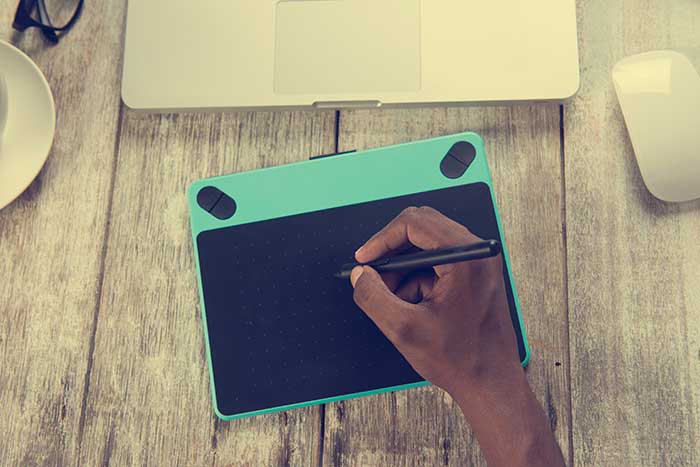
Drawing on a small Wacom tablet
Pick Medium if: you’re illustrating, or doing detailed photo editing or graphics, Medium is the best graphic tablet size, as you will be able to get more detail and precision. It’s the most comfortable for drawing, too. It will let you move your arms and shoulders, which is positive for drawing. It’s he best Wacom tablet for most uses. Like Goldilocks, you’ll probably find that the one in the middle is “just right.”
Pick Large (Pro only) if: you have a very large monitor or multiple displays. Large is not optimal for drawing. Your arm will be traveling a lot and it can get tiring.
This video shows a graphic designer using an Intuos with gestures (a small part of the video also shows a CIntiq).
https://youtu.be/gXBt9XImEL0
Getting started with Intuos
Wacom has an extensive YouTube channel with information and tutorials.
Conclusion: There are quite a few things to keep in mind in choosing an Intuos graphics tablet, including comfort, pen capabilities, desk space, and included software. Luckily, there are a lot to pick from, so finding the best Wacom tablet for your needs shouldn’t be too difficult.
More Wacom tablet reviews
Check out our detailed Wacom tablet reviews. We have reviews of both Wacom brand and tablets that use a Wacom pen. The company has lent its technology to quite a few tablet PCs. In those, you won’t get all the customization but you will get pressure sensitivity.
Read our detailed Intuos Draw review: http://www.tabletsforartists.com/intuos-draw-review/
Economical alternatives
Looking for a more affordable graphics tablet? Check out our Huion 610 Pro review. The Huion has 2,048 pressure levels, but no touch, tilt, or rotation. It allows much less customization, and installation can be a little tricky for some. Still, it offers quite a lot.
Or our Monoprice graphics tablet or Turcom TS-6610 review.
Wacom Intuos alternatives are a viable choice, especially compared to the regular Intuos, but you’re missing out on the Pro features.
All in all, you can’t really go wrong with a tablet from the Intuos line. These are a solid, classic choice of graphics tablet, and should last you through years of drawing.
Want to more about all the different types of tablets? Check out our complete guide to the best drawing tablet.
end of Choosing the best Wacom tablet